
How to Create a Dropdown Type Lead Field
1. Feature Overview
For lead fields that require a predefined set of options (such as course, product type, or salary range), LeadSquared lets you create dropdown type lead fields. LeadSquared supports three dropdown variants:
| Type | Description |
|---|---|
| Dropdown | Displays all available options in a standard list. |
| Searchable Dropdown | Filters options as the user types, useful for large option sets. |
| Dropdown with Others | Includes a built-in “Others” option alongside your defined values. |
2. Prerequisites
You must be an administrator of your LeadSquared account.
3. How It Works
Dropdown fields are a type of custom lead field. When you create one, you select the dropdown variant, then define the options users can choose from. The options can be entered manually or imported via CSV for larger sets.
Once saved, the field becomes available to add to your lead forms. The variant you choose determines how options are presented to users and how many options the field supports:
- Dropdown and Dropdown with Others support up to 1,000 options entered manually.
- Searchable Dropdown supports up to 1,000 options entered manually, or up to 100,000 options via CSV import.
- Dependent dropdowns support up to 1,000 parent options and 5,000 child options across all parent fields.
4. Create a Dropdown Field
The steps below apply to all three dropdown variants. The only difference is the option you select in the Show As dropdown in step 3.
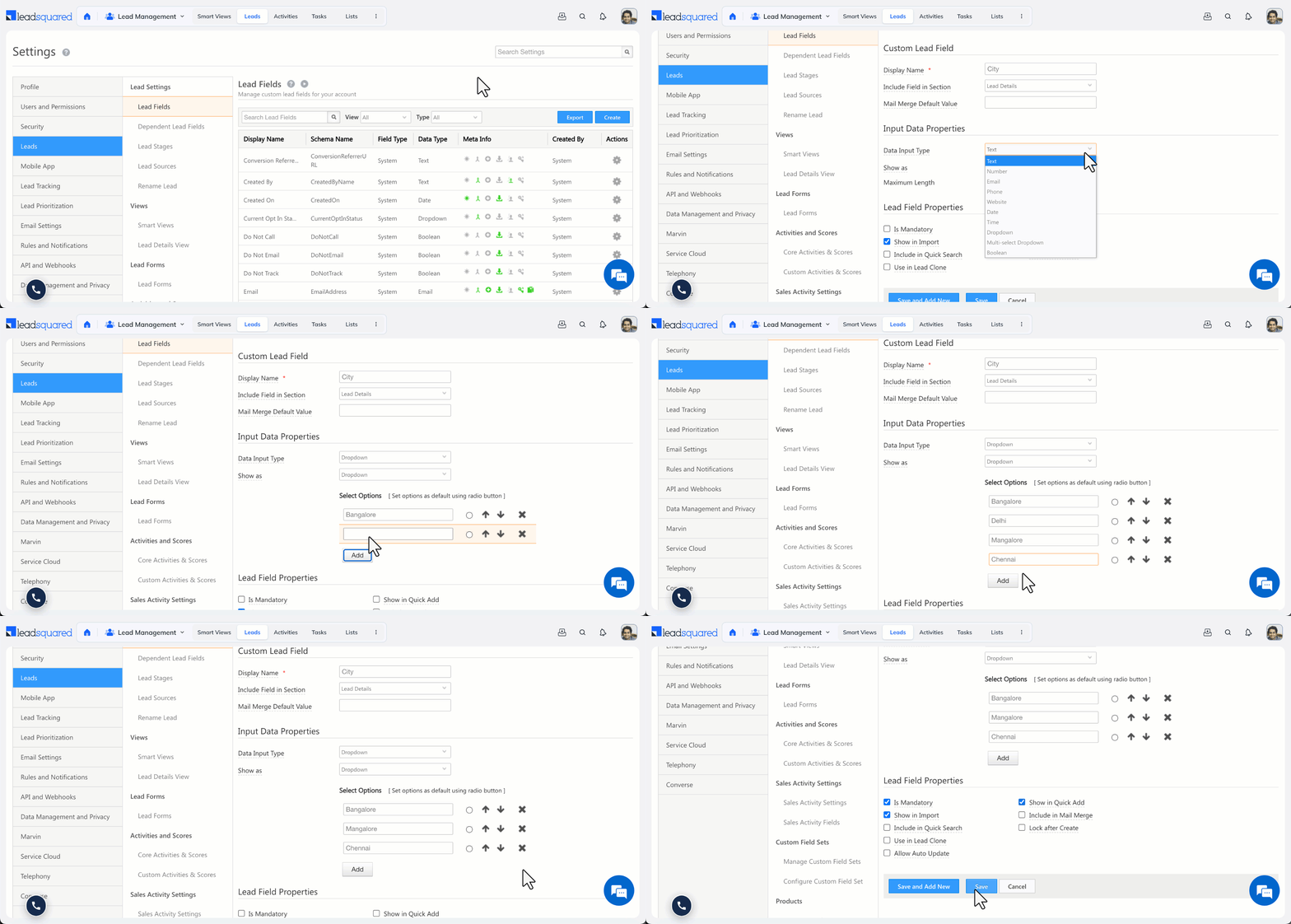
- Go to Settings>Leads>Lead Fields and click Create.
- From the Data Input Type dropdown, select Dropdown.
- From the Show As dropdown, select the variant you want to create: Dropdown, Searchable Dropdown, or Dropdown with Others.
- Enter your options under Select Options.
- For Searchable Dropdown, enter options in comma-separated format or click Click here to import a CSV file of options.
- To set a default option, click the default icon alongside it.
- To reorder options, use the up and down arrows.
- To remove an option, click the remove icon.
- To add more options, click Add.
- Click Save.
Related Articles
- Dependent Lead Fields — Create a dependency between two dropdown fields.
- Multi-Select Dropdown Fields — Allow users to select more than one option.
- How to Create Custom Lead Fields — Create other lead field types.
Any Questions?
Did you find this article helpful? Please let us know any feedback you may have in the comments section below. We’d love to hear from you and help you out!