
How to Bulk Update Lead Fields?
1. Feature Overview
The Bulk Update feature lets you update a single lead field across multiple leads at once. This is useful when you need to apply the same change to many leads, such as reassigning a Lead Owner, updating a Status, or modifying a custom field.
2. Prerequisites
You must have access permission to edit lead fields.
3. How It Works
Bulk updates work in two steps: first filter the leads you want to update, then apply the change.
Leads can be filtered and updated from the Manage Leads page or the SmartViews page. You select the field to update and the new value, and LeadSquared queues the update for processing. Once submitted, a confirmation message appears with a link to track the update status.
Note: Bulk updating Lead Stages is not supported if the Enable Comments on Stage Change setting is active in your account. To check or change this, go to My Profile>Settings>Leads>Lead Stages.
Perform Bulk Update
Step 1: Filter your leads
On the Manage Leads or SmartViews page, use one of the following search options to narrow down the leads you want to update:
- Quick Search — for simple, keyword-based filtering.
- Advanced Search — for applying detailed conditions and multiple filters.
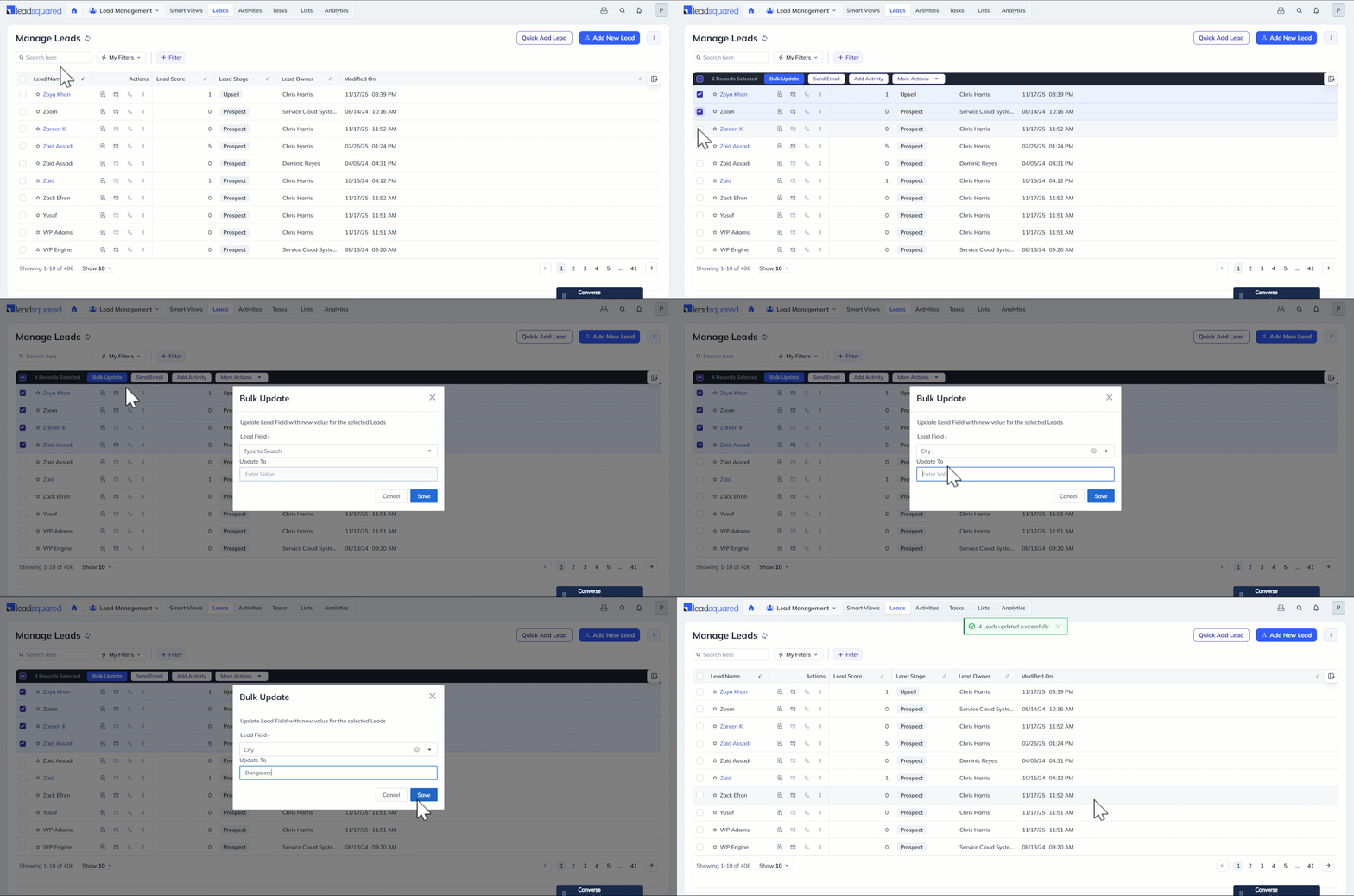
Step 2: Select and update
- Select the leads you want to update:
- Check the box alongside individual leads, or
- Click the checkbox next to the Lead Name column header to select all leads in the list.
- Click Bulk Update.
- In the Bulk Update pop-up, select the Lead Field you want to update from the dropdown.
- Enter the new value in the Update To field.
- Click Save.
Any Questions?
Did you find this article helpful? Please let us know any feedback you may have in the comments section below. We’d love to hear from you and help you out!