


Back
Email to List Reports

Updated
20 Nov 2026 | 04:59 PM
1. Feature Overview
The Email to List report shows how an email sent to a list of leads performed. Use the report to track the number of emails sent, the recipients targeted and excluded, and the delivery, open, click, bounce, spam, and unsubscribe rates for each list.
2. Prerequisites
You must have sent an email to a list of leads, either through an email campaign or from Manage Lists.
3. View the Email to List Report
- Navigate to Marketing>Email Campaign.
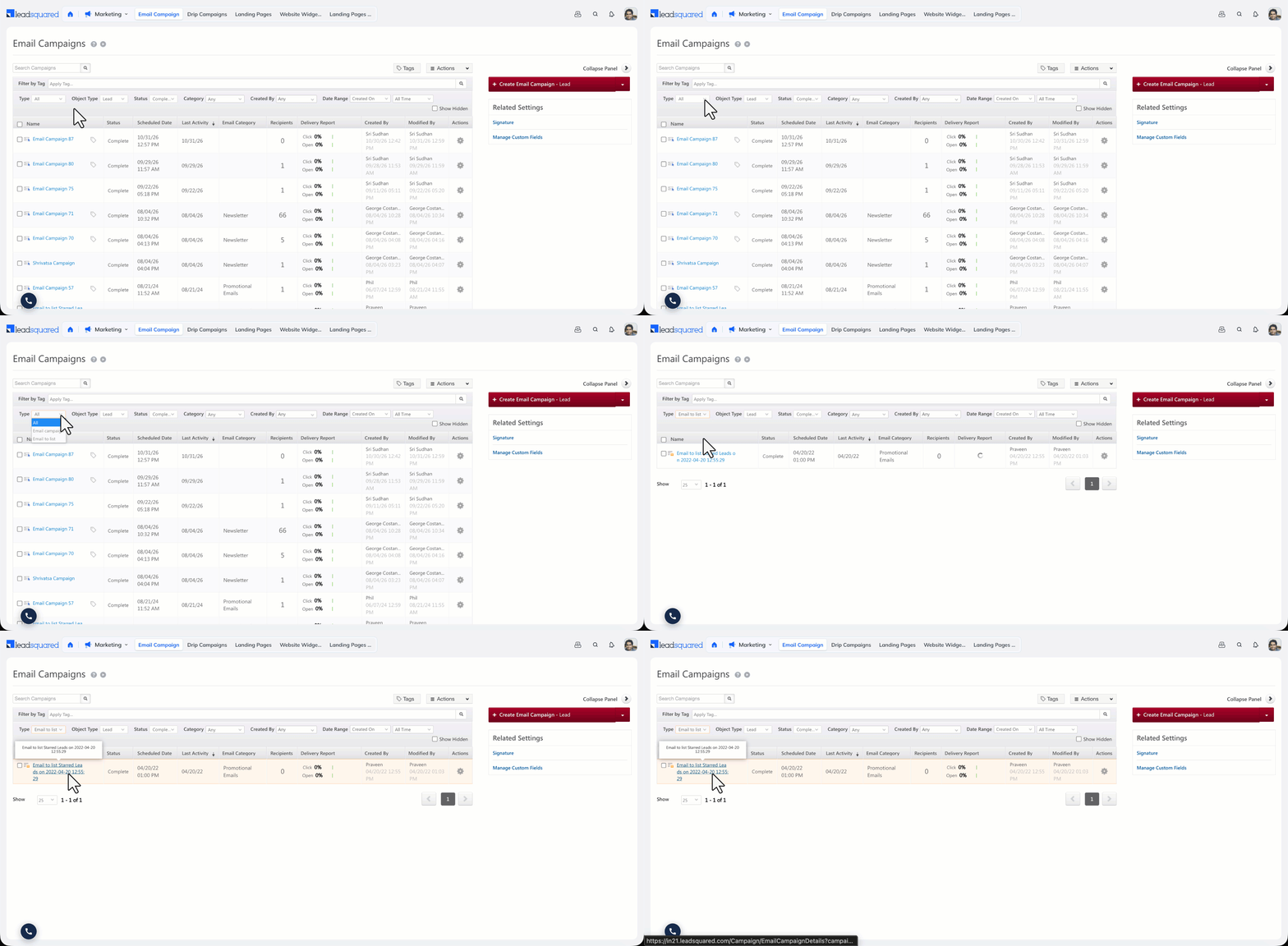
- On the Email Campaigns page, on the Type dropdown, select Email to list. The emails sent to a list appear in the grid.
- Under the Name column, click the name of the required email. The Email to List report appears.
4. Report Details
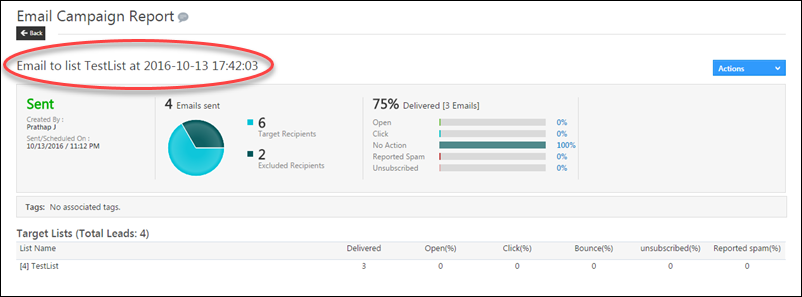
The Email to List report displays the following details.
| Field | Description |
| Status | The current status of the email, such as Sent. |
| Created By | The user who created the email. |
| Sent/Scheduled On | The date and time the email was sent or is scheduled to be sent. |
| Emails Sent | The total number of emails sent. |
| Target Recipients | The number of leads in the list the email was addressed to. |
| Excluded Recipients | The number of leads the email was not sent to, for example, leads who opted out or have an invalid email address. |
| Delivered | The percentage and number of emails that reached the recipients’ inboxes. |
| Open | The percentage of delivered emails the recipients opened. |
| Click | The percentage of delivered emails where the recipients clicked a link. |
| No Action | The percentage of delivered emails the recipients neither opened nor clicked. |
| Reported Spam | The percentage of delivered emails the recipients marked as spam. |
| Unsubscribed | The percentage of recipients who unsubscribed after receiving the email. |
| Tags | The tags associated with the email. |
| Target Lists | The lists the email was sent to, along with the number of emails delivered and the open, click, bounce, unsubscribe, and spam percentages for each list. |
5. Related Articles
Any Questions?
Did you find this article helpful? Please let us know if you have questions or feedback in the comments section below. We’d love to hear from you and help you out!
Back