LeadSquared Mobile App Updates – iOS v(22.7)

Offline Mode for Opportunities and Activities
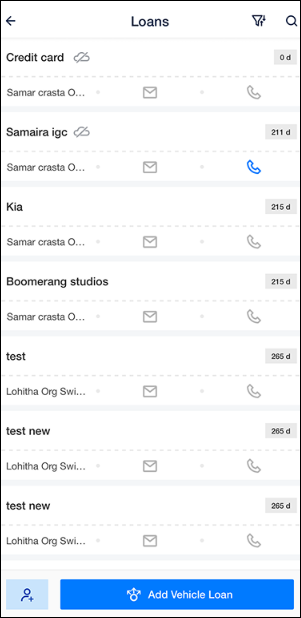
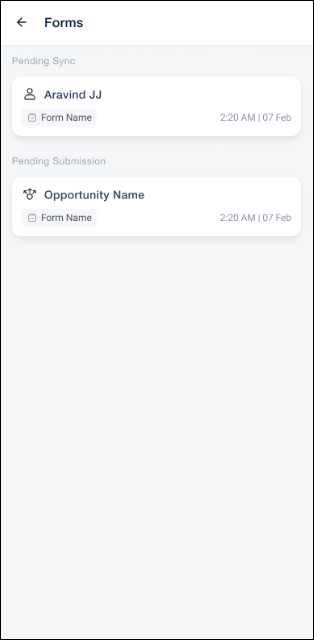
Field users can now view opportunities, add new opportunities, and log activities on opportunities without an internet connection. Records created offline are queued on the device and sync automatically once the user is back online, so visits in low-network areas are never lost. Ensure that Opportunity Offline Mode setting is enabled from the Mobile App Additional Settings. Configure the opportunity types that should be available offline using JSON.
Screenshot and Screen Recording Protection on iOS
Screens in the LeadSquared Mobile app that show lead, opportunity, and customer information are now protected against screenshots and screen recordings. Sensitive data stays inside the app and cannot be captured and shared from a field user’s device. To prevent your users from taking screenshots, ensure App Screenshot under Mobile App Additional Settings is disabled.
Protected Screens
- Leads: Leads list, Lead Details (Lead 360), Add/Edit Lead forms, and the lead quick-view vCard.
- Opportunities: Opportunity list, Opportunity Details, and Add/Edit Opportunity forms.
- Accounts: Account Details and Add/Edit Account forms.
- Activities: Activity list, Activity Details, and Add Activity forms, including multi-step forms and forms linked to both a lead and an opportunity.
- Tasks: My Tasks, My Trips task list, Task Details, Add/Edit Task, and lead details under a Journeys plan.
- Near Me: Leads and opportunities shown within the configured radius.
- Dashboards and SIERA: Homepage and Casa dashboards, SIERA reports, SIERA dashboards, and report drilldowns.
- Communication and Search: WhatsApp conversations launched from a lead, and Global Search results.

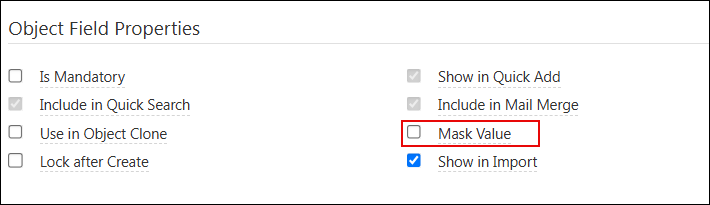
Field Masking: Mask Value Support in Mobile Forms
Fields marked with Mask Value on the LeadSquared Web App settings are now masked in the mobile app as users type them down in a form. Sensitive details such as Aadhaar, PAN, account numbers, or phone numbers can be hidden on screen across all mobile forms, while the actual value is saved as usual. This protects sensitive customer data from being seen by others while a field user fills a form in public. To mask a field, go to Settings>Leads>Lead Fields and under Lead Field Properties, ensure Mask Field is enabled.