

Platform Updates – SalesCloud.2026.8

Opportunity Lists
You can organize opportunities into lists based on specific criteria, making it easier to segment records, perform bulk actions, and manage opportunities more efficiently.
What’s New?
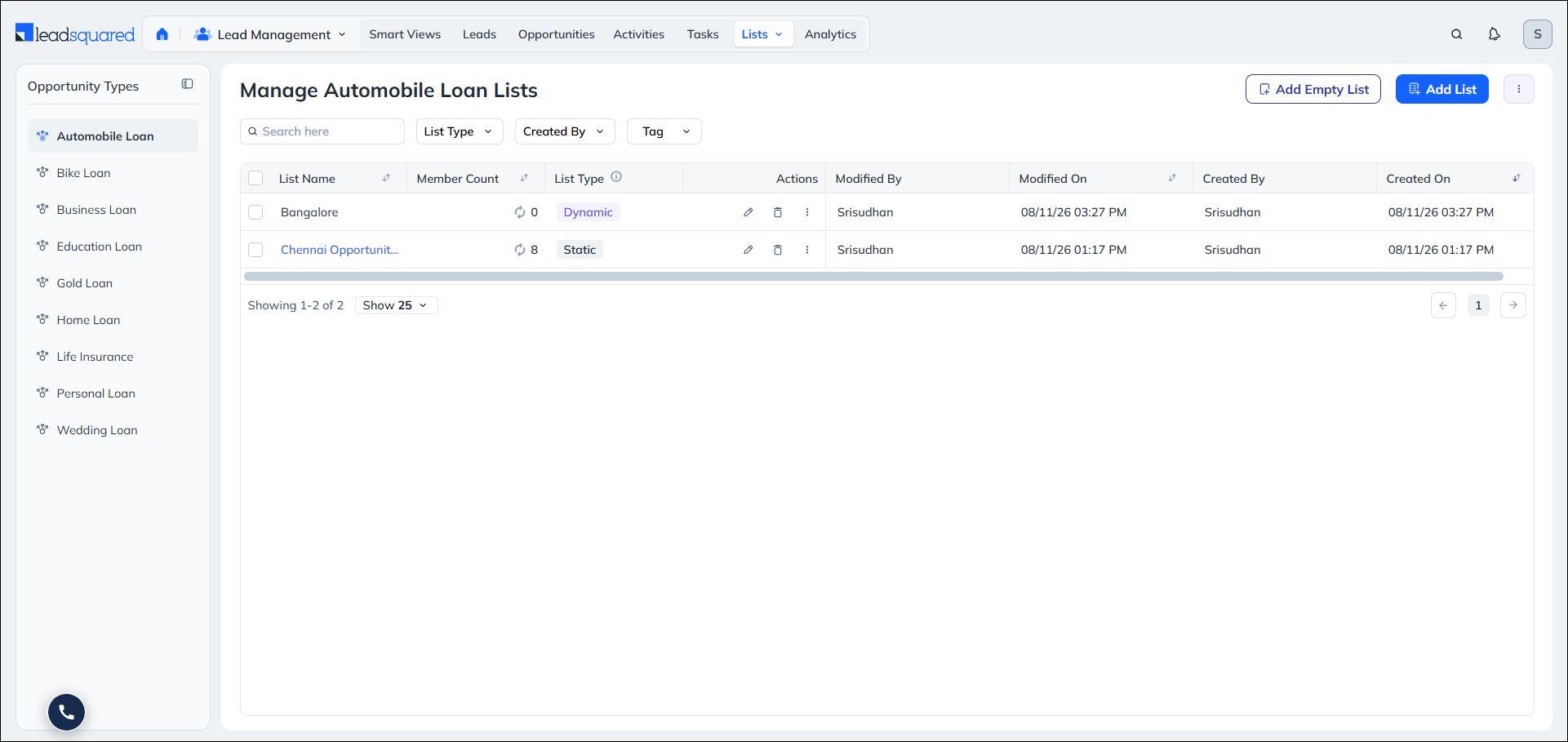
Opportunity Lists are now available to help users create and manage collections of opportunities separately for each Opportunity Type. Users can create Empty, Static, and Dynamic Lists based on opportunity-related criteria, and use them to organize records, perform bulk actions, export data, and trigger supported actions.
The Manage Opportunity Lists page also provides options to search, edit, clone, hide, delete, and manage multiple lists, while List Details allows users to search opportunities, add existing records, perform actions, export data, and customize grid columns.
Opportunity Import Templates
You can standardize opportunity imports across your organization by using pre-configured templates. This helps ensure consistent field mapping, reduces errors, and makes bulk imports faster and easier for sales teams.
What’s New?
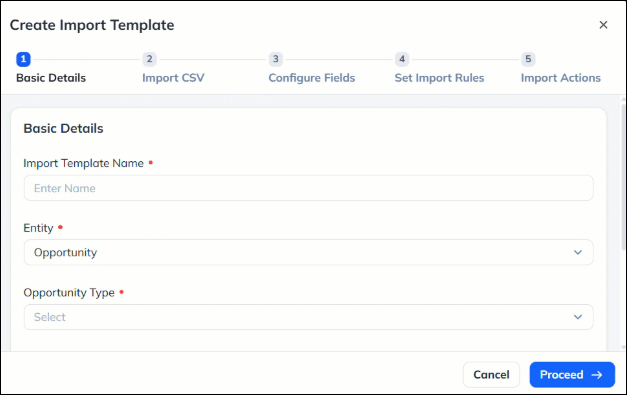
Admins can now create Opportunity Import Templates with predefined fields, mandatory field requirements, field mappings, duplicate handling rules, and post-import actions. Templates can be created separately for different Opportunity Types and assigned to specific teams.
Starred Lead Limits
What’s the Benefit
You can manage your Starred Leads more efficiently with clear limits that help maintain consistent CRM performance. If you reach a limit, in-app messages guide you on what to do next, while your existing starred leads remain preserved.
What’s New
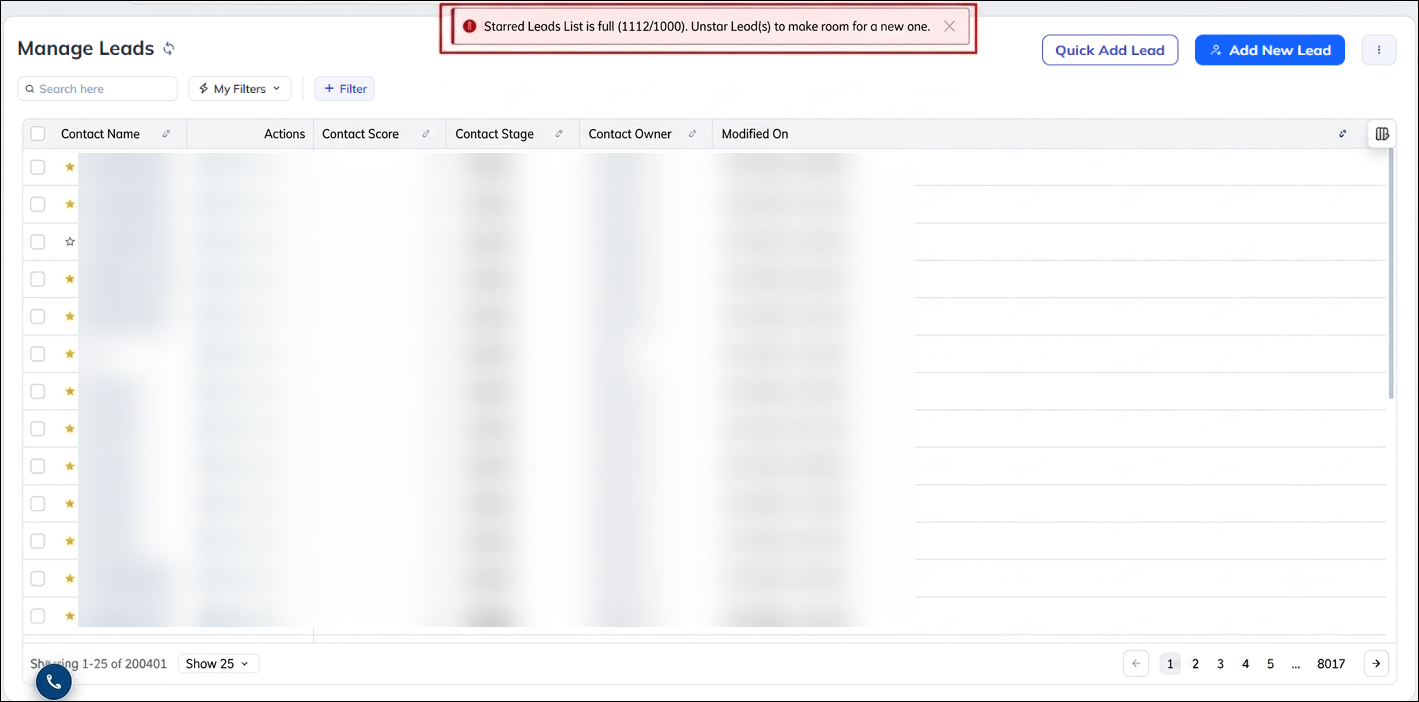
A limit of 1,000 starred leads per user is now enforced by default. The option to import leads directly into the Starred List through CSV has also been removed to prevent large, uncontrolled increases in starred leads. When a user reaches the limit, an error message is displayed. Users who already exceed the new limits can continue to access their existing starred leads, but cannot add new leads until their starred lead count falls below the applicable limit.
Tasks in Global Search
You can quickly find and manage tasks from Global Search without navigating to Manage Tasks. This saves time and makes it easier to access relevant task details and take action from anywhere in the application.
What’s New?
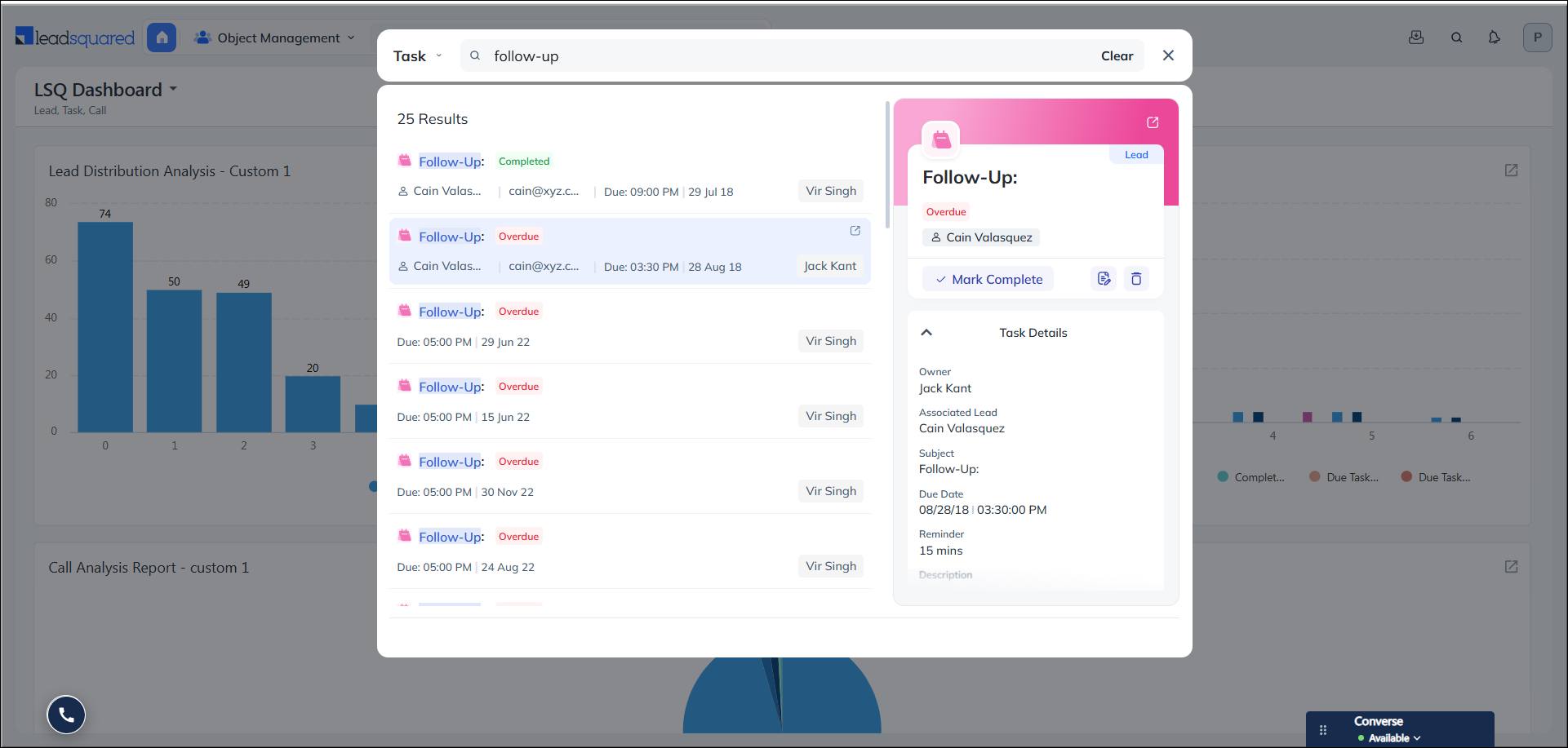
Task Search is now available in Global Search, supporting both Appointment and To-Do tasks linked to Leads and Opportunities. Users can search using task details, lead names, and Quick Search-enabled unique fields, with results showing key information such as task type, subject, associated lead, and due date.
Selecting a task opens its Quick View, where users can view task details and perform actions such as Edit, Mark as Complete/Open, or Delete. All actions respect the user’s Permission Template, with restricted actions hidden or disabled.
Permission Templates Enforced Across Activity History
You can ensure sensitive information remains protected across Activity History, with Permission Template restrictions consistently applied wherever activity data is viewed. This strengthens data security and prevents users from accessing fields they are not authorized to see.
What’s New?
Permission Template restrictions are now consistently enforced across Activity History for Leads, Opportunities, and Accounts. The following areas now respect field-level access restrictions:
- Lead Activity History: Restricted fields are consistently masked across all activity types.
- Account Activity History: Restricted fields are masked on individual activity records.
- Account Activity Type Filter: Activity types users do not have access to are excluded from the filter.
- Activity Change Logs: Restricted fields are masked or hidden in Lead and Account change logs.
- Form Submission Logs: Permission restrictions are applied when viewing form submission details.
- Email Campaign Activity: Restricted fields are masked when viewing email campaign activity records.
- Lead Custom Field Set (CFS) Data: Masked and hidden sub-fields are restricted when accessed from Activity History.
These updates ensure users with Partial Access or No Access cannot view sensitive lead, account, or activity data through the Activity History tab.
Automation Report Available on Account Details
You can now quickly review automations triggered for an account without navigating away from its details page, giving you better visibility into automation activity and outcomes.
What’s New?
The Automation Report action is now available on the Account Details page, bringing it in line with Lead and Opportunity Details. Clicking the action opens a modal that lists all automations triggered for the account, with direct links to view each automation report.
Mask Sensitive Fields in Forms
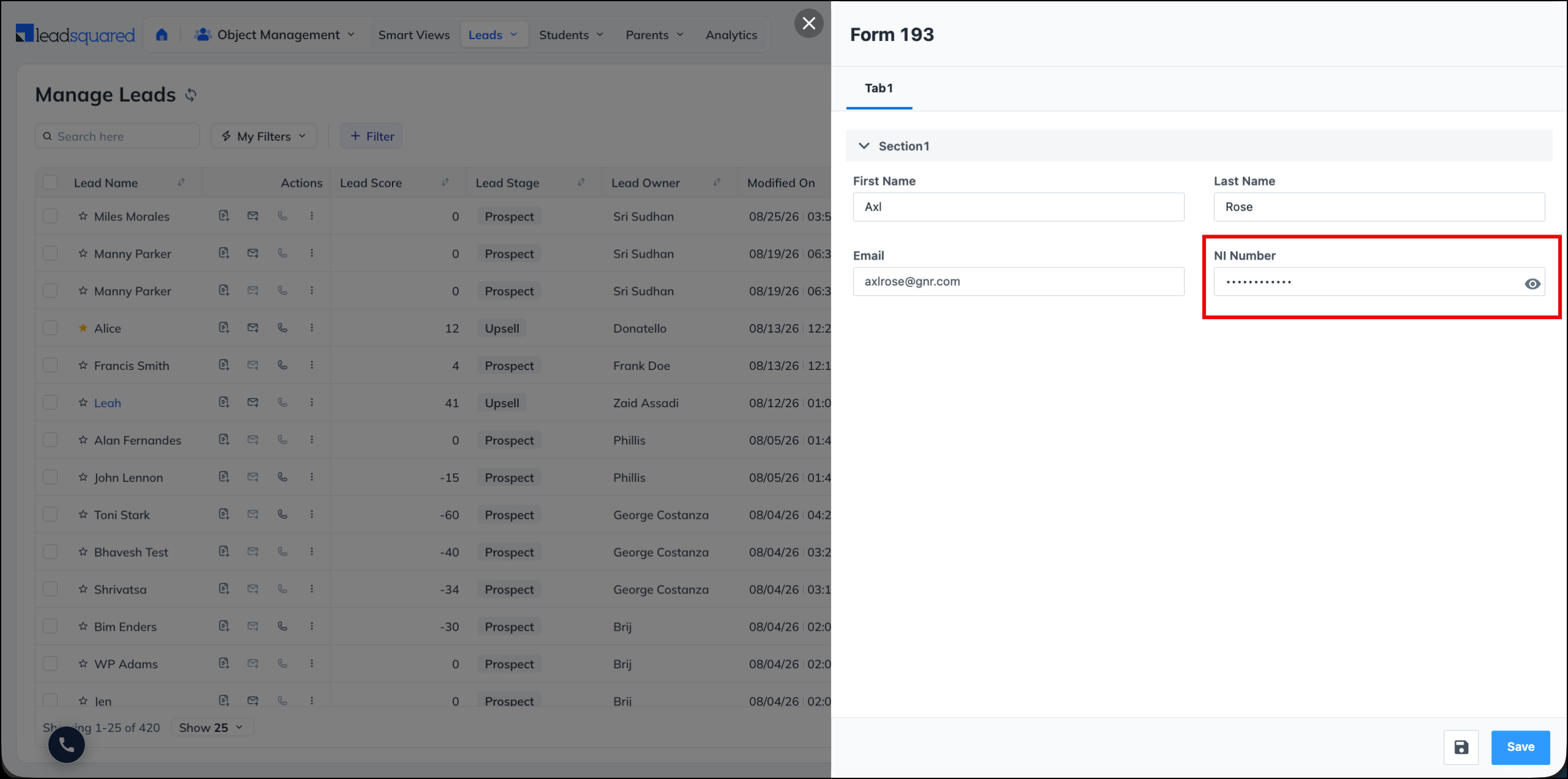
Sensitive values such as PINs, ID numbers, and confidential codes were visible in plain text while users entered them. You can now hide these values at the point of entry, the same way a CVV field behaves. At present, this applies to only default and dynamic forms on NextGen. The setting is off by default on every eligible field.
What’s new?
A new Mask Value setting is available on Text, Number, Email, Phone, Website, and Date fields, and on fields within Custom Field Sets, across Leads, Activities, Opportunities, and Object Types. When you enable it, the value renders as dots or asterisks character by character as it’s typed.
For standard Lead fields, select the Mask Value checkbox on the Field Properties panel. For Custom Field Set fields, and for all Activity and Opportunity fields, click the settings icon, then select Mask Value on the Field Configuration pop-up window.
Block Form Submission for Schedule Times Outside Working Hours
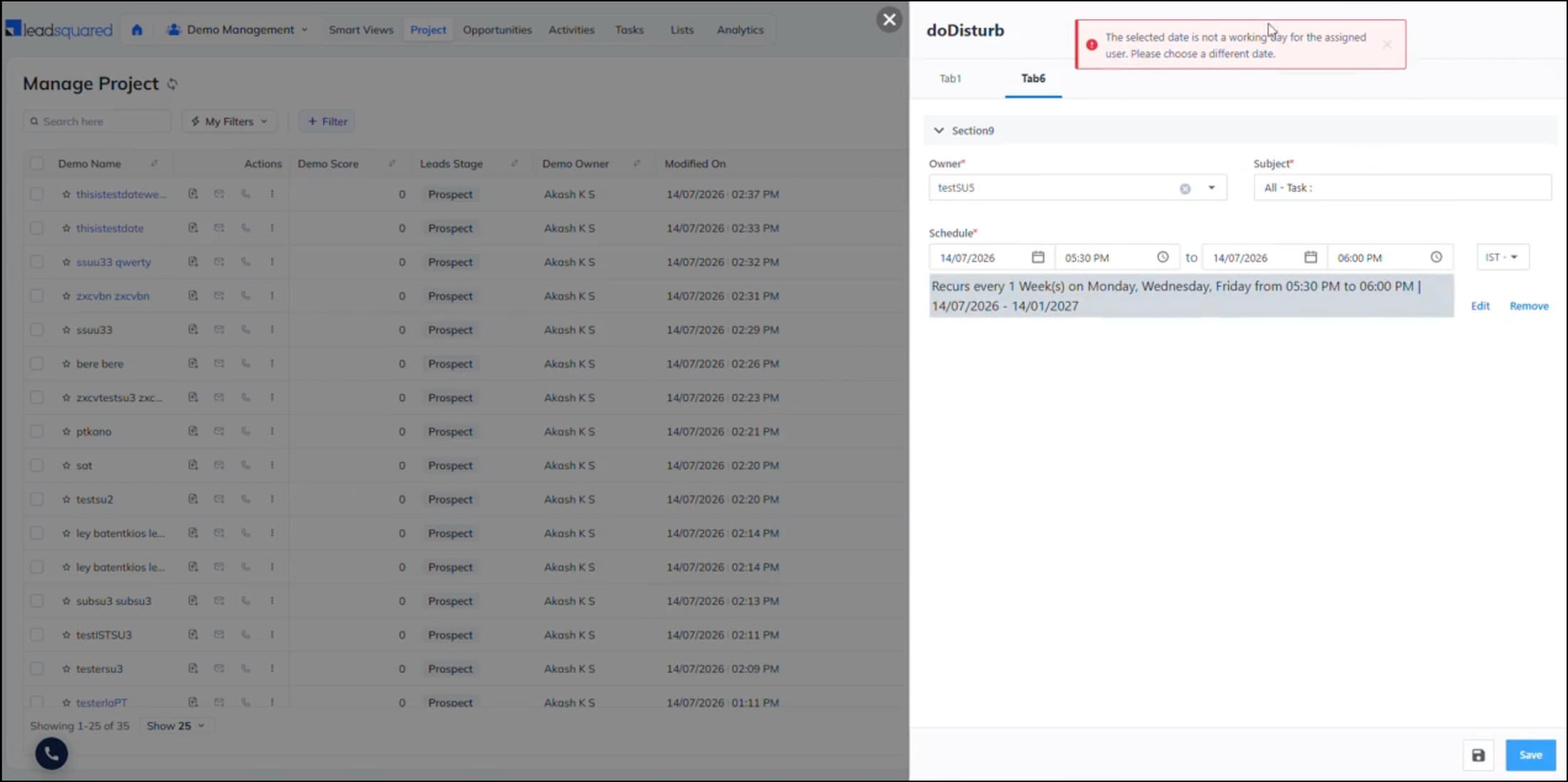
Working hours restrictions on Schedule fields could be bypassed by typing a time directly, so appointments and tasks could be scheduled outside business hours. If you rely on workday templates, you can now close that gap.
What’s new?
A new account level setting blocks form submission when a time that’s typed manually into a Schedule field falls outside the working hours of the assigned workday template. To enable it, navigate to Platform Settings>Advanced Configuration, then enable Enforce working hours validation on schedule fields in forms.
NextGen Enhancements on Forms
- Create a lead by cloning an existing one: A Clone Lead action is now available on Lead Management>Leads. It opens a create lead form, pre-populated with values from the source lead for every field that’s configured with Use in Lead Clone. Your account’s permission template is applied to the new form, so field level permissions continue to apply.
- Dynamic Forms can render in full screen: A new Render Dynamic Forms in Full Screen setting on Settings>Advanced Configuration renders all the dynamic forms in your account at full screen width, instead of the current half width layout. It applies to the create, edit, and view modes on desktop and tablet, and doesn’t affect mobile. If your account already used the equivalent setting on the earlier platform, this toggle is enabled automatically, and you don’t have to do anything.
- “Close Form Immediately After Saving” is honored in NextGen: When the Form setting is enabled, the form now closes as soon as it’s saved, instead of staying open. You don’t have to make any changes to your form designs.
- Confirm Password fields render in NextGen: Dynamic forms now render the Confirm Password field alongside the Password field, with the same show and hide toggle, and the two values are validated against each other on submission. Previously, the field wasn’t rendered, so a password mismatch error appeared on every submission attempt, and users couldn’t submit any form that contained a Password field.
- Draggable Call Disposition Form in Telephony: A new Enable Draggable Call Disposition Form settings is available on Settings>Telephony>General Settings. When enabled, the Call Disposition form opens in a movable window that agents can drag anywhere on the screen. The lead or opportunity record stays visible behind it, so agents can refer to it without closing the form.
- Dedupe prefill retains Opportunity, Activity, and Task values: When a duplicate is found on a phone number or a unique identifier, and the user accepts the prompt to fetch the existing lead’s data, only the Lead field values on the form are overwritten. Opportunity, Activity, and Task values that the user has already entered are retained, instead of being cleared.
Bug Fixes
Platform
- Fixed an issue where the spacebar key was not inserting spaces while composing an email in the NextGen email editor, making it impossible to type normally in the email body.
- Fixed an issue where an error notification flickered briefly and disappeared when an email failed to send from the Lead Details page, leaving users unable to tell whether the email was sent or had failed.
- Fixed an issue where Zoom meeting recordings could not be previewed in NextGen, even though they were accessible in the classic UI. Affected recordings now open in a new browser tab.
- Fixed an issue where the Sales Activity section on the Lead Details page was taking 10–13 seconds to load for certain tenants.
- Fixed an issue where attachments added to an email template were not appearing when that template was selected in the Send Email flow, resulting in emails being sent without the intended attachments.
- Fixed an issue where bulk emails were shown as successfully sent but were not delivered to recipients. Leads with no email address are now excluded from the bulk send flow rather than being silently skipped after a false success response.
Forms
- Fixed an issue where Ticket Id field values weren’t mail merged to the other ticket fields.
- Fixed an issue where form submission failed with a gateway timeout, or a request processing error, when the duplicate lead setting and the overwrite on unique field setting were both enabled.
- Fixed an issue where data didn’t populate on the agent pop-up form for inbound and outbound calls.
- Fixed an issue where HTML hyperlinks in a field’s display name rendered as raw tags instead of clickable links.
- Fixed an issue where the “Disable Submission and Show Error” rule fired even when the field’s section, tab, subform, or Custom Field Set was hidden.
- Fixed an issue where activities integrated into a dynamic process form for the Add Activity work area still appeared in the default Add Activity dropdown.
- Fixed an issue where pre-submission LAPPs and APIs weren’t triggered from the Create Ticket and Update Ticket work areas.
- Fixed an issue where adding a task in bulk from the Leads tab of a Smart View didn’t apply the task to all the selected leads.
- Fixed an issue where the Calculate Date rule didn’t populate the target field when it was based on a mail merge field.
- Fixed an issue where Custom Field Set number fields showed excess decimal places when the value was set through a Set Value or Calculate rule.
- Fixed an issue where decimal fields dropped trailing zeroes, for example showing 100 instead of 100.00, when the value was set through a Set Value or Calculate rule.
Automation
- Fixed an issue where a task reminder that couldn’t be sent on time was accepted without warning. When a task is scheduled relative to the Automation Execution Time, and the reminder is set for longer before the task than the task’s own delay, the reminder time has already passed by the time the automation runs. For example, a task scheduled 1 minute after the automation execution time, with a reminder 15 minutes before the task. An error is displayed, asking you to reduce the reminder lead time or increase the task delay.
