Use Mobile App to Capture Text from Images
1. Feature Overview
Through the LeadSquared mobile app, you can extract text information from important documents (e.g., Passport, Aadhaar Card, PAN card, etc.), and store this information against relevant lead fields. This will reduce human errors that occur when entering important information (such as Aadhaar numbers, PAN numbers, etc.).
2. Prerequisite
In order to access this feature, you must be running the following versions of the mobile app –
- Android v14.5 or higher
- iOS v12.5 or higher
3. Extract and Store Information
- Open a lead form (core or custom) on your mobile device, and from the top-right corner, tap
 .
. - Then, you can either –
- Take a picture – Take a new photo using your mobile camera.
- Browse Files – Use an existing image from your device storage.
- Once the image is selected, resize the image to cover only the text data you want to capture.
- The text recognized by your device is listed sequentially at the bottom of your screen.
- If the required text data is not captured, tap on the
 icon to re-initiate text capture.
- If the required text data is not captured, tap on the
- Once you’re satisfied with the text that’s captured, tap and hold the text to Copy.
- Then, paste the text you’ve copied in the relevant form fields.
icon.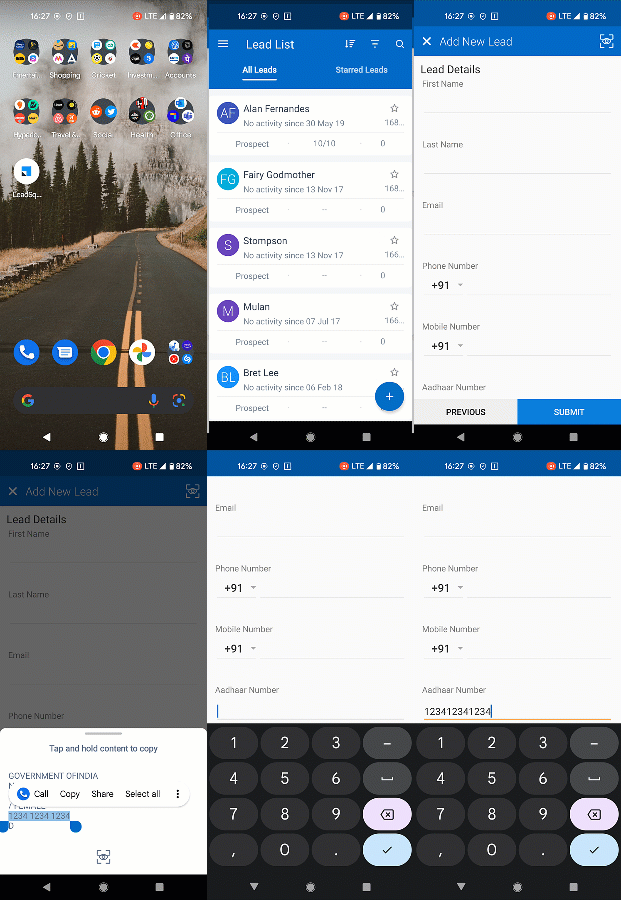
4. Use Auto Text Recognition to Scan Business Cards
You can now use auto text recognition to scan business cards and automatically map them against the relevant lead fields. Keep in mind that this feature is only available to scan business cards that include mobile number and email ID, and the details must be recognised by the mobile app.
- Open a lead form (core or custom) on your mobile device, and from the top-right corner, tap .
- Then, you can either –
- Take a picture – Take a new photo using your mobile camera.
- Browse Files – Use an existing image from your device storage.
- Once the image is selected, resize the image to cover only the text data you want to capture.
- The text recognized by your device is automatically stored against relevant lead fields.
- If the required text data is not captured, tap again to re-initiate text capture.
- If the required text data is not captured, tap
- You can now review the details recorded. On this page, if the data captured is incorrect, under the relevant lead field, tap the Scanned Text dropdown. Now, select the correct information.
- Click Submit. You will now be redirected to the Add Lead form. On this page, to view all the details captured from the card, tap . A text copy of the details captured will be displayed.

Any Questions?
Do you have questions or issues with the content in this article? Let us know in the comments section below. We’ll get back to you asap!