How to Deploy the LeadSquared Tracking Script on Your Website?
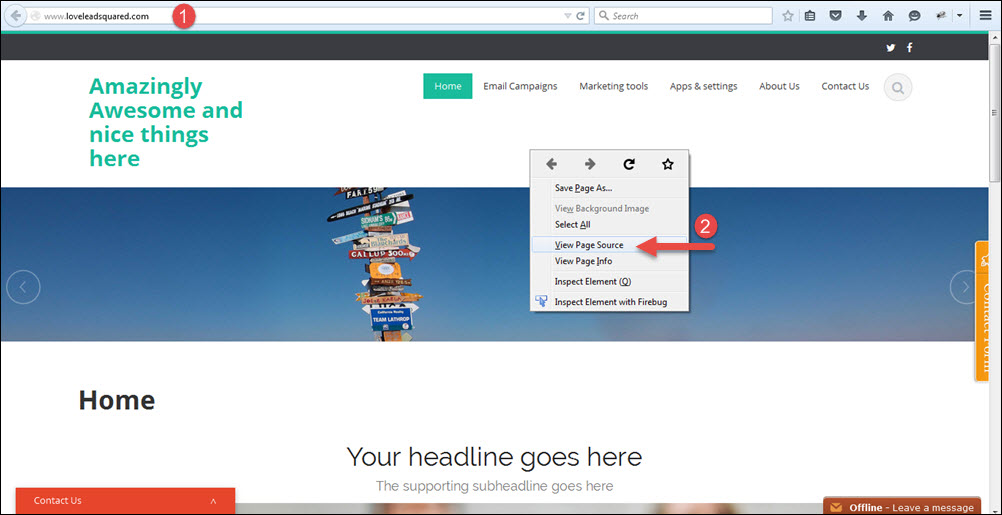
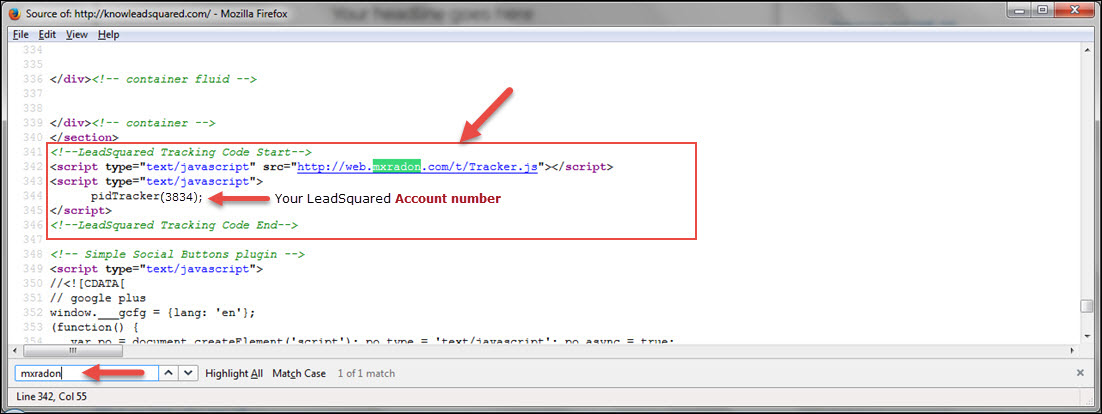
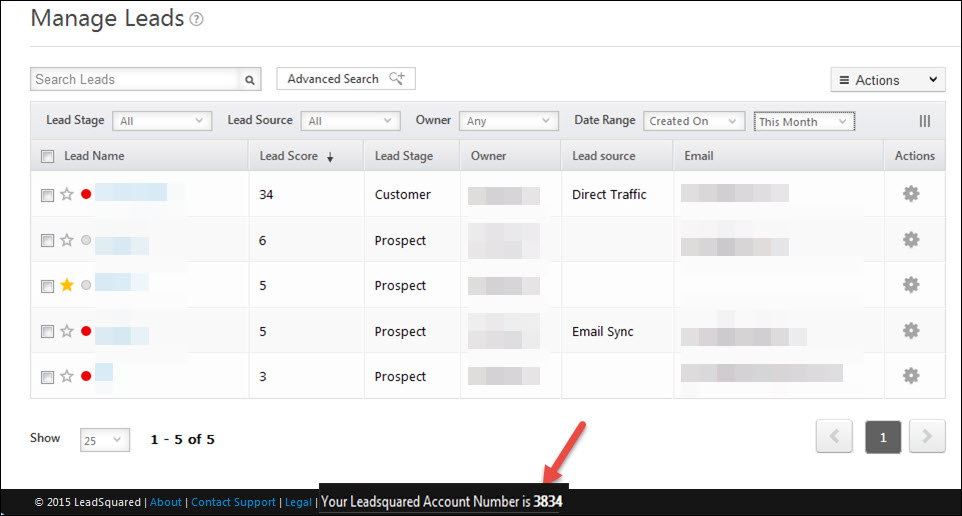
Here’s a short tutorial on installing the LeadSquared Tracking Script –
Note:
- Website tracking scripts capture page views and UTM sources by default.
- To capture custom web events, please refer to Logging Custom Website Activities.
Assigning a Lead Score for Visits to a Specific Webpage or Landing Page
To track and assign a specific lead score when a lead visits a particular webpage or landing page on your website, follow these steps:
Step 1: Locate Your Website Tracking Script
By default, the LeadSquared website tracking script looks like this:
<!--LeadSquared Tracking Code Start-->
<script type="text/javascript" src="http://web.mxradon.com/t/Tracker.js"></script>
<script type="text/javascript">
 pidTracker('3894');
</script>
<!--LeadSquared Tracking Code End-->
Step 2: Insert the Score Assignment Line
To assign a specific score (e.g., 20) when a lead visits this page, add the following line within the tracking script:
Asc = 20;
Step 3: Update the Tracking Script
After inserting the score assignment, your updated script should look like this:
<!--LeadSquared Tracking Code Start-->
<script type="text/javascript" src="http://web.mxradon.com/t/Tracker.js"></script>
<script type="text/javascript">
Asc = 20;
pidTracker('3094');
</script>
<!--LeadSquared Tracking Code End-->
Now, whenever a lead visits this page, their score will increase by 20.
Any Questions
If you have any questions about the LeadSquared Tracking Script, leave us a comment below. We’ll get back to you asap!