


How to schedule a LeadSquared Report?

1. Overview
You can schedule the delivery of your LeadSquared report to your LeadSquared Email address. The scheduled report is delivered and is available only to the user who schedules it.
2. Prerequisite
- You should be an Administrator, Sales Manager or Marketing User of the LeadSquared system in order to schedule a report.
3. Navigate to Reports
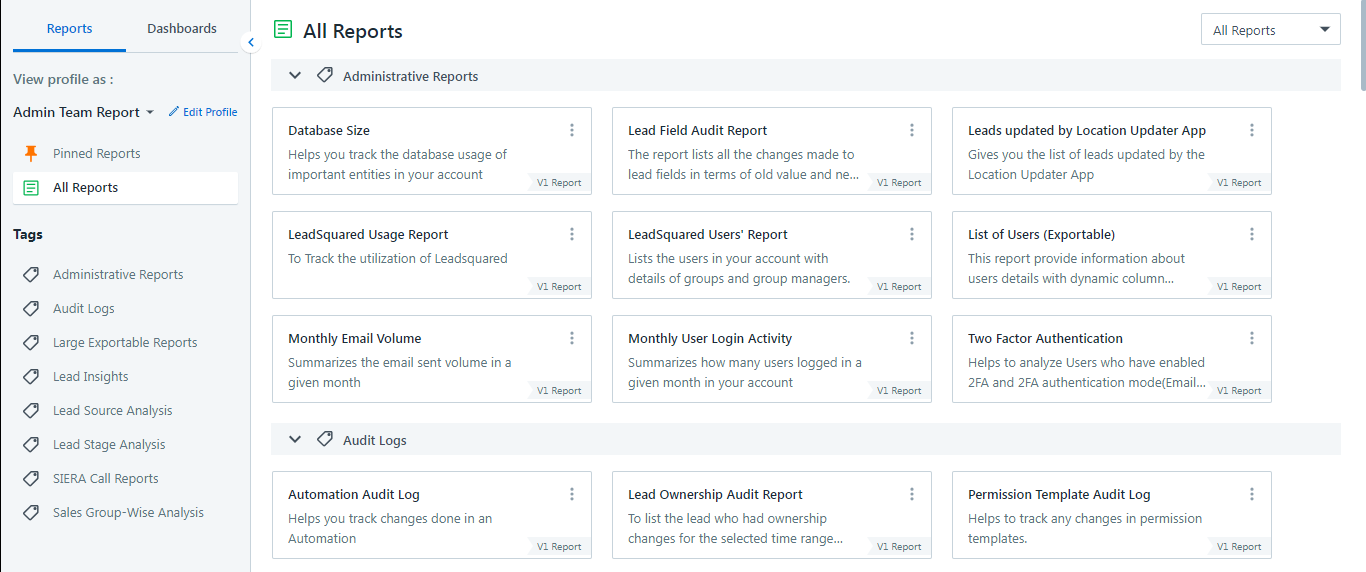
To schedule a Report, first, navigate to Reports>Reports Home.
4. Schedule a Report
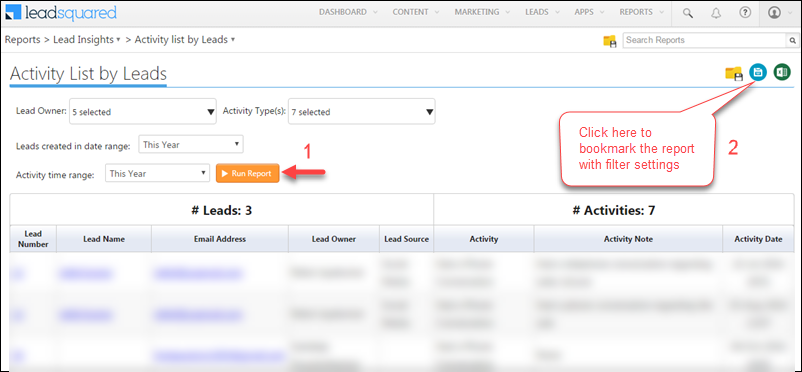
As an example, let’s select the Activity list by Leads report under the Lead Insights category.
Apply the required filters and click Run Report. Next, click  to bookmark the report with the filter settings to save it to My Saved Reports.
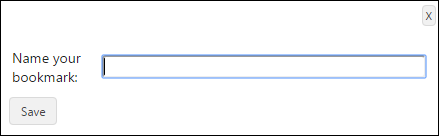
 The Name your Bookmark pop-up box appears. Enter the required bookmark name and click Save.
You can schedule the report using either of the following two methods –
- From the same report window, click
 . The My Report Bookmarks window appears.
Or
- Go to Reports>My Saved Reports. The My Report Bookmarks window appears.
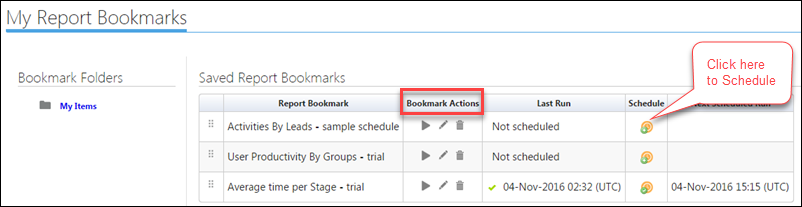
The Bookmark Actions area allows you to re-run the report with new filters, and edit and delete the bookmark. Click  to schedule the report. The Schedule pop-up box appears.
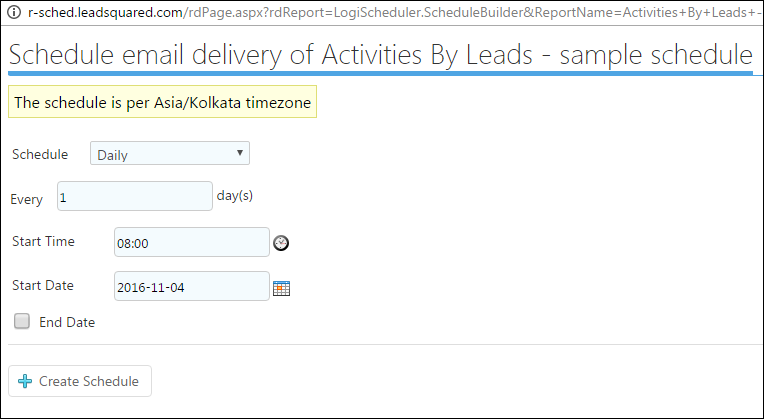
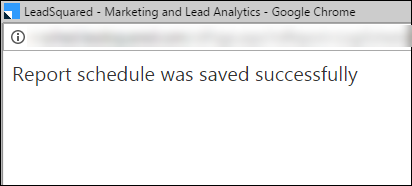
Select the schedule frequency, Start Time, Start Date, and End Date(if required) and click Create Schedule. The Report is scheduled and the message appears as shown in the image below:
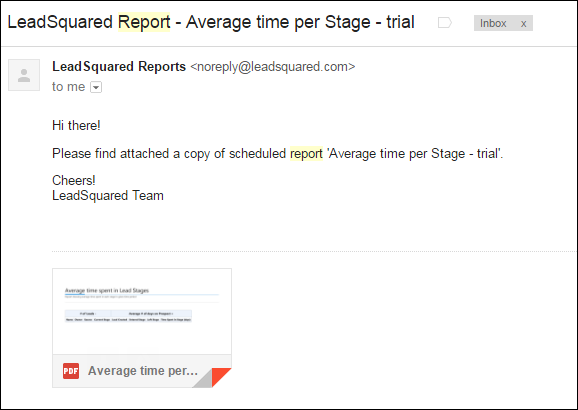
The Report is delivered in PDF format to your LeadSquared Email address as shown in the image below –
Related Article: LeadSquared Reports