
1. Feature Overview
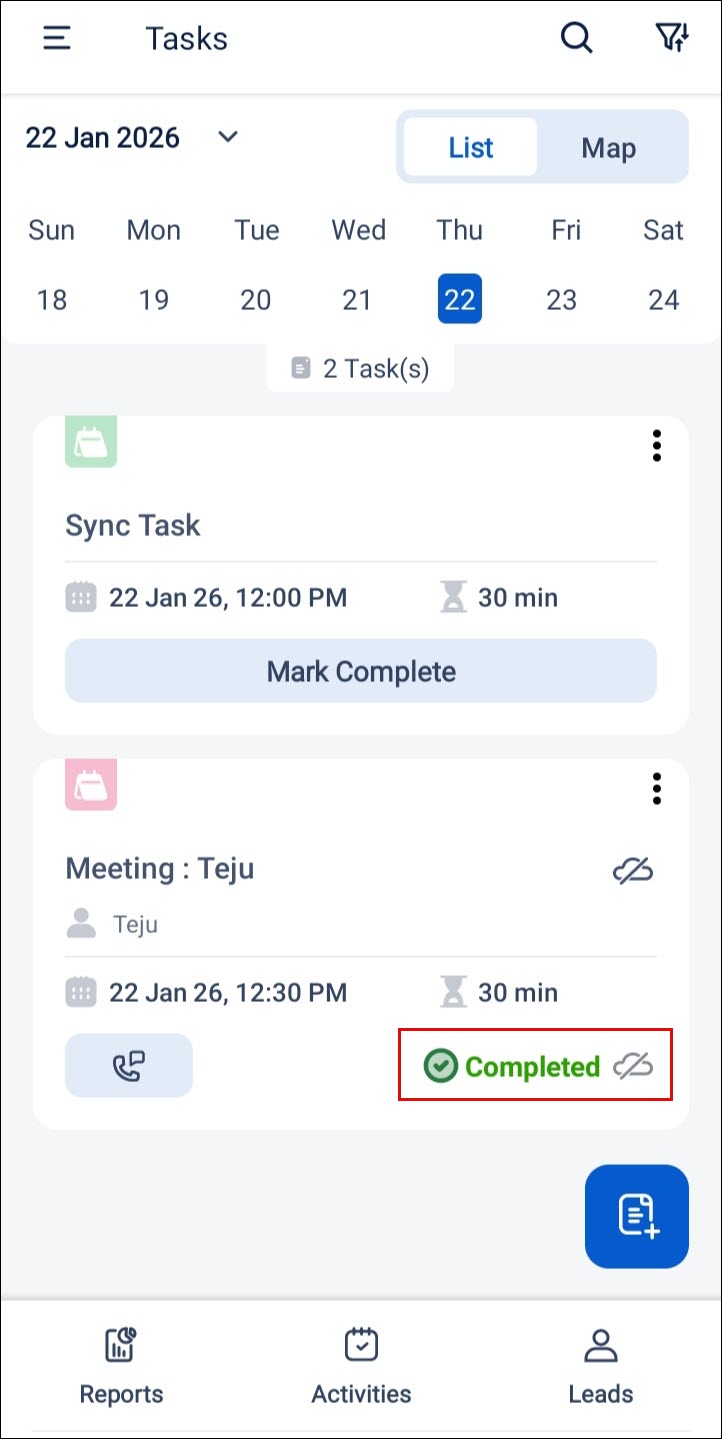
Offline Task Completion allows field users to complete tasks on the LeadSquared Mobile App even when they are not connected to the internet. Users can mark tasks as Completed in offline mode, fill out associated completion forms, and continue working without interruption.
When connectivity is restored, all offline task data, including form submissions, is automatically synced to the server. Until the sync is successful, tasks appear as Completed (Offline) on the mobile app, ensuring visibility while preventing data loss. This feature is especially useful for field teams working in low-connectivity or no-network environments, where task completion would otherwise be delayed.
2. Prerequisites
You must be an Admin to set up Offline Task Completion on the LeadSquared Web App.
3. How It Works
- Enable the relevant settings for Offline Task Completion on the LeadSquared Web App.
- On the LeadSquared Mobile App, users can mark tasks as Completed when they are offline.
- If a completion form is associated, it can be filled and saved. It will sync once the connection is restored.
4. Enable Offline Task Completion Settings
To complete tasks offline on the LeadSquared Mobile App, the admin must enable the following settings on the web app.
- Navigate to Settings>Mobile App>Permissions.
- Enable the Offline Leads and Offline Tasks permissions for the relevant type of users
- Additionally, if a completion form is associated, enable Offline Dynamic Forms in Mobile App>Additional Settings.
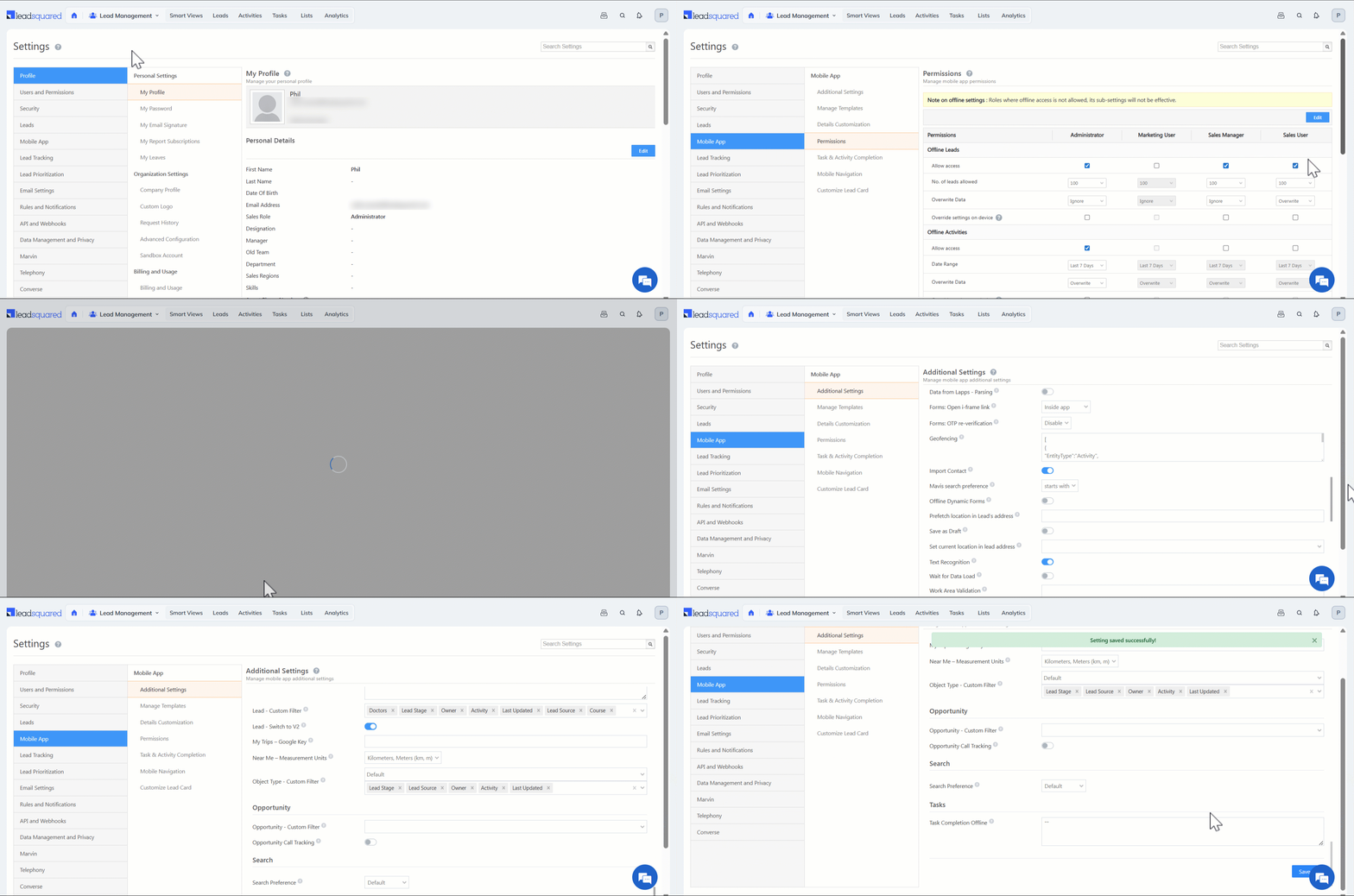
Additionally, configure the relevant task types for offline completion in the below JSON using the new Task Completion Offline Additional Setting on the web app.
Sample JSON
{
 "taskTypesName": [
   "<Tasktype name>"
 ]
}

5. Use Offline Task Completion on Mobile
Once enabled,
- Open the Task List on the LeadSquared Mobile app while offline and mark the relevant task as Completed.
- If a completion form is associated, the form is filled and saved locally on the device.
- The task is marked as Completed (Offline).
- Once the device reconnects to the internet, the task and form data sync automatically and the task status updates to Completed.
Note:
Offline Task Completion is currently supported for –
- Tasks associated with Leads only
- Tasks scheduled for the current day
- Tasks accessed from Task List
- Tasks with offline-friendly, single-level forms
6. Access Offline Synced Forms
Irrespective of your connectivity, you can access the forms that were saved while offline and make relevant changes if required.
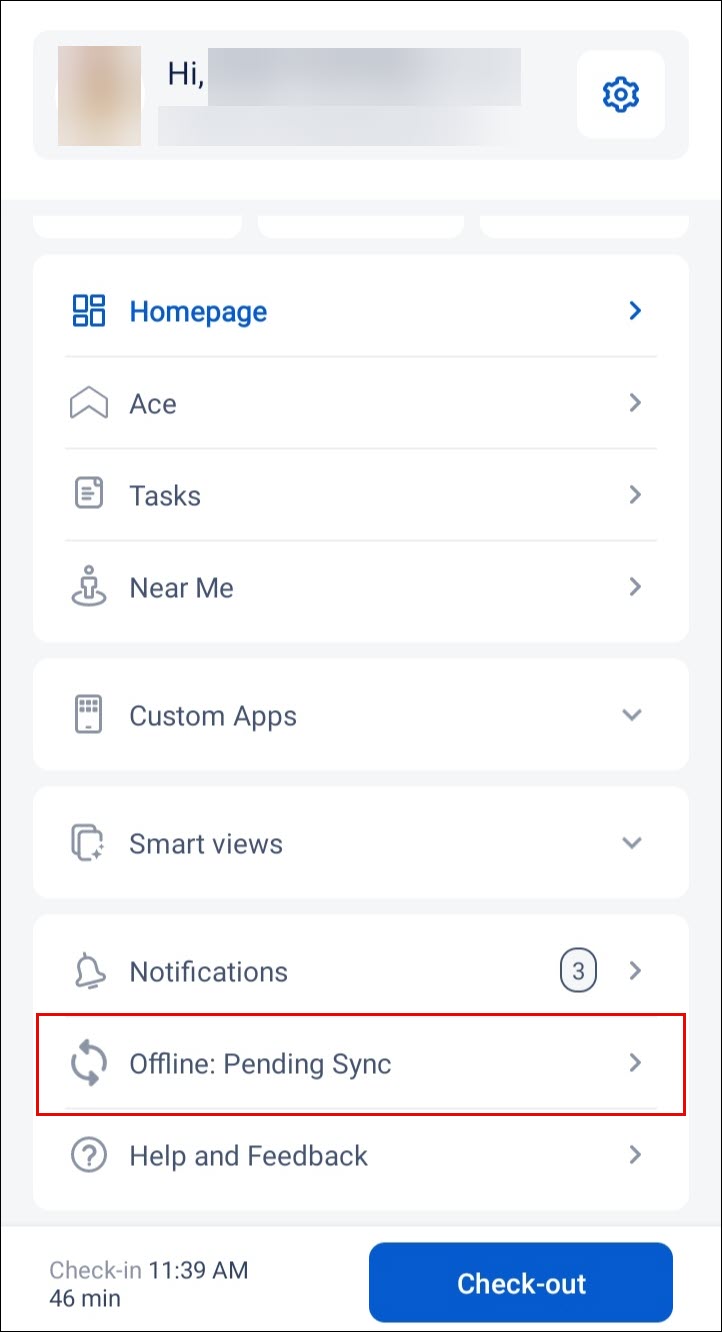
- Navigate to the side menu on the Mobile App.
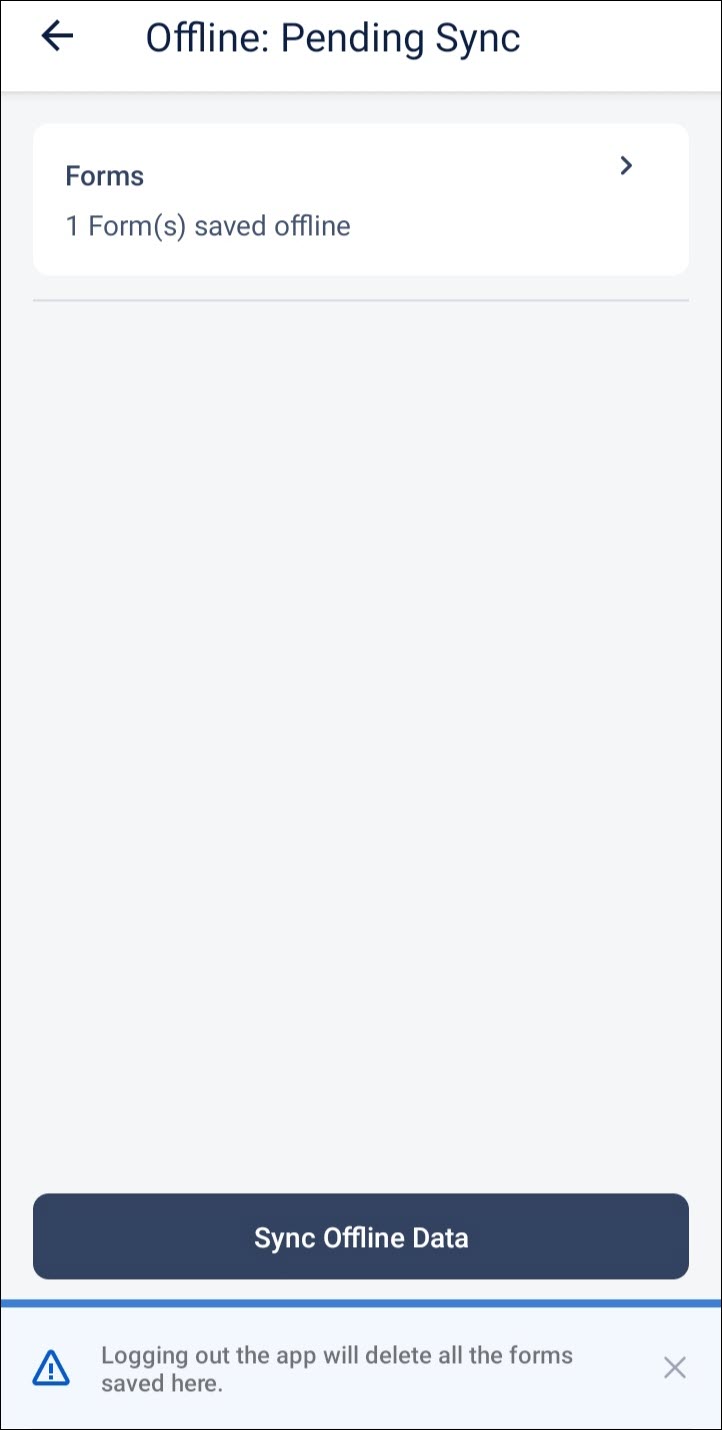
- Select Offline: Pending Sync and tap Forms.
- You will see the offline-saved forms here. You can modify the form as required and save it.
- Once you’re online, on the Offline: Pending Sync screen, tap Sync Offline Data to sync the form online.
7. Please Note
Offline Task Completion is currently not supported for:
- Tasks associated with Opportunities
- Geofenced tasks
- Tasks with multi-level forms
- Tasks with pre-submission LAPP configured
- Task types not enabled in the offline configuration
Any Questions?
Did you find this article helpful? Please let us know any feedback you may have in the comments section below. We’d love to hear from you and help you out!





