Tag Archive for: website visitor tracking

How to Deploy the LeadSquared Tracking Script on Your Website?

Here’s a short tutorial on installing the LeadSquared Tracking Script –

Note:


Assigning a Lead Score for Visits to a Specific Webpage or Landing Page

To track and assign a specific lead score when a lead visits a particular webpage or landing page on your website, follow these steps:

Step 1: Locate Your Website Tracking Script

By default, the LeadSquared website tracking script looks like this:

<!--LeadSquared Tracking Code Start--> 
<script type="text/javascript" src="http://web.mxradon.com/t/Tracker.js"></script> 
<script type="text/javascript"> 
 pidTracker('3894'); 
</script> 
<!--LeadSquared Tracking Code End-->

Step 2: Insert the Score Assignment Line

To assign a specific score (e.g., 20) when a lead visits this page, add the following line within the tracking script:

Asc = 20;

Step 3: Update the Tracking Script

After inserting the score assignment, your updated script should look like this:

<!--LeadSquared Tracking Code Start-->
<script type="text/javascript" src="http://web.mxradon.com/t/Tracker.js"></script>
<script type="text/javascript">
Asc = 20;
pidTracker('3094');
</script>
<!--LeadSquared Tracking Code End-->

Now, whenever a lead visits this page, their score will increase by 20.


Any Questions

If you have any questions about the LeadSquared Tracking Script, leave us a comment below. We’ll get back to you asap!
How can I track who is visiting my website and browsing which pages?

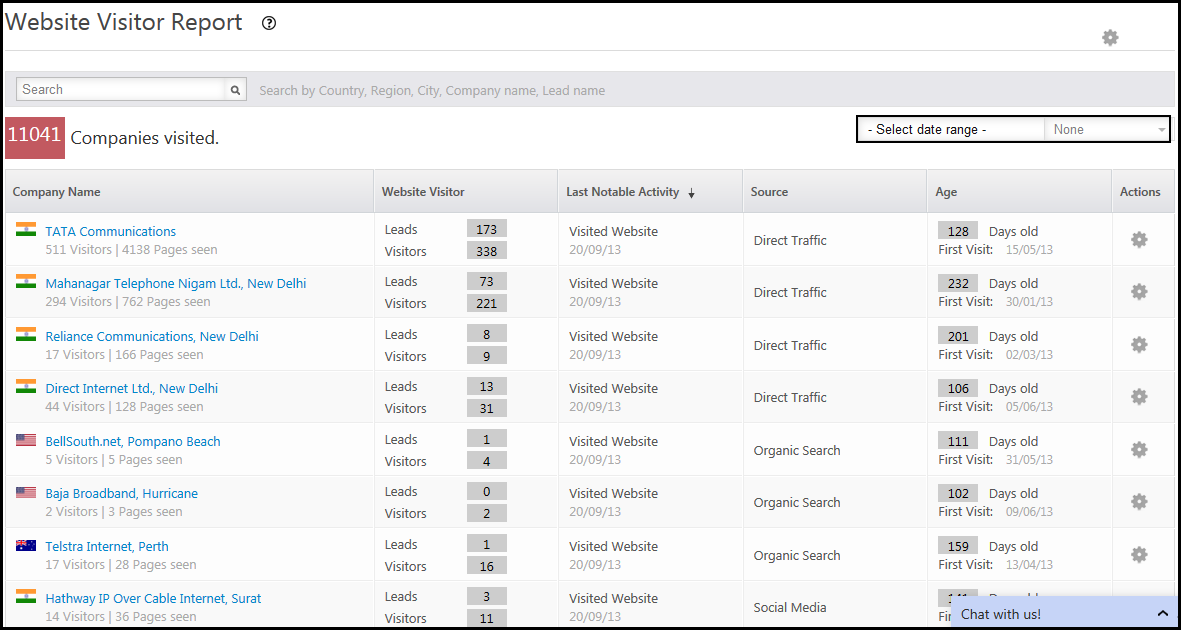
You can track your website visits through the Website Visitor Report. In this report, you can see the Internet Service Provider (ISP) name, number of visitors and leads, their source, and the time since they visited. You must ensure that you have installed LeadSquared’s website tracking script in all pages of your website. For more information, see How To Deploy Visitor Tracking Script On Your Website?

Website Visitor Report

Navigate to Dashboard > Analytics > Website Visitor Report.

Website Visitor Report

  • Company Name: The ISP name from which leads are originating.
  • Website Visitor: Statistics of the number of visitors and leads. This will indicate the conversion rate.
  • Last Notable Activity: Date on which a visitor or lead performed a notable activity.
  • Source: The source from which the visitor or lead comes through.
  • Age: Time since the first notable activity was performed.
  • Actions: you can hide the particular IP or the company all together. If you hide IP address or the company, the report does not include the results of the hidden IPs and companies.

You can sort the reports by clicking on each of the headings of the report field. Sorted fields are marked with an arrow symbol.

Website Visitor Details

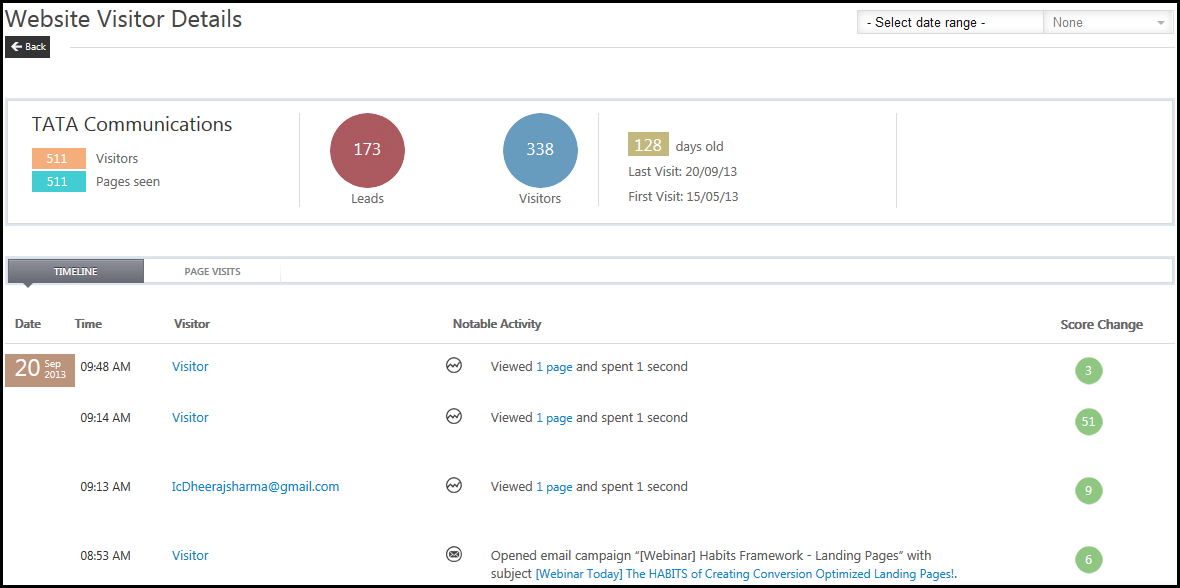
If you click on the required ISP name, you will see the website visitor details page. Here you will see the how many visitors visited how many pages of your website. You can see the first visit and the last visit dates. In the Timeline tab, you will see the visitor, the notable activity performed and the lead score attained. Here you will see the email address if the visitor is already a lead in LeadSquared, else it is displayed as Visitor.

Website Visitor Details

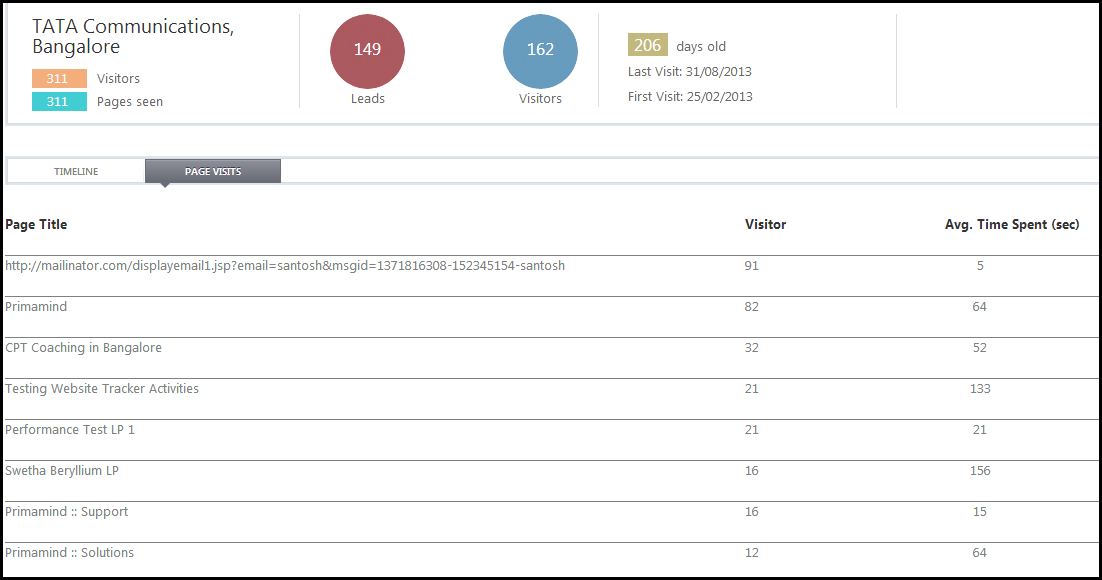
In the Page Visits tab, you will see the pages visited and the  time visited on each page by the visitors.

Pages Visited

I have deployed the website tracking script, but visitor visits are not being tracked. What could be the issue?

The possible reasons could be that you have not deployed the tracking script on all pages of your website. Also keep in mind that you have to paste the tracking script exactly as it is, without making any changes. If you make some changes to the script, like pasting it in a single line and so on, tracking will not happen.