
1. Feature Overview
The UDS AI Assistant helps you configure flows, debug failed executions, and generate transformation logic — directly within the UDS interface. Instead of manually analyzing error logs or writing LiquidJS expressions from scratch, you can use the assistant to get explanations, suggested fixes, and ready-to-use code.
The assistant supports three primary use cases:
- Debugging failed logs — Analyze why a flow execution failed and get recommendations for next steps.
- Generating transformation logic — Describe your input and desired output, and the assistant returns the corresponding LiquidJS expression.
- General configuration help — Ask questions about how to set up or manage flows in UDS.
2. Prerequisites
- You must be an Administrator user, or access must be shared to you by an Admin user
- The Universal Data Sync Connector is a paid feature. To enable it on your account, contact your account manager, or write to support@leadsquared.com.
3. Accessing the AI Assistant
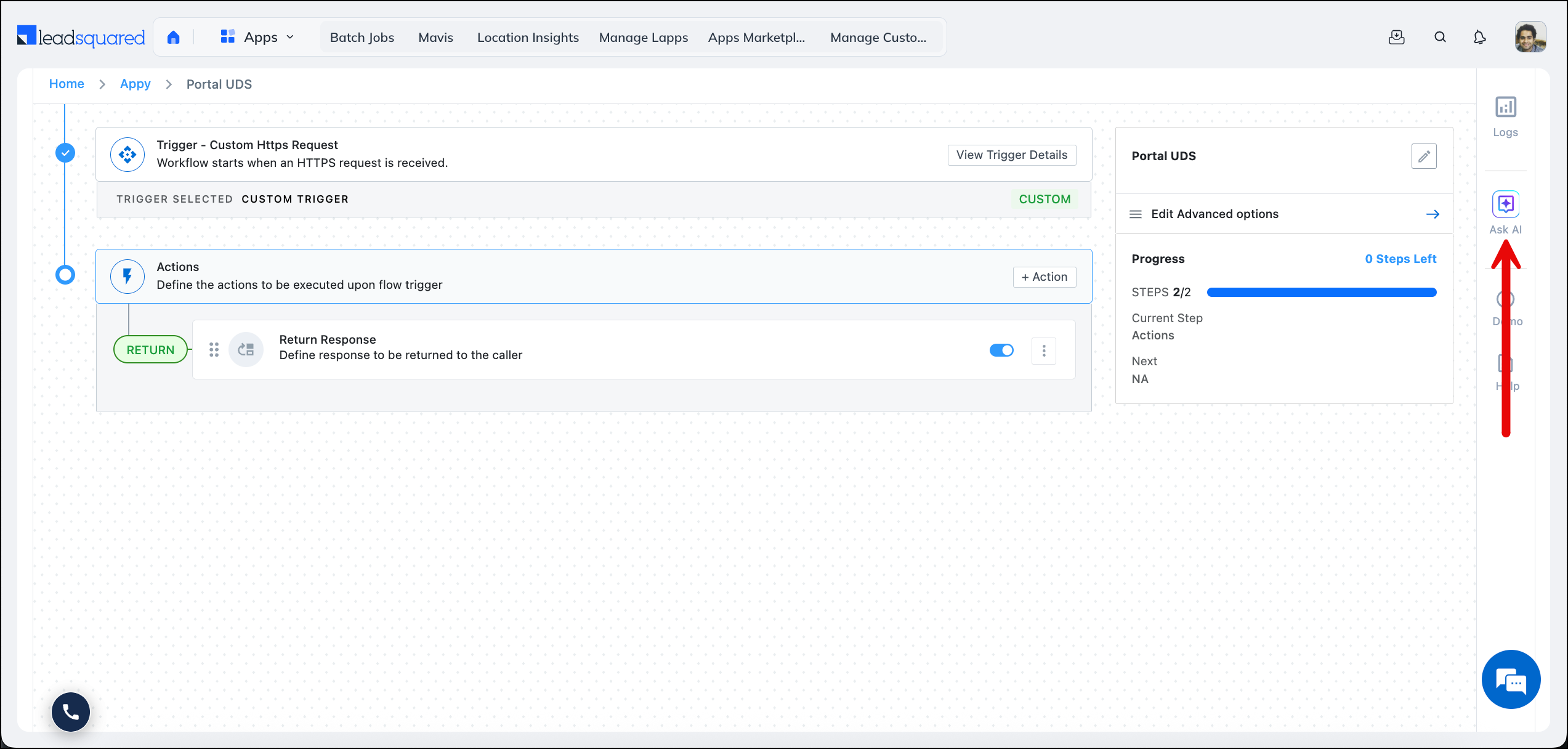
You can open the AI Assistant from anywhere within UDS using the Ask AI button in the interface. This gives you a chat window where you can ask general configuration or transformation-related questions.
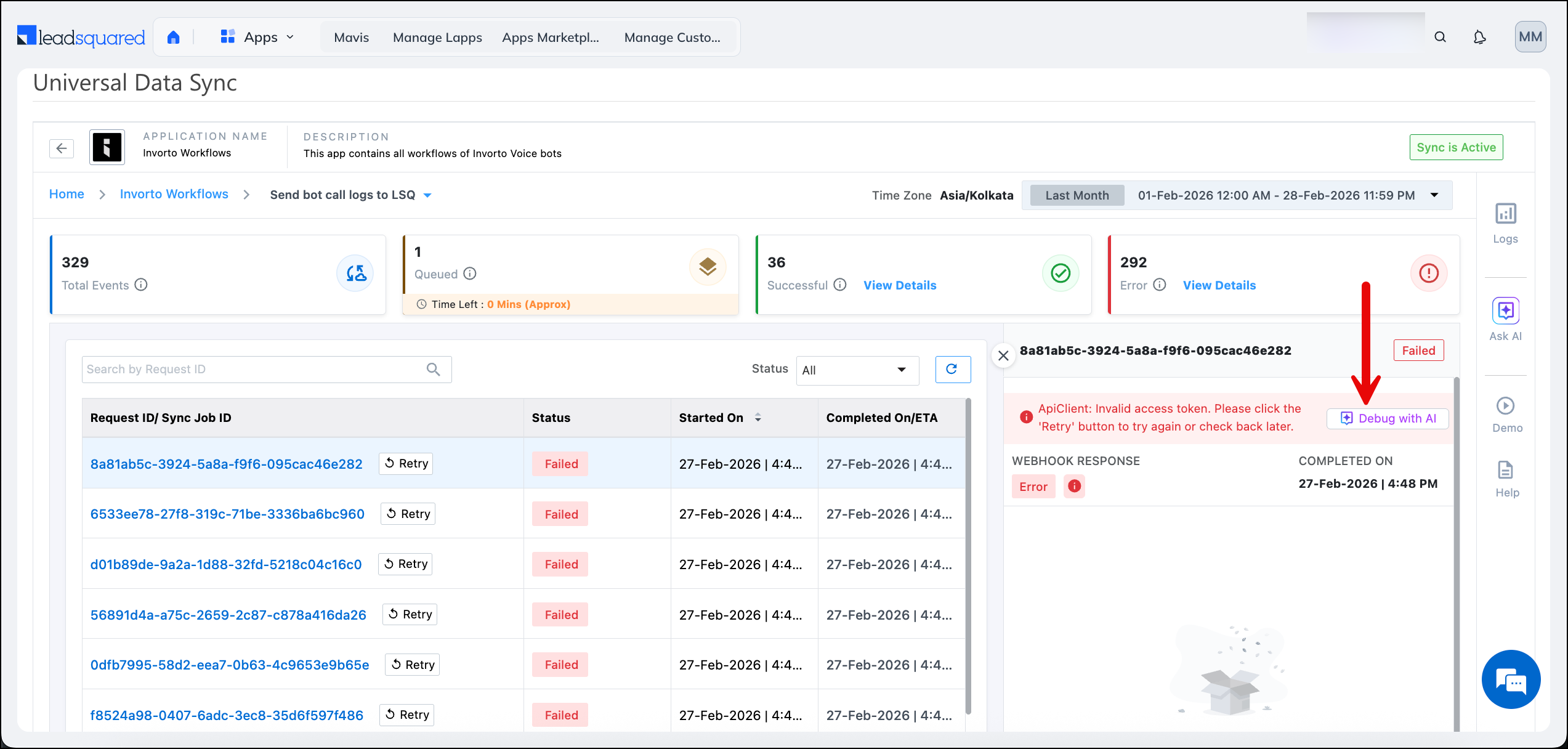
When working inside a specific app’s logs, you also have a Debug with AI option on individual log entries. This passes the relevant request ID and error details directly to the assistant for analysis.
4. Debugging Logs with AI
When a flow execution fails, UDS records the error details in the app’s execution logs. In some cases, the error message is self-explanatory (for example, “Field value cannot be more than 200 characters in length”). In other cases, the log may show a generic failure with no clear cause, such as an empty response from a third-party API.
The Debug with AI feature helps in both scenarios — it interprets the error, explains the likely cause, and suggests corrective steps.
How to Debug a Failed Log Entry
- Open the UDS app whose logs you want to review.
- Navigate to the Logs section.
- Locate the failed log entry.
- Click Debug with AI.
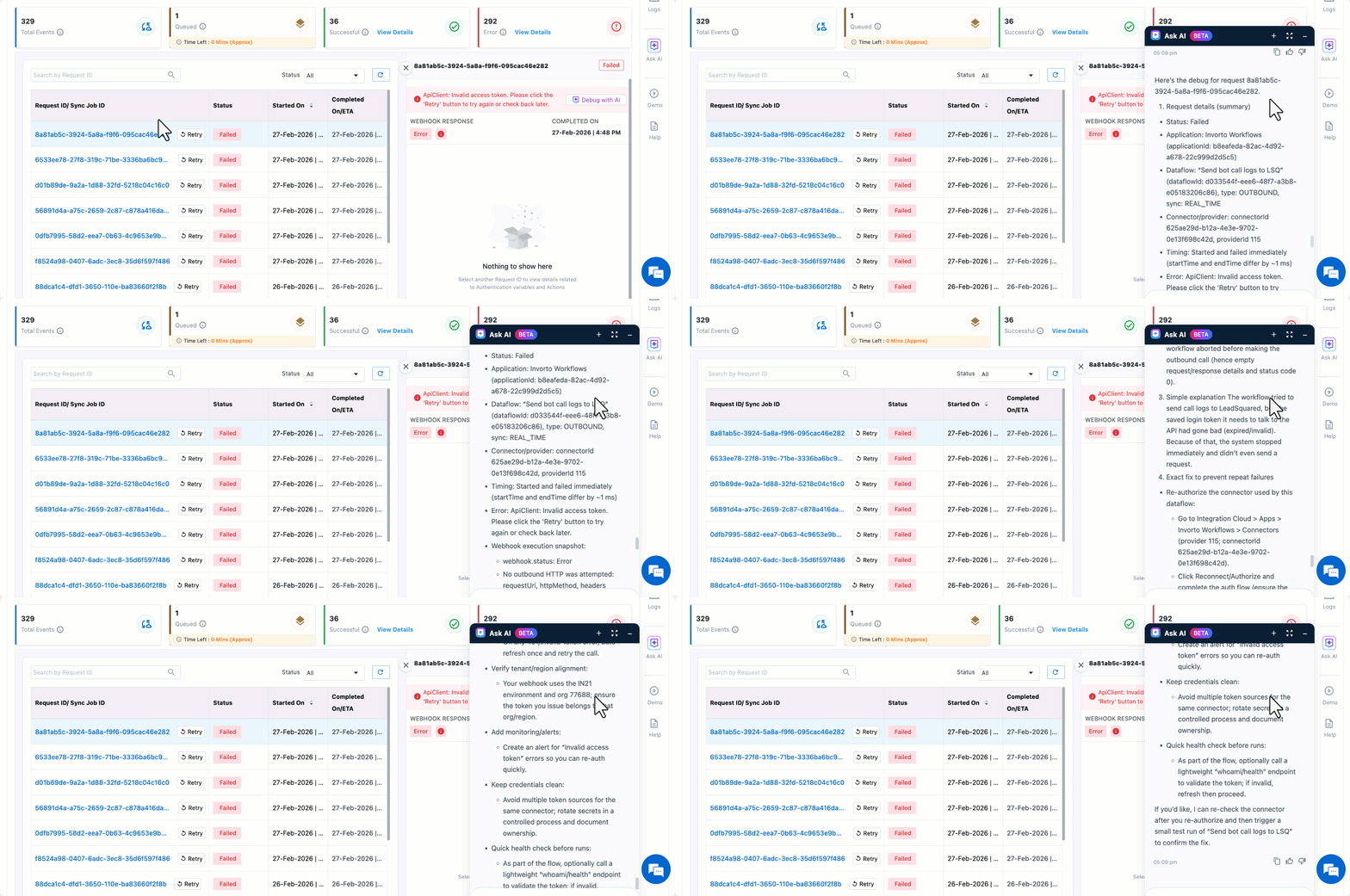
The assistant receives the request ID and associated error details for that log entry. It then analyzes the failure and returns an explanation in the chat panel.
What the Assistant Returns
Depending on the error, the assistant provides:
- A plain-language explanation of why the execution failed.
- The likely root cause (for example, a connection timeout, an invalid field value, or a missing required parameter).
- Suggested next steps to resolve the issue.
If the initial summary is not detailed enough, you can ask follow-up questions in the chat to get more specific guidance.
5. Generating Transformation Logic
When mapping data between systems, you may need to transform values into a format that the receiving API accepts. UDS uses LiquidJS for custom transformation logic (see Transformations in UDS for details).
Instead of writing LiquidJS expressions manually, you can describe what you need to the AI Assistant and it will generate the logic for you.
How to Generate a Transformation
- Open the AI Assistant from anywhere in UDS.
- Describe your transformation requirement. Include:
- The input format (what the current value looks like).
- The desired output format (what the receiving system expects).
- The assistant returns the LiquidJS expression.
- Copy the expression and paste it into the transformation field for your mapped variable.
Example
You receive a phone number from an API in the format +91-9876543210, but the downstream API requires the format 91(98765)-43210.
You can describe this to the assistant:
“The input phone number is in the format +91-9876543210. I need the output in the format 91(98765)-43210. Can you give me the transformation logic?”
The assistant returns the corresponding LiquidJS expression, which you can copy and apply in the transformation configuration for that field.
FAQs
1. Where can I access the AI Assistant?
The assistant is available from anywhere within the UDS interface. For log debugging specifically, you can also use the Debug with AI option on individual log entries.
2. Can the assistant fix errors automatically?
No. The assistant provides analysis and suggestions. You need to apply the recommended changes to your flow configuration or transformation logic manually.
3. What if the assistant’s response is unclear or incomplete?
You can ask follow-up questions in the same chat session to get more details or clarification.
4. Does the Debug with AI feature work for all log entries?
It works on failed log entries where a request ID is available. The assistant uses the request ID and error context to analyze the failure.
5. How should I phrase my transformation request to get accurate results?
Be specific about both the input and output formats, and include example values where possible. For instance, instead of asking “convert my phone number,” specify the exact formats: “The input is +91-9876543210 and I need the output as 91(98765)-43210.”
6. Should I test the generated transformation logic before applying it?
Yes. Use the transformation preview in UDS (if available) or an online LiquidJS playground to verify that the expression produces the expected output before saving it to your flow.
Any Questions?
Did you find this article helpful? Please let us know any feedback you may have in the comments section below. We’d love to hear from you and help you out!





