


Get Started

Sales Suite
Field Ops
Marketing
Service CRM
Integrations & Apps
FloStack
Create Meeting Types on Flostack

1. Feature Overview
The Meetings Type feature in Flostack enables users to define and manage different categories of meetings with tailored scheduling rules. It supports instant scheduling, allowing users to specify availability for specific purposes, while controlling duration, time slots, visibility, and participant capacity.
Meeting types can be one-on-one or group meetings, and can be virtual (with calendar integration) or in-person. This ensures smooth scheduling, prevents conflicts, and improves the overall attendee experience.
Benefits
- Targeted Scheduling: Allocate time for specific purposes, such as KYC verification, interviews, training sessions, or client meetings.
- Efficient Time Management: Control availability by day, time, and meeting type to reduce conflicts and no-shows.
- Automation-Friendly: Preconfigured meeting types integrate with booking links, events, and UDS (e.g., LeadSquared) to automate lead capture.
- Enhanced Attendee Experience: Participants see only relevant time slots and available capacity, simplifying the booking process.
2. One-on-One Vs Group Meetings
The following are the differences between One-on-One and Group Meetings –
2.1 One-on-One Meetings
These are private sessions with a single attendee. They are ideal for interviews, consultations, or client calls where focused, individual attention is required. Each slot is booked by one participant, and availability is blocked automatically via calendar integration.
Use Case
- A prospective student wants a personal consultation with an admissions advisor about program eligibility.
- A potential customer needs a detailed walkthrough of a product or service.
2.2 Group Meetings
These sessions accommodate multiple participants at the same time. They are suitable for workshops, webinars, or training sessions. Users can define the maximum capacity for each slot, while availability is managed for the organizer, allowing multiple attendees to book until the capacity is reached.
Use Case
- A university wants to run a campus tour or program orientation for multiple students simultaneously.
- A company runs a product demo webinar where multiple leads join at the same time.
3. Creating Meeting Types
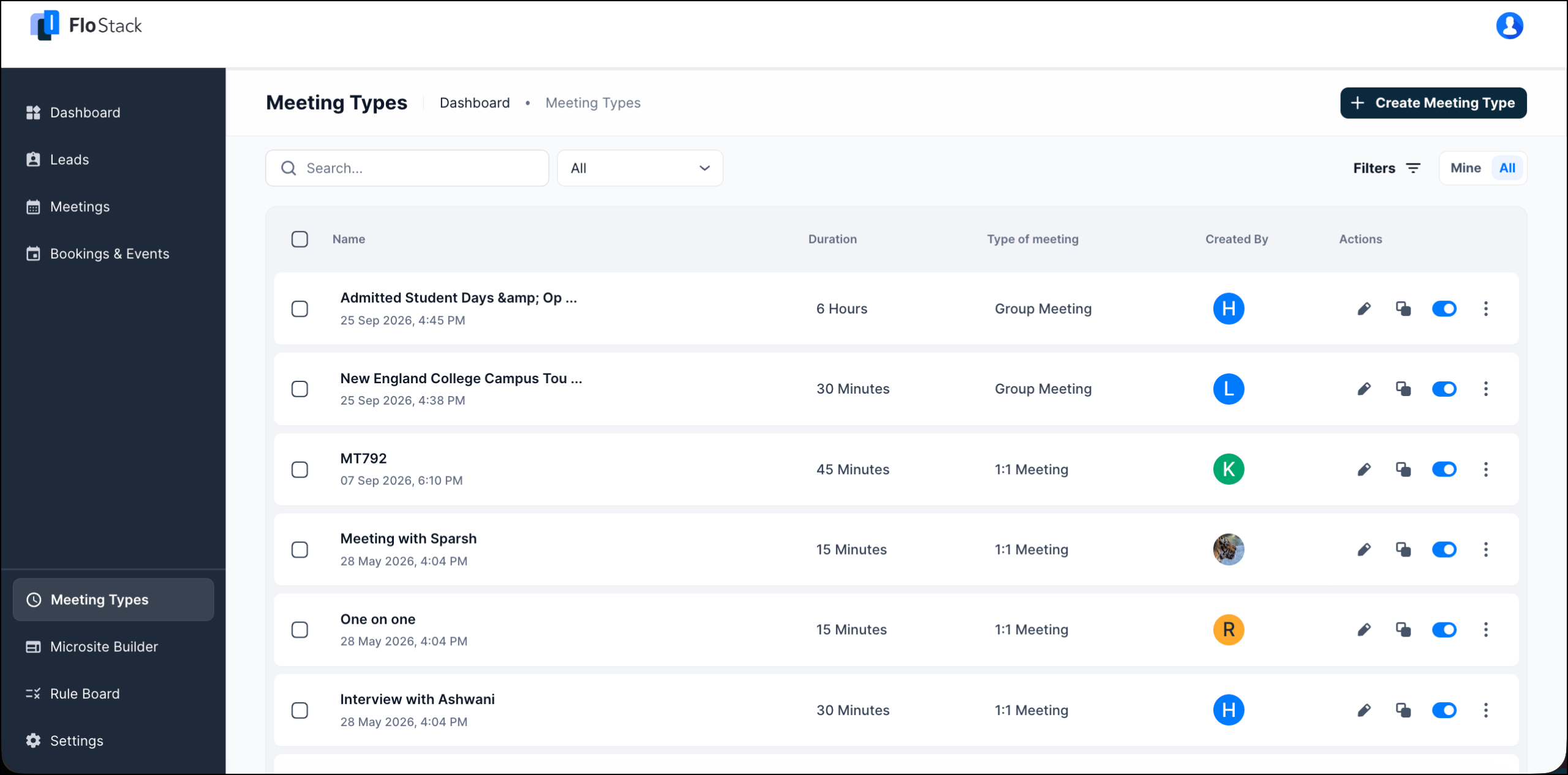
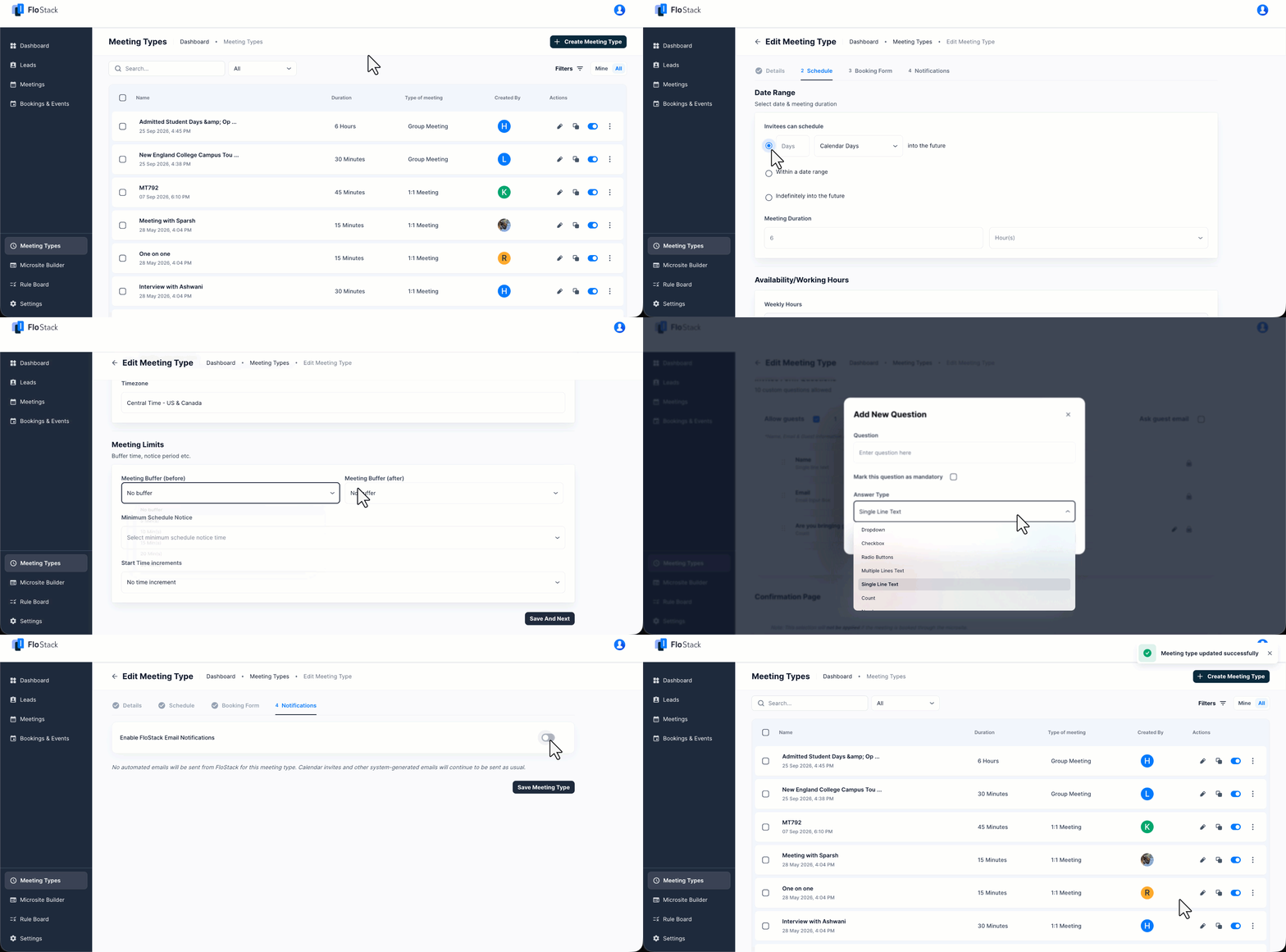
From the FloStack dashboard, navigate to Meeting Types in the left-hand menu. You’ll see all created types with details like name, duration, and type. Click + Create Meeting Type and choose the type, One-on-One or Group.
3.1 Add Meeting Details
- Name: e.g., “Campus Orientation Session”
- Mode: In-Person or Virtual
- Location: Required if In-Person
- Private Option: Select if the meeting should not appear publicly. Only you can view and use this meeting type.
- Meeting Capacity (Group Only): For Group Meetings, you have the option to limit the number of spots and display remaining spots on the booking page.
3.2 Set Schedule & Availability
- Date Range: Defines when the meeting type is available for booking.
- You can choose between fixed range or indefinite.
- Duration: Length of each meeting in minutes.
- For example, 15, 30, or 60 minutes.
- Weekly Hours: Days of the week and time ranges when the advisor is available for booking.
- For example, Monday and Wednesday, 9:00 AM–5:00 PM.
- Calendar Sync: Connects the advisor’s external calendar (Google, Outlook, etc.) to FloStack and automatically blocks times that are already booked, preventing conflicts.
- You can sync your calendar on the My Integrations page.
- Timezone: Select your preferred timezone.
- Meeting Buffers: Buffer time added before and after each meeting.
- For example, add a 10-minute buffer before a 30-minute call so that an advisor has time to prepare.
- Minimum Schedule Notice: Minimum lead time required before a lead can book a meeting. It prevents last-minute bookings that the advisor cannot accommodate.
- For example, if you add a 2-hour notice and the current time is 2 PM, the earliest bookable slot is 4 PM.
- Start Time Increments: Defines the frequency at which time slots appear for booking.
- For example –
- 15-minute increments → slots at 9:00, 9:15, 9:30, 9:45, etc.
- 30-minute increments → slots at 9:00, 9:30, 10:00, etc.
- For example –
3.3 Customize Booking Form
- By default, the form collects Name and Email of the attendees, these are mandatory fields.
- Additionally, configure up to 10 custom questions to ask the attendees, and even mark them as mandatory.
- The following Answer Types can be configured: Dropdown, Checkbox, Radio Buttons, Multiple Lines Text, Single Line Text, Count, Phone Number, and Email Input Box.
- Post-booking re-direction can show a FloStack confirmation page or redirect to a custom URL. Configuration for auto-redirect after a certain duration is also available.
- Note: This selection will not be applied if the meeting is booked through the microsite.
3.4 Set Up Email Notifications
FloStack can send automatic emails to the lead and the host at key points in the meeting lifecycle. The notifications you configure here apply only to schedulers where this meeting type is used.
To turn notifications on, enable the FloStack Email Notifications toggle. Against Send Email To, select Lead, Host, or both, depending on who should receive the email. To change the content of an email, click the relevant trigger and edit the template. Once you’re done, click Save Meeting Type.
4. Generate the Booking Link and Routing Rule
Once you’ve set up a meeting type, you can use it in Bookings & Events and configure Meeting Type Rules to automatically route leads based on form submissions.
- Booking and Event links can be shared on microsites, emails, or other channels.
- Leads can view available time slots and book meetings directly.
Any Questions?
Did you find this article helpful? If you have any questions or comments, please let us know in the comments section below. We’d love to hear from you and help you out!