
1. Feature Overview
The Union and Union All options in the Analytics Report Builder allow you to combine the results of two or more queries into a single dataset by stacking rows vertically.
Unlike Joins, which merge related tables side-by-side (column-wise), Union combines datasets that share the same structure and appends them together (row-wise).
Union is useful when you want to consolidate similar data from multiple sources into one unified report.
2. Prerequisites
- SIERA is a paid feature. To enable it for your account, contact your account manager or siera.support@leadsquared.com.
- For details on Report Builder Data Sources, refer to this article.
3. When to Use Union
Use Union when you want to:
- Merge similar datasets into one report
- Combine data from parallel entities (e.g., Leads and Activities)
- Create unified workload or engagement reports
- Append filtered query results together
- Avoid relational joins where no direct relationship is required
3.1 Union vs Union All
|
Option |
Behavior |
|
Union |
|
|
Union All |
|
3.2 Important Rules for Using Union
Union can only be applied between queries, not base tables.
Before applying Union, ensure:
- Both queries return the same number of columns
- Columns appear in the same order
- Corresponding columns use compatible data types
- Business meaning of each column matches across queries
If these conditions are not met, Analytics will show a validation error when saving the report.
4. Union Configuration
4.1 Use Case
For example, let’s say you want to combine Lead Source information from:
- Leads table
- Activities table
The goal is to create a single dataset that shows all sources (from both Leads and Activities) in one report. This combines Lead Source at the lead level with Traffic Source from activities (for example, form submissions or other interactions), so both the lead’s origin and activity-driven sources are included in one dataset—allowing you to see where the lead originally came from and how the lead interacted later.
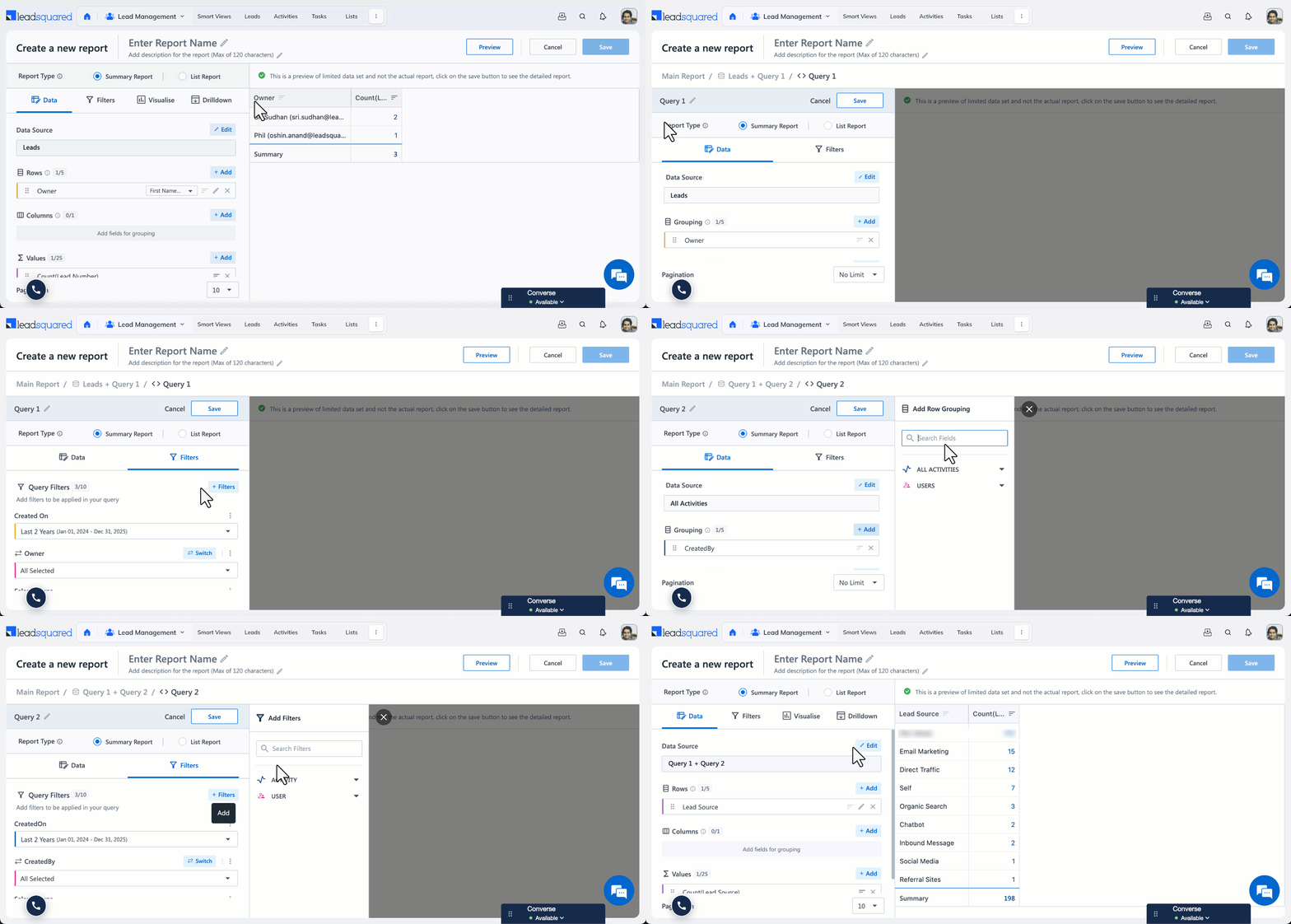
Step 1: Create Query 1 (Leads)
- Click + New Query
- Select Leads as the data source
- Add the following rows:
- Lead Source
- Prospect ID
- Apply required filters, such as Created On (date range)
- Save the query
Step 2: Create Query 2 (Activities)
- Click + New Query
- Select All Activities as the data source
- Add the following rows in the same order as Query 1:
- Traffic Source
- Related Prospect ID
- Apply filters such as:
- Activity Event
- Created On (date range)
- Save the query
Step 3: Apply Union
- In the Data Source section, Under Combine Tables, select Union or Union All
- Choose:
- Query 1 (Leads)
- Query 2 (Activities)
If both queries follow the validation rules, the union will execute successfully and combine the datasets into a single result.
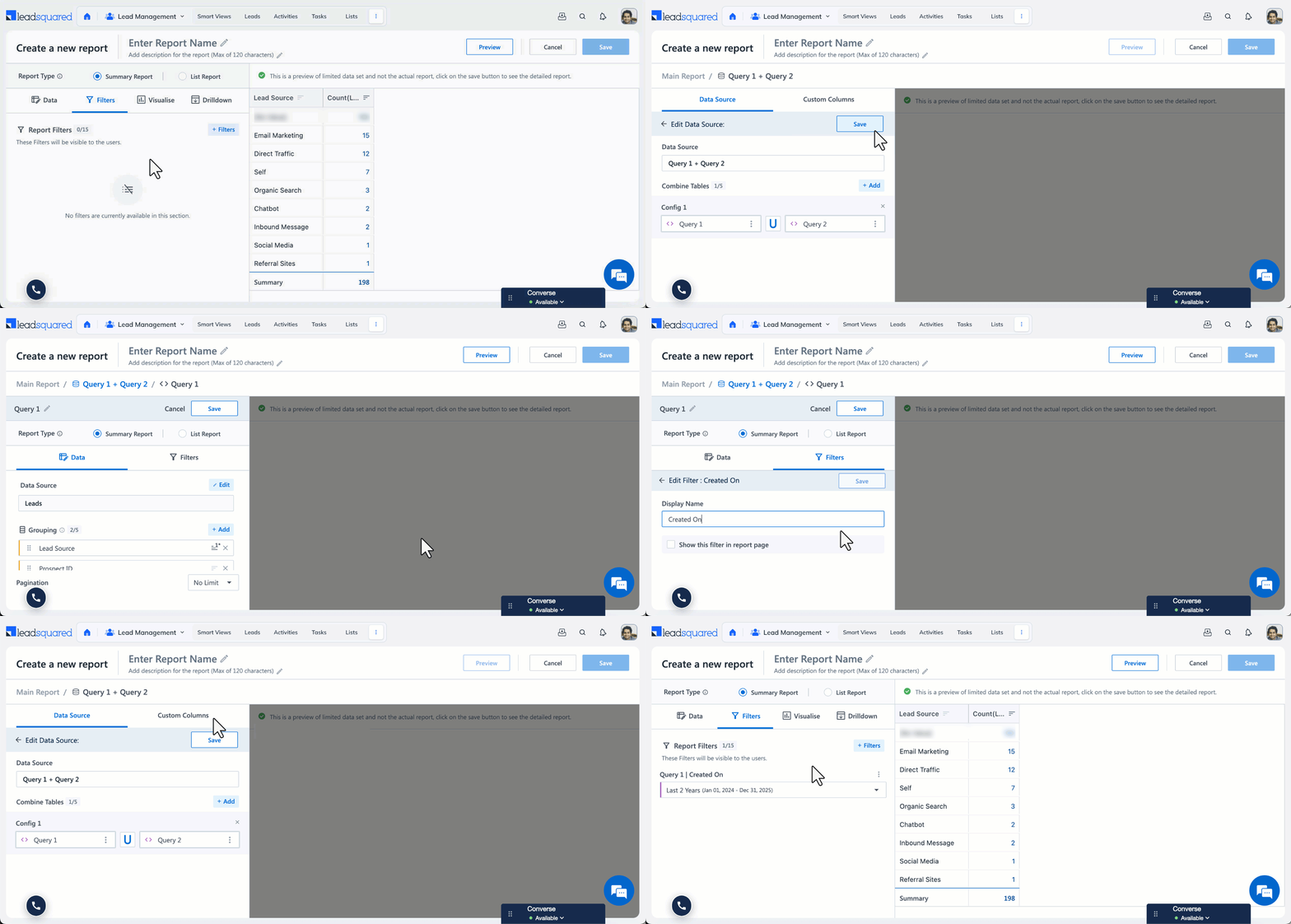
4.2 Showing Query Filters in the Main Report
You can control query-level filters from the main report page:
- Edit the query
- Go to Filters
- Click the three-dot menu on a filter
- Enable Show this filter in the main report page
This allows centralised filtering after union is applied. You
Note: User filters cannot be exposed.
FAQs
1. Can I use Union directly on tables?
No. Union works only between queries.
2. What happens if column data types do not match?
The report will fail validation and show an error.
3. Which column names appear in the final report?
Column display names are inherited from the left-hand (primary) query.
Any Questions?
We’d love to hear your feedback to help improve this article. Feel free to enter your questions or in the comments section below.





