
1. Feature overview
Distribution Engine is a simple, rules-based way to automatically assign Leads and Opportunities to the right users. It replaces complex automation-based assignment with an easy-to-manage setup that helps you distribute records fairly, reduce manual effort, and meet response SLAs.
You can use Distribute Engine to:
- Automatically assign new records as soon as they are created or updated.
- Distribute work evenly across users using predefined methods.
- Reassign records if a user does not act on them within a defined time (SLA).
- Track assignments and SLA breaches from a single dashboard.
When should you use Distribute Engine?
Use this feature if you want to:
- Assign incoming leads from forms, imports, APIs, or integrations automatically.
- Balance workload across sales or support teams.
- Ensure faster follow-ups by reassigning records when SLAs are missed.
- Avoid maintaining multiple automation rules for assignment logic.
How Distribute Engine works (at a glance)
- A record (Lead or Opportunity) enters the Distribute Engine.
- The engine checks which assignment rules apply.
- An eligible user is selected based on your configuration.
- The record is assigned and tracked for SLA compliance.
2. Prerequisites
- To enable Distribution Engine, contact support@leadsquared.com
- This feature is only available on NextGen.
3. Trigger Modes in Distribution Engine
Distribution Engine supports two trigger modes that control how records enter the engine for assignment.
3.1 Entity Trigger Mode (Default Behaviour)
In Entity Trigger Mode, records automatically enter the Distribute Engine based on the trigger conditions defined inside each assignment rule.
For example:
- When a Lead is created
- When a Lead is updated
- When Stage/Status changes
When the selected event occurs, the engine:
- Evaluates the rule criteria
- Checks for a match
- Assigns the record if matched
3.2 Automation Trigger Mode
In Automation Trigger Mode, records enter the Distribution Engine only when explicitly sent from an Automation workflow. An automation card called Send to Distribution Engine is available in the automation.
Note: To enable this setting, contact support@leadsquared.com.
3.2.1 How it Works
- A record enters an automation flow.
- The flow reaches the Send to Distribution Engine card.
- The record is sent to the Distribute Engine for assignment.
- The engine assigns the record.
- The engine sends a callback to automation.
- The automation flow continues.
3.2.2 Timeout & Default User
If the Distribution Engine does not respond within 10 minutes, the automation card assigns the record to a default user defined inside the “send to distribution engine” card configuration.
3.2.3 Supported Automation Triggers
The Send to Distribution Engine card is available only for specific automation triggers:
For Leads:
- Lead Created
- Lead Updated
- Activity Posted on Lead
- Opportunity Created
- Task Created
For Opportunities:
- Opportunity Created
- Opportunity Updated
- Activity Posted
- Task Created
3. Create a Distribution Rule
This section explains how to create and manage assignment rules.
3.1 Creating a new assignment rule
Navigate to Distribution Engine>Distribution Rules. Click + Create Distribution Rule.
Enter basic information about the rule:
- Rule Name (required, must be unique)
- Description (optional)
You can edit these details later using the pencil icon
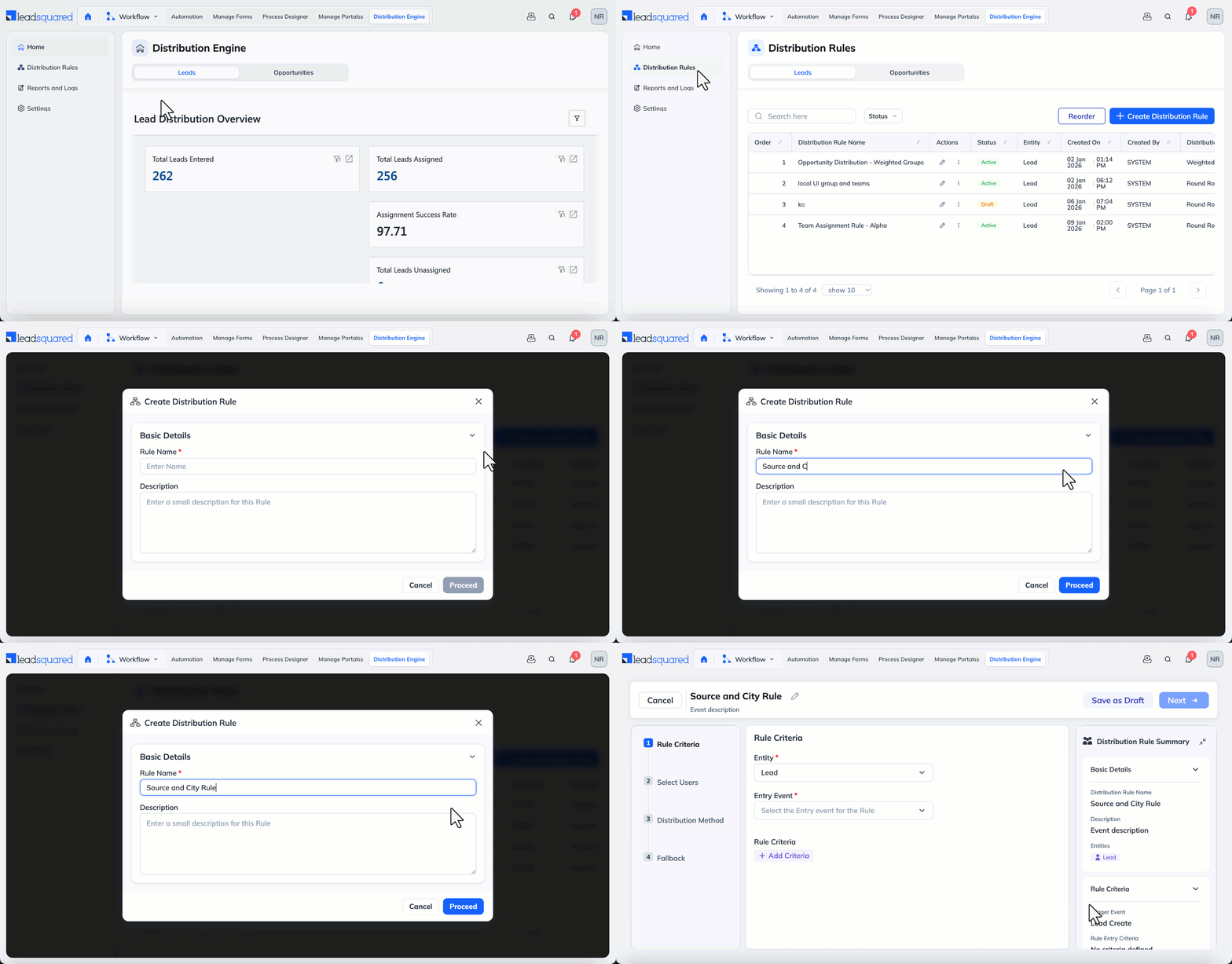
Rule creation is a 4-step guided process. You can save progress at any step:
Step 1: Rule Criteria
This step decides when the rule runs and which records qualify.
Select entity and event
- Choose the entity: Lead or Opportunity
- Select the entity type (if applicable)
- Choose when the rule should run, such as:
- Lead Entity – Lead Created, Lead Updated, Activity Created On Lead, Opportunity Created On Lead, and Task Created On Lead.
- Opportunity Entity – Opportunity Created, Opportunity Updated, Activity Created On Opportunity, and Task Created On Opportunity.
Only records that match this entry event and conditions will enter the rule.
Define rule conditions (AND / OR logic)
Rule conditions help you narrow down exactly which records should be assigned.
| Condition | When to use | Example |
| AND | Use AND when all conditions must be true. |
|
| OR | Use OR when any one condition can be true. |
|
| Combining AND and OR using groups | Groups help you combine conditions without creating multiple rules. |
|
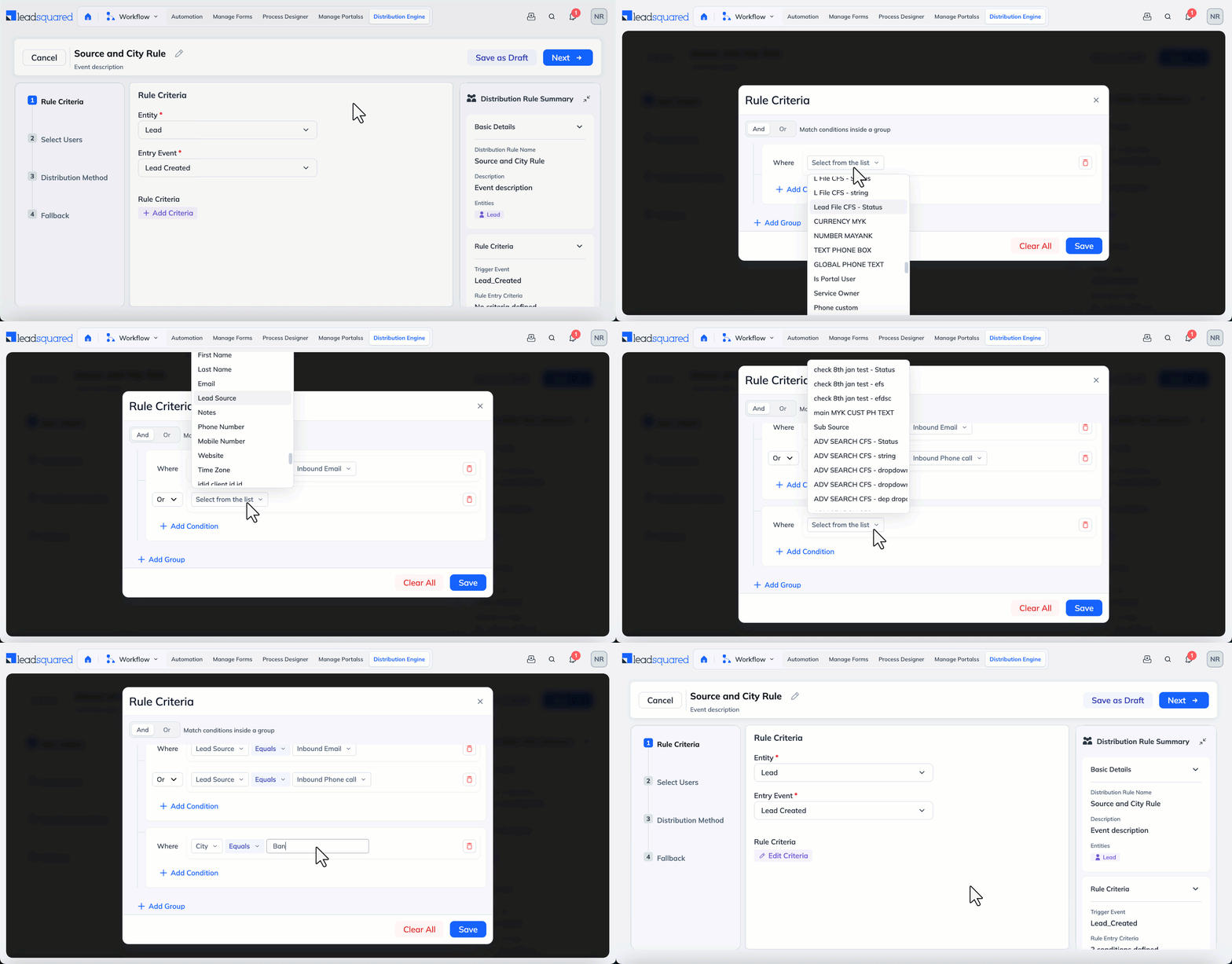
Step 2: Select Users
Choose who can receive leads when this rule runs.
You can only select one of the following and cannot combine them in a single rule:
- Individual users (Manual selection)
- Teams
- Sales groups
At least one user or one group is required. Also, you can choose to Assign only if the User is available.
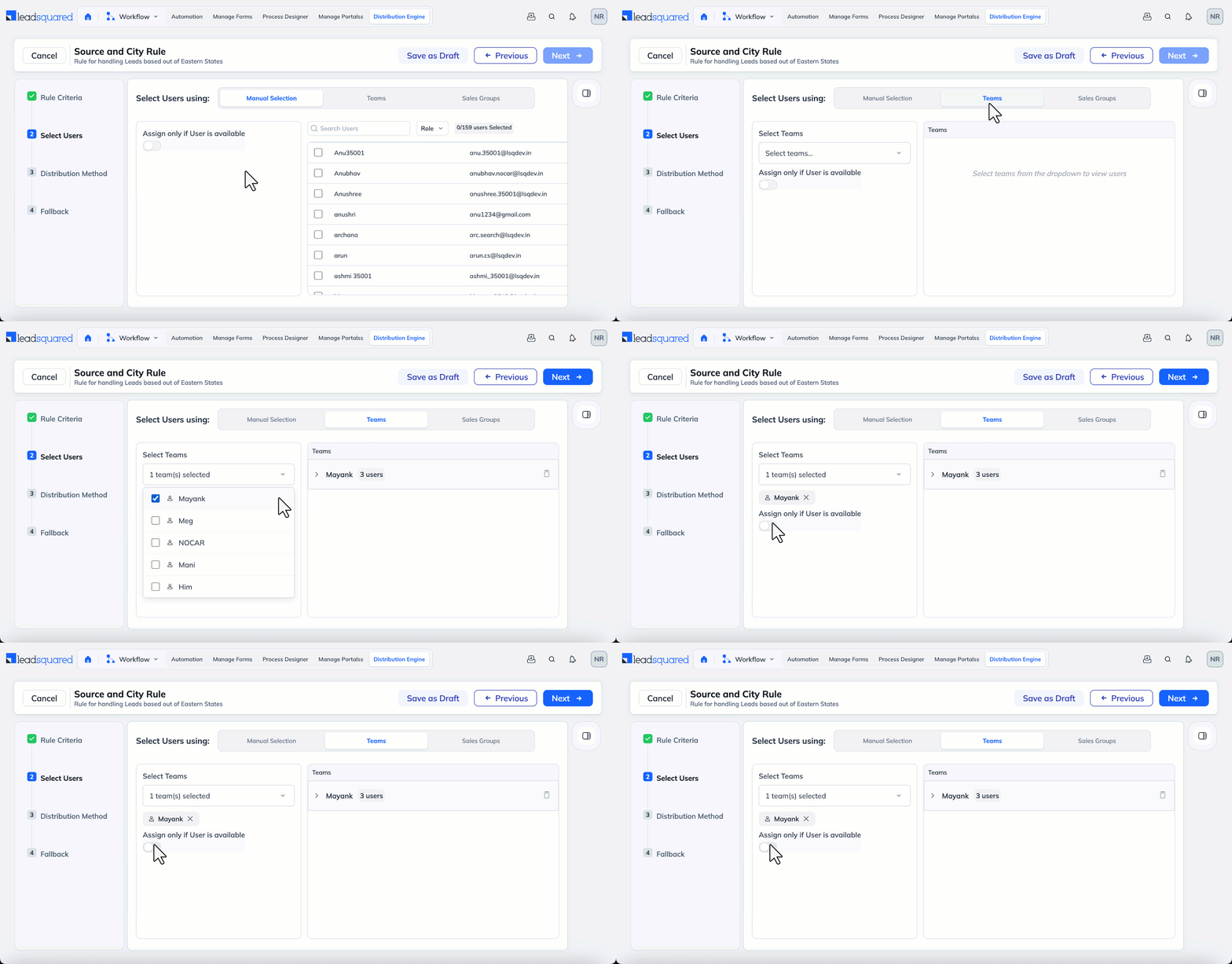
Step 3: Distribution Method
Select one assignment method:
Step 3.1 Round Robin Distribution Method
Round Robin assigns records one by one in sequence.
Example with 3 users:
User A → User B → User C → User A → User B → User C → …
Note:
- The sequence does not reset daily, the engine continues from where it last stopped to maintain a continuous cycle.
- If a user becomes unavailable, they are skipped. When the user becomes available again, they are added to the end of the cycle.
Step 3.2 Weighted Distribution Method
Weighted distribution lets you control how many records each user, team, or sales group should receive compared to others.
Instead of assigning records equally, you define a weight. A higher weight means that entity receives more records in each distribution cycle. Records are always assigned one at a time, and distribution follows a Round Robin pattern.
How It Works
- You select either:
- Manual Users
- Teams
- Sales Groups
- You assign a weight to each selected entity.
- The system distributes records in rotation, ensuring the total assignments in each cycle match the defined weights.
Example 1: Manual Users
You configure:
- User A = 3
- User B = 2
- User C = 1
Total weight = 6
This means in every 6 assignments:
- A receives 3
- B receives 2
- C receives 1
Distribution still follows Round Robin, not bulk allocation.
Example sequence:
A → B → C → A → B → A → (cycle complete)
Then the cycle repeats.
Example 2: Teams or Sales Groups
When you select Teams or Sales Groups, Round Robin is followed at two levels:
Level 1: Between Groups (Based on Weight)
Example:
- Sales Group East = 2
- Sales Group West = 1
Total weight = 3
In every 3 assignments:
- 2 records go to East
- 1 record goes to West
The engine distributes between East and West using Round Robin while respecting the weight.
Example sequence:
East → West → East → (cycle complete)
Then the cycle repeats.
Level 2: Inside the Group (Round Robin)
Once a record is assigned to a group:
- The system assigns it to users inside that group using Round Robin.
- Only eligible users are considered.
So the full flow looks like:
Record → Group (Round Robin with weight) → User (Round Robin inside group)
Note:
- Records are assigned one at a time.
- The system does not assign all weighted records at once.
- The cycle does not reset daily; it continues from where it stopped.
- If a user is unavailable, they are skipped and rejoin the rotation when eligible again.
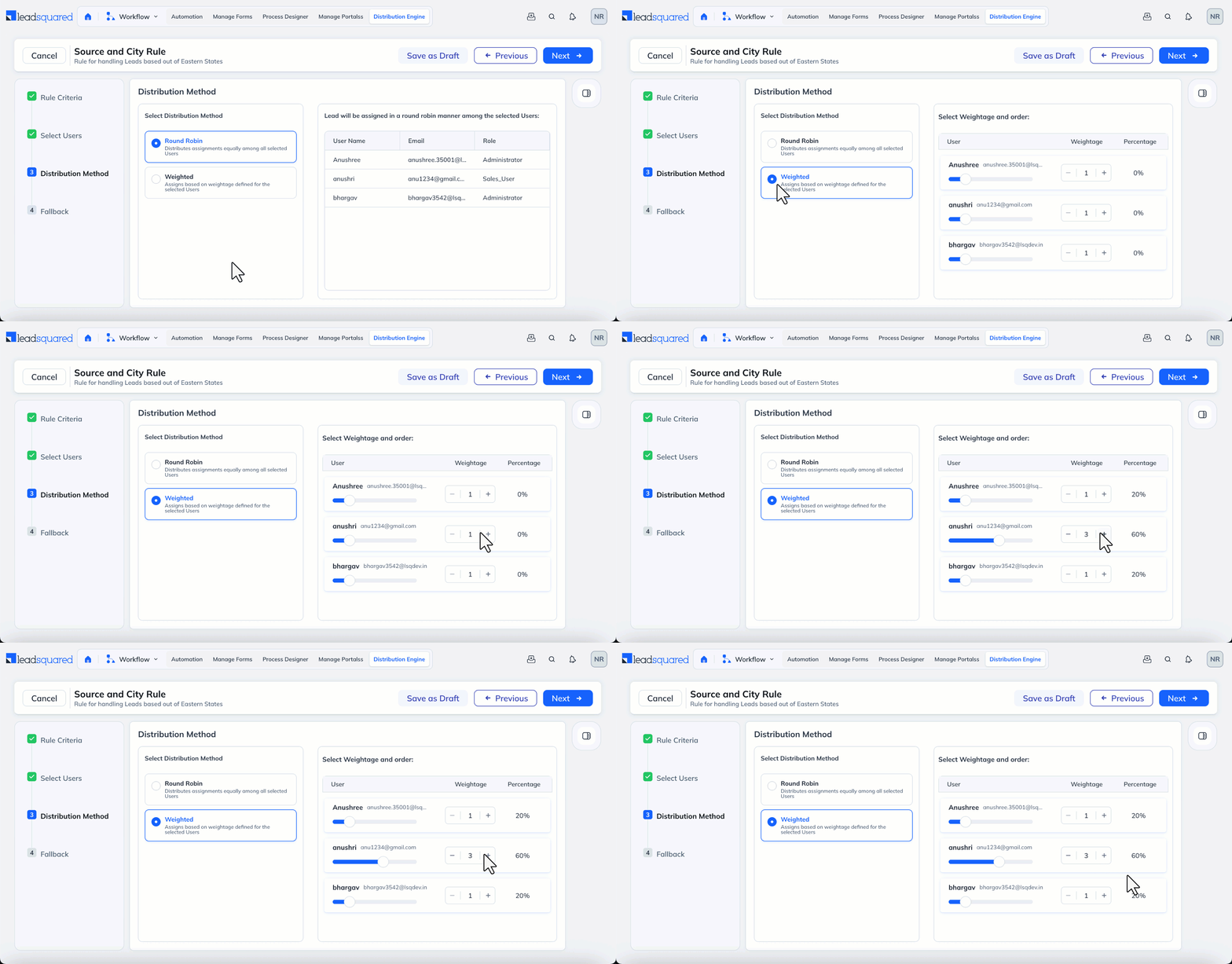
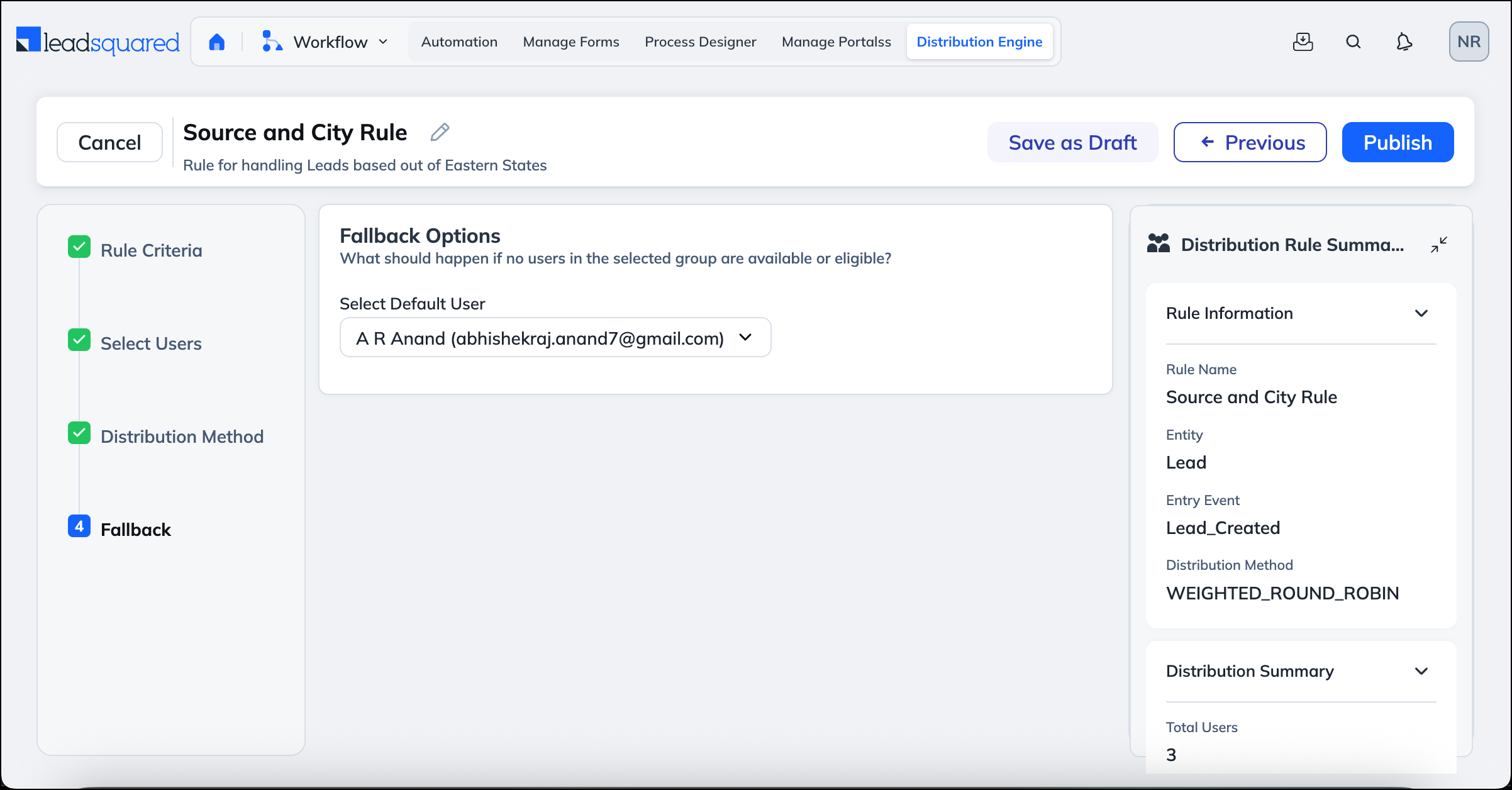
Step 4: Fallback
If no eligible user is available, assign the lead to a default user.
Next, you can:
- Save as Draft – Keeps the rule inactive
- Publish – Makes the rule live and adds it to the priority order
3.2 Managing Distribution Rules
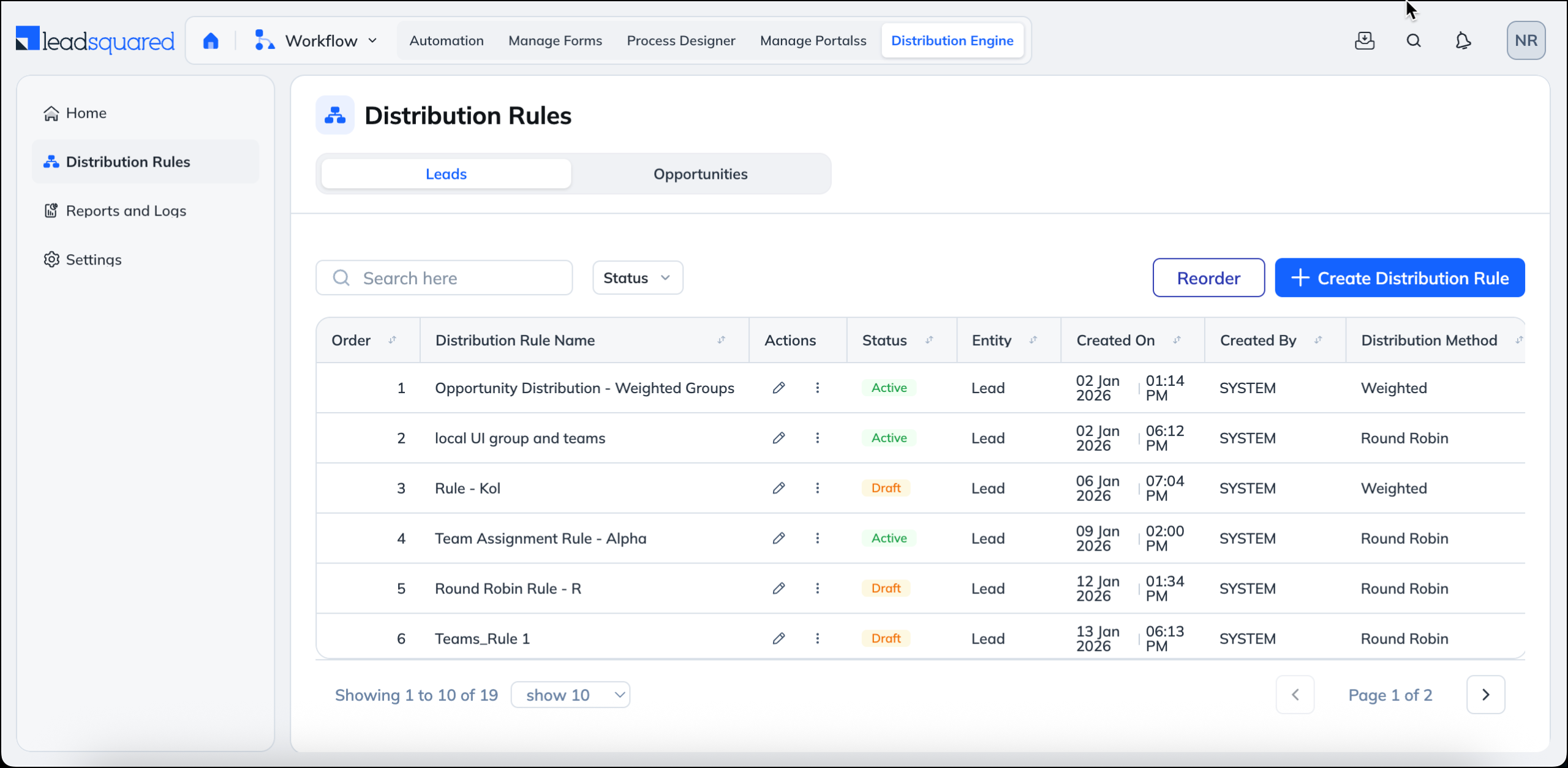
Rule list includes:
- Order (priority)
- Rule name
- Action (entity)
- Status (Draft, Active, Inactive, Error)
- Created on
- Created by
You can:
- Click any rule to open its details
- Search rules by name or creator
- Filter rules by status, creator, or distribution method
Reordering rules
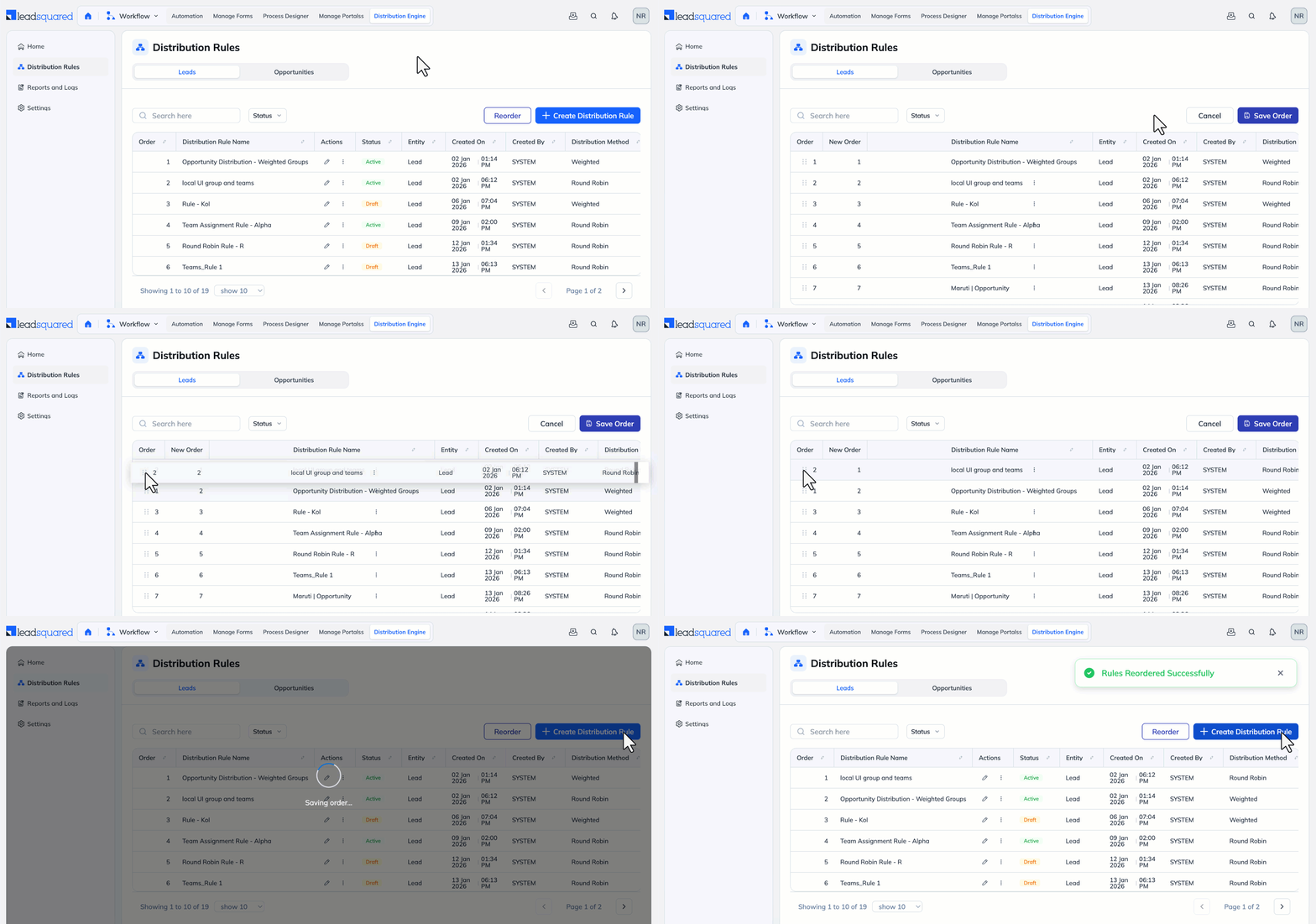
Rule order decides which rule gets applied first when a record enters the Distribute Engine.
When a Lead or Opportunity evaluated:
- The engine checks the first active rule in the list.
- If the record matches the rule’s entry criteria, the assignment is made.
- Once a record is assigned, no further rules are evaluated.
- If the record does not match, the engine moves to the next rule in the order.
Why rule order matters
If multiple rules can apply to the same record, only the highest‑priority rule will run.
Example:
- Rule 1: Assign All Website Leads to Team A
- Rule 2: Assign High‑Score Website Leads to Team B
If Rule 1 is above Rule 2, all website leads (including high‑score ones) will be assigned to Team A.
To ensure high‑score leads go to Team B, place Rule 2 above Rule 1.
Note:
- Only Active rules can be reordered
- Use drag and drop to change priority
4. Viewing assignments and performance
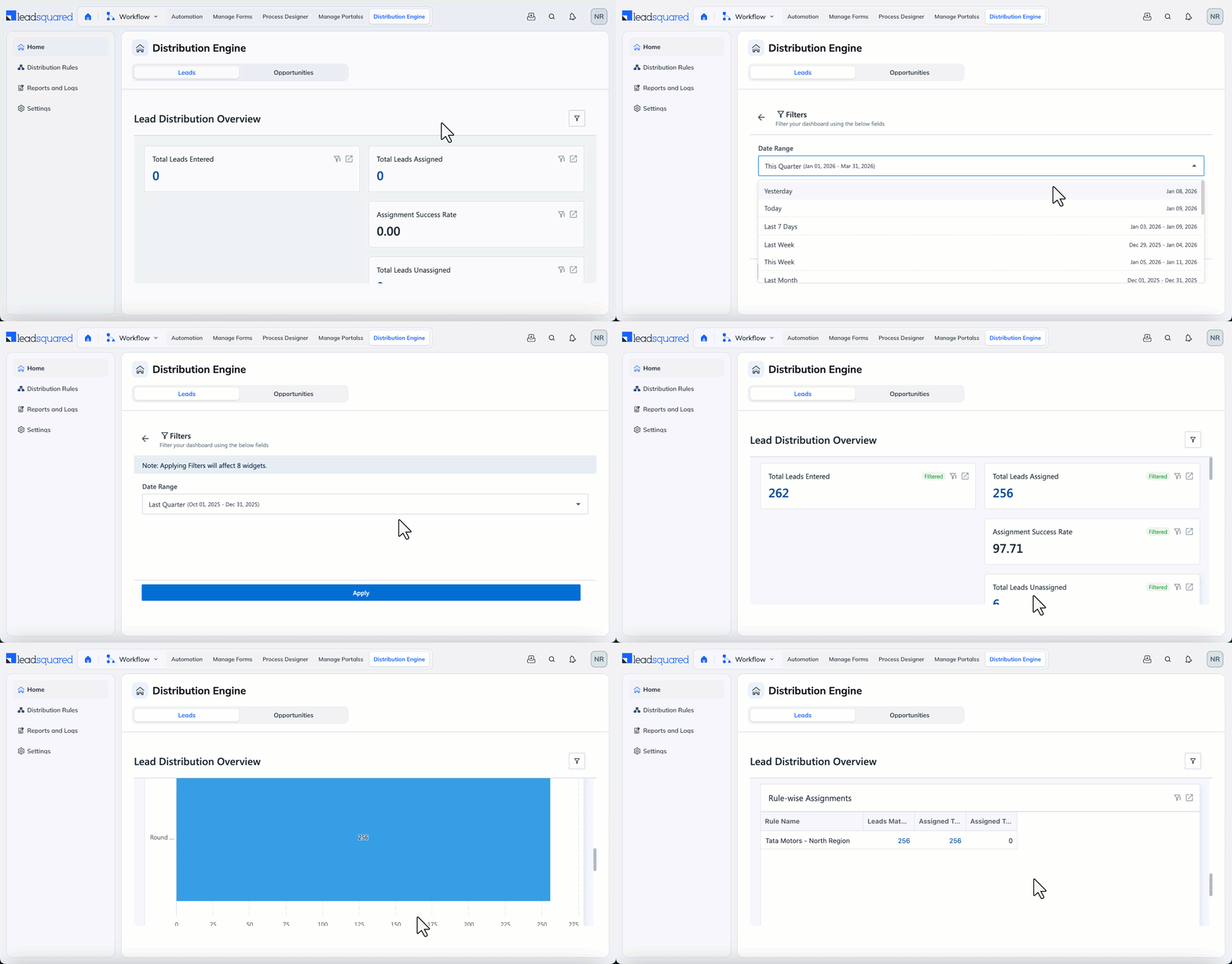
Navigate to Distribution Engine>Home. The Home page gives you a quick distribution overview. Click the filter icon to filter the data by a date-range.
- Records Created: Total number of records that entered the Distribute Engine during the selected time period.
- Records Assigned: Number of records successfully assigned to users by the Distribute Engine.
- Assignment Success Rate: Percentage of created records that were successfully assigned to a user.
- Records Unassigned: Number of records that could not be assigned due to no matching rule or no eligible user.
- Rule Match Overview: Shows how many records matched each assignment rule.
- Assignment Method Split: Displays how records were distributed across different assignment methods.
5. Logs and reports
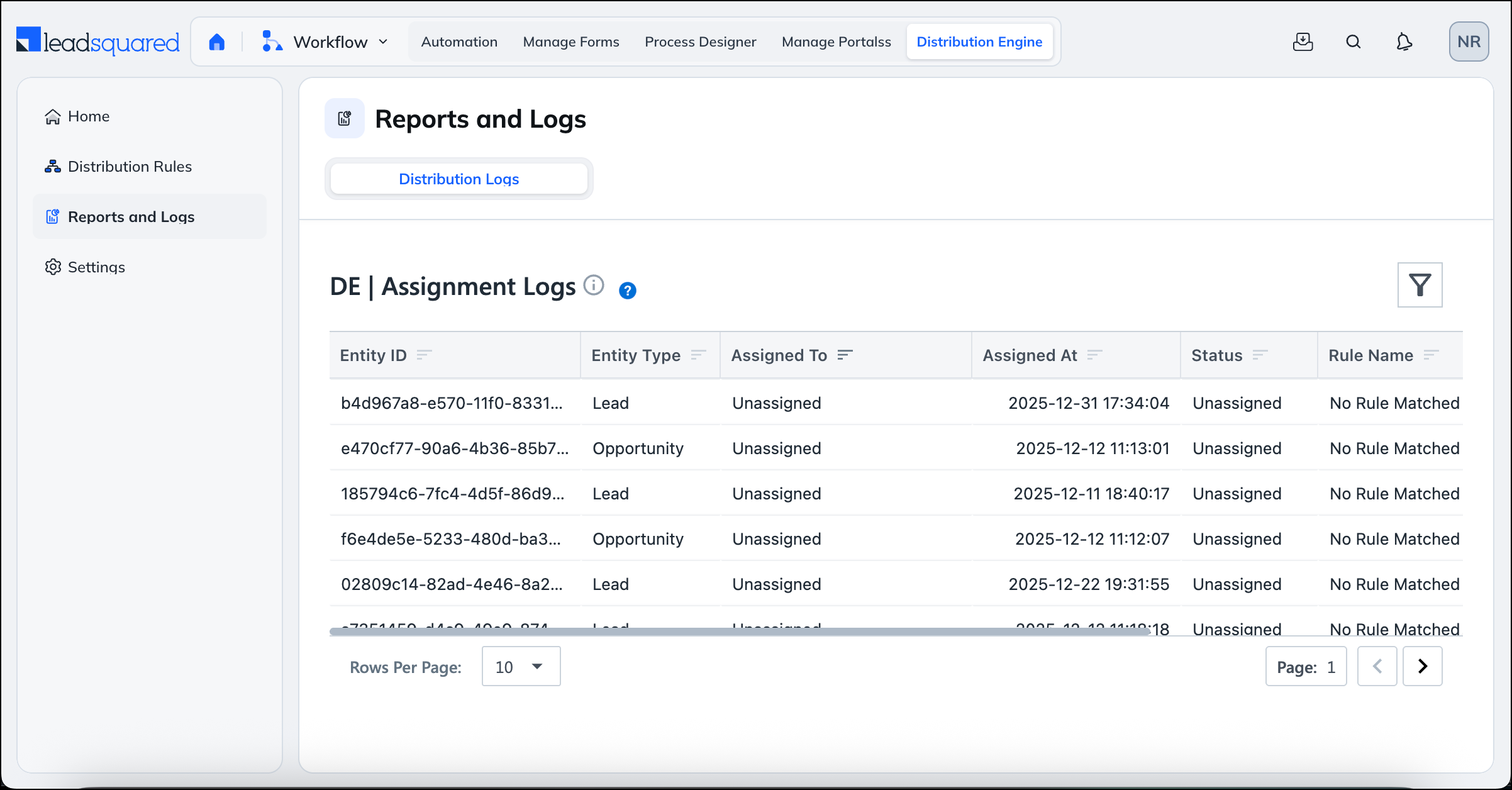
The Reports & Logs section helps you understand how records are being assigned and identify issues such as missed assignments.
You can use these reports to:
- View assignment history for each record
- See when and why fallback assignment was used
- Troubleshoot rule execution issues
All reports can be filtered by date range, sales group, assigned user, and entity type to quickly narrow down the data you need.
6. Assignment Settings
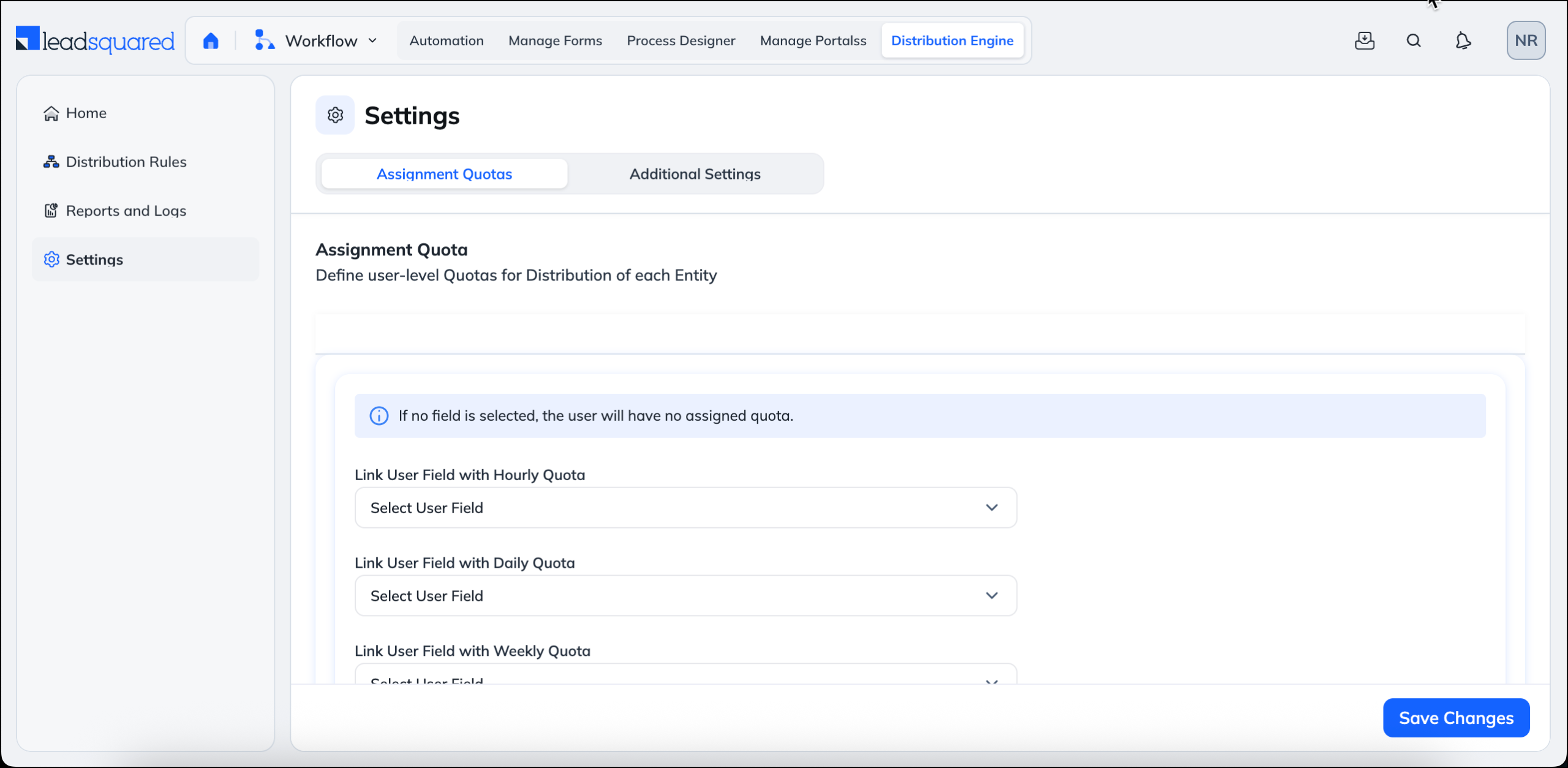
The Assignment Settings section defines the global controls used by the Distribute Engine, including who can receive assignments and how many records they can be assigned.
User Assignment Limits
Admins can map user fields to control how many records a user can receive on an hourly, daily, weekly, or monthly basis. If no limit is configured, the user is treated as having unlimited capacity.
User Eligibility for Assignment
Admins can control which users are eligible to receive assignments based on their Check-in / Check-out status. Only users who meet the configured eligibility conditions are considered during assignment.
FAQs
What happens if no user is available?
The record is assigned to the fallback user configured in the rule or settings.
Can I temporarily stop assignments to a user?
Yes. Mark the user unavailable, apply leave, or remove them from the rule.
Can I edit an active rule?
Yes. Changes take effect once you save and activate the rule again.
Any Questions?
Did you find the content in this article helpful? Feel free to leave doubts/questions in the comment section below. We’ll get back to you as soon as possible.





