

Platform Updates – SalesCloud.2026.10

Mask Sensitive Data in Custom Fields
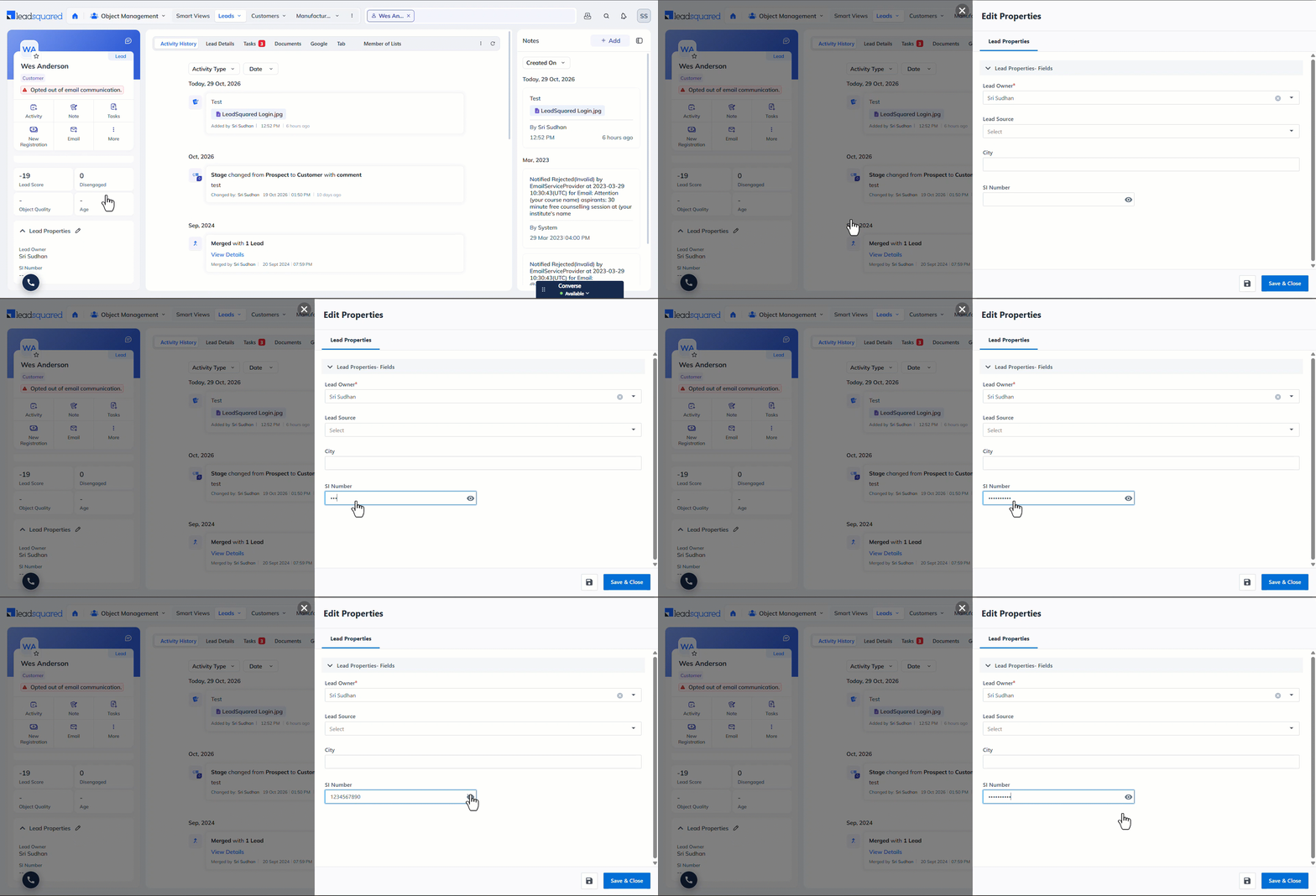
Values entered in custom fields, such as identification numbers, account numbers, or bank details, were displayed in plain text on screen as users typed them. Administrators can enable the Mask Value setting on eligible custom fields so the characters are replaced with dots during entry. This applies to Lead, Activity, and Opportunity custom fields.
What’s new?
When you create or edit a custom field, enable Mask Value under Behavioural Settings. For Lead fields, go to My Profile>Settings>Leads>Lead Fields, then create a field or edit an existing one. The setting is available for the Text, Number, Email, Phone, Website, and Date data input types. Once enabled, the field shows dots in place of the characters as the value is typed.
Apply Text Color to Label Field Content on Dynamic Forms
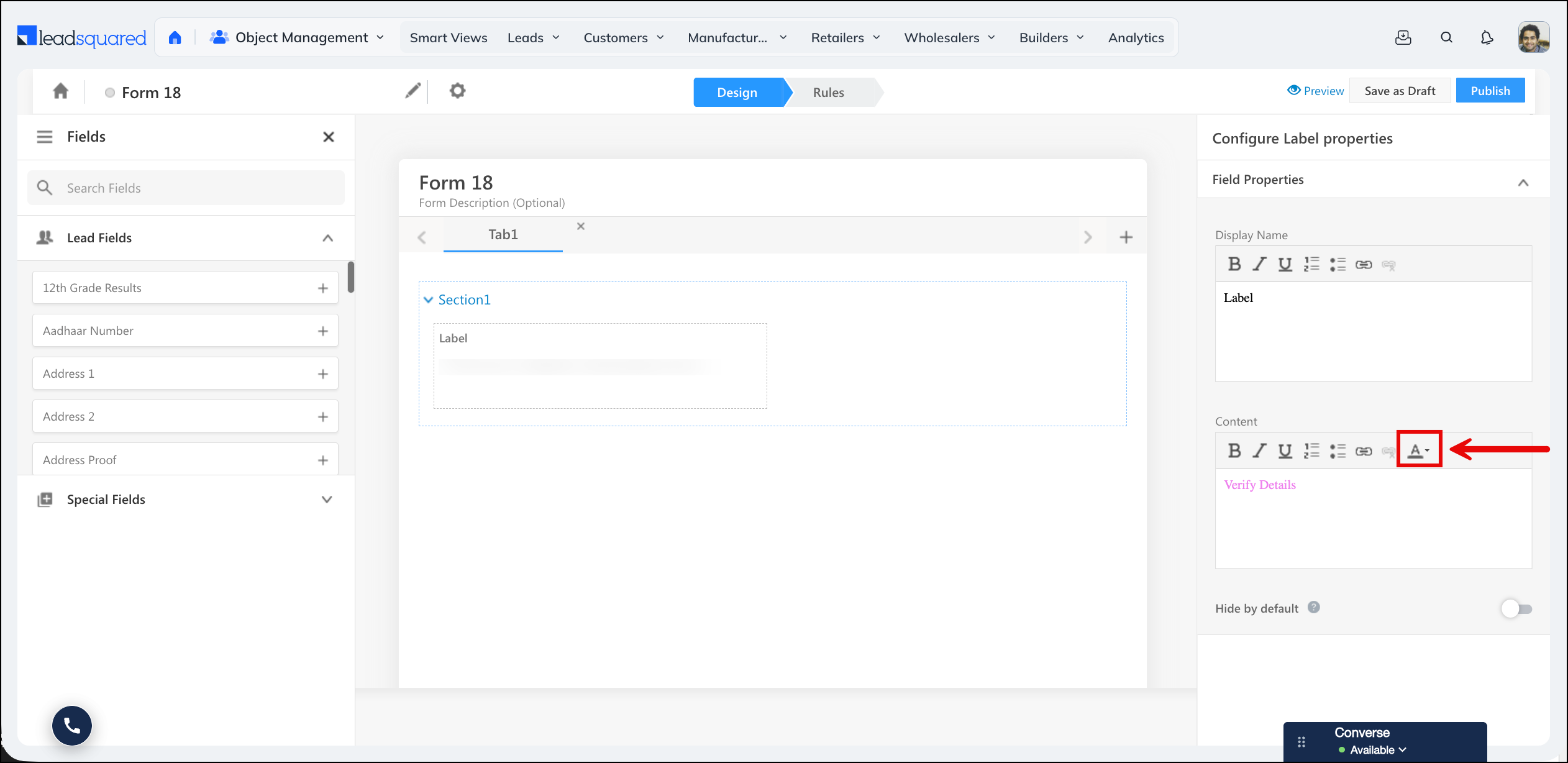
You can now apply a color to the content of a Label field, so notes, instructions and conditions stand out from the regular fields on a dynamic form. This helps you draw attention to a specific callout. The option is available on both Platform and NextGen forms.
What’s New?
A Text Color tool is now available in the Content editor of the Label field in the Form Designer. Select a color from the predefined palette, which includes Red, Blue, Green, Orange and Gray. The color is applied to the entire label content and appears on the rendered form, on both desktop and mobile. Applying more than one color within the same label removes the color.
Rename Automation Send Email Cards
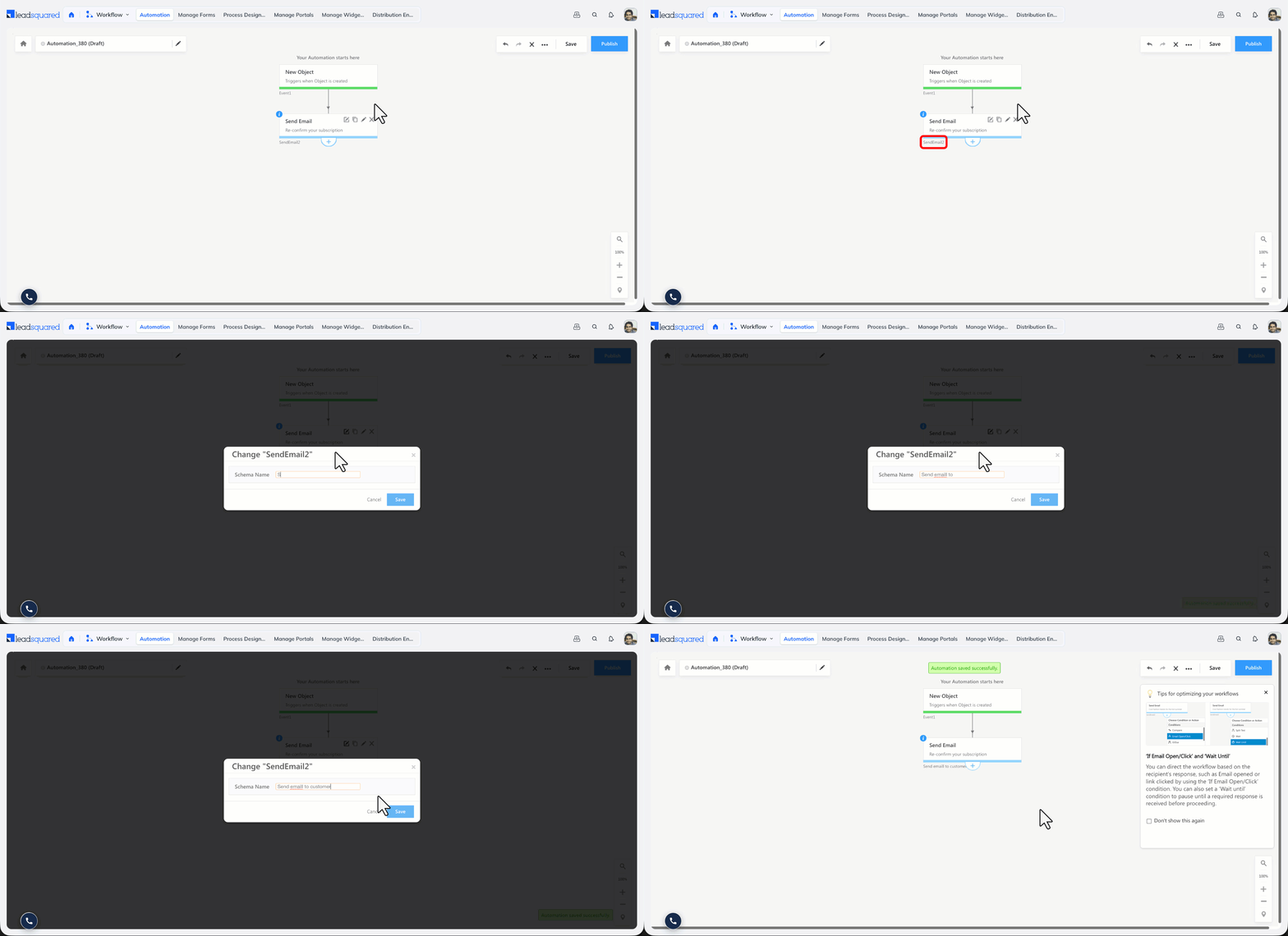
Automation Send Email cards carried auto-generated names such as SendEmail2 or SendEmail59, which made it difficult to tell what each card does in a sequence. You can now give the action card a custom name, identify each step of a journey at a glance, and trace performance and attribution back to the correct card.
What’s New?
A Rename option is now available on the automation Send Email action card, alongside Copy and Edit. Enter a name of up to 25 characters, including spaces. The custom name appears in both the automation builder and the Reports section. To view the underlying system name of a renamed card, hover over the card for about 5 seconds.
Note:
- You can rename a card only while the automation is in draft state. Published automations cannot be renamed.
- The new name takes effect after the automation is republished, and end users see it on their next page load.
- Name history is not retained. If you rename a card more than once before saving, only the most recent name is kept.
Schedule When Distribution Rules Accept and Assign Records
Distribution rules on Distribution Engine accepted and assigned records 24 hours a day, so teams working in shifts had to route records by time of day through automations, and records created outside working hours went to the rule’s default user. You can now restrict a rule to a set of working hours, and queue the records that arrive outside them. This applies to Objects, Opportunities, and Tasks.
What’s new?
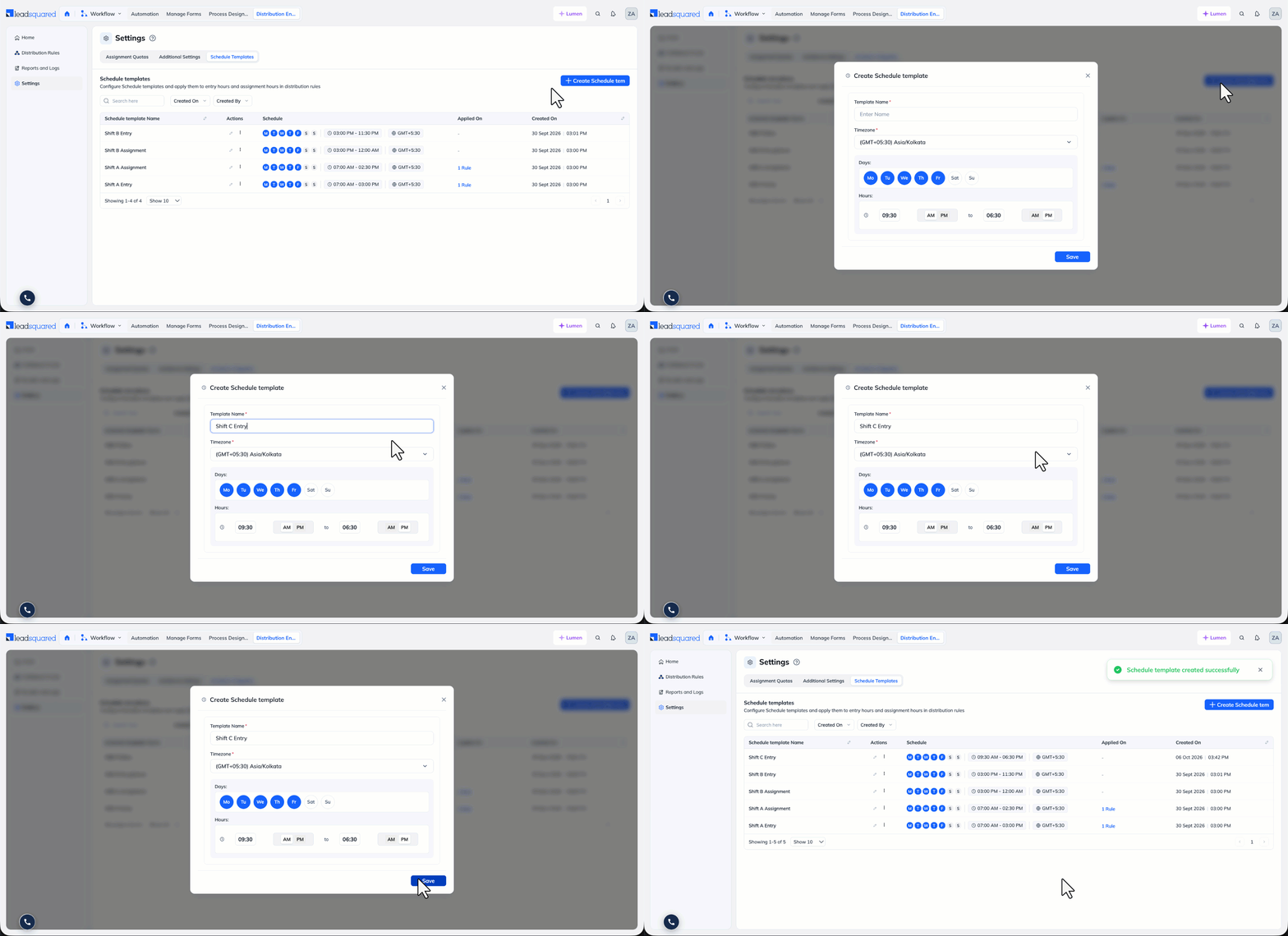
Create a reusable set of days, hours, and a timezone in Distribution Engine>Settings>Schedule Templates, then apply it to a rule in two places. In the Rule Criteria step, Entry Hours restricts the hours during which the rule accepts records. Records arriving outside the window skip the rule, and the engine evaluates the next rule in the priority order, so several shifts can share the same criteria with different users.
In the Fallback & SLA step, Assignment Hours restricts the hours during which the rule assigns records. Records arriving outside the window are queued on the rule instead of going to the default user, and are assigned at the start of the next window using the rule’s distribution method. From the Distribution Rules list, view a rule’s queue, assign records immediately, or clear the queue. To set the release order, select FIFO or LIFO under Assignment order for Queues in Distribution Engine>Settings>Additional Settings.
To learn more, refer to Schedule Templates.
Bug Fixes
Platform
- Fixed an issue where clicking “Quick Add Lead” from Global Search was pre-populating the form with the details of a lead that was already open in a background tab, instead of opening a blank form. This also affected Add Task and other add-from-global-search flows.
- Fixed an issue where Page Visit (Web Activity) entries in Activity History were not displaying the activity date and time in NextGen, even though the same activity showed the correct timestamp in the old UI.
- Fixed an issue where Global Search returned no results when a phone number was pasted with surrounding quotation marks, as exported from Smart View reports. Surrounding matching quotes are now stripped before the search is sent, while unmatched quotes and quotes within the text (e.g. O’Brien) are left unchanged.
- Fixed an issue where email campaign activities were not appearing in Advanced Search results for tenants with the Lead Type feature enabled. The selected lead type was not being passed to the backend, causing the search to return no results for email campaigns.
- Fixed an issue where searching for a lead by phone number without a country code in Global Search returned no results, even though the same search with the country code worked correctly.
- Fixed an issue where a custom position set for the Actions column via Manage Columns was not retained after a page refresh, causing it to reset to its default position every time.
- Fixed an issue where the association count badge on Object Type tabs showed a higher number than the actual records displayed in the grid. The count was including associations linked to leads that had since been deleted, which were not visible in the grid but were still being counted.
- Fixed an issue where empty Custom Field Set (CFS) fields were becoming hidden after filling in one sibling field within the same set, even when the “Hide Empty Fields” toggle was turned off.
- Fixed an issue where NextGen was not respecting email category subscription restrictions for Transactional emails. Leads who had unsubscribed from a Transactional email category could still receive emails from that category via manual sends and automations — matching the restriction that was already correctly enforced in the old UI.
- Fixed an issue where the Bulk Add Activity option was incorrectly hidden for Opportunity Types that had a “Create Opportunity” restriction in the Permission Template. These are independent permissions and a Create Opportunity restriction should have no effect on whether Bulk Add Activity is available.
- Fixed an issue where the Activity/Get API returned no records for users whose Permission Template used the activity-as-entity model, even when the user had explicit view access to the activity type being retrieved. The permission check was reading only the generic “Other Activities” rule and ignoring the per-activity-type permissions.
- Fixed an issue where the Bulk Add Activity action failed silently when more than 200 leads were selected using the “Select All” option on a page. The bulk activity now correctly applies to all matching leads beyond the page-level selection count.
Forms and Processes
- Fixed an issue where the form took around 10 to 12 seconds to load the first time on Lead Type tenants.
- Fixed an issue where Opportunity fields were not visible when creating a record with View Partial access applied.
- Fixed an issue where the date field showed the dd/mm/yyyy format instead of the mm/dd/yyyy format set in the user profile, and showed the date one day earlier, with Edit Partial access.
- Fixed an issue where the value was doubled when a Calculate rule was set to run on form load.
Automation
- Fixed an issue where an automation with an ActivityUpdateOnOpportunity trigger and a Recipient Criteria condition on an Opportunity field could fire for an Opportunity that did not satisfy the condition, if another Opportunity of the same type on the same Lead satisfied it. The Recipient Criteria is now evaluated against the Opportunity the activity update occurred on.
- Added support to add an Opportunity to a list from the trigger card of an automation.
- Cleaned up Context and StepExecutionHistory data older than one year, and ReportEntityData older than three months, through the existing PartitionCleanUp service.
- Compressed StepExecution EntityData for CallLapp Webhook, PostWebhook, and Connector actions to reduce storage cost. Empty and null fields are now pruned before storage.
- Migrated Cron retry requests from the Windows based queue to the Linux .NET Core service, completing the migration of the Cron retry flow to Linux.
- Enabled CSRF protection across the identified endpoints and flows in the Automation module.
