


Get Started

Sales Suite
Field Ops
Marketing
Service CRM
Integrations & Apps
FloStack
Distribution Engine – Schedule Templates

1. Feature Overview
By default, a distribution rule accepts and assigns records 24 hours a day. If your teams work in shifts, or if records arrive when nobody is working, you can limit a rule to a set of working hours.
Working hours are defined in a schedule template: a set of days, a start and end time, and a timezone. Create a template once in Distribution Engine>Settings, then apply it to a rule in either or both of the following places:
- Entry Hours, in Step 1 of the rule, controls the hours during which the rule accepts records.
- Assignment Hours, in Step 4 of the rule, controls the hours during which the rule assigns the records it has accepted.
Entry hours and assignment hours are available on rules for Objects, Opportunities, and Tasks.
2. Prerequisites
- Distribution Engine must be enabled on your account. For more information, refer to the Distribution Engine Feature Guide.
- The feature is available only on NextGen.
3. How it Works
Entry hours and assignment hours both use schedule templates, but they control different stages of distribution.
| Entry Hours | Assignment Hours | |
| Where you configure it | Step 1, Rule Criteria | Step 4, Fallback & SLA |
| What it controls | Whether a record enters the rule | When the rule assigns a record to a user |
| Outside the window | The record skips this rule, and the engine evaluates the next rule in the priority order | The record is queued on this rule |
| Typical use case | Multiple shifts that share the same criteria, each with its own users. For example, a support team runs a morning shift and an evening shift. Each shift has its own rule, with the same criteria and a different set of users | A single team with fixed working hours that receives records outside those hours. For example, A sales team works from 09:00 AM to 06:00 PM. Leads created overnight are queued, and assigned when the team starts the next day. |
Entry hours determine which rule assigns the record. Assignment hours determine when the record is assigned. Most accounts require only one of the two, but you can configure both on the same rule.
4. Create a Schedule Template
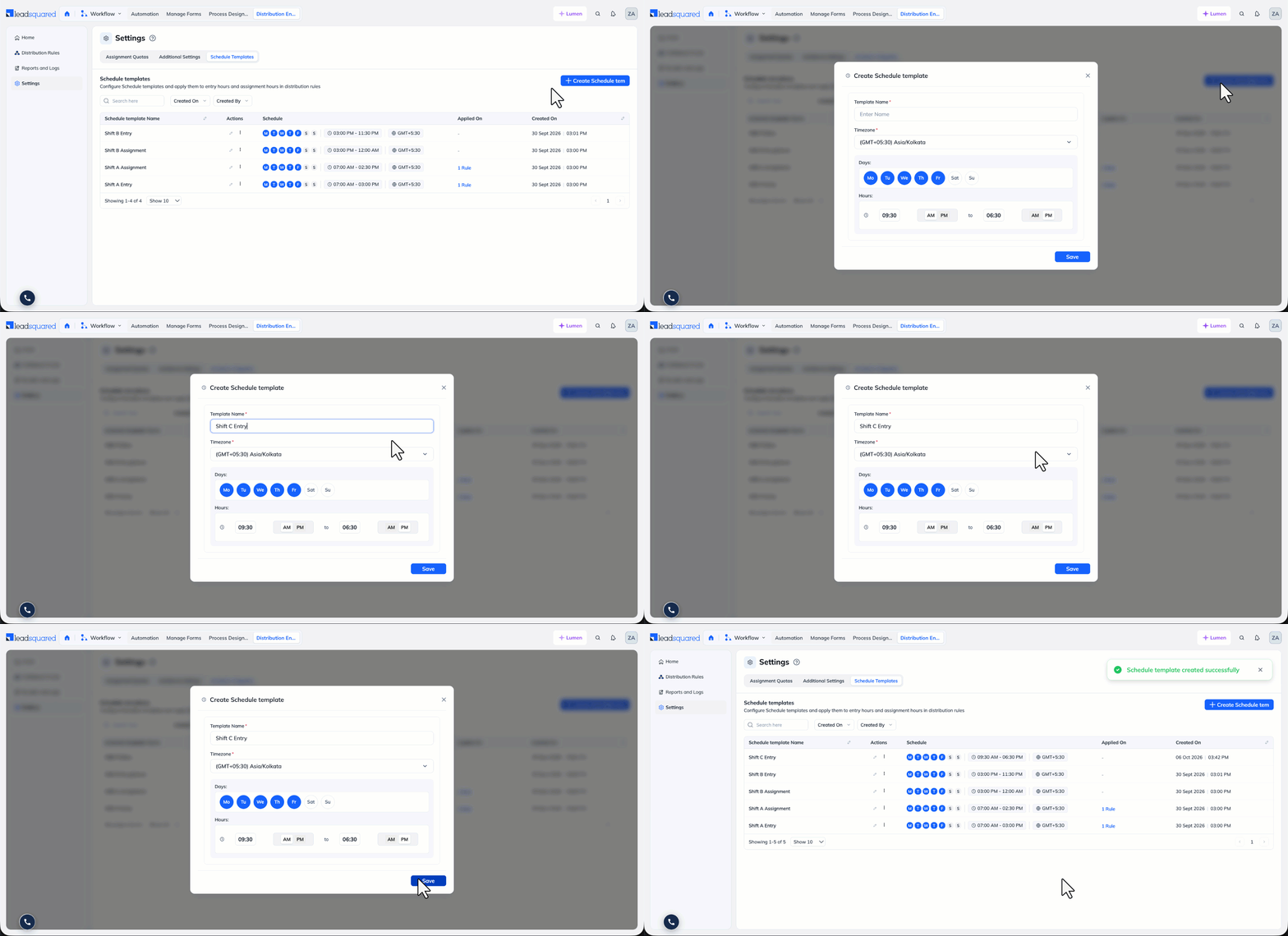
- Navigate to Distribution Engine>Settings>Schedule Templates.
- Click + Create Schedule Template.
- On the Create Schedule template pop-up window, enter the Template Name.
- Select the Timezone. The template’s hours are evaluated in this timezone, not in each user’s local timezone.
- Under the Days section, select the days the template covers.
- Under the Hours section, set the start time and the end time, with AM or PM.
- Click Save.
5. Manage Schedule Templates
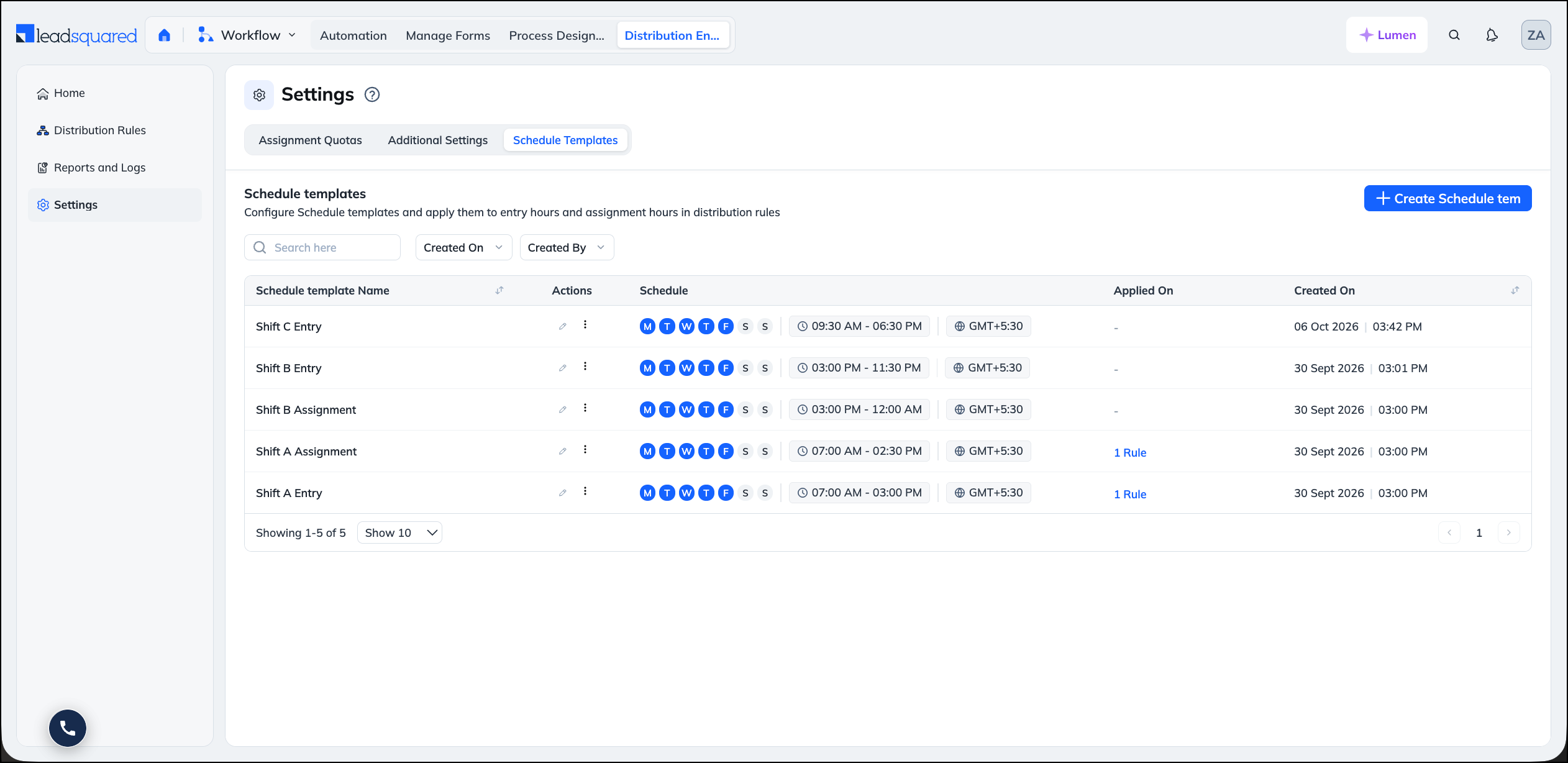
Navigate to Distribution Engine>Settings>Schedule Templates to view every template on the account. To locate a template, use the search box, or the Created On and Created By filters.
| Column | Shows |
| Schedule template Name | The name of the template |
| Actions | Edit the template, or open the more options icon for further actions such as Clone and Delete. |
| Schedule | The days, time range, and timezone |
| Applied On | The number of rules that use the template. To view them, click the link |
| Created On | The date and time the template was created |
To change a template, click the edit icon next to it. You can add or change entry hours and assignment hours on a rule that is already running. Records already being processed by the rule are completed using the existing configuration, and your changes apply to new records as soon as you click Save.
6. Set Entry Hours on a Rule
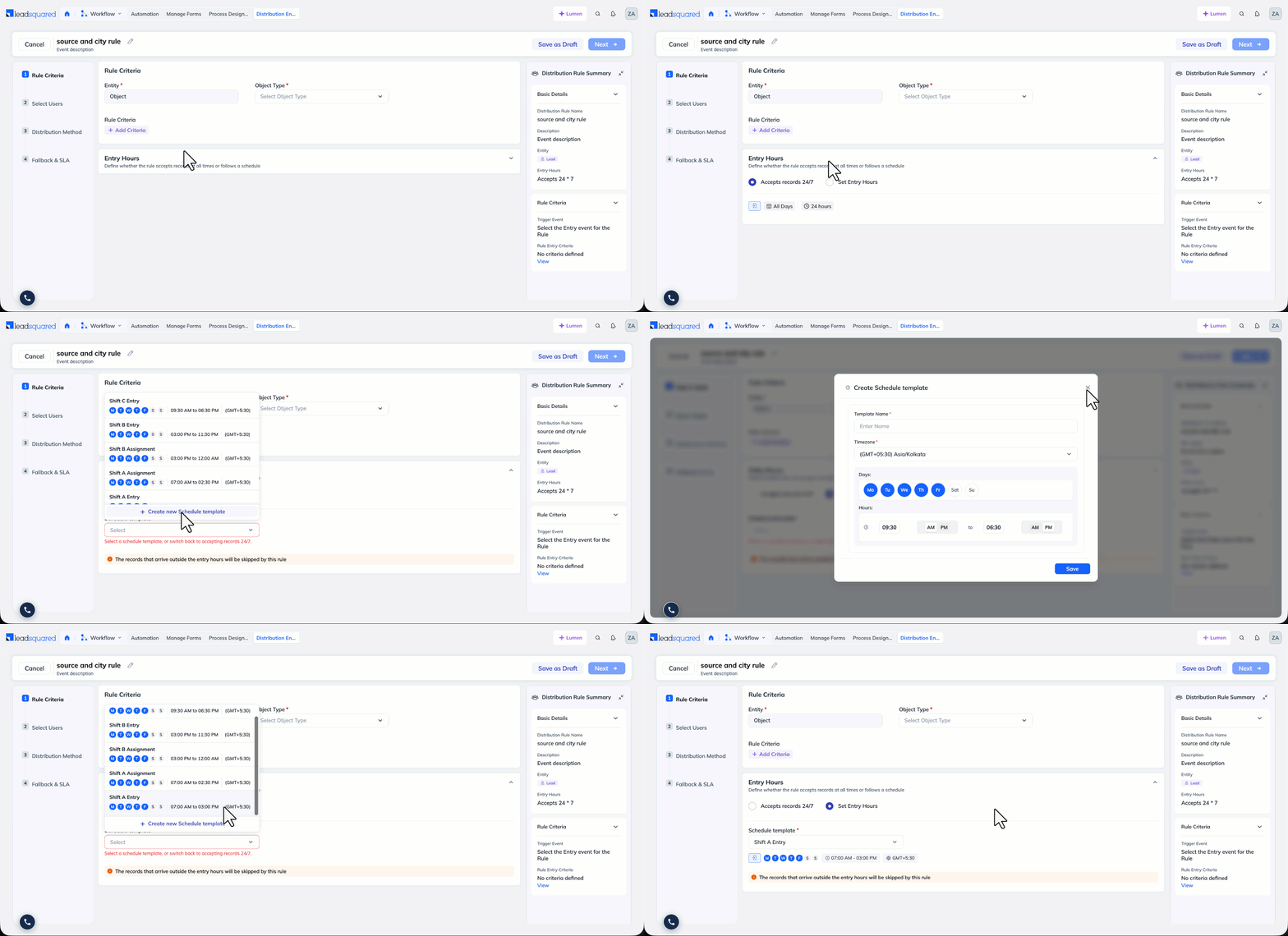
Entry hours are configured in Step 1: Rule Criteria of the rule. Under the Entry Hours section, select one of the following:
- Accepts records 24/7 – The default. The rule evaluates records at all times.
- Set Entry Hours – The rule evaluates records only within the days and hours defined in a schedule template. Select the Schedule template. Its days, times, and timezone appear below the dropdown.
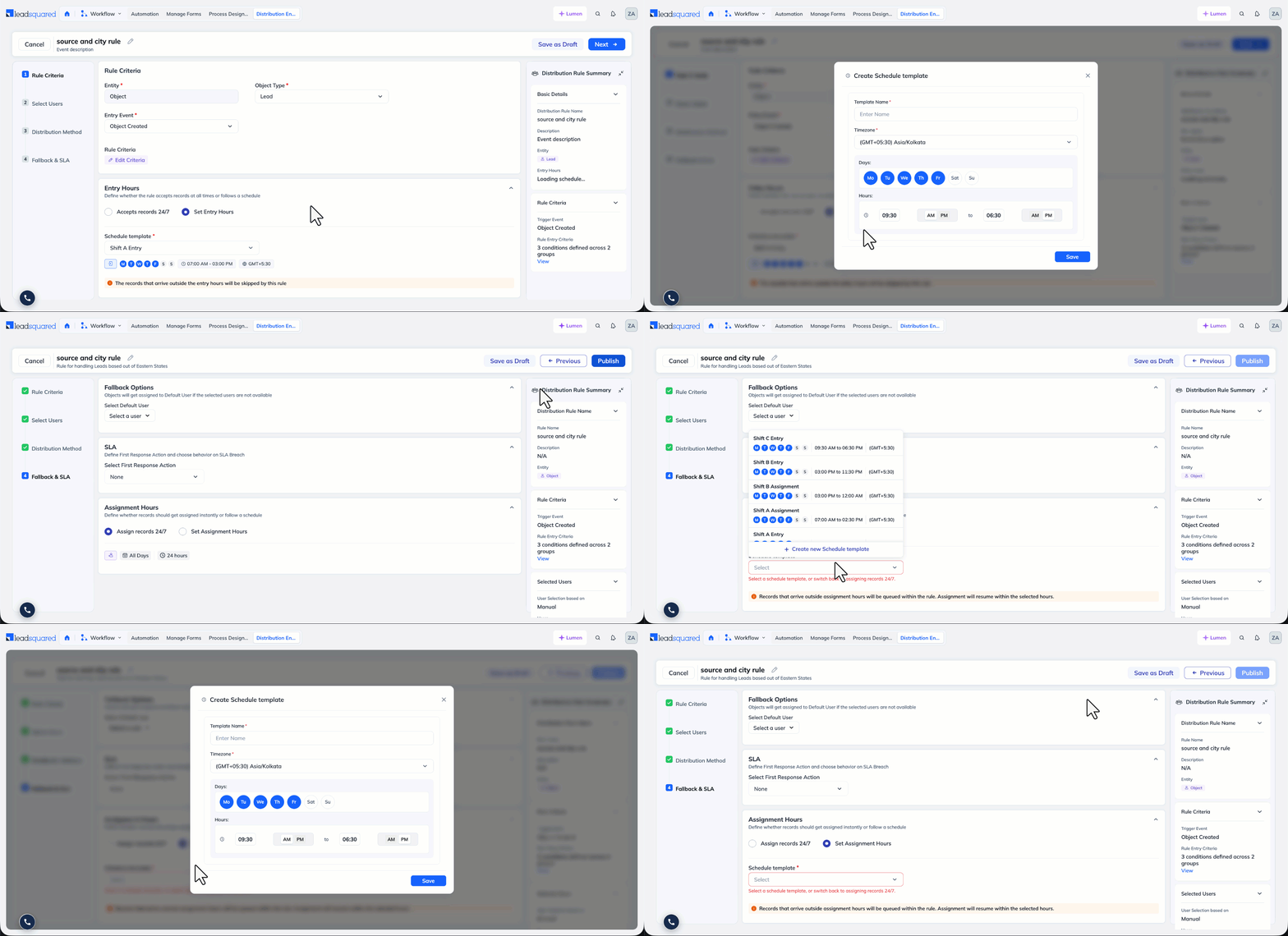
- You can also create a template from within a rule. Click + Create new Schedule template.
Records that arrive outside the window are not queued. The rule skips the record, and the engine evaluates the next rule in the priority order.
Example: one team, three shifts
A support team runs three shifts on identical lead criteria. Create three rules, one for each shift, each with its own users and its own entry hours template.
| Rule | Entry hours | Users |
| Shift A | 07:00 AM to 03:00 PM | Shift A agents |
| Shift B | 03:00 PM to 11:30 PM | Shift B agents |
| Shift C | 11:30 PM to 07:00 AM | Shift C agents |
A lead created at 4:00 PM is skipped by the Shift A rule, and assigned by the Shift B rule. This avoids duplicating criteria across shifts, and removes the need for an automation to route records by time of day.
7. Set Assignment Hours on a Rule
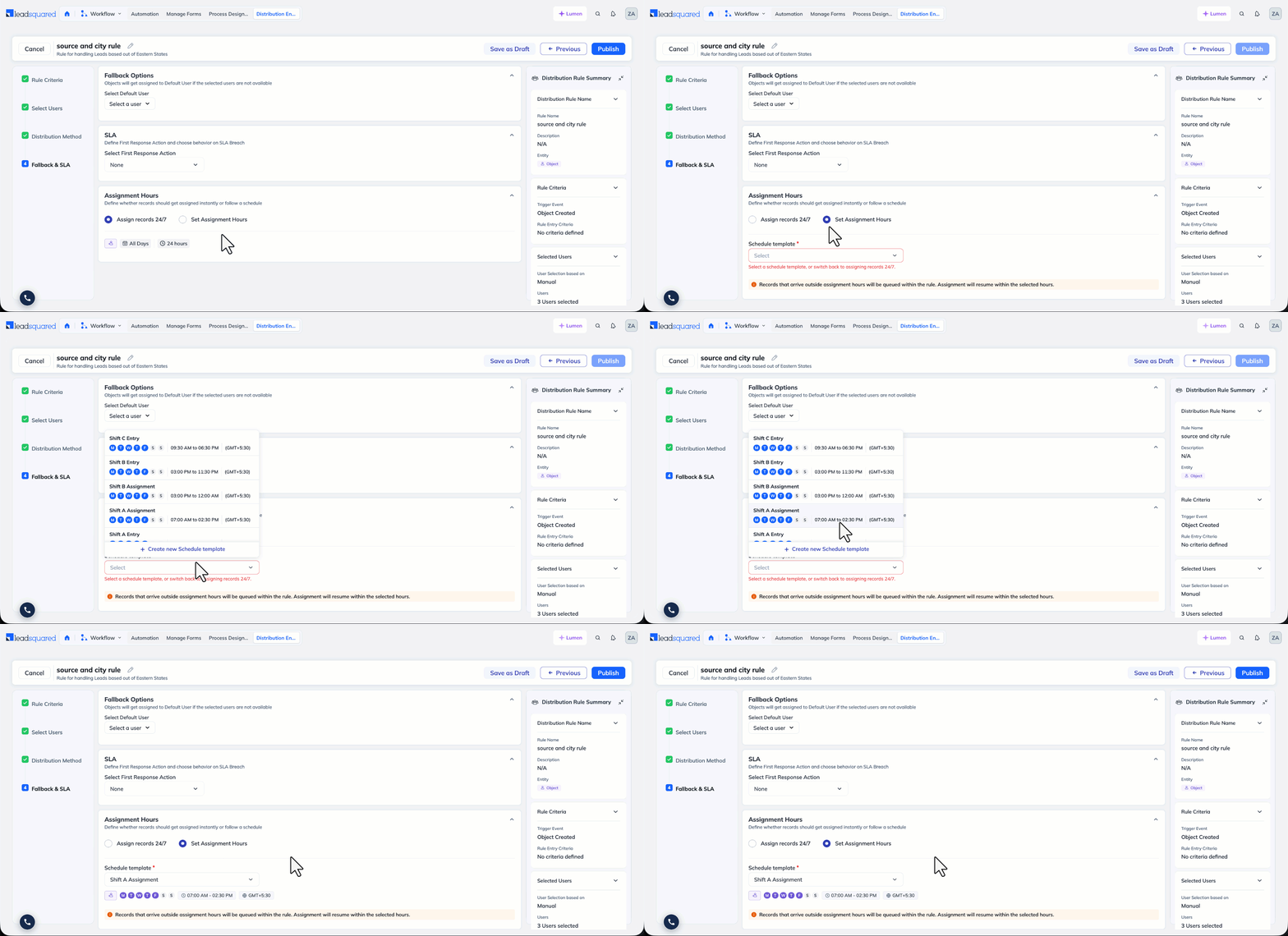
Assignment hours are configured in Step 4: Fallback & SLA of the rule. Under the Assignment Hours section, select one of the following:
- Assign records 24/7 – The default. The rule assigns records at all times, as soon as an eligible user is available.
- Set Assignment Hours – The rule assigns records only within the days and hours defined in a schedule template. Select the Schedule template.
- You can also create a template from within a rule. Click + Create new Schedule template.
Records that arrive outside the window enter the rule as usual, and are then queued on that rule. They are not assigned to the default user. At the start of the next window, the engine assigns the queued records using the rule’s distribution method, so weightage and load balancing continue to apply.
Example: records created outside working hours
A team works from 07:00 AM to 02:30 PM, and the rule uses the Shift A Assignment template.
| Lead created at | Result |
| 11:00 AM | Assigned immediately |
| 6:00 PM | Queued on the rule |
| Next working day, 07:00 AM | The queued lead is assigned |
Without assignment hours, the 6:00 PM lead is assigned to the default user, who must then reassign it manually the next morning.
8. Manage Queued Records
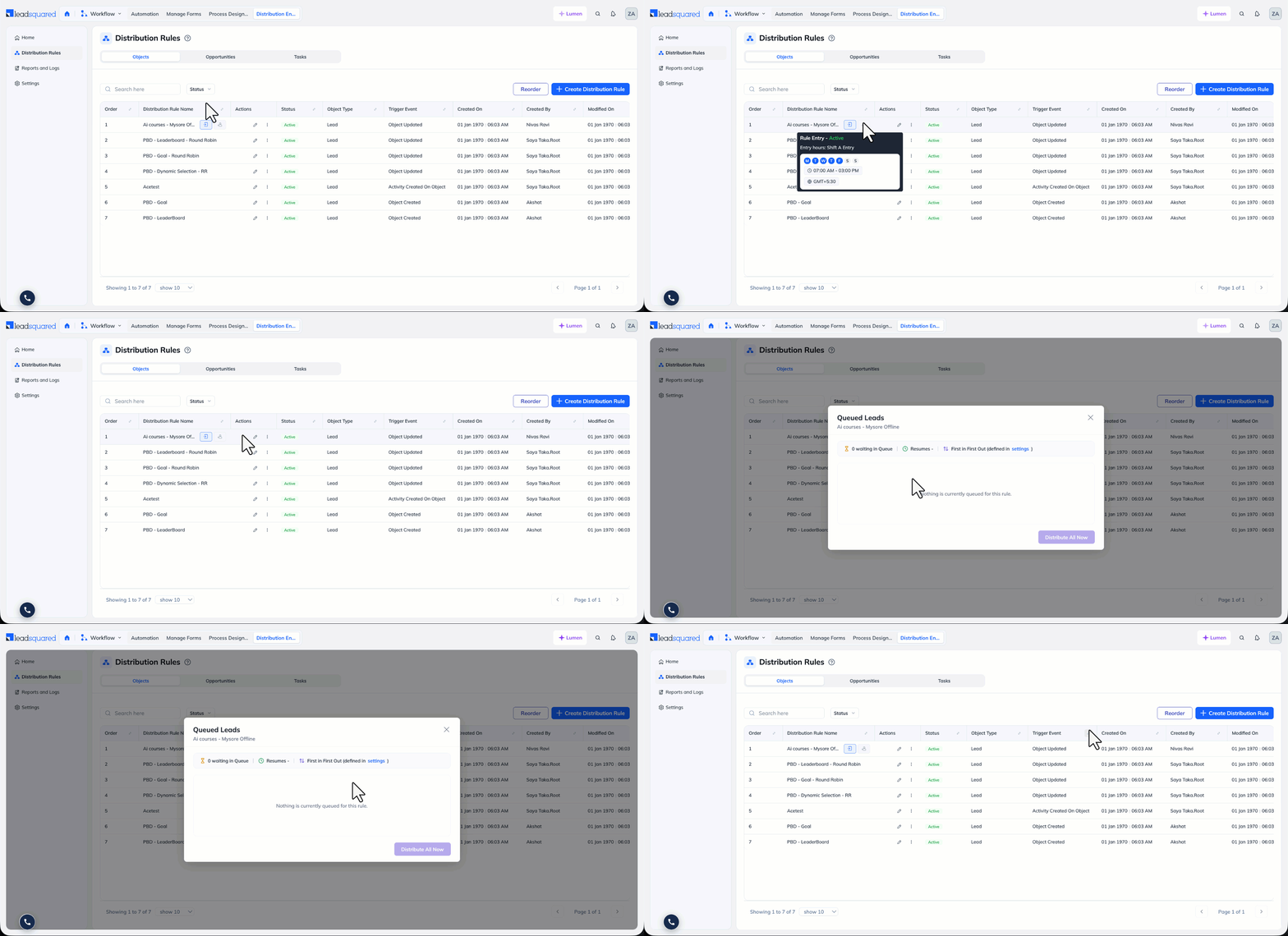
On the Distribution Rules list, a rule that uses schedule templates displays its entry hours and assignment hours, so you can identify the rules that follow a schedule without opening them.
For a rule that has queued records, you can:
- View the records currently queued on the rule.
- Select records and assign them immediately, without waiting for the next window.
- Clear the queue.
9. Assignment Order for Queues
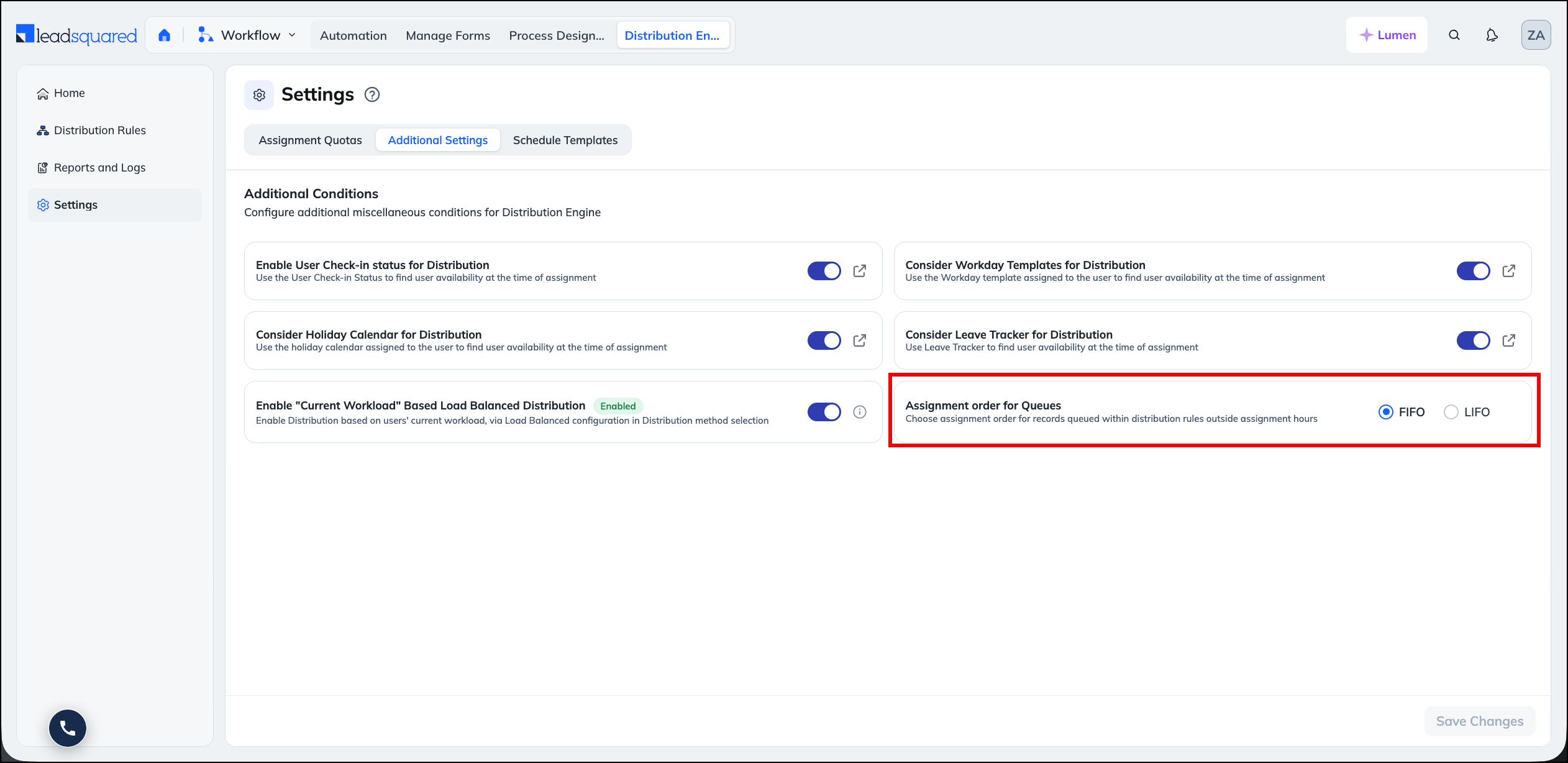
The assignment order is configured at the account level, and applies to all rules. Navigate to Distribution Engine>Settings>Additional Settings, then under the Assignment order for Queues section, select one of the following:
- FIFO (First In, First Out) – The oldest queued record is assigned first. This is the default. Use it when response time is the priority.
- LIFO (Last In, First Out) – The most recently queued record is assigned first. Use it when the most recent enquiry is the highest priority.
Example
A rule assigns records between 09:00 AM and 05:00 PM. Three leads are created at 05:30 PM, 06:00 PM, and 07:00 PM, and all three are queued. The next working day, FIFO assigns the 05:30 PM lead first, and LIFO assigns the 07:00 PM lead first.
FAQs
1. Which setting do I need, entry hours or assignment hours?
- Use entry hours when multiple rules share the same criteria, and each shift requires a different set of users. For example, a support team runs a morning shift and an evening shift. Each shift has its own rule, with the same criteria and a different set of users
- Use assignment hours when a single team owns the records, and you want to delay assignment until the team is working. For example, A sales team works from 09:00 AM to 06:00 PM. Leads created overnight are queued, and assigned when the team starts the next day
2. Where do queued records stay, and who owns them until they are assigned?
They remain on the rule, unassigned. They are not assigned to the default user. You can view them from the rule list, and assign them before the next window opens.
3. I edited a schedule template. Do I need to update my rules?
No. Every rule that uses the template applies the change as soon as you save. Check the Applied On column to see how many rules are affected.
4. Can one template cover both entry hours and assignment hours?
Yes. Use separate templates when the rule must stop accepting records at a different time from when it stops assigning them.
5. Do schedule templates replace Workday Templates?
No. A schedule template applies to the rule, and controls when the rule accepts and assigns records. A Workday Template applies to a user, and is one of the availability conditions you can configure in Step 2 of the rule.
6. Is this available for opportunities and tasks?
Yes. Both settings behave the same way across Objects, Opportunities, and Tasks.
7. What happens to a record that does not match the entry hours of any rule?
Distribution Engine does not assign it.
Any Questions?
We’d love to hear your feedback to help improve this article. Feel free to enter your questions or in the comments section below.