
1. Feature Overview
LeadSquared allows you to export up to 1 lakh (100,000) leads per export request. If your database contains more than 1 lakh leads, you must export them in multiple batches. You can achieve this by creating lists containing fewer than 1 lakh leads and exporting each list separately. Lists can be created using any filtering criteria such as lead fields, activities, or tasks.
This article explains a simple approach using the Lead Number field to split your data into manageable batches.
Note: ESS tenants can export up to 5 lakh (500,000) leads in a single request. To enable this feature, contact your account manager or email support@leadsquared.com.
2. How It Works
Every lead in LeadSquared is automatically assigned a Lead Number when it is created.
- The first lead receives Lead Number 1.
- The second lead receives Lead Number 2, and so on.
- Lead numbers increase sequentially and are not reused, even if a lead is deleted.
For example:
|
Lead Created |
Assigned Lead Number |
|
First lead |
1 |
|
Second lead |
2 |
|
Third lead |
3 |
If lead number 2 is deleted, the next lead created will still receive Lead Number 4, not 2.
Because of this sequential numbering, you can export leads in ranges of Lead Numbers (for example, 1–100000, 100001–200000, etc.) to retrieve your entire database in batches.
3. Export Leads Using Lead Number
Follow these steps to export leads in batches.
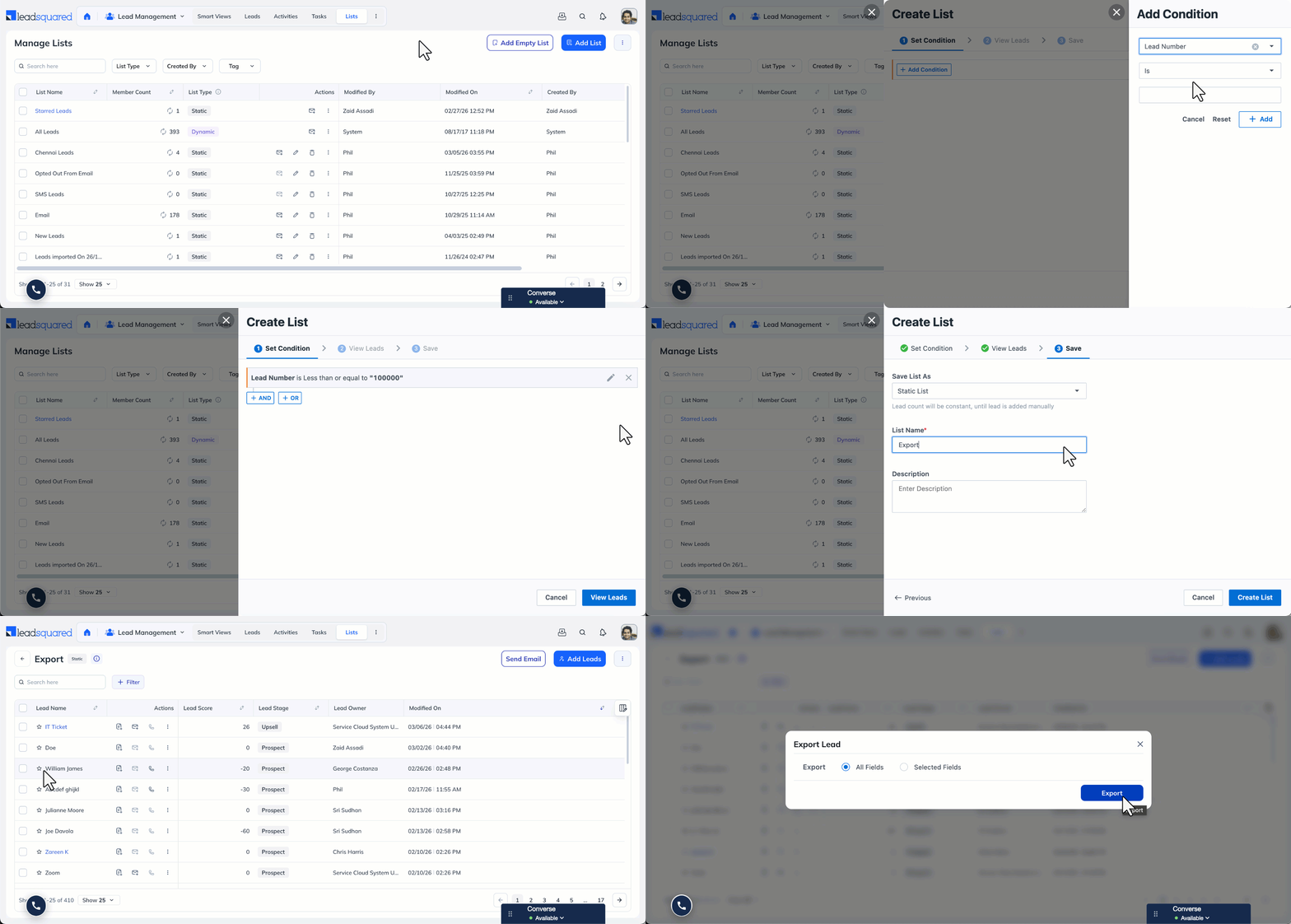
Step 1: Navigate to Lists
- Navigate to Lead Management>Lists.
- Click Add List.
Step 2: Add List Criteria
- In the Create List window, add the following condition:
Lead Number Less than equal or to 100000 - Click Add.
The filter criteria will appear on the panel.
Step 3: Find Leads
Click View Leads to generate the list of matching leads.
Step 4: Save the List
- Review the leads.
- Click Proceed to Save.
- Choose Save List As a Static List.
- Enter a List Name and Description.
- Click Create List.
Step 5: Export the Leads
- On the Manage Lists page, click the newly created list.
- In the List Details page, under Actions (three-dotted menu), click Export Leads.
- In the Export Leads popup, select either all lead fields or specific lead fields.
- Click Export.
Export Additional Lead Batches
If your account contains more than 1 lakh leads, create additional lists with the following criteria.
|
Lead Batch |
Filter Criteria |
|
First 1 lakh leads |
Lead Number ≤ 100000 |
|
Second 1 lakh leads |
Lead Number between 100000 and 200000 |
|
Third 1 lakh leads |
Lead Number between 200000 and 300000 |
Repeat the export process for each list until all leads are exported.
Any Questions?
Did you find this article helpful? Please let us know any feedback you may have in the comments section below. We’d love to hear from you and help you out!





Should it be less than or grater than equal to 1 Lakh
Hi.
To create a list based on lead number, set up the criteria Lead Number less than or equal to 1 lakh.