

Platform Updates – SalesCloud.2026.9

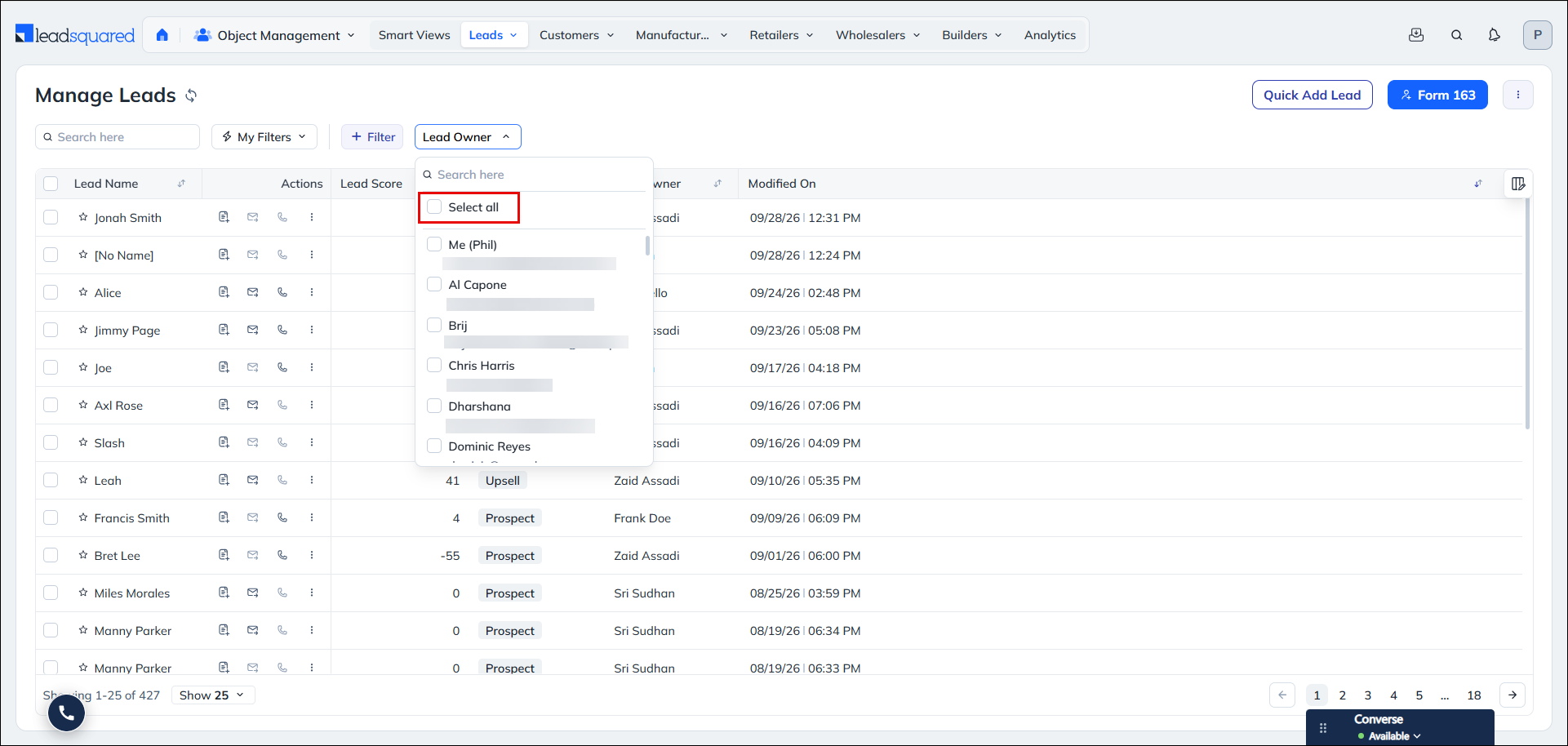
Select All / Deselect All in Multi-Select Filter Dropdowns
You can quickly select or clear multiple filter options, making it easier to work with fields that have a large number of values. This simplifies filtering and helps you find the required records with fewer clicks.
What’s New?
A Select All option is now available in multi-select filter dropdowns with five or more options across Smart Views, Manage pages, and other filters. Selecting all options treats the field as unfiltered, while excluding specific options switches to an All except “N” mode. You can remove the exclusions to return to Select All or use Deselect All or Clear to reset the filter. The option applies to the complete list of values, not just search results. Additionally, all NextGen filter dropdowns now use infinite scroll, removing the previous 50-option limit.
Custom Dropdown Fields Can Now Be Cleared via Bulk Update
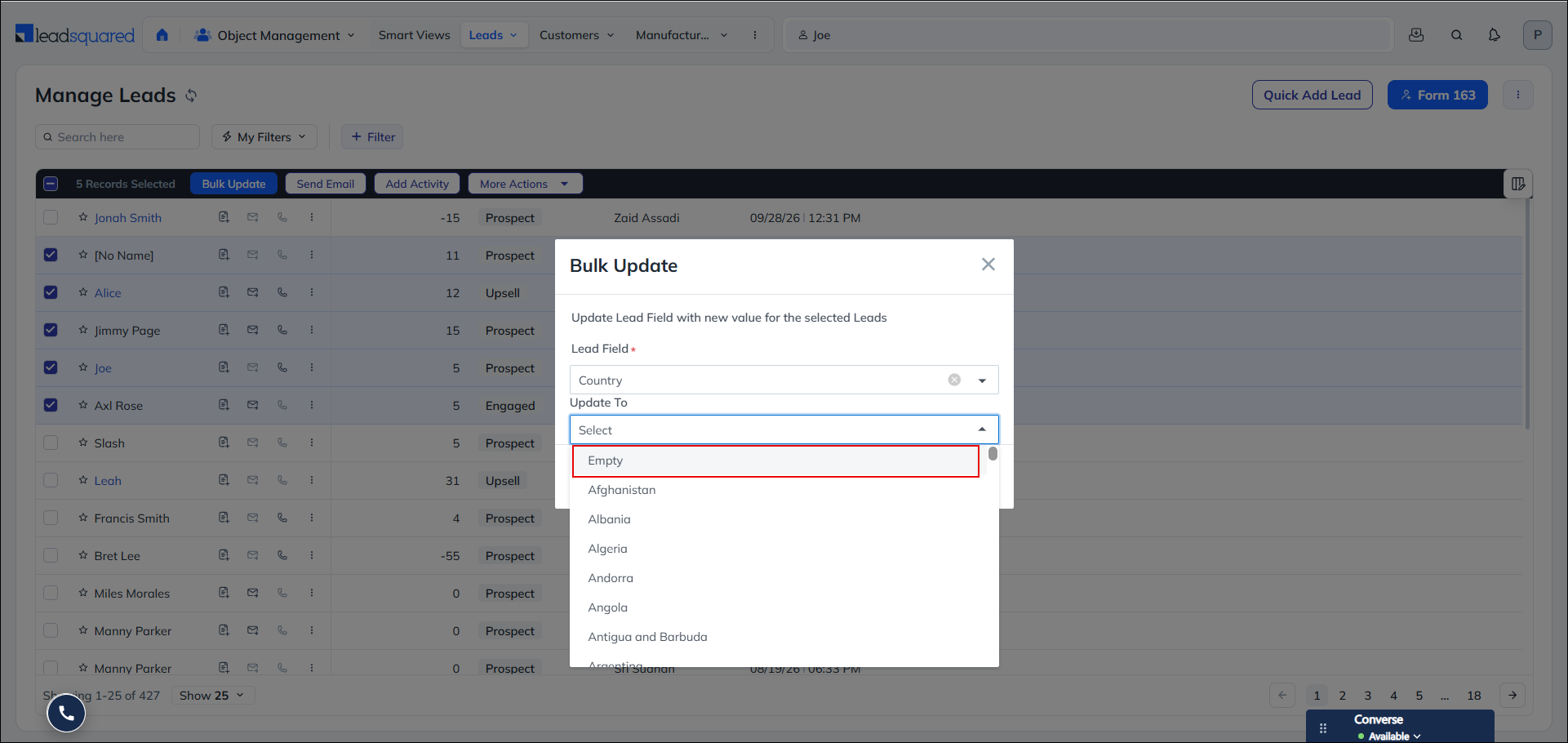
You can allow users to clear field values in bulk without having to edit records individually. This gives admins more control over data cleanup while ensuring that field permissions and required-field rules are still respected.
What’s New?
Admins can now configure a null (Empty) option for custom single-select, multi-select, and dependent dropdown fields through Settings>Leads>Lead Fields and configuring the Lead Field Properties. Once enabled, users can select this option in Bulk Update for Leads, Opportunities, Tasks, and Activities to clear the field value across multiple records. The null option will not be available for the fields where Is Mandatory is enabled.
- A confirmation prompt is displayed before the values are cleared.
- For dependent dropdowns, clearing a parent field also clears its child field values.
- Permission Template field-level edit permissions continue to apply. Users without edit access cannot clear the field.
All Note Types Now Render Inline in Activity History
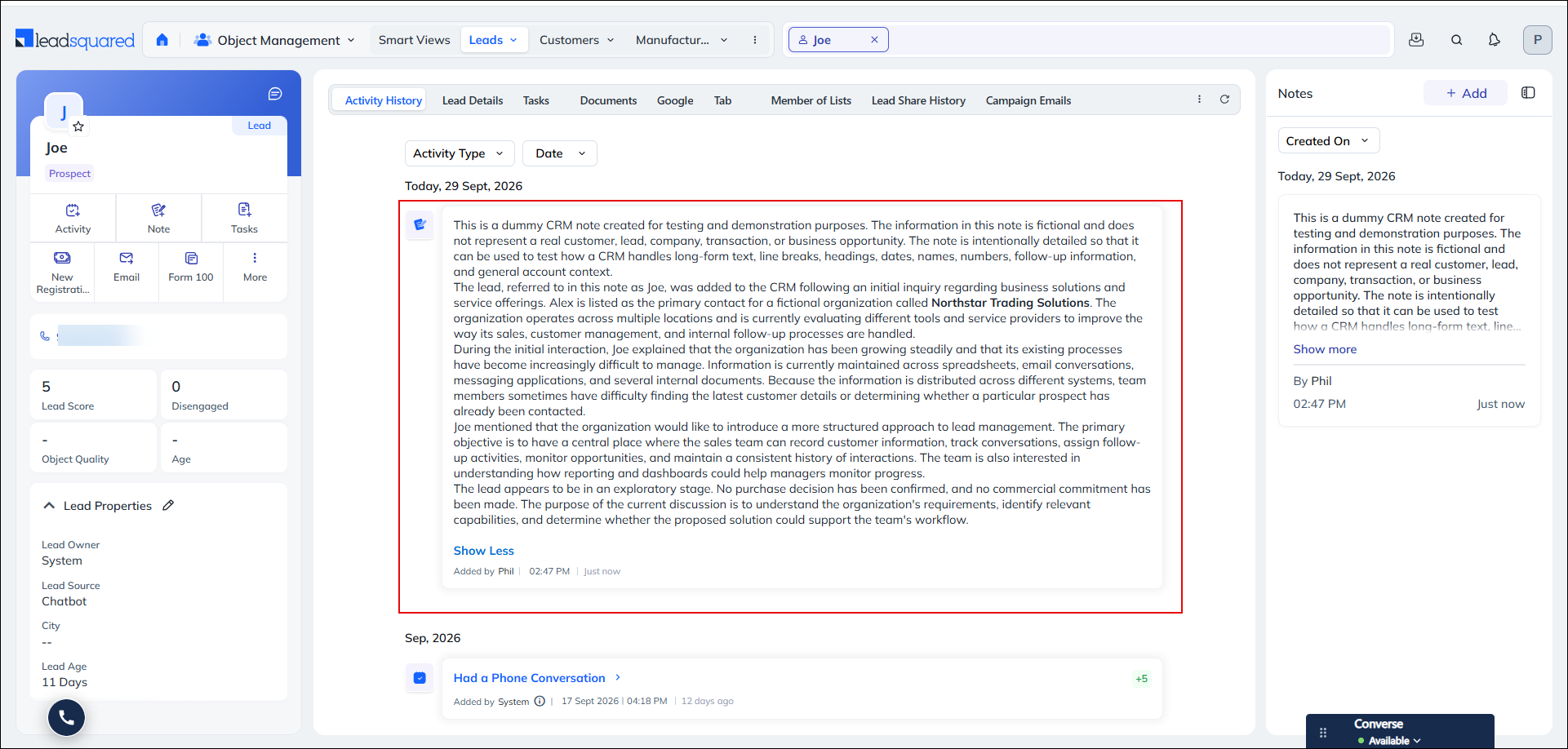
Lead Notes, Task Notes, and Opportunity Notes now render inline within Activity History, consistent with how Activity Notes have always appeared. Lead Notes no longer open in a separate modal. Long notes are shown in a truncated preview with a “See more” control; when expanded, notes taller than 600px become independently scrollable within the card.
“Created On” Timestamp Now Visible on Custom Activity Cards
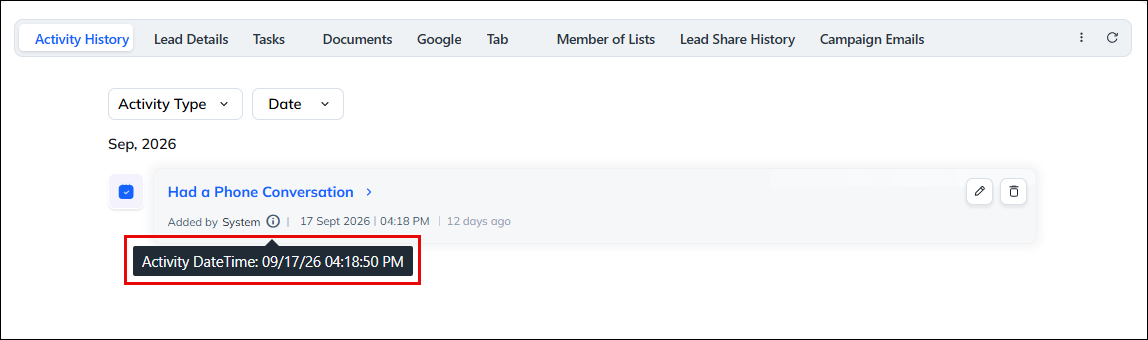
You can quickly verify when an activity was actually created, even when its Scheduled Date differs from the date of creation in the Activity History tab. This is especially useful for backdated, imported, or automation-created activities.
What’s New?
An Info icon is now displayed after the Added by line on custom activity cards in Lead and Opportunity Activity History. Hover over the icon to view the activity’s actual system creation timestamp, providing greater clarity on when the activity was created.
Prompt to Resume Draft or Start New Submission
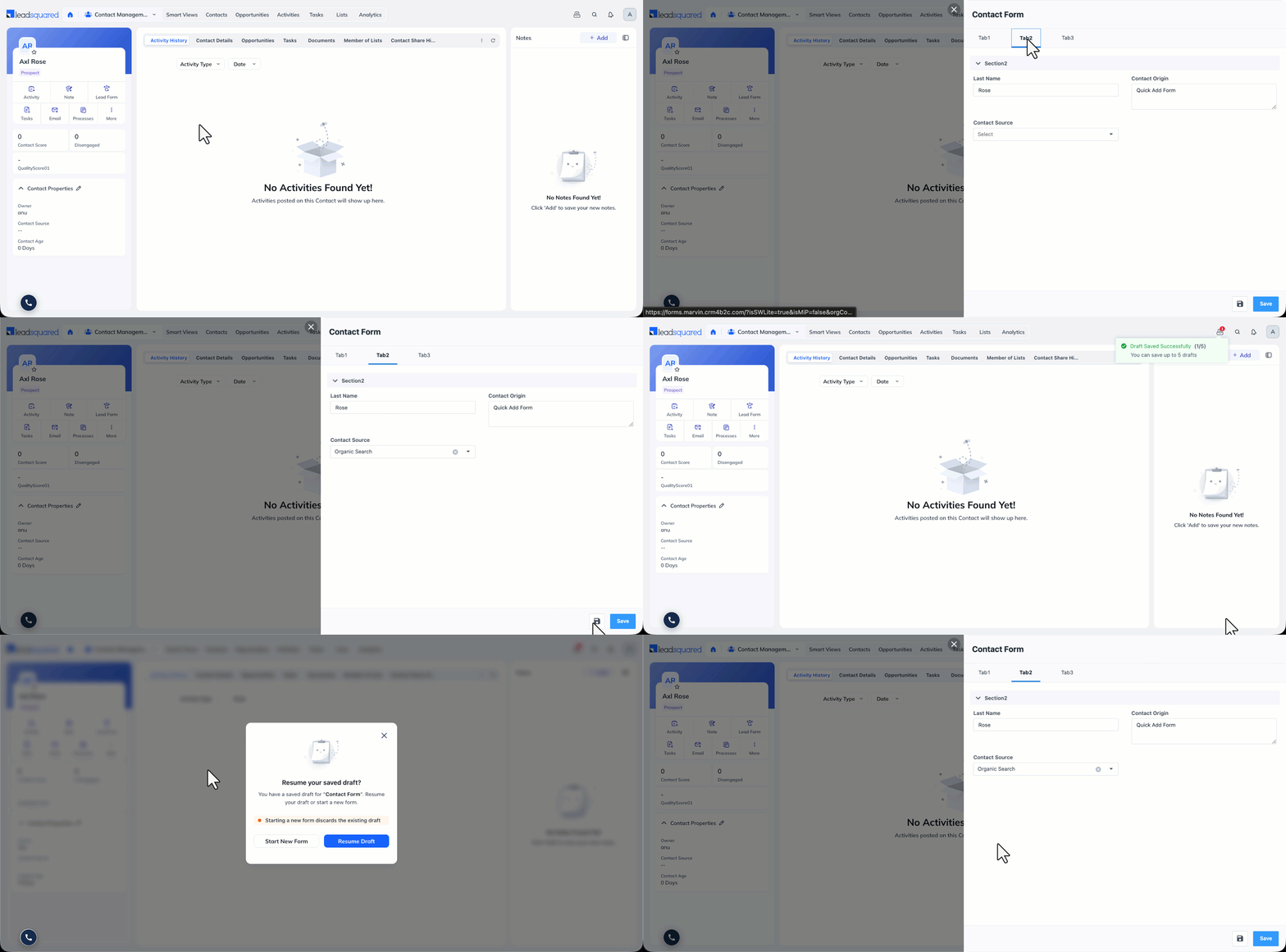
When a user reopened a form that had a saved draft, the draft loaded automatically with no indication that it was a draft. Reps now get an explicit choice between resuming the draft and starting fresh. This applies to both single step and multi step forms, for drafts saved against an existing Lead or Opportunity.
What’s new?
When you reopen a form that has a saved draft, a prompt appears before the form loads. You can either resume the saved draft and continue where you left off, or start a new submission with a blank form.
Note:
- The prompt doesn’t appear in quick entry work areas such as Quick Add Lead and Add Task, since these aren’t tied to a specific Lead or Opportunity.
- To enable the “Resume Draft or Start New Form” feature, contact support@leadsquared.com.
Configurable Add More Limit for Subforms
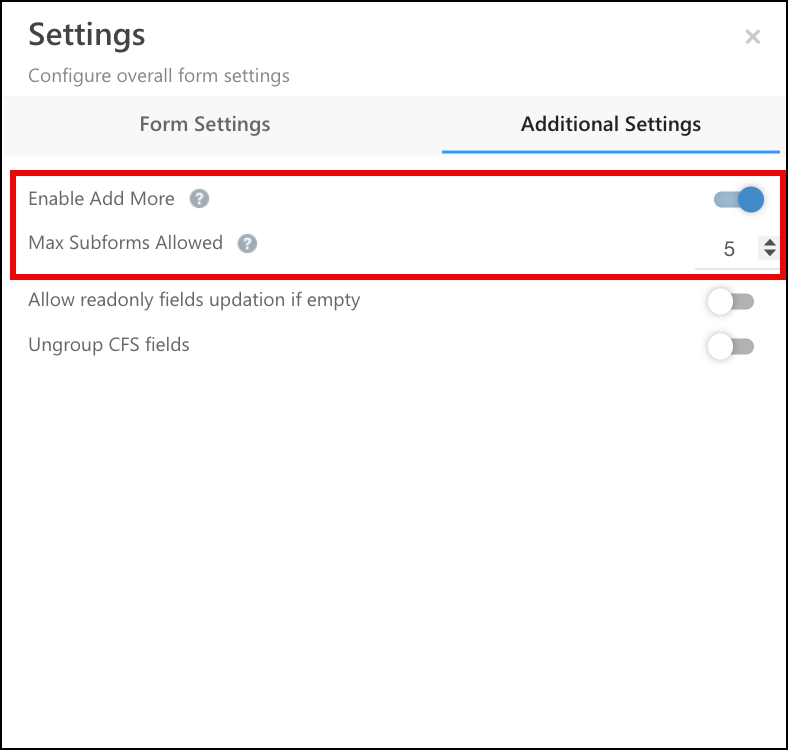
Subforms using Add More were capped at 5 instances, which didn’t suit cases that need more repeated entries, such as multiple document uploads or reference lists. You can now raise this cap to a maximum of 15. The default remains 5 on every existing and new subform.
What’s new?
A new Max Subforms Allowed setting is available on the Subform properties panel, configurable between 1 and 15. To set it, click Additional Settings, click the slider icon next to Enable Add More, then enter the value in the Max Subforms Allowed field.
Required and Re-trigger Settings for Form Button Fields
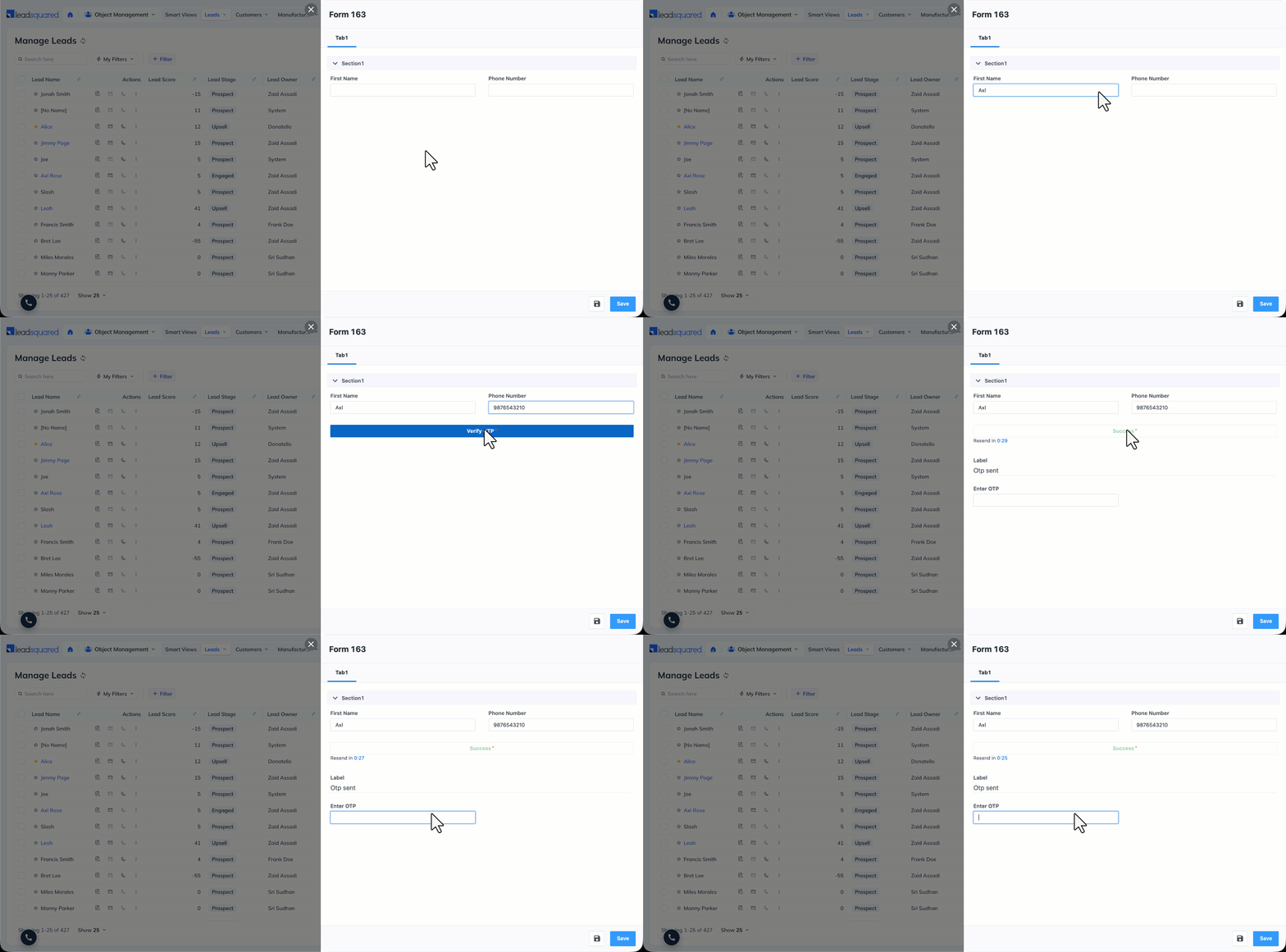
Buttons that trigger an OTP, a verification, or an external API call couldn’t be made mandatory, so reps could submit the form without clicking them, and there was no way to click the button again within the same session. You can now make a button mandatory before submission, and allow users to click it again after a cooldown. Both settings are off by default on every Button field.
What’s new?
Two new properties are available on the Button field in Form Designer.
- Required blocks form submission until the button is clicked and its action returns a success response. This applies when the form is opened to create a new record. A separate Required on Edit setting extends the same behaviour to forms opened on records that already have data, for cases where the action must be repeated on every update.
- Allow Re-trigger lets a user click the button again after a successful response. Set a cooldown duration between 30 and 300 seconds. The button is read only during the cooldown, and becomes active again once it lapses.
Note:
- Users can re-trigger the button up to 3 times per session.
- Every click, including re-triggers, sends a fresh API, LAPP, or UDS call. Responses are not cached.
Loading Indicator While Fetching Field Values
When a Set Value rule fetched data through a LAPP, UDS, or external API, the form gave no feedback while the call was in progress. The field now shows its fetch state while the call runs. This applies to all Set Value rules that call a LAPP, UDS, or external API, with no configuration needed.
What’s new?
The affected field shows an inline loading indicator from the moment the rule triggers until the value is populated or the call fails.
Bug Fixes
NextGen
- Fixed an issue where scrolling through a lead’s Activity History (Dispositions) would stop part-way through on Windows, preventing users from reaching older records.
- Fixed an issue where the Availability Calendar in the Call Center Disposition form showed mismatched availability compared to the user’s Task Calendar.
- Fixed an issue where row-level Change Owner and Change Stage actions were blocked for users whose Permission Template had Bulk Actions disabled, even though these are individual record actions and should not require the Bulk Actions permission.
- Fixed an issue where clicking a lead’s email address in the Lead Quick View opened the Send Email modal with both the From and To fields blank. The email address click handler was not passing the same lead and user context as the Send Email action button.
- Fixed an issue where the “Hear Recording” restriction in a Permission Template was not being enforced in NextGen, allowing users to play call recordings even when the permission had been explicitly disabled for their role.
- Fixed an issue where the Merge Lead option was visible to users in accounts where each lead represents a loan contract, creating a compliance risk. The merge action is now correctly hidden for user roles where it should not be accessible.
- Fixed an issue where the “Added By” field in Phone Call activities logged via the Call & SMS Tracker app was not displaying the user’s name, even though the user ID was being passed correctly in the payload.
Forms & Processes
- Fixed an issue where dropdown options took around 4 seconds to load the first time they were opened in the agent pop-up telephony container.
- Fixed an issue where the Clone action remained visible on the Lead VCard after a Lead Detail View Configuration removed it.
- Fixed an issue where dropdown options failed to load for a newly created Cohort field.
- Fixed an issue where an error was shown on submission when the same start and end time was selected in the availability calendar.
- Fixed an issue where the form didn’t submit on the first attempt when the slot owner was changed within the same availability calendar time slot.
