
1. Feature Overview
The Quick Search feature allows you to search for leads from the Manage Leads page using text-based queries. You can find leads by entering full words, partial words, multiple keywords, excluded terms, or exact phrases in the search box.
Quick Search supports multiple search formats to help retrieve leads based on names, email addresses, locations, company names, or other lead field values. This makes it easier to locate specific leads without manually applying filters or scanning through lead lists.
2. Prerequisite
- You must have leads present in your LeadSquared account.
- You can only search lead fields that are enabled for quick search. To learn more, see how to include fields in Quick Search.
3. Quick Search
To perform a quick search, you can click  on the Manage Leads page.
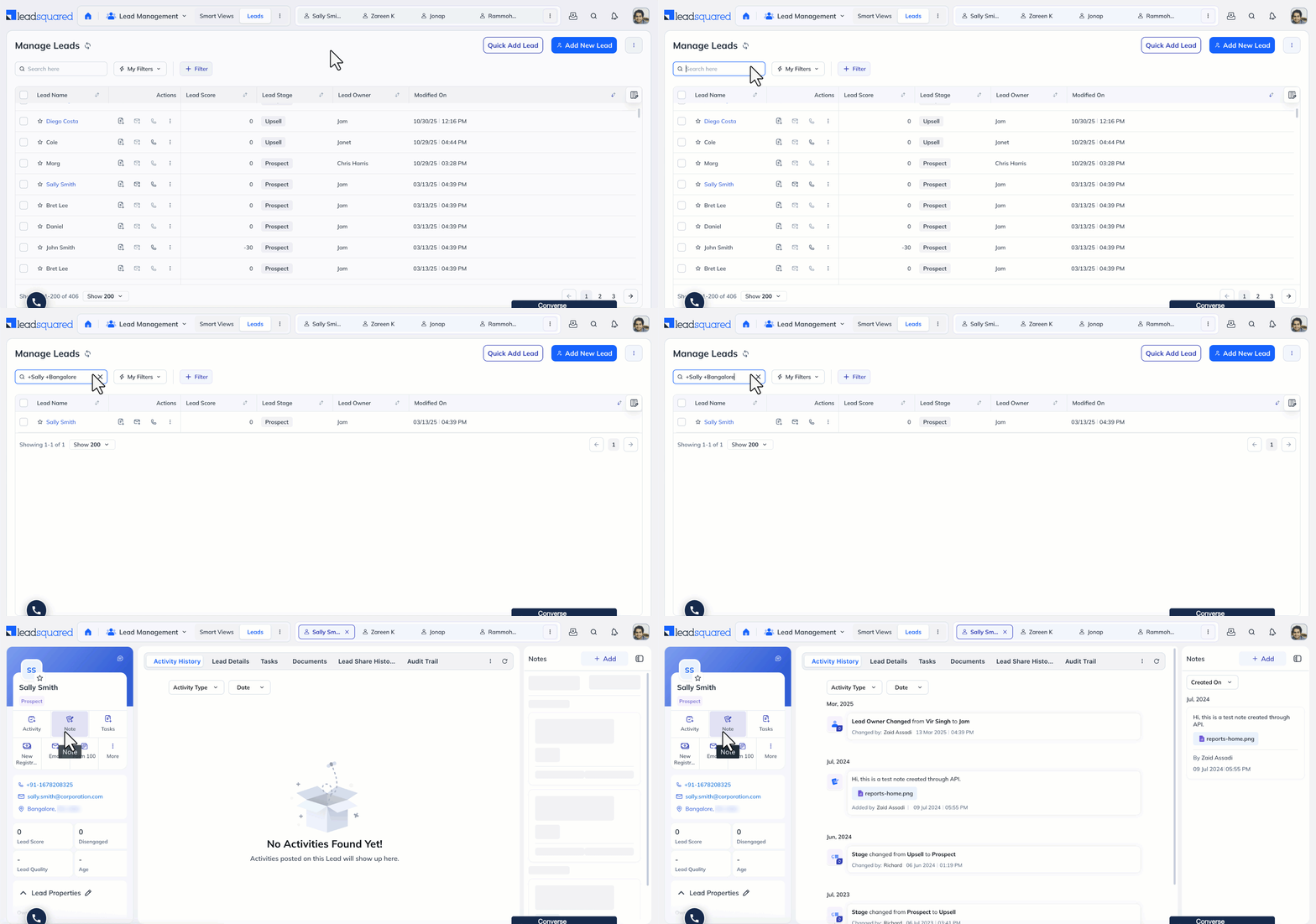
4. Full Word Search
If you enter a full word in the search box (e.g., a city, first name, etc), the Manage Leads page will display all the leads that have the word as one of their values.
For example, if you enter “Sharma” in the search box, you will receive all the leads that have the word “Sharma” in any of their lead details.
5. Partial Word Search
Format: *
You can search for leads in your account with partial words by adding and asterisk (*) after the word. Your page will display all the leads associated with that partial word.
For example, if you enter Mich*, you will receive leads with Michael, Michelle, Michigan, etc as values in the lead details.
Note:
- The asterisk (*) must be entered after the word. If not, no results will be displayed.
- This feature is not supported for ESS tenants.
6. Multiple Word Search
Format: ++
You can search for leads using a combination of words by adding a plus sign (+) before each word.
For example, if you want to find John from California, you must enter +John +California in the search box.
Note:
- You can use his method to search for a full name since it is the combination of First Name and Last Name.
- If you try searching for a combination of words without using the given format, your page will display all the leads with either of the values entered. E.g., if you search for John Walters, you will get different leads with the name, John or Walters as one of their values.
7. Filter Leads
Format: +–
You can filter out leads by entering a combination of words with a minus sign (–) before the word you don’t require in the lead field.
For example, if you want to find a lead with the name Sharma who is not in Mumbai, you can search for +Sharma -Mumbai.
8. String Search
Format: “”
You can search for a specific string of words by enclosing it in double quotes.
For example, if you want to find a lead working at Apple Inc., you should search for “Apple Inc.“.
9. Troubleshooting
1. I’m searching the lead’s ‘Secondary Email Address’ field but I’m unable to correctly retrieve the lead.
Since the ‘Secondary Email Address’ is a text type field (String), enclose your search within double quotes. For example “johndoe@example.com”.
Any Questions?
Did you find this article helpful? Please let us know any feedback you may have in the comments section below. We’d love to hear from you and help you out!





In my LS. in front of every lead contact no. it shows +91 (Indian country code). how do I solve this.
Hello, Pratik.

To edit the country code in your account –
1. Navigate to Settings>Profile>Company Profile.
2. Click Edit.
3. Alongside Default Country Code, click the dropdown and select the relevant option.
How can we search the lead using the lead id or Prospect ID?
Phone number Masked .
Hello, Rajendran .
You cannot perform quick search using lead or prospect ID.
Hi Dharshana,
So is there any other option available by which we can search the lead through its lead number?
Hey Pratik.
Yes, Advanced Search allows you to search for a lead through the lead number.
1. On the Manage Leads page, navigate to Filters>Advanced Filters.
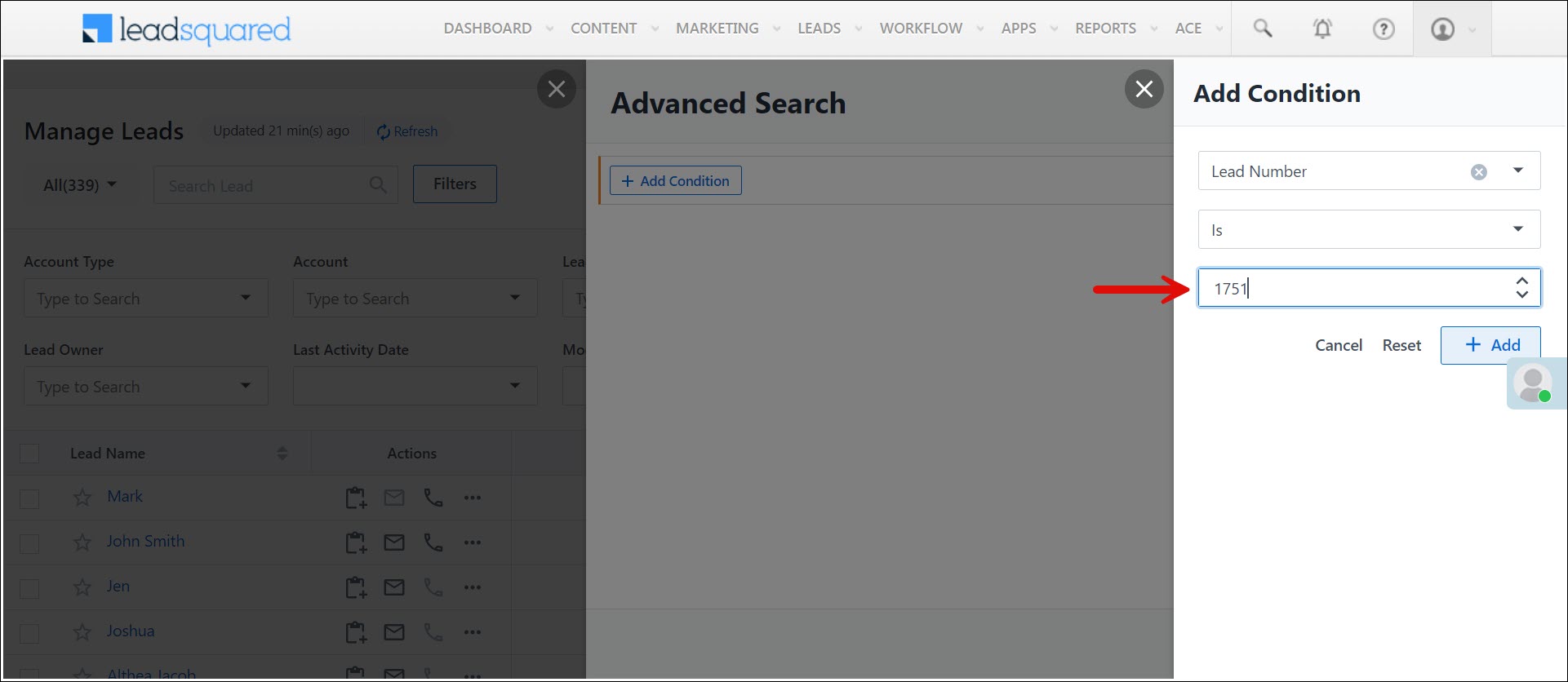
2. Click Add Condition and select Lead Number from the drop-down list on the Advanced Search page.
3. In the blank text box, enter the relevant lead number and click Add.
4. To see the lead linked with the entered lead number, click Show Results.
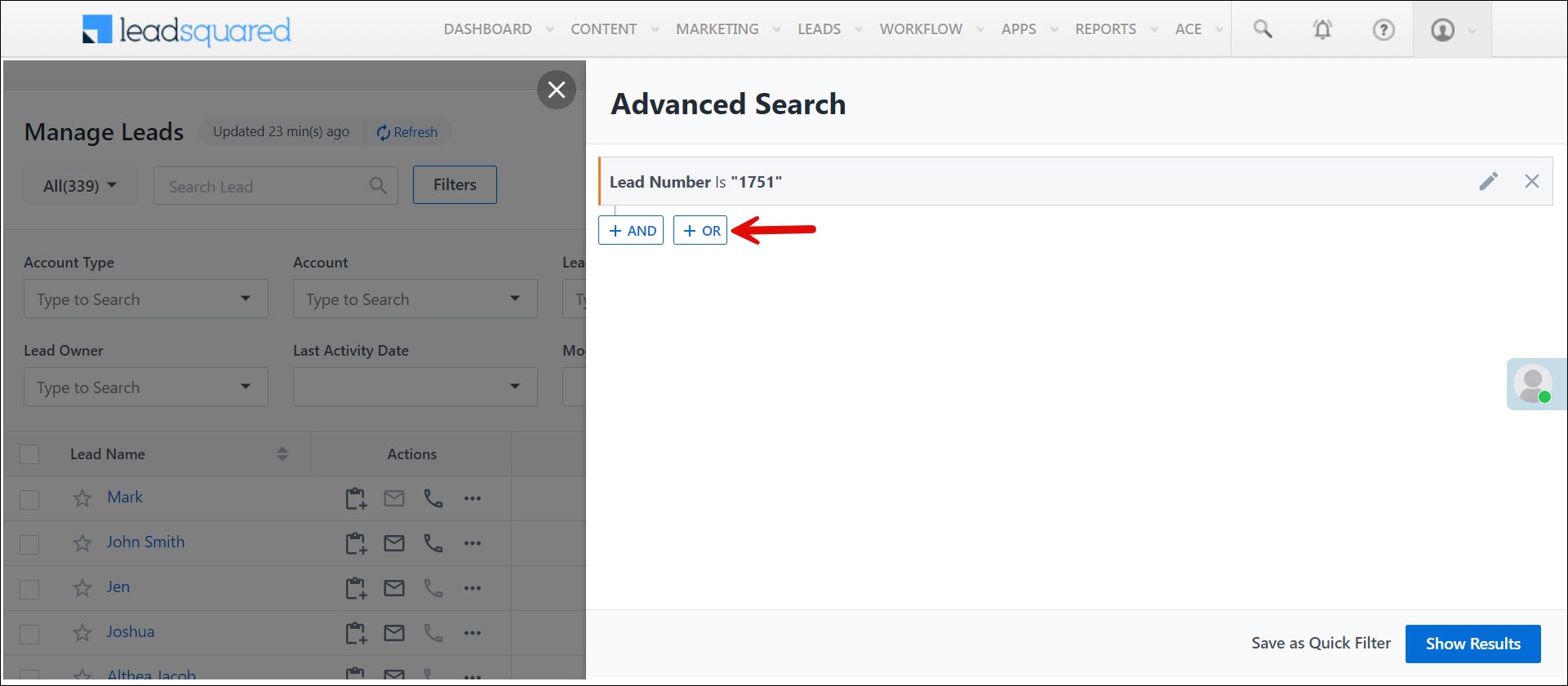
To search for more than one lead through the lead number, follow the same process. On the Advanced Search page, click OR and enter the relevant details. Click Show Results to see the relevant leads.
How can I search for particular notes
How can we search the lead using the lead id
Hello, Raman.
You cannot use lead ID in Quick Search to find leads.
How to search multiple phone numbers together
Yes, it’s possible through Advanced Search. You can add phone number YYYY, then select “Any Criteria“, and then add number XXXX, and so on.