
1. Feature Overview
Service CRM is LeadSquared’s end-to-end, omnichannel customer support suite that helps agents resolve service requests efficiently and improve customer satisfaction (CSAT). Access all marketing, sales, and service-related customer insights in one place. In this article, we’ll help you set up and configure Service CRM on the LeadSquared mobile app.
2. Prerequisites
- Service CRM is a paid feature. To enable it on your account, contact your account manager, or write to scsupport@leadsquared.com.
- Any LeadSquared Admin user can configure Service CRM on the mobile app.
3. How it Works
Admins must add the Service CRM menu to the LeadSquared mobile app. After that, no further configuration is required, and agents can immediately start working on their assigned tickets.
4. Add Service CRM to the App
This section shows how to add Service CRM to your mobile app. You can configure it based on whether Casa is enabled on your account, and this section covers both options.
4.1 Legacy App Builder
If you’re using the legacy mobile app builder feature –
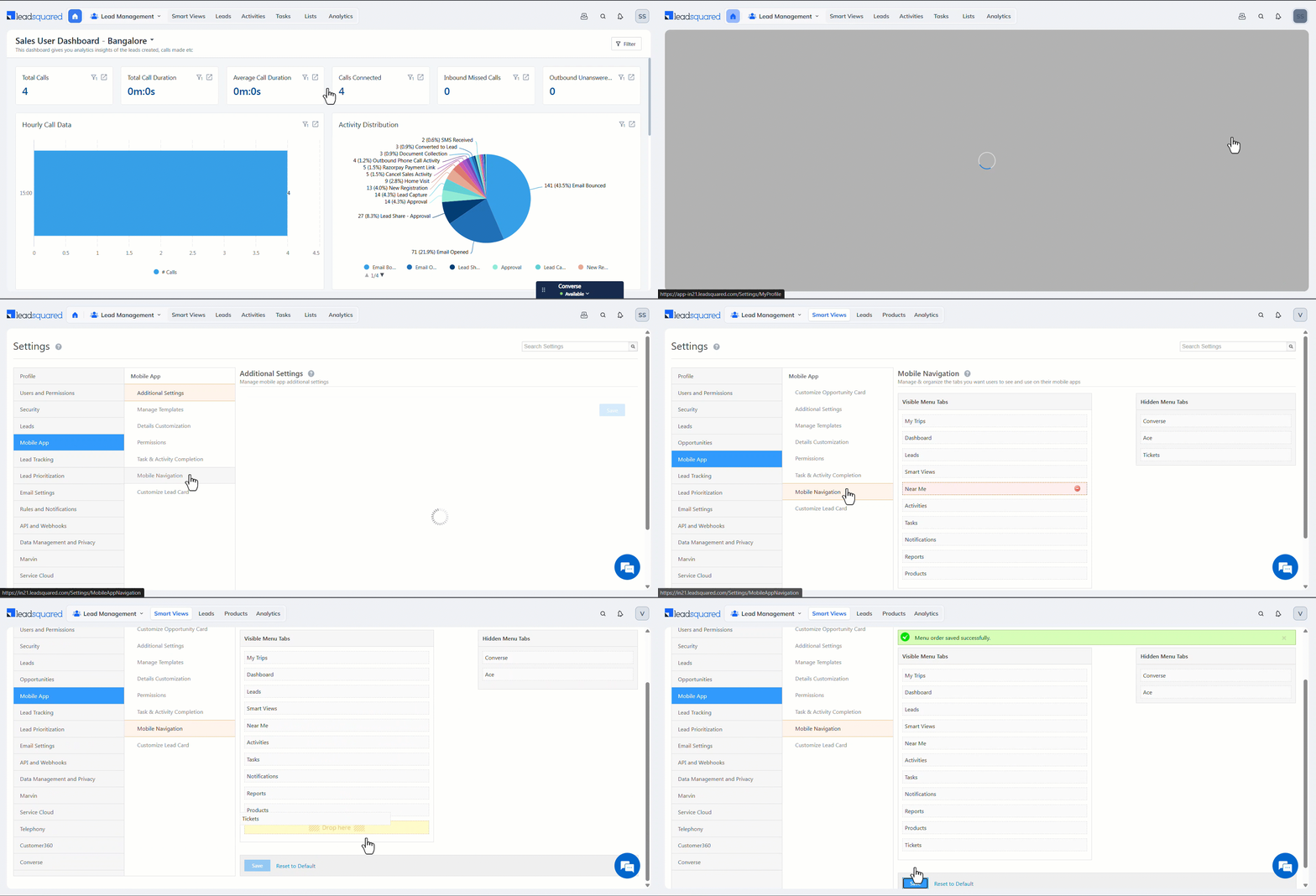
- Once you log in to LeadSquared’s web-app, navigate to My Profile>Settings>Mobile App>Mobile Navigation.
- From the Hidden Menu Tabs, drag and drop Tickets under Visible Menu Tabs.
- Once you’re done, click Save.
4.2 Casa
If Casa is enabled on your account –
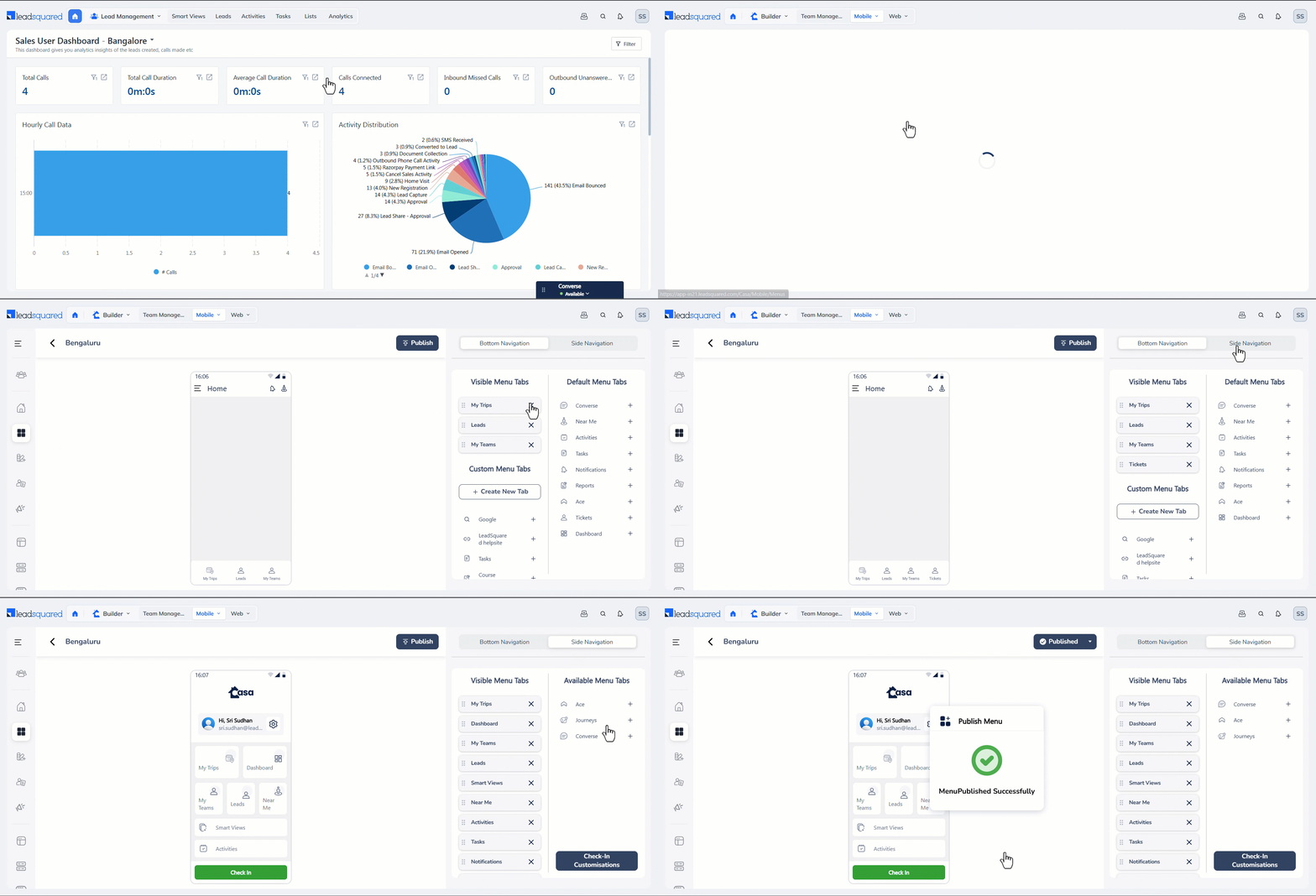
- Once you log in to LeadSquared’s web-app, from the top-bar menu, click Builder>Menu Builder.
- Here, edit an existing menu or create a new one.
- For the Bottom Navigation options, from Default Menu Tabs, add Tickets under Visible Menu Tabs.
- For the Side Navigation options, from Available Menu Tabs, add Tickets under Visible Menu Tabs.
- Once you’re done, click Publish.
Any Questions?
Did you find the content in this article helpful? Feel free to leave doubts/questions in the comment section below. We’ll get back to you as soon as possible.





