Tag Archive for: external

Creating Landing Page from external HTML, CSS, Scripts and Images

The External Landing Page feature allows you to create and host landing pages in LeadSquared if you have your own HTML of the landing page, or have purchased a template from marketplaces such as ThemeForest (www.themeforest.net).

Please note that this feature is targeted at HTML developers. You need to have basic HTML/JavaScript development skills to be able to use this feature.

After you click on “Create Landing Page”, select the third option “Use your own Template/HTML” option and click “Next”.

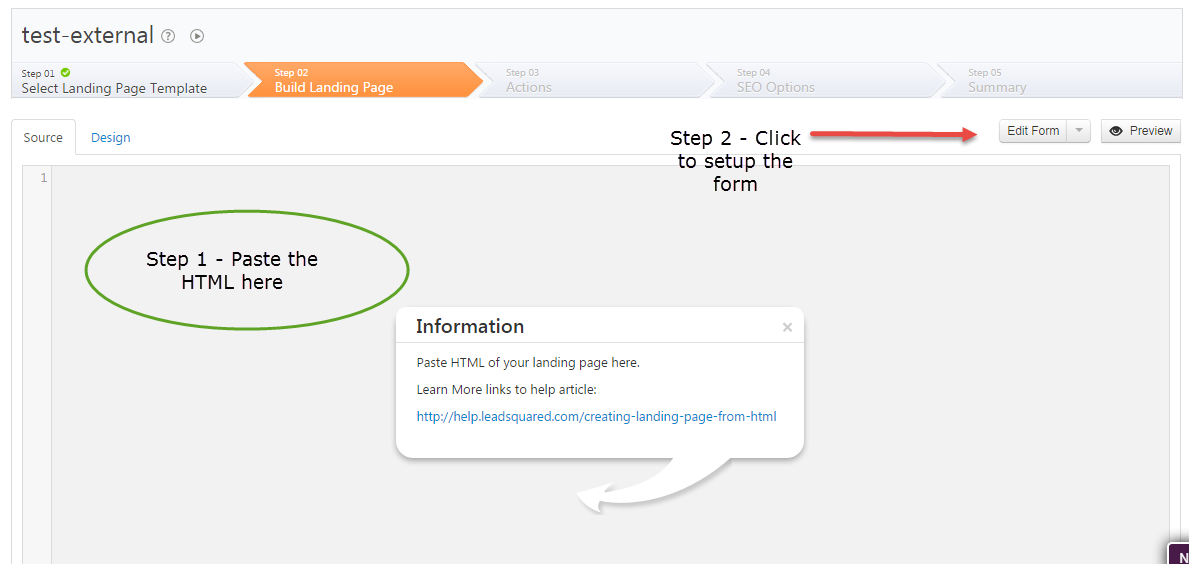
That will take you to Step 2/Build Landing Page. There are two steps to setting up the landing page design/content:
External-Landing-Page-Content

Step 1 – Paste your HTML. Copy the entire HTML of your landing page, which you have built, or purchased from a third party.

The key thing here is to ensure that the path of your images, JavaScript (js) and CSS files is correct. You need to make sure they point to the URL where they are hosted. A good place to host them would be your website. You can also upload and host them in LeadSquared at Content-> Images & Documents.

An illustration of how the URLs of your images/js/css files should be changed:

Suppose your website is http://www.mydomain.com . Assuming that your CSS files are stored in /css location under your website home, JavaScript files are stored in /js location and images are stored in /img location respectively:

If your JavaScript includes look like

<script type=“text/javascript” src=“js/myjsfile.js”></script>

In the HTML you paste in LeadSquared editor, it should change to following if you host it on your website:

<script type=“text/javascript” scr=http://www.mydomain.com/js/myjsfile.js></script>

Or similar to following if you host in LeadSquared Content -> Image & Documents :

<script type=“text/javascript” scr=http://leadsquaredsns.wowpages.co.s3.amazonaws.com/content/documentss/myjsfile.js></script>

Similarly you would have to change the URLs of your CSS (stylesheet) includes and all the images.

Once your HTML is all set, you need to setup the form.

Step 2 – Setup the Form.
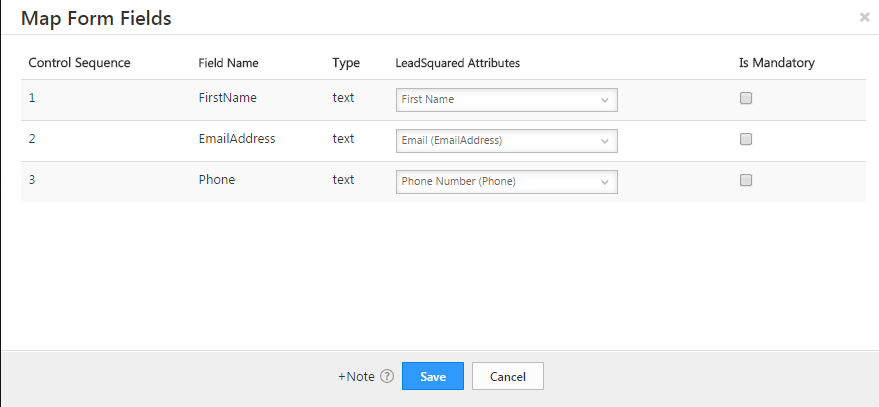
Map-Form-Fields

We have made it easy to modify the form in your landing page to make sure it can capture leads in LeadSquared. If there is a form in your HTML, the form editor will be able to pick all the input elements and try to match them with corresponding fields in LeadSquared. The idea here is that each field in your HTML form should correspond to a lead field in LeadSquared.

You can mark fields as mandatory if needed. Important Note – If your current HTML page has any JavaScript code written on form submission, you must remove it, else form won’t get submitted.

This form mapping makes sure that:

1. The fields are mapped to LeadSquared lead fields, so all data is captured.
2. We add necessary scripts required to make sure this page behaves as a landing page and the leads/visitors are tracked for analytics.

Once you setup the form, you can go to Step 3 and setup your actions.
Tag Archive for: external

LeadSquared Product Update # 19

We finished the 19th production update of LeadSquared on Sunday, Oct 12th, 2014. Please clear your browser cache  to access the latest copy of the LeadSquared App (Use Control + F5 key on windows and Command + R keys on Mac to clear cache). Here are the release notes capturing significant changes:

NEW: SMS Marketing Connector

We have a fully revamped SMS Marketing Connector in LeadSquared. You can interact leads via SMS as you have been doing using Emails.  It support one-to-one SMS, one-to-many SMS, SMS Campaigns to lead lists and Landing Page Autoresponder SMS. You can configure your own SMS sender name and also create your own templates!

Admin users can find the connector under My Account -> Settings -> Connectors and Webhooks -> Connector -> Add Connector.  You need SMS credits in your account to start using it. Please get in touch with your LeadSquared Account Manager for the same.

To know more about the SMS Marketing Connector, check LeadSquared SMS Marketing Connector.

NEW: Lead Distribution Automation App

Using the new Lead Distribution Automation App, you can automate the distribution of incoming Leads to your LeadSquared users by creating rules on Lead field data. For example, you may want to distribute leads to a group of LeadSquared users in round-robin manner based on its location, interest, budget, education.

With Lead Distribution App, you can build a series of rules and assign leads to one specific user or to a user among group of users in round-robin manner.  You (Admin users) can find the App under My Account -> Settings -> Connectors and Webhooks -> Connector -> Add Connector.

To know more, check Lead Distribution Automation in LeadSquared.

NEW: Zopim Chat Connector

We have added one more connector to our expanding connector library. With chat tools, we already had Olark Chat Connector, we now have integration with Zopim chat as well. So you can start capturing the Zopim chat leads also in LeadSquared.  Read this article to get started: How to get Leads from Zopim Chat in LeadSquared?

NEW: Capture Email Senders and Recipients as Leads

Inbound leads to your sales enquiry email ids and outbound emails to your leads from your email clients like outlook, gmail etc can be captured as Leads in LeadSquared using the new MarkCopy connector. You just need to generate your organization’s unique MarkCopy email id and get the inbound or outbound email “Marked a Copy” to it. Get started with MarkCopy:  Capture Email Sender and Recipients as Leads using Markcopy Connector.

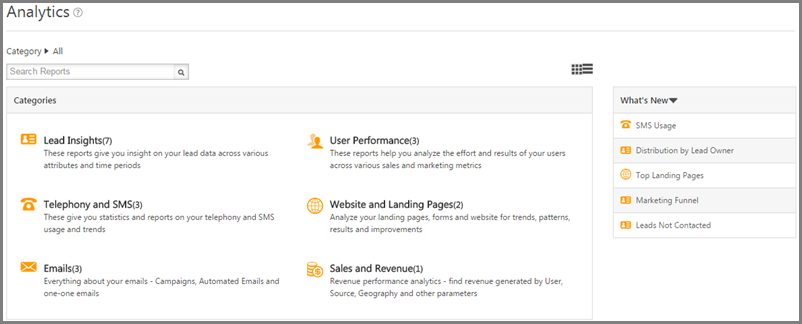
Redesigned Analytics Page

As we update a number of new reports in LeadSquared, we have redesigned he Analytics Page to better organize and search for reports. Check it out:

Analytics

Host your external landing pages in LeadSquared

While we are working on refreshing our current Landing page designer to create Responsive Landing Pages, we have provided an option to host your external Landing pages within LeadSquared.  Here is an  example of such a Landing Page.

here is the help article on the same:  Creating Landing Page from HTML.

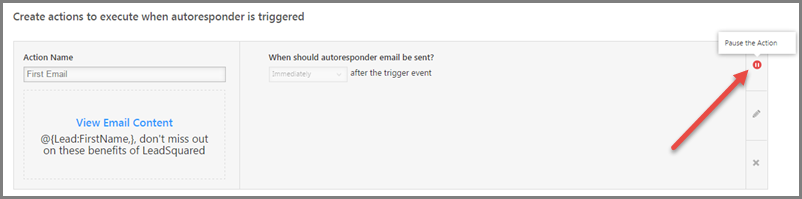
 Pause and Update Individual Steps of Email Autoresponder

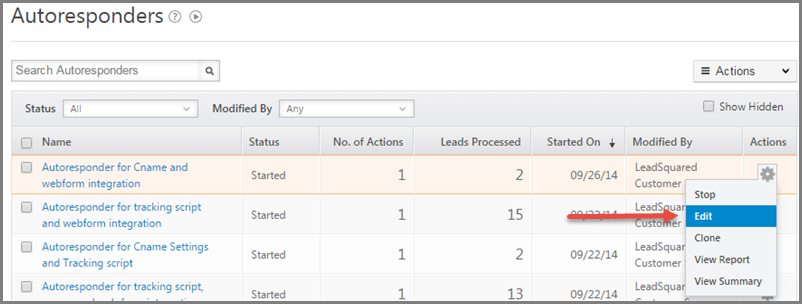
We have added the option of pausing individual step of Email Autorepsonder and Editing it without impacting the other steps. Just Edit the Autoresponder as illustrated below:

AR - Edit

And then pause to make the changes. Start  the actions after you done.

AR - Pause

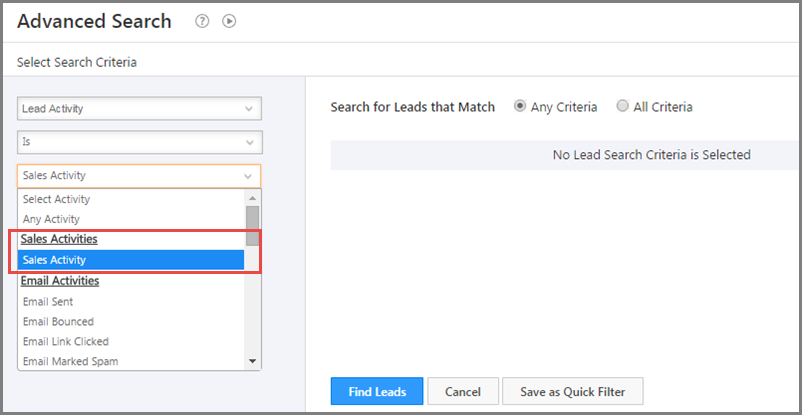
 Search Based on Sales Activity

You can now search for leads based on their Sales Activity.

Search For Sales Activity

Tons of new APIs

We have added a number of new APIs with this release. Developers who want to know more can contact us at support@leadsquared.com .