Tag Archive for: SMS

Make Calls and Send SMS Using the Mobile App

1. Feature Overview

Make outbound calls and send SMS to leads directly from the LeadSquared Mobile App. Select pre-existing SMS templates to be used or write your own message.

Note: 

  • Outbound calls from the mobile app requires an active mobile connection.
  • To initiate calls from the web app, refer to Make Calls on Your Phone Using the Web Platform.
  • From iOS devices, you can make and receive calls and SMS, but call and SMS tracking (in the lead’s activity history) and call recording is not supported.


2. Prerequisite

  • You must install the latest version of the LeadSquared mobile app
  • You must be logged into the LeadSquared mobile app.


3. Make Outbound Calls

On the LeadSquared mobile app, you can make calls using these methods –

3.1 Through Swipe Action

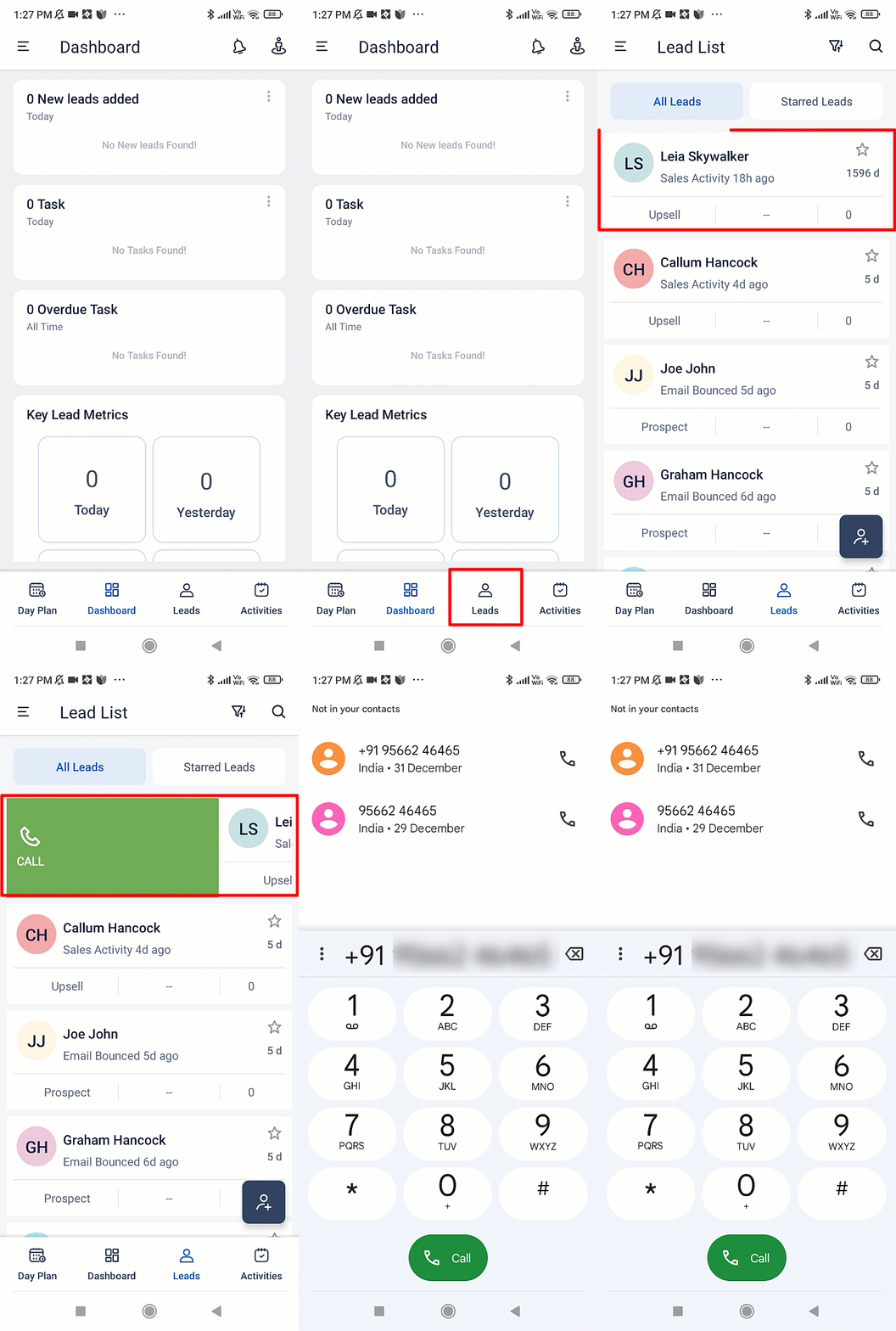
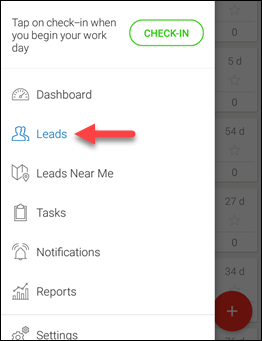
  1. Tap Leads.
  2. Once you can view the Leads page, swipe right on the relevant lead name card.
  3. Select Call.

LeadSquared - make calls through swipe action


3.2 On Lead Details Page

  • On the mobile app –
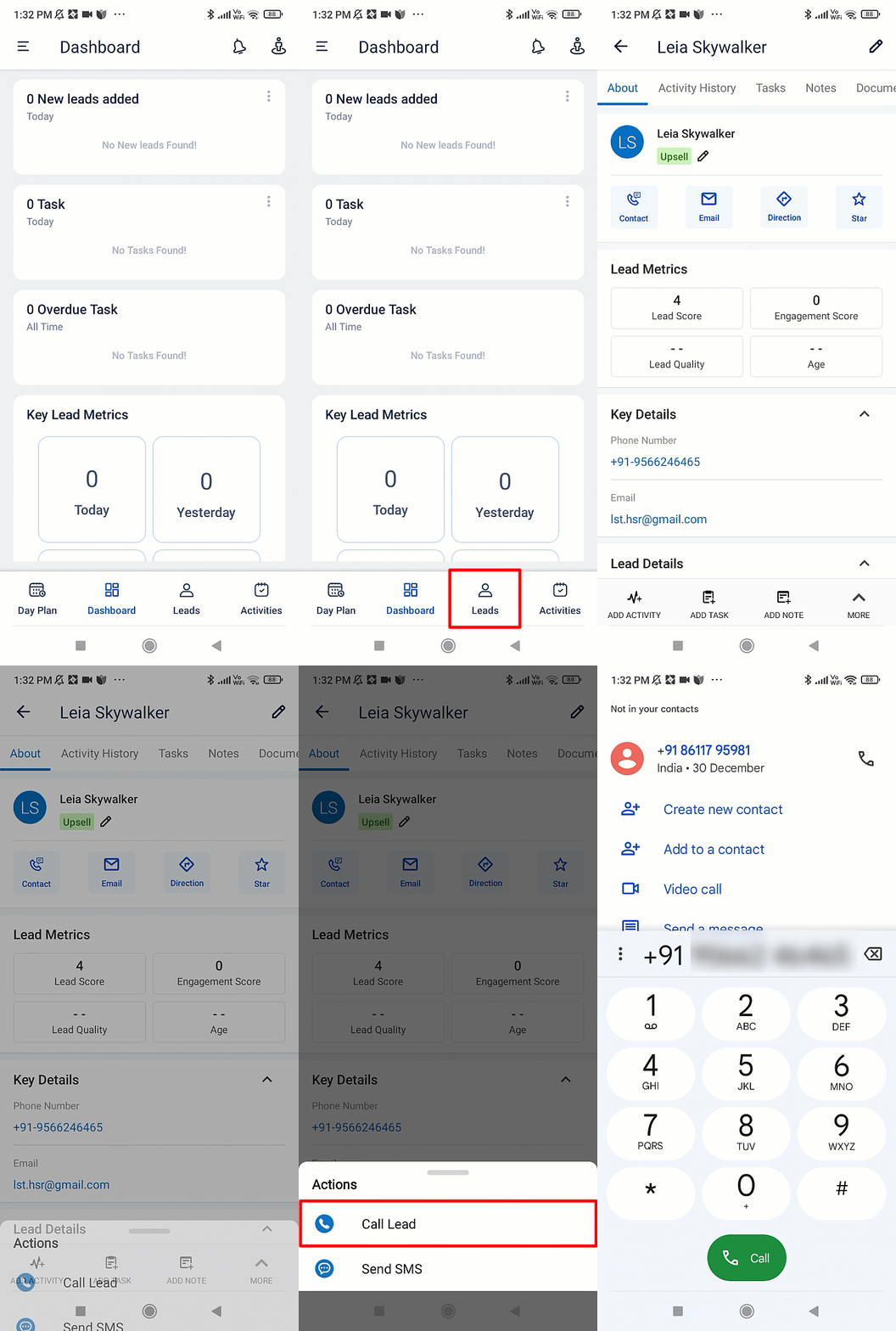
    1. Tap Leads.
    2. Tap on a name card to view the Lead Details page.
    3. Tap Contact and select Call.

LeadSquared - Make calls through contact icon

  • Alternatively –
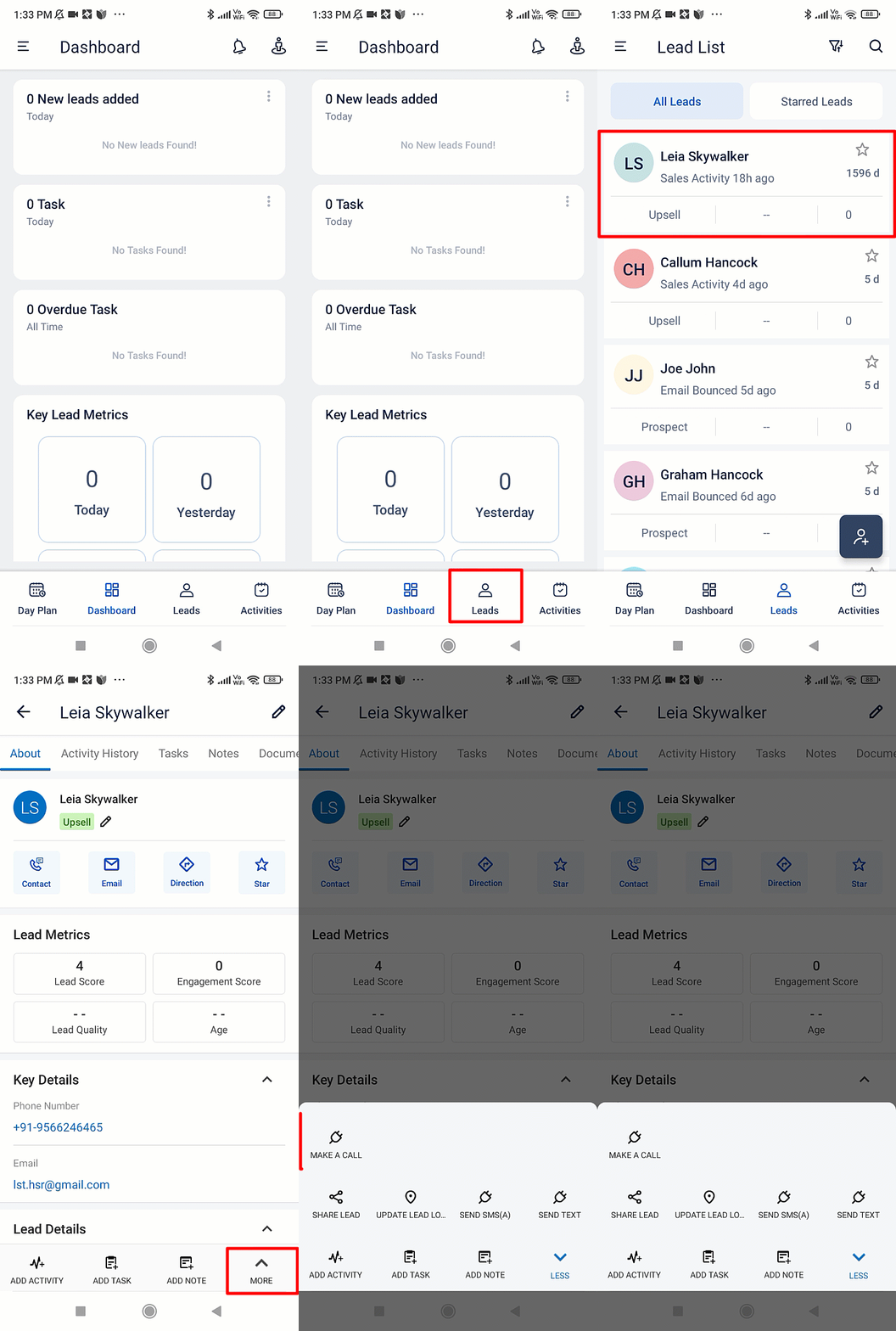
    1. Tap Leads.
    2. Tap on a name card to view the Lead Details page.
    3. On the bottom of the screen, tap more icon.
    4. Tap Make a Call.

Note: You can also make calls from these pages –

  • Smart Views.
  • Accounts.
  • Opportunities.
  • Activity Details.
  • Task Details.
  • Leads Near Me.
  • Lead Notifications.

LeadSquared - make calls using More icon


4. Send SMS

4.1 Through Swipe Action

On the LeadSquared mobile app –

  1. Tap Leads.
  2. Once you can view the Leads page, swipe left on the relevant lead name card.
  3. Select Message.
  4. On the Messaging screen, you can either type your own message or choose from the available templates. To use an SMS template, tap Add icon.
  5. Alongside the relevant template, tap View. Then, tap Select.
  6. Tap Send icon.
  7. You will receive a notification about carrier charges that may be applied. Click Ok.
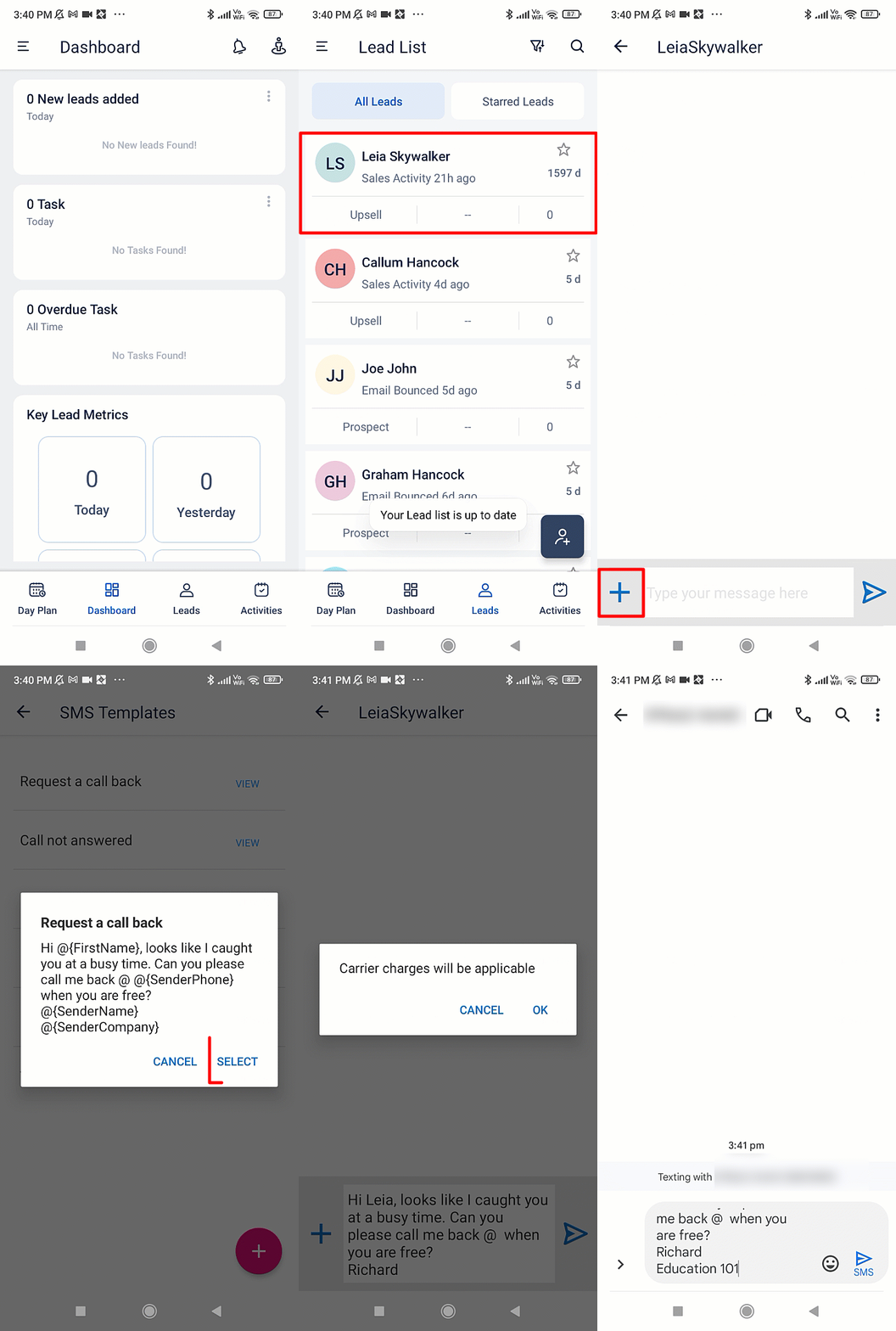
LeadSquared - Send SMS using swipe action


4.2 On Lead Details Page

  1. Tap Leads.
  2. Tap on a name card to view the Lead Details page.
  3. Tap Contact and select Send SMS.


Alternatively –

  1. On the bottom of the screen, tap more icon.
  2. Then, tap Send SMS.
  3. To use an SMS template, tap Select a template.
  4. Tap Send SMS.
Note: This is a custom feature. To enable this in your account, contact your account manager or write to  support@leadsquared.com.
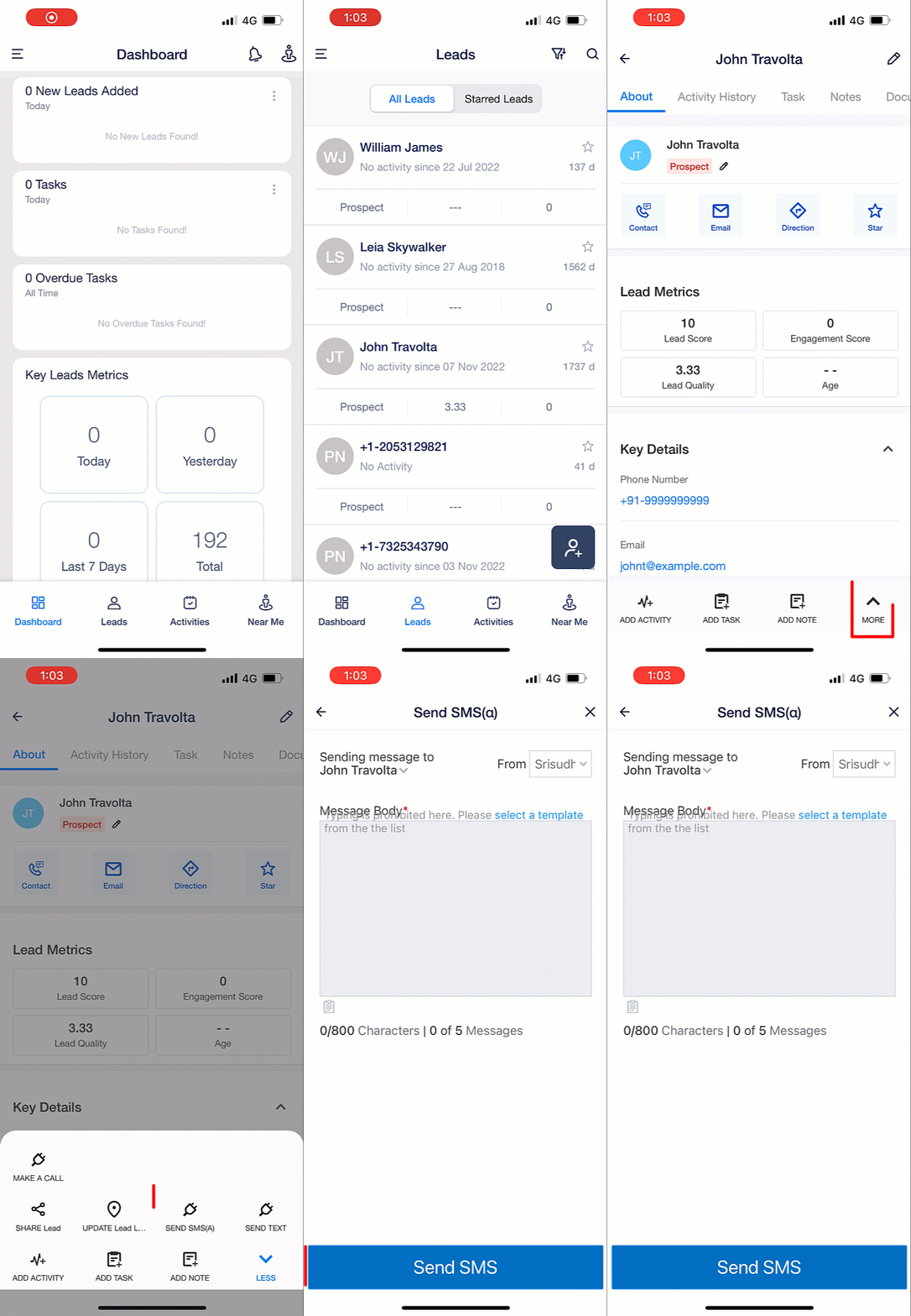
LeadSquared - Send sms through Leads


5. Send SMS to Multiple Leads

To send SMS to multiple leads –

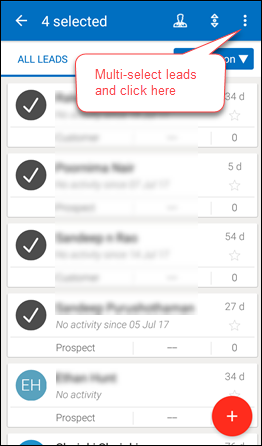
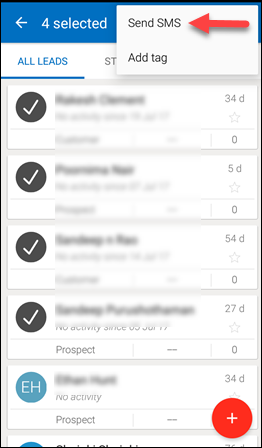
  1. Once you’re on the Manage Leads or Smart Views page, long press on a lead card to select it.
  2. Then, tap all the lead cards you wish to select.
  3. Tap Three dots.
  4. Select Send SMS.
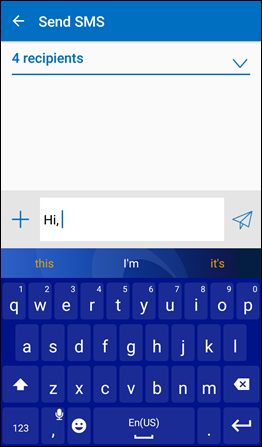
  5. Type your message and tap Send icon.
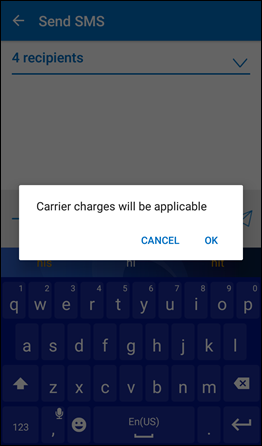
  6. You will receive a notification about carrier charges that may be applied. Click Ok.
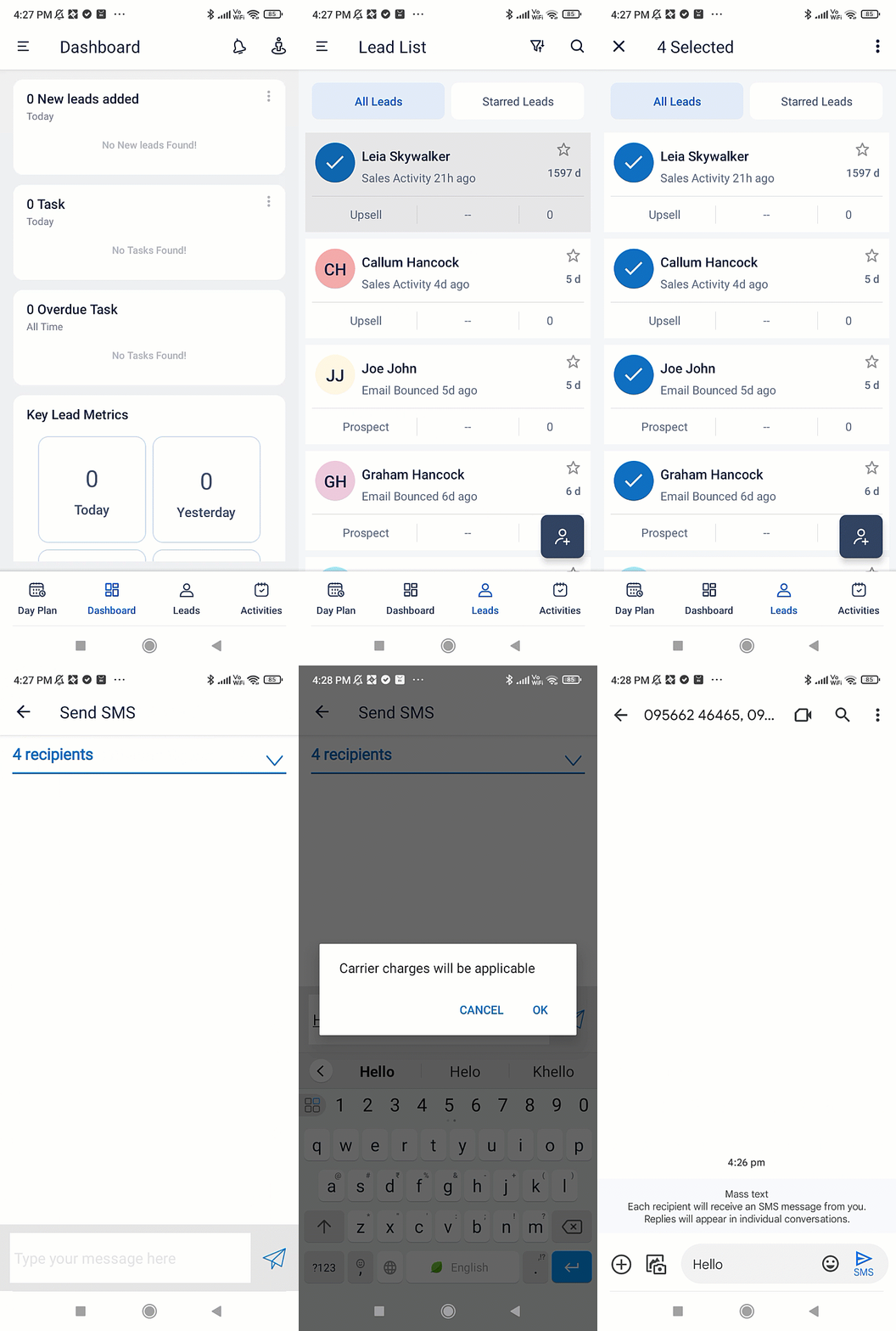
LeadSquared - Send SMS to Multiple Leads


Any Questions?

We’d love to answer your questions or hear your own unique use cases. Feel free to share your experiences in the comments section below.
How to send SMS to multiple leads from LeadSquared Mobile App?

This help article allows you to understand how to send SMS to multiple leads at the same time from the LeadSquared Mobile App.

Prerequisite

  • You should have installed LeadSquared mobile app android version 5.5 or higher.

Procedure

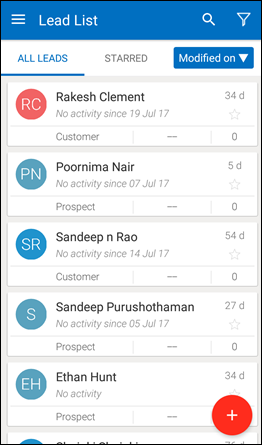
  • From the LeadSquared Mobile App, go to Leads. The Leads list appears:

  • Multi-select the leads and click the menu in the top right corner and click Send SMS.

The SMS screen appears where you can see your selected recipients and proceed or go back and select more leads.

Send the SMS and the following dialogue box appears which implies that sending the messages involves the cost for sending regular SMSs.

  • Click OK and the SMS is sent to multiple leads. If there is a failure, you will receive a ‘Notification’ from where you can always retry sending your message to the failed recipient list.

Note: You cannot send SMSs to more than 20 leads at a time.

Transactional vs Promotional SMS

Note: All SMS templates must be approved on the DLT platform.


Transactional SMS

These are SMS messages you send to leads to inform them about details necessary to use your products/services. For example –

  • A message sent by a college to a student about a joining date.
  • A message sent to a lead as confirmation of their online submission.
  • A message sent to a caller acknowledging their call to your sales/support number.

Examples of Transactional SMS Templates:

  • Your order no %d% has been shipped. You will receive this order by %s%. Thanks for using our services.
  • Thanks for your interest in our product. Your enquiry number is %s%.
  • Thank you signing up for LeadSquared. We will contact you shortly.

Note:

  • %s% is used to substitute the text which is unique to your contact/prospect.
  • To send SMS within Indian territory, refer to TRAI Notification.

LeadSquared - Transactional SMS


 Promotional SMS

These are SMS messages you send to leads with the objective of promoting your product/service. This category includes any sales and marketing messages which may or may not be required for the recipient.

Examples of Promotional SMS Templates:

  • Dear <name>, Get Flat 10% Off on all our products. Buy now on our website!
  • Dear <name>, Our team wishes you a very Happy <event>. We’ve sent you a gift voucher to your email address.  Hurry! Last date to avail the voucher is <date>.

Note: 

  • In India, promotional SMS can only be sent from 9AM to 9PM and only to phone numbers that are not on the NDNC registry (DND number).
  • All SMS messages that have offers, coupons, etc., can be considered as promotional content.

LeadSquared - Promotional SMS


Note:

How to configure SMS Autoresponder for my Landing Pages?

You can send an automated SMS/text-message to your leads when they submit a form on your landing pages. These text messages are transactional in nature, meaning they can be sent to phone numbers marked DND (do not disturb). But, there will be a limitation to what you can send.

Prerequisites:

1) Your SMS connector should be configured and active. Please contact your Admin user if you can’t see SMS feature in LeadSquared.

2) Sending SMS will incur extra cost. Please get in touch with support@leadsquared.com about the cost details.

NOTE: This is an add-on service and you will need to contact support@leadsquared.com to buy this additional service.

Steps to configure the SMS Autoresponder

1. Go to APP -> SMS Templates and create a transactional message template for the autoresponder SMS. You can find more about creating templates at Creating SMS Templates.

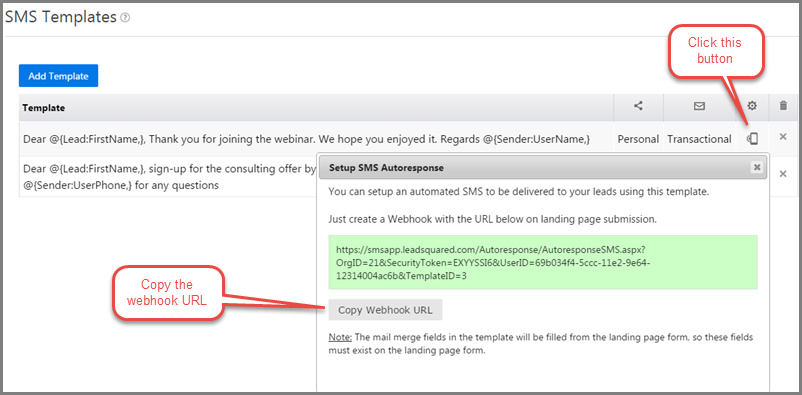
2. Use the “Setup Autoresponse SMS” option on the chosen template as shown below. Copy the webhook URL.

SMS AR Webhook URl

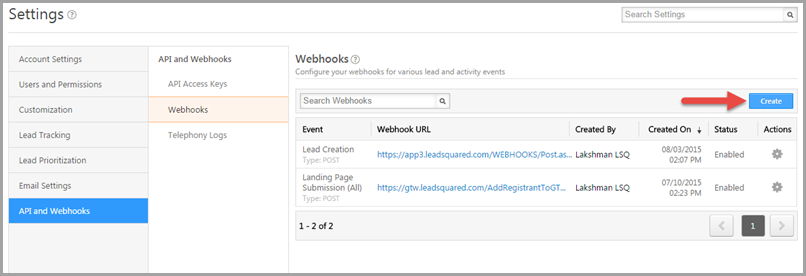
3. Navigate to,  My Account -> Settings -> API and Webhooks -> Webhooks and click “Create”

Webhook new

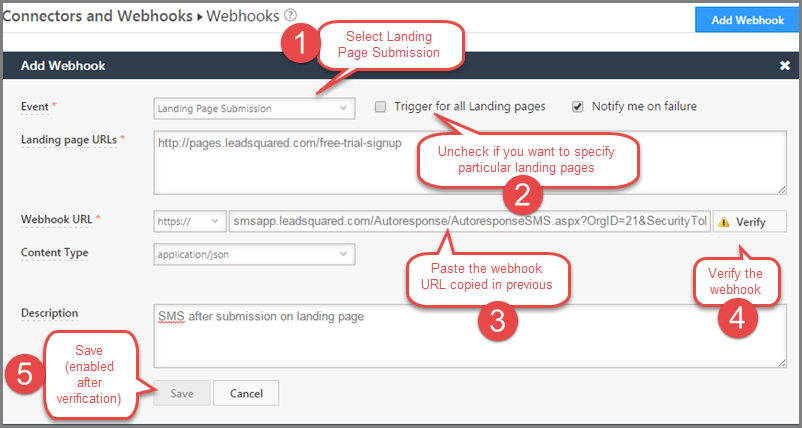
4. Click on Add Webhook button. Make the following settings in the Add Webhook section

  • Event: Landing Page Submission.
  • Trigger for all Landing Pages: Select the check box if you want the webhook to be applicable to all landing pages. Elese, uncheck the box and put paste page URLs in the “Landing page URLs” section.
  • Webhook URL: the URL you copied from SMS template page
  • Description: Enter a brief description for the webhook.

Press verify to make sure webhook is correctly captured.

Create Webhook

5. Click Save to enable the webhook. That’s all. Your Landing Page is now setup to send the SMS message as per the template you selected on every submission that has valid phone number.

Tag Archive for: SMS

LeadSquared Product Update # 19

We finished the 19th production update of LeadSquared on Sunday, Oct 12th, 2014. Please clear your browser cache  to access the latest copy of the LeadSquared App (Use Control + F5 key on windows and Command + R keys on Mac to clear cache). Here are the release notes capturing significant changes:

NEW: SMS Marketing Connector

We have a fully revamped SMS Marketing Connector in LeadSquared. You can interact leads via SMS as you have been doing using Emails.  It support one-to-one SMS, one-to-many SMS, SMS Campaigns to lead lists and Landing Page Autoresponder SMS. You can configure your own SMS sender name and also create your own templates!

Admin users can find the connector under My Account -> Settings -> Connectors and Webhooks -> Connector -> Add Connector.  You need SMS credits in your account to start using it. Please get in touch with your LeadSquared Account Manager for the same.

To know more about the SMS Marketing Connector, check LeadSquared SMS Marketing Connector.

NEW: Lead Distribution Automation App

Using the new Lead Distribution Automation App, you can automate the distribution of incoming Leads to your LeadSquared users by creating rules on Lead field data. For example, you may want to distribute leads to a group of LeadSquared users in round-robin manner based on its location, interest, budget, education.

With Lead Distribution App, you can build a series of rules and assign leads to one specific user or to a user among group of users in round-robin manner.  You (Admin users) can find the App under My Account -> Settings -> Connectors and Webhooks -> Connector -> Add Connector.

To know more, check Lead Distribution Automation in LeadSquared.

NEW: Zopim Chat Connector

We have added one more connector to our expanding connector library. With chat tools, we already had Olark Chat Connector, we now have integration with Zopim chat as well. So you can start capturing the Zopim chat leads also in LeadSquared.  Read this article to get started: How to get Leads from Zopim Chat in LeadSquared?

NEW: Capture Email Senders and Recipients as Leads

Inbound leads to your sales enquiry email ids and outbound emails to your leads from your email clients like outlook, gmail etc can be captured as Leads in LeadSquared using the new MarkCopy connector. You just need to generate your organization’s unique MarkCopy email id and get the inbound or outbound email “Marked a Copy” to it. Get started with MarkCopy:  Capture Email Sender and Recipients as Leads using Markcopy Connector.

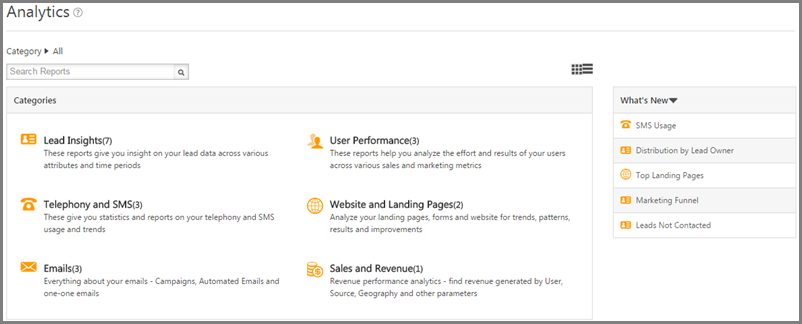
Redesigned Analytics Page

As we update a number of new reports in LeadSquared, we have redesigned he Analytics Page to better organize and search for reports. Check it out:

Analytics

Host your external landing pages in LeadSquared

While we are working on refreshing our current Landing page designer to create Responsive Landing Pages, we have provided an option to host your external Landing pages within LeadSquared.  Here is an  example of such a Landing Page.

here is the help article on the same:  Creating Landing Page from HTML.

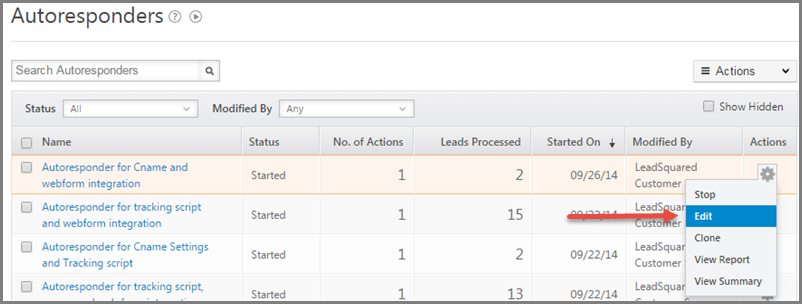
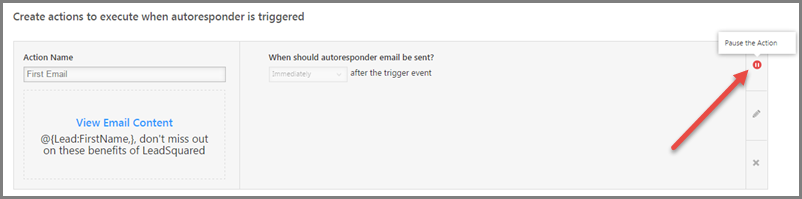
 Pause and Update Individual Steps of Email Autoresponder

We have added the option of pausing individual step of Email Autorepsonder and Editing it without impacting the other steps. Just Edit the Autoresponder as illustrated below:

AR - Edit

And then pause to make the changes. Start  the actions after you done.

AR - Pause

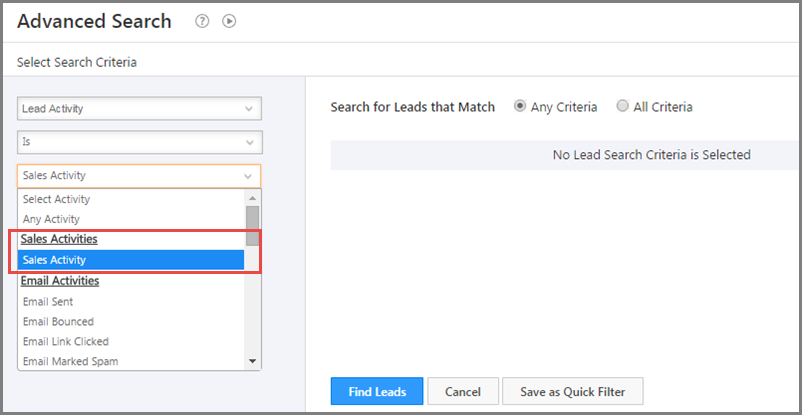
 Search Based on Sales Activity

You can now search for leads based on their Sales Activity.

Search For Sales Activity

Tons of new APIs

We have added a number of new APIs with this release. Developers who want to know more can contact us at support@leadsquared.com .


Product Update – 11 Jan, 2014

We enhanced LeadSquared’s feature set in the update done on 11th Jan 2014. Here are the release notes:

Autoresponder Performance Report

In the last release we added a very important email marketing automation feature – Autoresponders.  It was in Beta for last 4 weeks. With this release it is ready to be used as a fully complete feature.

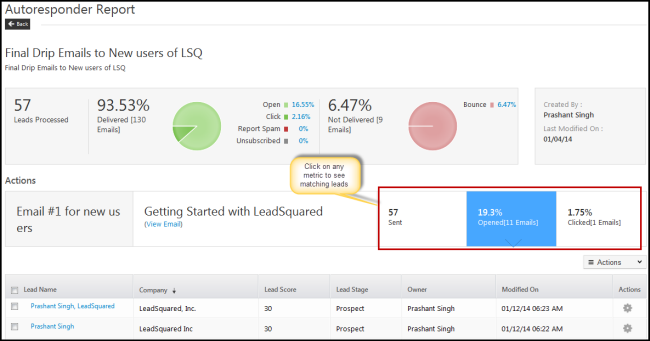
We have added reporting to Autoreponders.  To view report, just click the actions icon on the Autoresponder row and select “View Report”:

Autoresponder Report

Autoresponder Report

You will see a report like the one below:

Autoresponder Report

Autoresponder Report

You can see the number of leads processed, emails delivered, open & click metrics for overall Autoresponder as well as each step of it. Click on performance (sent / opened / clicked) data of any steps to see leads that took that action.

 Agency Switch: Switch across your LeadSquared Accounts

One of the most important use cases for marketing agencies is to be quickly switch in and switch out of the LeadSquared account of the clients they are managing. We have added this capability in this release.
For more details, see How to Manage Agency Switch.

Note: This feature is not enabled by default. It is useful for Agencies/Companies that have more than one LeadSquared account. If you have one and want this feature enabled, please contact us

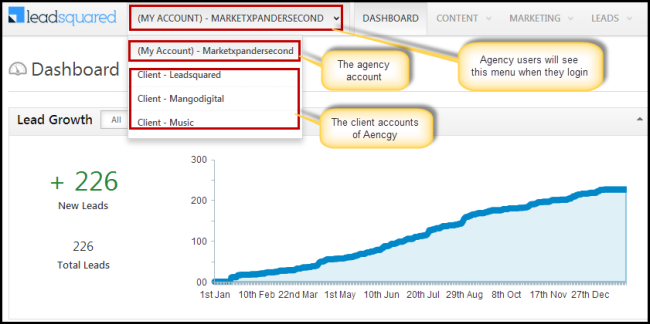
If Agency Switch has been enabled for your LeadSquared account, you will see following view when you login with the agency user credentials:

Agency Switch

Agency Switch

You will see a new feature menu next to LeadSquared as “(My Account) – <Agency Account Name>”. Under it, you will find all client accounts (or sub accounts) that are associated with your main (agency) account.  The default view will be that of main account and clicking any sub account will switch to it.

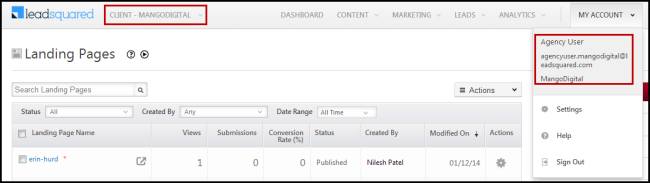
Agency User

Agency User

Once you select a sub account, you will that account name next to LeadSquared logo. The agency user that is used to access the sub account is auto-generated. It will be agencyuser.<sub-account-name>@leadsquared.com .

Search Landing Pages using URL

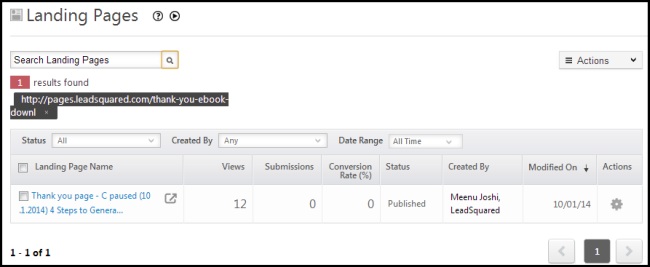
Based on feedback from LeadSquared users, we have added the capability to search landing pages in Landing Page table/grid using the URL or published landing page.

Landing Page Search by URL

Landing Page Search by URL


Send Autoresponder SMS to Leads

We now support Autoresponder SMS to leads on following events:

1)      Transactional SMS to lead  when it submits on landing page

2)      When Lead is created (by any means – landing page submission or manual addition or import)

3)      When lead is modified (any field is modified)

Please check https://help.leadsquared.com/how-to-configure-sms-autoresponder-for-my-landing-pages/ to enable this.

Note: This feature is not enabled by default.  If you want this feature enables, please contact us.

The SMS can also be sent in following scenarios but these will need custom connectors from LeadSquared. Get in touch with us if you need these.

1)      When Lead stage changes

2)      Reminder of Task to Lead Owner and Lead

3)      Sending SMS to a configured numbers based on value of a field selected in Landing Page form (like sending SMS to owner  of  a specific franchise if the leads selects it while submitting on landing page)


API Improvements

We have added following APIs to help developers get most out of LeadSquared:

1) Ability to send an email to a lead through API.

2) Add lead to Static List

3) Add Webhook

Please check our API doc page at https://help.leadsquared.com/leadsquared-api-overview/ for details of these new APIs.