
1. Feature Overview
LeadSquared lets you export lead data by exporting the list that contains those leads. This is useful when you need offline access to data or want to share lead information with external systems or teams.
For example, if you want to export details of all leads located in Mumbai, you can first add them to a list and then export that list. During export, you can choose to:
- Export all lead fields, or
- Export only specific fields such as Lead Stage, Lead Score, Owner, and more.
Once the export is complete, the data is sent to your registered email address as a CSV file. To learn more about creating and managing lists, see List Management – Feature Guide.
2. Export Lists
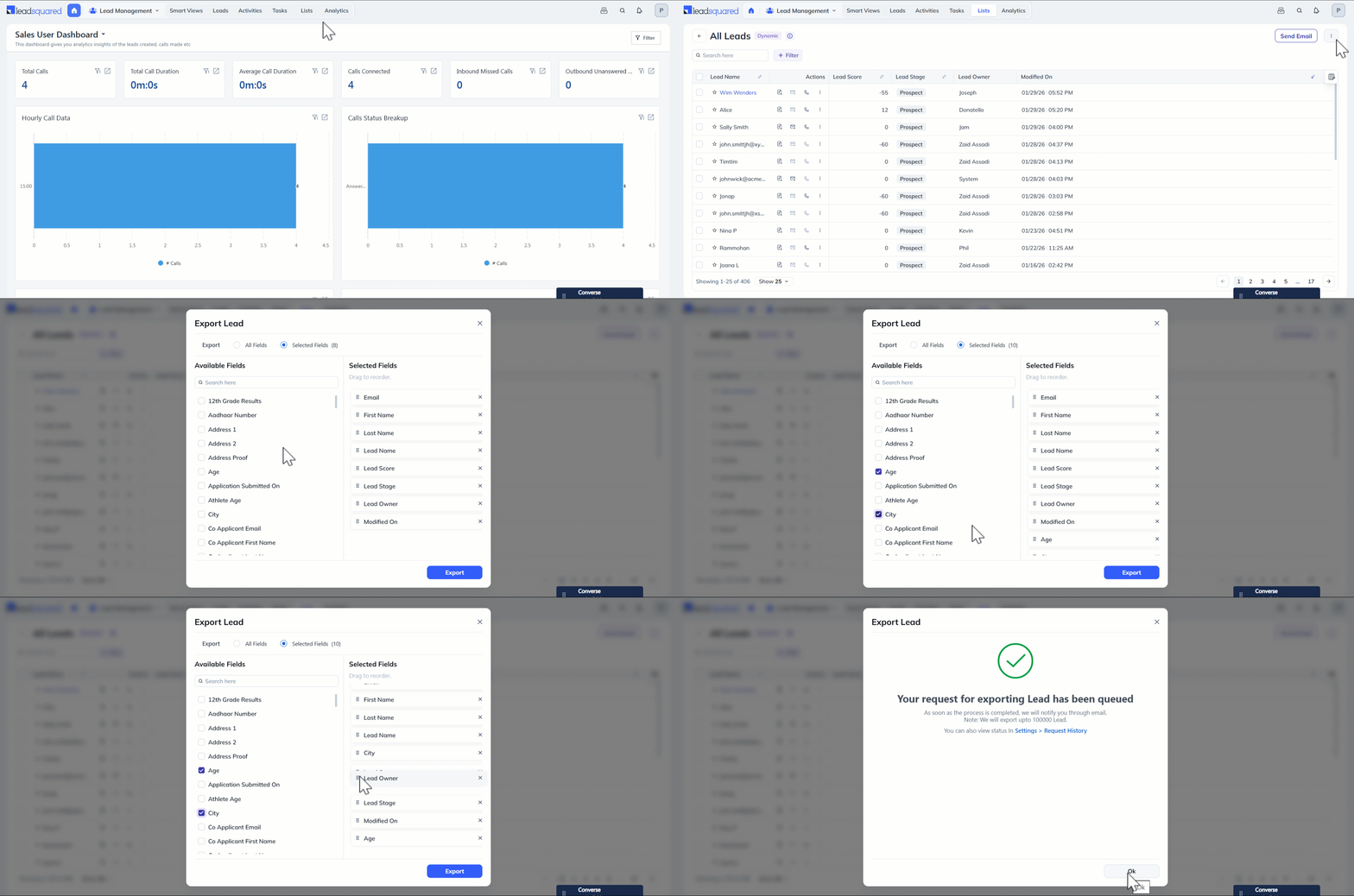
- Navigate to Manage Lists and click the name of the relevant list.
- On the right side of the screen, above the list of leads, hover your cursor over Actions icon.
- Select Export Leads.
- On the Export Leads pop-up, choose whether you want to Export all fields or Export selected fields.
- If you’ve selected Export all fields, all the lead fields across all pages will be exported into the CSV file.
- If you’ve selected Export selected fields, only the lead fields you select will be exported into the CSV file –
- To select a lead field, click the checkbox alongside it.
- Reorder the selected fields as required, by dragging and dropping.
- Click Export when you’re done.
Any Questions?
Did you find this article helpful? Please let us know any feedback you may have in the comments section below. We’d love to hear from you and help you out!





