
1. Feature Overview
The Lead vCard displays key lead information on the Lead Details page, including Lead Details, Lead Quality Metrics, and Lead Properties. It provides a quick snapshot of important lead data to help users review and update records efficiently.
You can customize the Metrics and Lead Properties sections to control which fields appear on the vCard, allowing teams to focus on the most relevant information for their workflow. The vCard can also be shared with other LeadSquared users via email, making it easier to collaborate and exchange lead information.
2. Prerequisites
You need to be an Admin user to customize details on the vCard.
3. Access vCard
To view a Lead vCard:
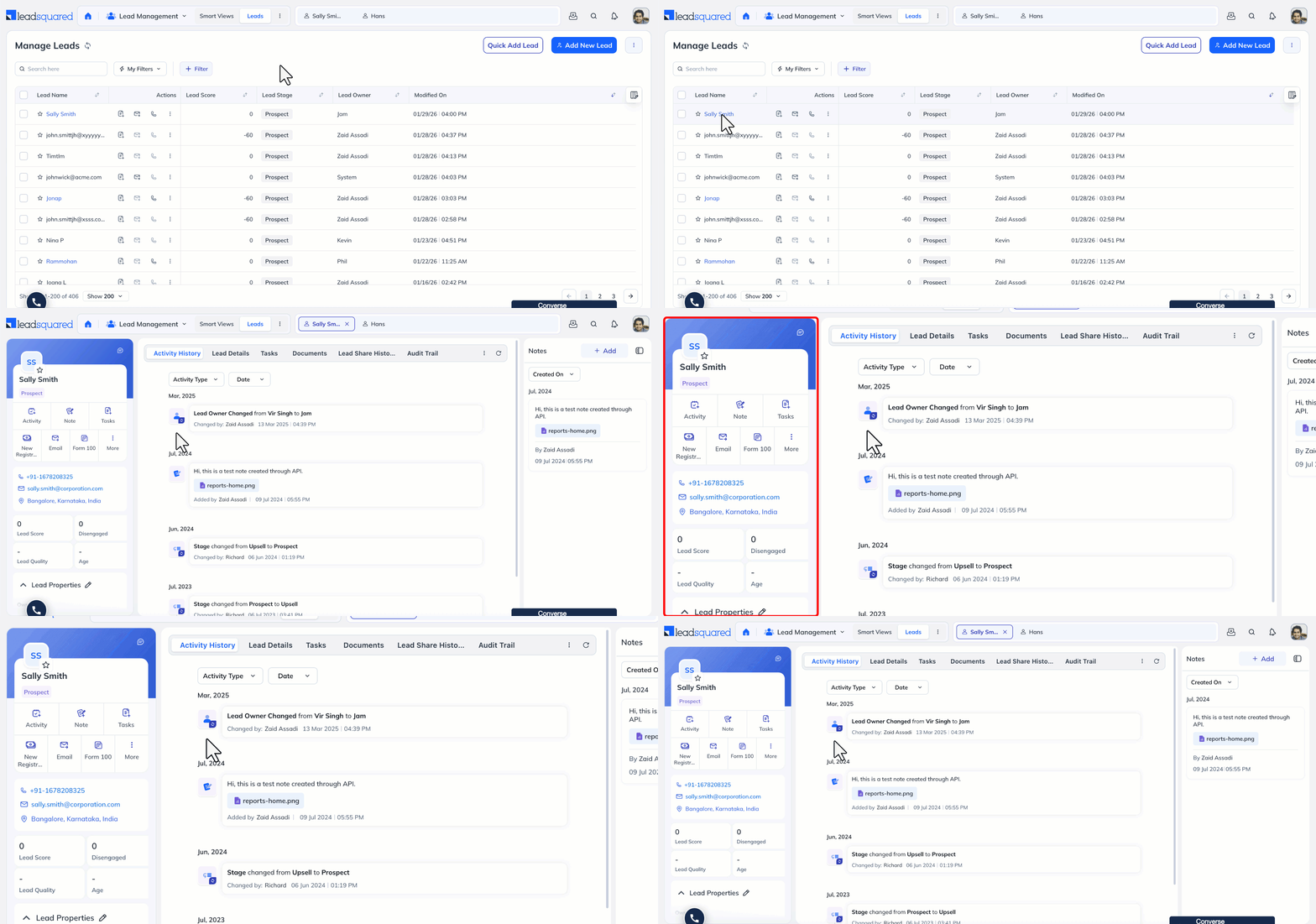
- Navigate to Lead Management>Leads.
- Click on the required lead to open the Lead Details page.
- The vCard appears on the left of the Lead Details view.
4. Customise vCard
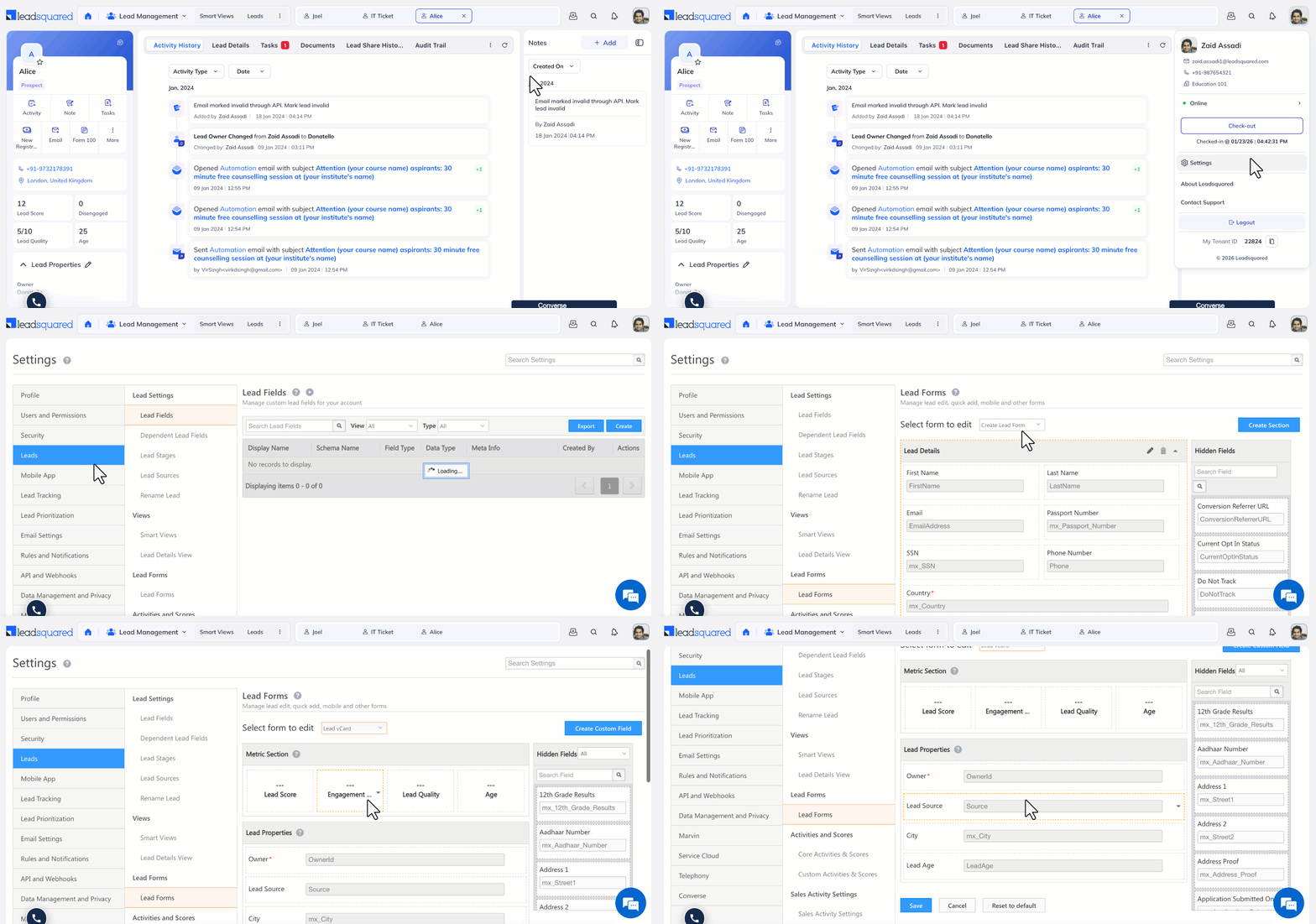
- Navigate to Settings>Leads>Lead Forms.
- Under Select to edit drop-down field select Lead vCard.
- To add lead fields in your v-card, drag-drop fields from the Hidden section to the Metric section or Lead Properties section.
- Once you’re done click Save.
Note:
- The Metric section only accepts number type fields. A maximum of four fields are allowed at a time.
- The Lead Properties section can accommodate any number of lead fields and accepts all values.
- You can use filters to find all Numeric fields in the Hidden fields section.
- To reset the customizations made to the vCard click Reset to default. This will reset the vCard to the default lead fields.
5. Edit and Share the Lead vCard
On the Lead Details page:
Edit lead details
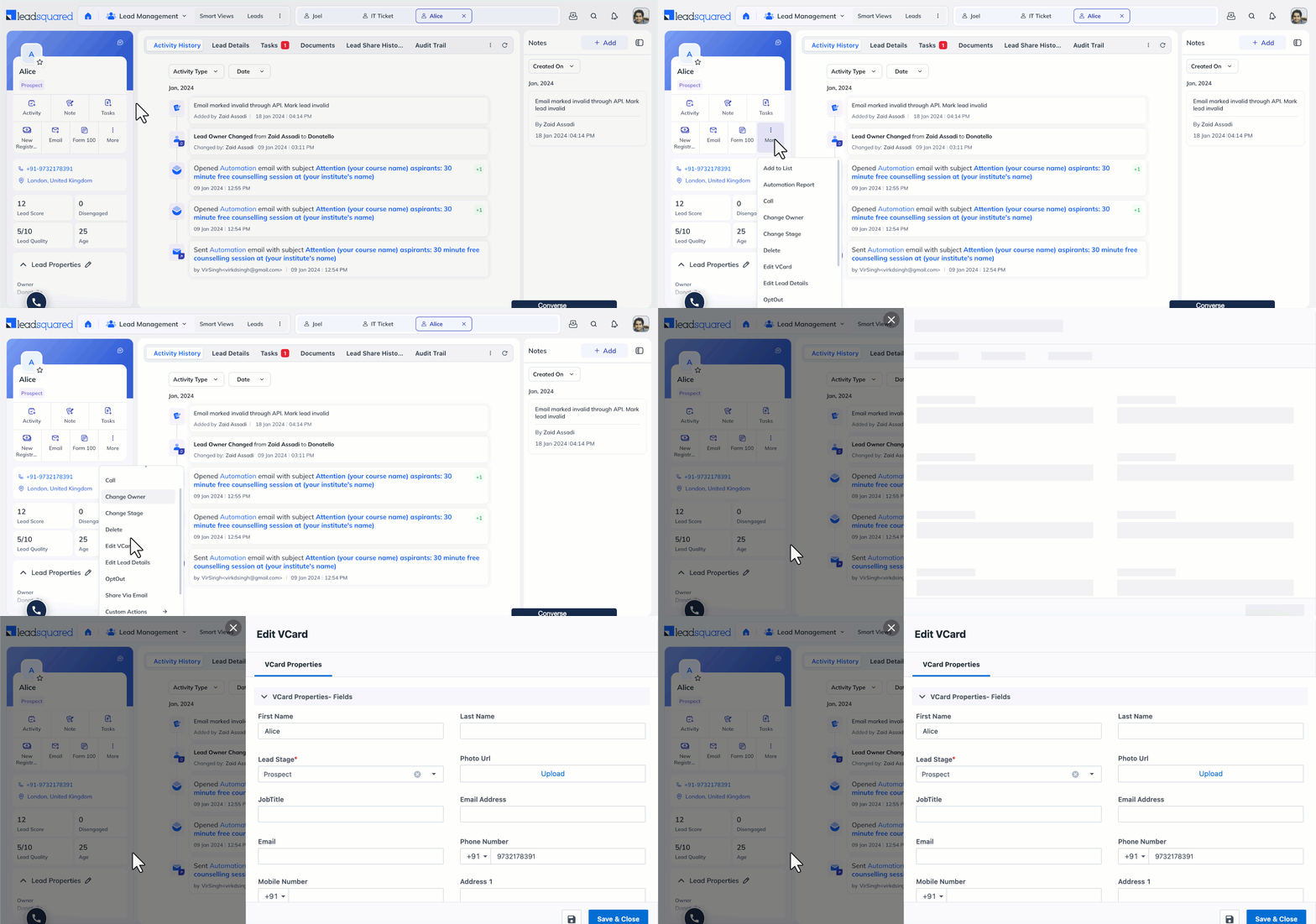
- Hover over the three-dotted menu.
- Click the Edit VCard option.
- Update the required lead fields and click Save.
Share the vCard
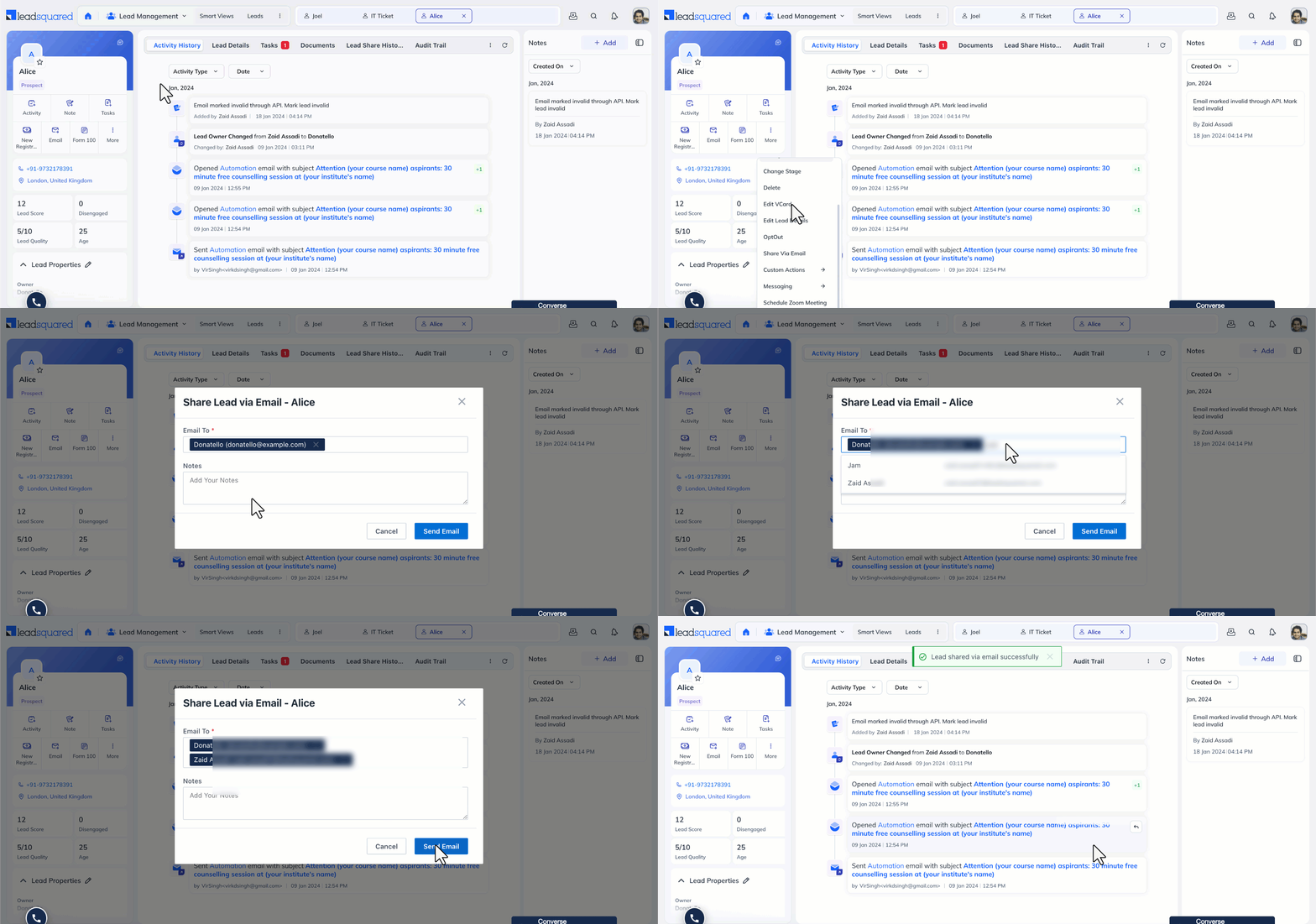
- Hover over the vCard.
- Click the Share option.
- Enter the name or email address of the users in the pop-up.
- Optionally, add Notes.
- Click Send Email to send the lead information.
Note: When sharing a Lead vCard, only the fields that are configured in the “Edit vCard Fields” section and configured in the Lead Form will be included — and only if those fields contain values.
Any Questions?
Did you find this article helpful? Please let us know any feedback you may have in the comments section below. We’d love to hear from you and help you out!





Dear Dharshana,
Thank you for the instructions on editing a vCard. However, we need to update the specific fields highlighted in the attached image. The current article only covers editing captured details, but does not address how to update these specific fields.
Could you please provide the process for making these updates?
Your assistance would be greatly appreciated.
Hi Mohit,
To update the mentioned details,
1. Click on the Edit icon alongside the lead name.
2. On the Edit VCard popup, make the relevant changes.
3. Click Save & Close.