


Get Started

Sales Suite
Field Ops
Marketing
Service CRM
Integrations & Apps
FloStack
Integrate Flostack with UDS

1. Feature Overview
The FloStack–UDS integration lets you automatically sync key lead interactions—such as appointments, reschedules, cancellations, callback requests, and microsite information—from FloStack into LeadSquared.
All FloStack actions are pre-configured in UDS, so you only need to authenticate and complete field mappings. Once configured, new appointment bookings, updates, and microsite events flow directly into LeadSquared without any manual intervention.
The integration ensures that:
- Leads created or updated in FloStack are reflected accurately in LeadSquared
- Appointment lifecycle events stay in sync (create, update, cancel)
- Callback requests raised on FloStack become actionable tasks
- Personalized FloStack microsites can be stored on the lead record
- Lead assignment configured inside FloStack is automatically pushed to LeadSquared
This helps admissions, counseling, or sales teams engage leads quickly and consistently, using the same data generated from FloStack’s routing and booking journeys.
How the Integration Works
FloStack sends data to UDS each time a relevant event occurs.
UDS then:
- Identifies the lead using the configured unique field
- Selects the appropriate action
- Creates/updates the Lead, Activity, or Task based on mapping
- Processes the sync in real time.
2. Available Pre-Configured UDS Actions
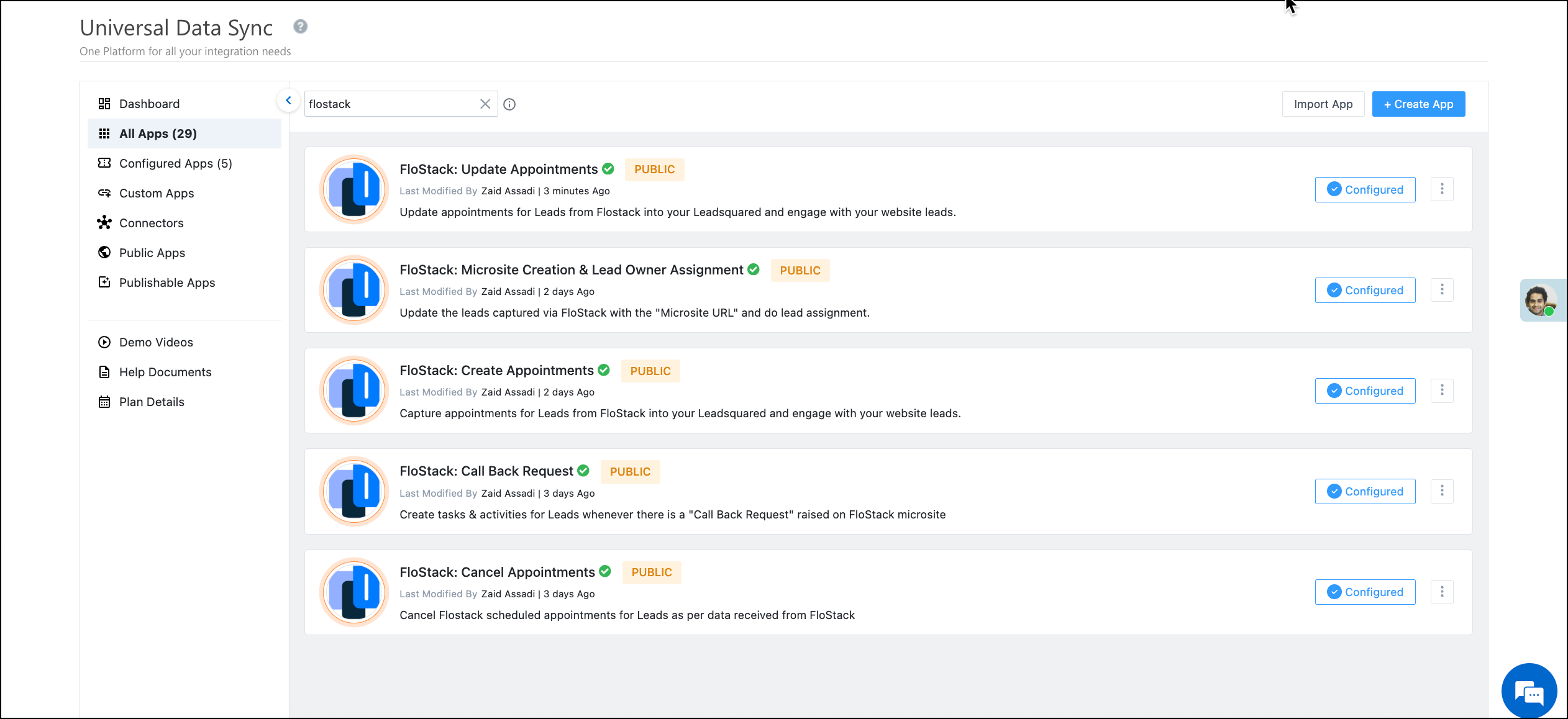
Once you search for “FloStack” in the UDS App, you will see the following actions already configured:
- Create Appointments
- Update Appointments
- Cancel Appointments
- Call Back Request
- Microsite Creation & Lead Owner Assignment
Each action serves a specific use case in the FloStack workflow.
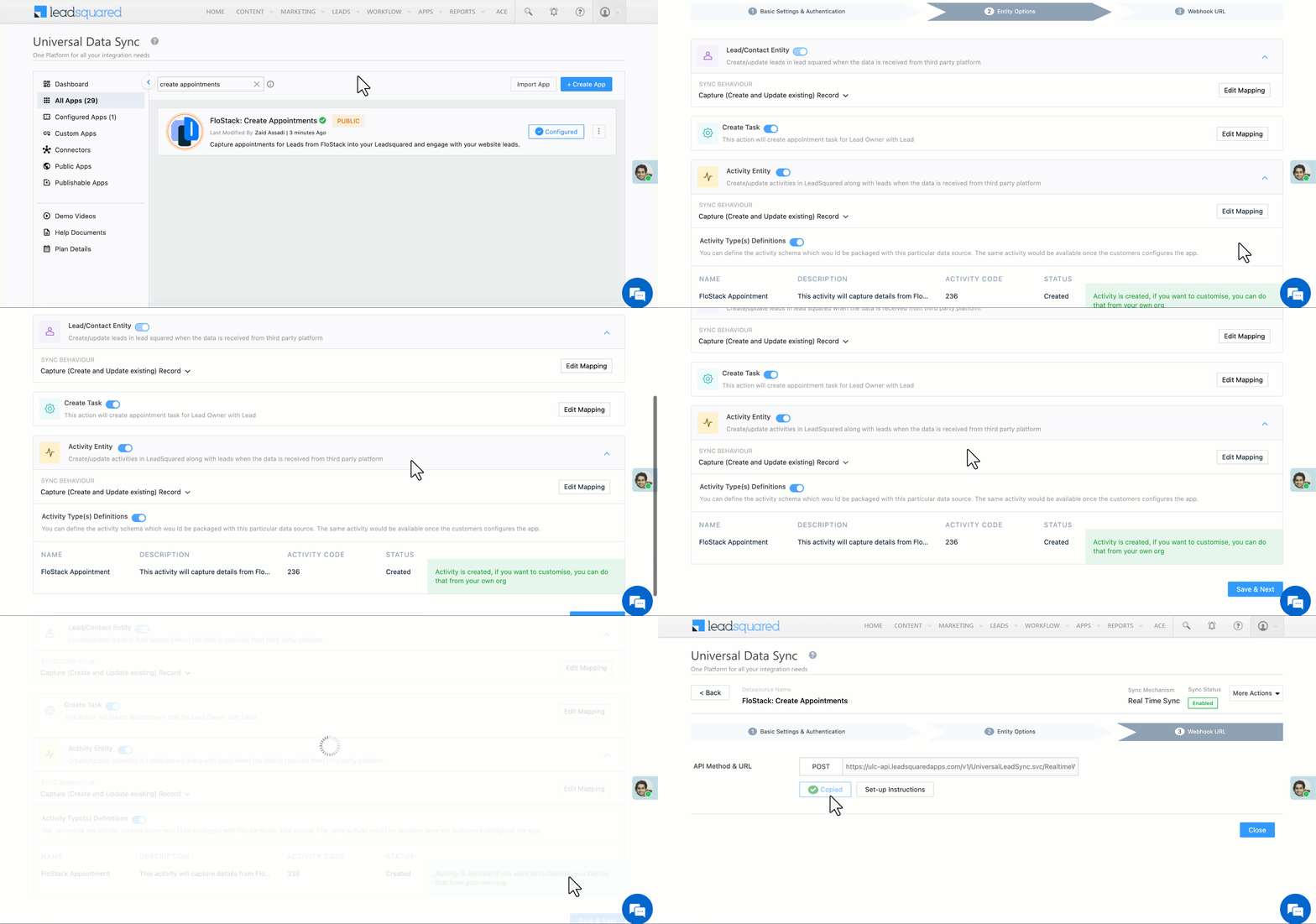
3. Create Appointments
3.1 What this action does
Captures appointment bookings from FloStack microsites and creates corresponding LeadSquared records.
Triggered When
A user books a new appointment on a FloStack microsite.
3.2 Basic Settings & Authentication
Enter the following details –
| Field | Description |
| Lead Source | Enter the lead source through which the leads were captured (e.g., Flostack). This detail will appear on the Lead Details page under Lead Source. |
| Default Country Code | Select a default country code. If the lead’s mobile number is captured without a country code, the default country code is added to the lead’s mobile number. |
| Select Time Zone | The time zone of your Flostack account. |
| Lead Capture Primary Search By Criteria | To avoid duplicate lead creation, select one unique lead field (e.g., mobile number/email) as the search key. Leads will be searched by the value mapped to this field. If a matching lead is found, it will be updated. Otherwise, a new lead will be created. To know how to mark a LeadSquared lead field as unique, please refer to How to Make a Custom Field Unique. |
| Lead Capture Secondary Search By Criteria | If lead identification and capture through the primary Search By criteria fails, the system will reattempt using the secondary Search By criteria. |
| Select User to Notify on Failure | If there’s an error in fetching leads, the selected user will receive a failure message via email. Choose a user from the list of available users in your LeadSquared account.To know more about the type of errors, please refer to Error Notifications. |
| Enable Notification | Enable the  checkbox to ensure notification emails are sent to the selected user when there’s a failed query. checkbox to ensure notification emails are sent to the selected user when there’s a failed query. |
Supports custom unique fields and composite keys (email + phone) as search keys. Once you’re done entering all the details, click Save.
3.2 Configuration Breakdown
- Lead/Contact Entity
- Sync Behavior: The Capture (Create and Update existing record) behavior is recommended. LeadSquared will search for an existing lead (by email/phone). If not found, it creates one.
- Edit Mapping: Use this to map FloStack appointment fields (name, phone, email, UTM parameters, custom attributes, etc.) to LeadSquared Lead fields.
- Task Operations
- Create Task: Enabled. Creates an appointment task for the lead owner based on FloStack details (date, time, meeting type).
- Edit Mapping: Task mappings for standard appointment tasks are preloaded. Use the Edit Mapping to view mappings, but note these mappings are locked in the default packaged action.
- Note:
- To change task schema or add fields, clone the app and edit the clone.
- FloStack sends a Meeting ID, UDS uses this to relate tasks to activities for updates/cancels.
- Activity Entity
- Activity Type(s) Definitions: Alongside FloStack Appointment, click Create Activity.
- Sync Behaviour Options: The Create + Update (recommended) – UDS creates an “Appointment” activity and updates it on subsequent events.
- Edit Mapping: Map incoming appointment attributes to the Activity fields. You can add custom activity mappings.
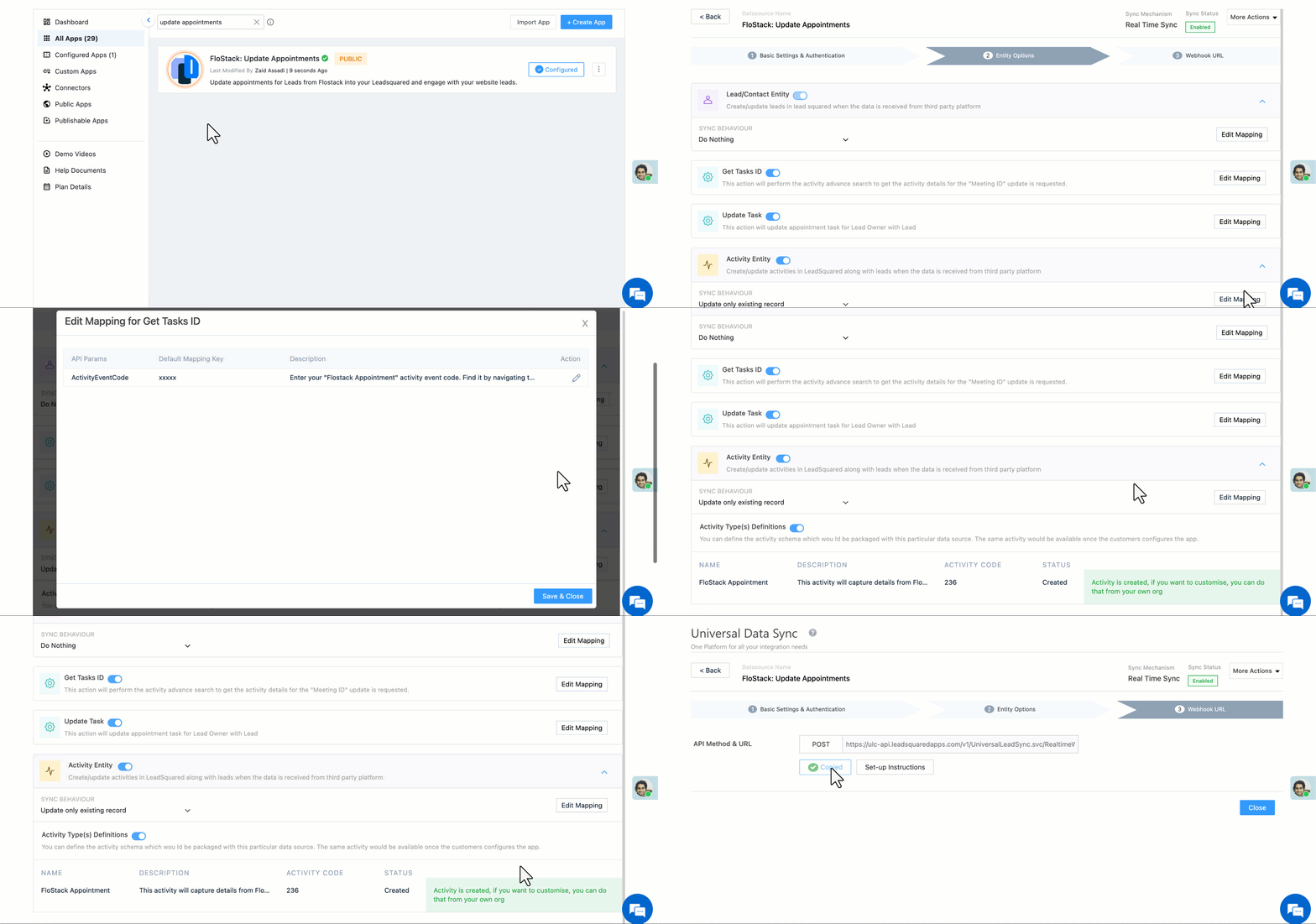
4. Update Appointments
4.1 What this action does
Updates existing appointment records in LeadSquared when the appointment is modified (rescheduled, advisor changed, etc.) from FloStack.
Triggered When
A user reschedules or edits an existing appointment on a FloStack microsite.
4.2 Basic Settings & Authentication
Enter the following details –
| Field | Description |
| Lead Source | This detail will appear as Update Appointments from Flostack on the Lead Details page under Lead Source. |
| Default Country Code | Select a default country code. If the lead’s mobile number is captured without a country code, the default country code is added to the lead’s mobile number. |
| Select Time Zone | The time zone of your Flostack account. |
| Lead Capture Primary Search By Criteria | To avoid duplicate lead creation, select one unique lead field (e.g., mobile number/email) as the search key. Leads will be searched by the value mapped to this field. If a matching lead is found, it will be updated. Otherwise, a new lead will be created. To know how to mark a LeadSquared lead field as unique, please refer to How to Make a Custom Field Unique. |
| Lead Capture Secondary Search By Criteria | If lead identification and capture through the primary Search By criteria fails, the system will reattempt using the secondary Search By criteria. |
| Select User to Notify on Failure | If there’s an error in fetching leads, the selected user will receive a failure message via email. Choose a user from the list of available users in your LeadSquared account.To know more about the type of errors, please refer to Error Notifications. |
| Enable Notification | Enable the checkbox to ensure notification emails are sent to the selected user when there’s a failed query. |
Supports custom unique fields and composite keys (email + phone) as search keys. Once you’re done entering all the details, click Save.
4.3 Configuration Breakdown
- Lead/Contact Entity
- Sync Behavior: Do Nothing is recommended. Lead creation/update is not required since the lead already exists.
- Task Operations
- Get Task ID: Enabled. Performs an advanced search to locate the appointment task using the Meeting ID.
- Update Task: Enabled. Applies updated appointment details (new time, rescheduled date, status changes).
- Note:
- To change task schema or add fields, clone the app and edit the clone.
- Activity Entity
- Activity Type(s) Definitions: Alongside FloStack Appointment, click Create Activity.
- Sync Behavior Options:Update only existing record is recommended. Updates the same activity created during appointment creation.
- Edit Mapping: Map incoming appointment attributes to the Activity fields. You can add custom activity mappings.
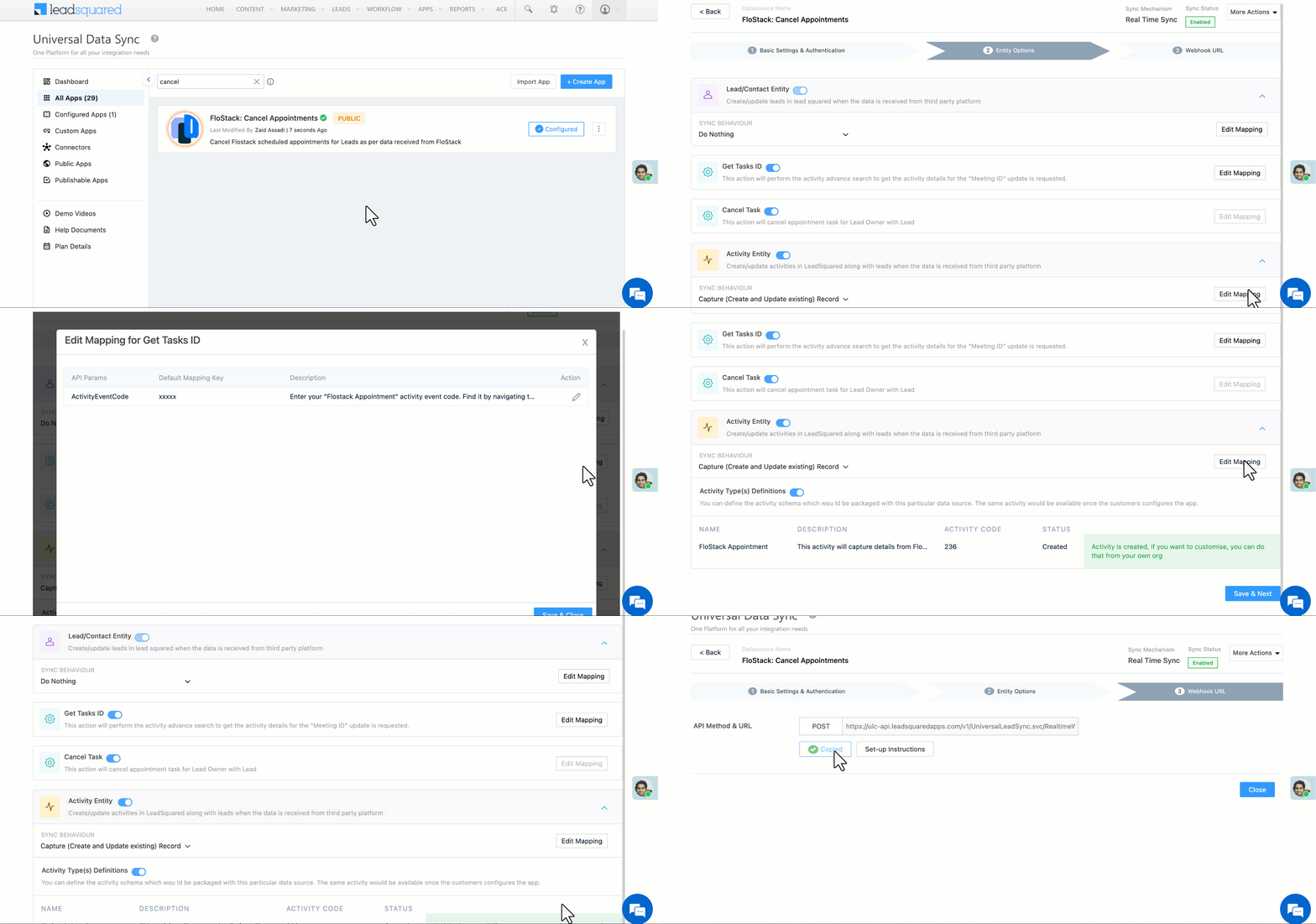
5. Cancel Appointments
5.1 What this action does
Marks appointments as cancelled in LeadSquared when a prospect cancels via the FloStack microsite.
Triggered When
A user cancels a previously booked appointment.
5.2 Basic Settings & Authentication
Enter the following details –
| Field | Description |
| Lead Source | This detail will appear as Update Appointments from Flostack on the Lead Details page under Lead Source. |
| Default Country Code | Select a default country code. If the lead’s mobile number is captured without a country code, the default country code is added to the lead’s mobile number. |
| Select Time Zone | The time zone of your Flostack account. |
| Lead Capture Primary Search By Criteria | To avoid duplicate lead creation, select one unique lead field (e.g., mobile number/email) as the search key. Leads will be searched by the value mapped to this field. If a matching lead is found, it will be updated. Otherwise, a new lead will be created. To know how to mark a LeadSquared lead field as unique, please refer to How to Make a Custom Field Unique. |
| Lead Capture Secondary Search By Criteria | If lead identification and capture through the primary Search By criteria fails, the system will reattempt using the secondary Search By criteria. |
| Select User to Notify on Failure | If there’s an error in fetching leads, the selected user will receive a failure message via email. Choose a user from the list of available users in your LeadSquared account.To know more about the type of errors, please refer to Error Notifications. |
| Enable Notification | Enable the checkbox to ensure notification emails are sent to the selected user when there’s a failed query. |
Supports custom unique fields and composite keys (email + phone) as search keys. Once you’re done entering all the details, click Save.
5.3 Configuration Breakdown
- Lead/Contact Entity
- Sync Behavior: Do Nothing is recommended. No lead updates are required for cancellations.
- Task Operations
- Get Task ID: Enabled. Retrieves the appointment task mapped to the Meeting ID.
- Cancel Task: Enabled. Cancels the appointment task for the lead owner.
- Edit Mapping: Task mappings for cancellation are preloaded/locked. Clone the app to edit mappings.
- Activity Entity
- Activity Type(s) Definitions: Alongside FloStack Appointment, click Create Activity.
- Sync Behavior: Create and Update record is recommended. Update the original appointment activity status to “Cancelled” and also capture any cancellation event as an activity if you want a separate audit trail.
- Edit Mapping: Map cancellation reason, cancelled timestamp, and any notes to activity fields.
6. Call Back Request
6.1 What this action does
Creates a callback task and logs an activity whenever a prospect requests a callback from the FloStack microsite.
Triggered When
A user clicks “Request Callback” or submits a callback form on a FloStack microsite.
6.2 Basic Settings & Authentication
Enter the following details –
| Field | Description |
| Lead Source | This detail will appear as Flostack Call Back Request on the Lead Details page under Lead Source. |
| Default Country Code | Select a default country code. If the lead’s mobile number is captured without a country code, the default country code is added to the lead’s mobile number. |
| Select Time Zone | The time zone of your Flostack account. |
| Lead Capture Primary Search By Criteria | To avoid duplicate lead creation, select one unique lead field (e.g., mobile number/email) as the search key. Leads will be searched by the value mapped to this field. If a matching lead is found, it will be updated. Otherwise, a new lead will be created. To know how to mark a LeadSquared lead field as unique, please refer to How to Make a Custom Field Unique. |
| Lead Capture Secondary Search By Criteria | If lead identification and capture through the primary Search By criteria fails, the system will reattempt using the secondary Search By criteria. |
| Select User to Notify on Failure | If there’s an error in fetching leads, the selected user will receive a failure message via email. Choose a user from the list of available users in your LeadSquared account.To know more about the type of errors, please refer to Error Notifications. |
| Enable Notification | Enable the checkbox to ensure notification emails are sent to the selected user when there’s a failed query. |
Supports custom unique fields and composite keys (email + phone) as search keys. Once you’re done entering all the details, click Save.
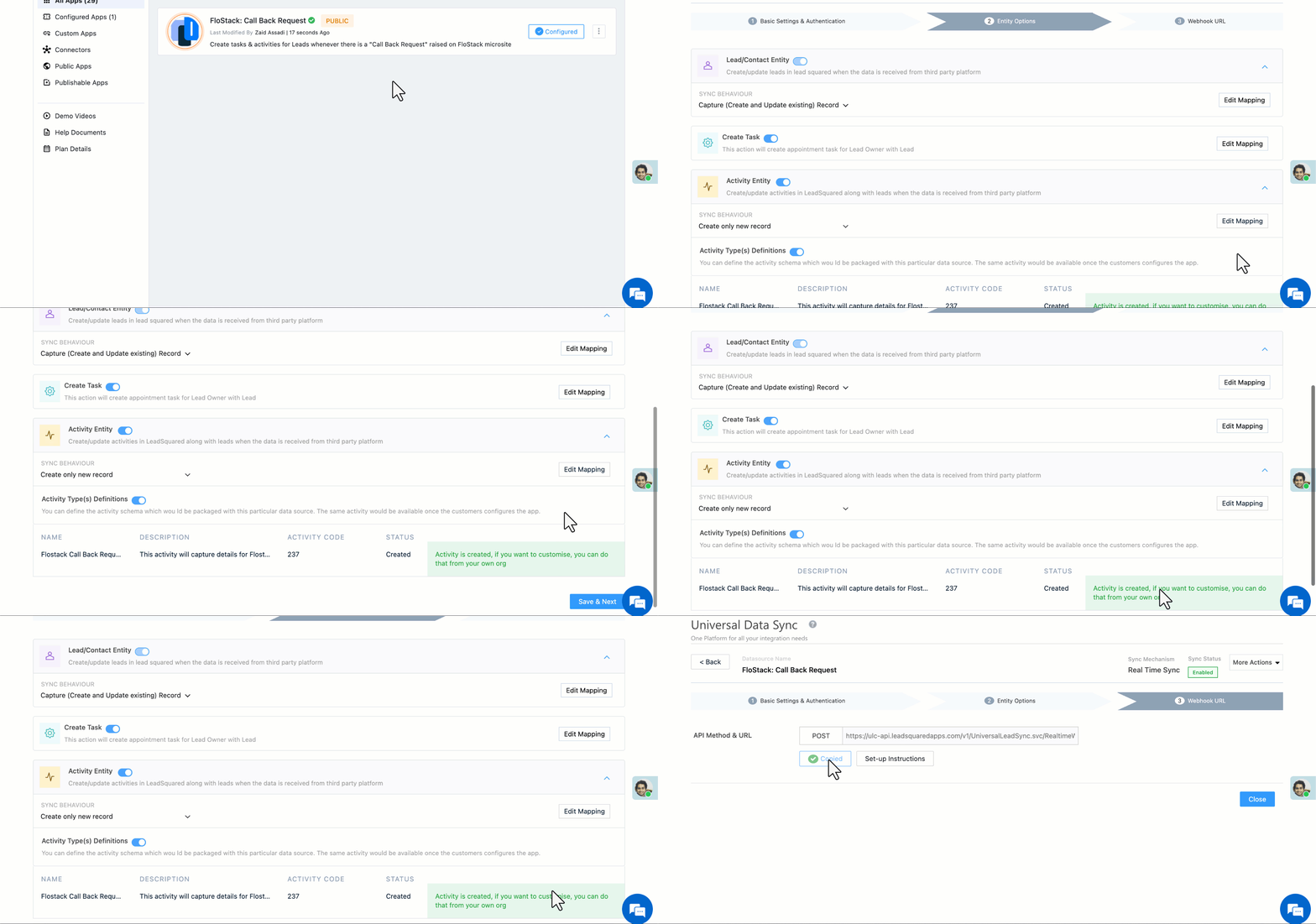
6.3 Configuration Breakdown
- Lead/Contact Entity
- Sync Behaviour: Create + Update is recommended. Callback requests often originate from prospects who may not yet exist in CRM; create if new, update if existing so the task is associated with correct lead.
- Edit Mapping: Map contact info, preferred callback time window, page source, and any form fields to Lead fields.
- Task Operations
- Create Task: Enabled. Creates a Callback task for the owner.
- Edit Mapping: Default callback task mappings are preloaded and locked. To add/modify task fields, clone the app and edit the clone.
- Activity Entity
- Activity Type(s) Definitions: Alongside FloStack Call Back Request, click Create Activity.
- Sync Behaviour: Create only is recommended. Every callback event triggers a new activity.
- Edit Mapping: Map callback metadata: timestamp, preferred time, reason, page URL, UTMs, etc.
7. Microsite Creation & Lead Owner Assignment
7.1 What this action does
Updates lead records with:
- A personalized FloStack microsite URL
- The assigned lead owner (as routed by FloStack)
Typical use cases
- Website form leads entering FloStack journeys
- Walk-in or call leads where you later want to send a personalized microsite
- Automations that require the Microsite URL field (e.g., email/SMS triggers)
You can configure automations in LeadSquared to instantly send the personalized microsite link to the lead.
7.2 Basic Settings & Authentication
Enter the following details –
| Field | Description |
| Lead Source | This detail will appear as Flostack: Microsite Link Generated on the Lead Details page under Lead Source. |
| Default Country Code | Select a default country code. If the lead’s mobile number is captured without a country code, the default country code is added to the lead’s mobile number. |
| Select Time Zone | The time zone of your Flostack account. |
| Lead Capture Primary Search By Criteria | To avoid duplicate lead creation, select one unique lead field (e.g., mobile number/email) as the search key. Leads will be searched by the value mapped to this field. If a matching lead is found, it will be updated. Otherwise, a new lead will be created. To know how to mark a LeadSquared lead field as unique, please refer to How to Make a Custom Field Unique. |
| Lead Capture Secondary Search By Criteria | If lead identification and capture through the primary Search By criteria fails, the system will reattempt using the secondary Search By criteria. |
| Select User to Notify on Failure | If there’s an error in fetching leads, the selected user will receive a failure message via email. Choose a user from the list of available users in your LeadSquared account.To know more about the type of errors, please refer to Error Notifications. |
| Enable Notification | Enable the checkbox to ensure notification emails are sent to the selected user when there’s a failed query. |
Supports custom unique fields and composite keys (email + phone) as search keys. Once you’re done entering all the details, click Save.
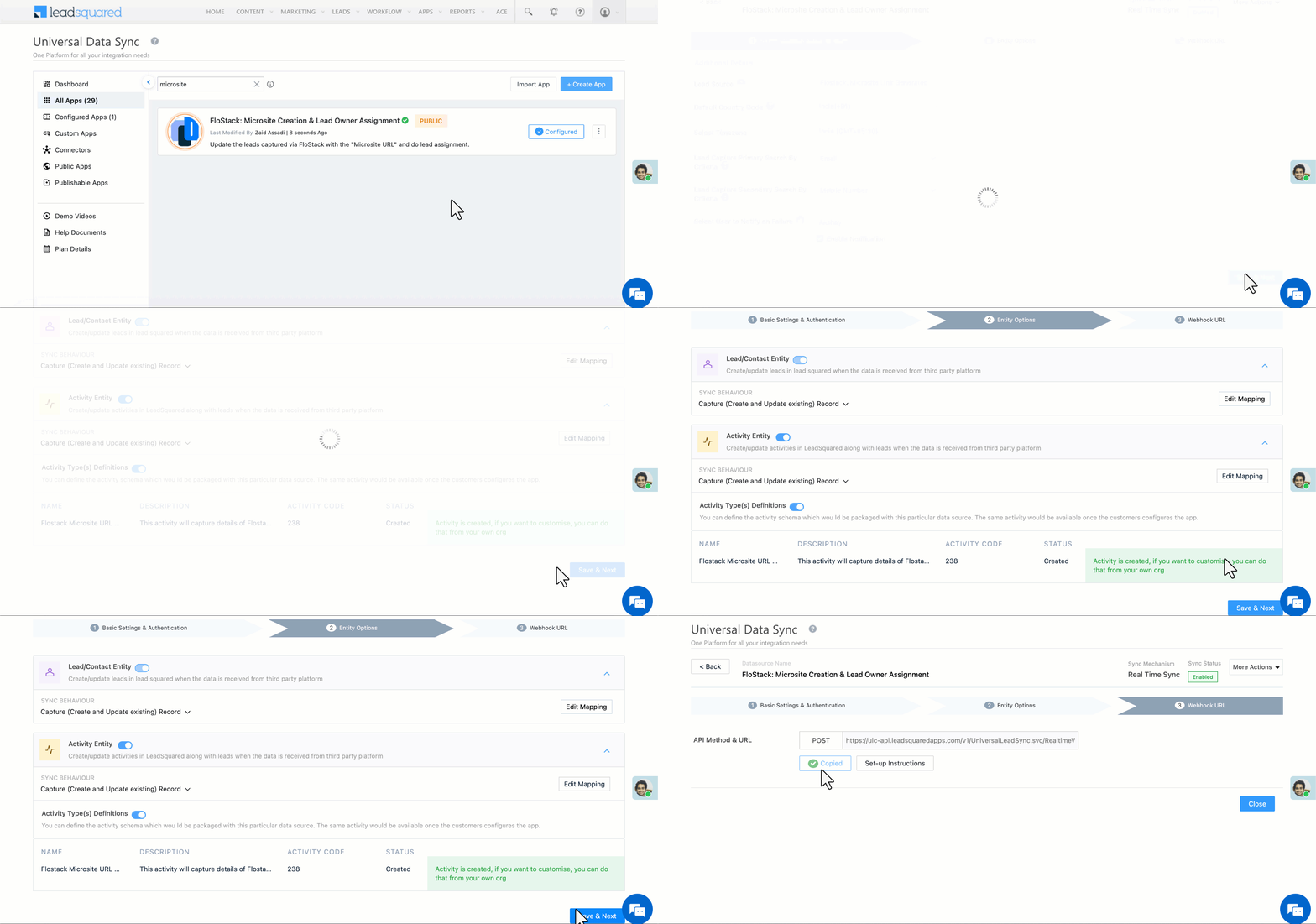
7.3 Configuration Breakdown
- Lead/Contact Entity
- Sync Behaviour: Capture (Create and Update existing record) is recommended. Ensures leads entering through FloStack microsites are added/updated.
- Edit Mapping: Map microsite URL, owner email, and other custom metadata to Lead fields.
- Activity Entity
- Activity Type(s) Definitions: Alongside Flostack Microsite URL Generated, click Create Activity.
- Sync Behaviour: Create + Update is recommended. Create activity on microsite generation and update if the microsite is re-generated or modified.
- Edit Mapping: Map microsite metadata to activity fields.
8. Configuration in FloStack
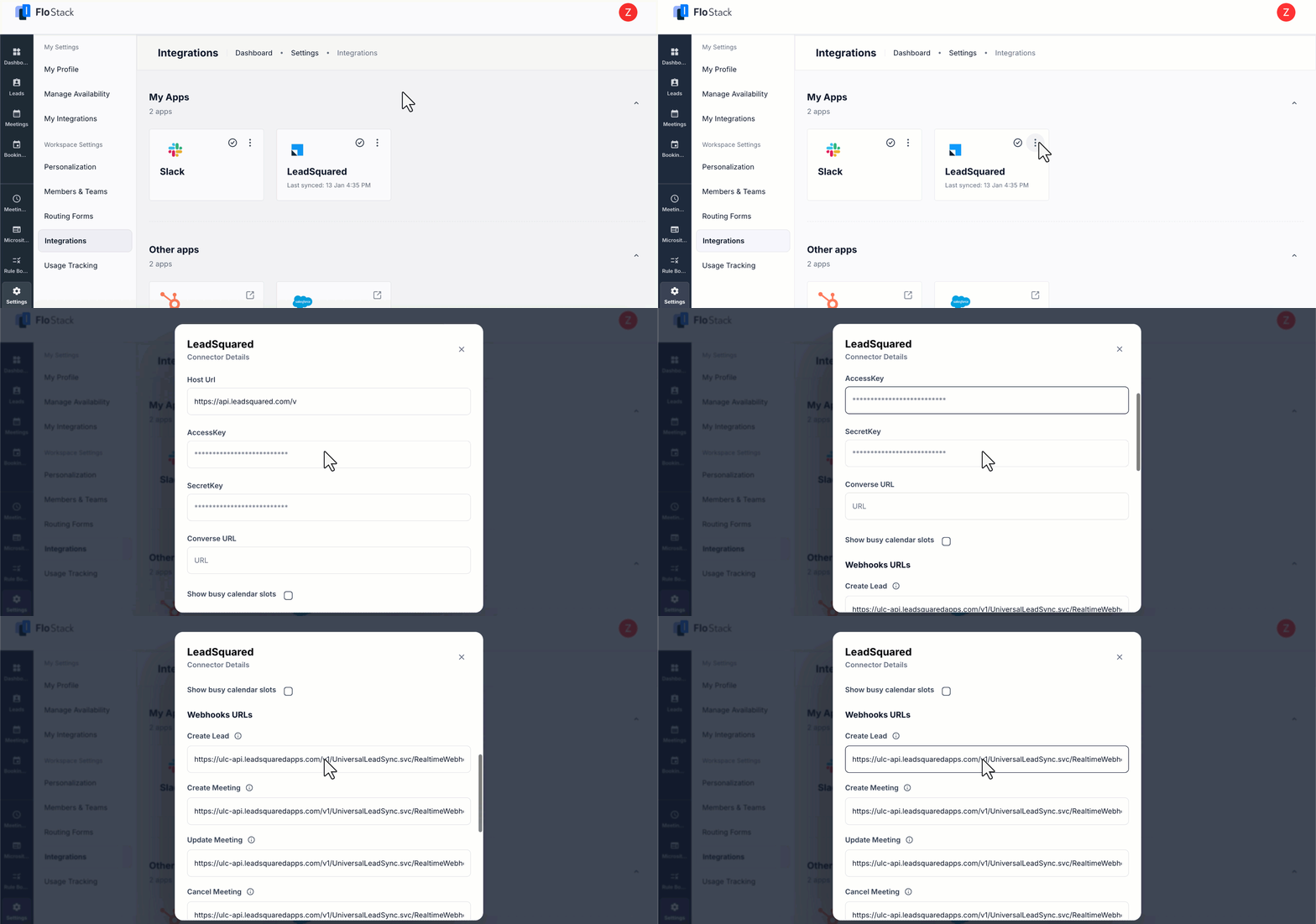
Navigate to Settings>Workspace Settings>Integrations in FloStack, select LeadSquared and enter:
- Your LeadSquared Host URL, Access Key, and Secret Key
- UDS Webhook URLs
- Create Lead (Microsite Creation & Lead Owner Assignment Webhook URL)
- Create Meeting (Create Appointments Webhook URL)
- Update Meeting (Update Appointments Webhook URL)
- Cancel Meeting (Cancel Appointments Webhook URL)
- Request Callback (Call Back Request Webhook URL)
This configuration will allow FloStack to trigger the corresponding UDS actions.
Any Questions?
Did you find the content in this article helpful? Feel free to leave doubts/questions in the comment section below. We’ll get back to you as soon as possible.