
1. Feature Overview
You can use Advanced Search to find leads where a custom activity field either contains or does not contain data. This is useful for identifying gaps in your activity records — for example, finding all leads whose Home Visit activities are missing a scheduled date.
For a full guide to Advanced Search, see Advanced Search in LeadSquared. To learn how to create custom activities and their fields, see Custom Activities and Scores.
2. How It Works
When you create a custom activity, you can add custom fields to capture additional details about that activity. Advanced Search lets you filter leads based on whether those fields have been filled in, using the Contains Data or Does Not Contain Data conditions. You can also apply a time period to narrow the results further.
3. Search Leads by Custom Activity Field
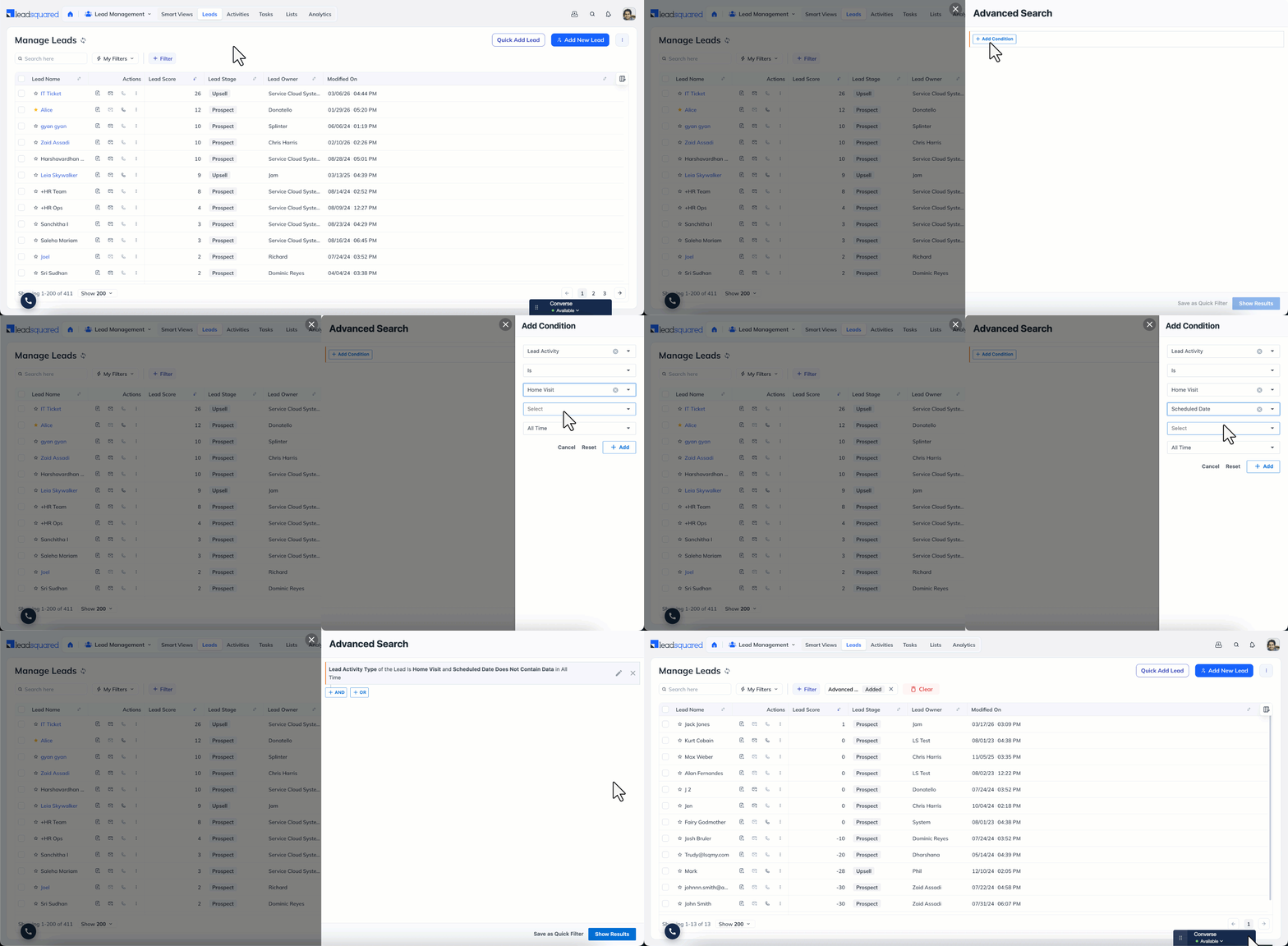
- Go to Lead Management>Leads.
- Click + Filter, and select + Advanced Filters.
- Click + Add Condition, in the search criteria dropdown, select Select Lead Activity Is and choose the relevant custom activity (for example, Home Visit).
- Select the custom field you want to evaluate (for example, Scheduled Date).
- Select Contains Data or Does Not Contain Data depending on what you are looking for.
- Select a time period, click + Add, then click Show Results.
Any Questions?
Did you find this article helpful? Please let us know any feedback you may have in the comments section below. We’d love to hear from you and help you out!





