
1. Feature Overview
Sales Activity Management in LeadSquared allows you to configure, capture and manage revenue-related transactions against leads. It helps you record key sales information such as products sold, order value, sales owner, and transaction date directly within a lead’s timeline. Admins can configure sales activity settings, define activity fields, and manage products. Once configured, sales users can log sales transactions against leads, ensuring that all revenue-related interactions are accurately recorded and centrally available.
2. Prerequisites
You must be an Admin to configure sales activity, add your products and configure the activity form.
3. Configure Sales Activity
Admin users can configure Sales Activity settings like the display name, default currency, etc. In section 4 of this article, you can also learn to configure the fields you’d like to include in the sales activity.
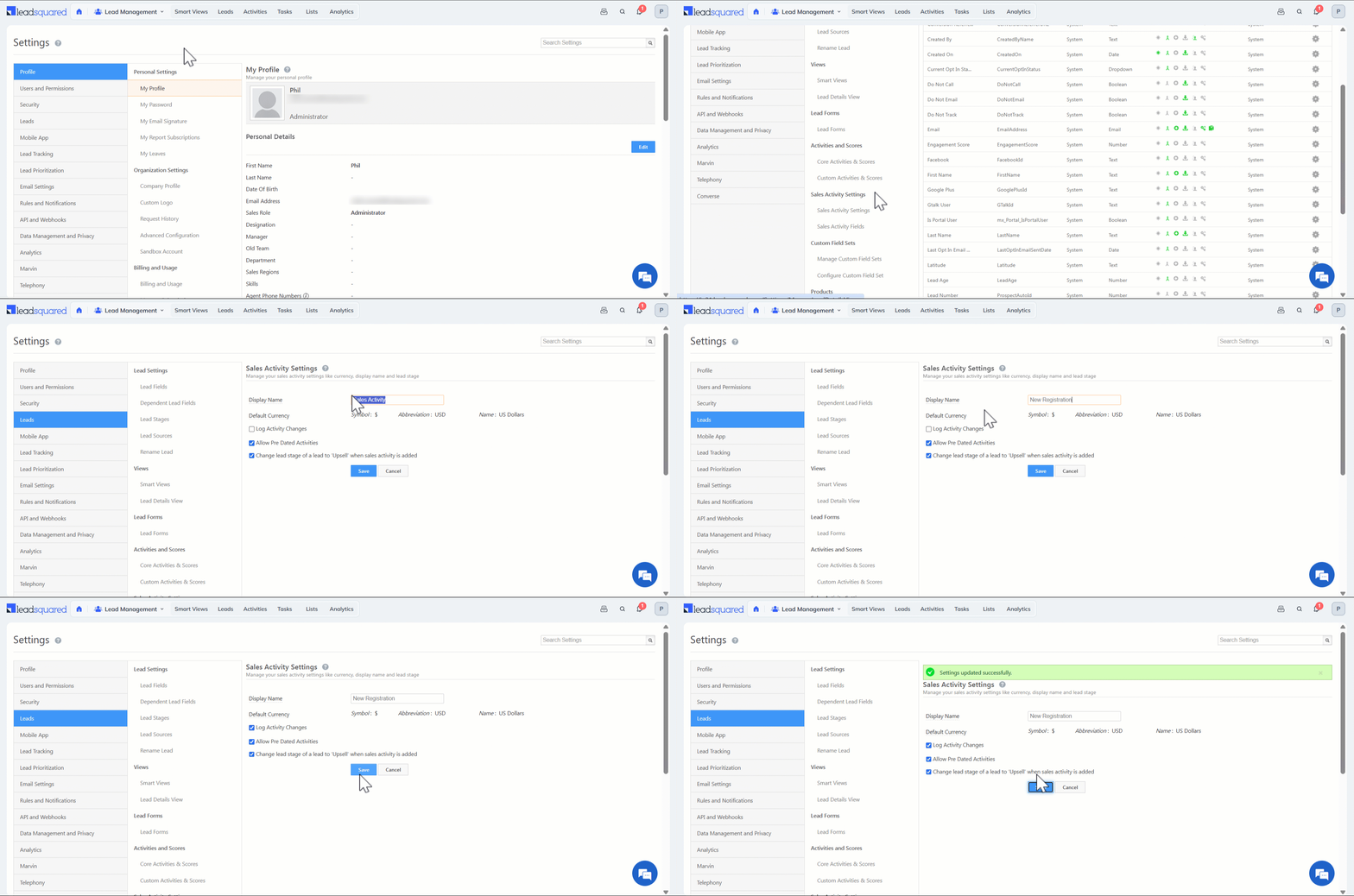
- Navigate to Settings>Leads>Sales Activity Settings.
- Enter the Display Name for your sales activity (e.g., New Registration).
- Select or deselect the checkboxes in the settings based on your organization’s requirements.
- Click Save.
| Setting | Description |
| Log Activity Changes | When enabled, edits or changes to the sales activity will appear in the Activity History tab on the Lead Details page. To know more, see How to Log Activity Changes. |
| Allow Pre Dated Activities | When enabled, users will be able to create activities for earlier dates. |
| Change lead stage of a lead to ‘X’ when sales activity is added | When enabled, it automatically changes the lead stage of the lead to the final lead stage configured in your account once a sales activity is added. |
4. Add Activity Fields in Sales Activity Form
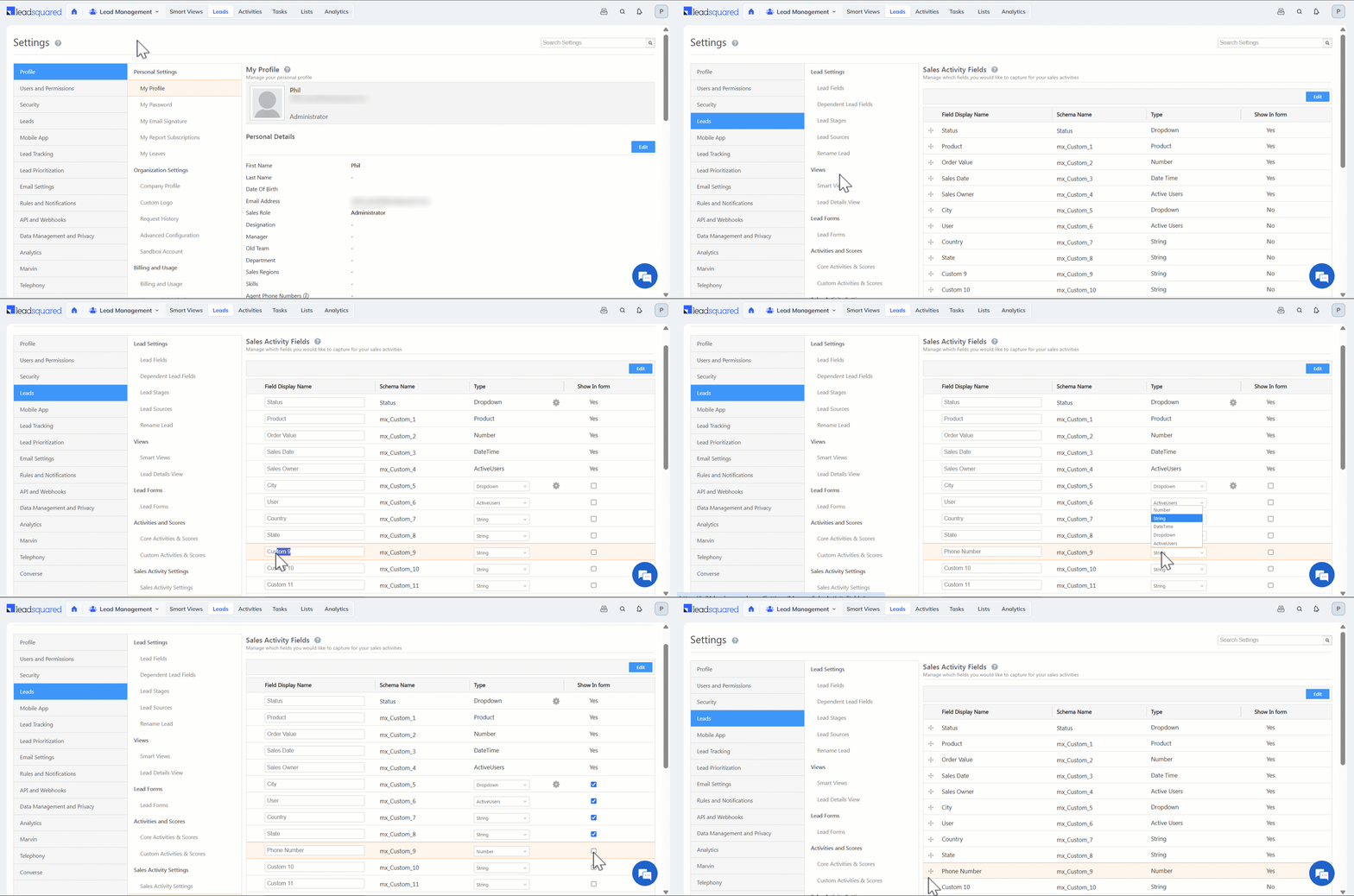
You can customize the Sales Activity form by configuring the fields that users will fill in while posting a sales activity. LeadSquared provides 4 default system fields and 11 configurable custom fields. To configure form –
- Navigate to Settings>Leads>Sales Activity Fields.
- Click Edit.
- Enter Display Names for the required fields.
- Click the Type dropdown and customize the activity field type.
- Click the checkbox alongside the field to add the selected activity fields in your form.
- Click Save.
5. Add Your Products
Products must be created so users can select them when recording a sales activity. You must be the Administrator of your account to add products.
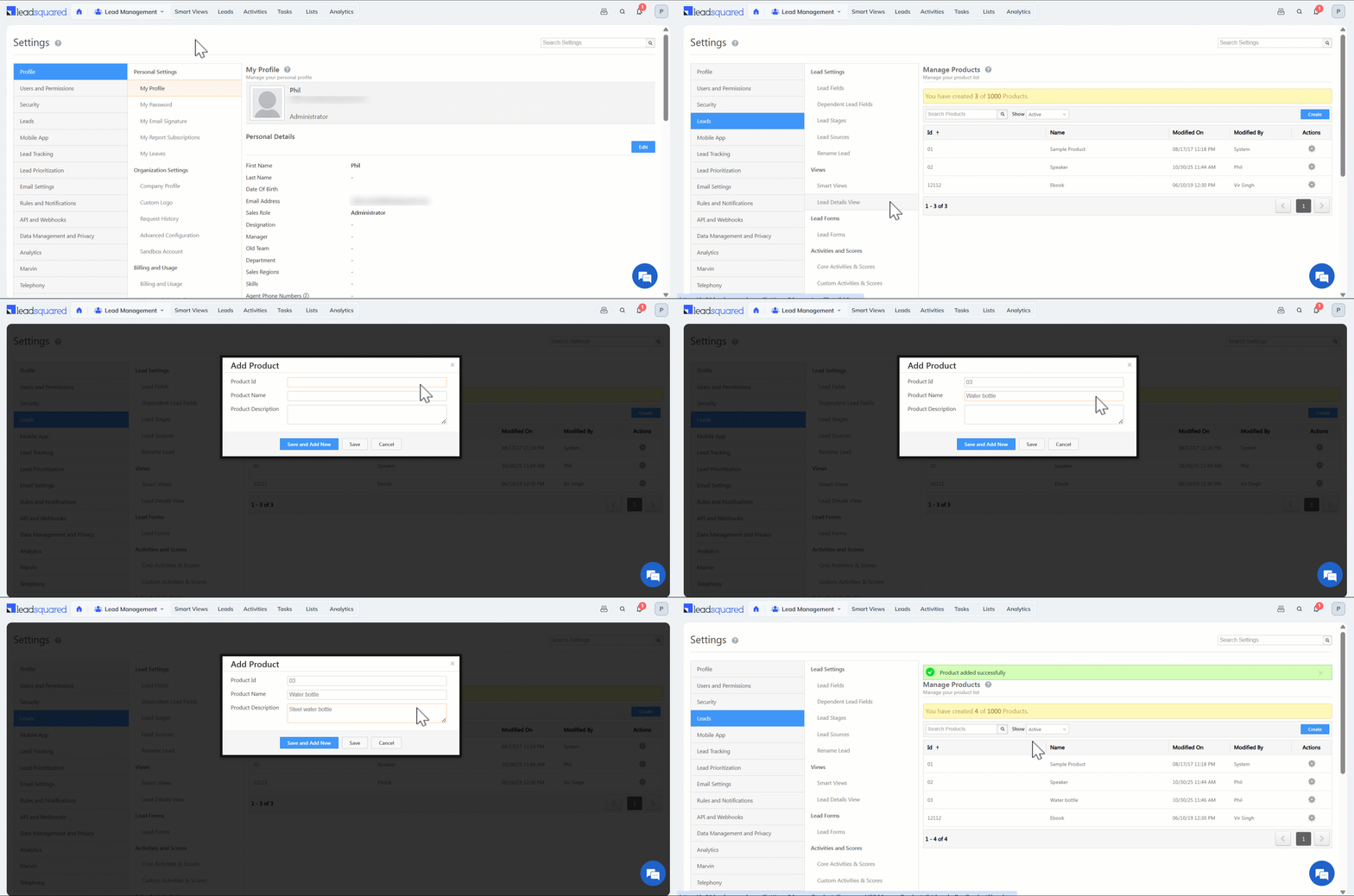
- Navigate to Settings>Leads>Manage Products.
- Click Create.
- Enter the Product ID, Product Name and Product Description.
- Click Save.
6. Add Sales Activity for a Lead
Sales Activities can be added by Administrators, Sales Managers and Sales Users.
6.1 From Manage Leads Page
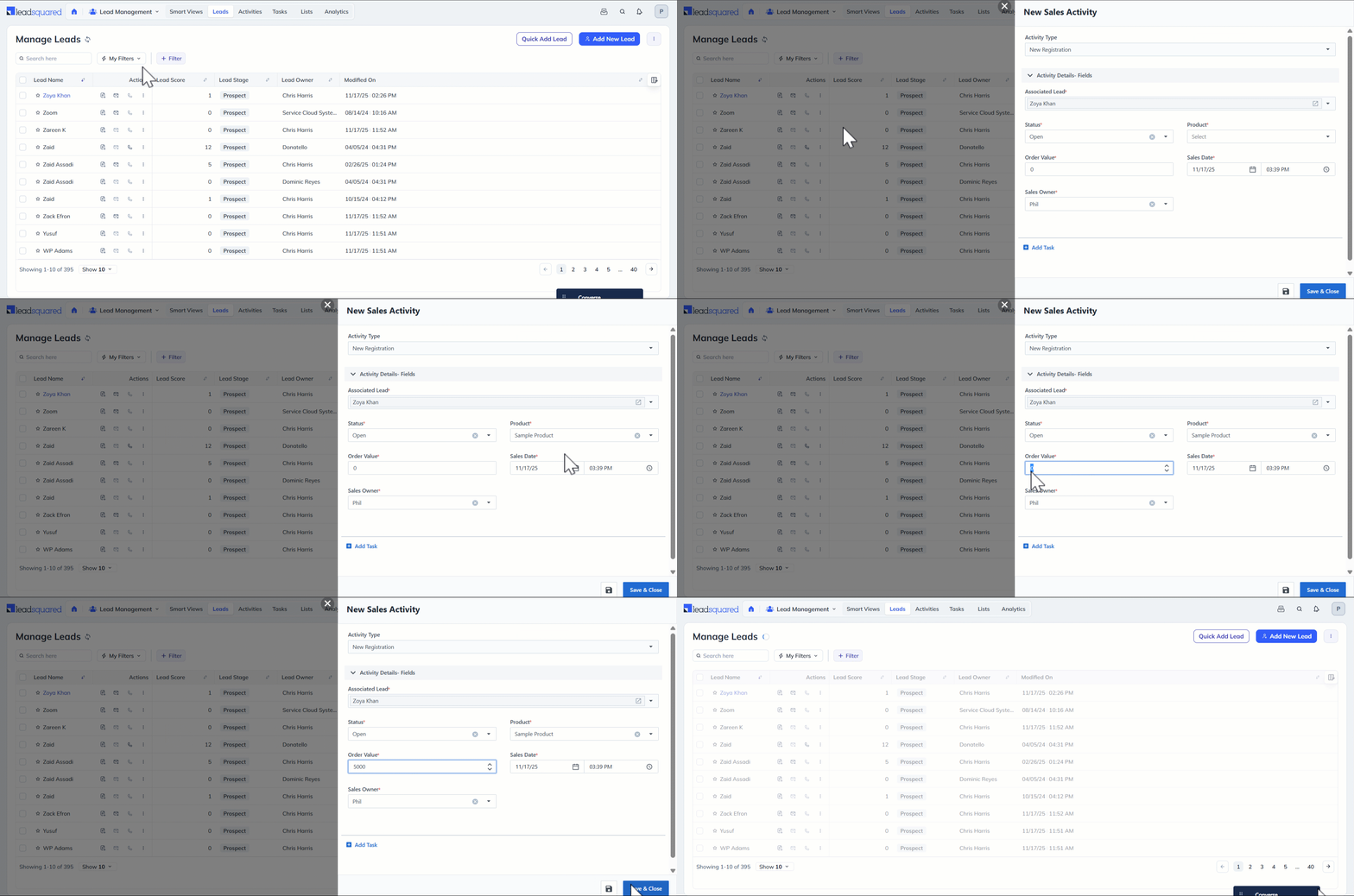
- Navigate to Lead Management>Leads.
- Alongside the relevant lead, hover your cursor over the Actions icon.
- Select New Sales Activity.
- On the New Sales Activity popup, the Activity type would be displayed (e.g., New Registration, Quantity, etc.).
- Enter the details and click Save.
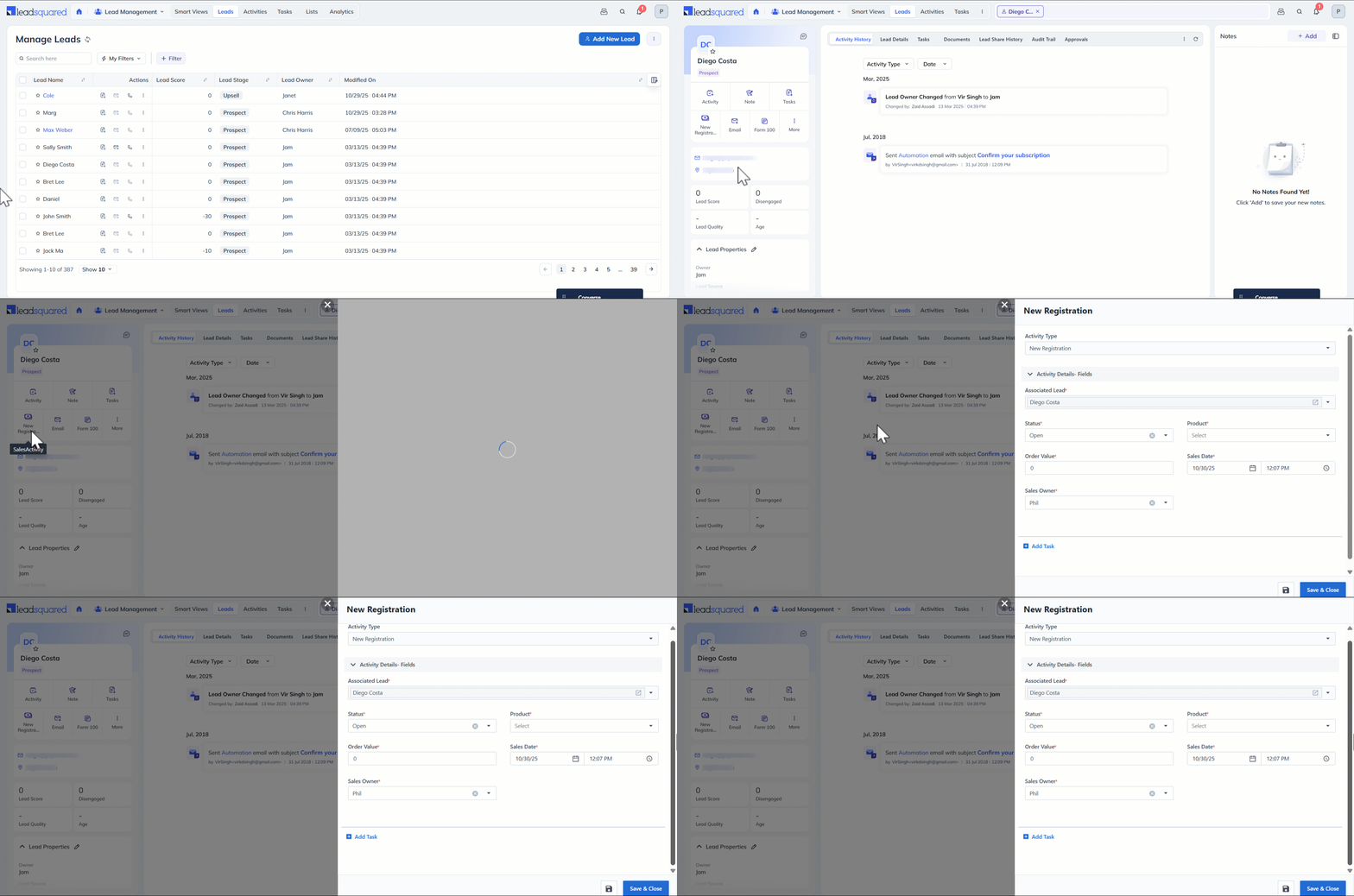
6.2 From Lead Details page
- Navigate to Lead Management>Leads.
- To view the Lead Details page, click the name of the relevant lead.
- Click Sales Activity and enter the relevant details.
- Click Save.
7. Edit or Cancel a Sales Activity
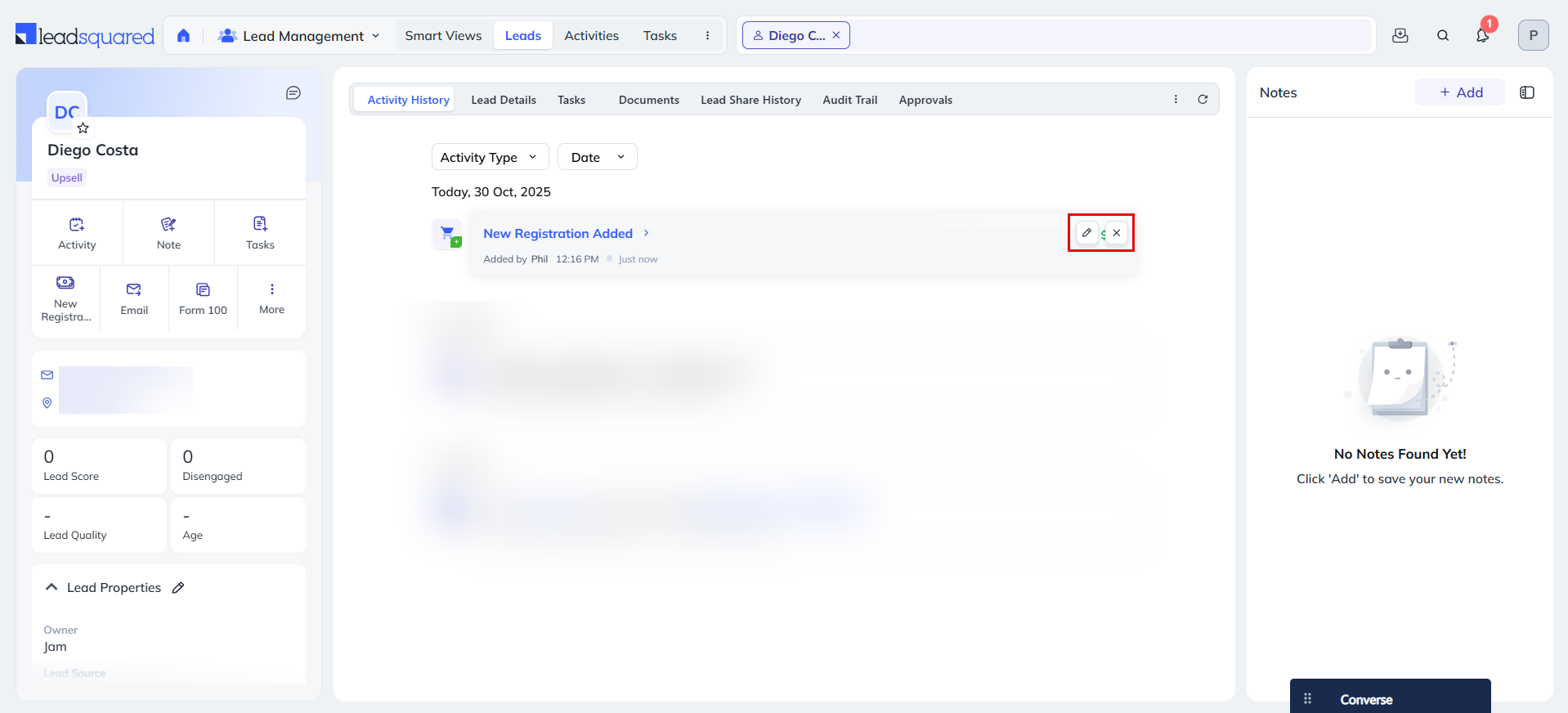
The sales activity of your leads will be displayed in the respective Lead Details pages. You can edit or cancel an existing sales activity here –
- Navigate to Lead Management>Leads.
- To view the Lead Details page, click the name of the relevant lead.
- To edit the details of the sales activity, click the Edit icon.
- To cancel the sales activity, click the Delete icon.
Any Questions?
Did you find this article helpful? Please let us know any feedback you may have in the comments section below. We’d love to hear from you and help you out!





