Tag Archive for: Revenue

Sales Activity Management

1. Feature Overview

Sales Activity Management in LeadSquared lets you configure, capture, and manage revenue-related transactions against your leads. Each sales activity records the information your organization needs to track a sale, such as the product sold, order value, sales owner, and transaction date.

You can rename the sales activity to match your business. For example, an education business may call it Admission or Enrollment. Other common names include Order Capture, Purchase Order, Paid Subscription, and New Deal.

Sales activities add up to the total revenue generated by your leads. You can track and analyze this revenue using LeadSquared’s Analytics and the Goals feature. You can also edit or cancel a sales activity to account for refunds and returns.

Note: This article covers both the admin configuration of sales activities and how users log them against leads. For admin configuration, see sections 4 to 6. To log activities as a sales user, see sections 7 to 9.


2. Prerequisites

  • Only Admins and Marketing Users can configure sales activity settings and customize the activity form.
  • Only Admins can add products.
  • Once configuration is complete, all users (Administrators, Sales Managers, and Sales Users) can log sales activities against leads.


3. How It Works

Sales Activity Management is built on three layers of admin configuration. Complete them in order before sales users begin logging transactions.

  1. Configure the activity settings – Set a display name, default currency, and behavioral options, such as allowing pre-dated entries or triggering automatic lead stage changes.
  2. Configure the activity form – Choose which fields appear when a user logs an activity. LeadSquared provides four default system fields and eleven configurable custom fields. Only enabled fields appear on the form.
  3. Add your products – Create the products users can select when they record a transaction. A product must exist in the system before it can be referenced in an activity.

Once these steps are complete, sales users can log activities from the following locations:


4. Configure the Sales Activity

Admins and Marketing Users can configure sales activity settings, such as the display name and default currency.

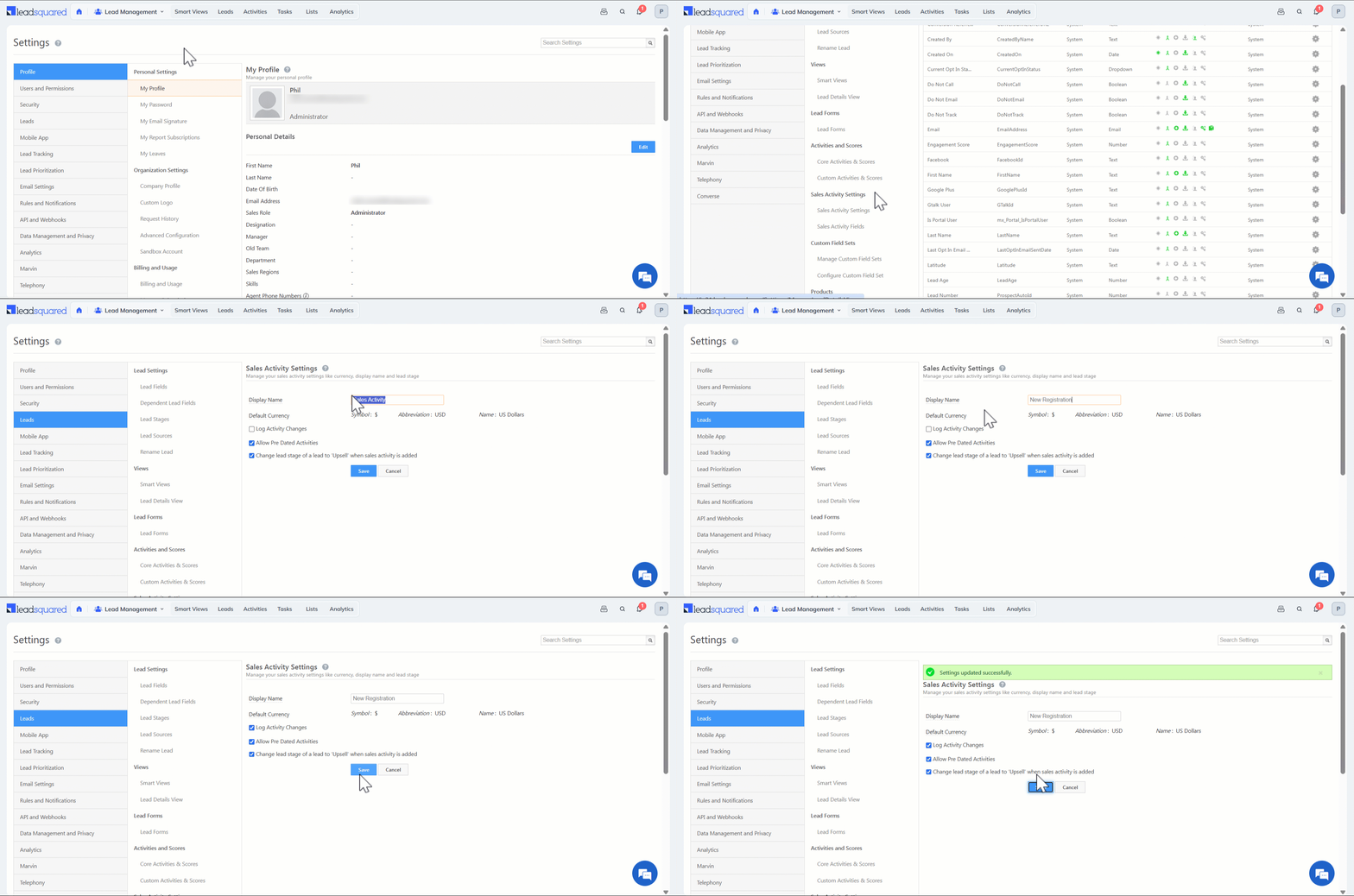
  1. Navigate to Settings>Leads>Sales Activity Settings.
  2. Enter the Display Name for your sales activity (for example, New Registration).
  3. Enable or disable the settings below, based on your organization’s requirements.
    • Log Activity Changes – When enabled, any edits to a sales activity appear under the Activity History tab on the Lead Details page. To know more, see How to Log Activity Updates.
    • Allow Pre Dated Activities – When enabled, users can create activities for past dates.
    • Change lead stage of a lead to ‘X’ when sales activity is added – When enabled, adding a sales activity automatically moves the lead to the final lead stage configured in your account.
  4. Click Save.
Note: You can change the default currency in your Company Profile settings.

Leadsquared - Sales Activity Management


5. Configure the Sales Activity Form Fields

You can customize the sales activity form by configuring the fields users fill in when they post an activity. LeadSquared provides four default system fields and eleven configurable custom fields.

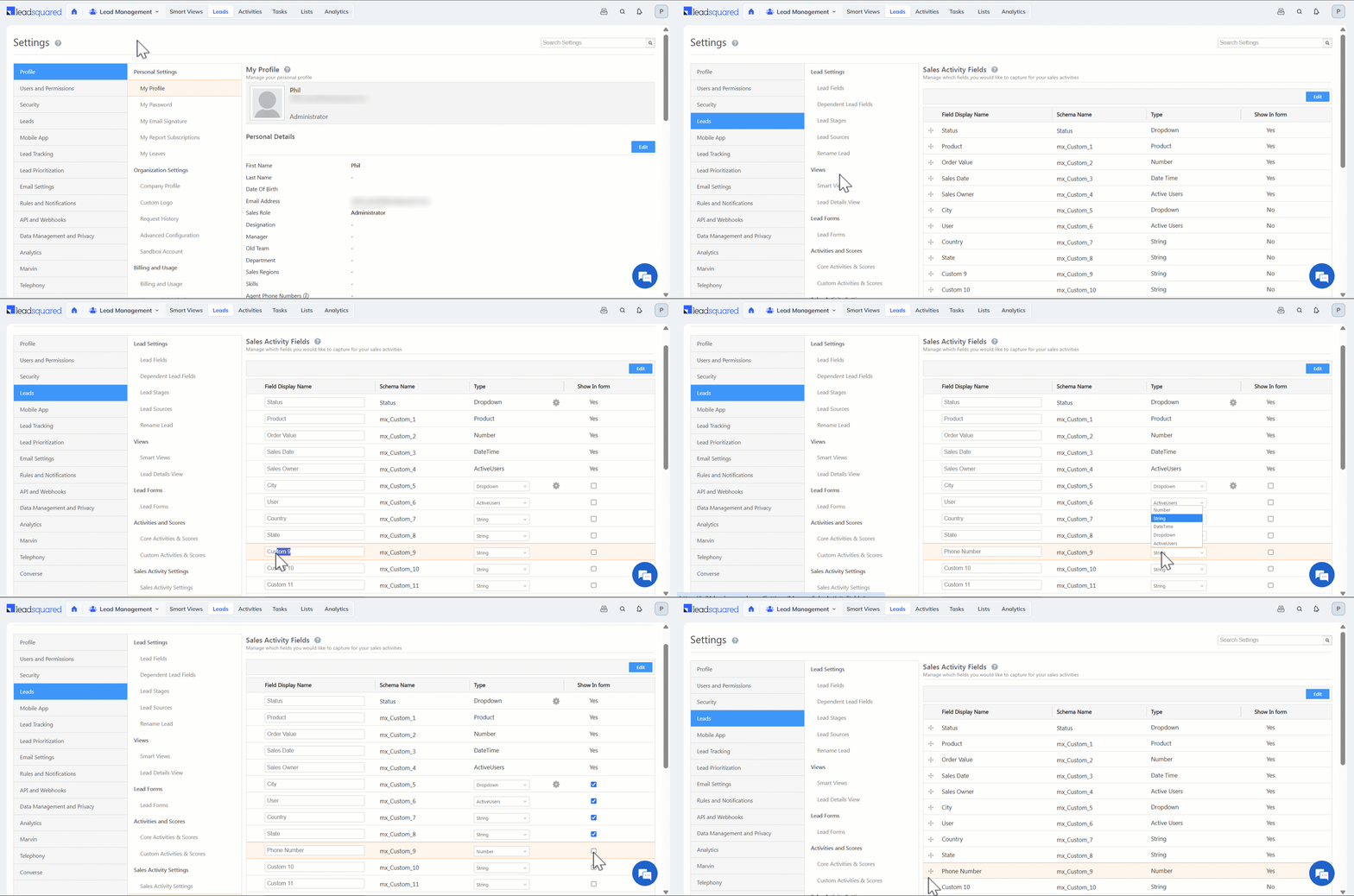
  1. Navigate to Settings>Leads>Sales Activity Fields.
  2. Click Edit.
  3. Enter the display names for the fields you need.
  4. Click the Type dropdown and set the field type.
  5. Select the checkbox next to a field to include it on the form.
  6. Click Save.
Note: To add fields beyond those available in your account, contact us at support@leadsquared.com.

Leadsquared - Sales Activity Management


6. Add Your Products

You must be an Admin to add products. Create products so users can select them when they record a sales activity.

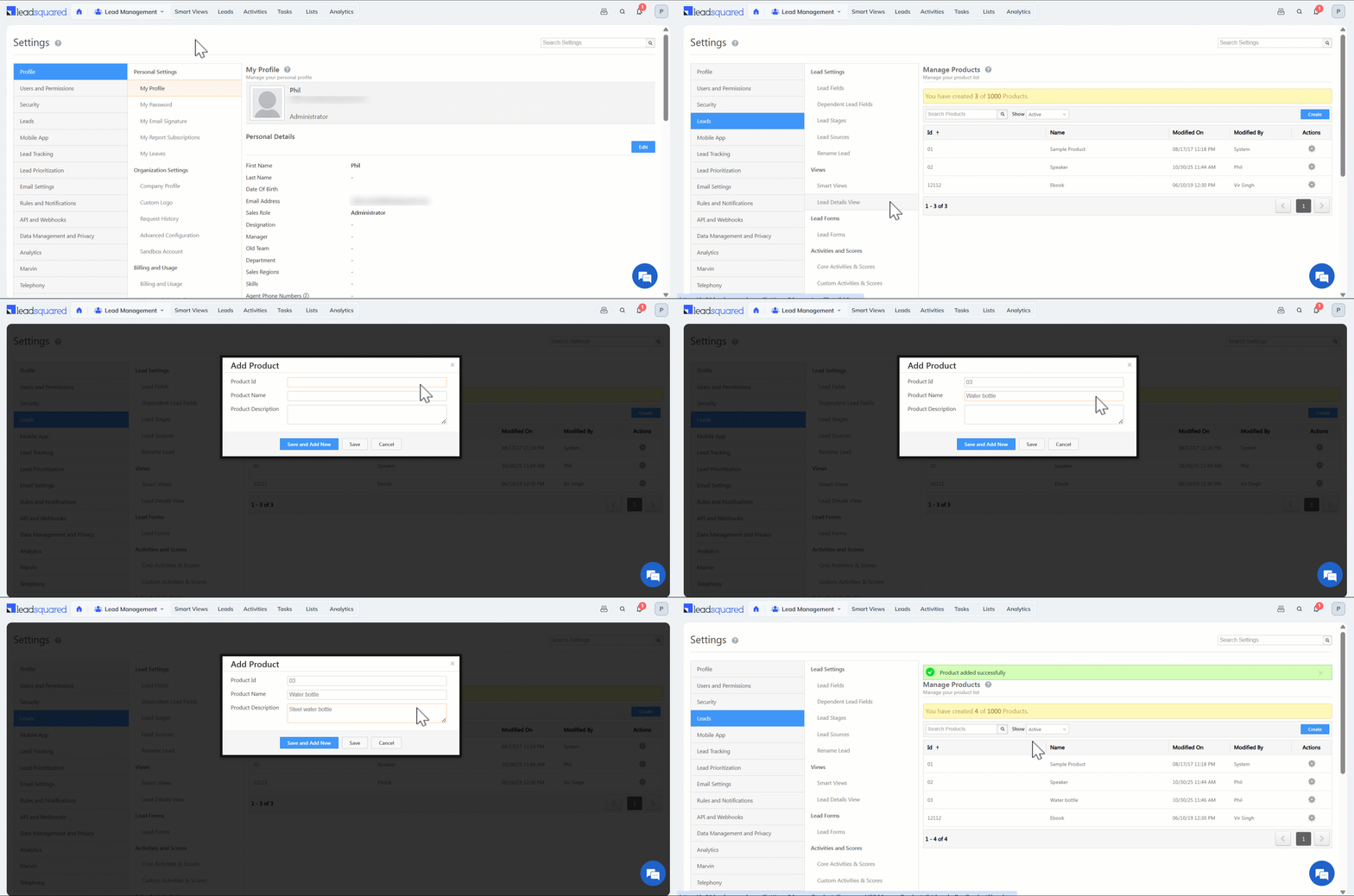
  1. Navigate to Settings>Leads>Manage Products.
  2. Click Create.
  3. Enter the Product ID, Product Name, and Product Description.
  4. Click Save.

Leadsquared - Sales Activity Management


7. Capture a Sales Activity for a Lead

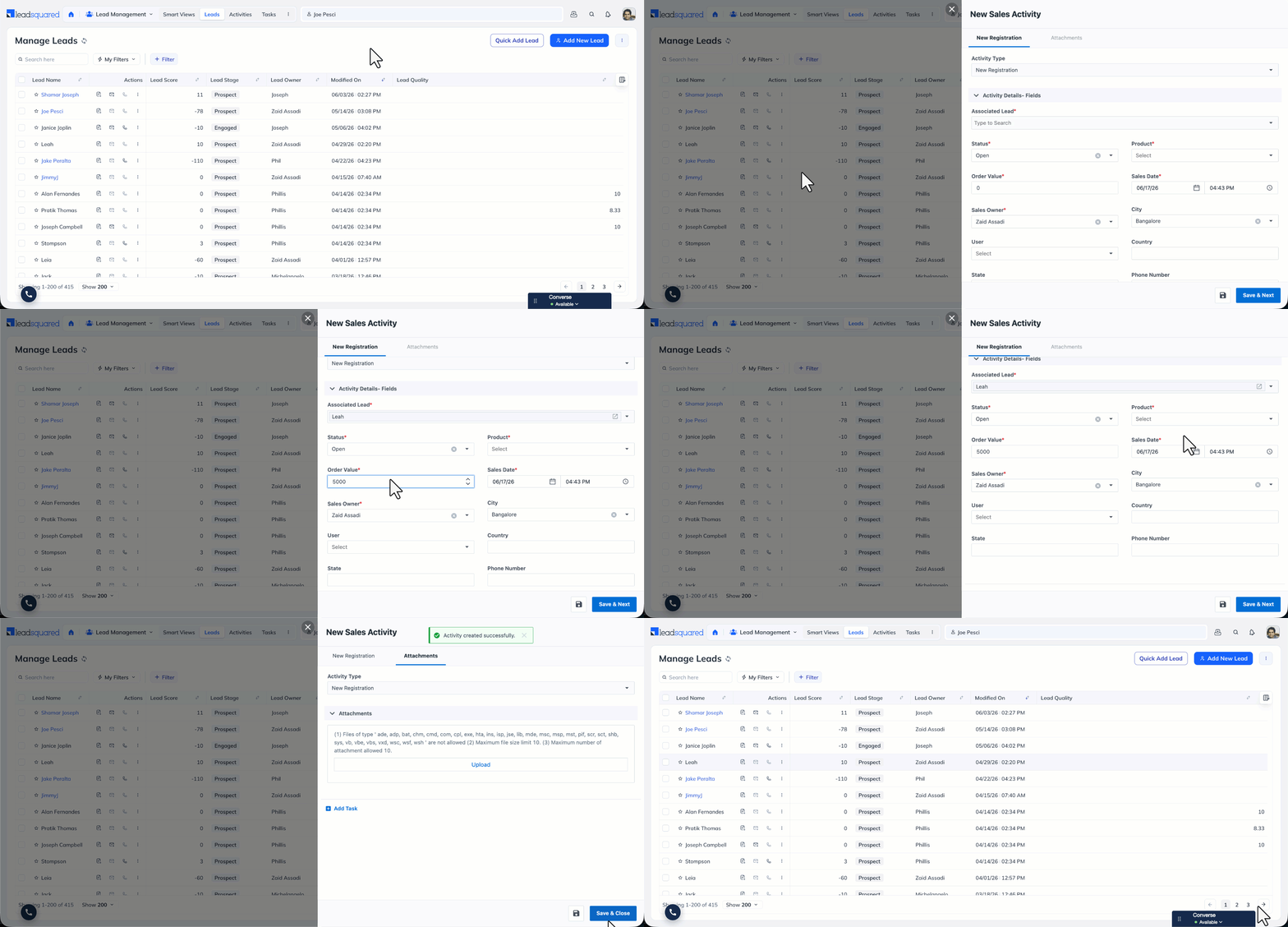
Administrators, Sales Managers, and Sales Users can add sales activities. You can add them from the Manage Leads page, the Lead Details page, Smart Views, and the List Details page.

7.1 From the Manage Leads Page

  1. Navigate to Lead Management>Leads.
  2. Alongside the relevant lead, hover your cursor over the Actions icon and select New Sales Activity.
  3. Fill in the activity details in the pop-up. The fields displayed depend on how your administrator has configured the activity form. Default system fields include Status, Product, Order Value, Sales Date, and Sales Owner.
  4. To attach a file (for example, an invoice), click the Attachments tab, click Upload, and select the file.
  5. Click Save. The activity now appears under the Activity History tab on the Lead Details page.

new sales activity from manage leads

7.2 From the Lead Details Page

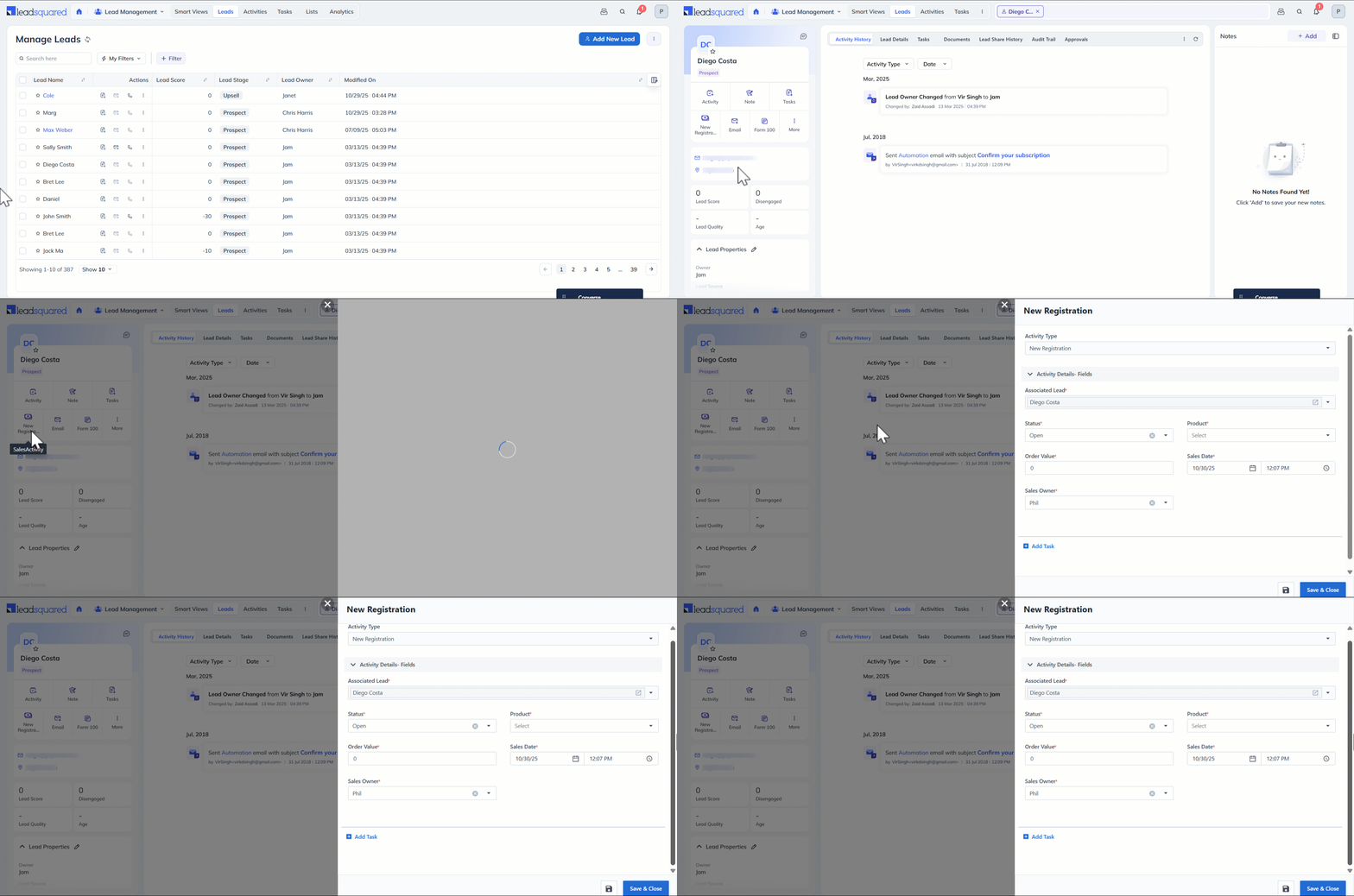
  1. Navigate to Lead Management>Leads.
  2. Click the name of the relevant lead to open the Lead Details page.
  3. Click Sales Activity, and then enter the relevant details.
  4. Click Save.

Leadsquared - Sales Activity Management

7.3 From Smart Views and List Details

On Smart Views and the List Details page, under Actions, hover your cursor over the Leadsquared - Actions Icon icon next to a lead and select New Sales Activity.
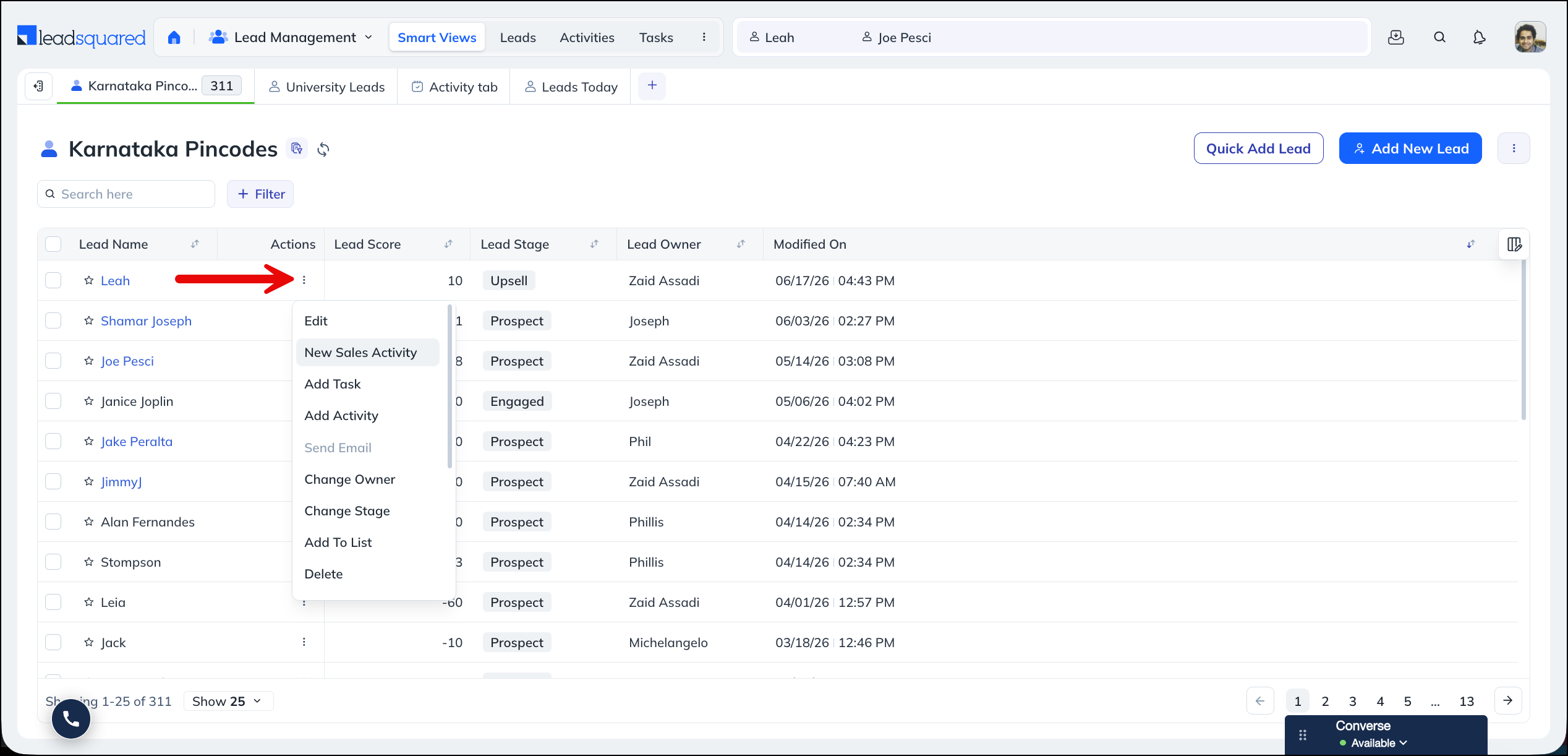
Add new sales activity from smart views


8. Edit or Cancel a Sales Activity

Each lead’s sales activities appear under the Activity History tab on the Lead Details page. You can edit or cancel an activity here to manage changes such as refunds and returns.

To record these changes in the activity log, enable the Log Activity Changes setting (see section 4).

  1. Navigate to Lead Management>Leads.
  2. To view the Lead Details page, click the name of the relevant lead.
  3. To edit the details of the sales activity, click the Edit icon.
  4. To cancel the sales activity, click the Delete icon.
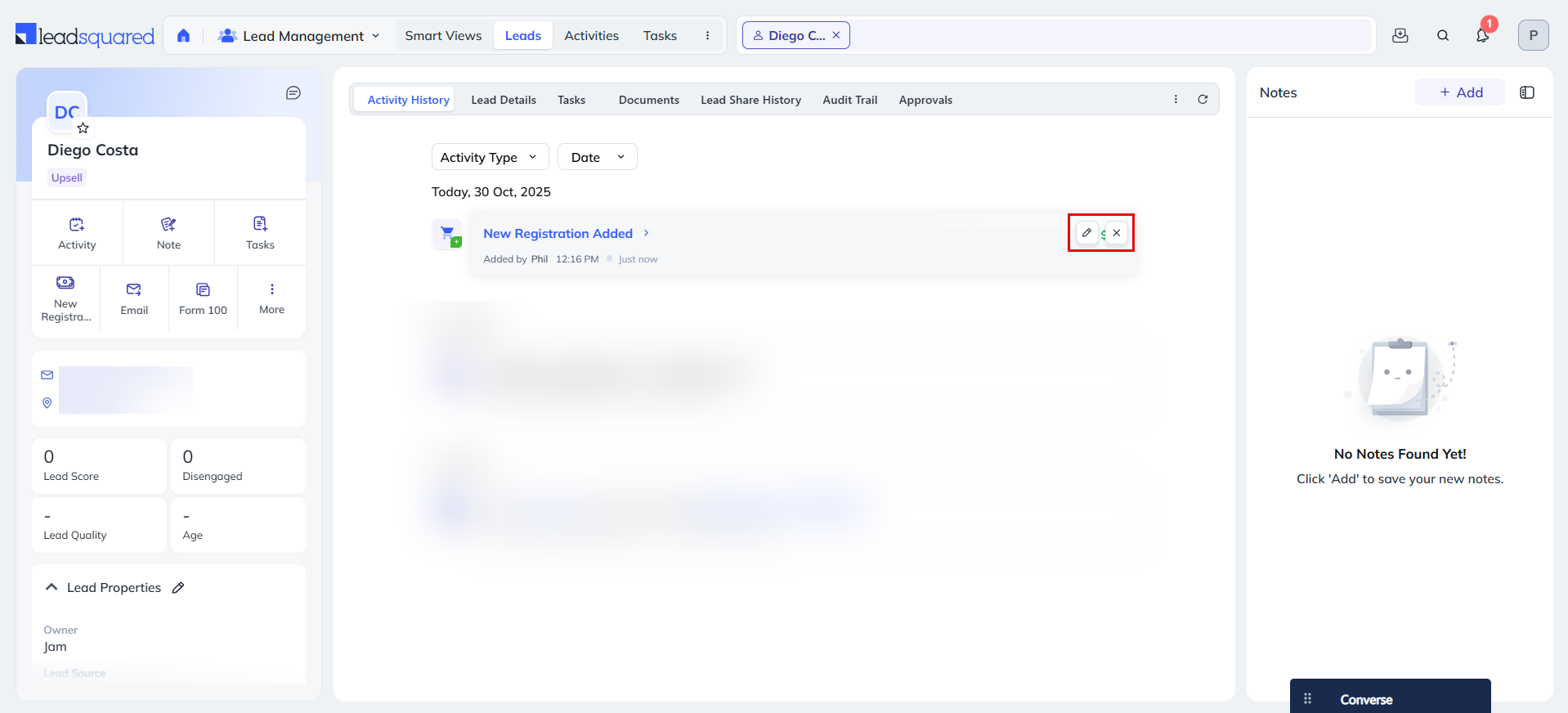
Leadsquared - Sales Activity Management


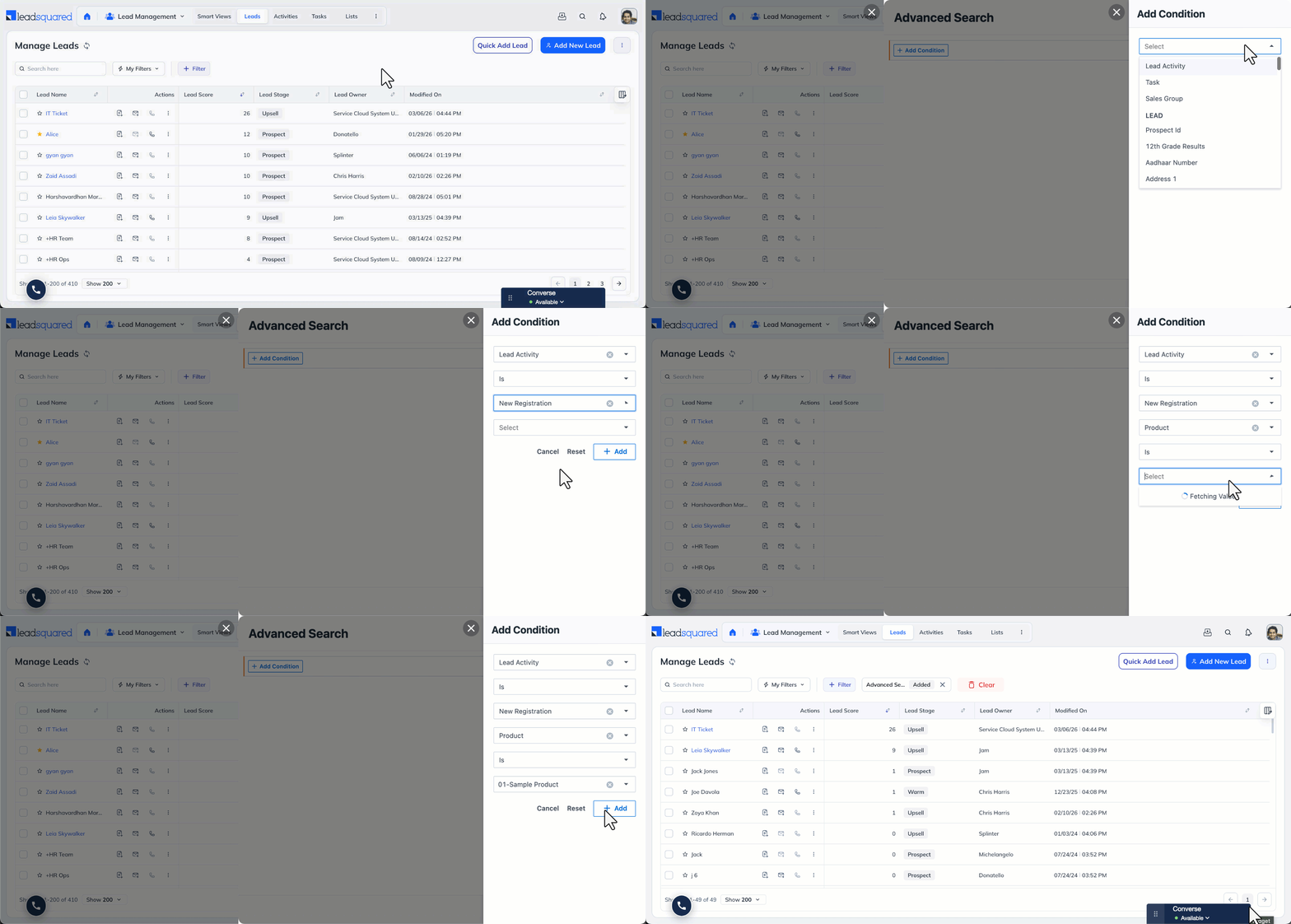
9. Search for Leads by Sales Activity

You can use Advanced Search to find leads based on the data in their sales activity fields. For example, you can find leads where a custom activity field contains, or does not contain, data.

  1. Navigate to Lead Management>Leads.
  2. Select Filter, and then select Advanced Filter.
  3. Enter your search criteria using the relevant activity and sales fields.
  4. Click + Add to apply each criterion.
  5. Click Show Results.

search lead by sales acitivity


Any Questions?

Did you find this article helpful? Please let us know any feedback you may have in the comments section below. We’d love to hear from you and help you out!
Tag Archive for: Revenue

LeadSquared Product Update # 18

We finished the 18th production update of LeadSquared on Sunday, Aug 31st, 2014. Please clear your browser cache  to access the latest copy of the LeadSquared App. ( On most windows computers you can do it by pressing Control + F5 keys). Here are the release notes capturing significant changes:

NEW Feature:  Capture and Track Revenue activities

We have a new feature that helps in capturing and tracking sales activities that represent revenue transactions. These activities are also known as Customer Sign-up, Order Capture, Purchase Order, Paid Subscription, New Registration, Enrollment, New Deal etc. depending upon the nature of business. We have named it as “Sales Activity” in LeadSquared. Here is how you can get benefit from it:

1) Create a List of product/offerings that you sell

2) Customize the offer attributes to describe your sale (similar to information that you find on invoice line item)

3) Choose what you want to call your Sales Activity. For example, an education business may call it “Admission” or “Enrollment”

4) Choose your selling currency

5) That’s it. For every selling transaction, add the sales activity specifying quality, value, date and owner of sales.

This will complete your Lead to Revenue cycle in LeadSquared. Very soon, we will provide a report that will help you analyze thus captured Revenue activities on different dimensions.

To know more, refer to: Sales Activity Management

New Reports: Making sense of marketing and sales data

We have created a Data Analytics framework in LeadSquared that give us the capability to analyze the captured data on different dimensions. This means, you are going to get a lot of interesting reports available in LeadSquared that will help you optimize your marketing and sales activities

Please check the new reports by clicking Analytics Icon (top right corner) to find following reports:

Email Campaign Open Analysis (This report helps you analyze the opens of your email campaigns on different devices, email client, days of week, times of day and in different geographies)

Email Campaign Send-Time Analysis  (This report helps you analyze the impact of sending day and time on the performance of your email campaigns)

Email Summary  (This report gives you an insight on the response by different types of emails you have sent)

Lead Distribution Report (You can analyze how leads are distributed by various fields such as Country, City, Campaigns etc.)

Missed Call Report  (applicable to customers having Telephony Integration with LeadSquared)

Phone Call Report (applicable to customers having Telephony Integration with LeadSquared)

Task Summary Report  (This report summarizes the task status by users)

User Login History (This report gives you the history of LeadSquared login history by users in your account)

We can create custom reports if you are looking for a  particular view of data. Please contact support@leadsquared.com with the request. Note that custom report development may be subject to a fee.

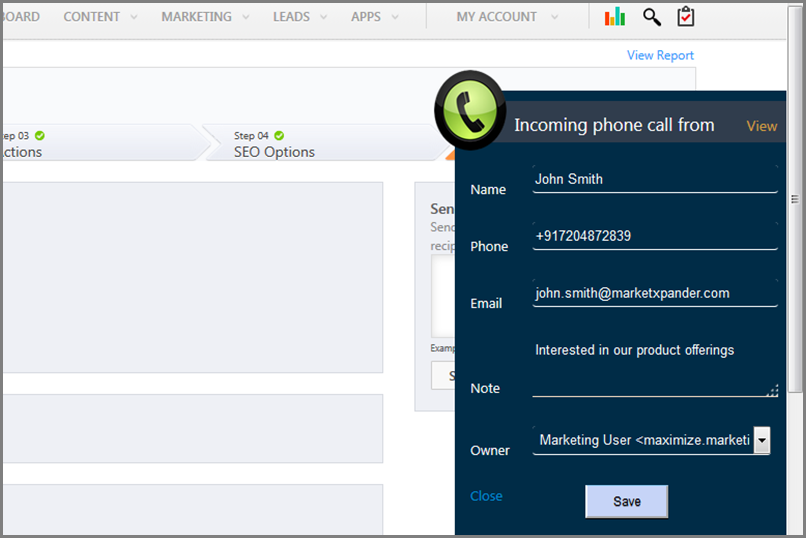
New  – popup lead form on inbound calls

For customers using LeadSquared supported cloud telephony providers like SuperReceptionist, we can now configure a pop-up screen to capture/refer lead data  when call lands:

Agent Popup

Please contact support@leadsquared.com if you want this call notification form to be configured for you.

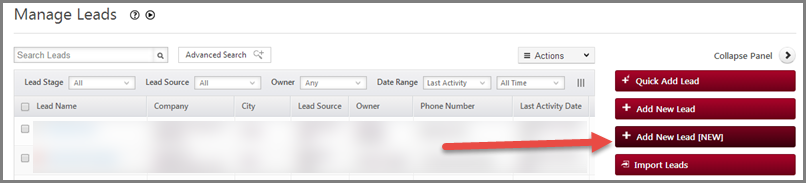
New Lead Addition Form

You will find a new “Add New Lead” form on Manage Leads page.

Add New Lead - NEW

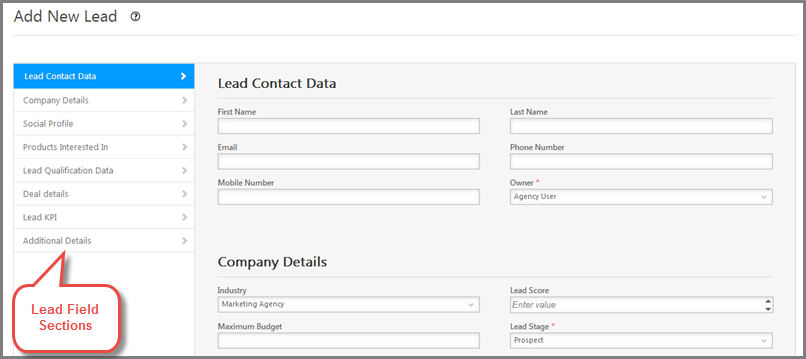
This form opens as a new page in LeadSquared (unlike the current one that opens as pop-up) and would be able to handle large number of fields and sections without compromising on usability.

Add New Lead Form


The names and order of field sections and also order of fields in individual section is controlled by the setting “Manage Forms”.  To customize the sections and fields refer to:  Manage Forms.

Mark lead fields as unique to avoid duplicate data

Email Address acts as the default lead field to establish uniqueness of the lead record  (apart from the system generated unique identifier field). You would not be able to create two lead records having same email address.

We have provided support to add uniqueness constraint on more fields in this release. For example, you can choose a phone number field also to be unique. This would mean that a new lead record cannot be created having a phone number that is already associated with an existing lead record.

Here is the KB article on marking a phone number or a mobile number field as unique: How to Make the Phone Number Field Unique.

Note: The duplicity constraint will apply only while adding leads manually. When leads are imported, or added through landing pages or through APIs — this constraint will not apply.

New Phone Number Control

Capturing accurate phone number data is a big challenge in marketing. To ease some of the pain associated with phone number data, we have introduced Phone Control – which helps in capturing phone numbers for a business in standardized format. With phone control you can choose default country code and phone number format and enforce it on your lead captured forms and landing pages.

To know more check this KB article: Control Phone number format while capturing leads

Other Updates & Improvements

Add Lead Activity as a bulk operation

You can add any notable activity to a bunch of leads from Manage Leads page or List Details Page:

Add Activity

Reset filters on lead grid

While working on lead grid you select several filters using search, advanced search, quick filter and drops down for Lead Stage, Source etc. You can now clear all filters in on click as shown below:

Reset all filters

New Improved Autoresponder Report

We have updated Autoresponder Report to give you insights into what steps of autoresponder are resulting in lead engagement.

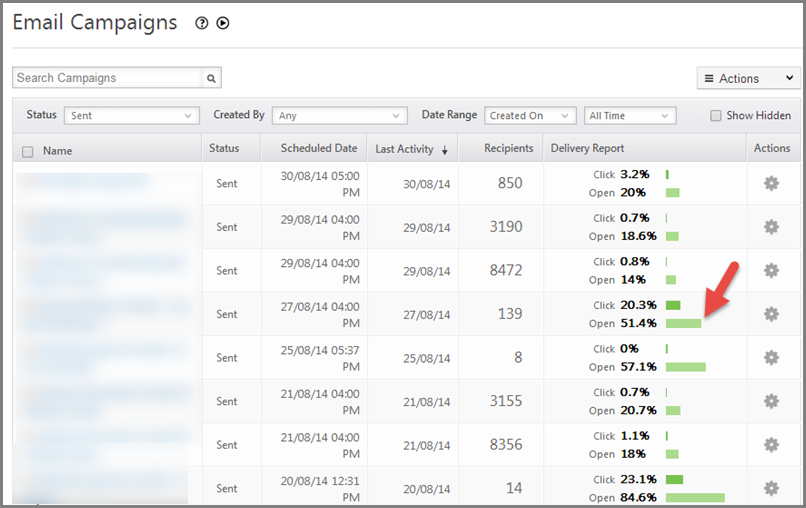
Email Campaign Open Rate replaces unsubscribe rate in the Grid

You will notice that on Email Campaign Grid, the delivery report now contains Open rate instead of Unsubscribe rate:

EC

Please let us know if you have any questions or comments. You can write at support@leadsquared.com.