


Get Started

Sales Suite
Field Ops
Marketing
Service CRM
Integrations & Apps
FloStack
Customise the Tasks Page

1. Feature Overview
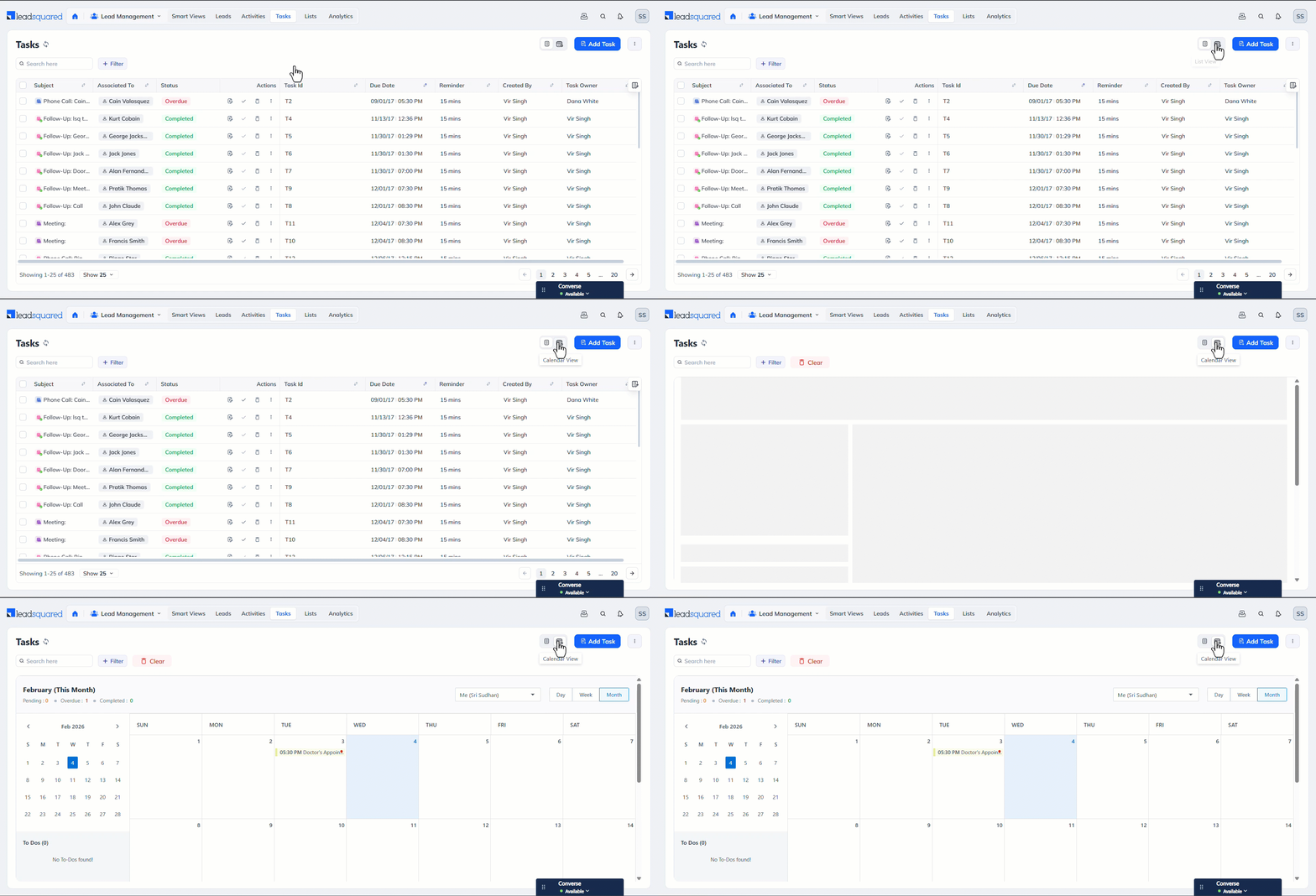
Users can customise the Tasks page to reflect their priorities. There are two views available on the Tasks page –
- List View – All tasks appear in a list, with columns that show details such as Status, Due Date, and Task Owner. This helps you view key task information at a glance.
- Calendar View – All tasks are displayed as part of a calendar. This helps plan your work for the day, week or month.
2. Prerequisite
Any LeadSquared user can customise their Tasks page.
3. List View
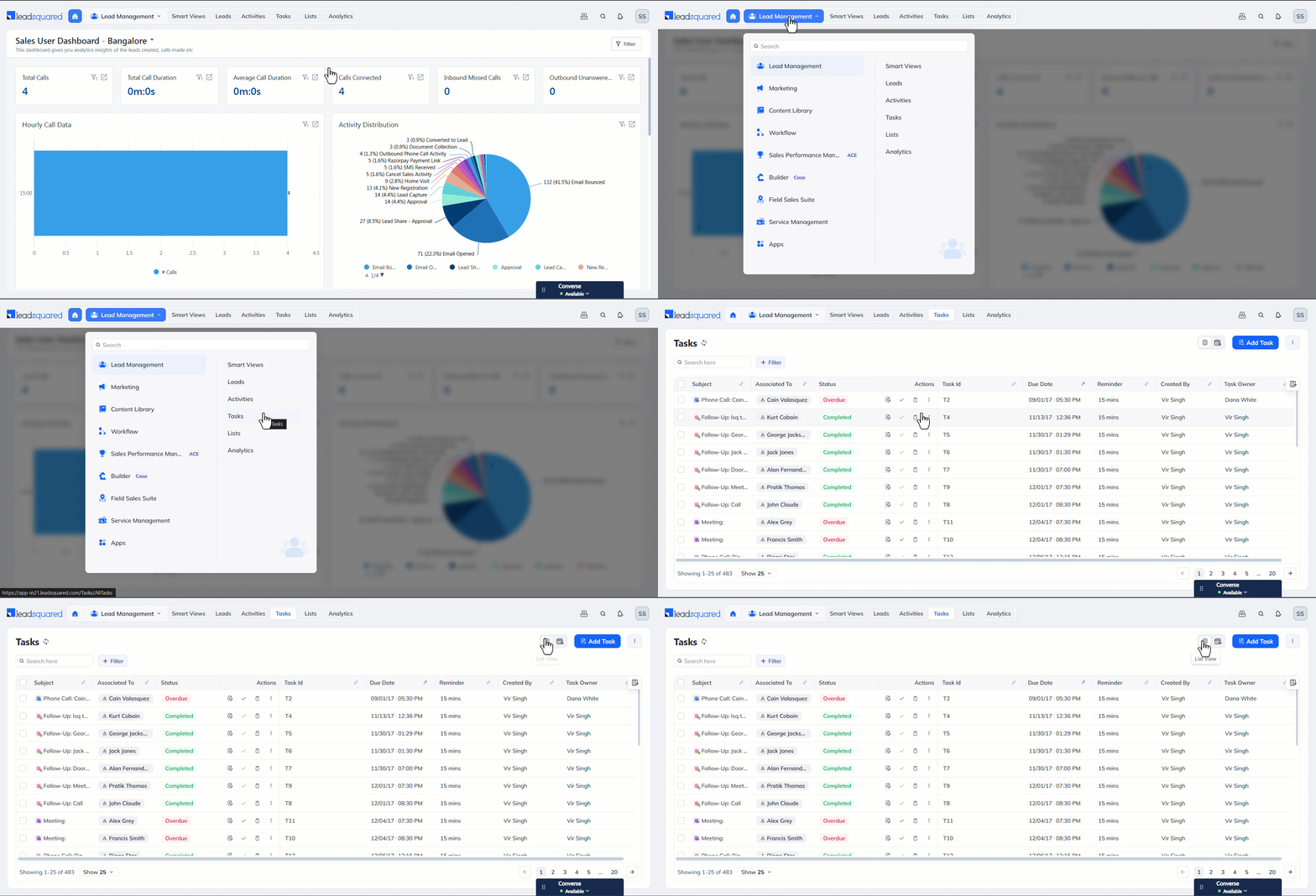
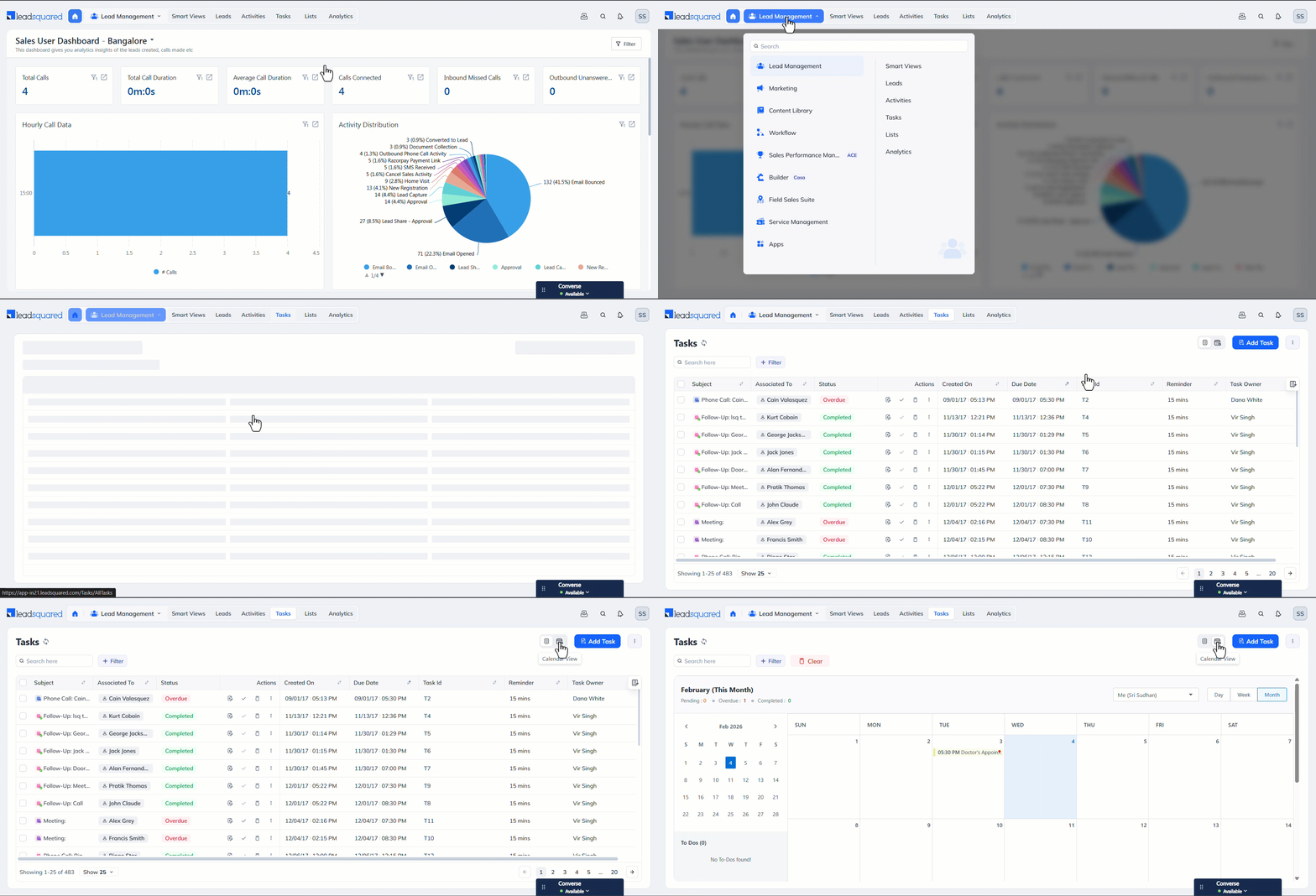
The List view shows a grid with details of all tasks. By default, it displays the tasks created by you. To access it, navigate to Lead Management>Tasks, and click the List View icon.
3.1 Customise the Columns
You can add or remove task and lead fields as required. To do this –
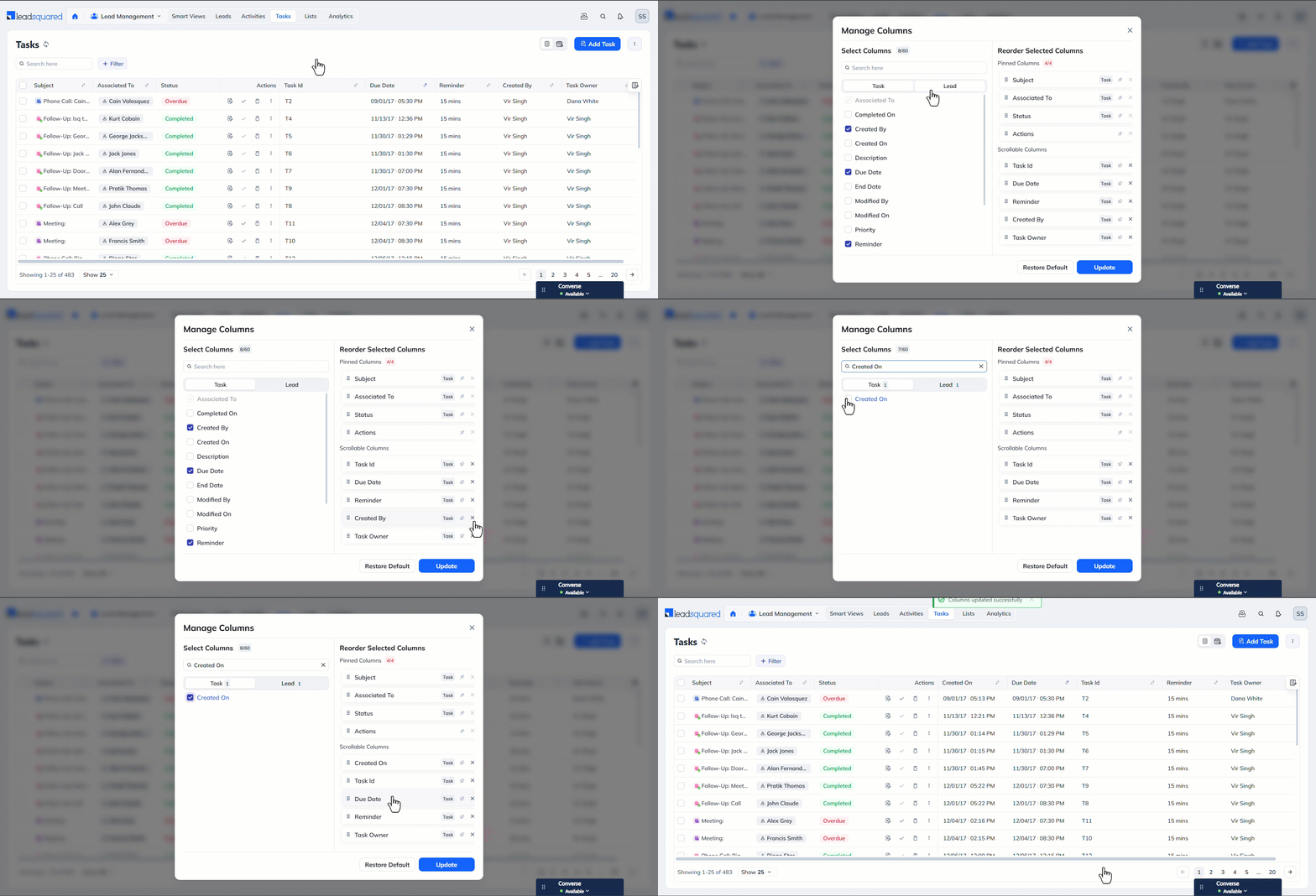
- On the top-right corner, click the Manage Columns icon.
- On the Manage Columns pop-up, use the checkboxes to select the fields you want to display on the page.
- To remove a field, uncheck the field or use the ‘x’ icon.
- Toggle between the Leads and Tasks tabs to choose the fields you want to display.
- Drag and drop the Scrollable Columns in your preferred order.
- You cannot edit the order of the Pinned Columns.
- Once you’re done, click Update.
3.2 Other Actions
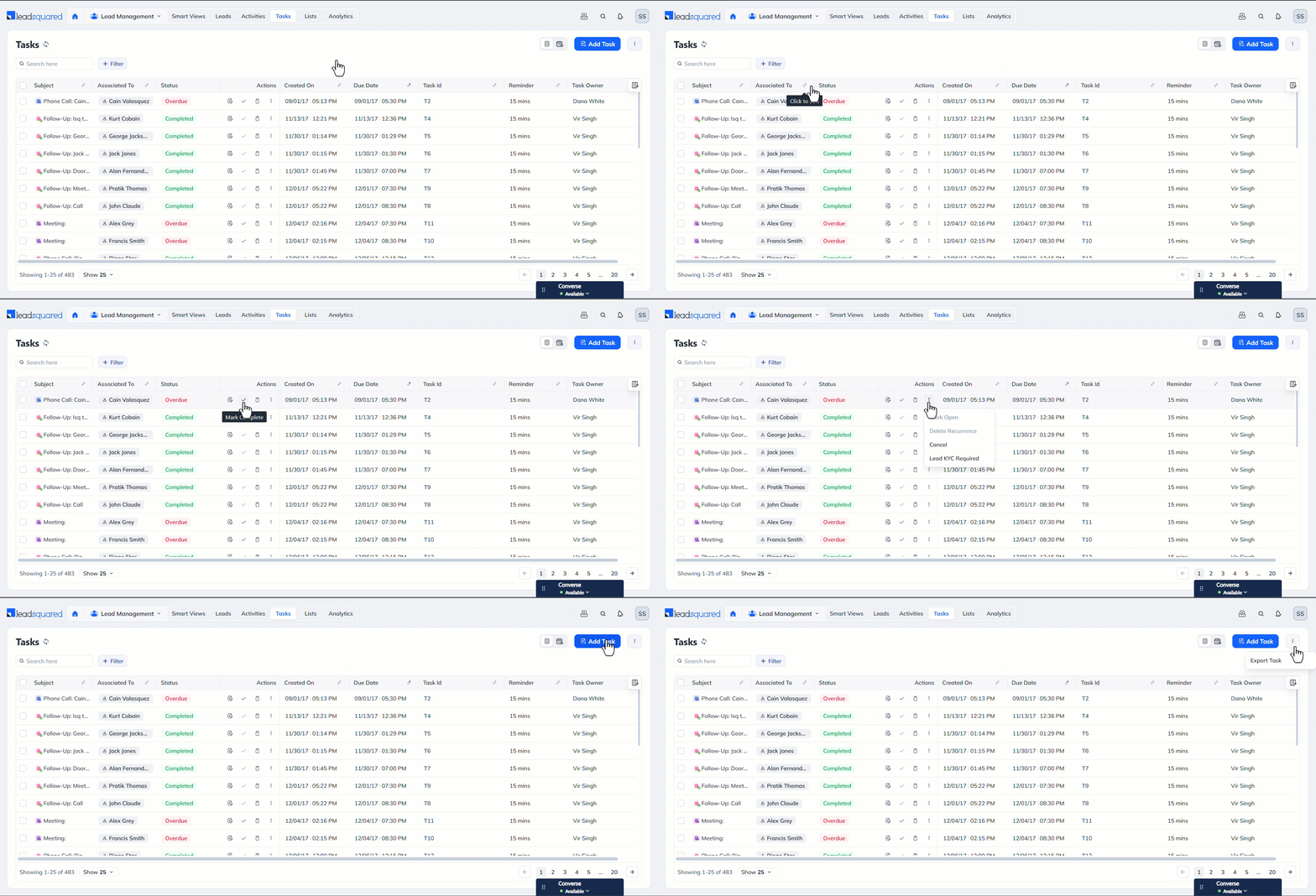
On the List View page, you can also perform the following actions.
- Sort – You can sort all the columns (except Status) in ascending or descending order.
- Edit – To update a task (such as the Schedule, Owner, etc.) use the Edit icon.
- Complete – To complete a task, use the Mark Complete icon.
- Delete – To delete a task, use the Delete icon.
- More Actions – Hover on the three-dots menu to perform the following actions –
- Mark Open – Let’s you reopen a completed task.
- Delete Recurrence – Lets you delete future occurrences of a recurring task.
- Cancel – Let’s you cancel a task.
- Add Task – Let’s you add a new task directly from the Tasks page. To know more, refer to Manage Tasks for Users.
- Export – Let’s you export tasks. To know more, refer to Export Tasks out of LeadSquared.
Note:
- You can Export tasks only from the List View
- To navigate to the Lead Details page from the List view, click the lead’s name.
4. Calendar View
The Calendar view displays your tasks on a calendar, for the day, week or month you’re currently viewing. To access it, navigate to Lead Management>Tasks, and click the Calendar View icon.
4.1 Day View
- This view shows the tasks set up for a specific day. By default, it shows the current day.
- Click a date in the monthly calendar on the left pane to change the day.
- The calendar supports multiple time zones. To change the time zone, click the time zone dropdown.
- Each user sees tasks in their own time zone, which you configure while creating or editing a user in Manage Users.
- Working Hours also appear on the calendar, with white slabs for working hours and grey slabs for non-working hours.
- If a workday template with a break time applies to a user, the calendar marks it in grey.
- You can use the day view to view tasks for multiple users at the same time by using the name dropdown and selecting the users whose tasks you want to see.
Note:
- You can change the timezone only in Day view.
- Admins can view other sales users’ tasks in their own time zone or in the sales user’s configured time zone. This helps schedule tasks across time zones.
4.2 Week and Month View
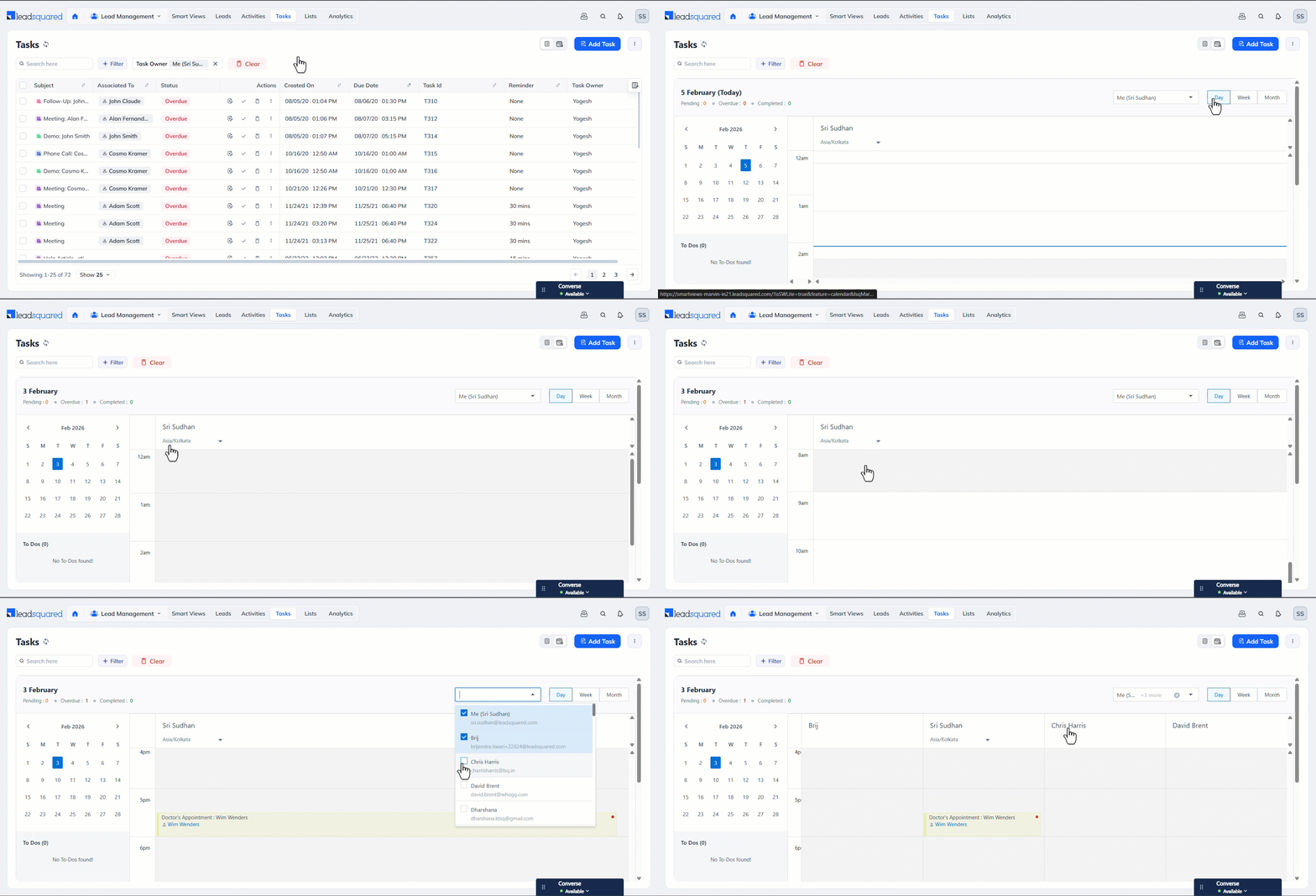
- Use the calendar on the left pane to change the week and month.
- Only one user’s tasks appear at a time in the week and month views. Use the owner dropdown to switch between users.
4.4 Other Actions
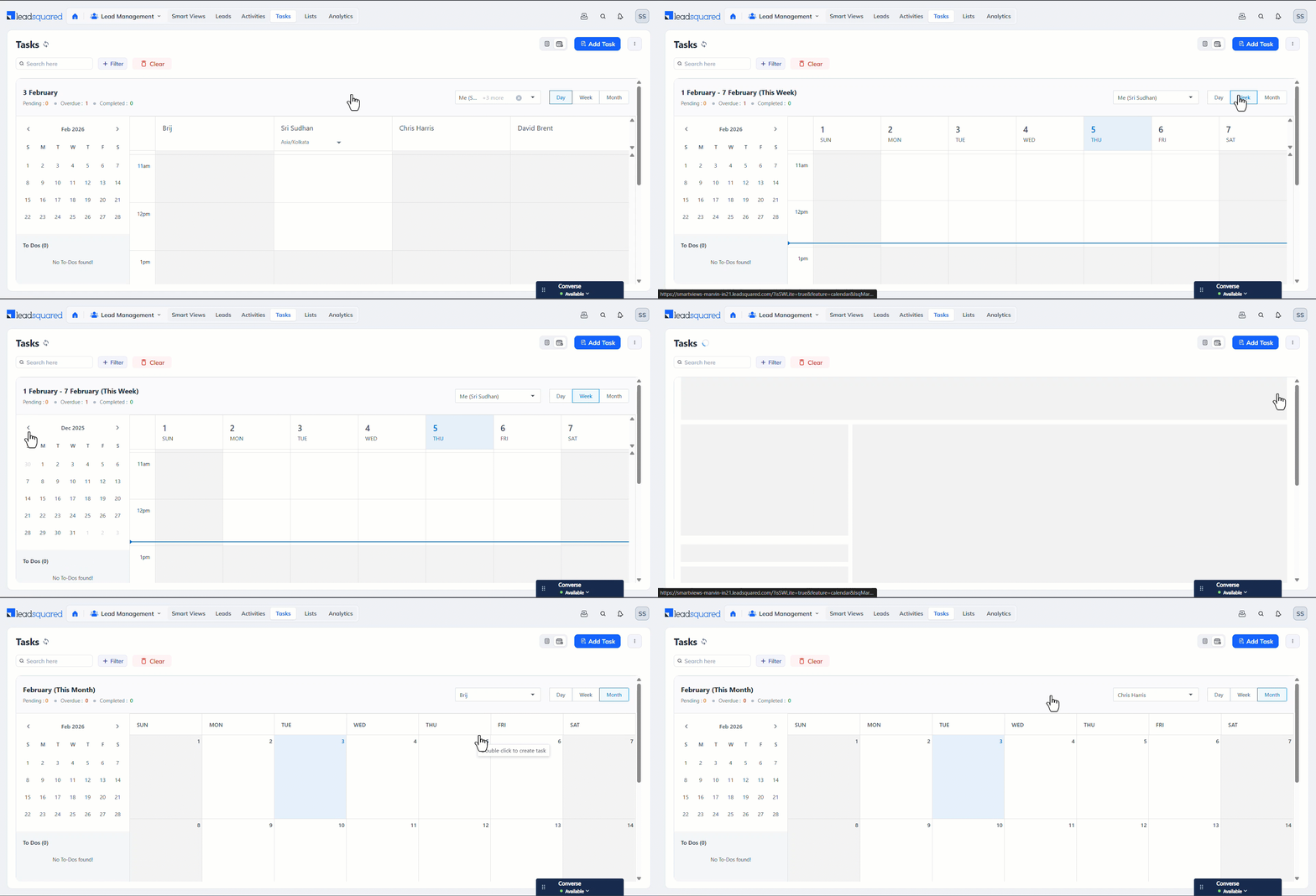
You can also perform the following actions from the Calendar View. To do this, click an existing task.
- Edit – To update a task (such as the Schedule, Owner, etc.) use the Edit icon.
- Complete – To complete a task, use the Mark Complete icon.
- Delete – To delete a task, use the Delete icon.
- More Actions – Hover on the three-dots menu to perform the following actions –
- Mark Open – Let’s you reopen a completed task.
- Delete Recurrence – Lets you delete future occurrences of a recurring task.
- Cancel – Let’s you cancel a task.
- Add Task – Let’s you add a new task directly from the Tasks page. To know more, refer to Manage Tasks for Users.
5. Filters and Advanced Filters
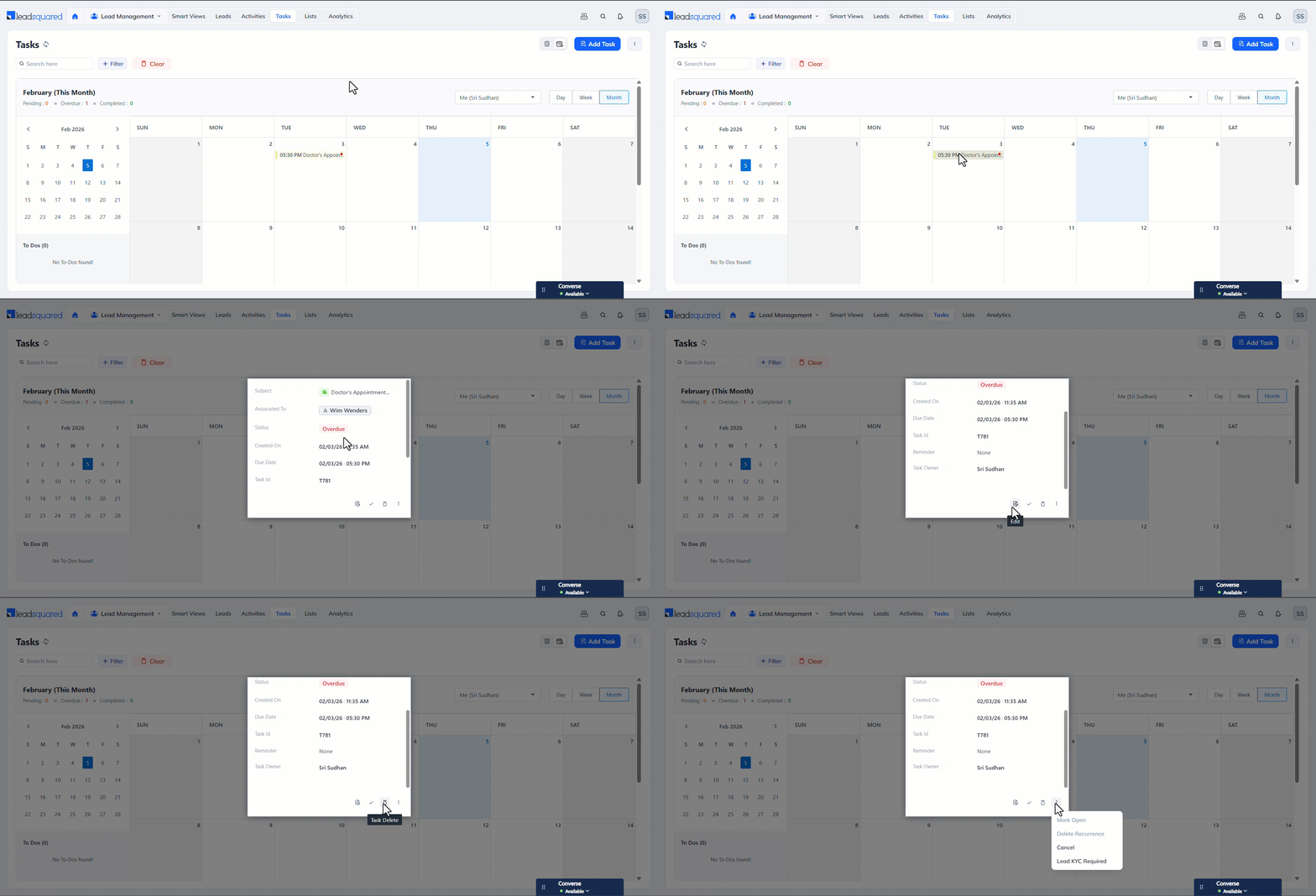
Filters help narrow down specific tasks, such as tasks with an Overdue status or a Due Date of today. The Advanced Search feature lets you search for tasks that meet one or more task and/or lead filters.
5.1 Filters
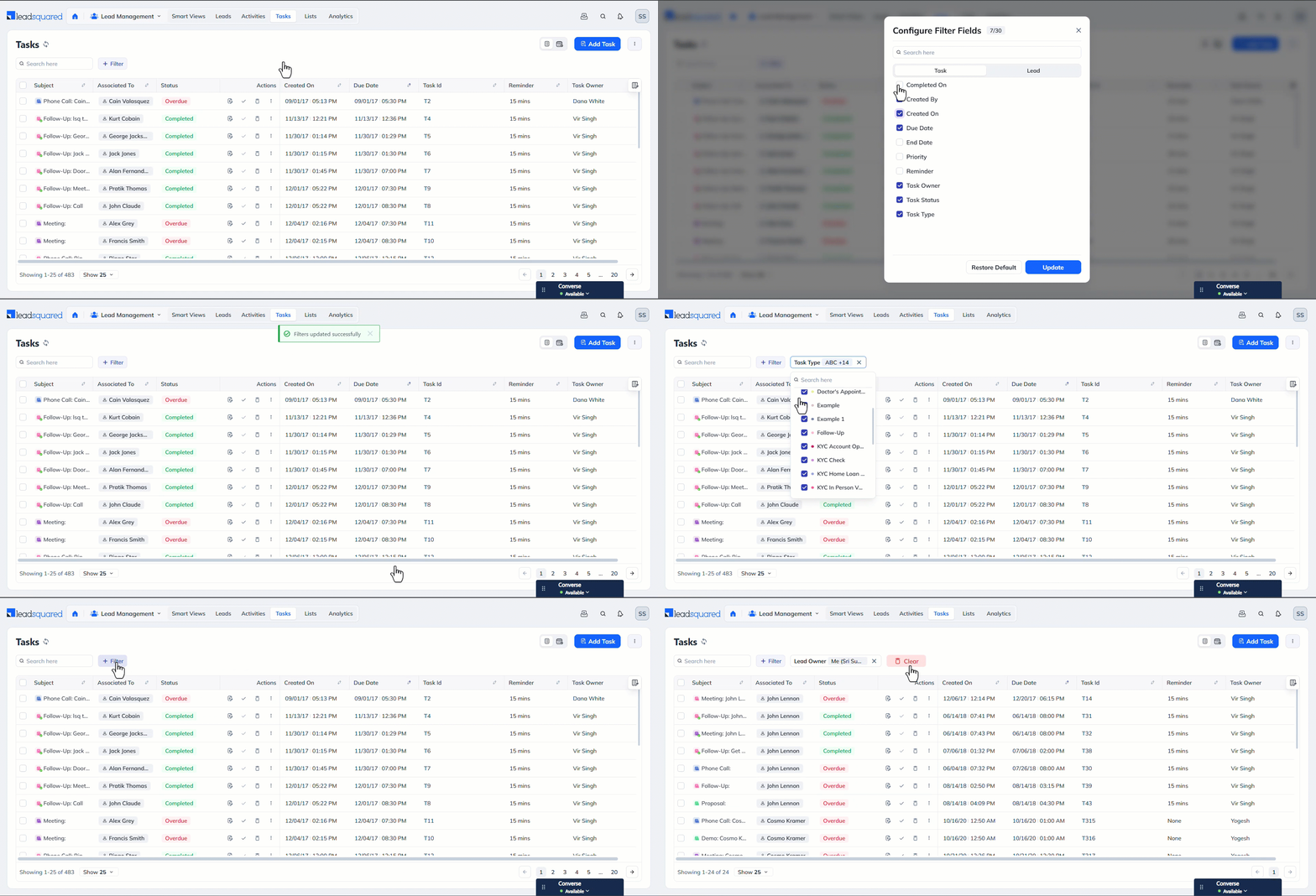
- Click the Filter button, and then click Configure Filter Fields.
- On the pop-up, select the task and lead fields to display as filter options, and click Update.
- Then click the Filter button again, and select the fields you want to use to filter tasks from the available list.
- If the selected field has sub-fields, you can also filter tasks by those sub-fields. For example, if you select Task Status, you can filter by Open, Completed, Pending, or Overdue.
5.2 Advanced Filters
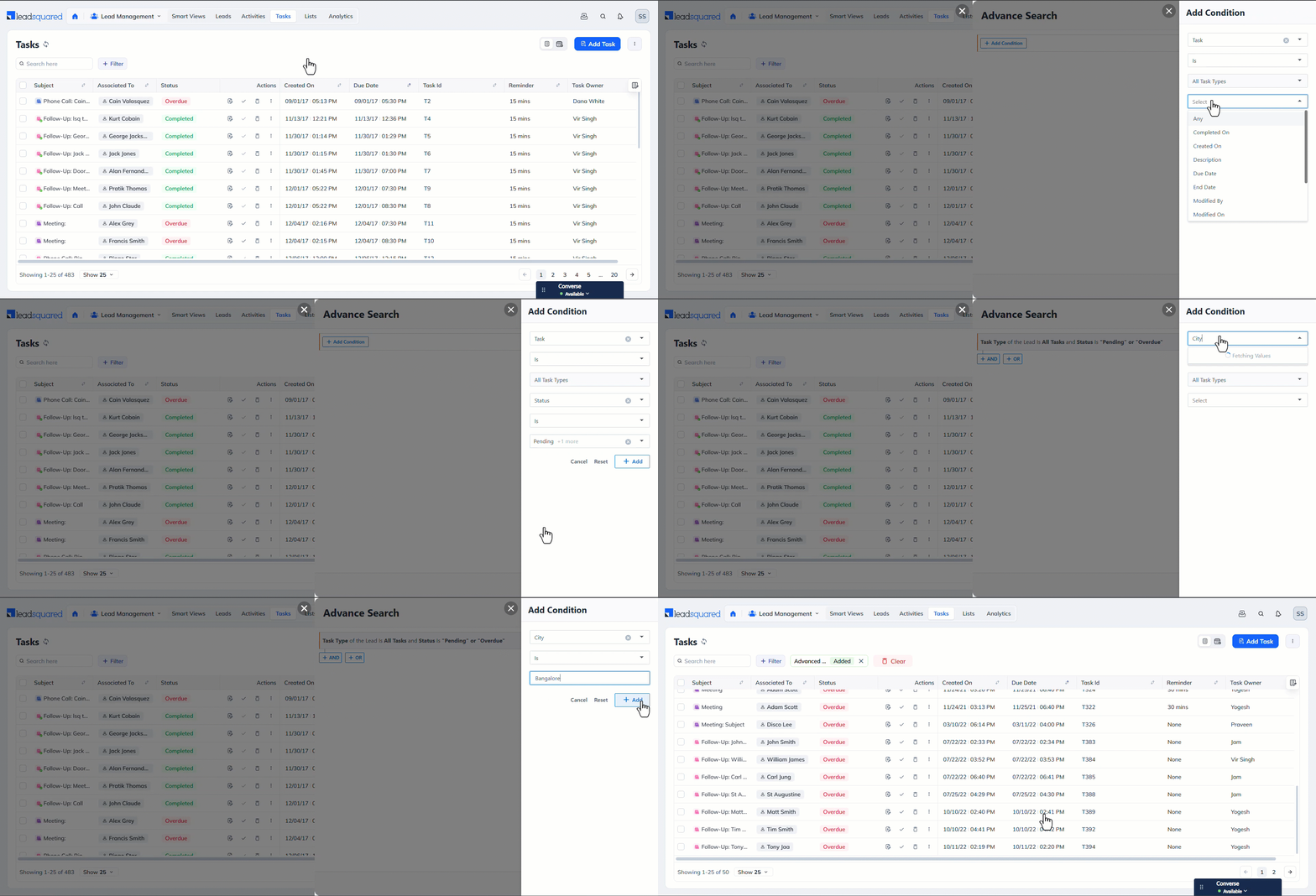
Advanced Filters let you set up If/Else conditions to identify and narrow down specific tasks in your account, such as tasks where the Status Is Pending + Overdue Lead City Is Bangalore.
- Click the Filter button, and then click Advanced Filters.
- On the Advance Search pop-up, click Add Condition.
- On the first dropdown, Task is selected by default. You can keep it as is or change it to a lead field if required.
- The second and third dropdowns are non-clickable and preset with default values.
- On the fourth dropdown, select the task field to filter by, such as Status, Due Date, Owner, etc.
- Based on the selected field, choose the operator to filter tasks (such as Is, Is Not, Contains, Ends With, etc.).
- Then, from the final dropdown, add the field values to filter the results. You can select multiple values.
- Once you’re done, click Add.
- To add additional conditions, use the AND or OR operators.
- Once you’re done, click Show Results.
Any Questions?
We’d love to hear your thoughts on this article and the tasks feature in general. Feel free to start a conversation in the comments section below.