
1. Feature Overview
Risk Containment Units (RCUs) are specialised teams that verify the authenticity of loan application documents, including KYC, KYB, income, and collateral documents. RCU checks form a standard part of the loan origination process, especially for high-ticket products (such as Home Loans, Loan Against Property, and Commercial Vehicle loans). They act as an independent review layer on top of the checks the internal credit team performs (typically the Credit Processing Analyst (CPA) and operations teams).
Depending on the lending organisation, RCUs can be internal teams or third-party verification agencies. They detect forged or tampered documents, prevent fraud and money laundering, and ensure the applicant’s profile is genuine before disbursal.
In LeadSquared’s Loan Origination System (LOS), the RCU process enables teams to systematically screen each document, place items on hold for later review, or send them to verification agencies, while tracking all actions, remarks, and agency reports against the opportunity.
2. Prerequisites
- The Loan Origination Workflow (LOS) Workflow app must be enabled on your account. To do this, contact your account manager or write to support@leadsquared.com.
- You must be an Admin user to configure this feature.
- The following Mavis DB tables must be configured –
- Checklist table – Add the documents and fields to be verified, and map each item to the activity field where the document is uploaded. This displays the fields that appear on the RCU screen.
- Agency table – Add the list of verification agencies, and associate it with the agency dropdown. This shows up during the sampling process.
- Create an Opportunity Type to associate with an LOS workflow.
- The associated opportunity type must contain a custom field with the display name “Workflow Version”, the schema name “mx_Custom_100”, and the type “Number – Decimal”. This is mandatory.
- Create a custom activity that is posted on the opportunity when the workflow is executed.
3. How it Works
This document is to help Admin users configure the RCU process on the account. Before you begin, ensure a custom activity and opportunity types are created with the necessary fields, along with the Mavis database.
- Create a workflow and associate it with the opportunity type on which the RCU process should be initiated.
- Create a stage and sub-stage, and link the two Mavis DB tables, one defining the document checklist and one listing the verification agencies.
- The document checklist defines the documents to verify and maps each item to the field where the document is uploaded.
- The agency table lists the external agencies that will complete the RCU process.
- Once you’re done, publish the workflow.
- The RCU process is available on the Opportunity Details page of the selected opportunity type, from where agents can initiate it.
4. Create a Custom Activity
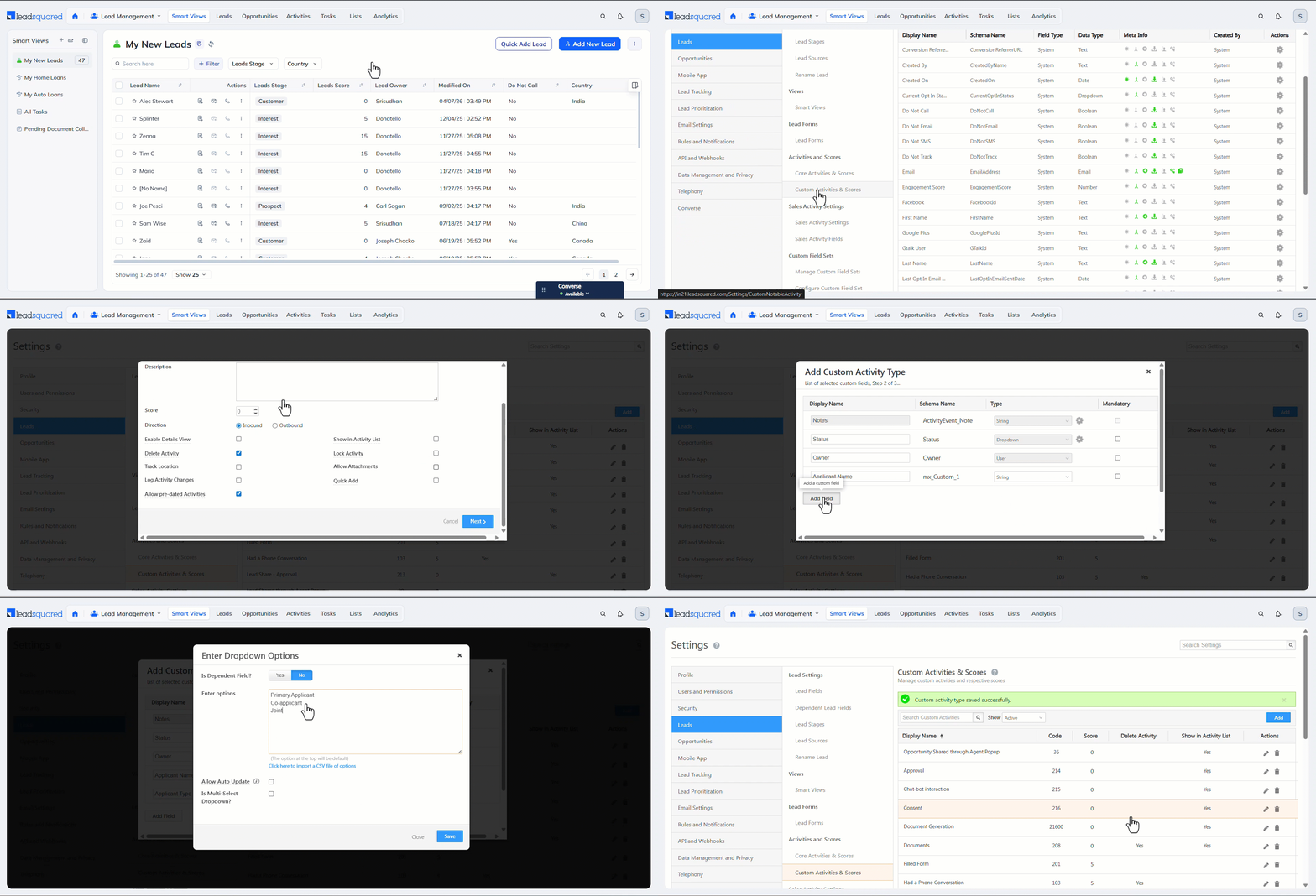
Before you set up the LOS workflow, create a Custom Activity with the following fields –
- Navigate to My Profile>Settings>Leads>Custom Activities and Scores, and click Add.
- Alongside the required custom activity details, create the following fields –
- A string field that stores the applicant’s name. Use a display name that conveys this (for example, “Applicant’s Name”).
- A dropdown field that lists applicant types as options. Add all applicant types your business offers (for example, Primary Applicant, Co-applicant, Joint Applicant, and Guarantor). Use a display name that conveys this (for example, “Applicant Type”).
- Once you add all mandatory details, click Save. The custom activity is created in your account.
5. Create a Workflow
Once you create the custom activity, create an LOS workflow that triggers the RCU process, and link the custom activity to the workflow.
An opportunity type is linked to the workflow, and the workflow appears only within the selected opportunity type.
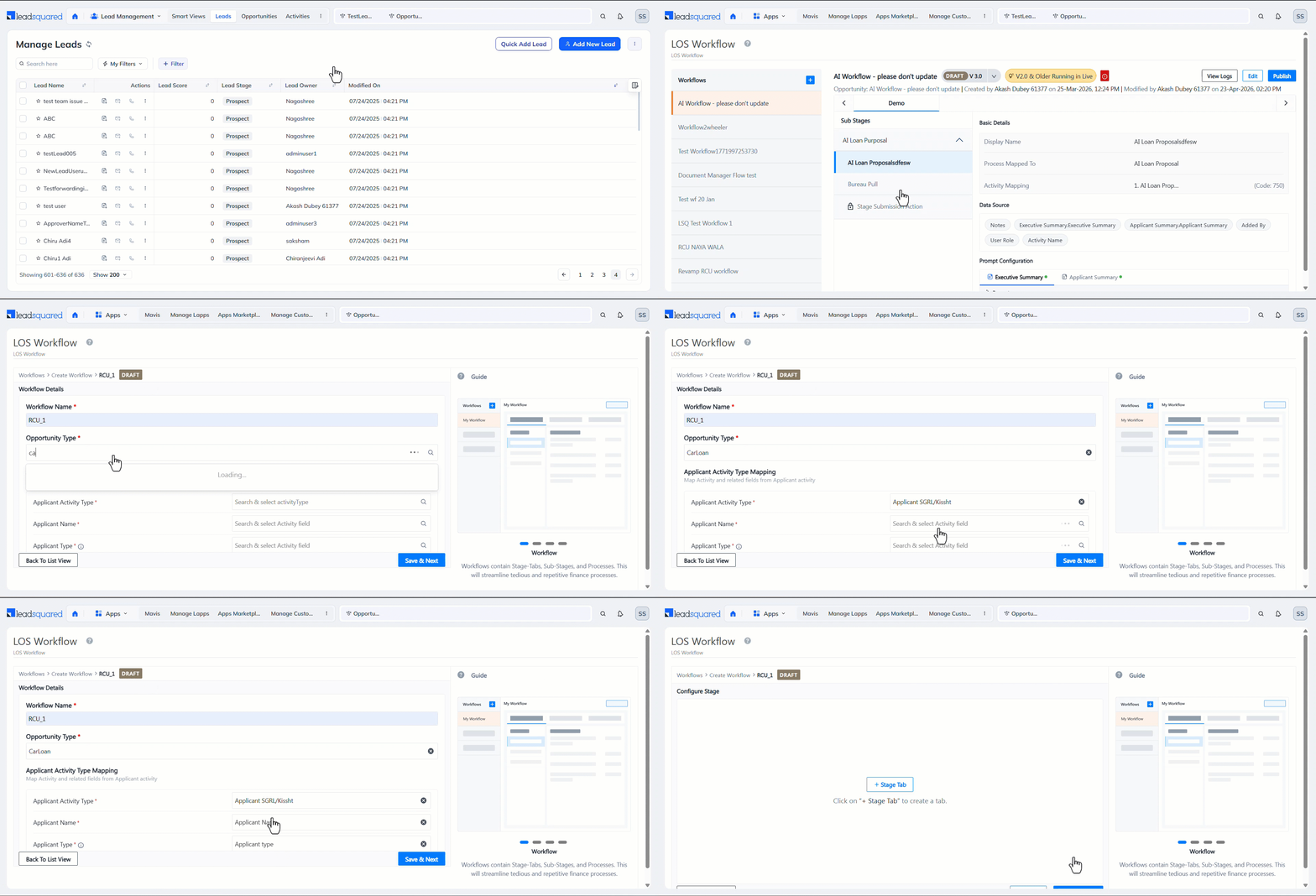
- Navigate to Apps>LOS Workflow, and alongside Workflows, click the Add icon.
- On the Workflow Details screen, enter the following details –
- Workflow Name – An internal name that identifies the workflow.
- Opportunity Type – The LeadSquared opportunity type* you want to associate with the workflow.
- Applicant Activity Type – Select the custom activity you created.
- Applicant Name – Select the custom activity field that stores the lead’s name.
- Applicant Type – Select the applicant type dropdown field associated with the custom activity.
- Select Primary Applicant Identifier – From the dropdown options, select the primary applicant type your business follows.
- For example, if the options are Primary, Co-applicant, and Guarantor, select Primary.
- Click Save & Next.
- On the Configure Stage screen, add a new stage using the Add Stage Tab button.
- This stage appears on the Opportunity Details page for the selected Opportunity Type.
- Enter the display name for the tab, and click Save.
Note:
- You can associate an Opportunity Type with only one LOS workflow.
- The associated opportunity type must contain a custom field with the display name “Workflow Version”, the schema name “mx_Custom_100”, and the type “Number – Decimal”. This is mandatory.
6. Configure Stage
On the Configure Stage screen, create a stage, sub-stage and associate the Mavis DB table that stores documents for verification and the list of verification agencies. This stage also appears on the Opportunity Details page. First, enter and configure the Basic Details required to create the new activity type.
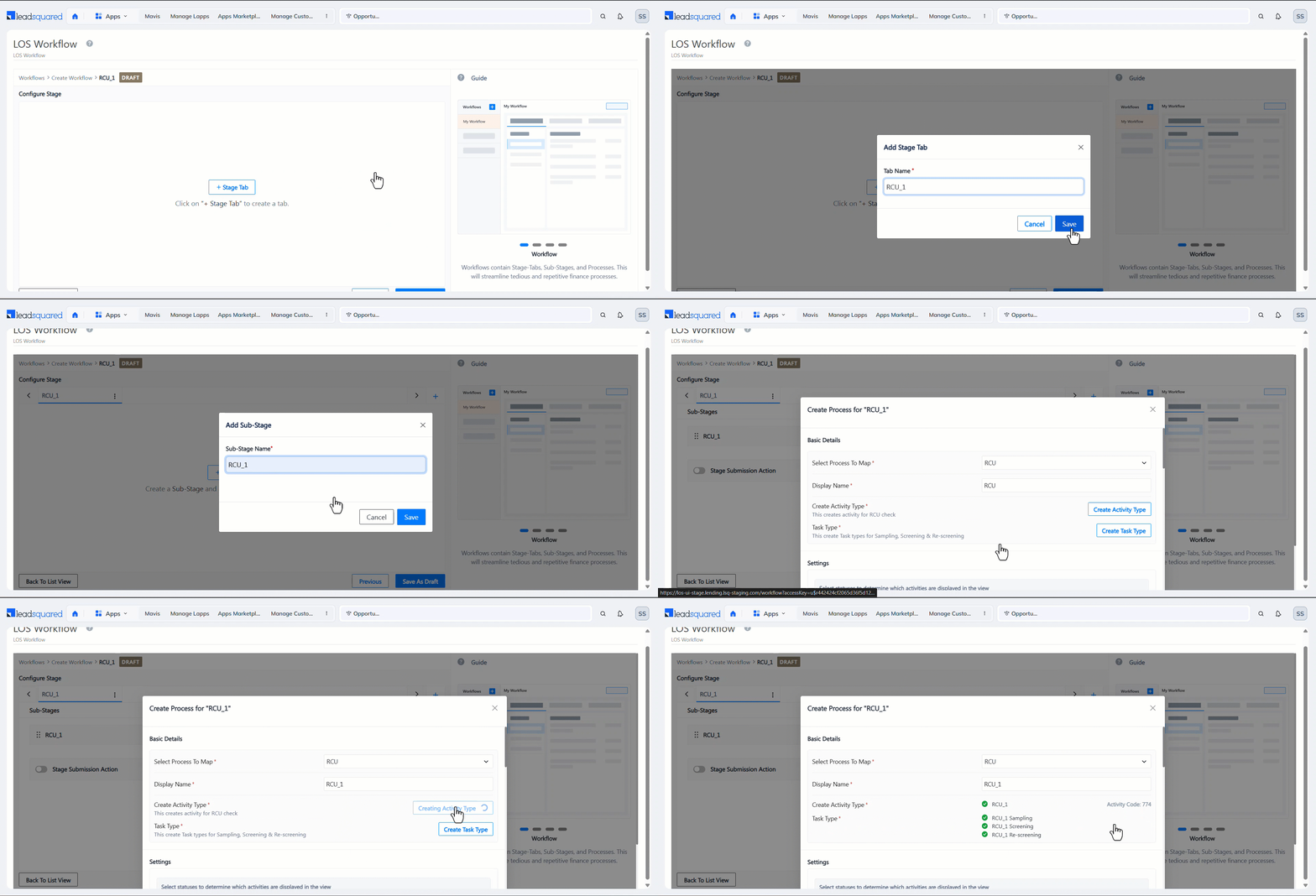
- Click the Stage tab, add a Display Name*, and click Save.
- Click the Sub-stage button, add a Display Name*, and click Save.
- Alongside the sub-stage, click the Process button, and on the Create Process screen, configure the following Basic Details –
- Select Process to Map – Select RCU.
- Display Name* – Enter a display name for the activity.
- Create Activity Type – Click the Create Activity Type button. This creates an activity type for the RCU check. This activity is posted on the Opportunity Details page.
- Create Task Type – Click the Create Task Type button to create task types for Sampling, Screening, and Re-screening. Assign these tasks to your RCU team.
7. Sub-stage Settings
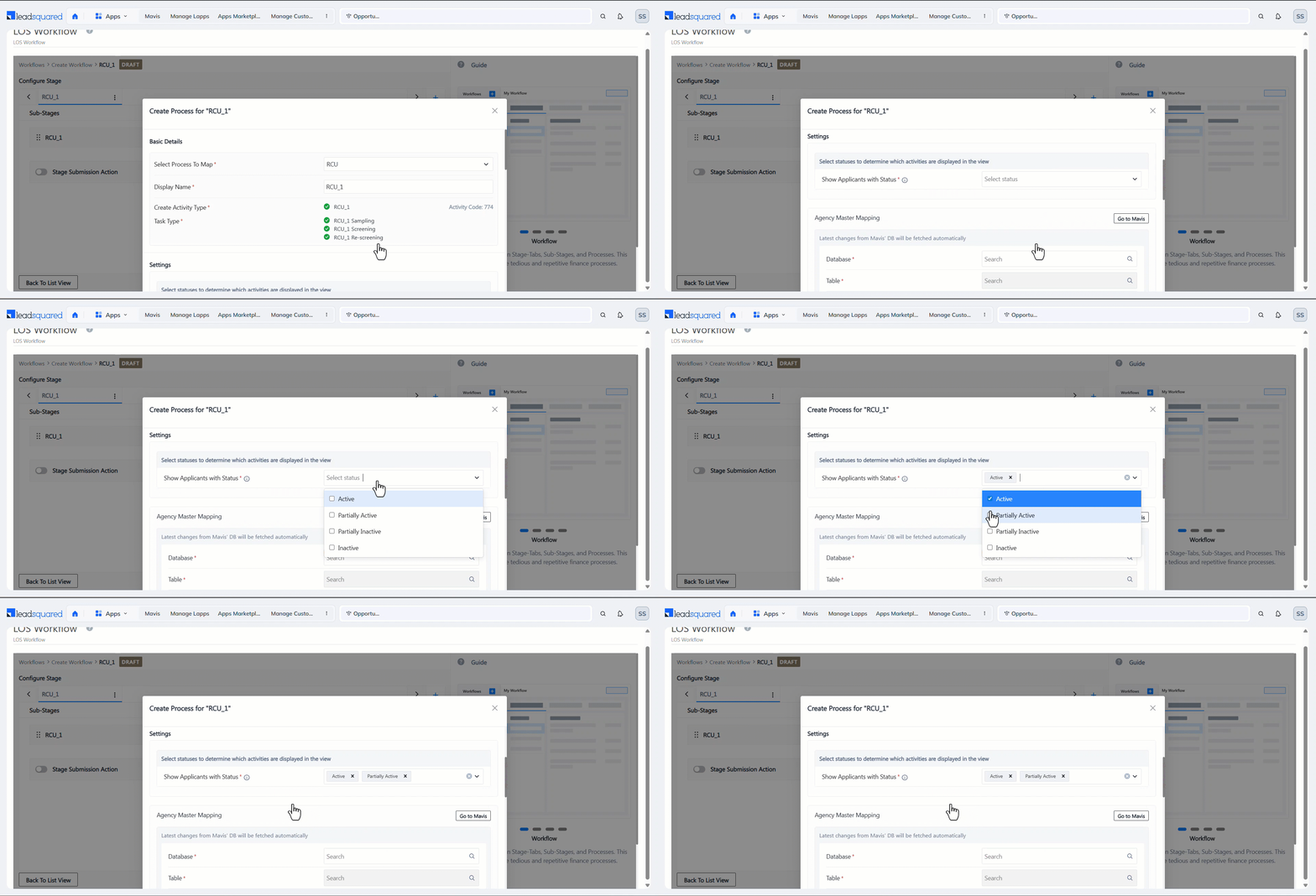
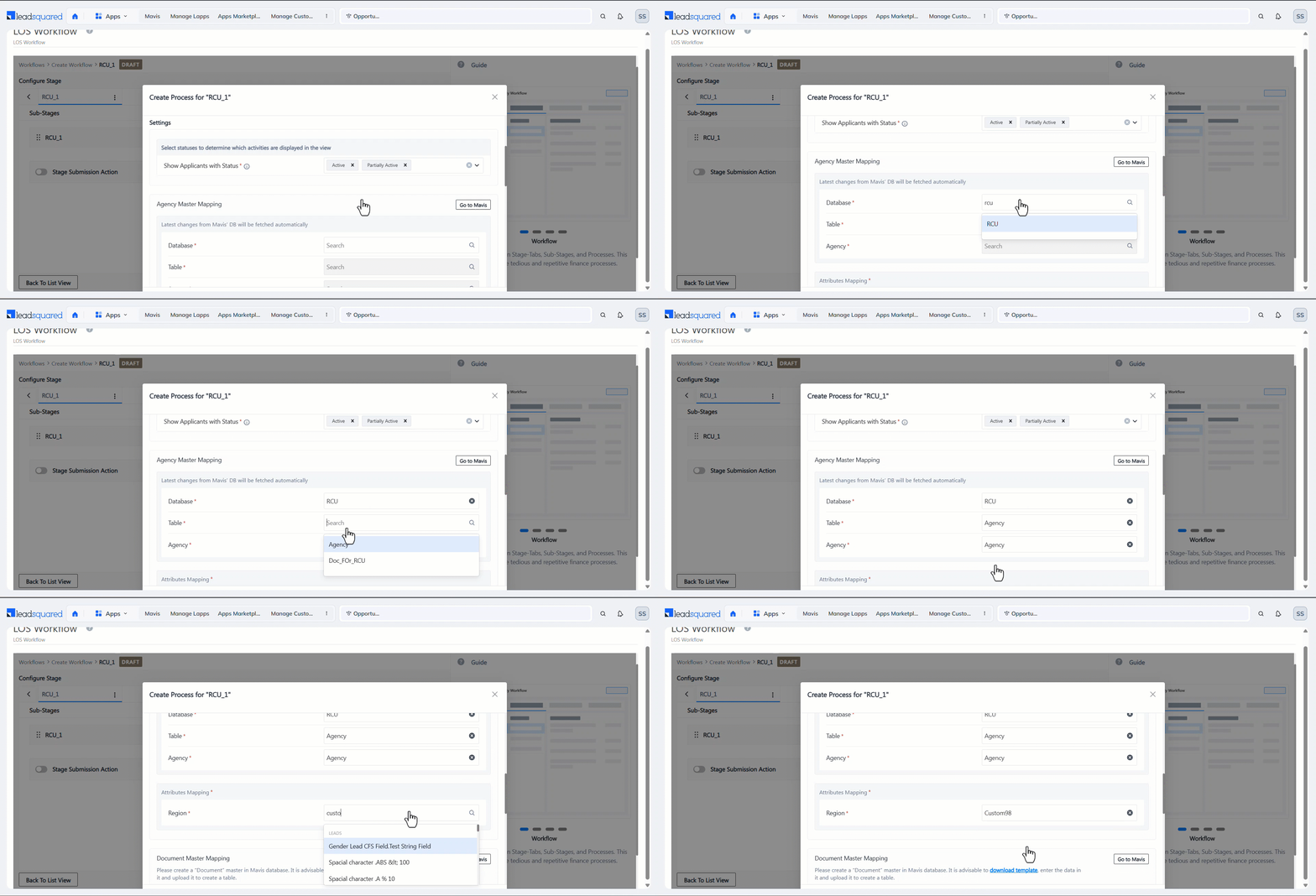
This setting determines which applicants appear in the RCU process based on their status. From the Show Applicants with Status dropdown, select the applicant statuses that appear during the RCU process. For example, if you select “Active” and “Partially Active”, only applicants with those statuses appear.
8. Agency Master Mapping
This setting links the Agency dropdown to the Mavis DB table that stores the list of external verification agencies. These are the agencies that carry out the RCU process on behalf of your business. These agencies are shown to your users during the RCU process.
- Database – Select the Mavis Database that hosts the agency details table.
- Table – Select the Mavis Table that hosts the agency details.
- Agency – In the RCU process, select whether to show the –
- Agency – The external verification agency name from the table.
- Region – The region where the agency operates.
- Attribute Mapping – Link queryable fields in the Mavis table to opportunity or lead fields that contain the same values. When you select a value in the opportunity field, the system fetches the corresponding data from the table.
For example, if the Mavis table has a queryable Region column (with values North, South, East, West) mapped to a “Region” custom opportunity field, the Region dropdown during sampling shows only agencies tagged to the selected region. If you select “West” in the opportunity field, only agencies tagged to West in the Mavis table appear.
9. Document Master Mapping
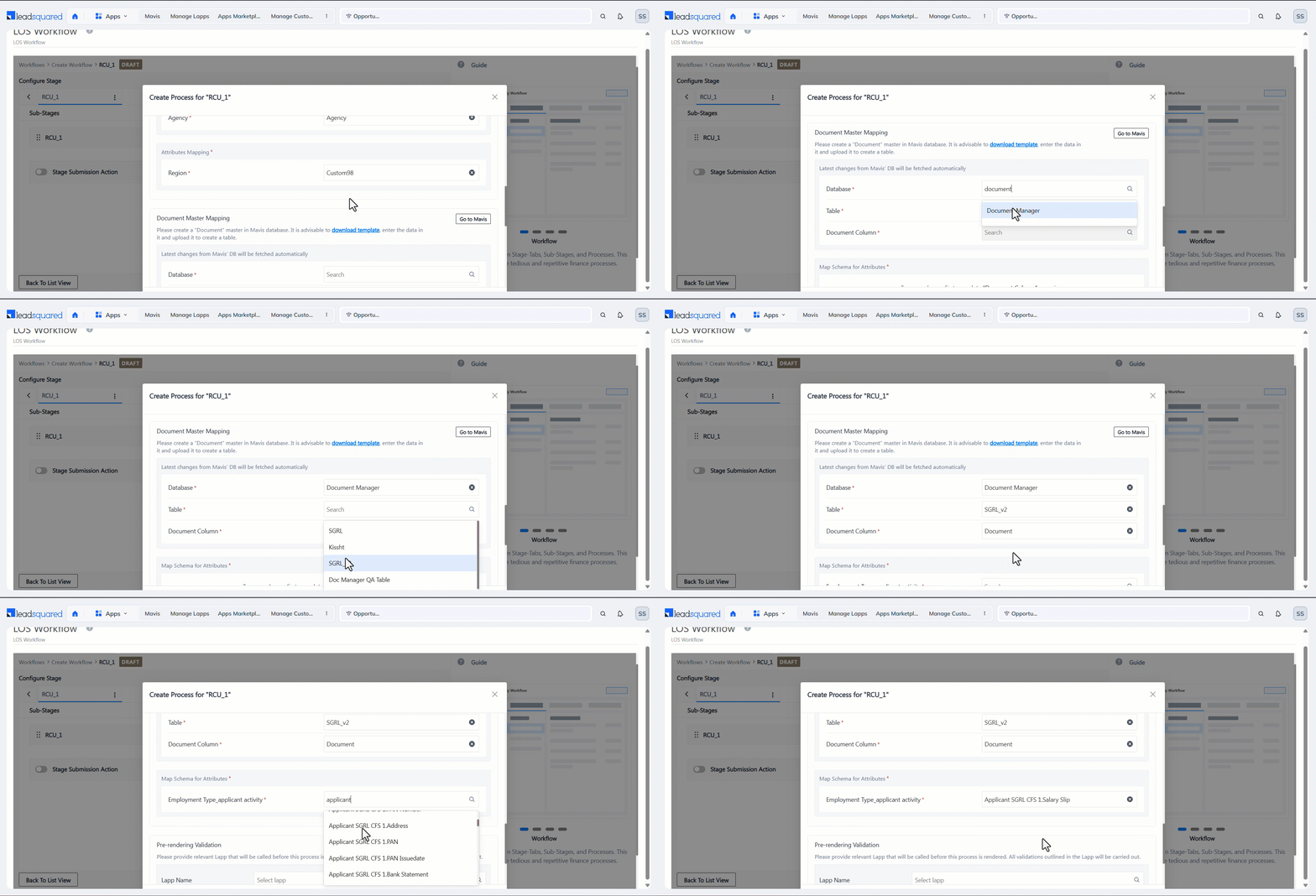
This setting links the Document Checklist in the RCU process to the Mavis DB table that defines the list of documents to verify. The table also maps each item to the opportunity or activity field where the corresponding document is uploaded, which appears when the RCU process starts.
- Database – Select the Mavis Database that hosts the checklist table.
- Table – Select the Mavis Table that hosts the checklist.
- Document Column – Select the table column that hosts the documents uploaded.
- Map Schema for Attributes – Link queryable fields in the Mavis table to opportunity or lead fields that contain the same values. When you select a value in the opportunity field, the system fetches the corresponding data from the table. This is optional.
For example, if the Mavis table has a queryable Employment Type column (with values Salaried, Self-Employed, Retired, etc.) mapped to an “Employment Type” custom opportunity field, the Employment Type dropdown during sampling shows only documents tagged to the selected type. If you select “Self Employed” in the opportunity field, only documents uploaded by Self Employed applicants appear.
10. Pre-rendering Validation
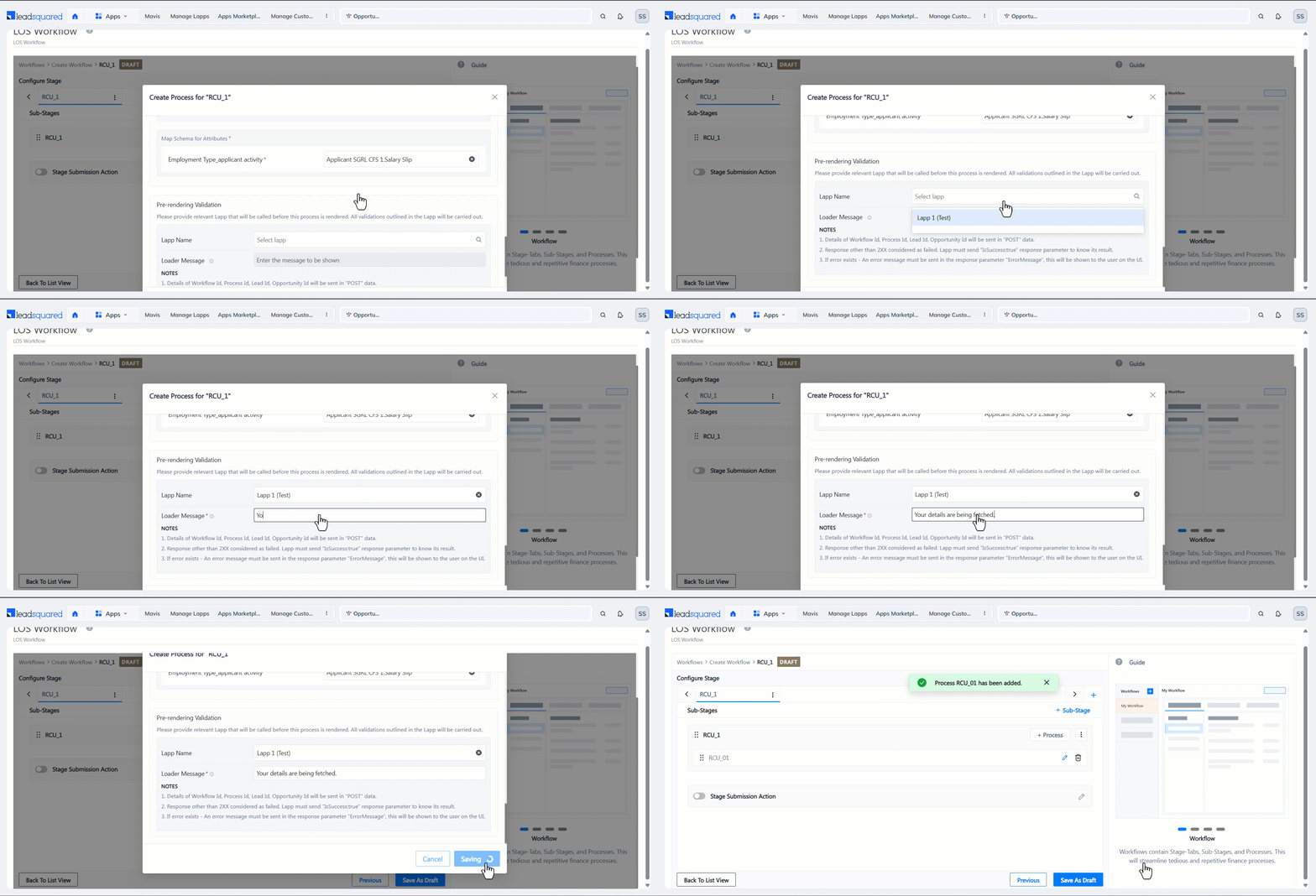
This is optional. You can sync a Lapp with the RCU process. The system executes this Lapp before the RCU process starts. For example, you can use a Lapp to validate that all mandatory KYC documents have been uploaded against the opportunity before the RCU process begins. If any are missing, the Lapp can block the RCU initiation and prompt the user to complete the uploads first. To do this –
- Lapp Name – Select a Lapp from your account.
- Loader Message – Enter the message shown to the agent while the Lapp runs in the background.
- Once you’re done, click Save.
11. Stage Submission Action
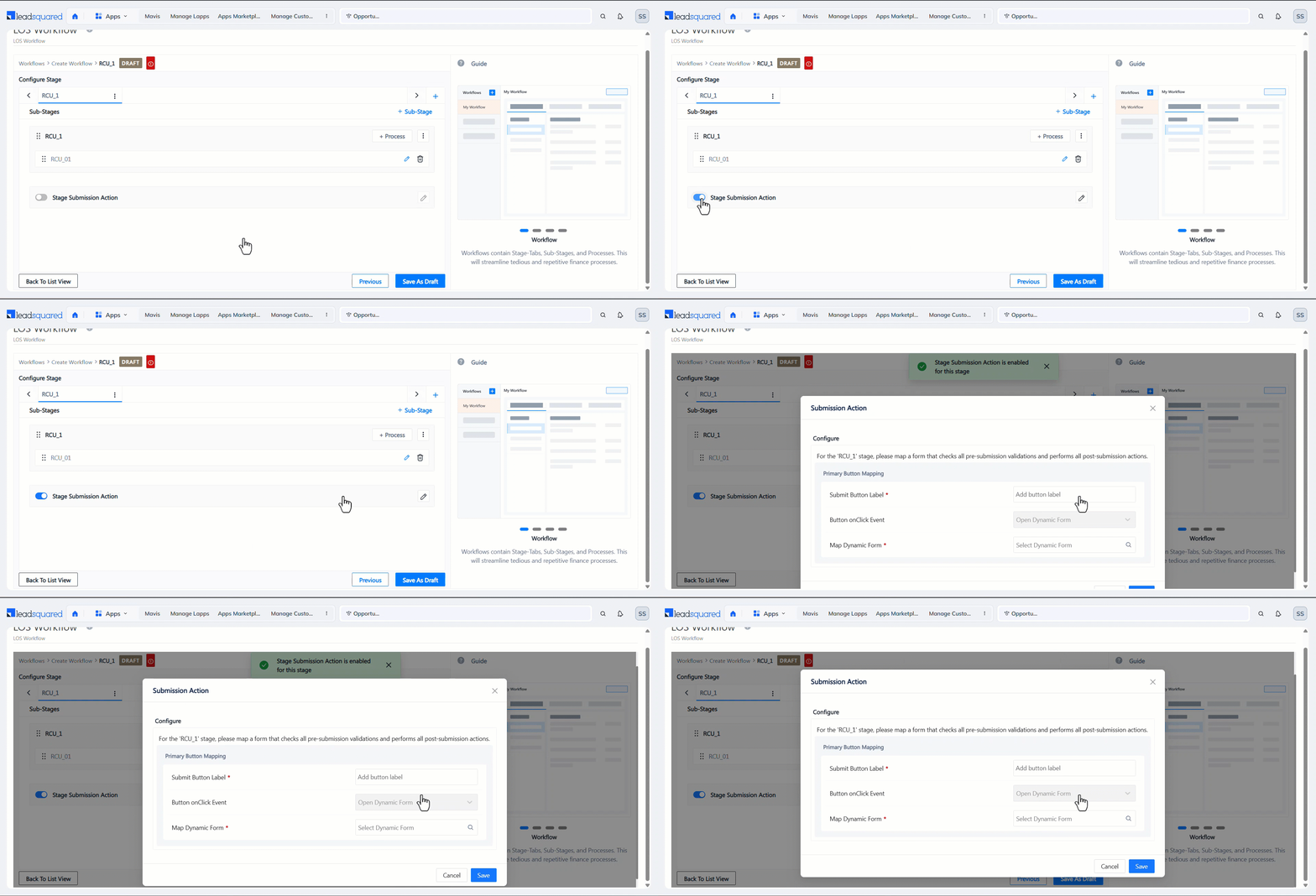
This section is optional. Here, you can link a LeadSquared form that appears to your customer when they complete the stage action and click Submit. For example, link a declaration form that asks the applicant to confirm the authenticity of submitted documents for RCU verification. Once they submit the form, the system captures the declaration against the opportunity for audit purposes.
- Enable the slider to configure the actions that occur when a lead submits this stage of the loan application.
- Click the pencil icon, and on the Submission Action pop-up, enter the following details –
- Submit Button Label – The display name for the submission button on the loan application form.
- Button onClick Event – The action performed when the button is clicked.
- Map Dynamic Form – Select the LeadSquared form where you want to capture this data.
- Once you’re done, click Save.
12. Publish the Workflow
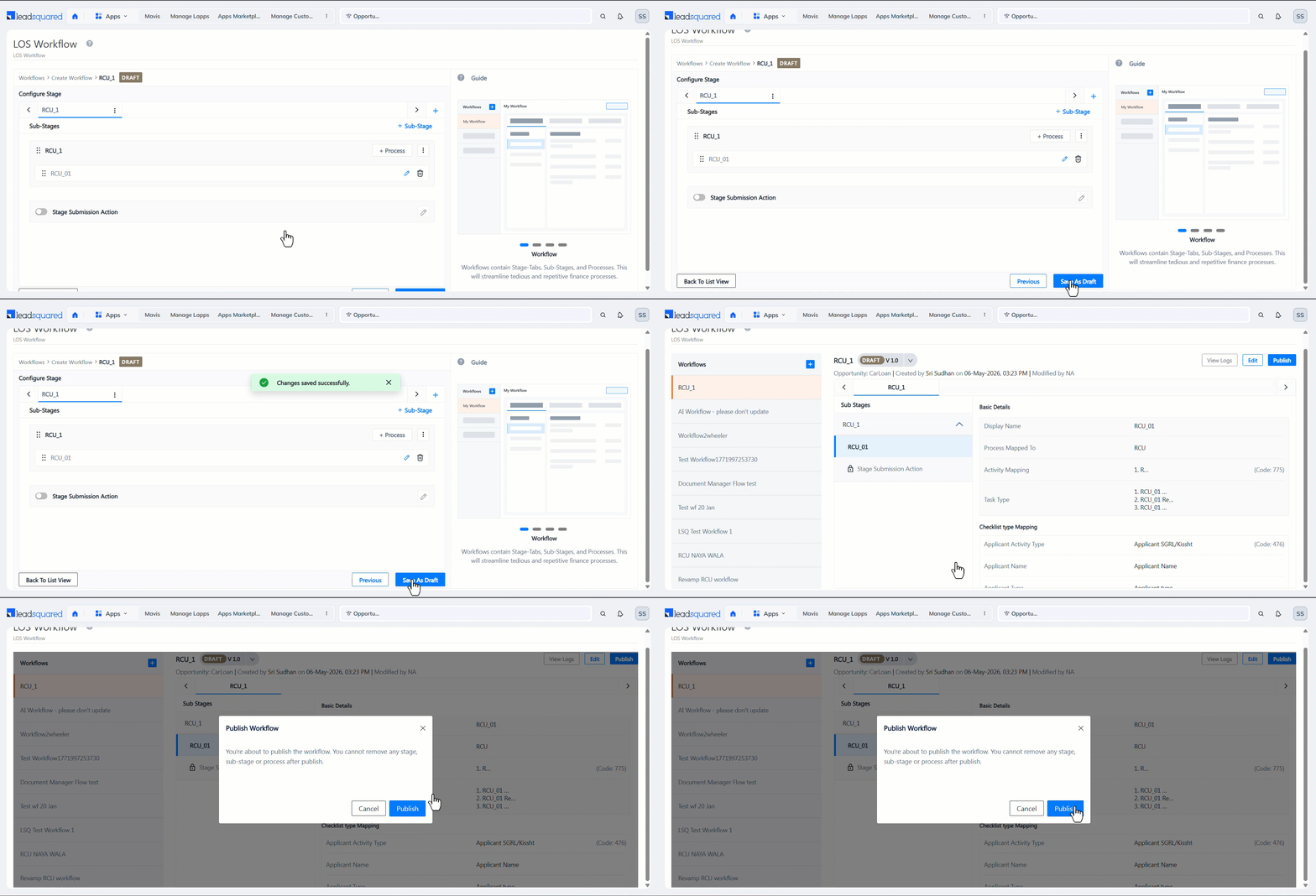
Once it’s fully configured, click Save as Draft, then Publish the workflow.
13. Next Steps
Once the set-up is complete, your agents can initiate the RCU process for customers, and complete the process on the Opportunity Details page.
Any Questions?
Did you find this article helpful? Please let us know any feedback you may have in the comments section below. We’d love to hear from you and help you out!





