


Get Started

Sales Suite
Field Ops
Marketing
Service CRM
Integrations & Apps
FloStack
LeadSquared Pulse

1. Feature Overview
LeadSquared Pulse is an AI-powered assistant embedded directly into LeadSquared. With Pulse, you can perform CRM actions, retrieve information, and get answers to product questions through natural-language prompts, without navigating to specific pages or opening API documentation.
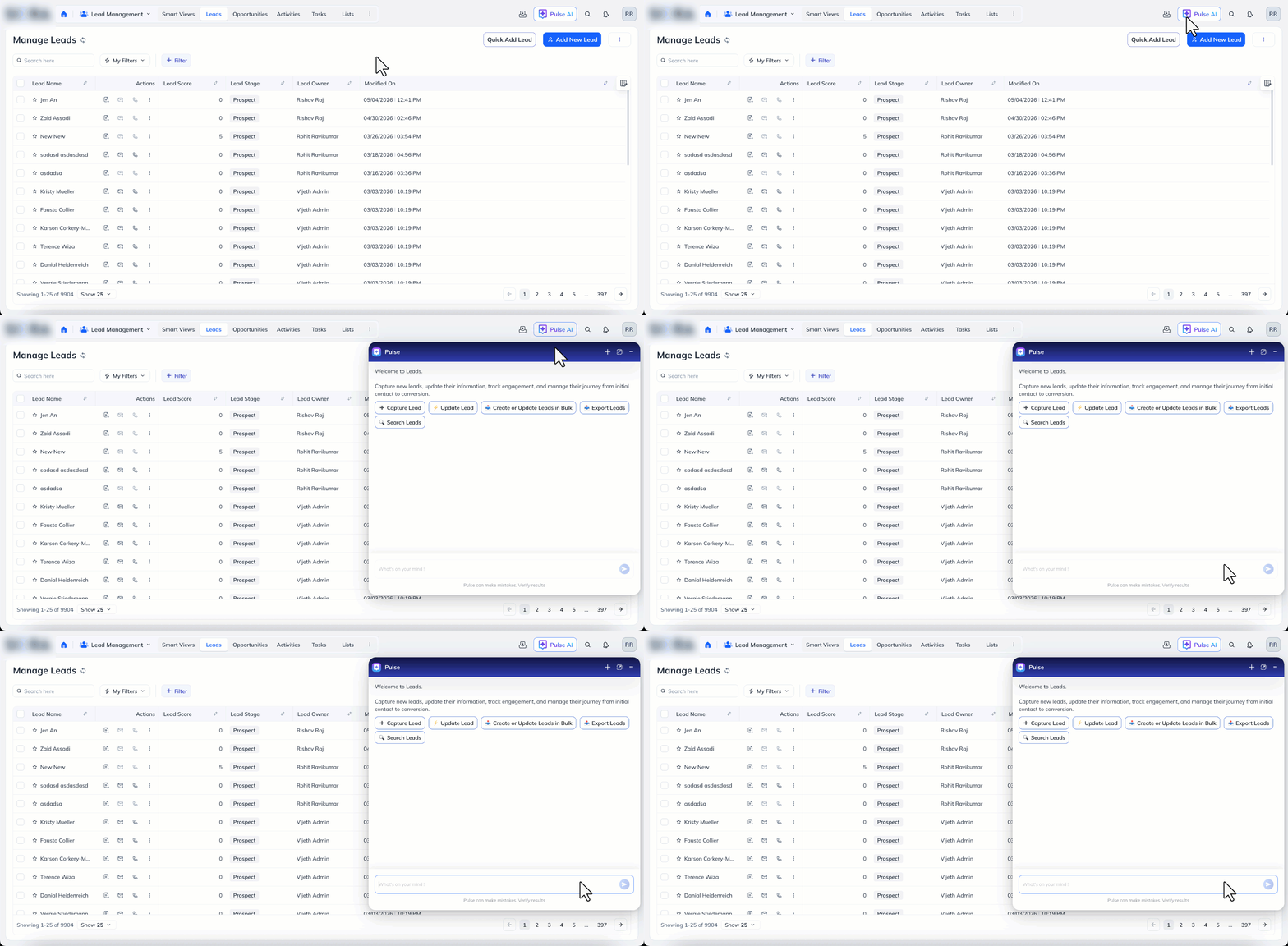
Pulse is available as a chat panel that opens from the Pulse AI button in the top navigation bar. It is context-aware, which means the actions it suggests change based on the page you are on. For example, on the Leads page, Pulse surfaces lead-related actions such as Capture Lead, Update Lead, and Search Leads. On the Opportunities page, it surfaces opportunity-related actions, and so on.
Pulse currently supports 77 prompt-driven actions across four CRM modules: Lead Management, Task Management, Opportunity Management, and Activity Management. It also answers product questions by querying the LeadSquared help site and returning answers within the chat panel.
2. Prerequisites
- You have access to a LeadSquared account where Pulse has been enabled. To enable it on your account, contact support@leadsquared.com.
- Your user role has the necessary permissions to perform the underlying CRM actions. Pulse respects the same permissions that govern the corresponding API calls and UI actions. For instance, if your role cannot delete leads, Pulse will not be able to delete leads on your behalf.
- You are signed in to LeadSquared. Pulse uses your session to authenticate API calls.
3. How It Works
Pulse interprets your prompt, identifies the intent, and maps it to the corresponding LeadSquared API.
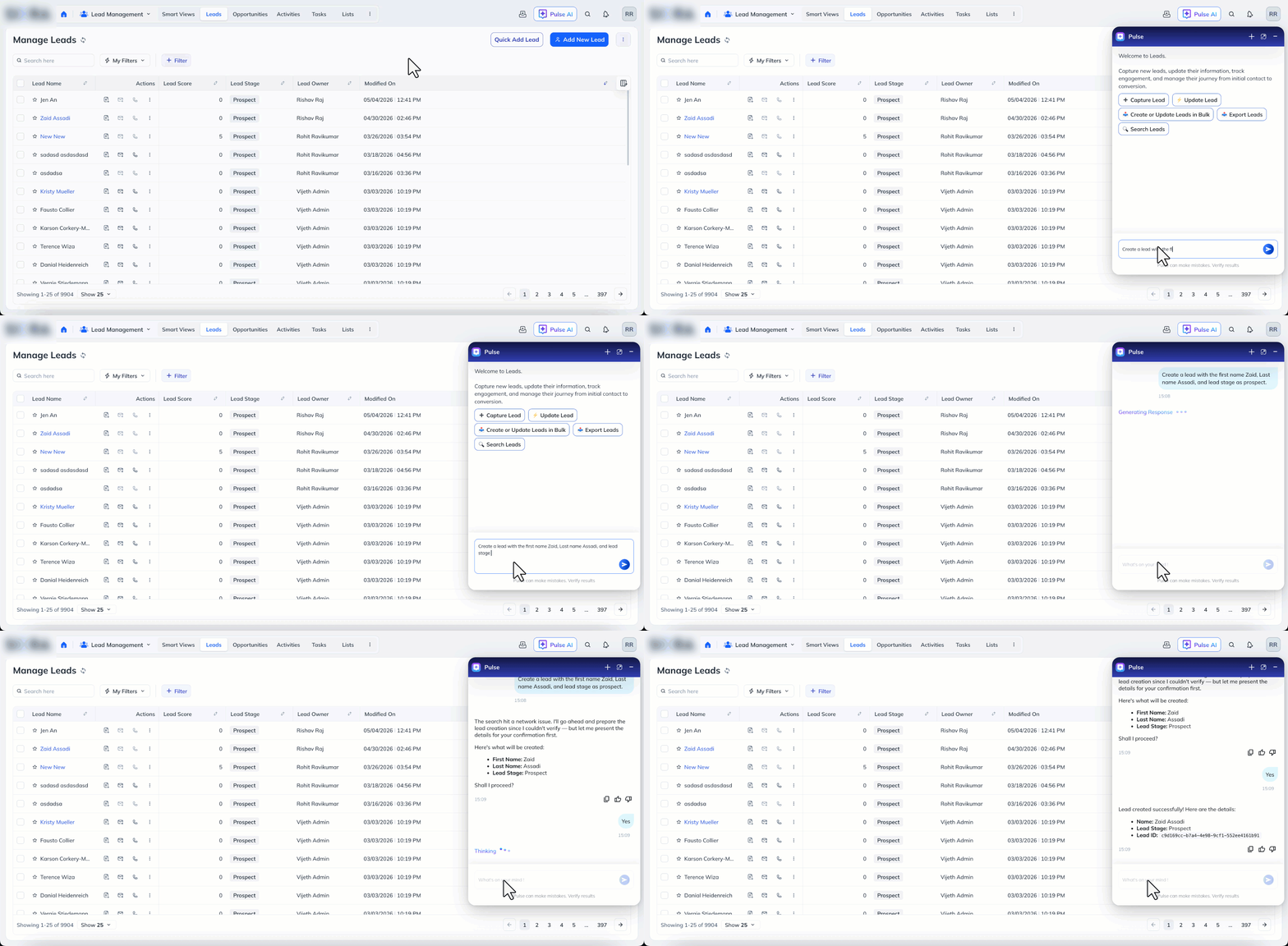
For example, if you type create a lead with first name Jen and last name An, Pulse creates the lead and returns the lead ID.
Destructive operations such as deleting a lead, task, opportunity, or activity always require explicit confirmation in the chat before execution.
Pulse also recognizes the page context when you open it. If you open Pulse on the Leads page without typing anything, it greets you with a welcome message and surfaces quick-action buttons for the most common lead operations. Clicking a quick-action button starts the prompt for you.
4. Launch Pulse
To launch Pulse:
- Sign in to LeadSquared.
- On any page, click the Pulse AI button in the top navigation bar. The Pulse chat panel opens on the right side of the screen.
- Type your prompt in or click one of the quick-action buttons surfaced for the current page.
- To start a new chat, click the plus (+) icon on the top-left corner of the panel.
- To close Pulse, click the minimize (–) icon in the top-right corner of the panel.
5. Use Pulse to Run an Action
To run a CRM action through Pulse:
- Open Pulse.
- Type a natural-language prompt describing the action. For example:
- Create a lead with first name and a last name.
- Get all tasks for a specific lead ID.
- Update opportunity status to Won for a specific opportunity ID.
- Pulse executes the action and returns a confirmation message with the record ID.
If Pulse is missing a required field, it asks you for the value before proceeding.
6. Use Pulse to Ask Product Questions
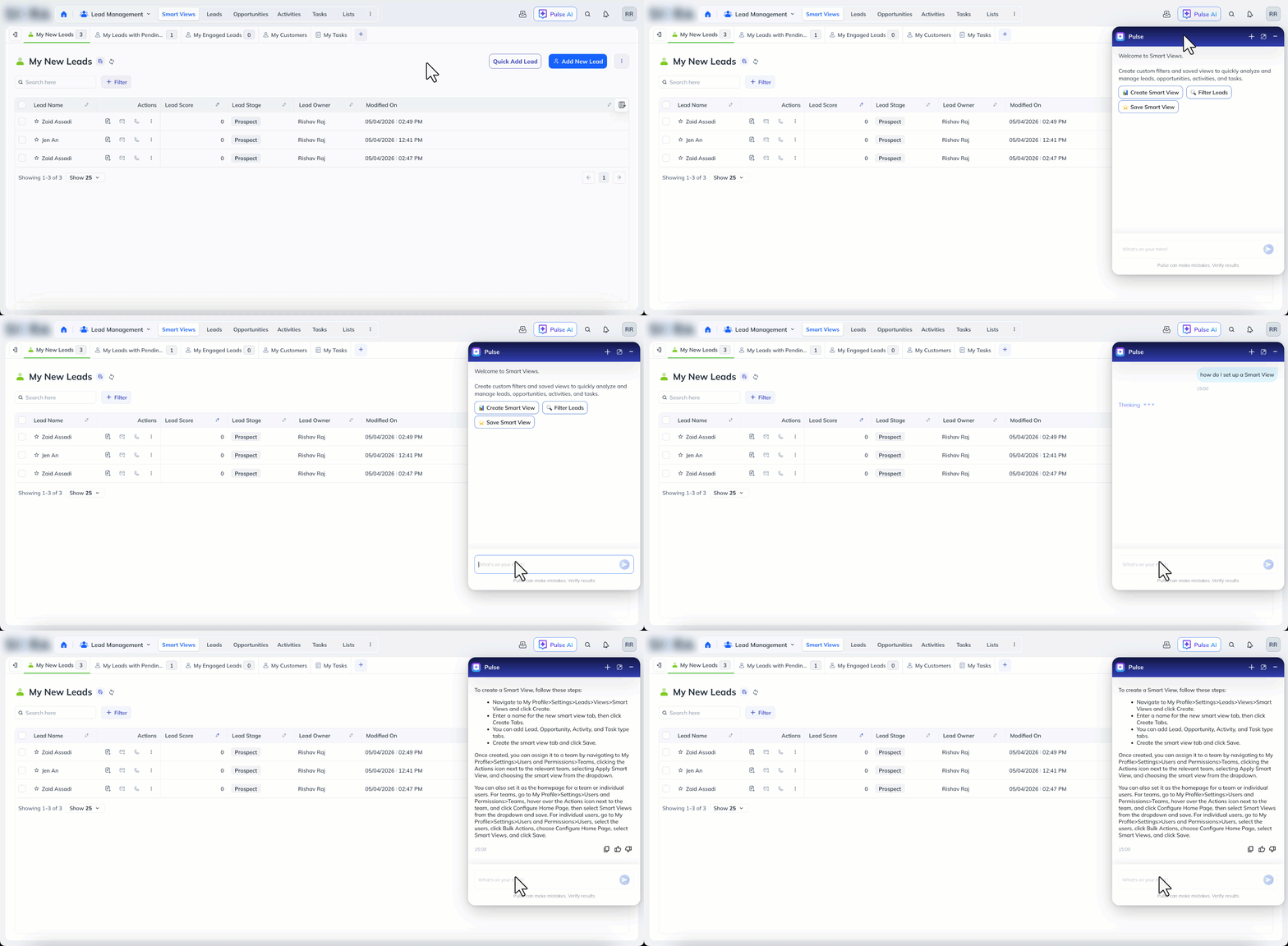
In addition to running actions, Pulse can answer questions about LeadSquared features by querying the help site.
To ask a product question:
- Open Pulse.
- Type your question in plain language. For example, how do I set up a Smart View, or what is the difference between a lead and a prospect.
- Pulse returns an answer summarized from the relevant help articles.
7. Supported Actions
Pulse supports 77 prompt-driven actions across four modules. The sections below list each supported action with a brief description. Each action maps to a LeadSquared API endpoint. For full request and response details, refer to the API documentation at docs.leadsquared.com.
7.1 Lead Management
Lead Management covers 25 actions for creating, retrieving, updating, and deleting leads and lead notes.
Create
| Action | Description |
| Create a Lead | Creates a new lead record using attribute-value pairs (name, email, phone, and so on). |
| Create Leads in Bulk | Creates up to 50 leads in a single operation. |
| Create or Update a Lead | Creates a new lead, or updates an existing one matched by email or phone (upsert). |
| Capture Leads | Creates or updates a lead from an external lead source with source-tracking metadata. |
| Create a Lead and Activity | Creates a lead and logs an activity in a single operation. |
| Create a Note | Creates a text note on an existing lead, optionally with a file attachment. |
Retrieve
| Action | Description |
| Get Lead by ID | Retrieves a lead’s full profile by Lead ID. |
| Get a Lead by Email | Retrieves a lead’s full profile by email address. |
| Get a Lead by Phone Number | Retrieves a lead’s full profile by phone number. |
| Quick Search Leads | Free-text search across name, email, phone, company, city, and country fields. |
| Search Leads by Criteria | Advanced search with SQL-style operators on any lead field, with paging and sorting. |
| Get Metadata | Returns the full schema and field configuration for all lead fields in your account. |
| Get a Lead Field’s Properties | Returns metadata for a specific lead field by schema name. |
| Get a Lead’s Notes | Retrieves all notes for a lead with pagination. |
| Get Info on Merged Child Leads | Returns audit details for a lead merge operation. |
Update
| Action | Description |
| Update a Lead | Updates one or more fields on an existing lead. |
| Update Leads in Bulk | Updates a single field to the same value across multiple leads by ID. |
| Merge Leads | Merges a duplicate lead into a primary lead, consolidating records. |
| Mark Lead Invalid | Flags a lead’s email as invalid with an optional reason. |
| Update a Note | Updates the text content of an existing note. |
| Update Mailing Preferences | Sets or clears communication opt-in or opt-out status for a lead. |
| Add Values to a Lead Drop-down Field | Appends new options to a lead dropdown field. |
| Remove Values from a Lead Drop-down Field | Removes options from a lead dropdown field. |
Delete
| Action | Description |
| Delete a Lead | Permanently deletes a lead by ID (irreversible). |
| Delete a Note | Permanently deletes a note by ID (irreversible). |
7.2 Task Management
Task Management covers 22 actions for creating, retrieving, updating, and deleting tasks, including To-Dos and appointments.
Create
| Action | Description |
| Create an Appointment | Creates a task or appointment with owner, due time, reminders, and an optional lead or opportunity link. |
Retrieve
| Action | Description |
| Get a Task by ID | Retrieves full details of a specific task. |
| Get Tasks by Lead ID | Retrieves all tasks linked to a specific lead. |
| Get List of Task Types | Returns full metadata for all task types in the account. |
| Get List of Task Types Names | Returns a lightweight list of task type names. |
| Get Reminders | Returns reminder tasks for the authenticated user. |
| Get Available Slots by Search Criteria | Finds open appointment slots based on search criteria. |
| Get Available Slots by ID | Returns available slots for specific users by user ID. |
| Get Available Slots by Email Address | Returns available slots for users by email. |
| Get Appointments by Search Criteria | Retrieves appointments within a date range for the current user. |
| Get Appointments by User ID | Retrieves appointments for specific users by user ID. |
| Get Appointments by Email Address | Retrieves appointments for users by email. |
| Get To-Dos by Search Criteria | Retrieves To-Do tasks filtered by prospect and date range (maximum 100 days). |
| Get To-Dos by User ID | Retrieves To-Dos for specific users by user ID. |
| Get To-Dos by Email Address | Retrieves To-Dos for users by email. |
Update
| Action | Description |
| Update a Task | Updates fields on an existing task (name, due date, assignee, and so on). |
| Mark a Task Complete | Marks a task as completed. |
| Bulk Update Appointment Timings | Reschedules multiple appointments with explicit new times. |
| Bulk Update Appointment Timings by Minutes | Shifts appointments forward by a specified number of minutes. |
| Bulk Update Appointment Timings by Hours | Shifts appointments forward by a specified number of hours. |
| Cancel Appointments in Bulk | Cancels multiple appointments by ID. |
Delete
| Action | Description |
| Delete a Task | Permanently deletes a task by ID (irreversible). |
7.3 Activity Management
Activity Management covers 19 actions for creating, retrieving, updating, and deleting activities, as well as managing activity attachments.
Create
| Action | Description |
| Post an Activity on a Lead | Logs a custom activity on a specific lead. |
| Post Activities on Leads in Bulk | Posts activities on multiple leads using lead IDs. |
| Create a Lead and Activity | Creates a new lead and posts an activity in one operation. |
| Post an Activity on an Opportunity | Posts an activity tied to both a lead and an opportunity. |
| Create a Custom Activity Type | Creates a new activity type category in your account. |
| Attach a File to an Activity | Attaches a file URL to an existing activity record. |
Retrieve
| Action | Description |
| Get List of Activity Types | Returns all activity types (system and custom) configured in the account. |
| Get Activity Details | Returns full details of a specific activity by ID. |
| Get Activity Type Details | Returns field schema and settings for a specific activity type. |
| Get Activities of a Lead | Retrieves all activities for a lead with pagination. |
| Get Activities by Date Range | Retrieves activity event codes for activities within a date range. |
| Get Custom Fields of an Activity | Retrieves custom field values for a specific activity. |
| Get Custom Activity Drop-down Values | Returns dropdown options for a custom activity field. |
| Get Attachments of an Activity | Retrieves all file attachments for a specific activity. |
Update
| Action | Description |
| Update Activity | Updates fields on an existing activity record. |
| Add Values to Custom Activity Drop-down Field | Adds new options to a custom activity dropdown. |
| Add Values to Dependent Drop-down Activity Field | Adds parent-child option pairs to a dependent dropdown. |
| Remove Values from Custom Activity Drop-down Field | Removes options from a custom activity dropdown. |
Delete
| Action | Description |
| Delete Custom Activity by ID | Deletes a specific custom activity record (irreversible). |
7.4 Opportunity Management
Opportunity Management covers 7 actions for creating, retrieving, updating, and deleting opportunities, and for posting activities on opportunities.
Create
| Action | Description |
| Add Opportunities in Bulk | Adds opportunities to multiple leads, matched by a lead field. |
Retrieve
| Action | Description |
| Get Opportunity Types | Returns all opportunity pipeline types configured in the account. |
| Get Metadata of an Opportunity Type | Returns the field schema for a specific opportunity type. |
| Get an Opportunity by ID | Retrieves full details of a specific opportunity. |
| Opportunity Advanced Search | Searches opportunities using advanced filter criteria. |
Update
| Action | Description |
| Bulk Update Opportunities | Updates multiple opportunities by ID (processed asynchronously). |
| Post an Activity on an Opportunity | Logs an activity on a specific opportunity and its associated lead. |
Delete
| Action | Description |
| Delete an Opportunity | Permanently deletes one or more opportunities by ID (irreversible). |
7.5 User Management
User Management covers 4 actions for retrieving user information.
Retrieve
| Action | Description |
| Get Users | Returns all users in the account with name, email, role, and status. |
| Get User by Email | Looks up a user’s profile by email address. |
| Get User by ID | Retrieves a user’s complete profile by system ID. |
| User Advanced Search | Searches users by name, email, or role with flexible match operators. |
8. Tips for Writing Effective Prompts
To get the best results from Pulse, keep the following in mind when writing prompts:
- Be specific – Include the field names and values you want Pulse to use. For example, create a lead with first name Jen, last name An, and email jen.an@example.com is clearer than create a lead for Jen.
- Use IDs where possible – When updating, retrieving, or deleting a specific record, include the record ID. This avoids ambiguity when multiple records match the same name or email.
- Confirm before destructive actions – Pulse always asks for confirmation before deleting a record. Read the summary carefully before replying Yes.
- Break complex requests into steps – If you need to perform multiple actions, run them one at a time so you can review each result.
- Use the quick-action buttons – On context-aware pages such as Leads, Opportunities, and Activities, the quick-action buttons start your prompt with the correct phrasing.
9. Limitations
Note the following when using Pulse:
- Pulse honors LeadSquared API rate limits. Bulk operations are subject to the same thresholds as direct API calls. Refer to the API rate-limit documentation for details.
- Pulse can make mistakes. Always verify the results displayed in the chat panel, especially for bulk and destructive operations.
- Pulse executes actions using your user session, so all actions are logged against your user account in the audit trail.
Any Questions?
Did you find this article helpful? Please let us know any feedback you may have in the comments section below. We’d love to hear from you and help you out!