
1. Feature Overview
This feature uses AI to automatically identify customer intent (query, request and complaint) and emotions (anger, happy, neutral, etc.) on tickets based on customer interactions with your agents. Based on these sentiments, you can set up workflows that escalate tickets across Assignment Rules, Automations, and SLA policies.
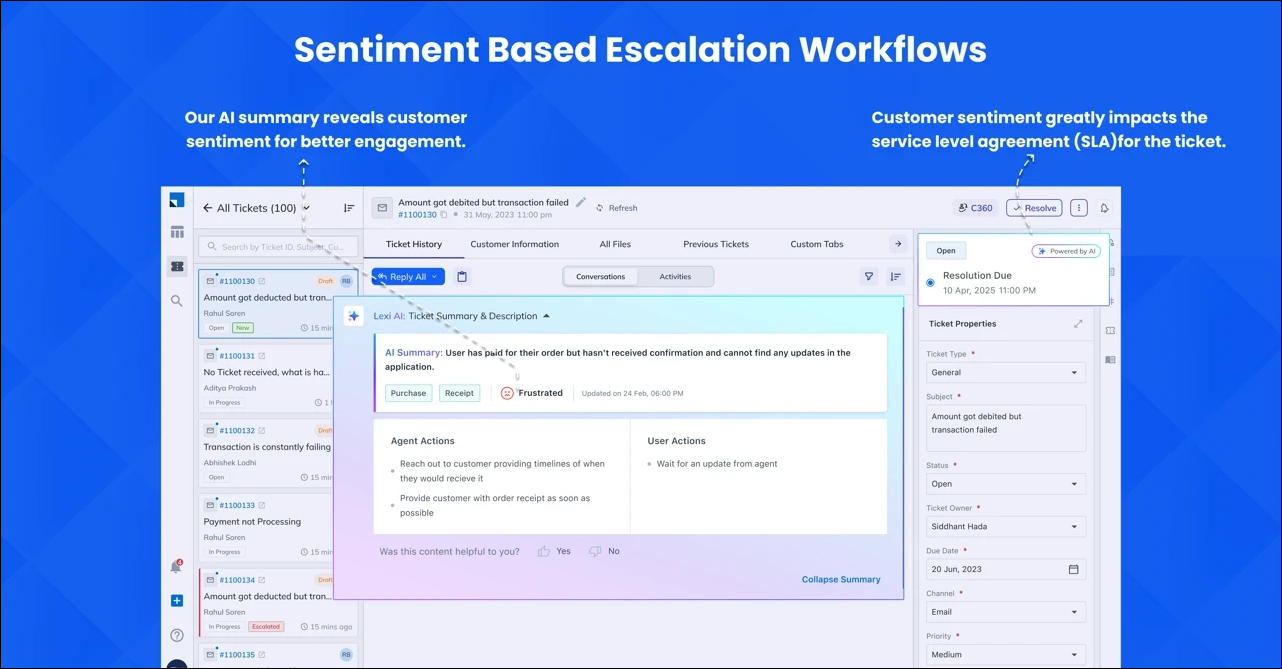
For example, if you set up an assignment rule on a closed ticket for detected anger, and a customer responds with “This is unacceptable. Do your work and fix this immediately.” the system detects anger and automatically reopens and assigns the ticket to an agent.
Another example is if you set up an automation that triggers when the system detects a request, and a customer raises a ticket with “Thank you for refunding the excess amount. Can you please check the ETA for the order and let me know? Thanks.”, the system detects a request, triggers the automation, and assigns the ticket to an agent.
This helps you proactively address dissatisfied customers, reduce manual effort, and ensure timely resolution of critical issues.
2. How it Works
You must configure workflows through which the system identifies intent (Request, Complaint and Query) and emotions (Anger, Frustrated, Disgust, Sad, Neutral, and Happy). This can be configured across all the three workflows listed below –
- Assignment Rules – Configure rules that assign tickets to your agents and Service Groups based on the intent or emotion detected on these tickets. To know more, refer to Sentiment-based Ticket Assignment.
- Automations – Configure automations that assign tickets to your agents and Service Groups based on the intent or emotion detected on these tickets. To know more, refer to Sentiment-based Escalation Triggers.
- SLA Policies – Configure SLA policies that escalate tickets up the organisation hierarchy based on the intent or emotion detected on these tickets. To know more, refer to Sentiment-based SLA Escalation.
Once this is done, our AI will identify tickets based on the configured emotions and trigger the relevant workflow.
3. Filter Tickets by Intent and Emotions
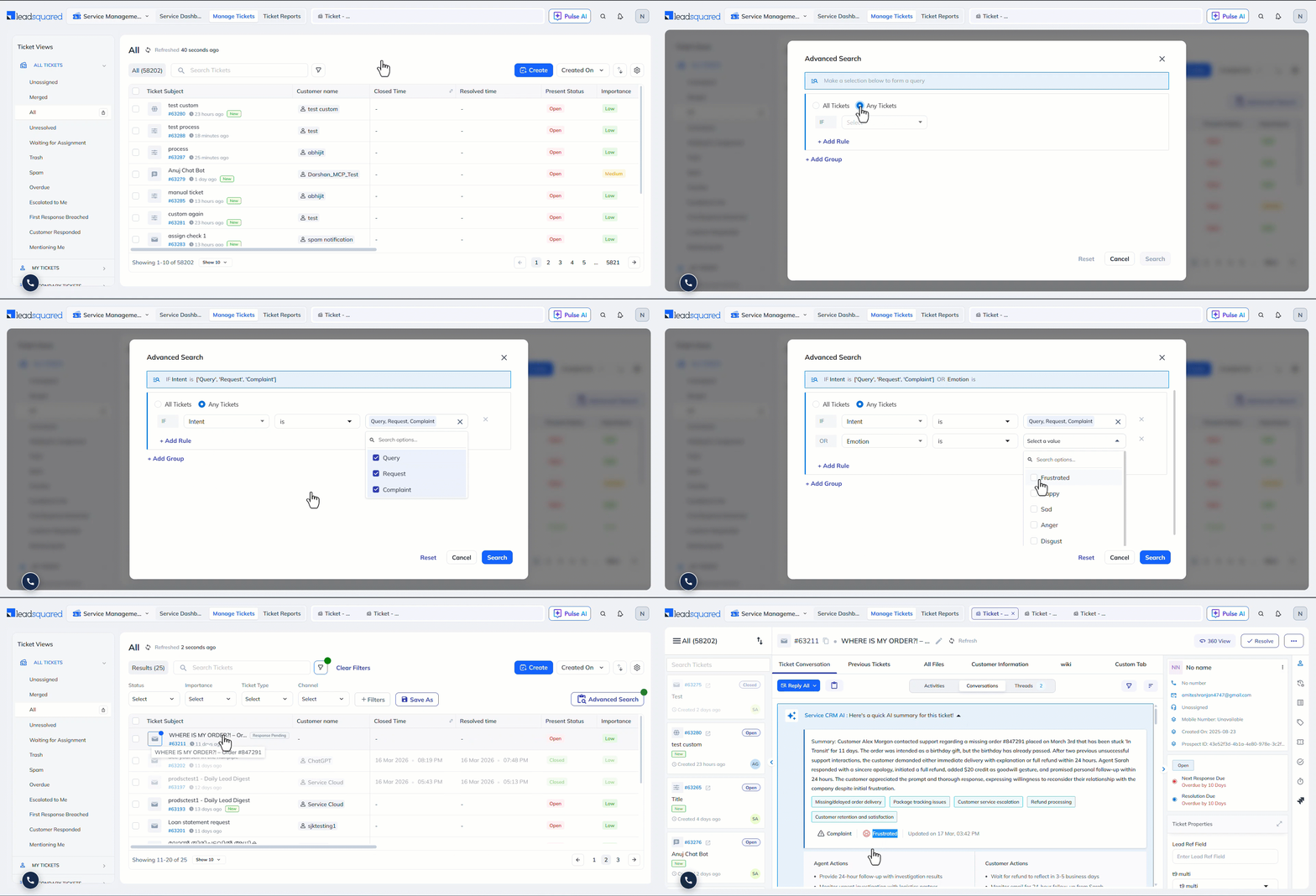
You can filter existing tickets by intent and emotions from the Manage Tickets page using the Advanced Filter option.
Any Questions?
Did you find this article helpful? Please let us know any feedback you may have in the comments section below. We’d love to hear from you and help you out!





