


Get Started

Sales Suite
Field Ops
Marketing
Service CRM
Integrations & Apps
FloStack
Manage Tasks for Admins

1. Feature Overview
This article explains how to configure and use different task types in LeadSquared. You’ll also learn how to create custom task types based on your business needs. For example, you can add a “Collect KYC Documents” task to a lead or an “Inspect Vehicle for Motor Insurance” task to an opportunity. You can also configure reminders, fields, and forms for each task type.
LeadSquared has two task types:
- Appointments are scheduled meetings between LeadSquared users and leads, with a defined start and end time.
- To-dos are tasks assigned to users without fixed start or end times but with an expected completion timeframe. Unlike appointments, to-dos may or may not involve direct lead interaction.
| Appointments | To-dos |
| Have a definite start and end date and time (e.g., 14 November 2018, 2 p.m. to 4 p.m.). | They don’t have a specific start and end time.
But, they can be set to be completed within a date range (e.g., tomorrow, this week, this month) without defining an exact time. |
| Examples include meetings, webinars, demos, and presentations. | Examples include follow-ups on old leads, cold calls, in-field address verification, and similar tasks that don’t need a set time. |
| Appear on both the classic list and calendar views on the Manage Tasks and Smart Views pages. | Appear on the classic list view and in the right pane of the calendar view. |
| There are a few system Appointments. | There are no system To-dos. |
2. Prerequisite
You must be an Admin user to create and customise task types.
3. How it Works
This article lists the task types you can create and configure in your account, and explains how you can customize each one for your business. There are two task types: Appointments and To Dos.
You can create custom tasks that match your business needs. To create a task type, configure a few basic settings such as Name, Reminder, and Location. Your account also includes a few system tasks by default, such as Meeting, Phone Calls, Proposal, Pitch, and Demo. You can edit these tasks as required. After you configure the tasks, your users can add them to leads and opportunities, and work towards completing them. Admins can also add tasks to leads and opportunities, and use LeadSquared Automations to automate task creation.
4. Create a New Appointment Task Type
To access Appointments, navigate to My Account>Settings>Leads>Configure Task Types>Appointments. Here, you can edit existing Appointments and create new ones. In this section, we show you how to create a new Appointment.
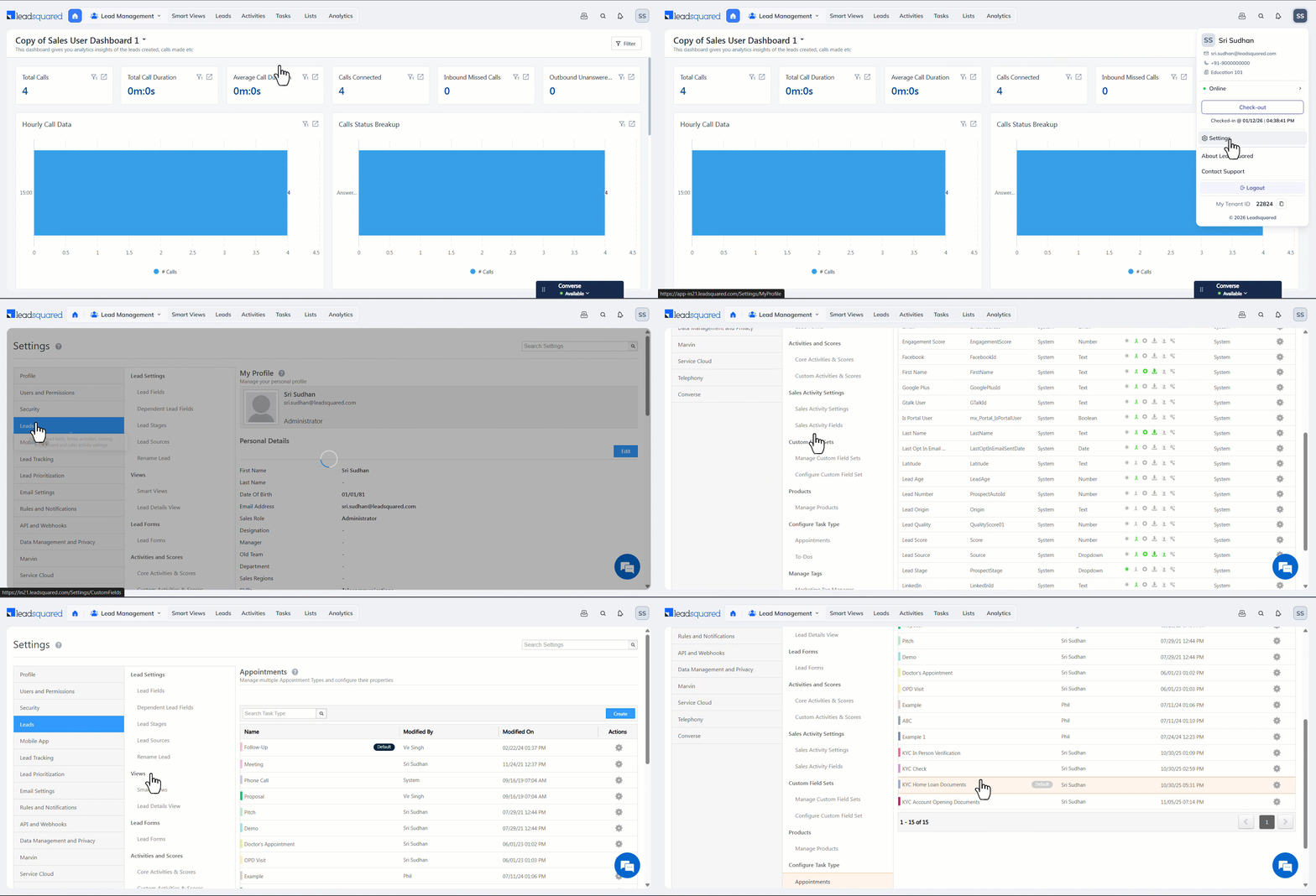
4.1 Configure Appointment Details
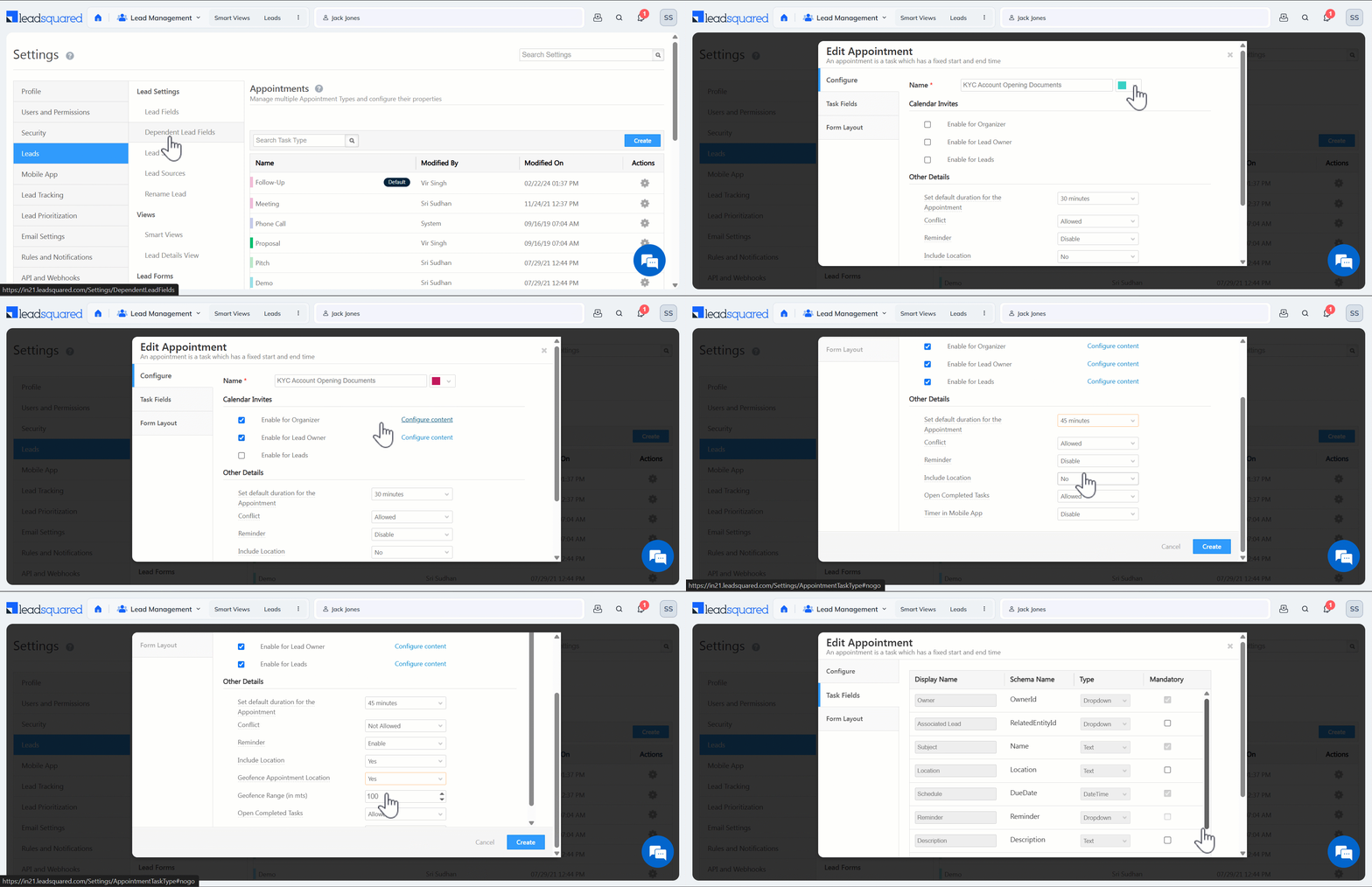
- On the Appointments page, click Create.
- On the Configure tab, enter the following details –
- Name – Enter a relevant name. This is mandatory.
- You can also choose a relevant colour for the task based on its urgency, such as using shades of red for high-priority tasks.
- Calendar Invites – You can enable calendar invites for the organizer, lead owner, and leads. The system sends invites as .ics files that work with iCalendar clients such as Outlook, Google Calendar, Apple Calendar, and Lotus Notes. You can also customise the email content by clicking Configure Content.
- Set default duration for the appointment – Select a default duration for the task from the dropdown. You can override it while creating the task.
- Conflict – Select Allowed to create more than one Appointment in the same time slot. For example, you can create two Appointments at 5 PM.
- Reminder – When enabled, the system sends an email reminder to the task owner before the task is due. The default reminder goes out 15 minutes before the task time, which you can change while creating the task.
- Include Location – When enabled, this lets you capture a location directly in a task field using maps.
- Geofence Appointment Location* – If Include Location is set to Yes, you can geofence the appointment so users complete it only when they are within a specific distance from the lead’s location. To know more, refer to LeadSquared’s Geofencing.
- Geofence Range – Defines the radius, in meters, within which the task must be completed. For example, if you select 100 meters, users must be within 100 m of the lead’s location to complete the task.
- Open Completed Tasks – Lets you reopen a task that has already been completed.
- Timer in Mobile App – When enabled, a Start Task button appears in the mobile app. When clicked, it tracks the time taken to complete the task. To know more, refer to Task Timer in LeadSquared Mobile App.
- Name – Enter a relevant name. This is mandatory.
- Once you’re done, click Create.
The task type is now created. In the following sections, you can configure the task fields and their layout.
4.2 Task Fields
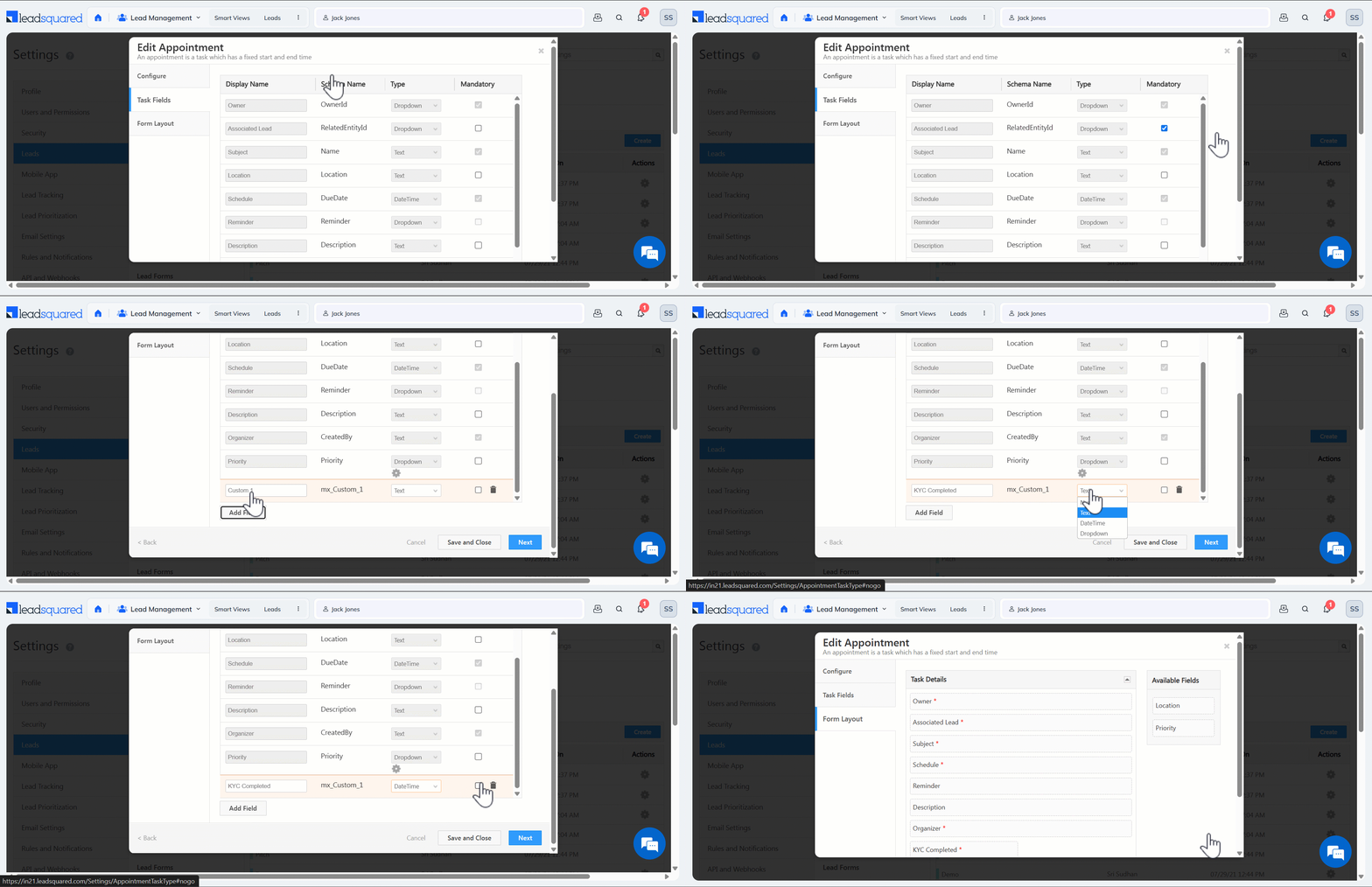
Task fields store and display information specific to a particular task.
- On this tab, you’ll see several system-created task fields.
- You can’t delete them, but you can mark them as mandatory or optional.
- You can also create custom task fields by clicking Add Field, setting a name and data type (number, text, date-time, or dropdown), and clicking Save.
4.3 Form Layout
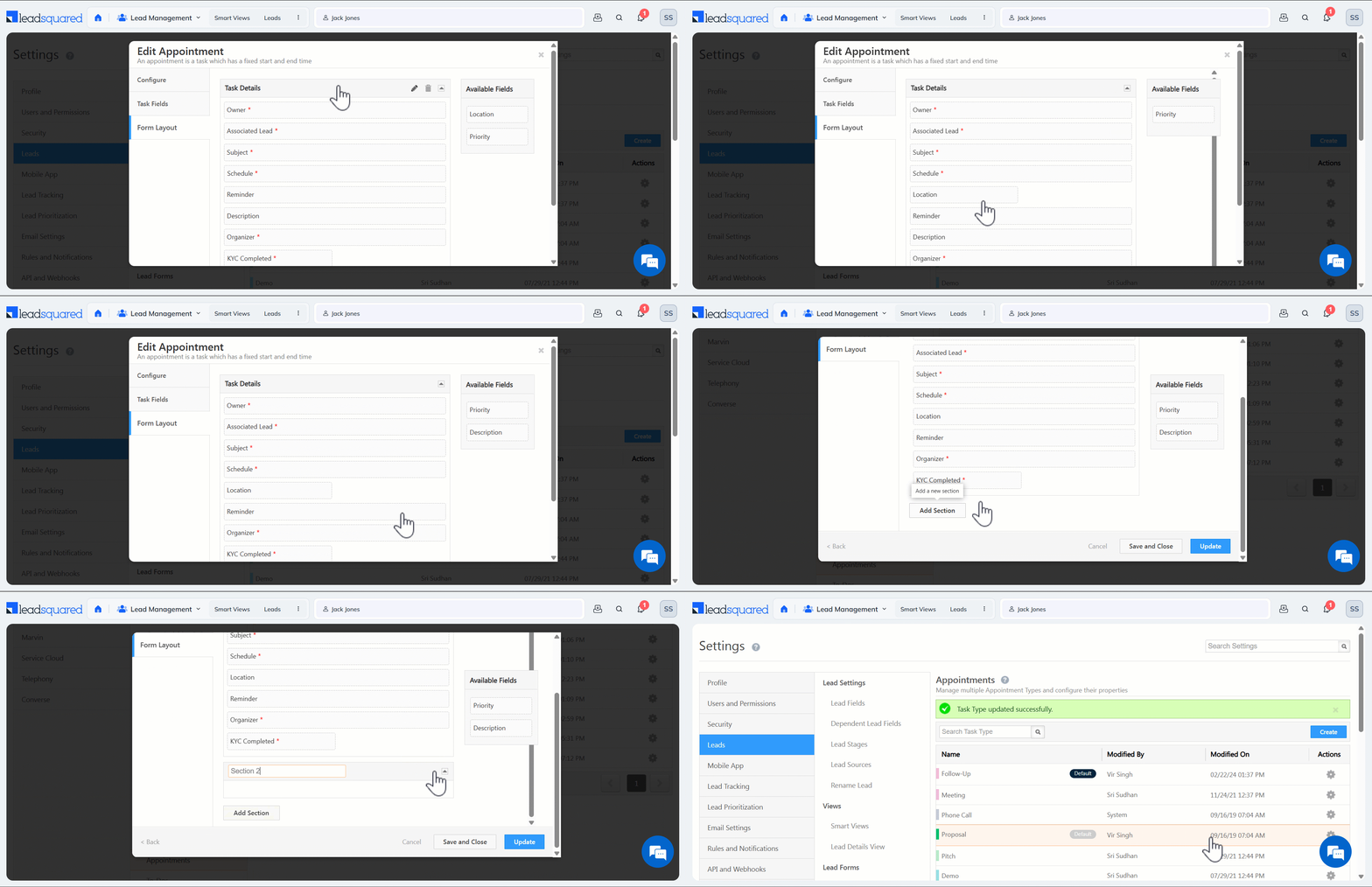
All task fields are displayed in a form that users fill out while working on a task. You can select and reorder these fields as needed.
- On the Form Layout tab, drag and drop the fields you want to display in the task creation form.
- You can expand and contract the size of a task field.
- Click Add Section to include multiple sections in the form.
- Once you’re done, click Save. This completes the task creation process.
Note: Mandatory fields cannot be removed from the form.
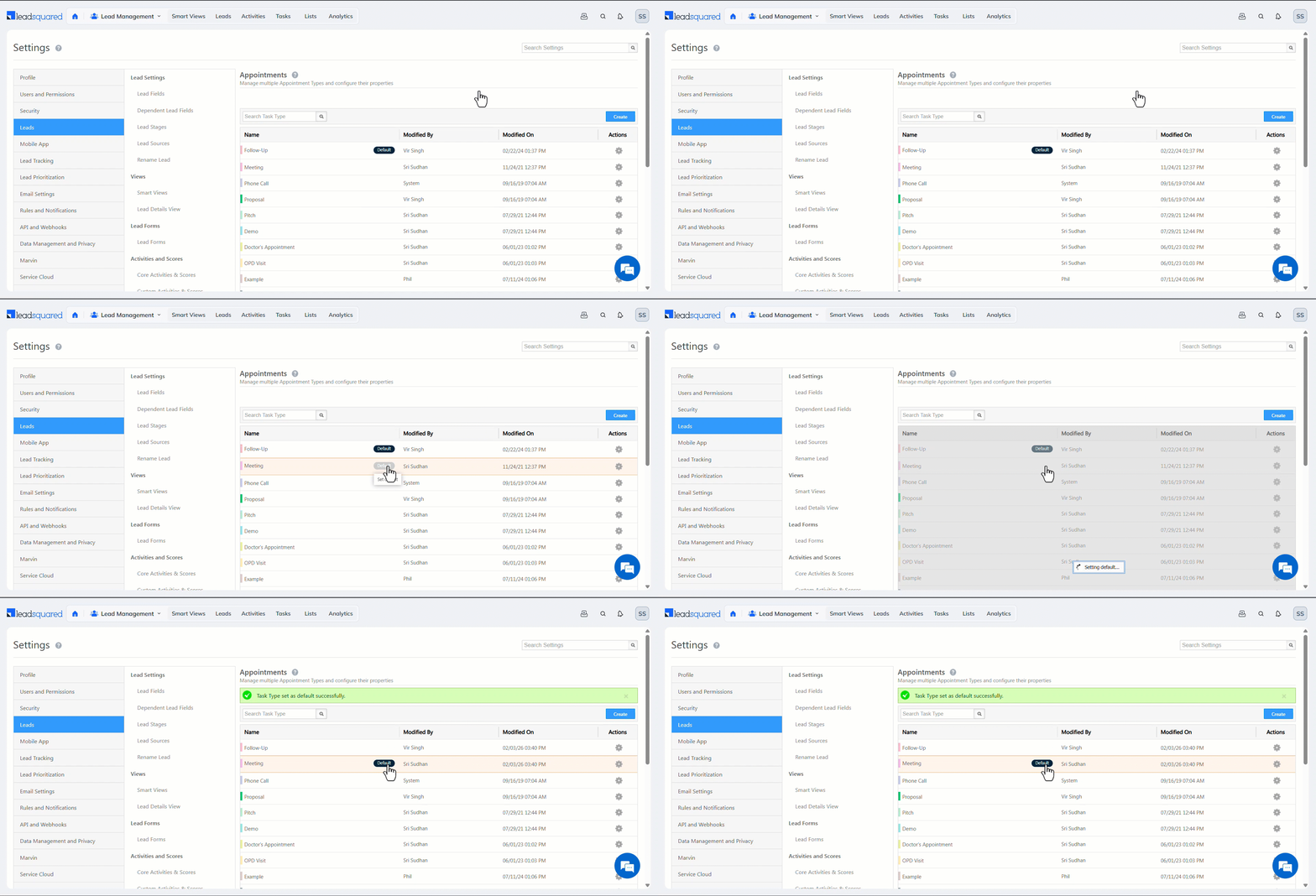
4.4 Set as Default
You must mark one Appointment task type as the default. This task appears by default in the Add Task form when users add a task to a lead or an opportunity.
5. Create a New To-do Task Type
To access To-dos, navigate to My Account>Settings>Leads>Configure Task Types>To-Dos. Here, you can edit existing To-dos and create new ones. In this section, we show you how to create a new To-do task.
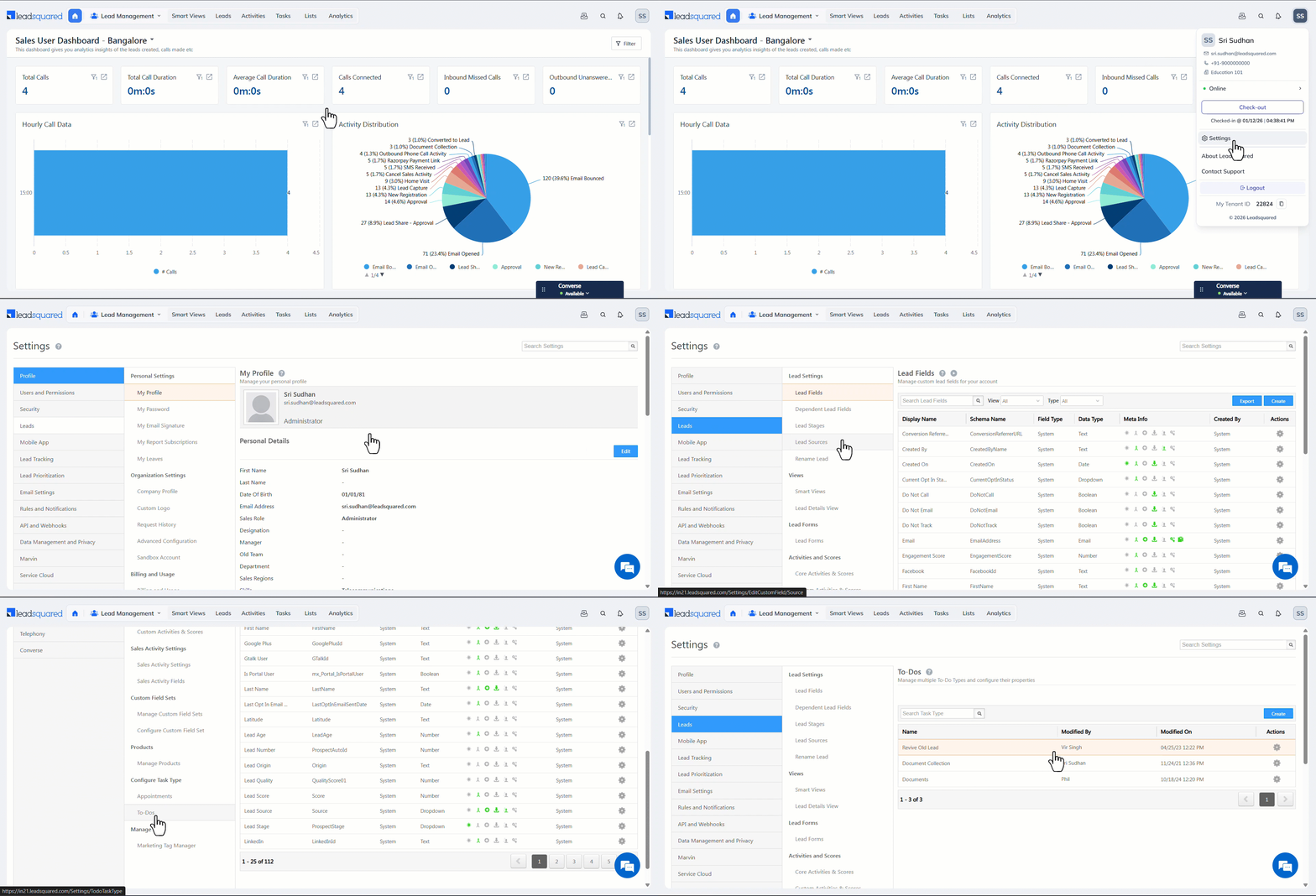
5.1 Configure To-do Details
- On the To-do page, click Create.
- On the Configure tab, enter the following details –
- Name – Enter a relevant name. This is mandatory.
- Set default due date for To-Do – Select a default completion due date for the task from the dropdown. This applies to all to-dos by default, and you can override it while creating the task.
- Default Effort Estimate – Configure the estimated time it would take for your users to complete the task.
- Reminder – When enabled, the system sends an email reminder to the task owner before the task is due. The default reminder goes out 15 minutes before the task time, which you can change while creating the task.
- Include Location – When enabled, this lets you capture a location directly in a task field using maps.
- Geofence Appointment Location – If Include Location is set to Yes, you can geofence the appointment so users complete it only when they are within a specific distance from the lead’s location.
- Geofence Range – Defines the radius, in meters, within which the task must be completed. For example, if you select 100 meters, users must be within 100 m of the lead’s location to complete the task.
- Open Completed Tasks – Lets you reopen a task that has already been completed.
- Timer in Mobile App – When enabled, a Start Task button appears in the mobile app. When clicked, it tracks the time taken to complete the task. To know more, refer to Task Timer in LeadSquared Mobile App.
- Once you’re done, click Create.
The task type is now created. In the following sections, you can configure the task fields and their layout.
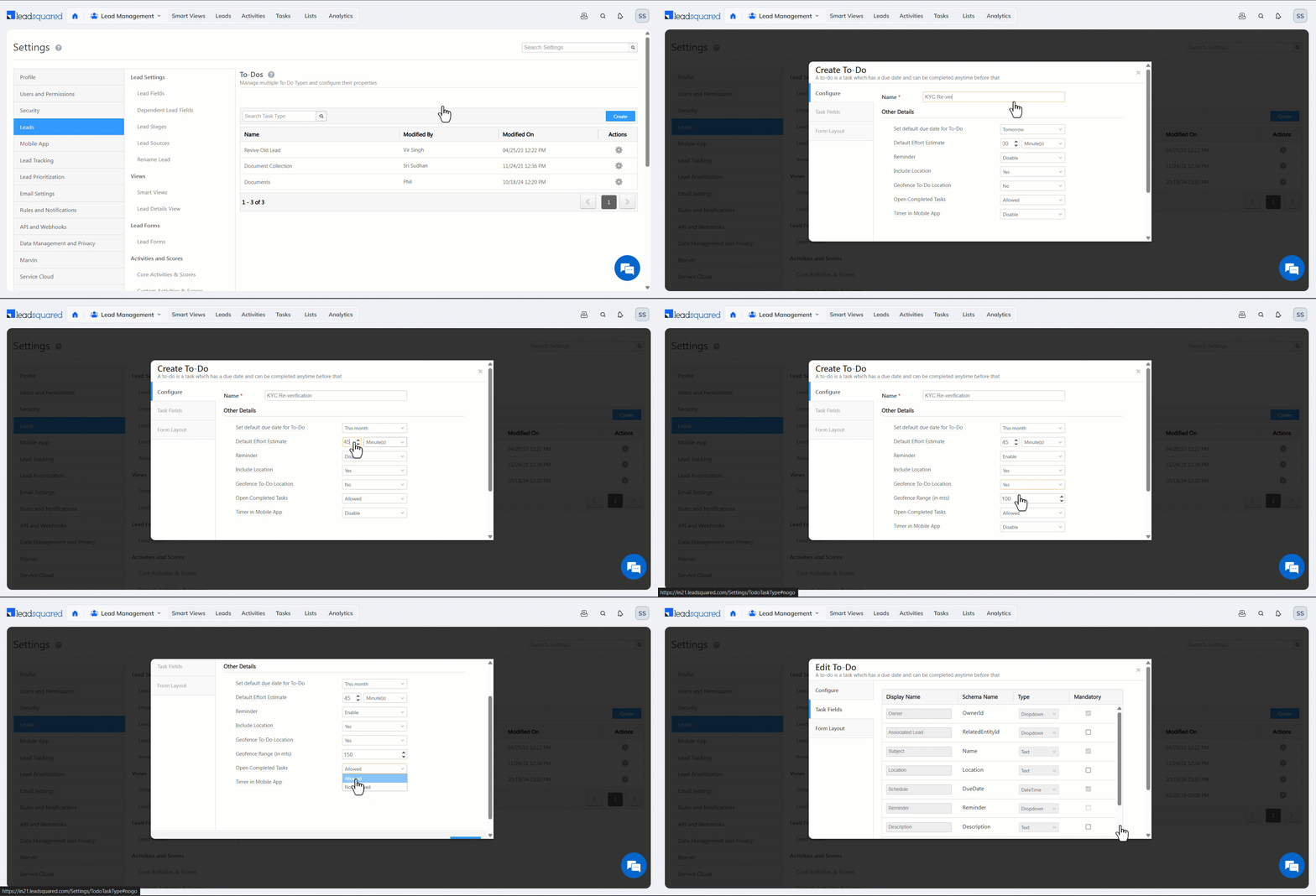
5.2 Task Fields
Task fields store and display information specific to a particular task.
- On this tab, you’ll see several system-created task fields.
- You can’t delete them, but you can mark them as mandatory or optional.
- You can also create custom task fields by clicking Add Field, setting a name and data type (number, text, date-time, or dropdown), and clicking Save.
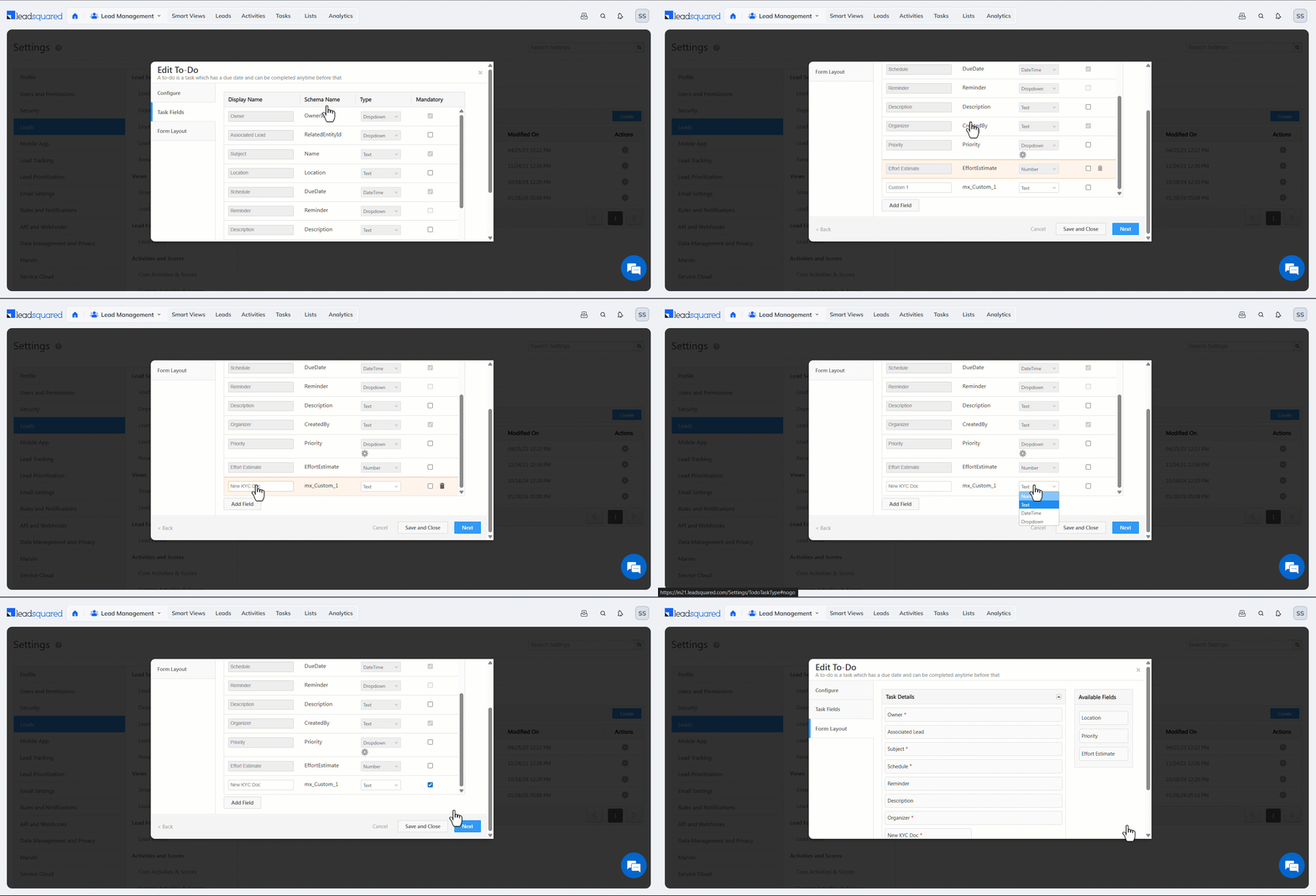
5.3 Form Layout
All task fields are displayed in a form that users fill out while working on a task. You can select and reorder these fields as needed.
- On the Form Layout tab, drag and drop the fields you want to display in the task creation form.
- You can expand and contract the size of a task field.
- Click Add Section to include multiple sections in the form.
- Once you’re done, click Save. This completes the task creation process.
Note: Mandatory fields cannot be removed from the form.
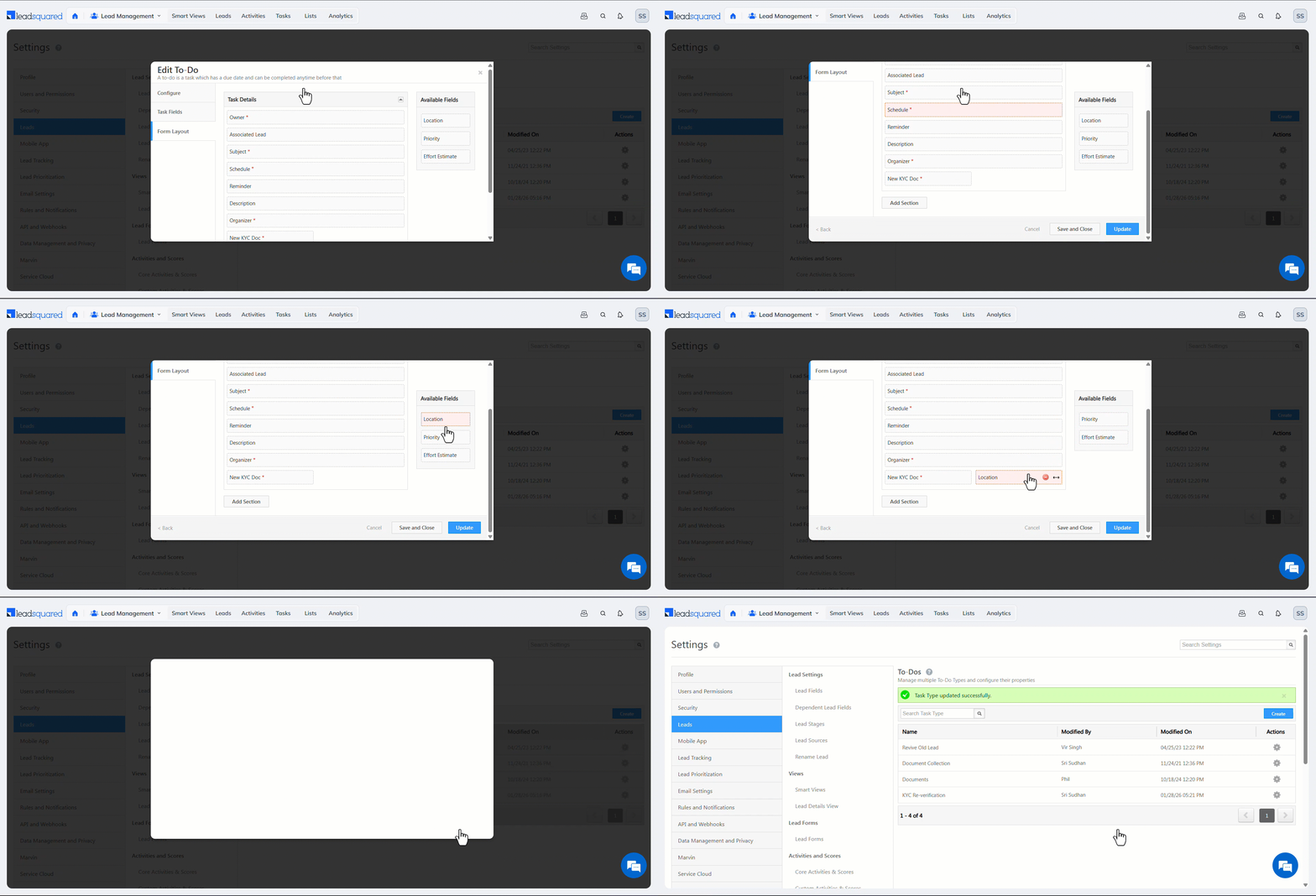
6. Update a Task Type
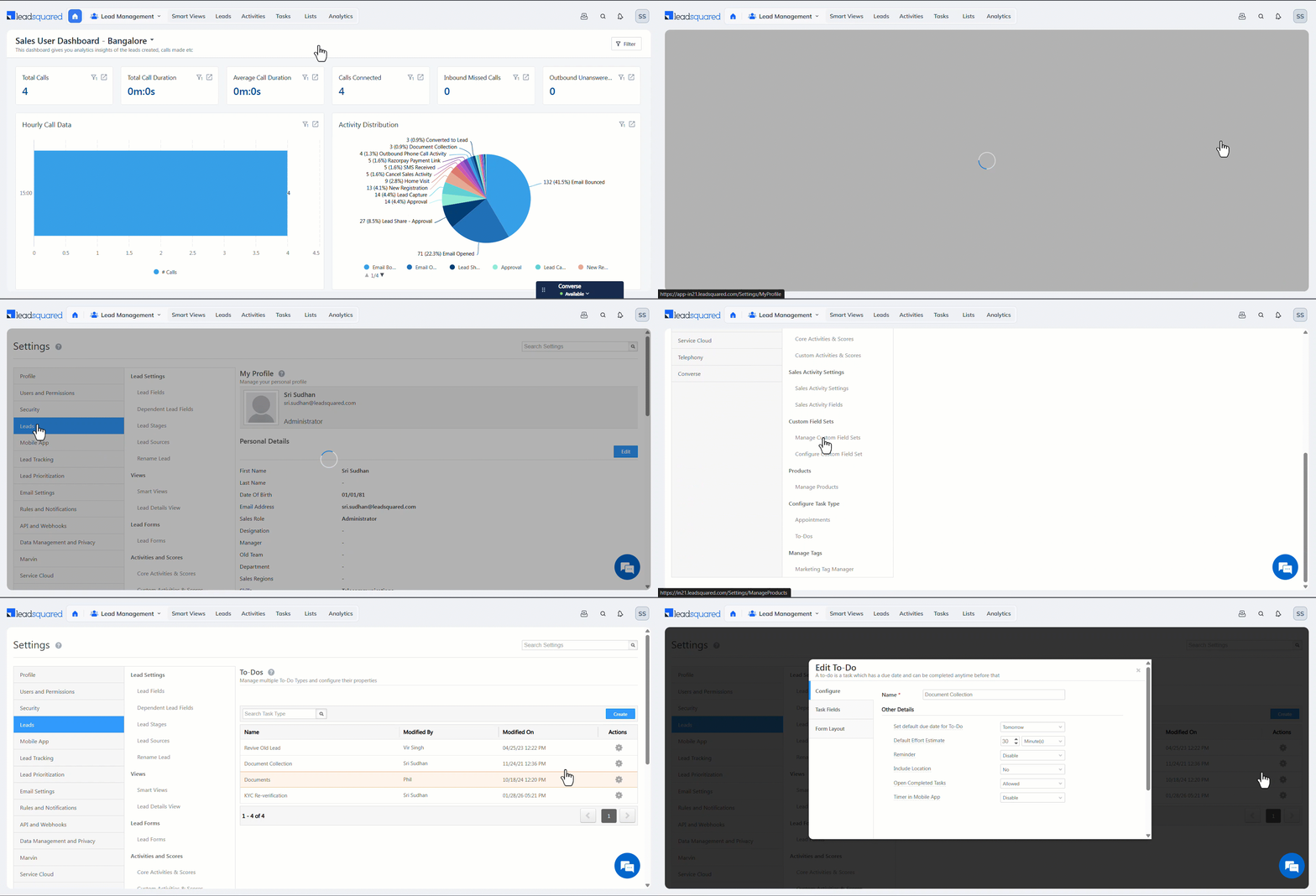
The steps to update an existing system task type and a custom task, including Appointments and To Dos, are the same. To update a task type –
- Navigate to My Account>Settings>Leads>Configure Task Types, and select Appointments or To-dos.
- Alongside the task type you want to update, hover your cursor on the settings wheel, and click Edit.
- On the Edit pop-up, update the relevant details. You can make changes across the Configure, Task Fields and Form Layout tabs.
- Once you’re done, click Save & Close.
7. Next Steps
- Admin Users can automate the task creation process using LeadSquared Automations.
- Admin and Sales Users can directly add tasks and schedule reminders on leads and opportunities.
Any Questions?
Did this article give you what you were looking for? Have any unique use cases you’d like to share? We’d love to hear from you in the comments section below.
I have a question about conflict, Say all the tasks are made via automations, how would a conflict would be handled?
Hi Harshit,
When all tasks are created via automations and there is a conflict, the task creation will fail. If you need further assistance, reach out to us at support@leadsquared.com.
How can we remove cancel task option in mobile app.
Hi Niharika.
You cannot remove the Cancel Task option as it is not customizable. However, the option would be restricted if you have restricted Task Edit option via Permission Template.