
How to Export Your Leads/Lead Details?
1. Feature Overview
We respect the confidentiality of the data you store in LeadSquared. You can export all your leads at any time from the Manage Leads page or the Smart Views page. The exported leads are sent to your registered email address in CSV format.
Note:
- By default, you can export up to 1 lakh (100,000) leads from your account. To increase this limit to 5 lakh (500,000) leads, contact your account manager, or write to support@leadsquared.com.
- Even when you give us support access to your account, our representatives don’t have the ability to export your data.
- The downloaded CSV file, when opened in excel or similar applications, should not require any special permission to view data. For example, “asking permission to run macros”. If you find such instances, please report them back to us at support@leadsquared.com or connect with your account manager.
- If the value of a field starts with the following characters + , – , = , | , @ they will be enclosed within quotes in the exported CSV file. This is done to prevent issues that may arise in Excel (such as format issues, excel injections, etc.) as a result of special characters in the cells.
2. Prerequisites
You won’t be able to export leads if your administrator has restricted export access through permission templates. If you don’t see the export option, contact your administrator.
3. Export Your Leads
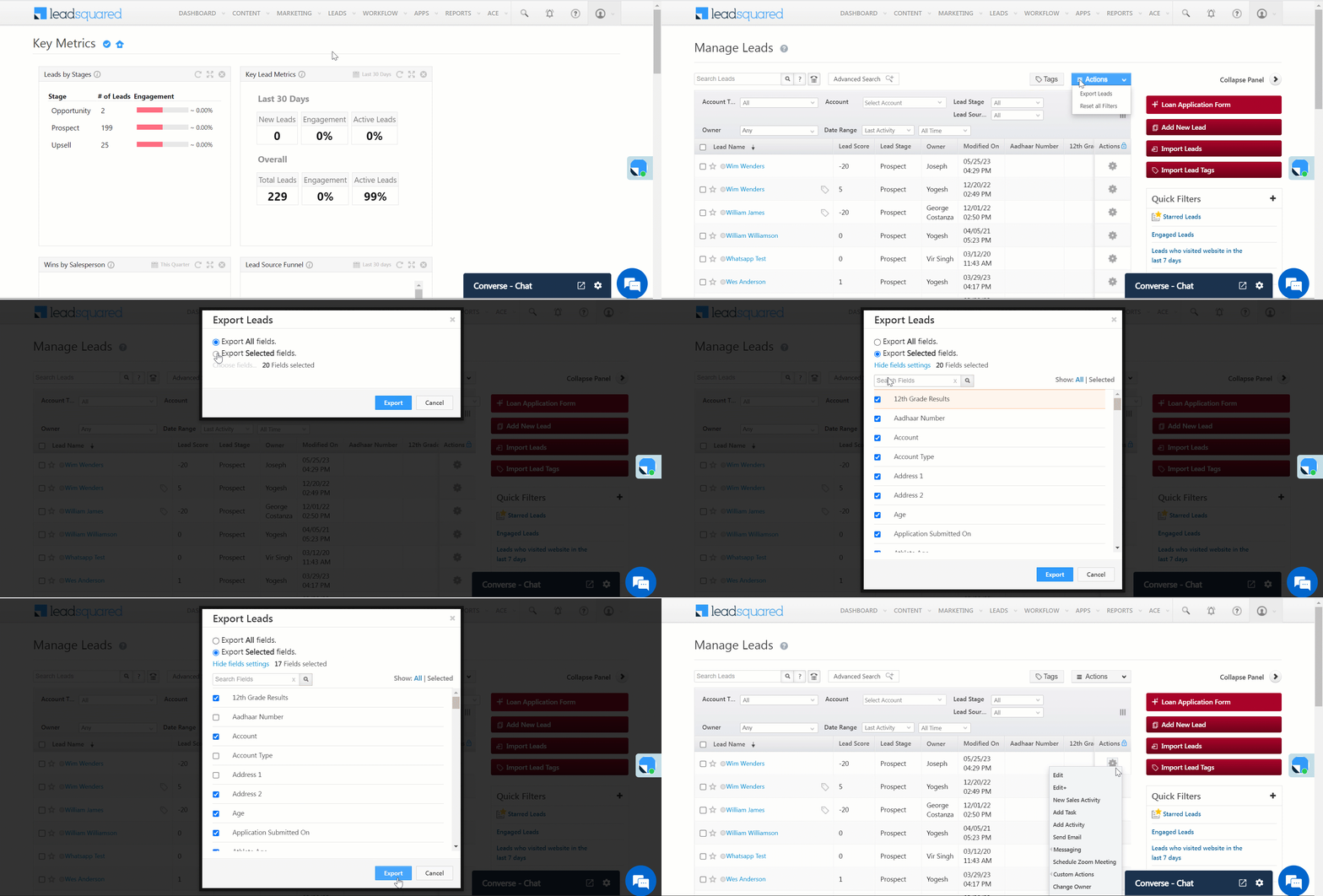
- From your dashboard, go to Leads>Manage Leads.
- Under Bulk Actions, select Export Leads.
- On the Export Leads pop-up, choose whether you want to Export all lead fields or Export selected lead fields.
- If you’ve selected Export all fields, all the lead fields across all pages will be exported into the CSV file.
- If you’ve selected Export selected fields, only the lead fields you select will be exported into the CSV file –
- Click Choose fields.
- To select a lead field, alongside the relevant activity, click the checkbox.
- Click Export when you’re done.
- On the confirmation pop-up, click Ok. Your leads will now be exported into a CSV file and sent to you via email.
4. Check the Status of Your Export Request
To view the status of your export request –
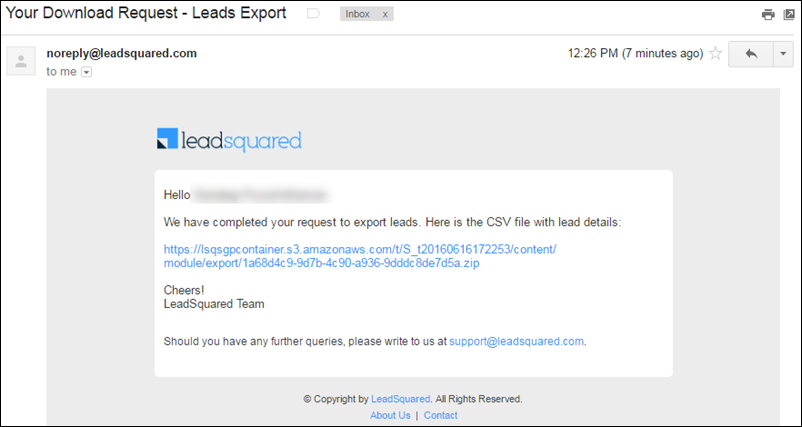
- Click on the link you received via email.
Or - Navigate to My Account >Settings>Account Settings>Organization Settings>Request History.
After the request completes, the CSV file will be sent to your registered email address in ZIP format.
5. Export Custom Lead Fields
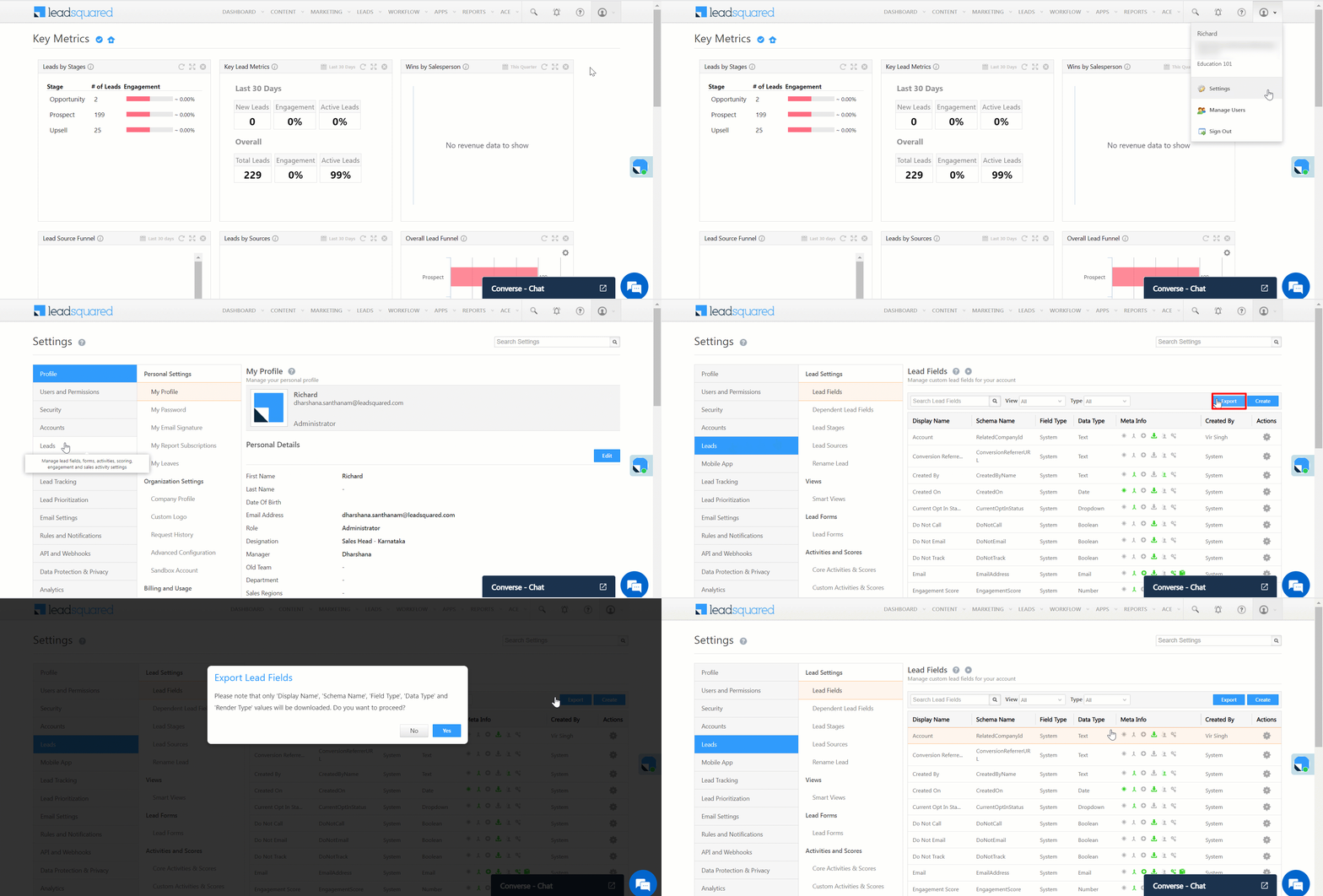
To export custom lead fields from you account –
- Navigate to Settings>Leads>Lead Fields.
- Click Export.
Note: Only the following values will be exported when you export lead fields –
- Display Name
- Schema Name
- Field Type
- Data Type
- Render Type
6. Export a Selected Set of Leads
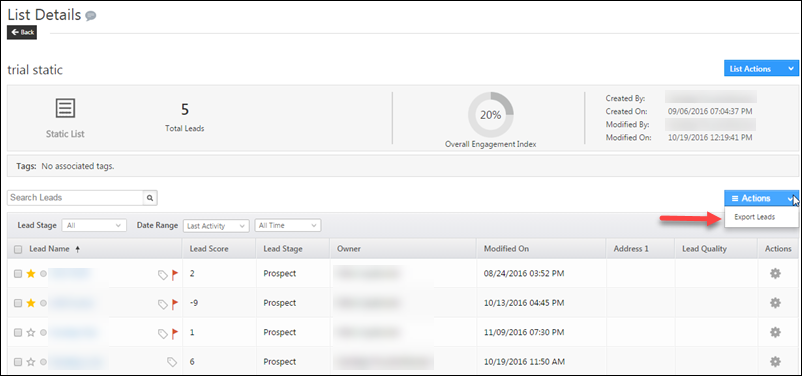
If you want to export a selected set of leads –
- Navigate to Leads>Manage Lists and create a static list.
- Add the required leads to this list and then export using the Actions feature.
For more information on Lists and List Actions, refer to List Actions.
7. FAQs
1.Why is my Lead Import stuck in “In Queue” status?
Lead imports are processed in batches, and your request may be waiting behind others in the queue. This is normal and usually occurs during peak usage hours. The system prioritizes execution during off-business hours, so your import should typically complete overnight. If it remains in queue for more than 24 hours, reach out to support@leadsquared.com for assistance.
2. Why can’t I export selected/chosen leads from the Manage Leads grid?
3. How to export more than 1 lakh (100,000) leads?
5. How to control lead export and delete permissions for users?
Any Questions?
Did you find this article helpful? Please let us know any feedback you may have in the comments section below. We’d love to hear from you and help you out!