


Get Started

Sales Suite
Field Ops
Marketing
Service CRM
Integrations & Apps
FloStack
Object Types in Opportunities

1. Feature Overview
You can associate Opportunity Types with specific Object Types to manage opportunities in the context of the entity they belong to. This allows you to create and manage different types of deals for Manufacturers, Wholesalers, Retailers, Builders, or other Object Types.
For example, a Manufacturer may have an existing opportunity for Cement Basic and additional cross-sell or up-sell opportunities for Cement Plus or Cement Star. These opportunities can be associated with the Manufacturer and managed directly from the object’s details page. You can also customize how each Opportunity Type is displayed on the web and mobile applications.
Example Use Case
Consider a business that manages Manufacturers, Wholesalers, Retailers, and Builders as Object Types. You can configure different Opportunity Types based on the business relationship:
- Manufacturer – Cement Plus or Cement Star opportunities.
- Wholesaler – Distribution or bulk-order opportunities.
- Retailer – Product expansion or replenishment opportunities.
- Builder – Project-specific or material-supply opportunities.
Each Opportunity Type can be associated with the relevant Object Type, given its own Details View, and displayed using a customized Opportunity Card on mobile. This helps teams manage opportunities in the context of the specific entity and business relationship involved.
2. Prerequisites
- Object Types must be enabled in your account.
- You must have the required administrator permissions to configure Opportunity Types and Opportunity Details Views.
- To configure opportunities for an Object Type, the relevant Object Type must already be available in your account.
- To use the Opportunity Details View customization, the feature must be enabled for your account. Write to support@leadsquared.com to enable it.
3. How It Works
You can associate an Opportunity Type with one or more Object Types while configuring the Opportunity Type. Once associated, the Opportunity Type is available only for the selected Object Types. This helps teams create opportunities that are relevant to the entity they are managing.
You can further customize the experience by:
- Configuring a separate Opportunity Details View for each Opportunity Type.
- Applying an Opportunity Details View to specific teams.
- Configuring different Opportunity Cards for each Object Type and Opportunity Type on the mobile app.
4. Configure Opportunity Types for Object Types
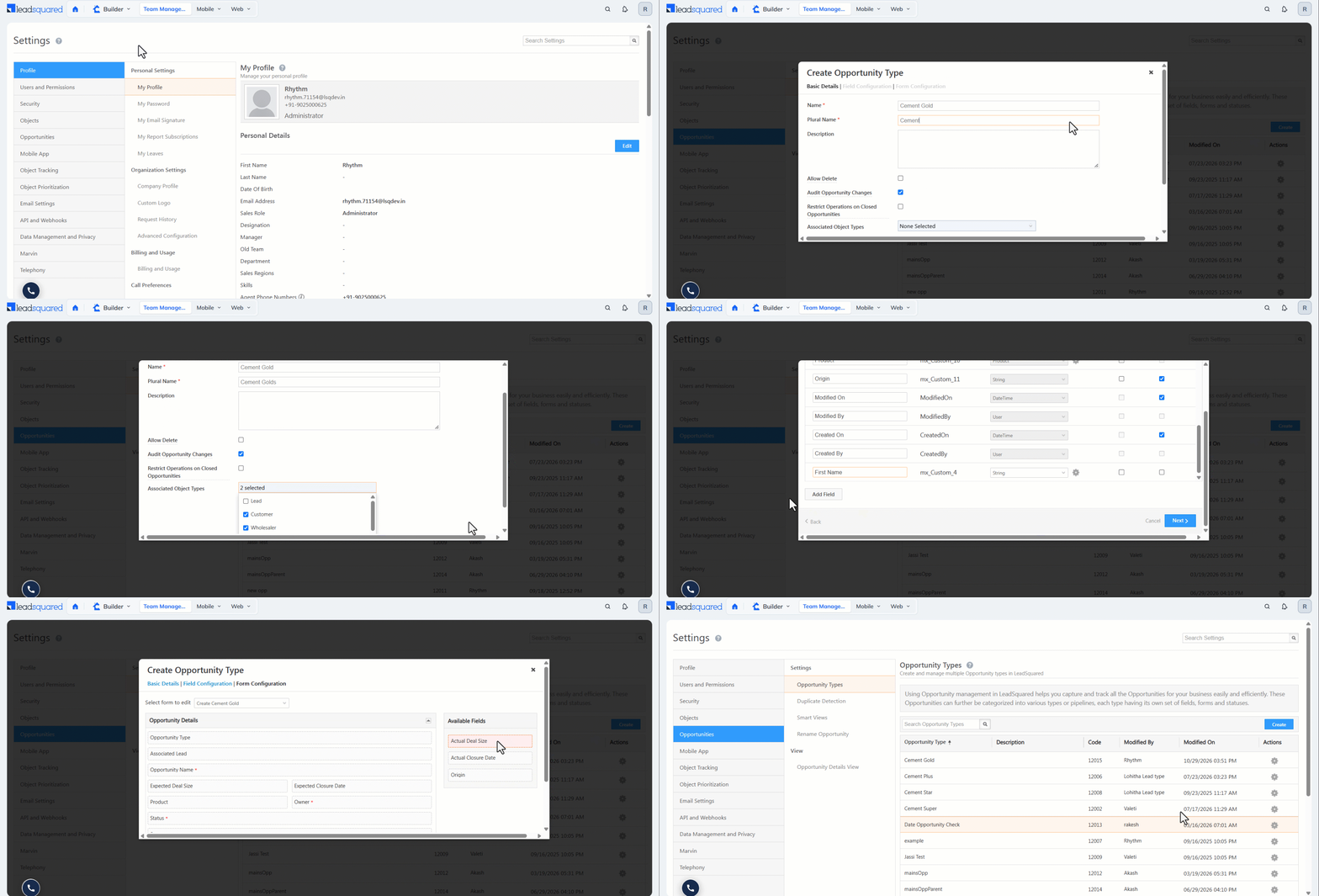
While creating or editing an Opportunity Type, you can associate it with one or more Object Types. For example, if your account has Manufacturer and Wholesaler Object Types, you can create Opportunity Types such as Cement Plus and Cement Super and associate them with the relevant Object Types.
To associate an Opportunity Type with an Object Type:
- Navigate to Settings>Opportunities>Opportunity Types.
- Click Create.
- Enter the required details for the Opportunity Type.
- From the Associated Object Types dropdown, select the Object Types you want to associate with the Opportunity Type and click Next.
- Complete the required Field and Form configuration and click Save.
The Opportunity Type will then be available for the selected Object Types.
5. Customize the Opportunity Details View
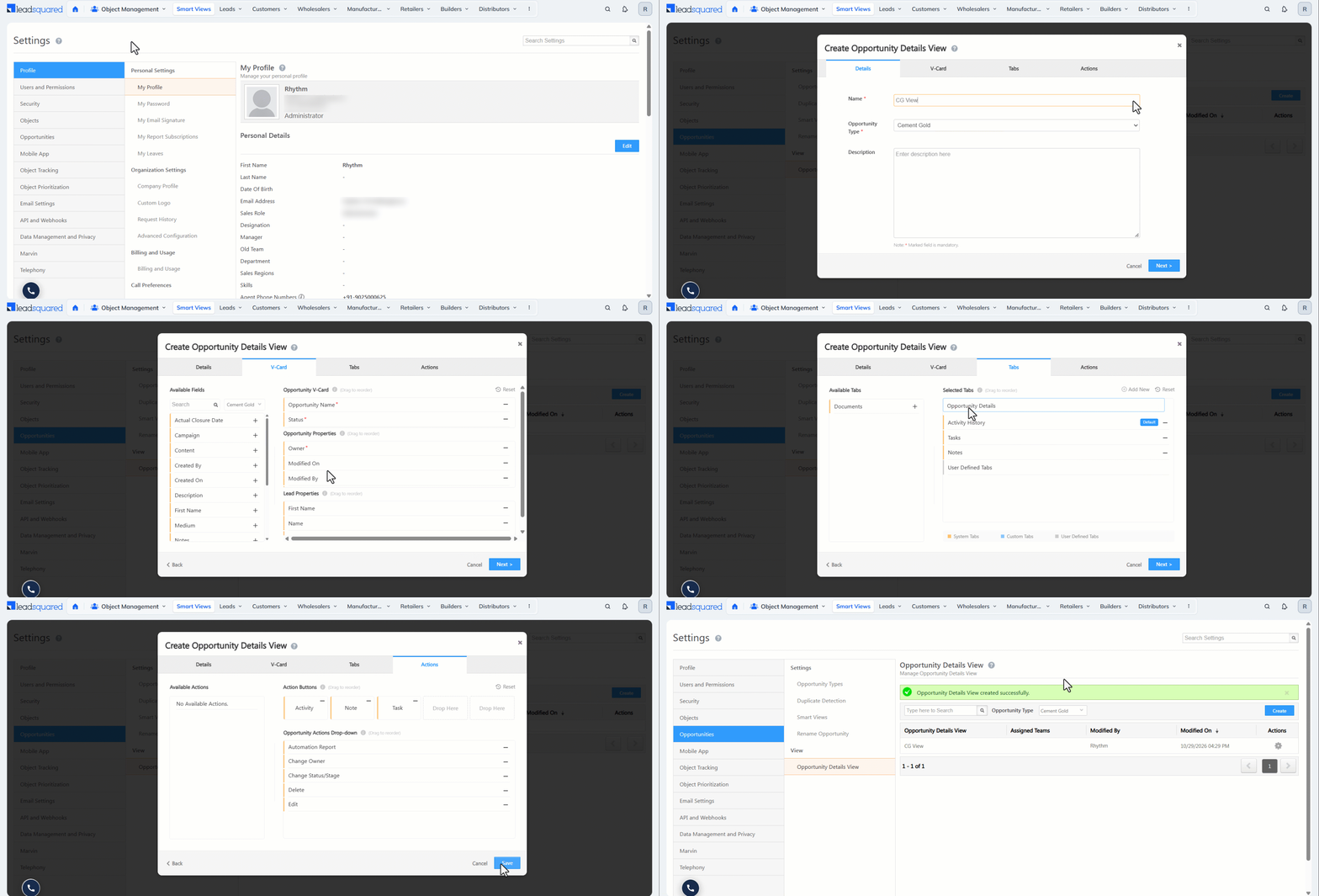
Admins can customize the Opportunity Details View for each Opportunity Type. You can configure the information displayed in the VCard, tabs, and actions so that users see the information most relevant to that type of opportunity.
- To create an Opportunity Details View:
- Navigate to Settings>Opportunities>Opportunity Details View.
- Select the relevant Opportunity type from the Opportunity Type dropdown and click Create.
- Under the Details tab, enter the following:
-
- Name – Enter a name for the view. This is mandatory.
- Opportunity Type – Select the Opportunity Type for which you want to create the view.
- Description – Enter a description for the view.
Configure the information to be displayed in the VCard, Tabs, and Actions and click Save.
5.1 Apply the Opportunity Details View to Teams
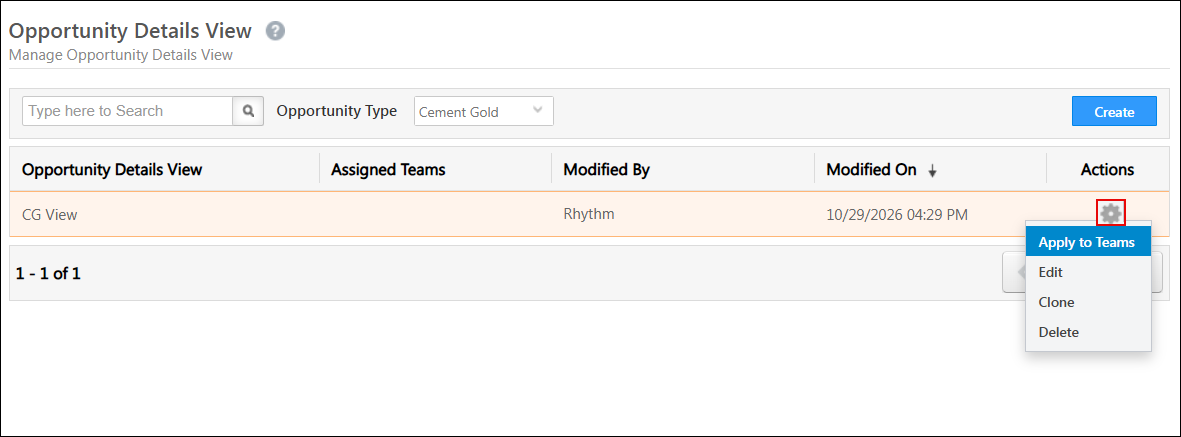
After creating an Opportunity Details View, you can apply it to specific teams.
To apply a view to teams:
- On the Opportunity Details View settings page, hover over the Actions icon for the relevant view.
- Click Apply to Teams.
- You will be redirected to the Teams settings page. Click the Actions icon alongside the relevant team and select Apply Opportunity Details View.
- From the popup, select the relevant Opportunity Details View and save it.
The selected teams will see the configured Opportunity Details View when they access the associated Opportunity Type page.
6. Customize Opportunity Cards on the Mobile App
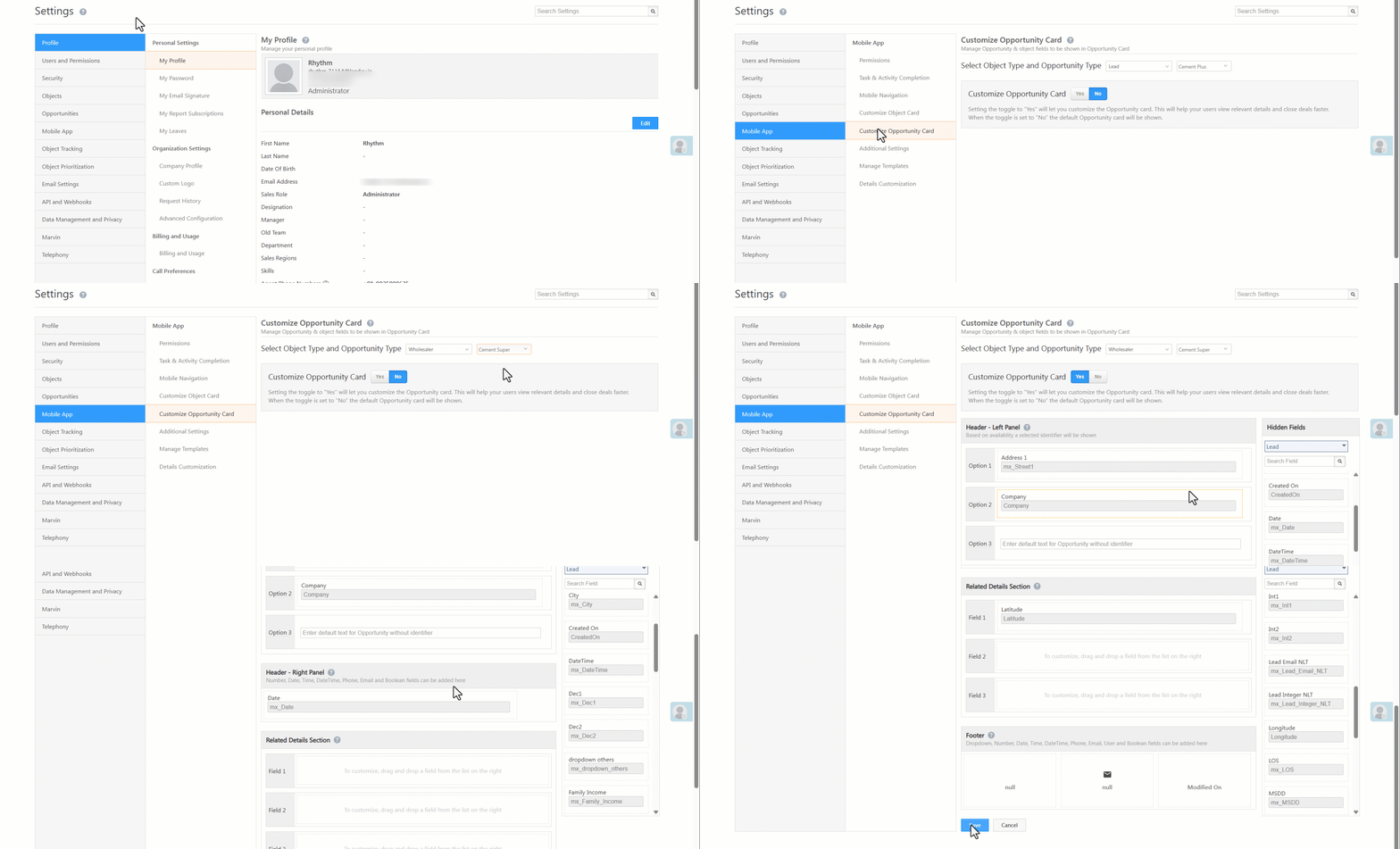
You can configure different Opportunity Cards for each Opportunity Type on the LeadSquared Mobile App. This allows users to see the most relevant opportunity information at a glance. When configuring the card, only the fields associated with the selected Object Type are available for configuration.
To customize an Opportunity Card:
- Navigate to Settings>Mobile App>Customize Opportunity Card.
- From the Object Type dropdown, select the relevant Object Type.
- From the Opportunity Type dropdown, select the Opportunity Type associated with the Object Type.
- Select Yes alongside Customize Opportunity Card.
- Configure the Opportunity Card by selecting and arranging the required fields.
- Save the configuration.
The configured card is displayed for the selected Opportunity Type on the mobile app.
7. Export Opportunities
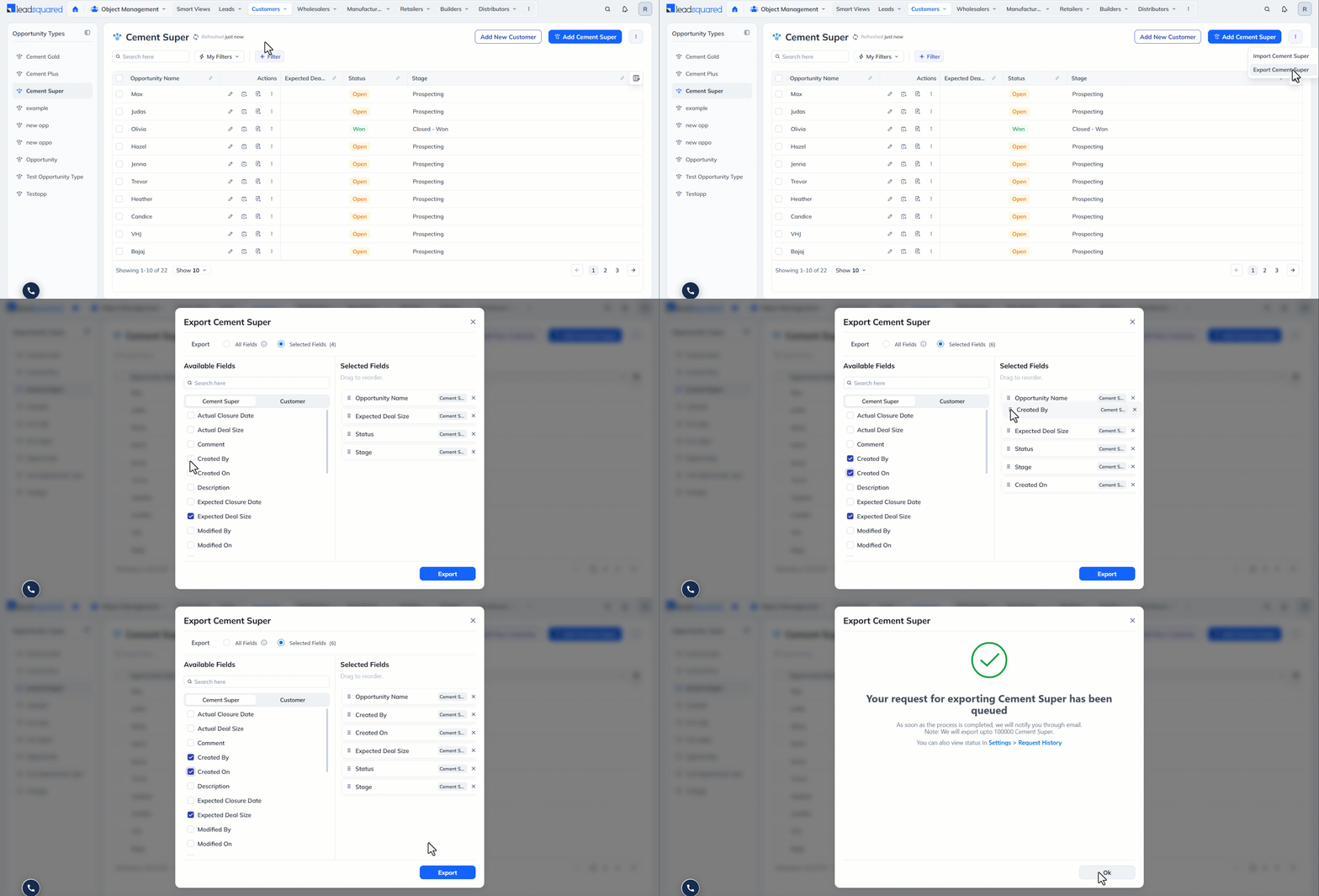
You can export existing opportunities within LeadSquared. To do this –
- From the main menu, navigate to Object Management>Object Type>Opportunities.
- On the relevant Opportunities page, you will see the Opportunity Types on the left panel.
- From the Actions icon, select Export Opportunity.
- If you want to export all the opportunity fields, select “Export all fields”.
- If you want to export only selected opportunity fields, select “Export selected fields”.
- Then click Choose fields.
- You can search for fields by using the Search Fields search box.
- You can choose fields by checking the checkbox against each opportunity field.
- Once you’ve made the selection, click Export. If the export access is successful, you’ll receive an email with the file download link, to the email Id you’ve registered in your LeadSquared account.
8. Import Opportunities
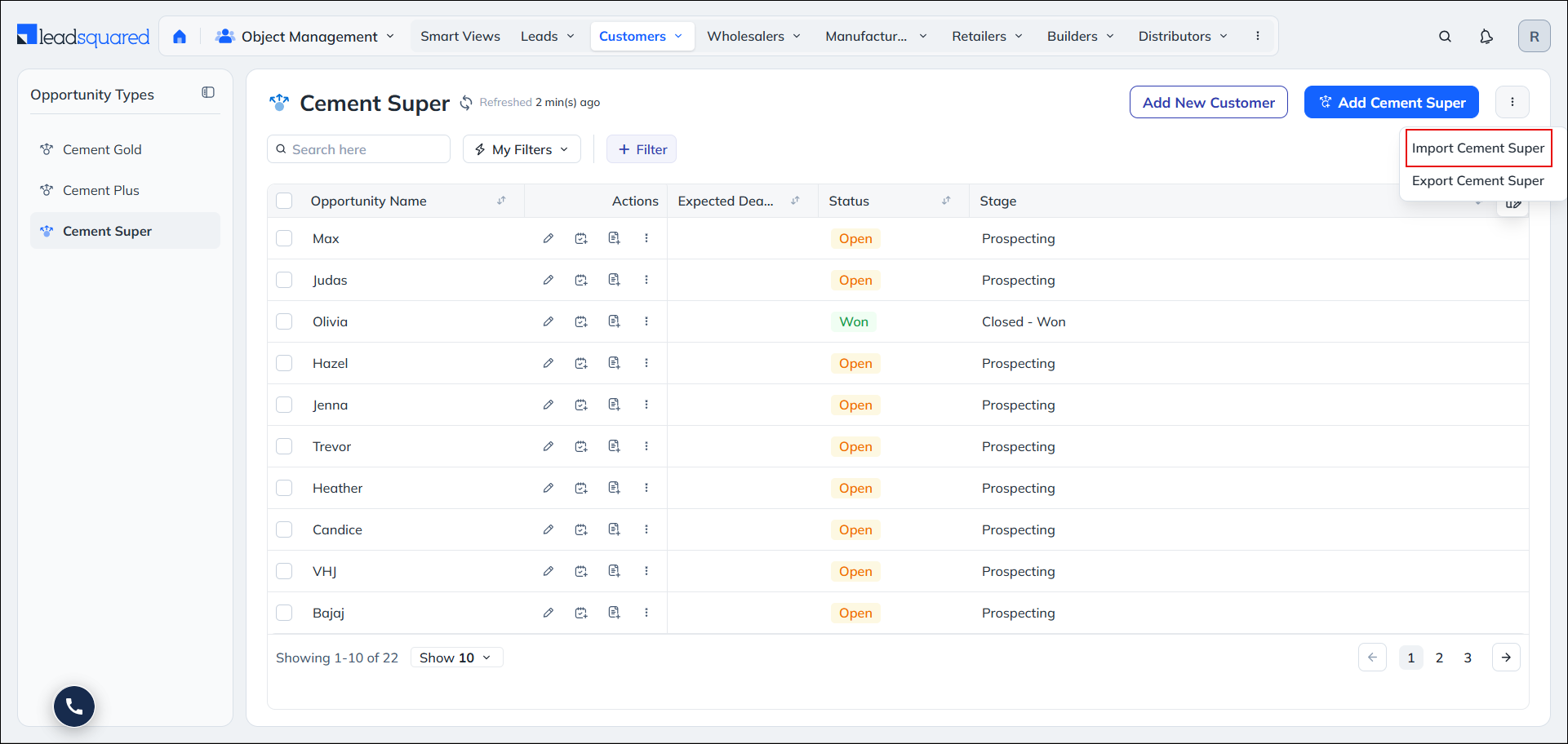
In addition to opportunities users add manually or through automations, you can also import opportunities for specific Object Types using a CSV file. This allows you to create opportunities in bulk and associate them with the relevant objects. For example, you can import opportunities for Manufacturers, Wholesalers, Retailers, or Builders in bulk, based on the business relationship or requirement associated with each Object Type.
- Navigate to the relevant Object Type page and go to the Opportunities page.
- From the relevant Opportunity Type page ,click the Actions icon on the top-right corner of the page and select Import Opportunities.
- To learn how import opportunities, see Import Opportunities.
Any Questions?
Did you find this article helpful? Let us know your thoughts in the comments section below.