


Get Started

Sales Suite
Field Ops
Marketing
Service CRM
Integrations & Apps
FloStack
LOS Process Completion Indicator

Updated
07 Oct 2026 | 05:04 PM
1. Feature Overview
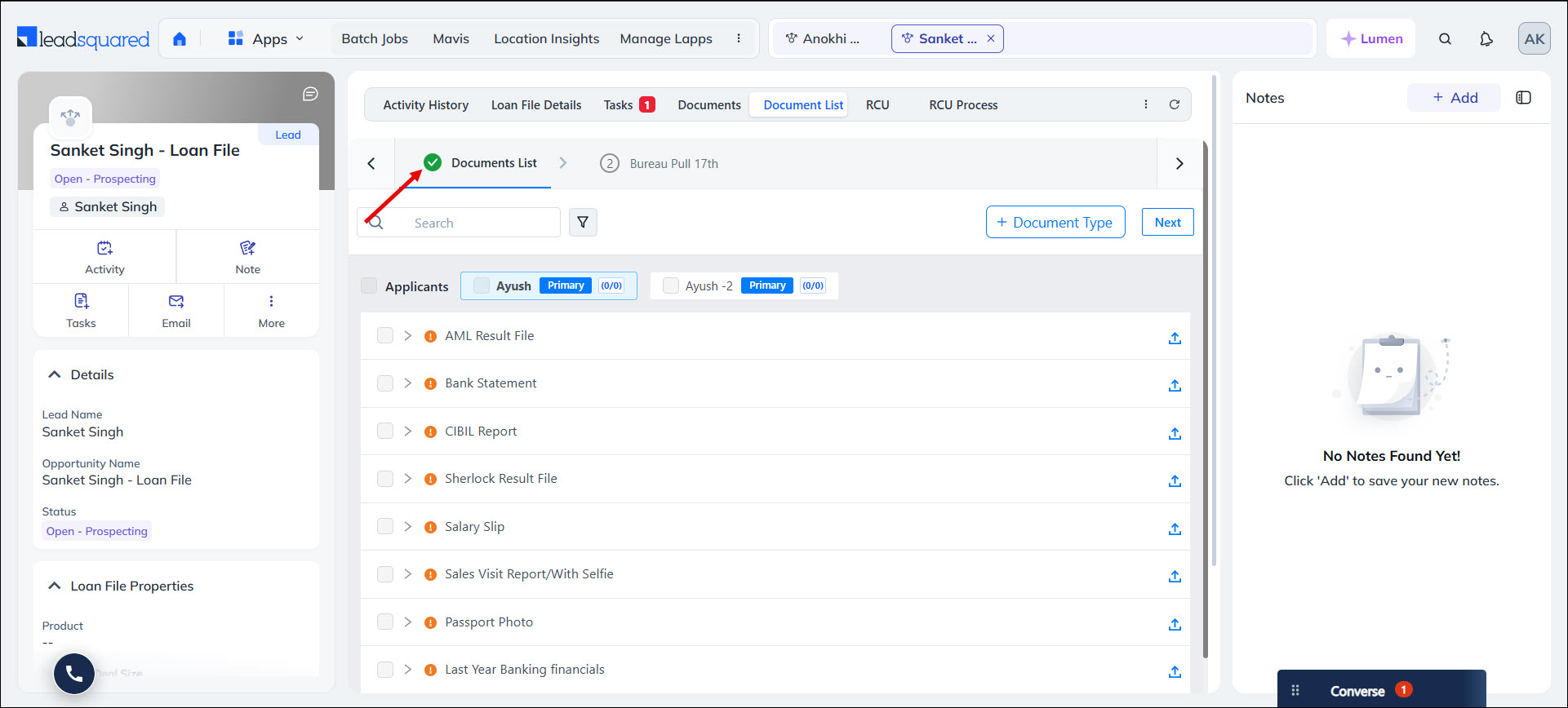
Previously, when working on an application, users had to open each stage and sub-stage to check if it was complete. The Indicative UI lets users view the completion status of each stage and sub-stage through a status indicator based on the conditions you configure. Users can see at a glance which sub-stages are complete and where to resume work on the application.
2. Prerequisites
- You must be an Admin user to configure the status indicator.
- You must have an LOS workflow configured with at least one stage and sub-stage.
- The activity fields you want to use in conditions must already exist.
3. How it Works
- In your LOS workflow, select the sub-stage you want to track, and create a Completion Rule.
- Within the rule, define the conditions that mark the sub-stage as complete, based on activity field values.
- Combine conditions using AND, OR, and groups to build the completion criteria.
- Save and publish the workflow.
- On the Opportunity Details page, each sub-stage displays its completion status.
4. Configure Completion Conditions
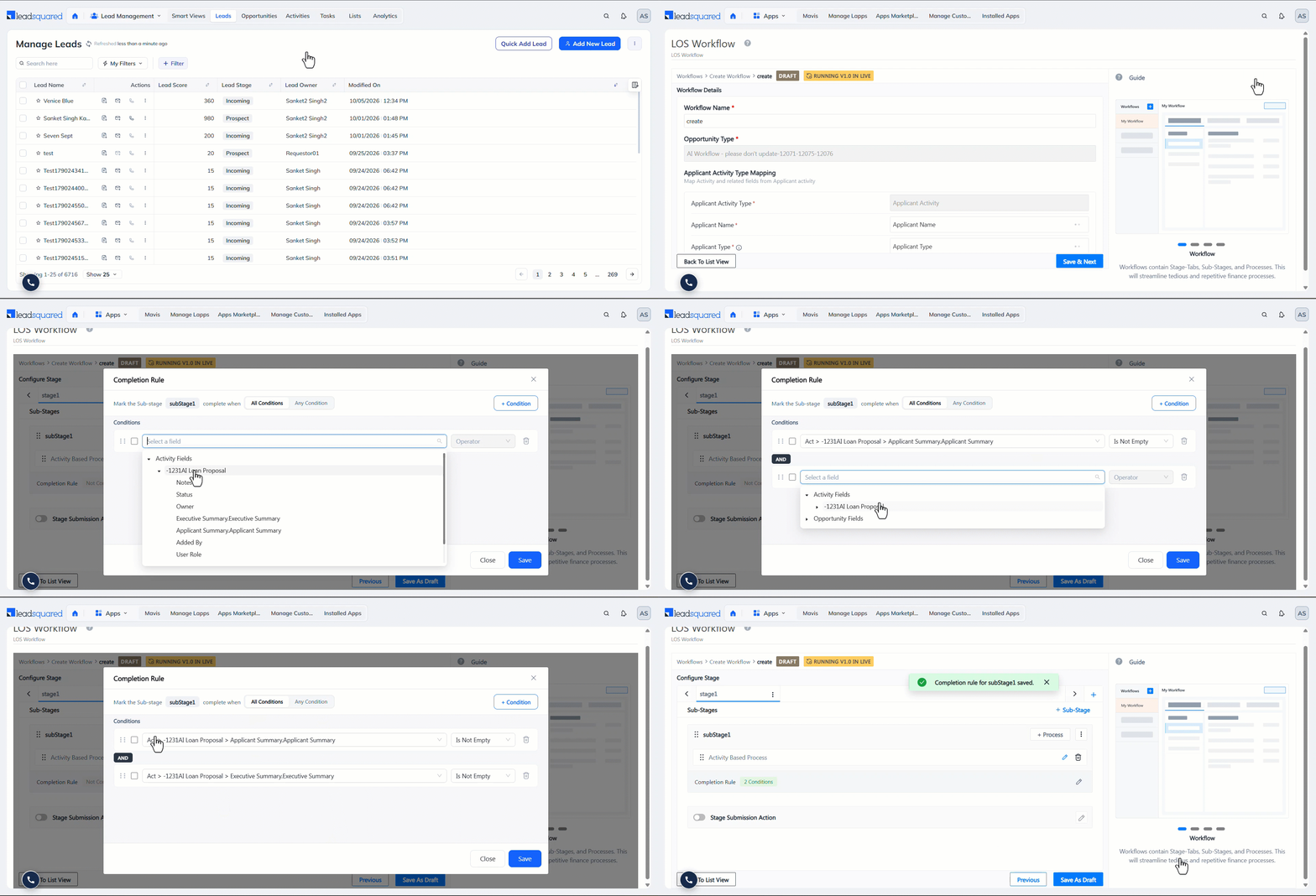
- Navigate to Apps>LOS Workflow, and open the workflow you want to configure.
- On the Configure Stage screen, select the sub-stage, and alongside Completion Rule, click the edit icon.
- On the Completion Rule pop-up, configure when a stage should be marked as complete using the following options –
- Activity Fields – Based on the values stored in the activity fields of the selected activity type.
- Opportunity Fields – Based on the values stored in the activity fields of the selected activity type.
- Operator – The operators used to compare the selected fields with the predefined value.
The available operators are Before, After, Equals, Not Equals, Contains, Is Not Empty, Is Empty, Starts With, More Than, Less Than, Equal To or More Than, Equal To or Less Than, and In. - Value – Enter the predefined value against which the selected activity or opportunity field’s value is compared to determine the completion status.
For example, if you select the Applicant Summary activity field and choose the Is Not Empty operator, the stage is marked as complete only when the summary is stored in the Applicant Summary field.
- To add more conditions, click the Condition button.
- The following operators are available when you add multiple conditions –
- All Conditions – This is the AND operator. The sub-stage is marked complete only when all conditions are met.
- Any Condition – This is the OR operator. The sub-stage is marked complete when any one condition is met.
- To group conditions, select them and click Group Selected.
- Grouped conditions are evaluated first, before the remaining conditions.
- Click Save, and then once the stages are configured, click Publish.
Note: Draft changes don’t reflect on the Opportunity Details page until the workflow is published.
5. View Sub-stage Completion Status
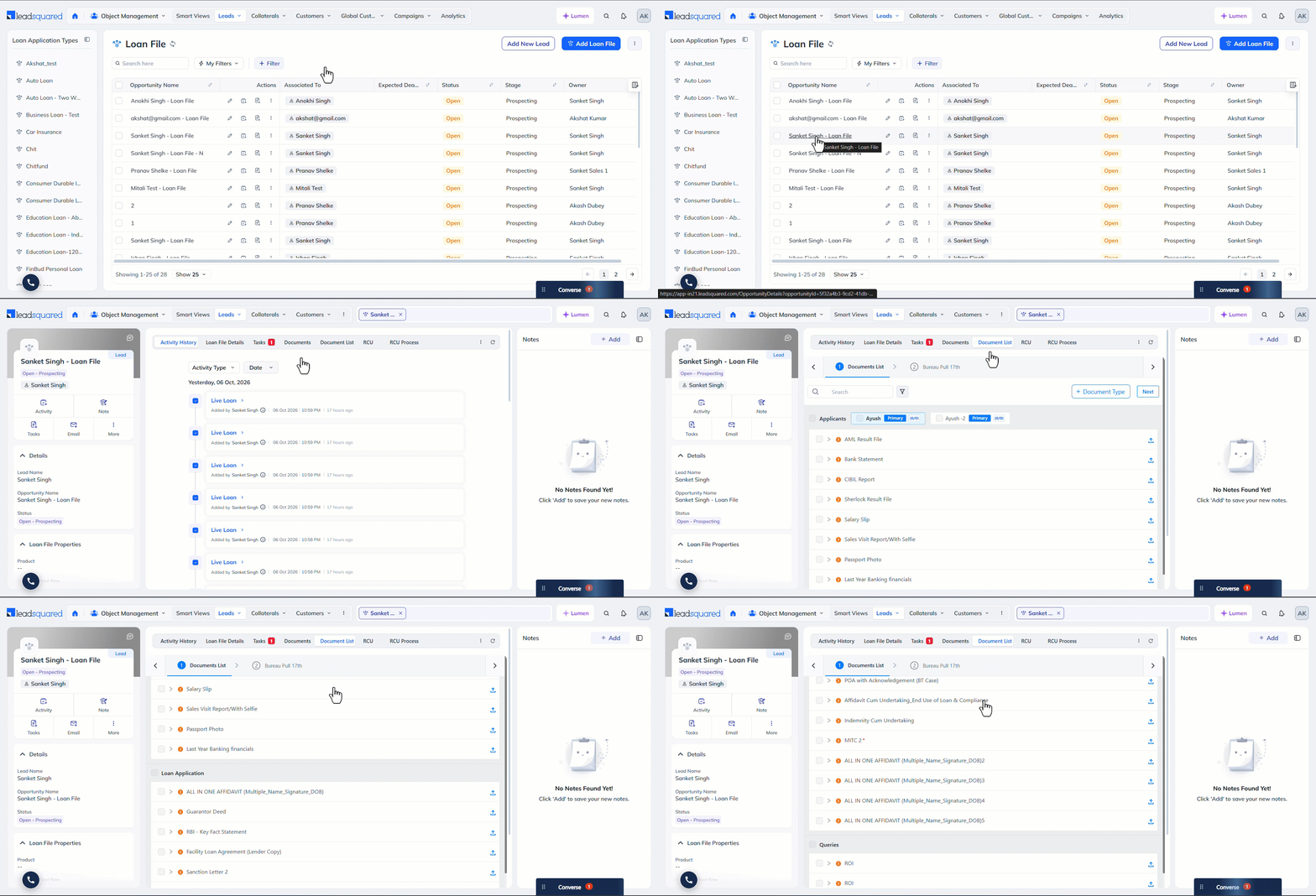
- Navigate to Lead Management>Opportunities, and open an opportunity.
- On the Opportunity Details page, open the stage tab. Each sub-stage displays one of the following –
- Completed – A green tick means all the completion conditions are met.
- Not Completed – A red tick means the completion conditions aren’t met.
- Partially Completed – An orange exclamation mark means the conditions are partially met.
Any Questions?
Did you find this article helpful? Please let us know any feedback you may have in the comments section below. We’d love to hear from you and help you out!
Subscribe
0 Comments
Newest