


Get Started

Sales Suite
Field Ops
Marketing
Service CRM
Integrations & Apps
FloStack
Sales Activity Management

1. Feature Overview
Sales Activity Management in LeadSquared lets you configure, capture, and manage revenue-related transactions against your leads. Each sales activity records the information your organization needs to track a sale, such as the product sold, order value, sales owner, and transaction date.
You can rename the sales activity to match your business. For example, an education business may call it Admission or Enrollment. Other common names include Order Capture, Purchase Order, Paid Subscription, and New Deal.
Sales activities add up to the total revenue generated by your leads. You can track and analyze this revenue using LeadSquared’s Analytics and the Goals feature. You can also edit or cancel a sales activity to account for refunds and returns.
2. Prerequisites
- Only Admins and Marketing Users can configure sales activity settings and customize the activity form.
- Only Admins can add products.
- Once configuration is complete, all users (Administrators, Sales Managers, and Sales Users) can log sales activities against leads.
3. How It Works
Sales Activity Management is built on three layers of admin configuration. Complete them in order before sales users begin logging transactions.
- Configure the activity settings – Set a display name, default currency, and behavioral options, such as allowing pre-dated entries or triggering automatic lead stage changes.
- Configure the activity form – Choose which fields appear when a user logs an activity. LeadSquared provides four default system fields and eleven configurable custom fields. Only enabled fields appear on the form.
- Add your products – Create the products users can select when they record a transaction. A product must exist in the system before it can be referenced in an activity.
Once these steps are complete, sales users can log activities from the following locations:
4. Configure the Sales Activity
Admins and Marketing Users can configure sales activity settings, such as the display name and default currency.
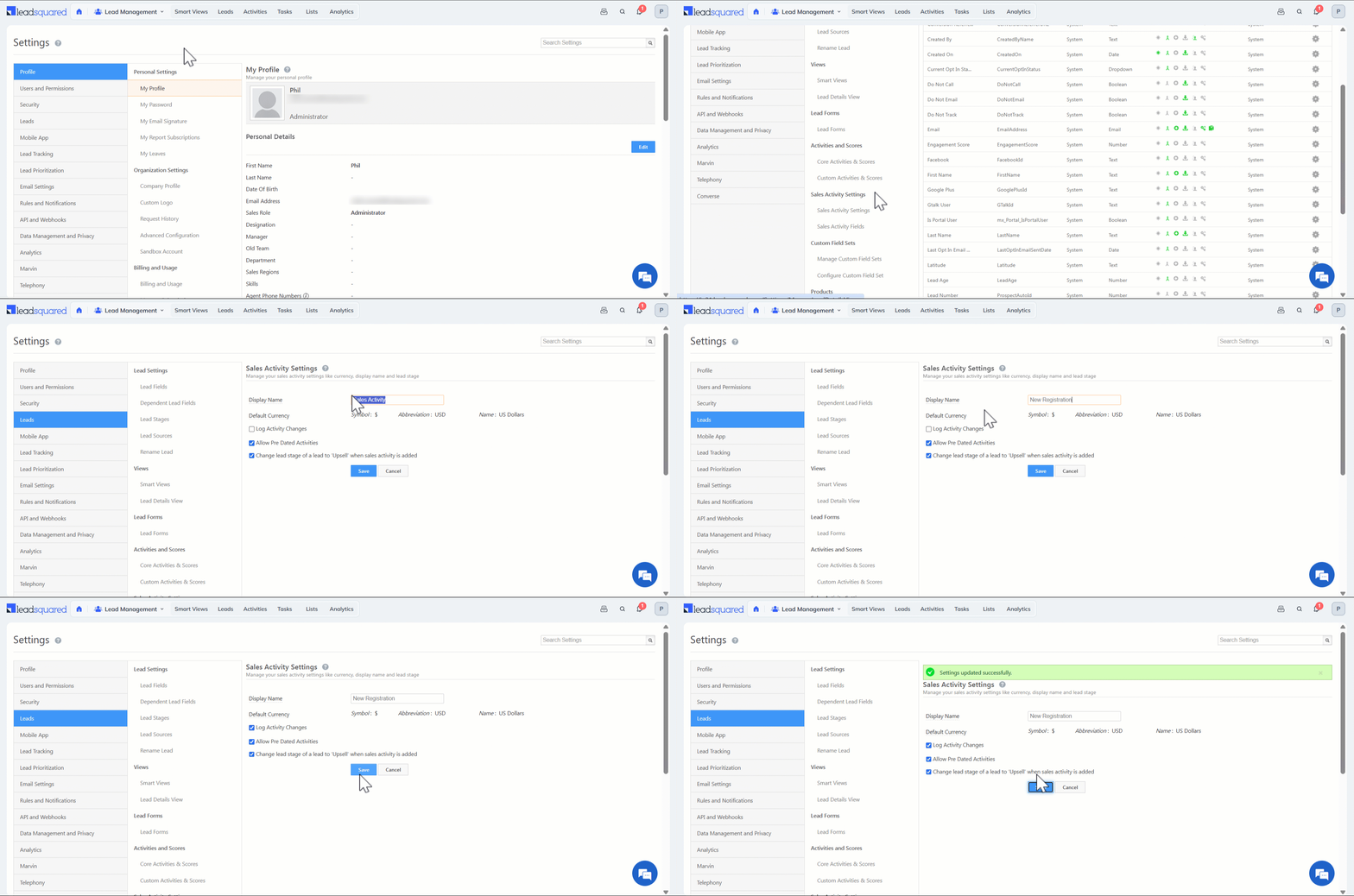
- Navigate to Settings>Leads>Sales Activity Settings.
- Enter the Display Name for your sales activity (for example, New Registration).
- Enable or disable the settings below, based on your organization’s requirements.
- Log Activity Changes – When enabled, any edits to a sales activity appear under the Activity History tab on the Lead Details page. To know more, see How to Log Activity Updates.
- Allow Pre Dated Activities – When enabled, users can create activities for past dates.
- Change lead stage of a lead to ‘X’ when sales activity is added – When enabled, adding a sales activity automatically moves the lead to the final lead stage configured in your account.
- Click Save.
5. Configure the Sales Activity Form Fields
You can customize the sales activity form by configuring the fields users fill in when they post an activity. LeadSquared provides four default system fields and eleven configurable custom fields.
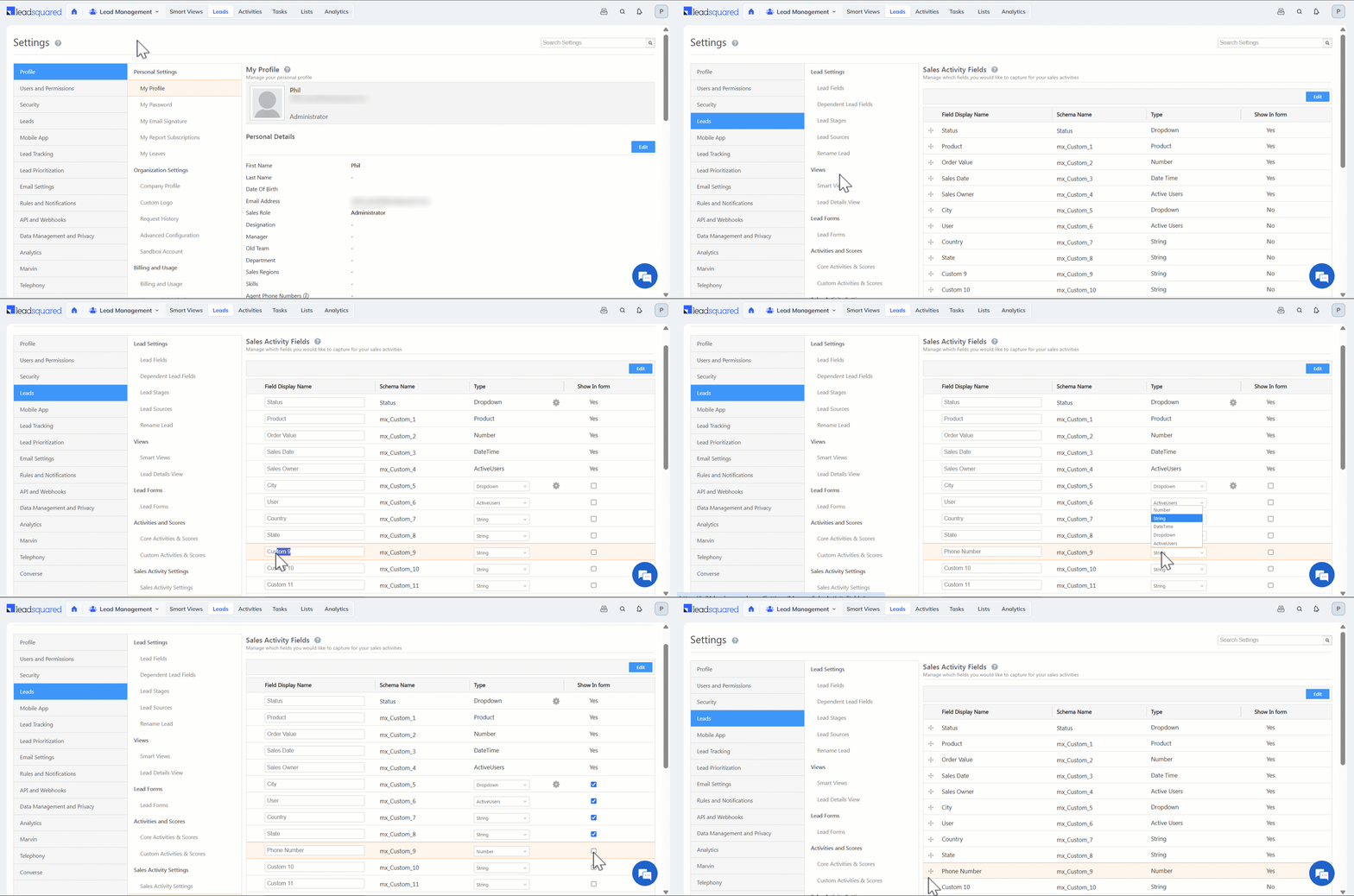
- Navigate to Settings>Leads>Sales Activity Fields.
- Click Edit.
- Enter the display names for the fields you need.
- Click the Type dropdown and set the field type.
- Select the checkbox next to a field to include it on the form.
- Click Save.
6. Add Your Products
You must be an Admin to add products. Create products so users can select them when they record a sales activity.
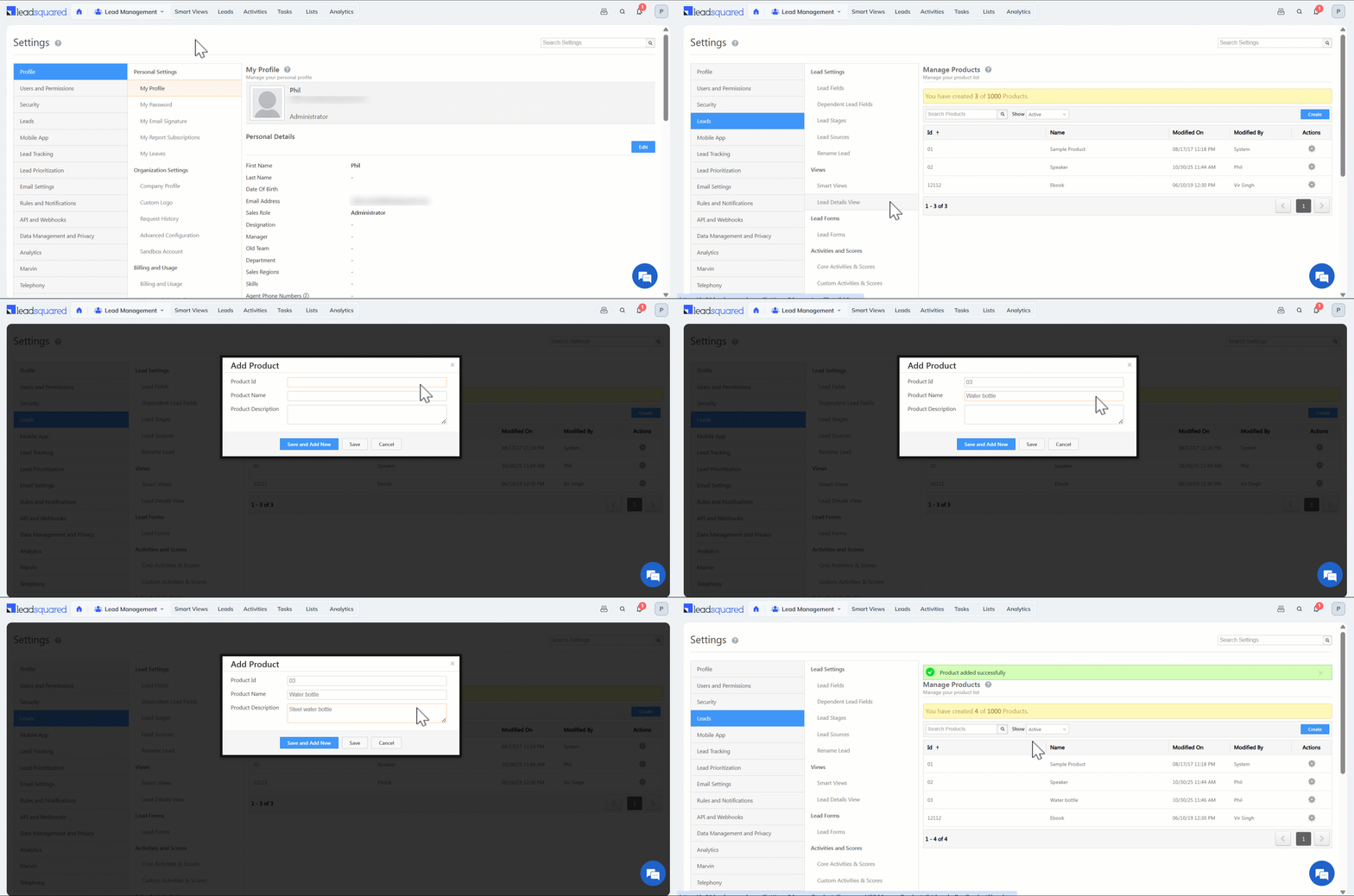
- Navigate to Settings>Leads>Manage Products.
- Click Create.
- Enter the Product ID, Product Name, and Product Description.
- Click Save.
7. Capture a Sales Activity for a Lead
Administrators, Sales Managers, and Sales Users can add sales activities. You can add them from the Manage Leads page, the Lead Details page, Smart Views, and the List Details page.
7.1 From the Manage Leads Page
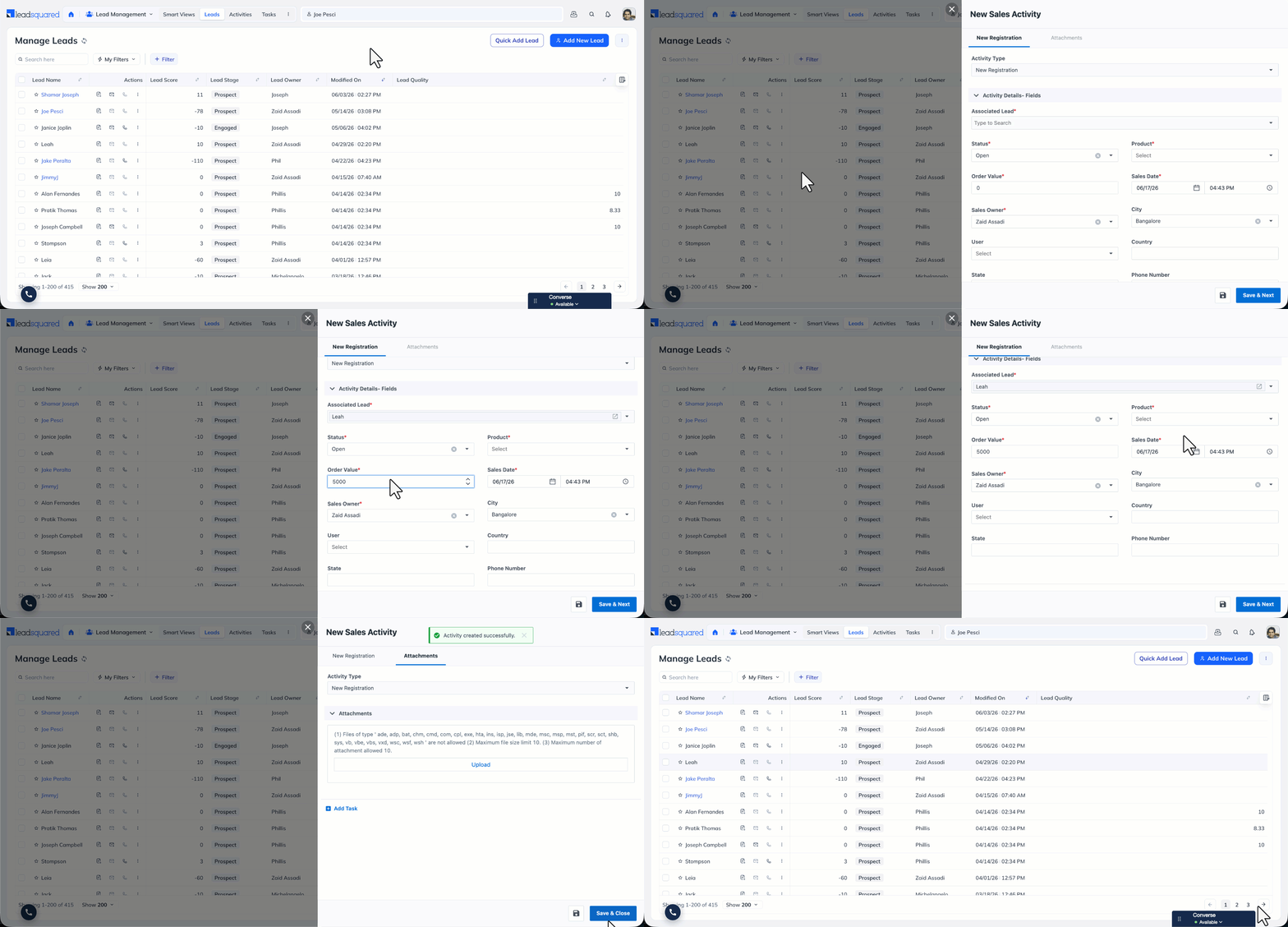
- Navigate to Lead Management>Leads.
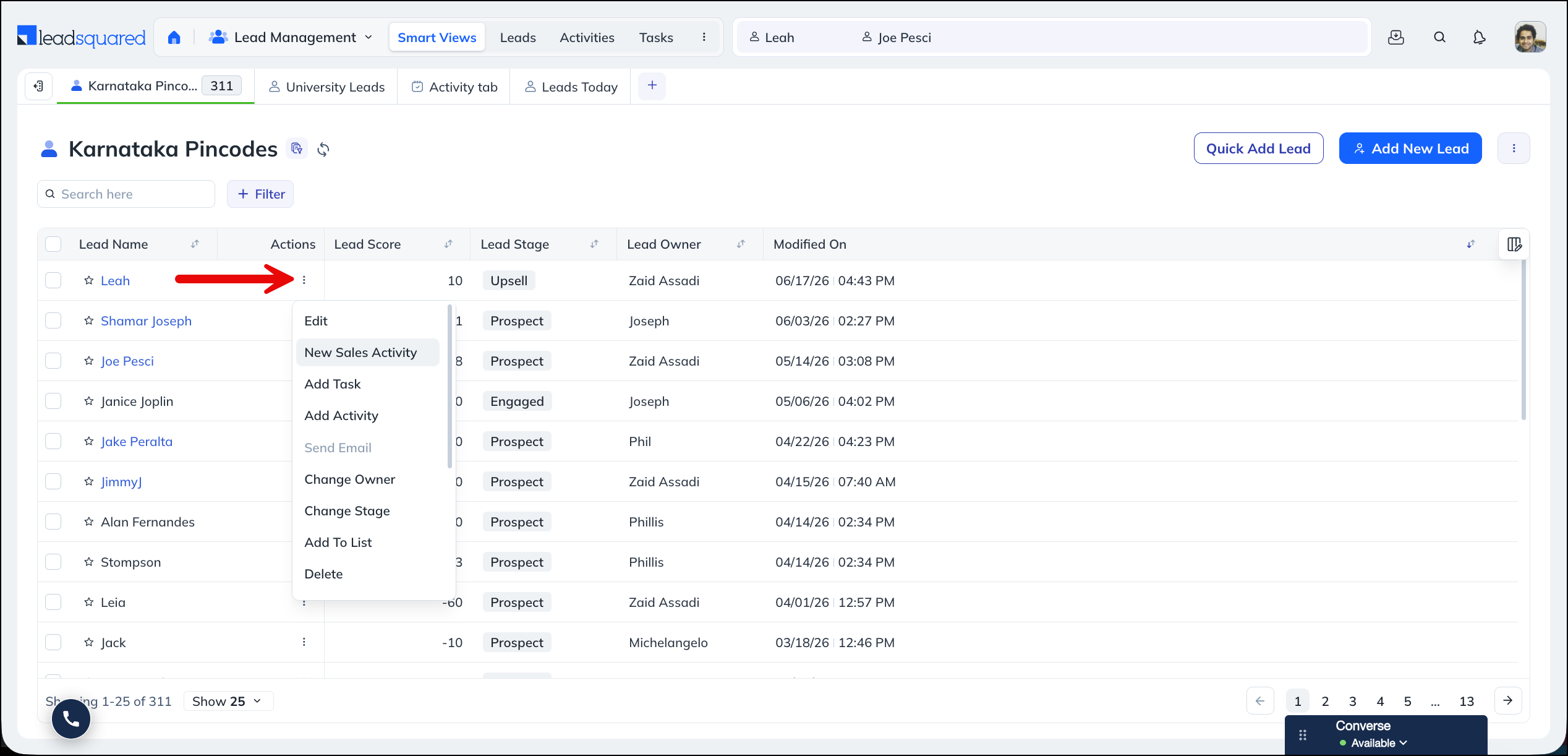
- Alongside the relevant lead, hover your cursor over the Actions icon and select New Sales Activity.
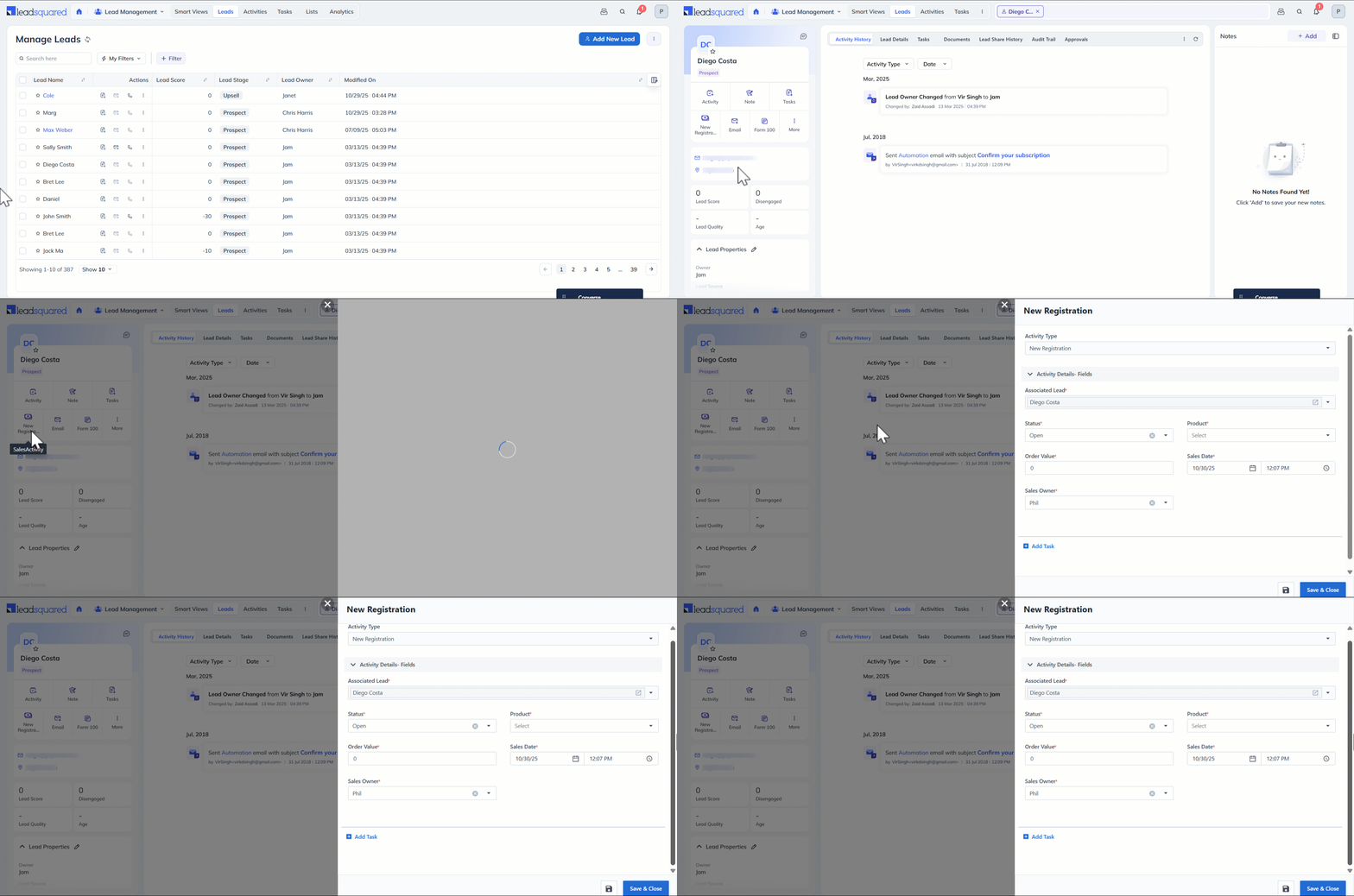
- Fill in the activity details in the pop-up. The fields displayed depend on how your administrator has configured the activity form. Default system fields include Status, Product, Order Value, Sales Date, and Sales Owner.
- To attach a file (for example, an invoice), click the Attachments tab, click Upload, and select the file.
- Click Save. The activity now appears under the Activity History tab on the Lead Details page.
7.2 From the Lead Details Page
- Navigate to Lead Management>Leads.
- Click the name of the relevant lead to open the Lead Details page.
- Click Sales Activity, and then enter the relevant details.
- Click Save.
7.3 From Smart Views and List Details
On Smart Views and the List Details page, under Actions, hover your cursor over the  icon next to a lead and select New Sales Activity.
8. Edit or Cancel a Sales Activity
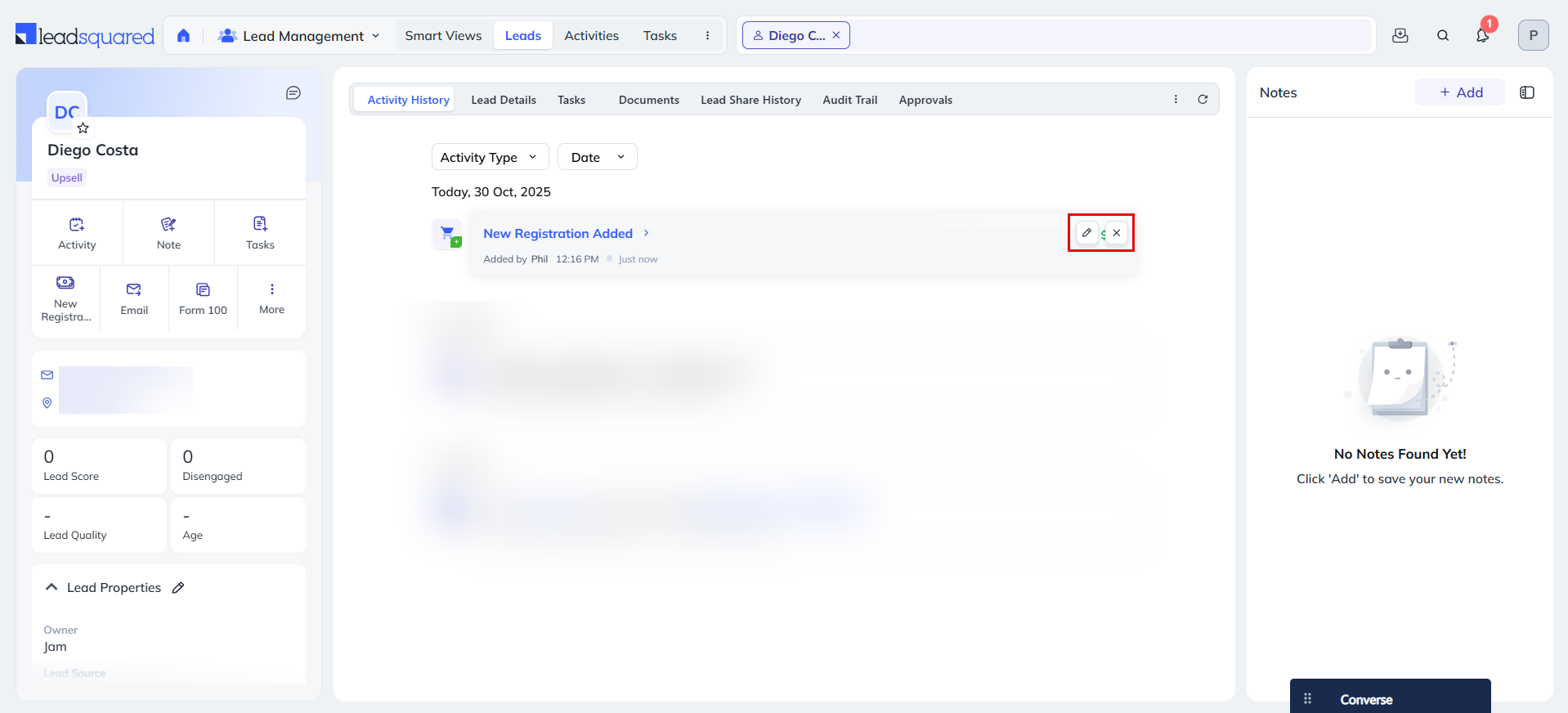
Each lead’s sales activities appear under the Activity History tab on the Lead Details page. You can edit or cancel an activity here to manage changes such as refunds and returns.
To record these changes in the activity log, enable the Log Activity Changes setting (see section 4).
- Navigate to Lead Management>Leads.
- To view the Lead Details page, click the name of the relevant lead.
- To edit the details of the sales activity, click the Edit icon.
- To cancel the sales activity, click the Delete icon.
9. Search for Leads by Sales Activity
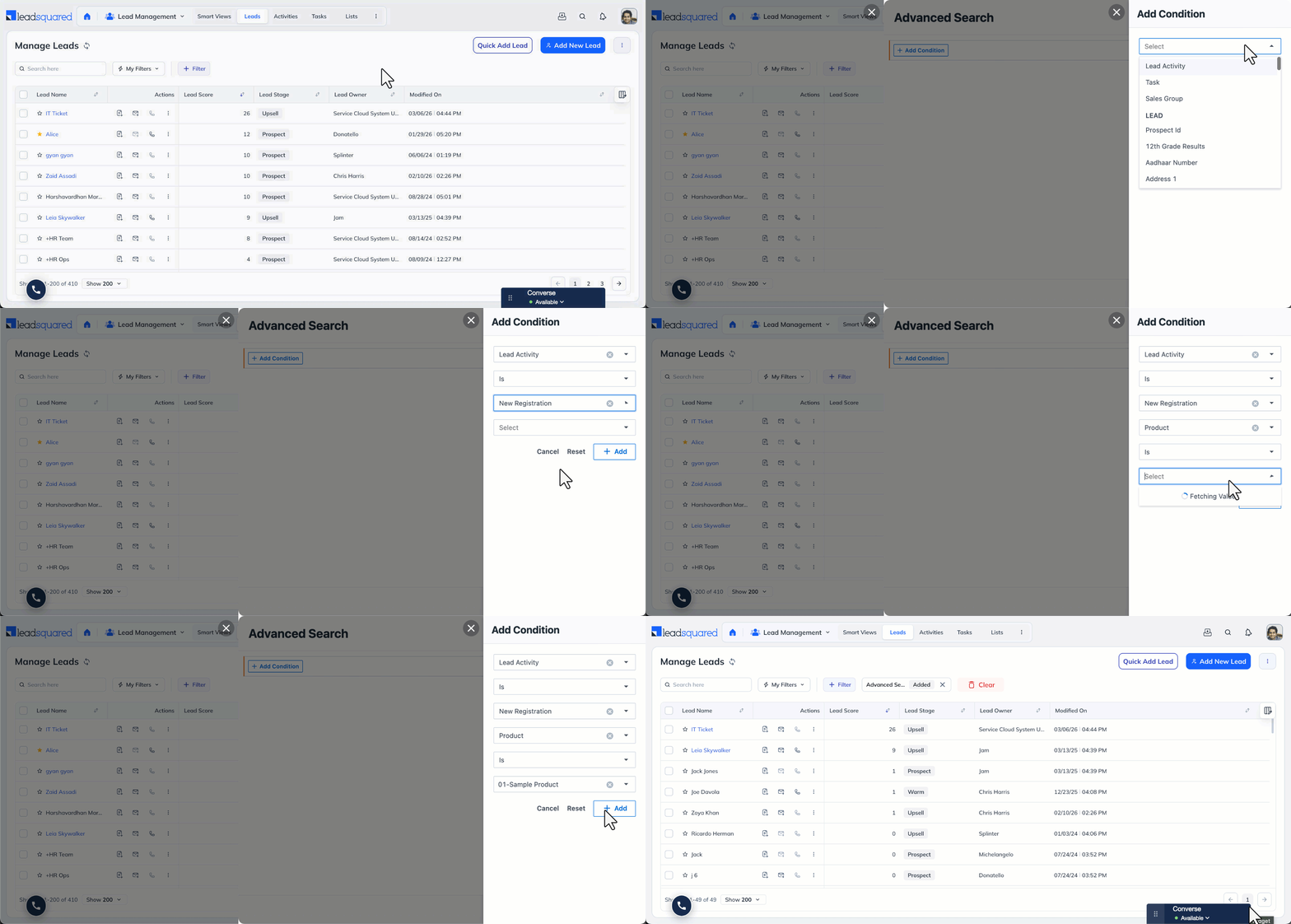
You can use Advanced Search to find leads based on the data in their sales activity fields. For example, you can find leads where a custom activity field contains, or does not contain, data.
- Navigate to Lead Management>Leads.
- Select Filter, and then select Advanced Filter.
- Enter your search criteria using the relevant activity and sales fields.
- Click + Add to apply each criterion.
- Click Show Results.
Any Questions?
Did you find this article helpful? Please let us know any feedback you may have in the comments section below. We’d love to hear from you and help you out!