

Get Started

Sales Suite
Field Ops
Marketing
Service CRM
Integrations & Apps
FloStack
Object Types in Activities and Tasks

1. Feature Overview
You can configure and manage Activities and Tasks for individual Object Types in LeadSquared. This allows you to track interactions and assign follow-up tasks based on the specific needs of each entity.
- Activities help you record interactions and important events associated with an object. You can configure custom activity types for specific Object Types.
- Tasks help you assign and track actionable items, such as follow-up calls, meetings, and document collection, for individual objects.
Example Use Case
Consider a business that manages Manufacturers, Wholesalers, Retailers, and Builders as Object Types. Users can configure activities such as Quality Inspection Completed for Manufacturers, Order Confirmed for Wholesalers, Store Visit for Retailers, and Project Site Visit for Builders.
They can also assign tasks such as scheduling inspections, following up on orders, or collecting project documents directly against the relevant objects. This helps teams maintain a clear record of interactions and manage follow-ups for each entity.
Note: This article assumes that you are acquainted with the Activities and Tasks modules on LeadSquared. If not, we recommend you read these articles:
2. Prerequisites
- Object Types must be enabled in your account. The relevant Object Types must be configured in your account.
- You must have the required permissions to configure custom activities and manage activities and tasks.
3. How It Works
You can associate custom activity types with one or more Object Types. Once configured, these activities are available only for the associated Object Types. Users can post activities and create tasks directly from an object’s details page or from the relevant Object Type’s Activities or Tasks page. This allows users to track interactions and manage follow-ups without switching between different records.
4. Configure Activities for Each Object Type
You can create custom activity types and associate them with specific Object Types. This ensures that users can record only the activities relevant to the object they are managing.
For example:
- Manufacturer – Product Sample Shared, Quality Inspection Completed.
- Wholesaler – First Purchase, Order Confirmed.
- Retailer – Store Visit, Product Display Verified.
- Builder – Project Site Visit, Material Requirement Discussed.
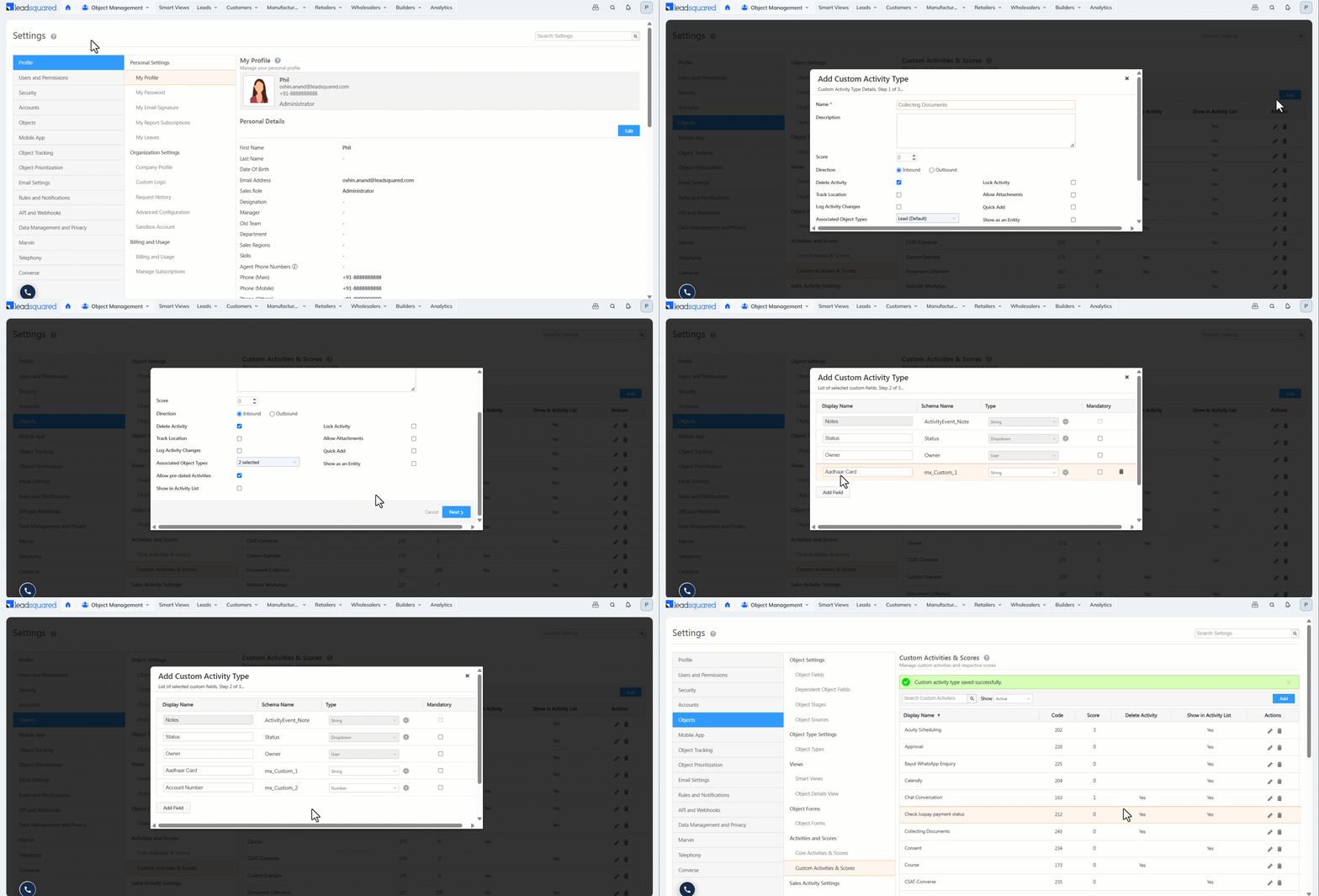
To configure custom activities for an Object Type:
- Navigate to Settings>Objects>Custom Activities & Scores.
- Click Add.
- Enter the required details for the custom activity.
- From the Associated Object Types dropdown, select the Object Types for which the activity should be available.
- Complete the remaining configuration and click Save.
5. Post Activities for Objects
Once custom activity types are configured, users can post activities against individual objects.
5.1 Post Activities from the Activities Page
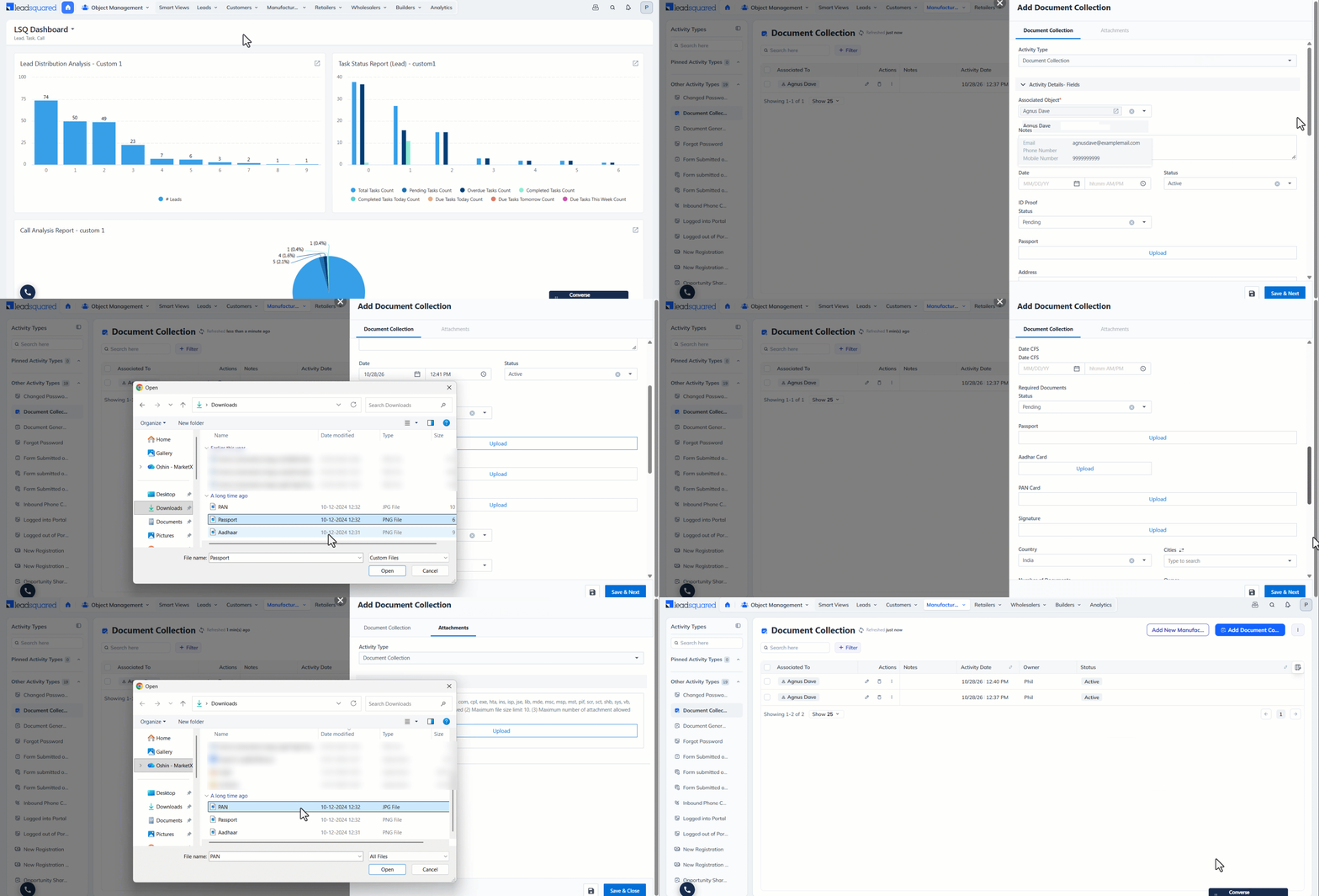
To post an activity:
- Navigate to the relevant Object Type and open the Activities page.
- From the Activity Types list, select the custom activity you want to post.
- Click Add Activity.
- Enter the activity details and the relevant lead and opportunity details, if applicable.
- Click Save & Close.
5.2 Post Activities from the Object Details Page
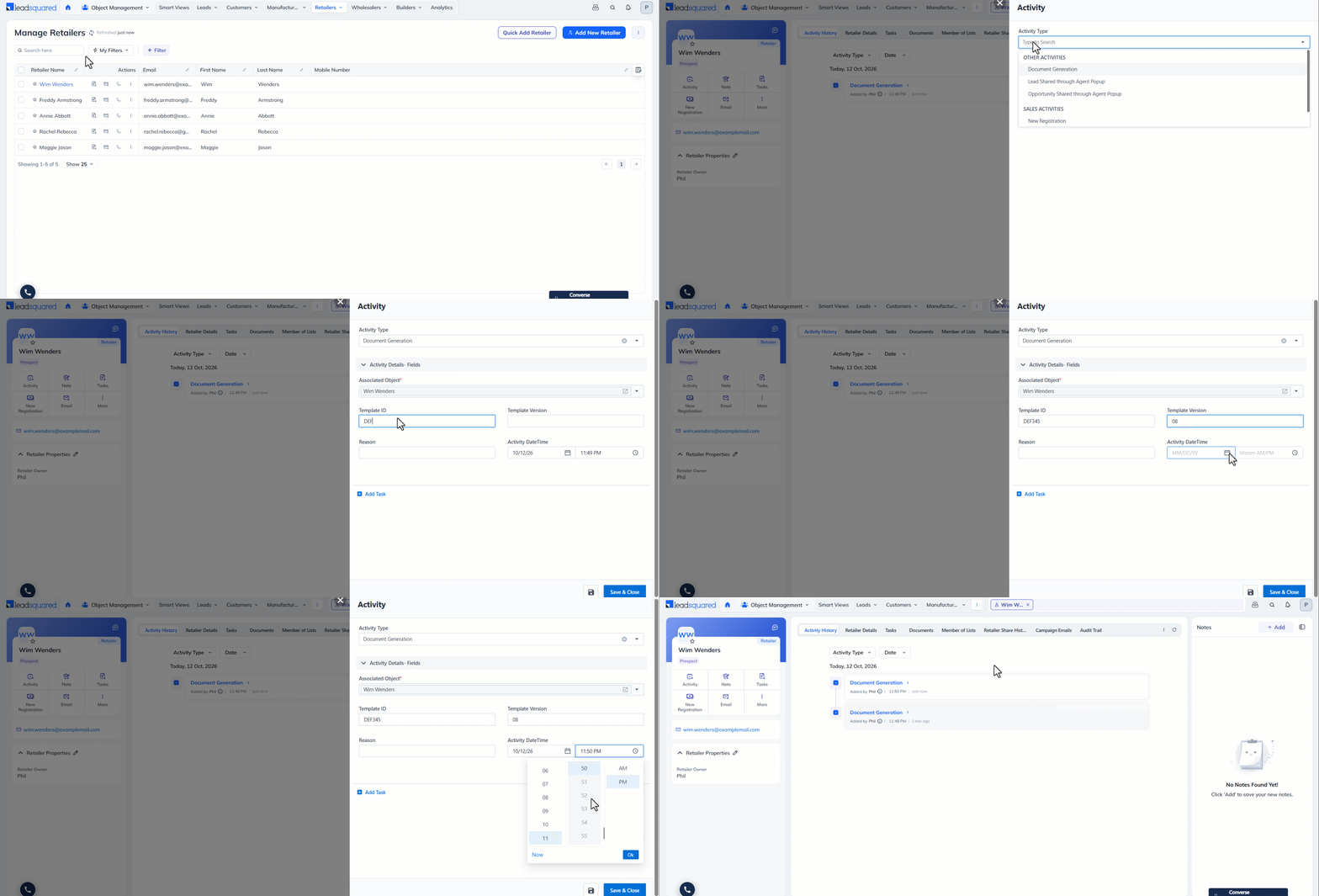
You can also post activities directly from an object’s details page.
- Navigate to the relevant Object Type page. For example, Dealers>Manage Dealers.
- Select the required object to open its details page.
- Navigate to the Activities section.
- Select the activity you want to post and enter the required details.
- Click Save & Close.
This allows users to record interactions while viewing the relevant object’s information.
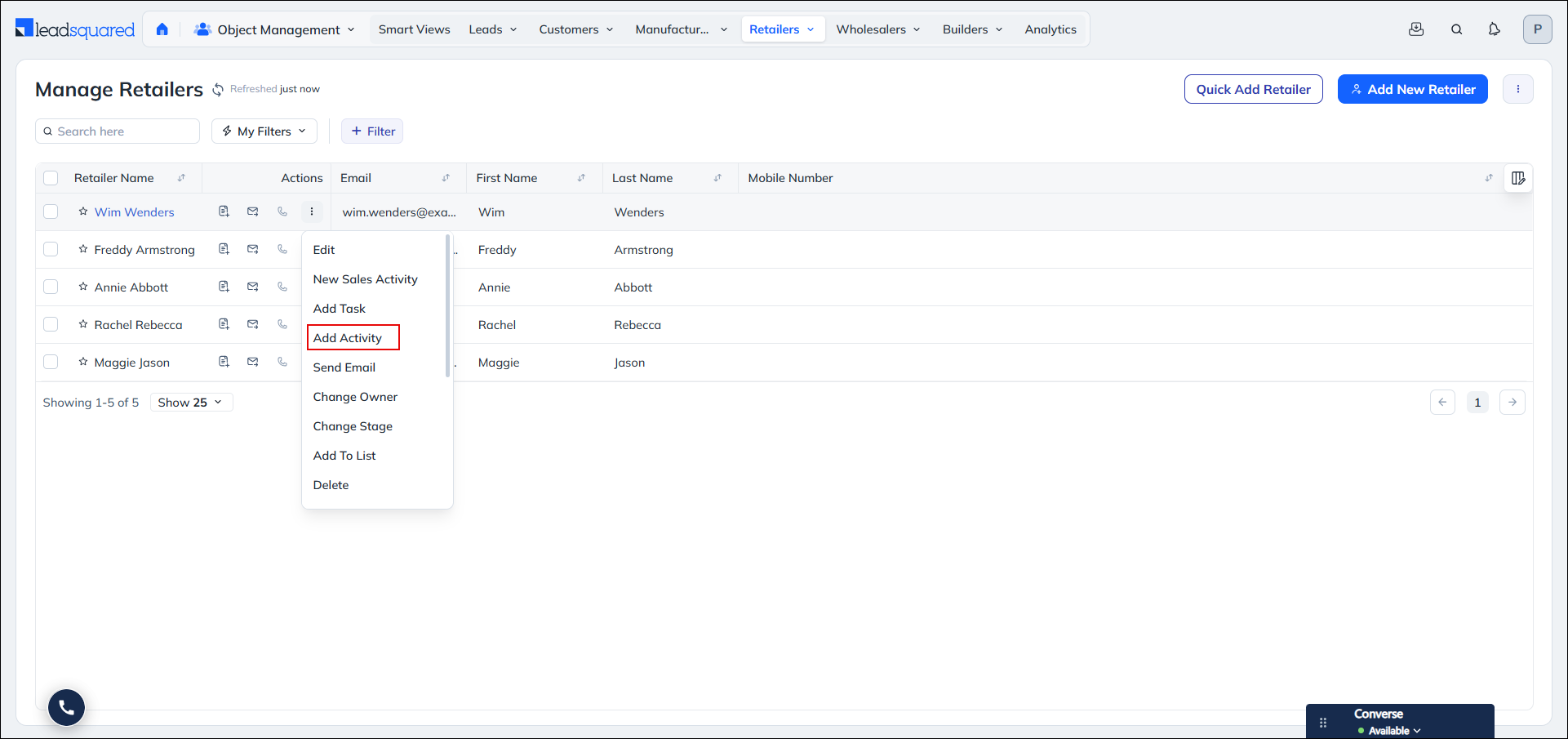
6.3 Post Activities from Manage Objects Page
You can also post activities directly from the Manage Objects page of the relevant object.
- Navigate to the relevant Object Type page. For example, Retailers>Manage Retailers.
- Hover over the Actions icon alongside the relevant object and click Add Activity.
- You can create a task following the same steps as mentioned above.
6. Create and Manage Tasks for Each Object Type
Tasks help users manage follow-ups and other actionable items associated with individual objects. You can create tasks for different Object Types based on your business requirements. For example:
- Manufacturer – Schedule a quality inspection.
- Wholesaler – Follow up on a pending order.
- Retailer – Schedule a store visit.
- Builder – Collect project documentation.
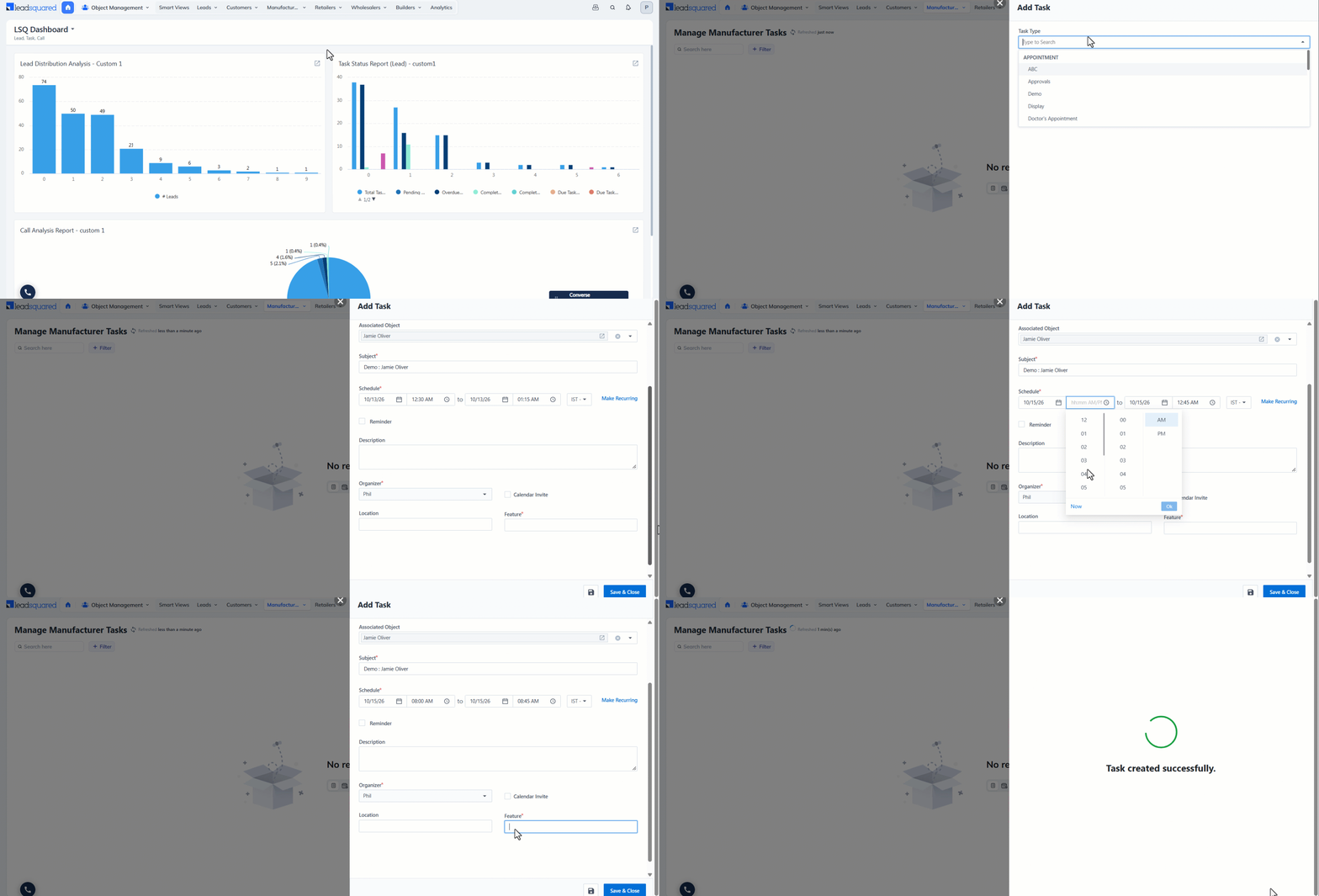
6.1 Create Tasks from the Tasks Page
To create a task for an object:
- Navigate to the relevant Object Type and open the Tasks page.
- Click Add Task.
- Select the task type you want to create.
- Enter the required task details in the pop-up.
- Click Save & Close.
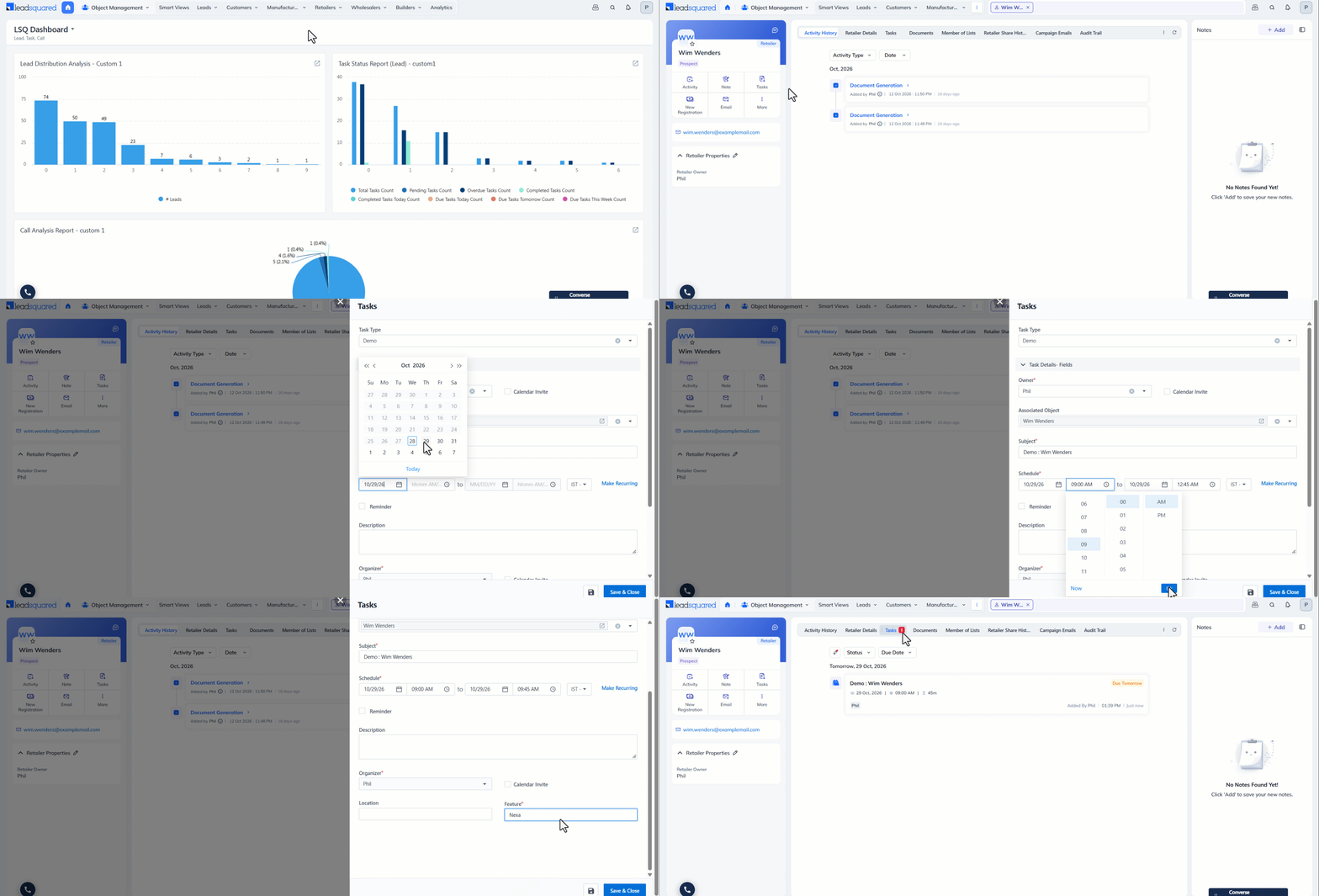
6.2 Create Tasks from the Object Details Page
You can also create tasks directly from an object’s details page.
- Navigate to the relevant Object Type page. For example, Retailers>Manage Retailers.
- Select the required object to open its details page.
- Navigate to the Tasks section.
- Click Add Task and select the task type.
- Enter the task details.
- Click Save & Close.
This links the task to the relevant object, making it easier for users to manage and track follow-ups in context.
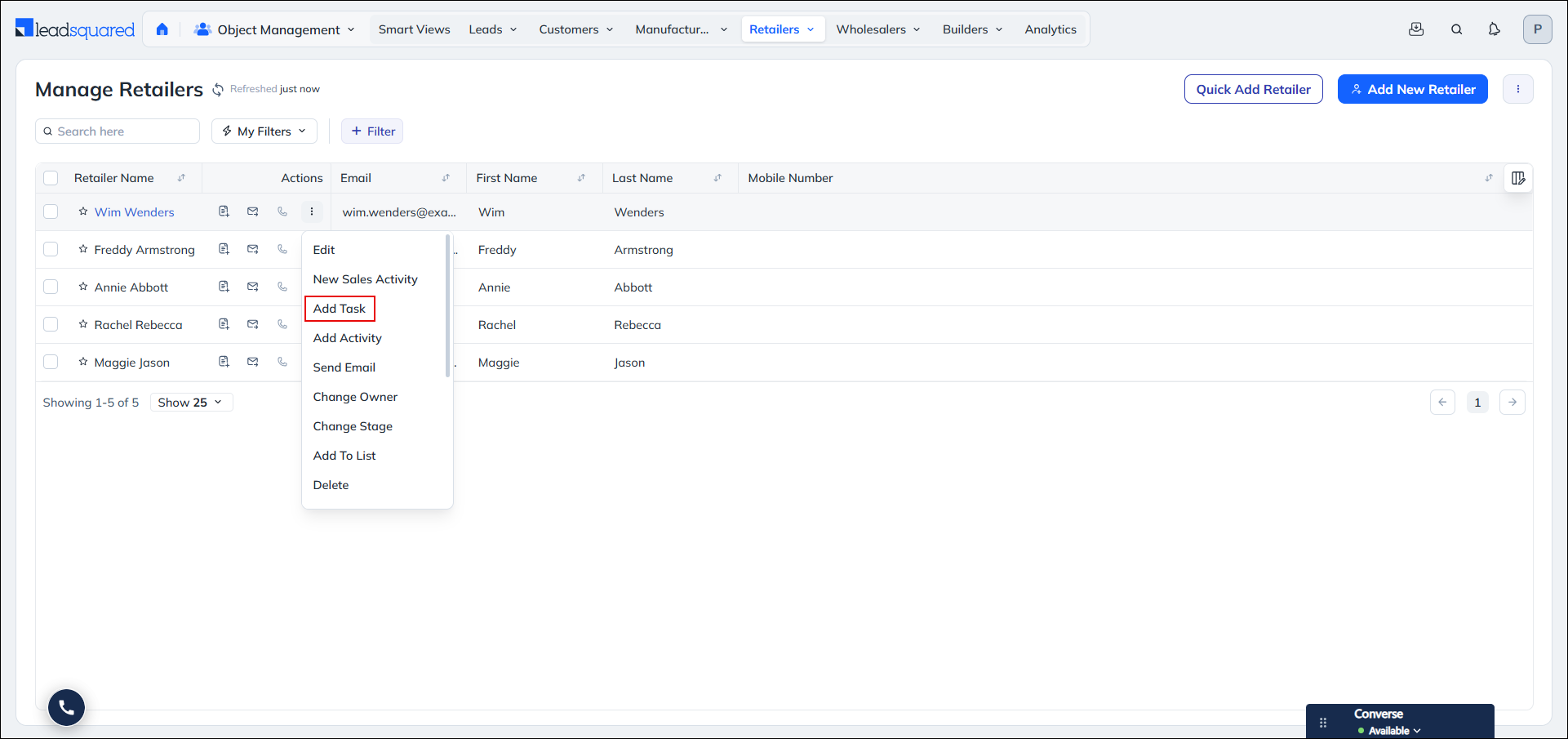
6.3 Create Tasks from Manage Objects Page
You can also create tasks directly from the Manage Objects page of the relevant object.
- Navigate to the relevant Object Type page. For example, Retailers>Manage Retailers.
- Hover over the Actions icon alongside the relevant object and click Add Task.
- You can create a task following the same steps as mentioned above.
7. Export Activities and Tasks
7.1 Export Activities
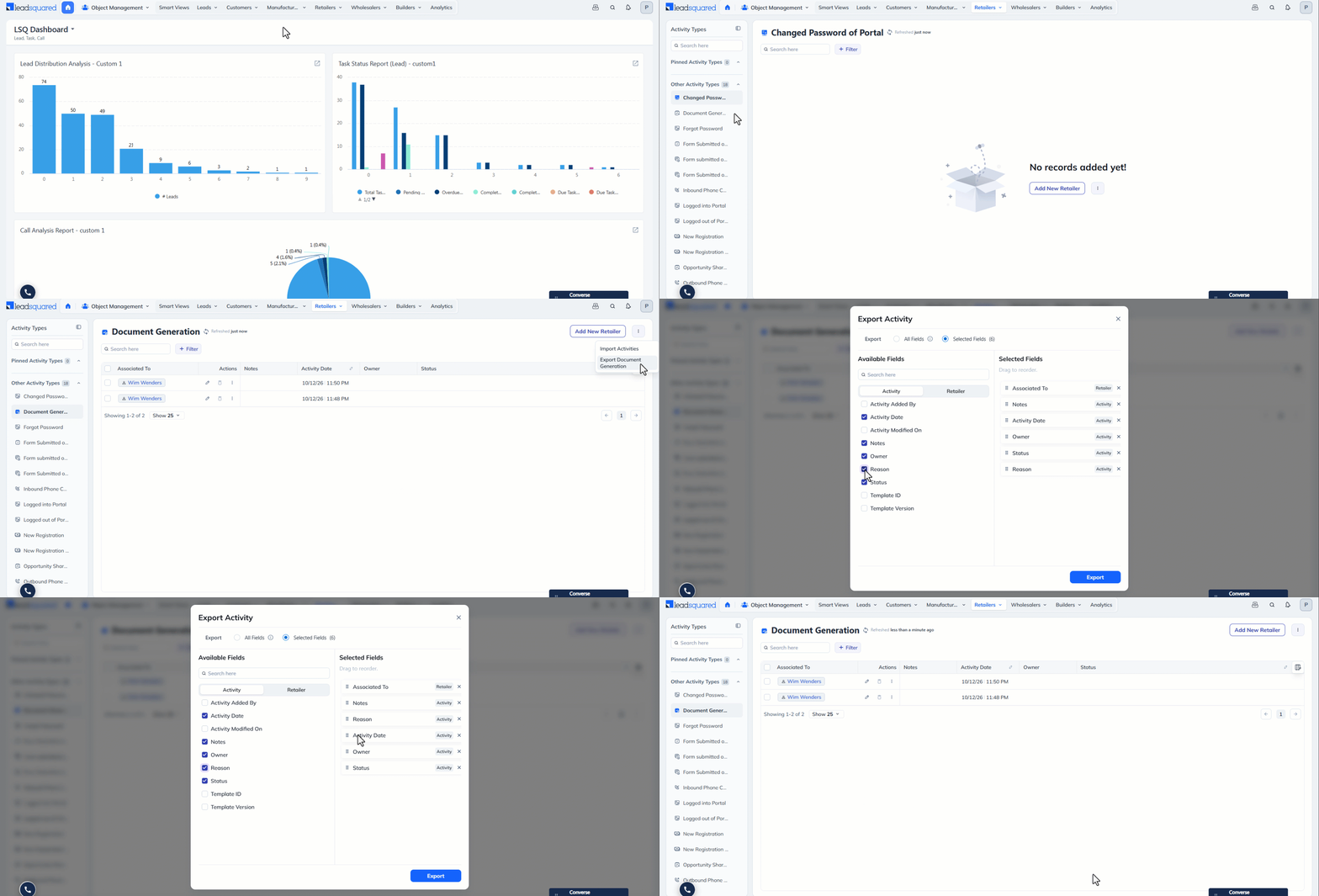
You can export existing activities from LeadSquared. To do this –
- Navigate to the relevant Object Type page. For example, Dealers>Manage Dealers.
- From the Actions icon, select Export Activities.
- If you want to export all the fields, select “Export all fields”.
- If you want to export only selected opportunity fields, select “Export selected fields”.
- Then click Choose fields.
- You can search for fields by using the Search Fields search box.
- You can choose fields by checking the checkbox
 against each activity and lead field.
- Once you’ve made the selection, click Export. If the export access is successful, you’ll receive an email with the file download link, to the email Id you’ve registered in your LeadSquared account.
7.2 Export Tasks
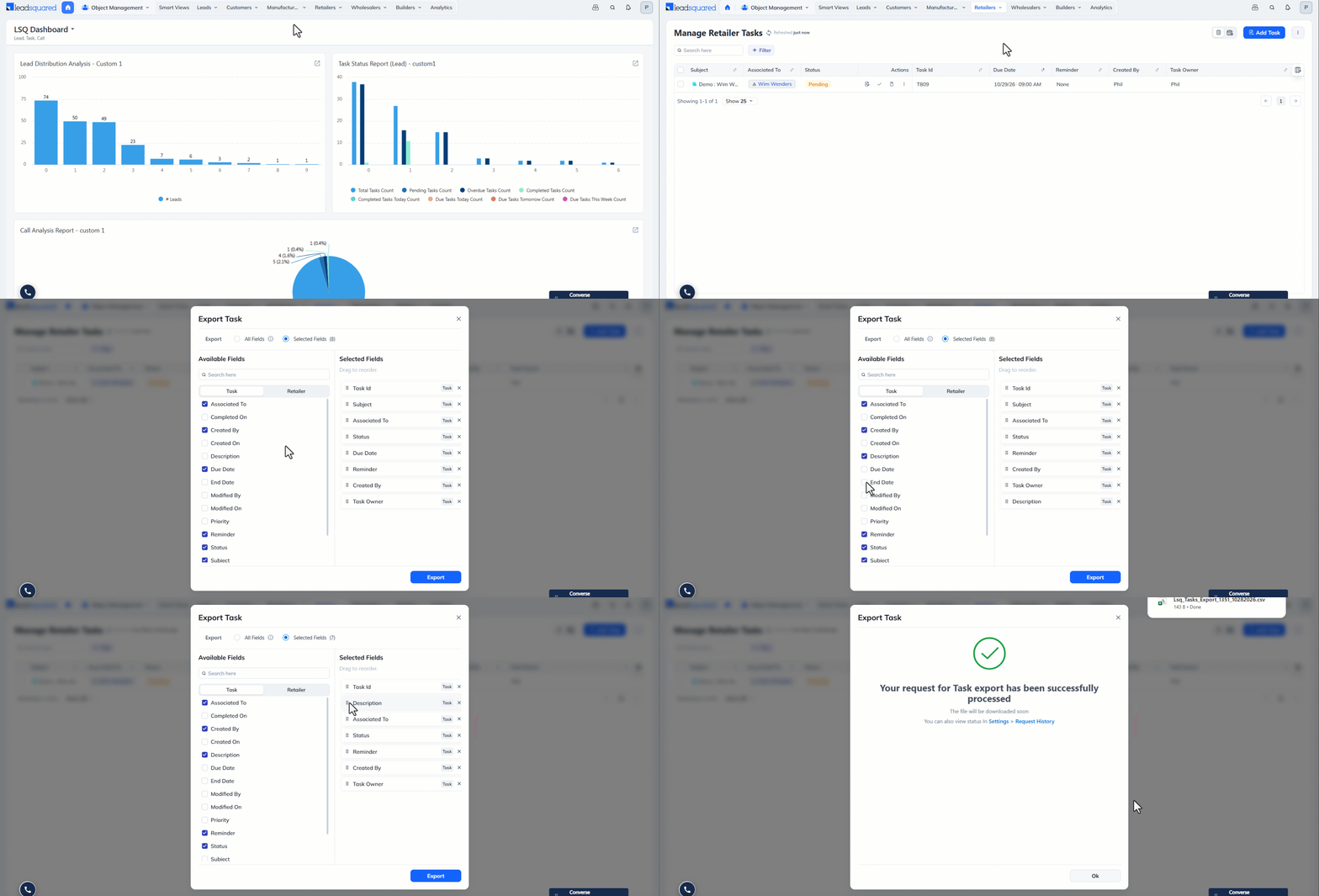
To export tasks from LeadSquared –
- Navigate to the relevant Object Type’s Tasks page. For example, Retailers>Tasks.
- From the Actions icon, select Export Tasks.
- If you want to export all the fields, select “Export all fields”.
- If you want to export only selected opportunity fields, select “Export selected fields”.
- Then click Choose fields.
- You can search for fields by using the Search Fields search box.
- You can choose fields by checking the checkbox against each task and lead field.
- Once you’ve made the selection, click Export. If the export access is successful, you’ll receive an email with the file download link, to the email Id you’ve registered in your LeadSquared account.
8. Import Activities
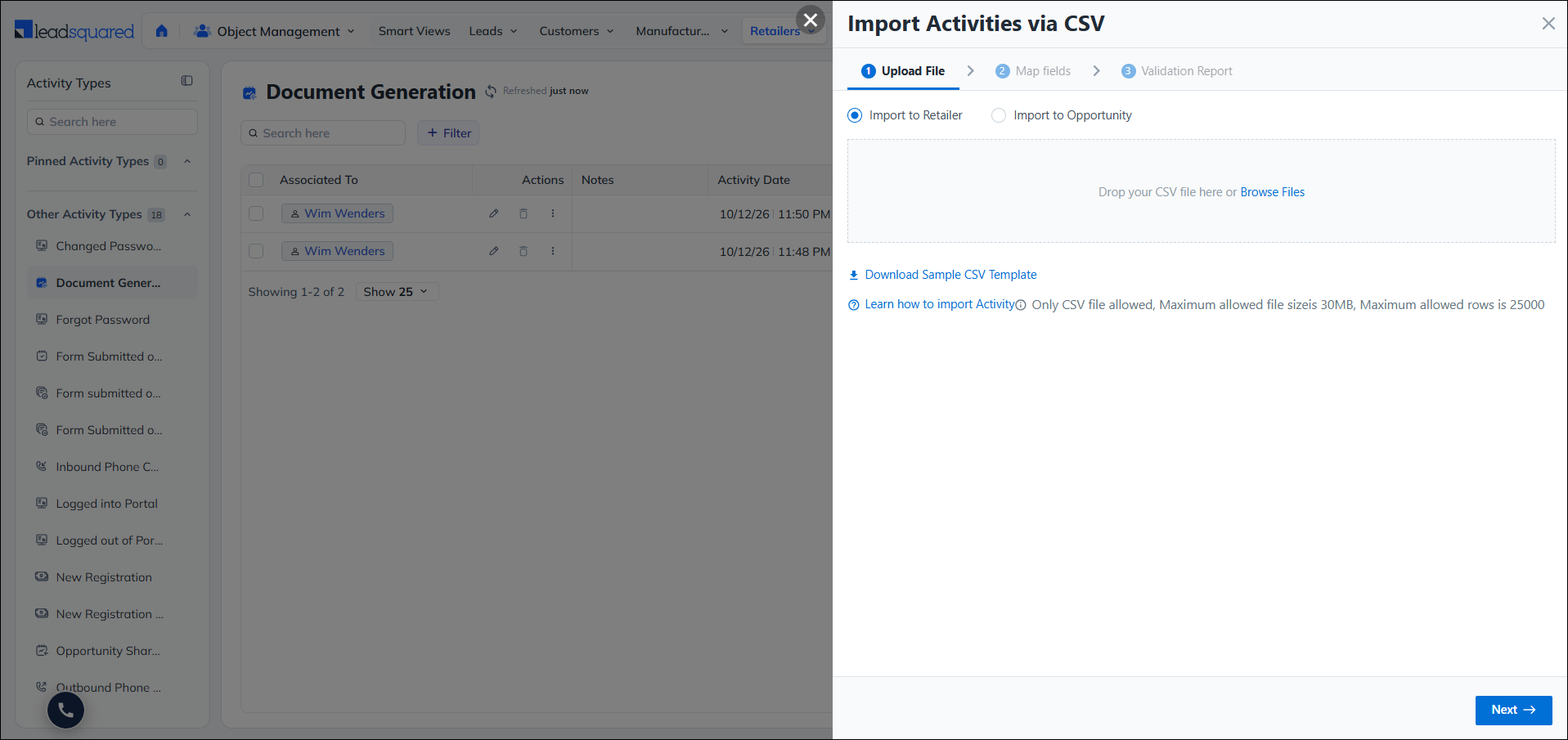
You can import activities for specific Object Types using a CSV file. In addition to activities posted manually by users or added through automations, this allows you to bulk post activities against objects. For example, you can import a Store Visit activity for multiple Retailers or a Site Visit activity for multiple Builders at once.
- Navigate to the relevant Object Type’s Activities page. For example, Dealers>Activities.
- Click the Actions icon on the top-right corner of the page and select Import Activities.
- To learn how import activities, see Import Activities.