


Get Started

Sales Suite
Field Ops
Marketing
Service CRM
Integrations & Apps
FloStack
Distribution Methods in Distribution Engine

1. Feature Overview
The distribution method is Step 3 of creating a distribution rule. It decides how records are shared among the users you selected in Step 2. Each rule uses one method.
| Method | Shares records by | Select it when |
| Round Robin | Rotating through users in a fixed sequence | Everyone should get an equal share, in turn |
| Weighted | Rotating through users in a ratio you define | Some users, teams, or groups should carry more than others |
| Load Balanced | Giving the next record to whoever is behind | Users start at different times, or hold very different volumes |
2. Prerequisites
- Distribution Engine must be enabled on your account. For more information, refer to the Distribution Engine Feature Guide.
- To use the Current Workload method, an admin must first enable Enable “Current Workload” Based Load Balanced Distribution in Distribution Engine>Settings>Additional Settings.
3. How it Works
Two behaviours apply to all three methods.
- Continuous cycle – The distribution cycle does not reset daily. The engine continues from where it last stopped.
- User availability – If a user is unavailable, the engine skips them and assigns the record to the next eligible user. The skipped user rejoins the cycle once they are available again. Availability depends on the conditions set in Step 2, Select Users.
4. Round Robin
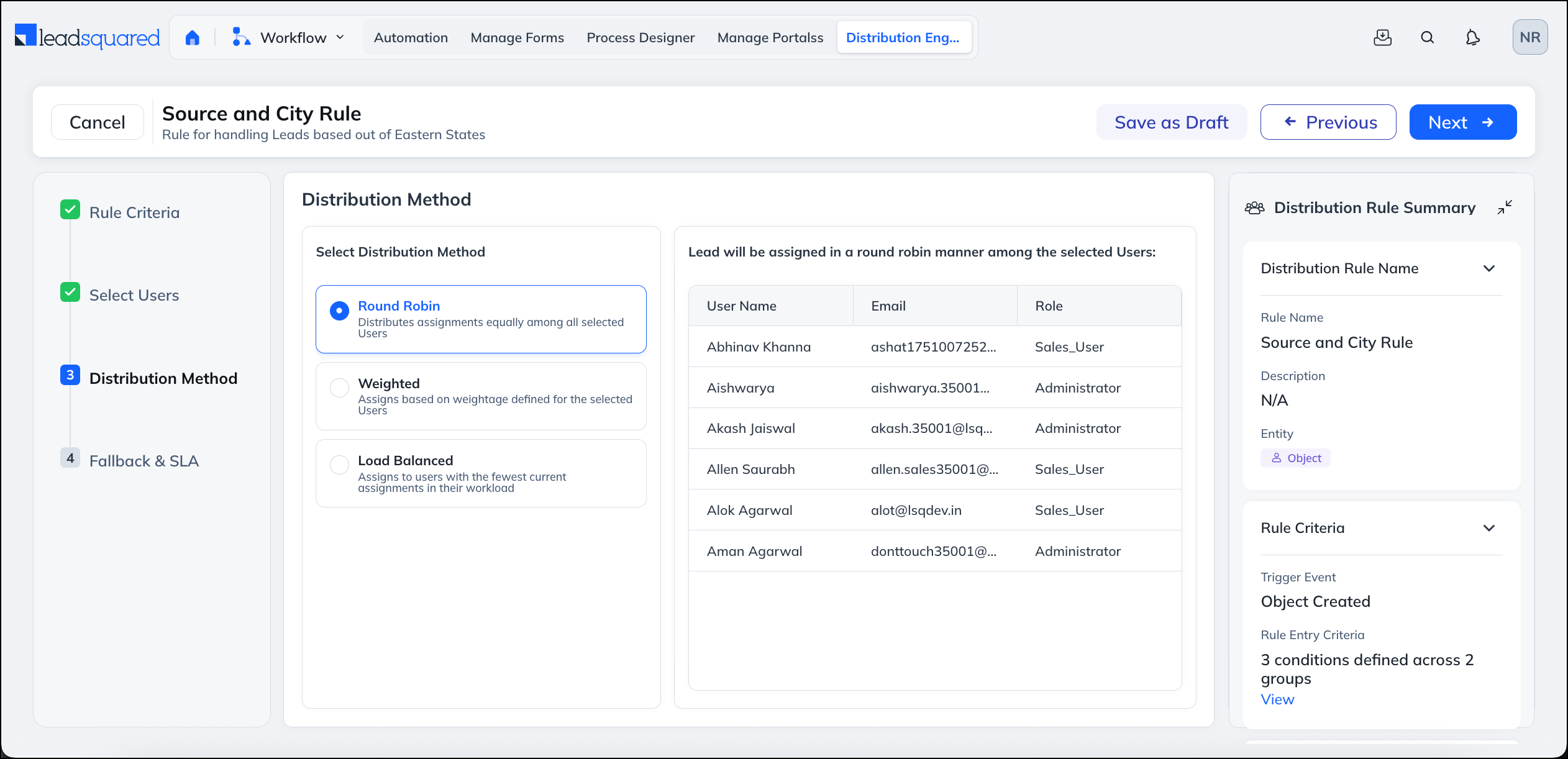
Round Robin hands out records one at a time, in order, then starts again at the top of the list.
With three users, the sequence runs:
User A > User B > User C > User A > User B > User C, and so on.
If User B is unavailable when their turn comes, the engine skips to User C and carries on. User B returns to the rotation as soon as they are eligible again.
5. Weighted
Weighted distribution is Round Robin with a ratio. You give each user, team, or sales group a weight, and the engine rotates through them so that each one’s share over a full cycle matches its weight. Records still go out one at a time, never in a batch.
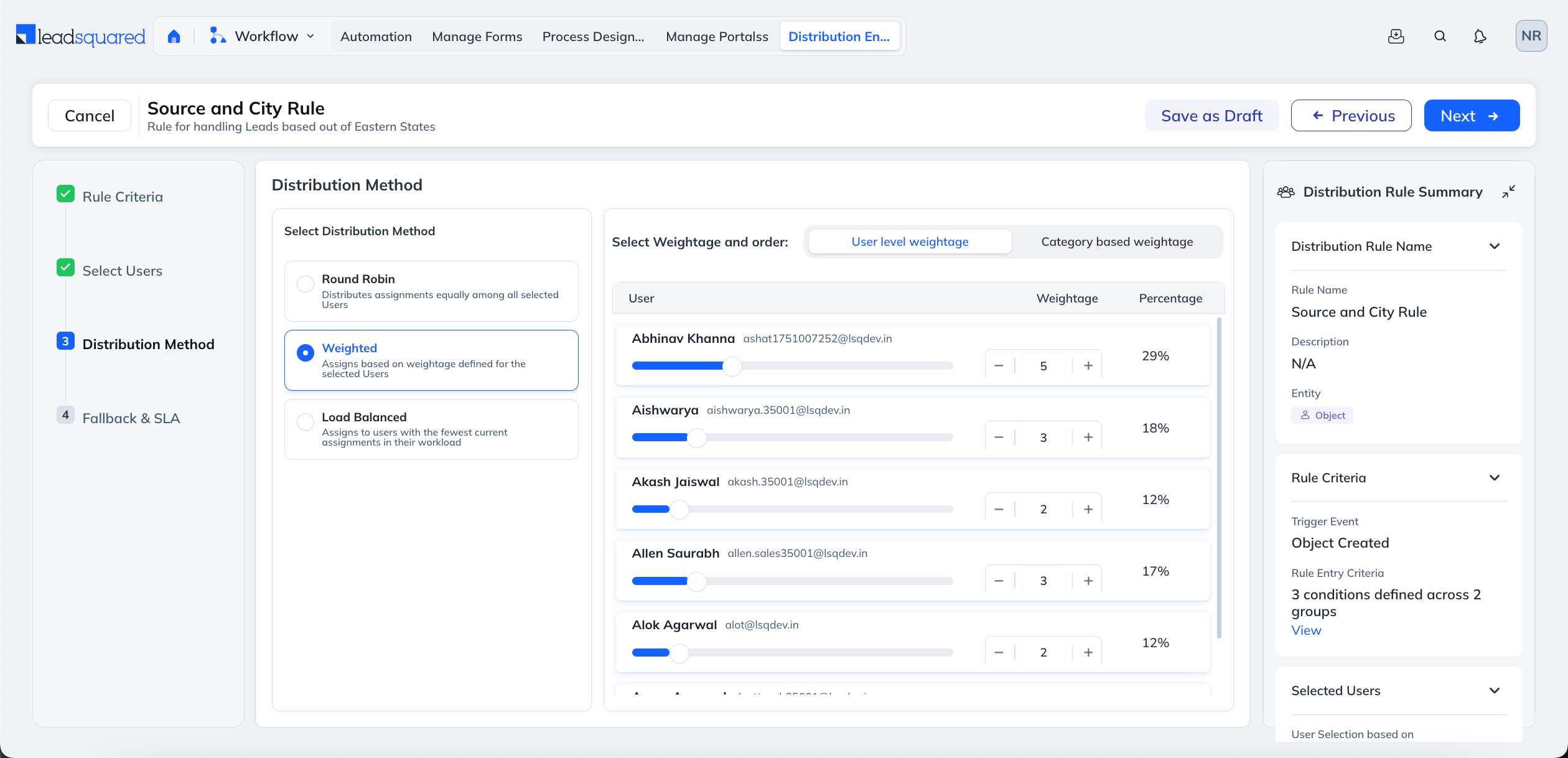
5.1 Weight Users Individually
Give each user a weight. The weights add up to the length of one cycle.
For example, User A is 3, User B is 2, and User C is 1, for a total of 6. Over every 6 records, A takes 3, B takes 2, and C takes 1. The engine runs them in rotation:
A > B > C > A > B > A, then the cycle repeats.
5.2 Weight Teams or Sales Groups
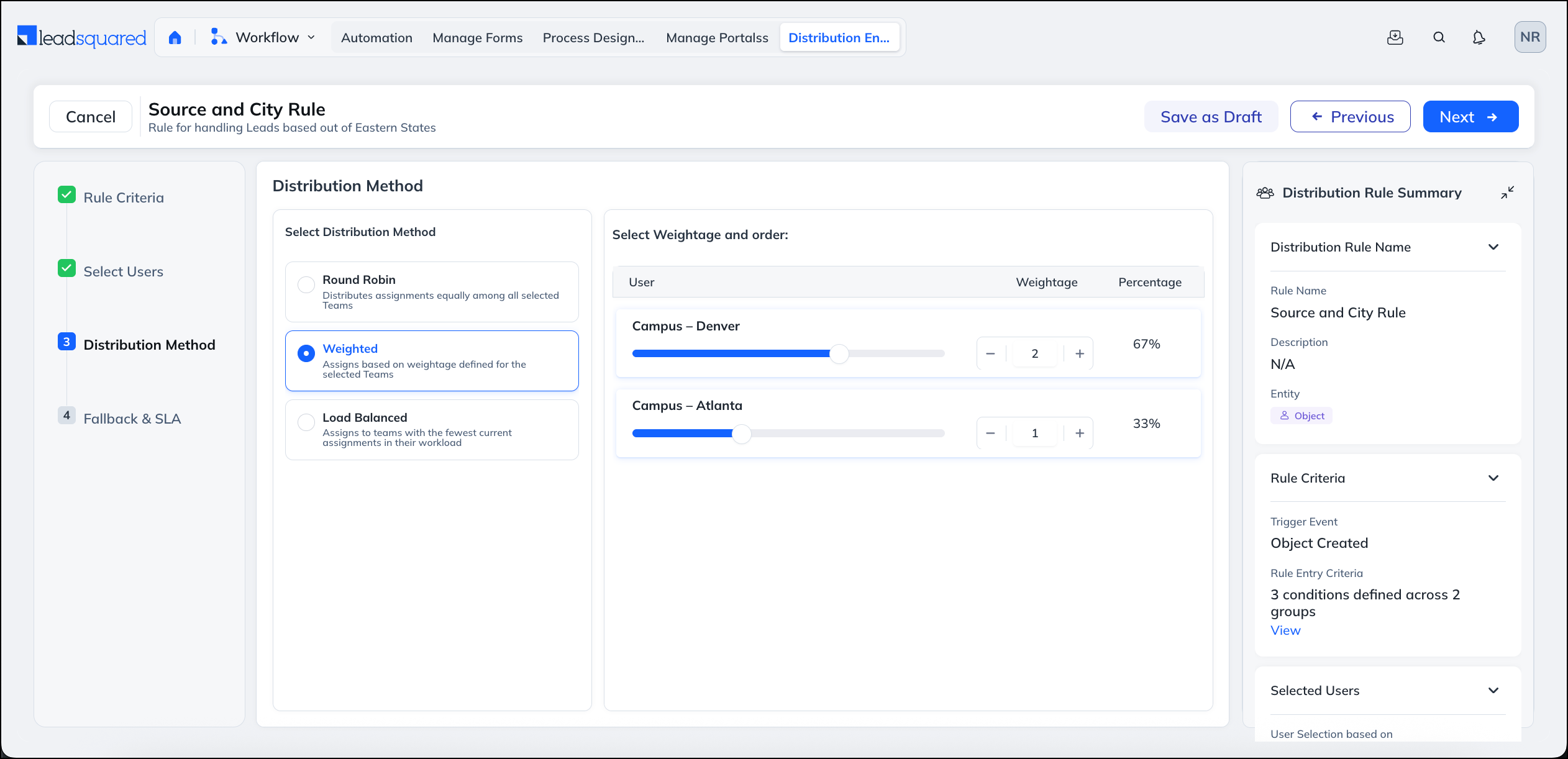
When you select more than 1 Team or Sales Groups, Round Robin is followed at two levels:
Level 1: Between Groups (Based on Weight)
For example:
- Sales Group East = 2
- Sales Group West = 1
Total weight = 3.
In every 3 assignments:
- 2 records go to East
- 1 goes to West.
The engine distributes between East and West using Round Robin while respecting the weight.
Example sequence:
East → West → East → (cycle complete). Then the cycle repeats.
Level 2: Inside the Group (Round Robin)
Once a record is assigned to a group:
- The system assigns it to users inside that group using Round Robin.
- Only eligible users are considered.
So the full flow looks like:
Record → Groups (Round Robin with weight) → User (Round Robin inside group)
The cycle does not reset daily. If a user is unavailable, they are skipped and rejoin the rotation when eligible again.
5.3 Weight by Category Instead of by User
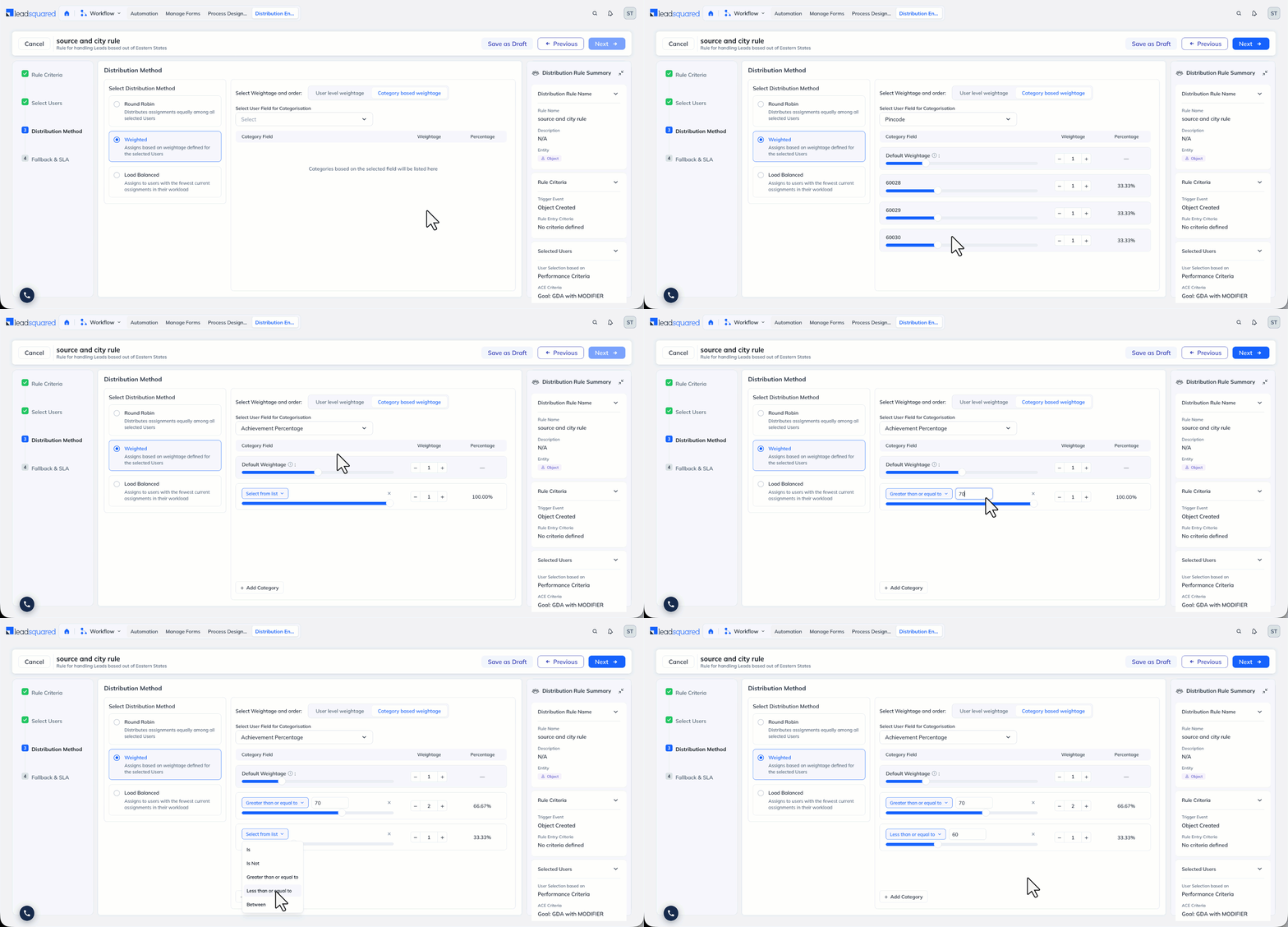
When weighting users, select how the weights are applied.
- User-Level Weightage – Set a weight on each user individually. Use it when you want exact control, and the user list is short enough to maintain.
- Category-Based Weightage – Set weights on the values of a dropdown-type custom user field instead, and every user holding a value shares that weight. Use it when you have too many users to weight one by one.
For example, take a custom user field called Performance Grade, with values A, B, and C weighted 50, 30, and 20. Every grade A user shares the 50 between them, every grade B user shares the 30, and so on. Move a user from grade B to grade A, and their share changes without anyone editing the rule.
6. Load Balanced
Round Robin and Weighted follow a fixed sequence, regardless of how many records each user already holds. Load Balanced compares users before each assignment, and assigns the record to the user with the lowest count. When all users reach the same count, distribution continues in Round Robin.
Select one of the following methods.
| Method | Compares | Use it when |
| Assignment Count | How many records each user has received over a period you set | Users start their day at different times |
| Current Workload | How many records each user is holding right now, in the stages you select | Users work through their pipeline at different speeds |
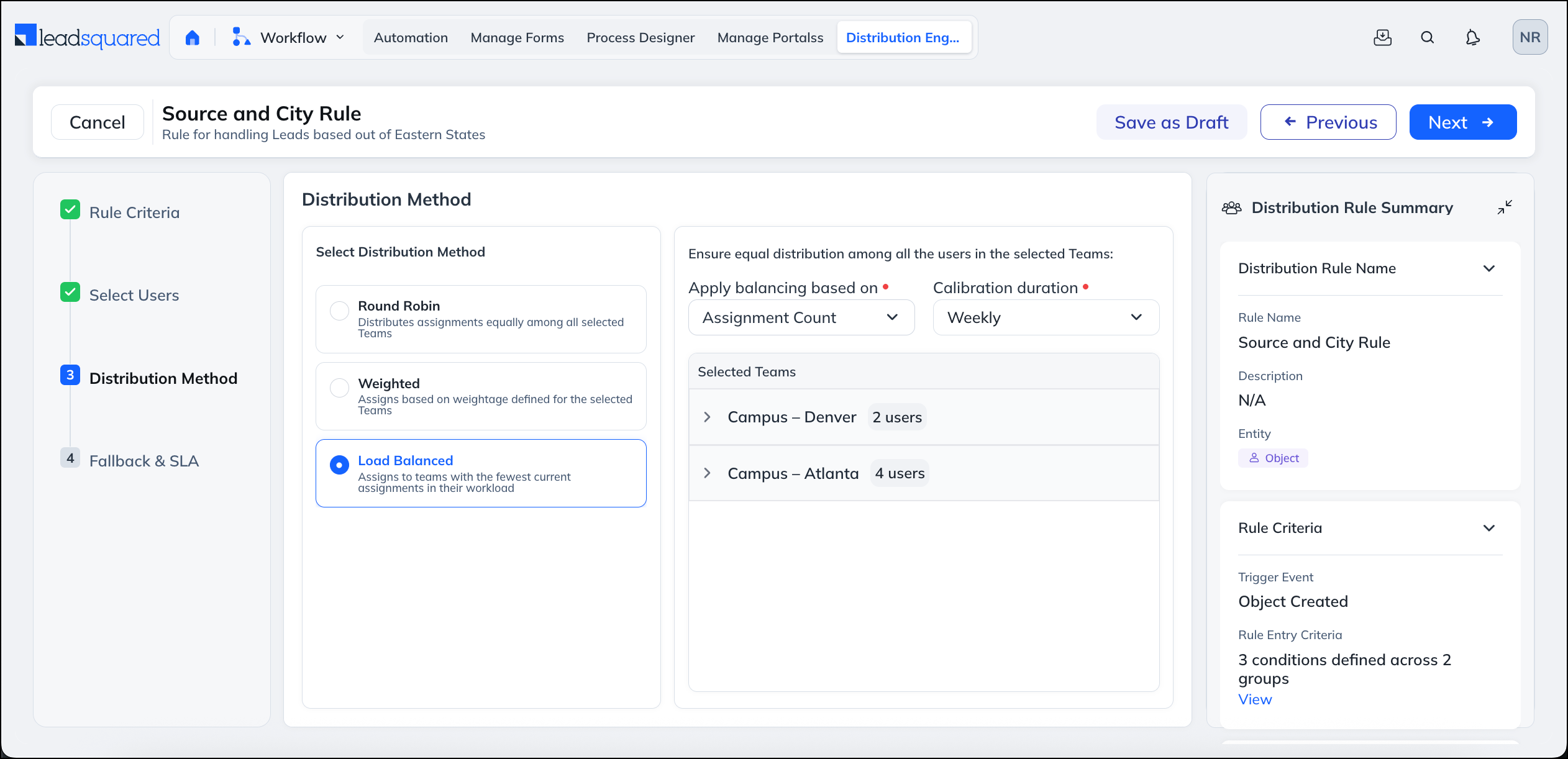
6.1 Assignment Count
With Assignment Count, the engine tracks how many records each user has received during the configured calibration period and assigns the next record to the user with the lowest count. Once all users are level, distribution continues in Round Robin among them.
How it works
- When a single user is available and others are not, that user continues to receive records until others come online.
- When additional users become available, the engine first catches them up to the same count as the existing user before resuming Round Robin.
- Whether a user is treated as “available” depends on the availability and schedule conditions selected in Step 2 (Check-in, Workday Template, Holiday Calendar, Leave Tracker).
Example
There are 3 users in the rule:
- User A logs in at 10:00 AM. Users B and C are not logged in.
- Between 10:00 AM and 11:00 AM, 10 records are assigned to User A.
- Users B and C log in at 11:00 AM.
The engine assigns the next records to B and C until they each reach 10. After that, distribution continues among A, B, and C in Round Robin.
Calibration duration
You define how the assignment count is calculated:
- Daily – Counter resets at the start of each day (00:00). The previous day’s counts are not carried forward.
- Weekly – Counter runs from Sunday 00:00 to Saturday 23:59 and resets at the start of the next week.
- Monthly – Counter runs from the first day of the month to the last day of the month, regardless of how many days the month has.
6.2 Current Workload
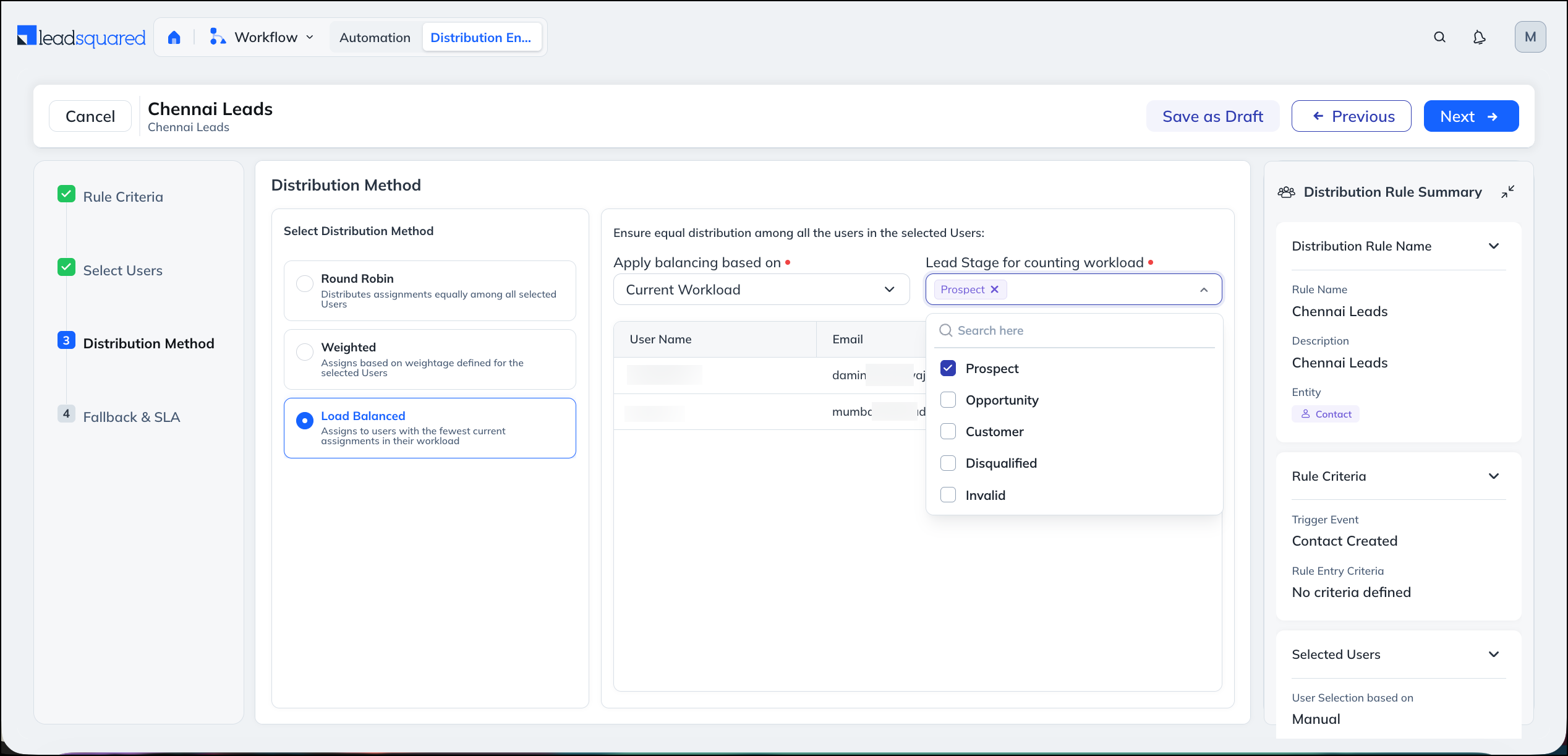
With Current Workload, the engine balances assignments based on how many records each user currently holds, rather than how many they were assigned over a period. You select one or more stages to count, and the engine totals the records each user holds across those stages, then assigns the next record to the user with the lowest count.
What you select depends on the entity:
- For Leads and Opportunities, you select one or more values from the stage field (for example, Prospect).
- For Tasks, you select one or more values from the task status field (for example, Completed or Overdue).
How it works
- Select one or more stages (or task statuses) to count toward workload.
- The engine totals the records each user holds across the selected stages.
- The next record is assigned to the user holding the fewest records in those stages.
Example
You select the stage Prospect. One user currently holds 10 leads in the Prospect stage, and another holds 5. The next lead is assigned to the user holding 5, because they have the lower current workload in that stage.
Note:
- Current Workload counts records across the selected stages or task statuses only
- If multiple stages or task statuses are selected, the engine compares each user’s combined total across all of them, not the count in any single stage.
FAQs
1. Does the rotation restart every morning?
No. The engine continues from wherever it stopped, for Round Robin and for Weighted.
2. A user was offline all morning. Do they get records when they log in?
Under Round Robin and Weighted, no. They simply rejoin the rotation. Under Load Balanced with Assignment Count, yes, by design, until their count matches everyone else’s.
3. What is the difference between Assignment Count and Current Workload?
Assignment Count measures what a user received over a period. Current Workload measures what a user is holding at this moment, in the stages you selected.
4. Can I change the method on a rule that is already running?
Yes. Records already moving through the rule finish under the old configuration, and your change applies to new records as soon as you save.
5. Why is Current Workload greyed out?
It must be enabled for the account first, in Distribution Engine>Settings>Additional Settings.
Any Questions?
We’d love to hear your feedback to help improve this article. Feel free to enter your questions or in the comments section below.