


Get Started

Sales Suite
Field Ops
Marketing
Service CRM
Integrations & Apps
FloStack
Opportunity List Management – Feature Guide

1. Feature Overview
Opportunity Lists are groups or collections of opportunities organized based on specific criteria. You can create lists to segment opportunities by opportunity type, stage, owner, value, activity, or other opportunity-related attributes. Since LeadSquared supports multiple Opportunity Types, you can create and manage lists separately under each Opportunity Type. For example, you can create a list of opportunities under a Car Loan Opportunity Type or a Student Loan Opportunity Type.
The Manage Opportunity Lists page lets you create, edit, and view your opportunity lists in one place. Once created, lists can be used to:
- View and organize opportunities based on specific criteria
- Perform bulk actions on opportunities
- Export opportunity data
- Trigger automations and other supported actions
2. Prerequisites
You must have Opportunities enabled on your account. Reach out to support@leadsquared.com
3. How It Works
You can create opportunity lists based on specific conditions and use them to organize and act on opportunities efficiently. Since lists are associated with an Opportunity Type, first select the relevant Opportunity Type and then create a list based on the opportunity fields and conditions available for that type.
4. Types of Lists on LeadSquared
LeadSquared supports three types of lists for Opportunities:
Static Lists
Static Lists contain a fixed set of opportunities. Opportunities must be added or removed manually, and the list does not automatically update when new opportunities meet the list criteria. For example, you can create a list containing all opportunities generated from a particular sales event.
Dynamic Lists
Dynamic Lists automatically update when an opportunity fulfills the conditions defined for the list. For example, you can create a list of opportunities who have subscribed to your newsletter. Whenever an opportunity meets this condition, it is automatically added to the list.
Empty Lists
Empty Lists do not contain any opportunities when they are created. They can be used as placeholders when you want to create a list in advance and add opportunities to it later. For example, you can create an empty list to track priority opportunities and add relevant opportunities as they are identified.
5. Create an Opportunity List
You can create Static, Dynamic, or Empty Lists for Opportunities.
5.1 New List (Static or Dynamic)
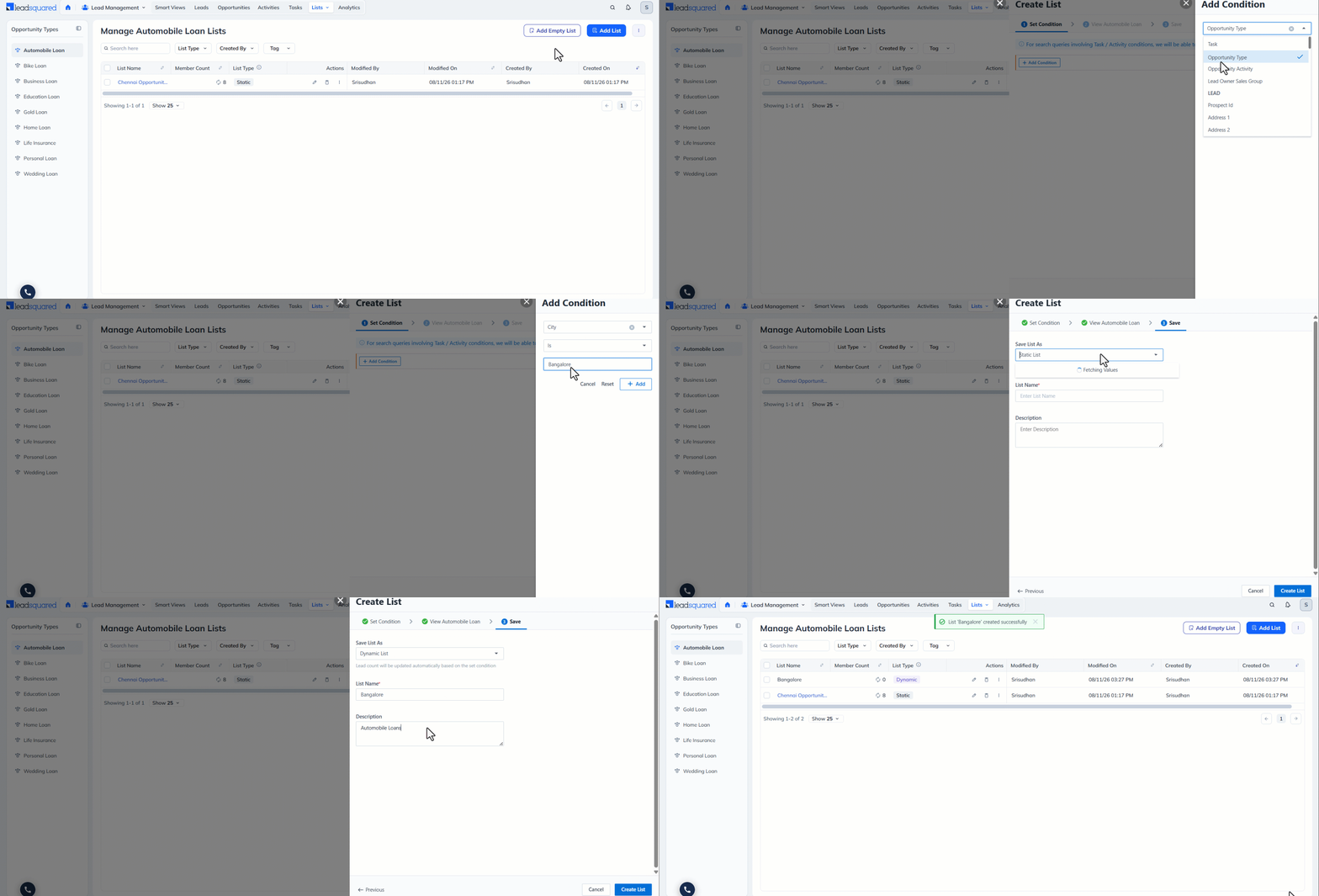
- In LeadSquared Dashboard, from the Lead Management top bar, hover over Lists and select Opportunity Lists.
- Select the relevant Opportunity Type from the left panel. The relevant list page opens.
- Click Add List.
- On the Create List pop-up, select the required search conditions from the available dropdowns and click Add.
- Once you have added the required conditions, click View <Opportunities>.
- Review the opportunities that match the conditions and click Proceed to Save.
- Select Save as Static List or Save as Dynamic List, based on your requirement.
- Enter a name and description for the list and click Create List.
5.2 Empty List
If you do not have any opportunities yet but expect to add some in the future, you can create an Empty List as a placeholder.
For example, if you want to track high-priority opportunities, you can create an empty list beforehand and add relevant opportunities to it as they are identified.
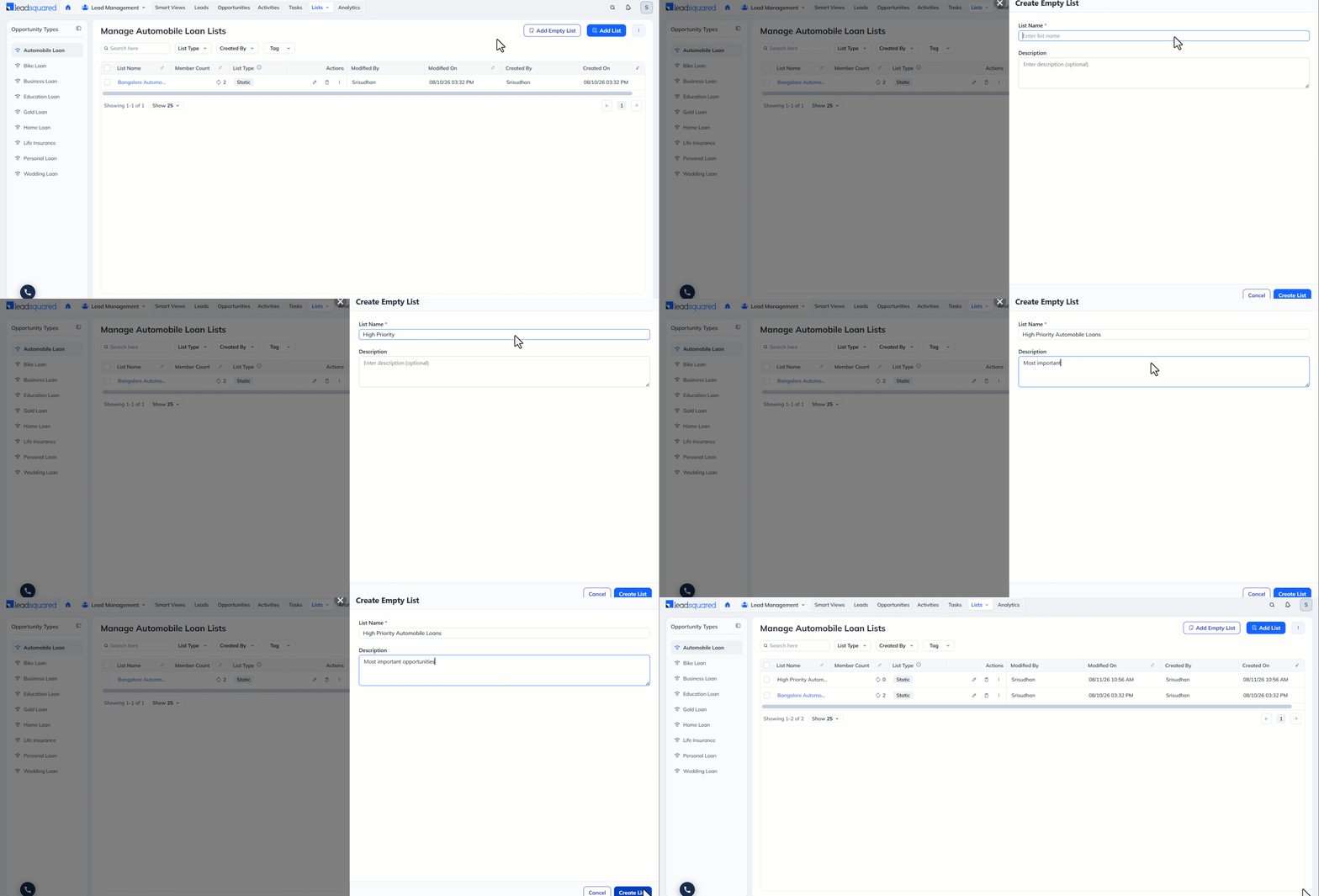
To create an Empty List:
- On the Manage Opportunity Lists page, click Create Empty List.
- Provide a name and description for the list.
- Click Create List.
6. Manage Opportunity Lists Page
The Manage Lists page allows you to manage all the opportunity lists available to you.
You can:
- View all lists
- Search for existing lists
- Edit and delete lists
- Hide or unhide lists
- Perform bulk actions on lists
- Perform other supported list actions
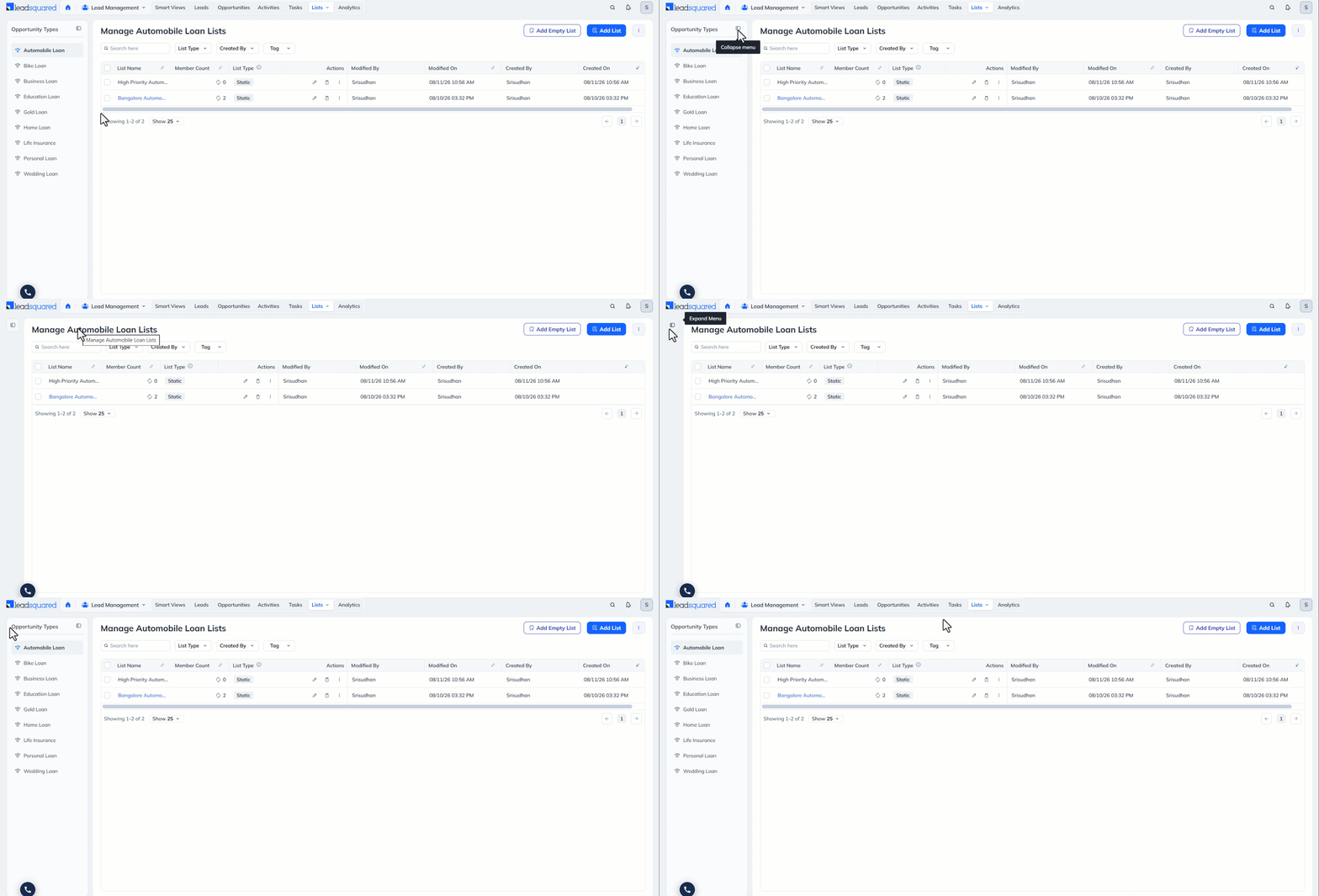
The left panel lists all your Opportunity Types. You can expand and collapse this as required to optimize your view.
6.1 List Visibility
The visibility of a list depends on the user who creates it and their user type. Sales Users cannot share lists. When a Sales User creates a list, it can only be viewed by that individual user. Lists created by Admins, Marketing Users, and Sales Managers can be viewed by these user types, subject to their permissions.
6.2 Search Opportunity Lists
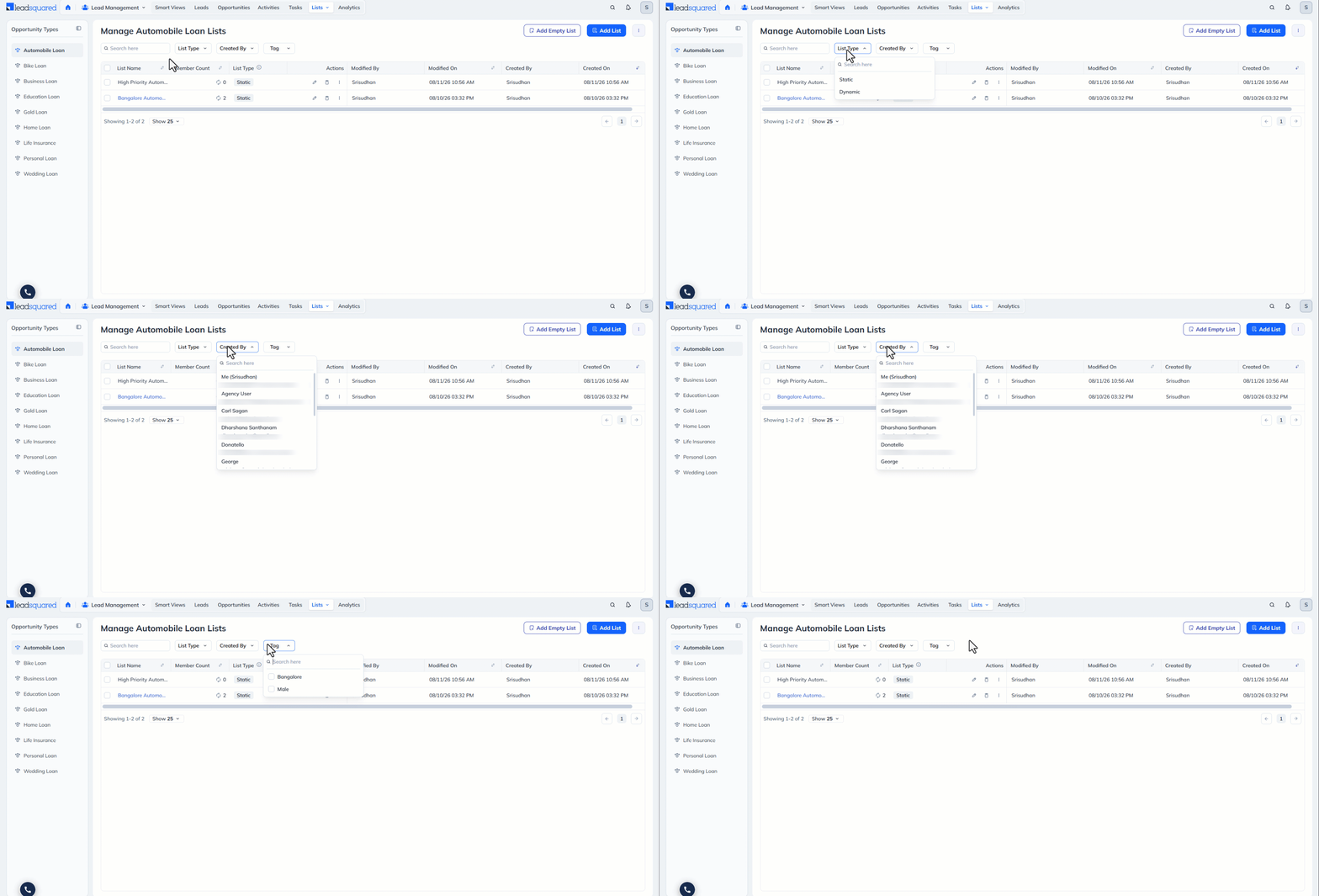
Use the search bar at the top-left corner to find existing opportunity lists. You can also filter lists based on available attributes such as:
- List Type
- Created By
- Tags
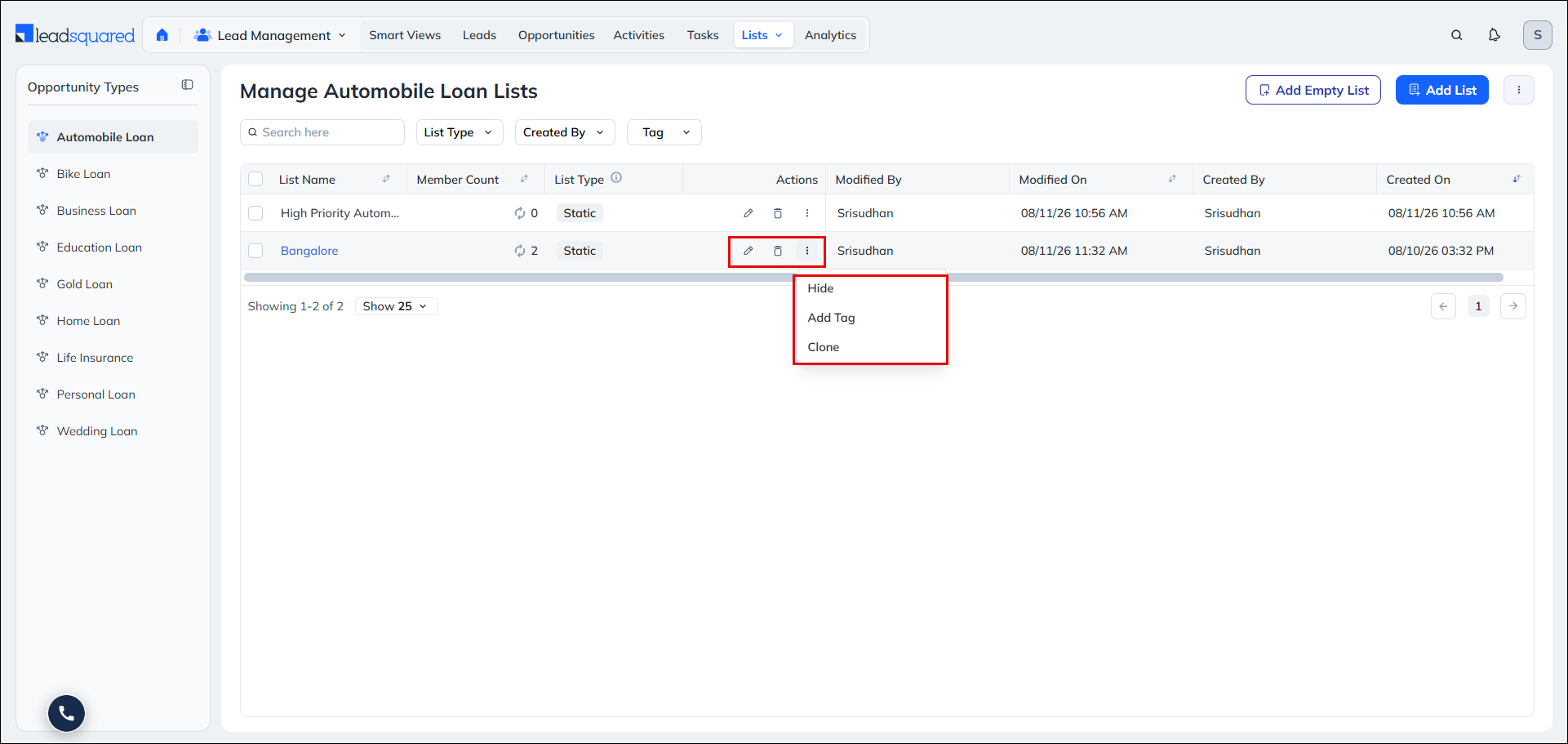
6.3 Row Actions
To view the actions available for a list, hover your cursor over the Actions icon alongside the relevant list.
- Edit – Edit the name and description of the list.
- Delete – Delete an existing list.
- Hide – Keep an existing list away from visibility.
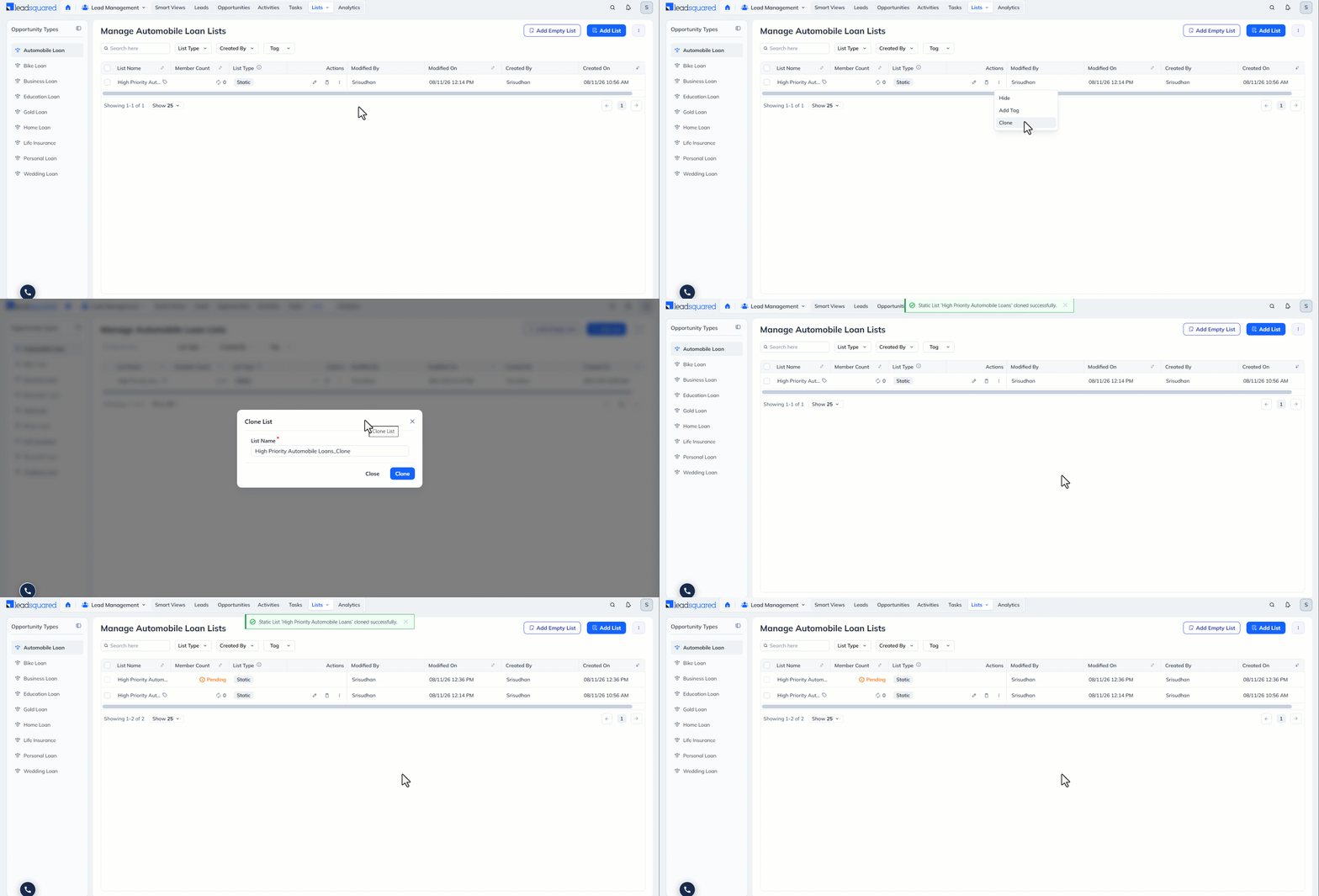
- Clone – Make a copy of an existing list
Additional actions may be available based on your account configuration and permissions.
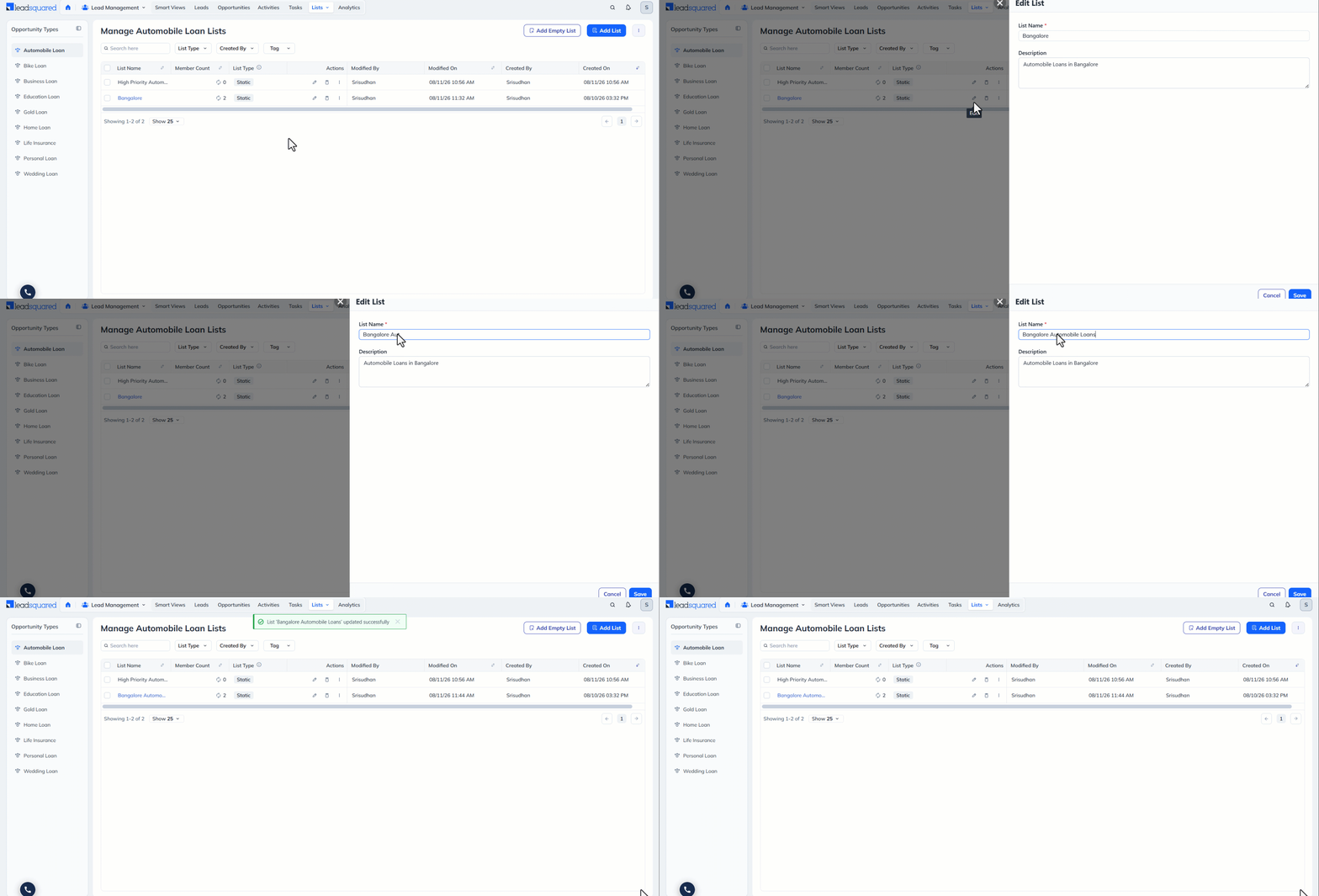
6.3.1 Edit Lists
Edit the name and description of the list.
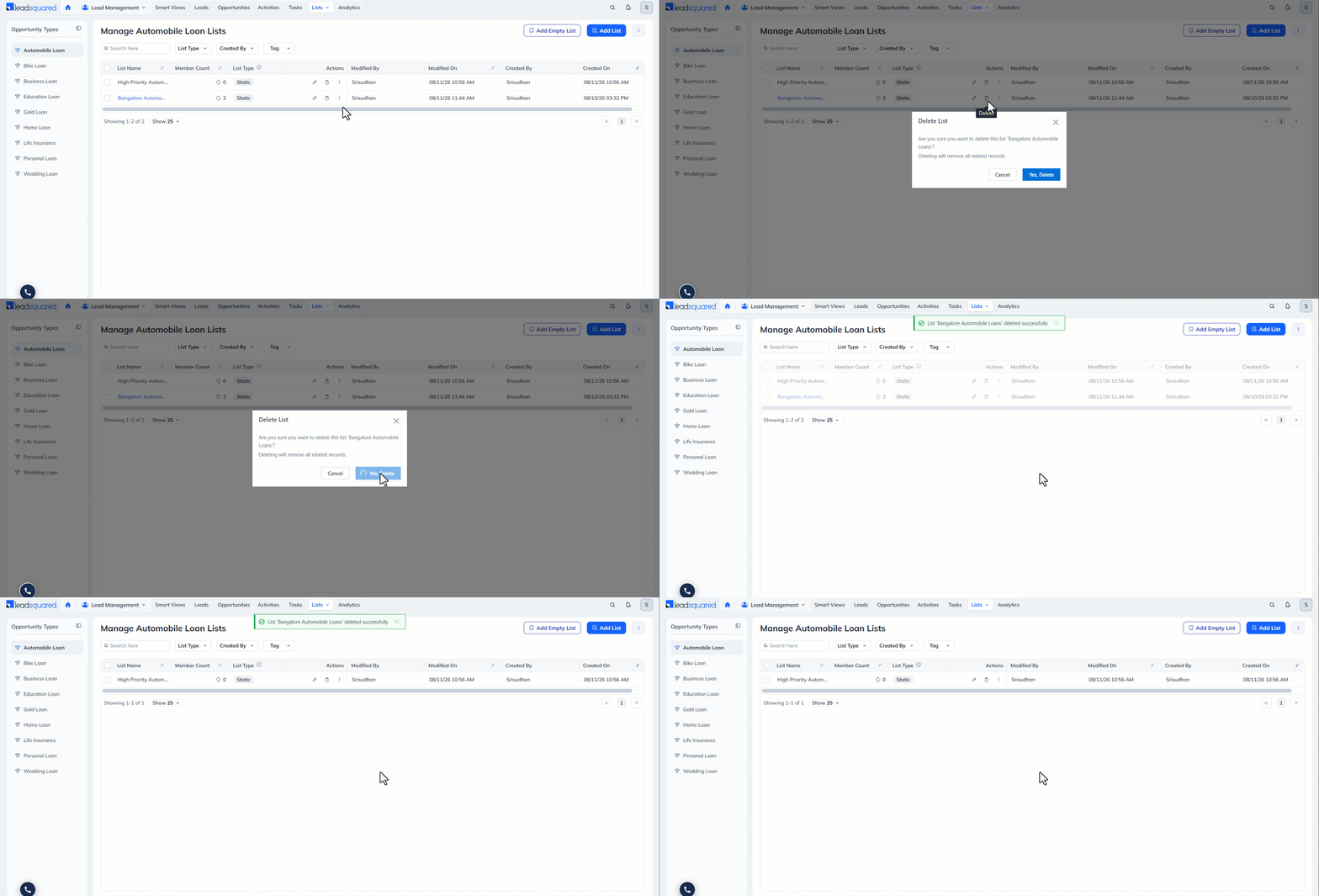
6.3.2 Delete List
You can delete an existing list without deleting the opportunities contained in it.
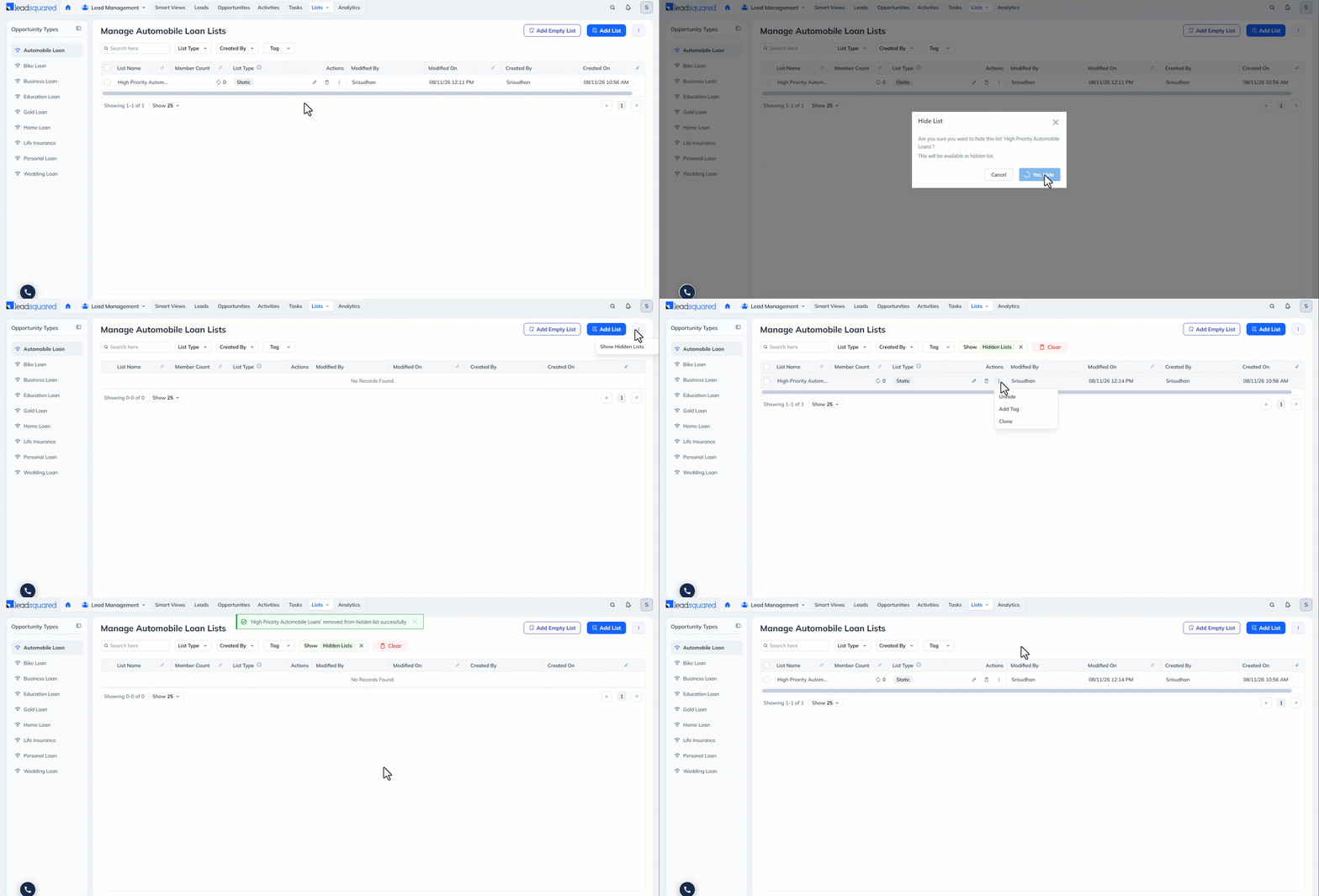
6.3.3 Hide and Unhide Lists
You can hide irrelevant lists from the Manage Lists page.
To hide a list:
- Click the Actions icon alongside the relevant list.
- Select Hide.
- On the confirmation pop-up, click Yes, Hide.
You can view your hidden lists by hovering over the Actions icon on the top-right corner of the screen and selecting Show Hidden Lists. You can also unhide lists from this page.
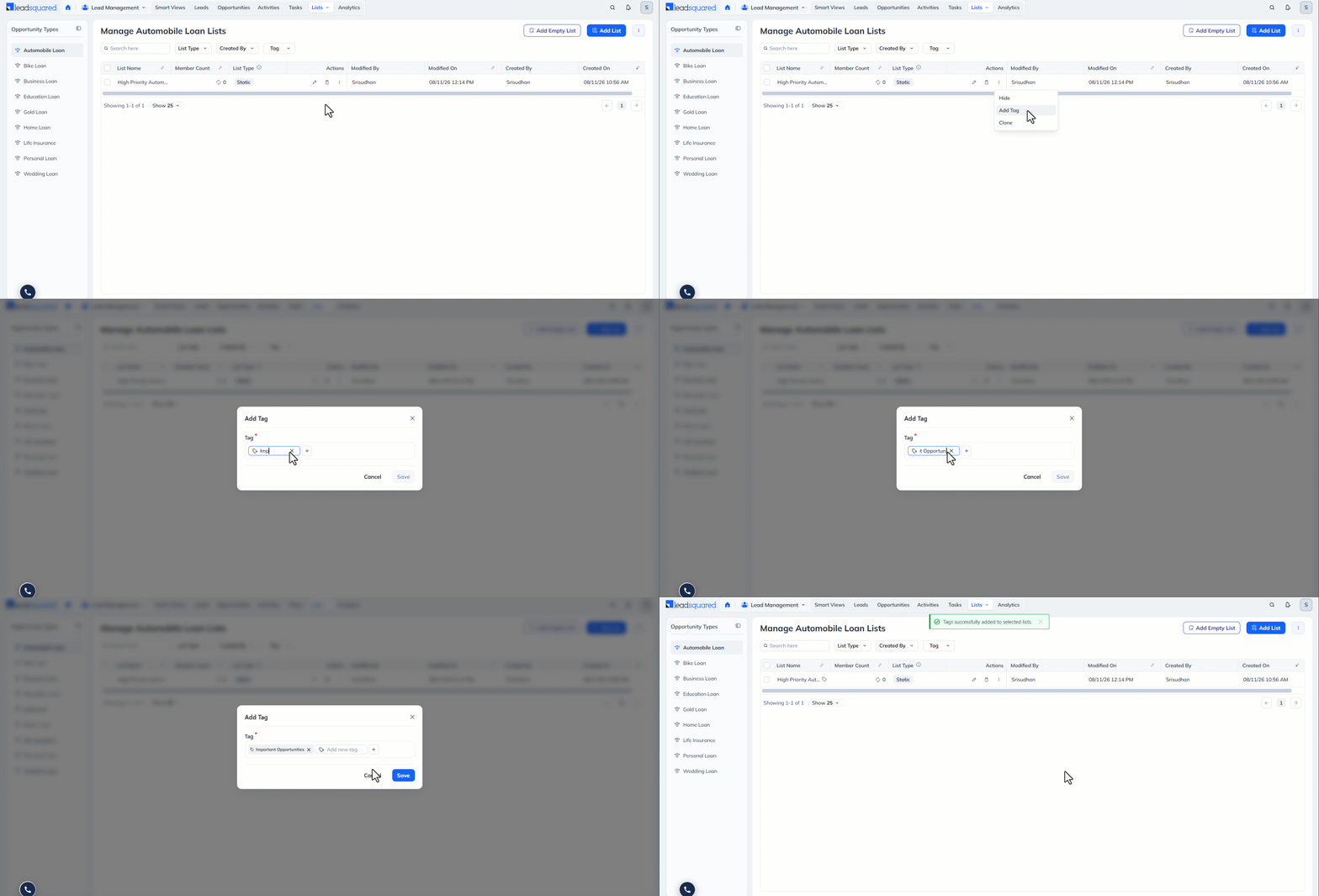
6.3.4 Add Tags
Add tags to lists to locate them quickly and mark them appropriately.
6.3.5 Clone Lists
Create a copy of the list by clicking Clone Lists.
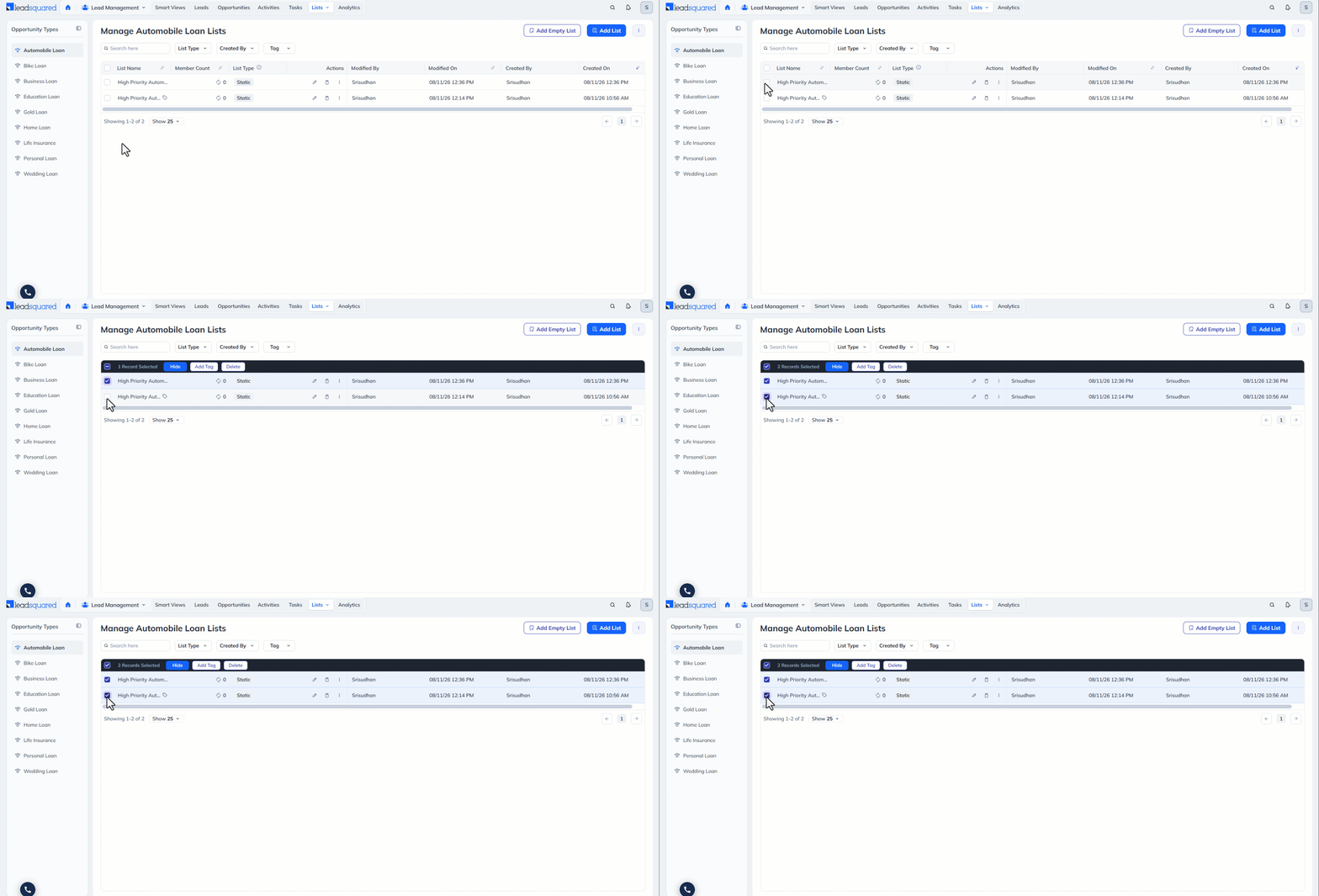
6.4 Bulk Actions
You can perform bulk actions such as deleting or hiding multiple lists at once.
To do this:
- Select the lists on which you want to perform the action by clicking the checkbox next to each list.
- Select Delete or Hide from Bulk Actions.
- Confirm your choice on the confirmation popup.
7. Opportunity List Details Page
The Opportunity List Details page displays the opportunities included in the selected list. From this page, you can search, add, view, and perform actions on opportunities within the list.
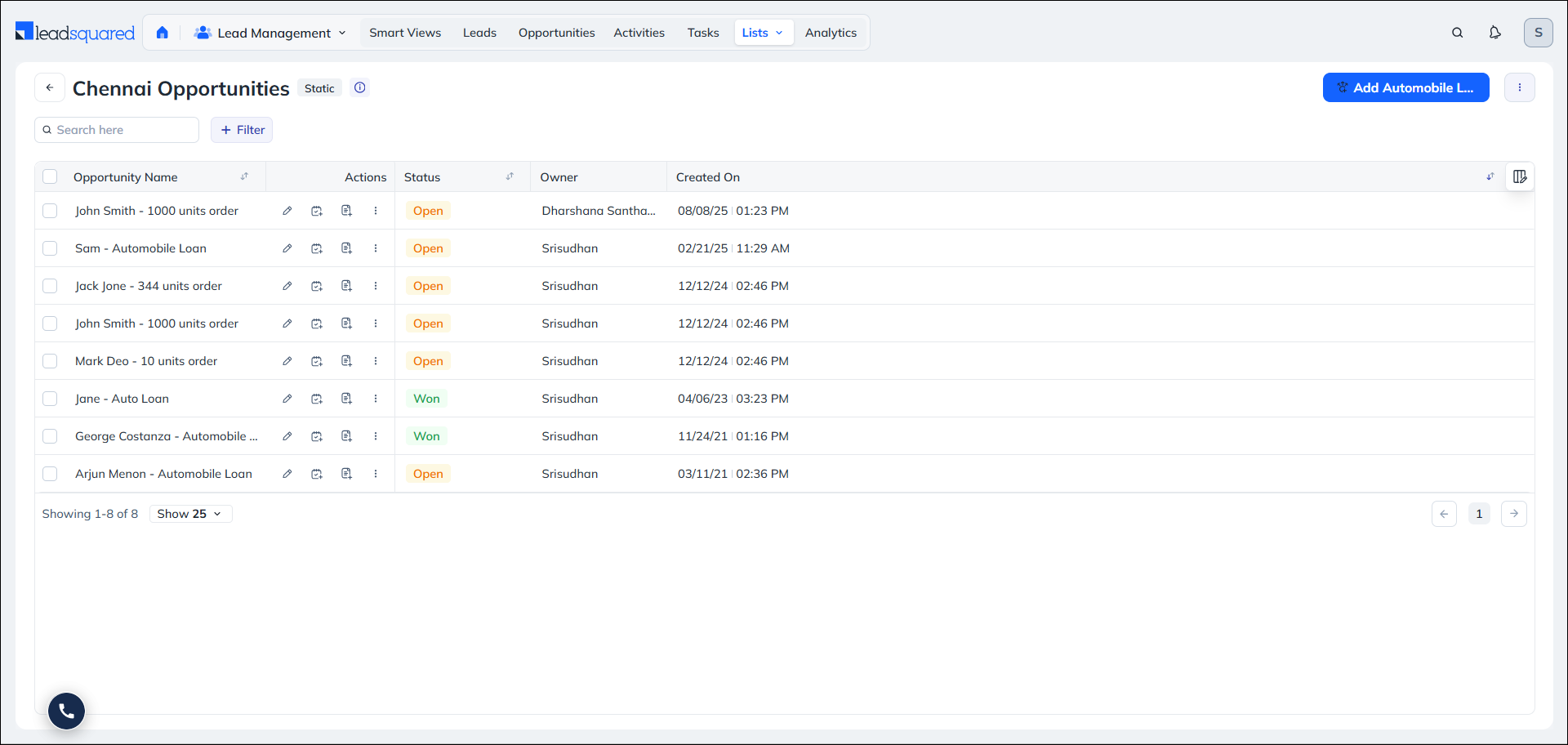
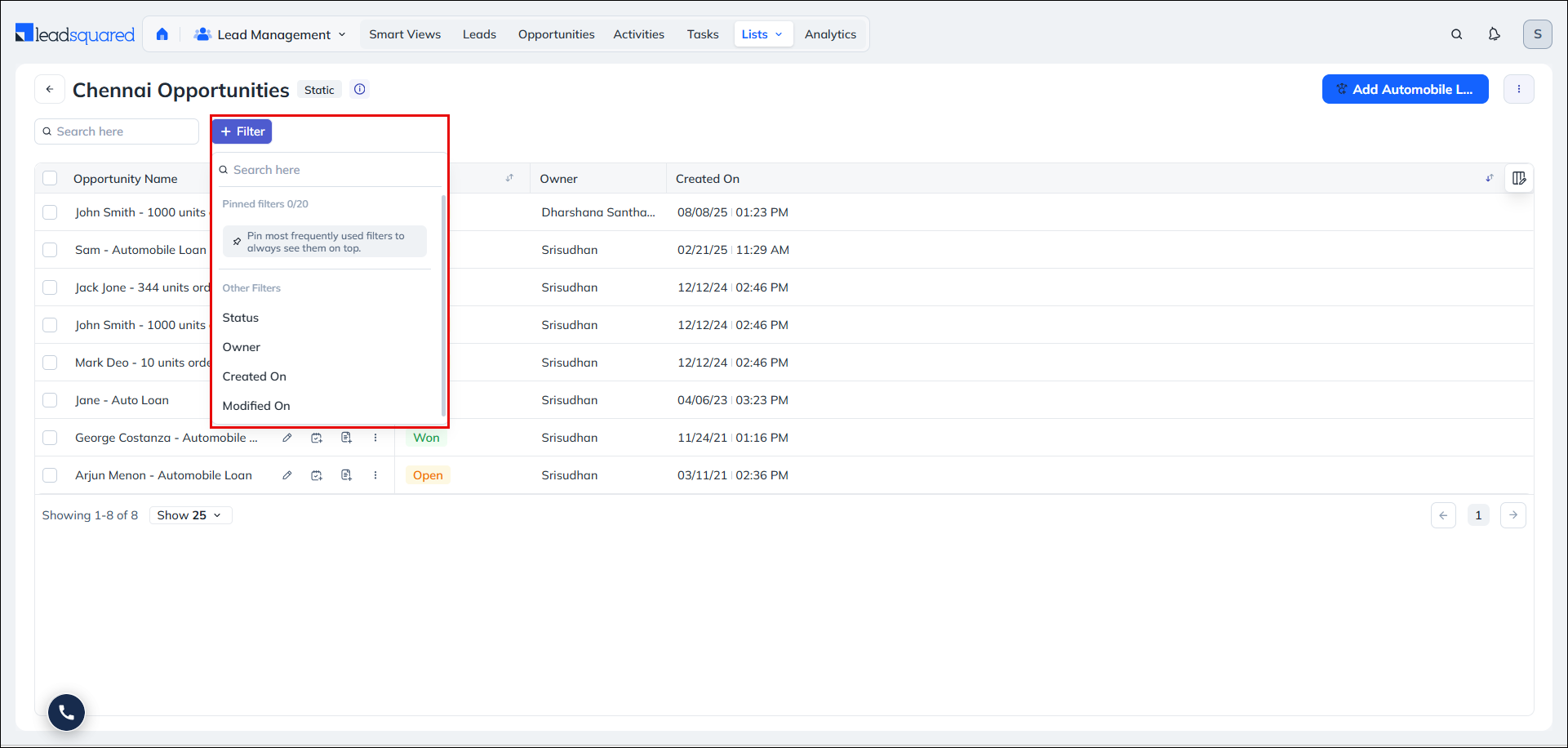
7.1 Search Opportunities
You can find specific opportunities within a list using the available search and filter options.
- Search Opportunities – Search for opportunities using details such as opportunity name or other available opportunity fields.
- Opportunity Stage – Search for opportunities based on the opportunity stage.
- Created On – Search for opportunities based on when they were created.
- Modified On – Search for opportunities based on when they were last modified.
- Opportunity Owner – Search for opportunities assigned to a particular opportunity owner.
7.2 Add Existing Opportunities
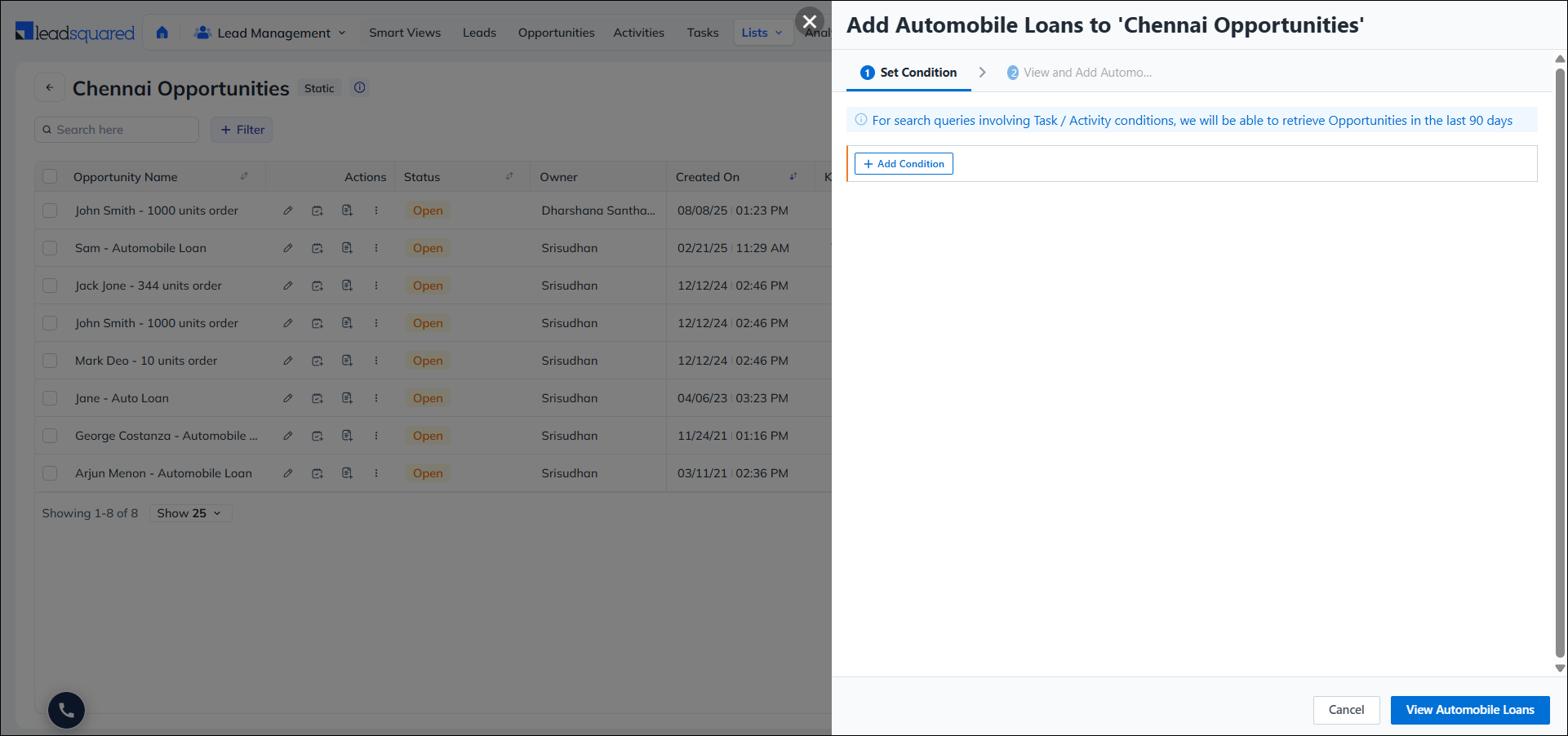
You can manually add existing opportunities from your account to a Static or Empty List based on specific criteria.
To add opportunities:
- Click Add <Opportunity Type> on the List Details page.
- Set the relevant conditions to find the required opportunities and click Add.
- Click View <Opportunities> to see the opportunities that satisfy the conditions.
- Click Add to List to add the opportunities to the list.
7.3 Row Actions
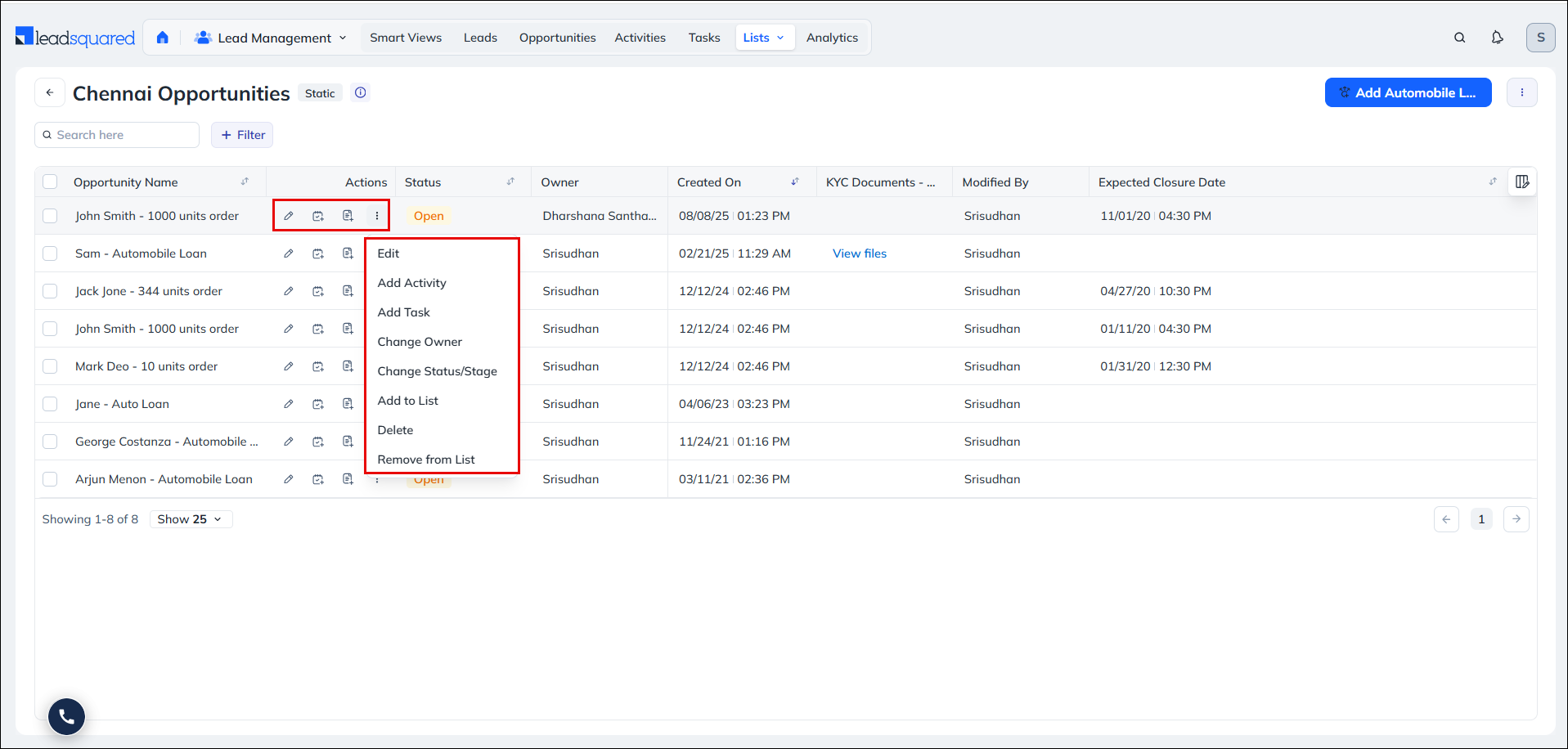
You can perform actions on individual opportunities available within the list.
To perform an action:
- Hover your cursor over the action icons alongside an opportunity.
- You can Edit an opportunity, Add an Activity or Add a Task to the opportunity.
- Hover over the More Actions icon to find and perform other relevant activities.
You can also select multiple opportunities and perform supported bulk actions using the More Actions menu.
7.4 List Actions
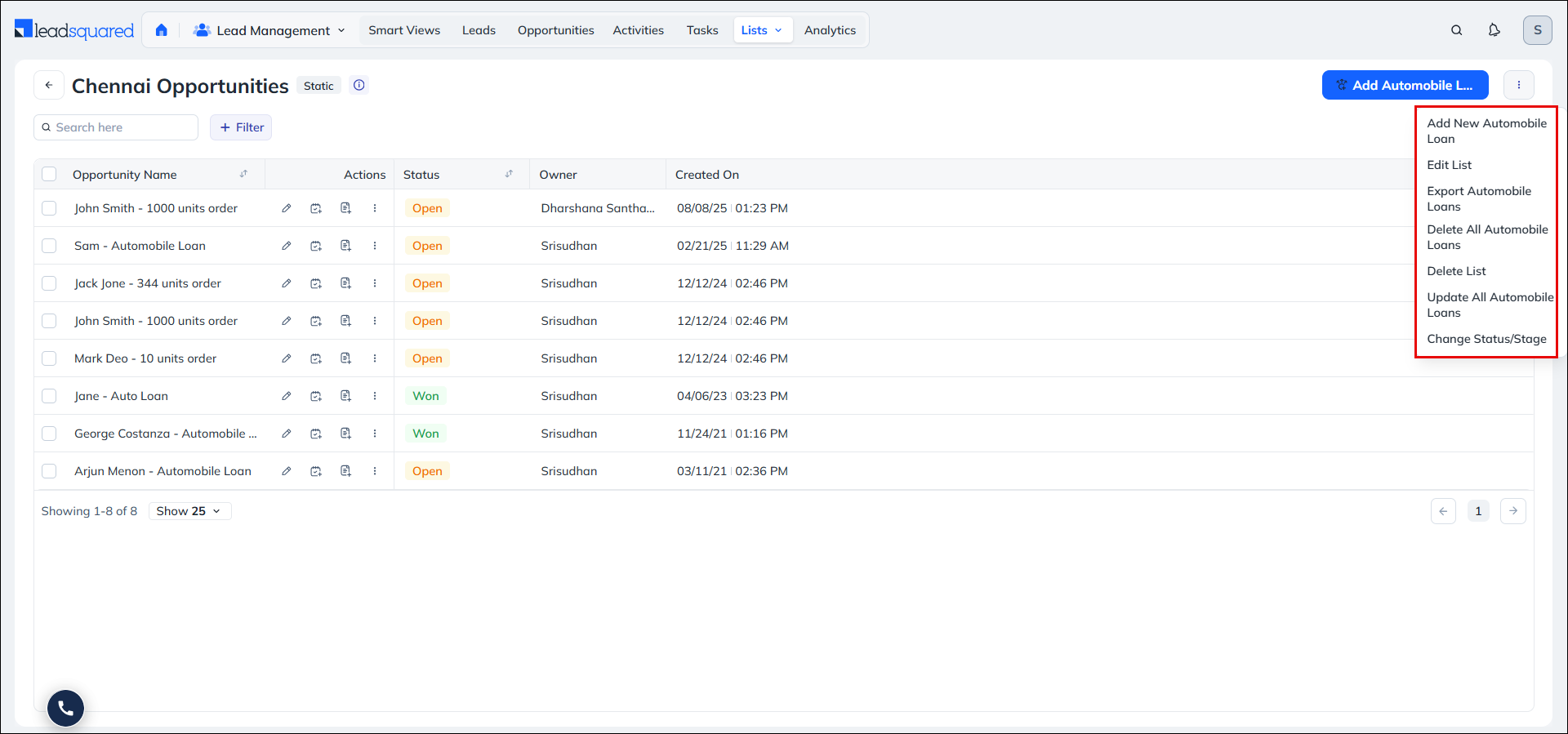
You can perform actions on the entire list using the List Actions button available on the top-right corner of the page.
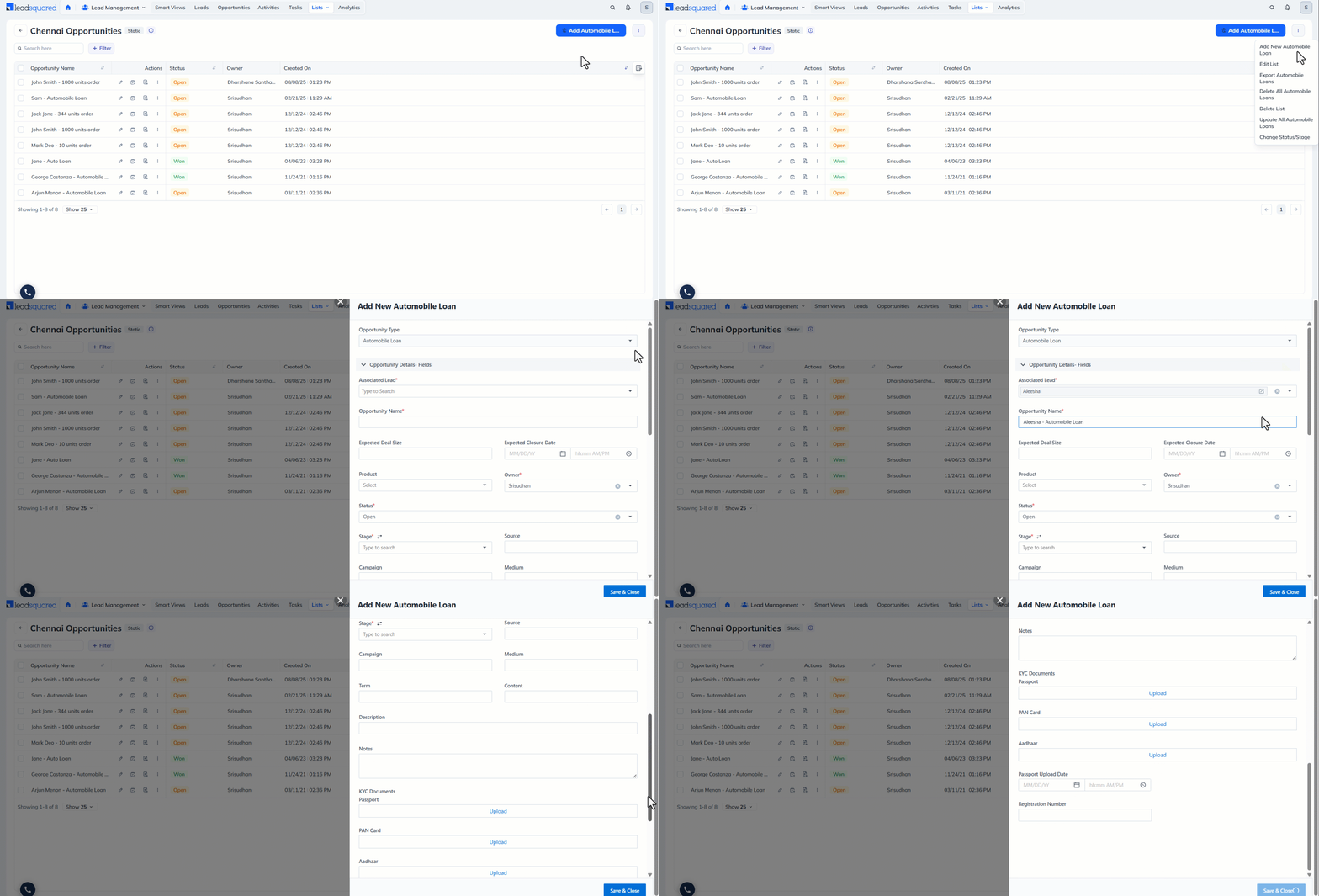
7.4.1 Add New <Opportunity Type>
You can create a new opportunity and that opportunity will be directly added to the list. Click Add New <Opportunity Type> and fill the opportunity form with the relevant details.
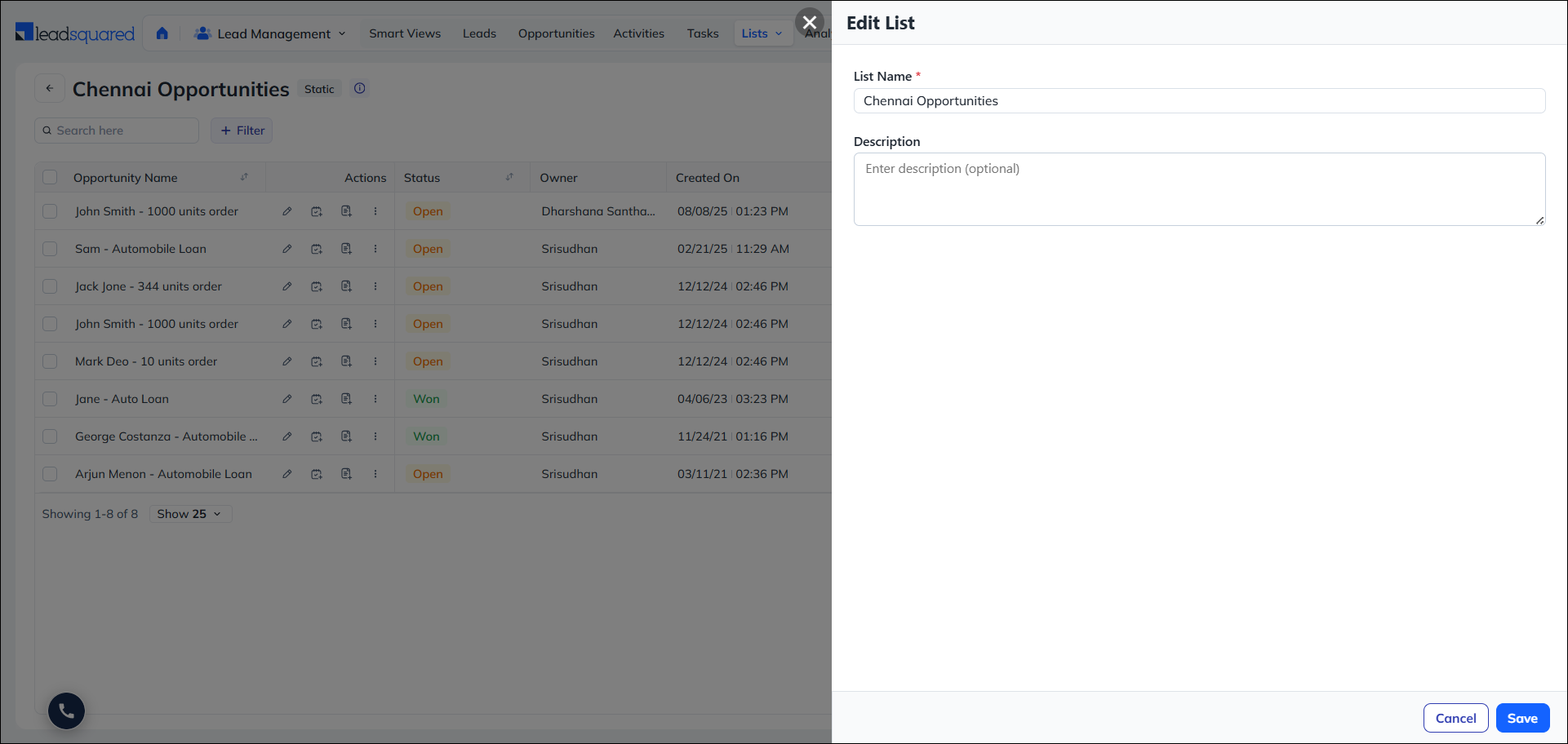
7.4.2 Edit List
You can change the name and description of the list.
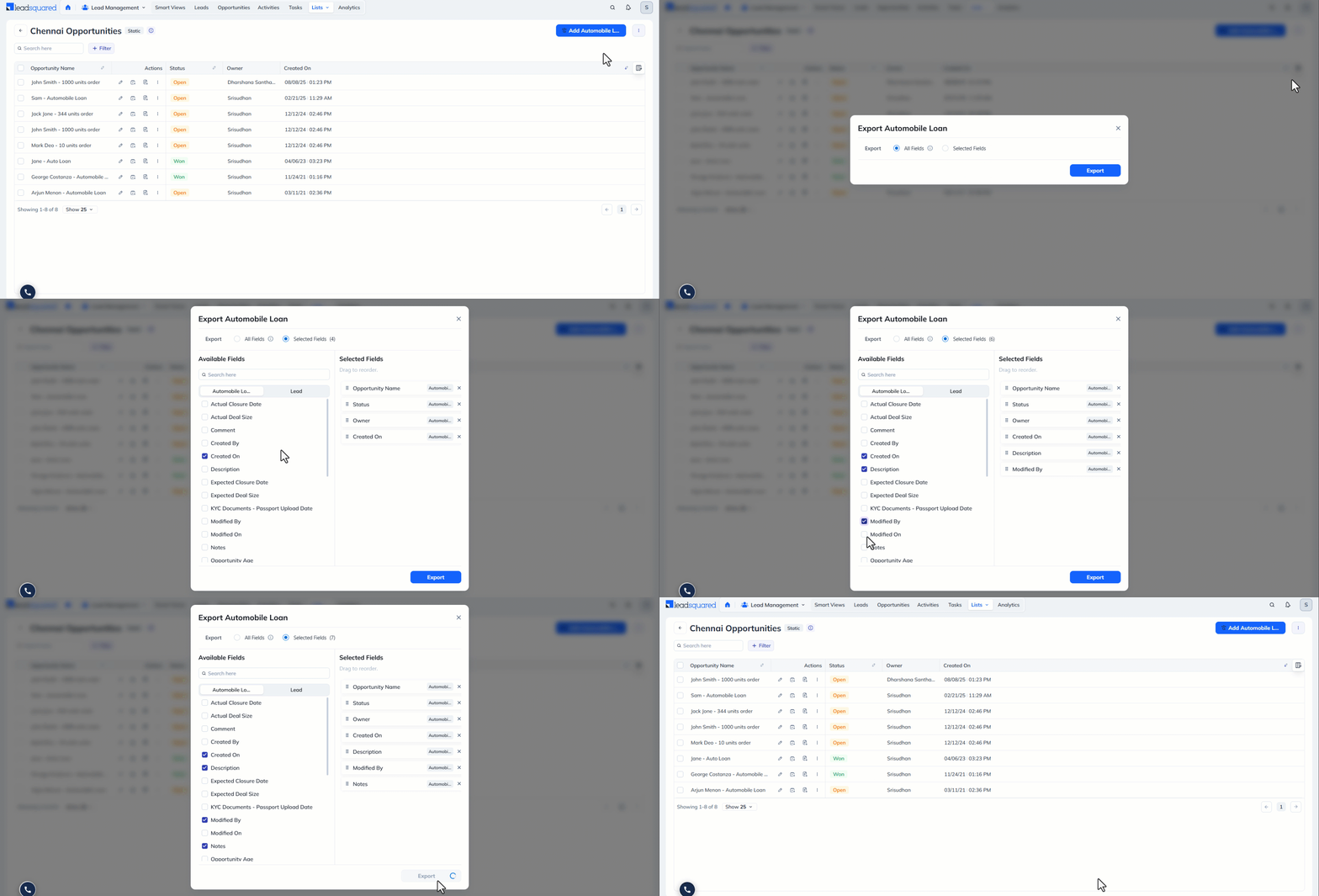
7.4.3 Export <Opportunity Type>
You can export the opportunities within a list in a CSV format. Click Export <Opportunity Type> and on the popup, select
- All Fields to export all the opportunity fields, along with a few lead fields.
- Selected Fields to select the opportunity and lead fields you want to export.
Once you finish, click Export. To learn more about exporting opportunities, see Export Opportunities.
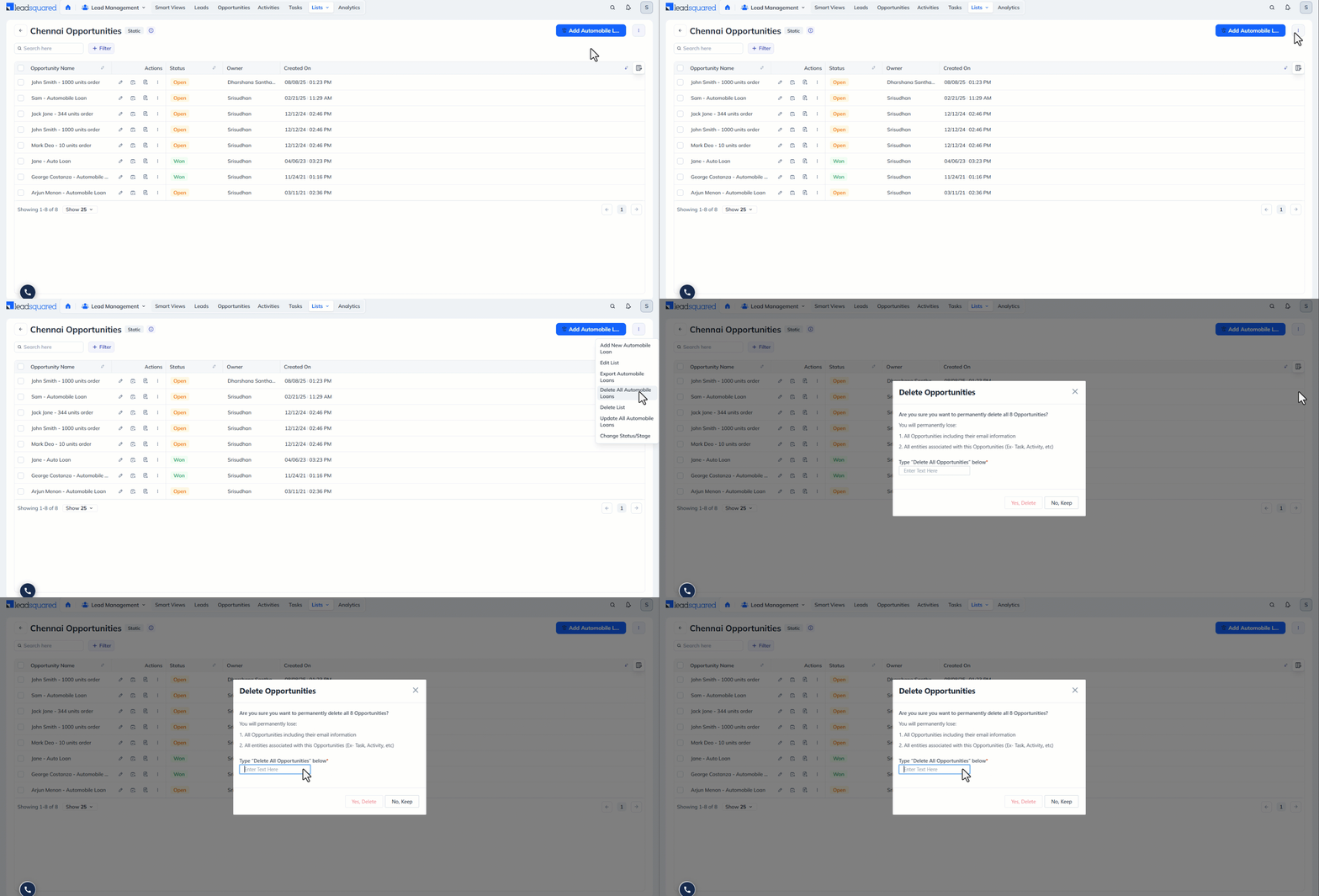
7.4.4 Delete All <Opportunity Type>
This option lets you permanently delete all the opportunities within the lead. By deleting all opportunities, you will lose
- All Opportunities including their email information
- All entities associated with this Opportunities (Ex- Task, Activity, etc)
As a confirmation, you must type “Delete All Opportunities” in the given textbox and click Yes, Delete.
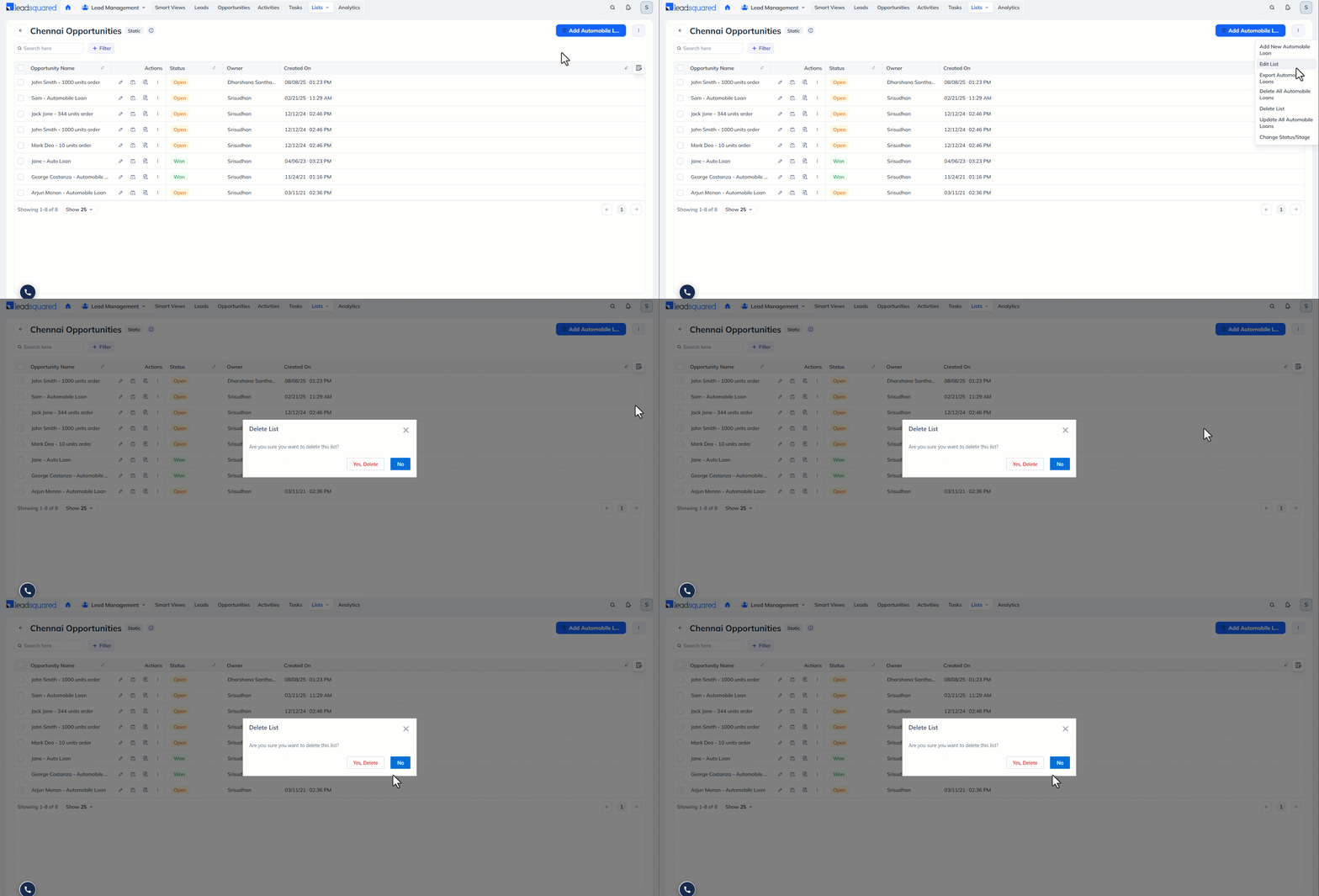
7.4.5 Delete List
You can delete any list you’ve created. This doesn’t delete the opportunities within the list.
7.4.6 Change Status/Stage
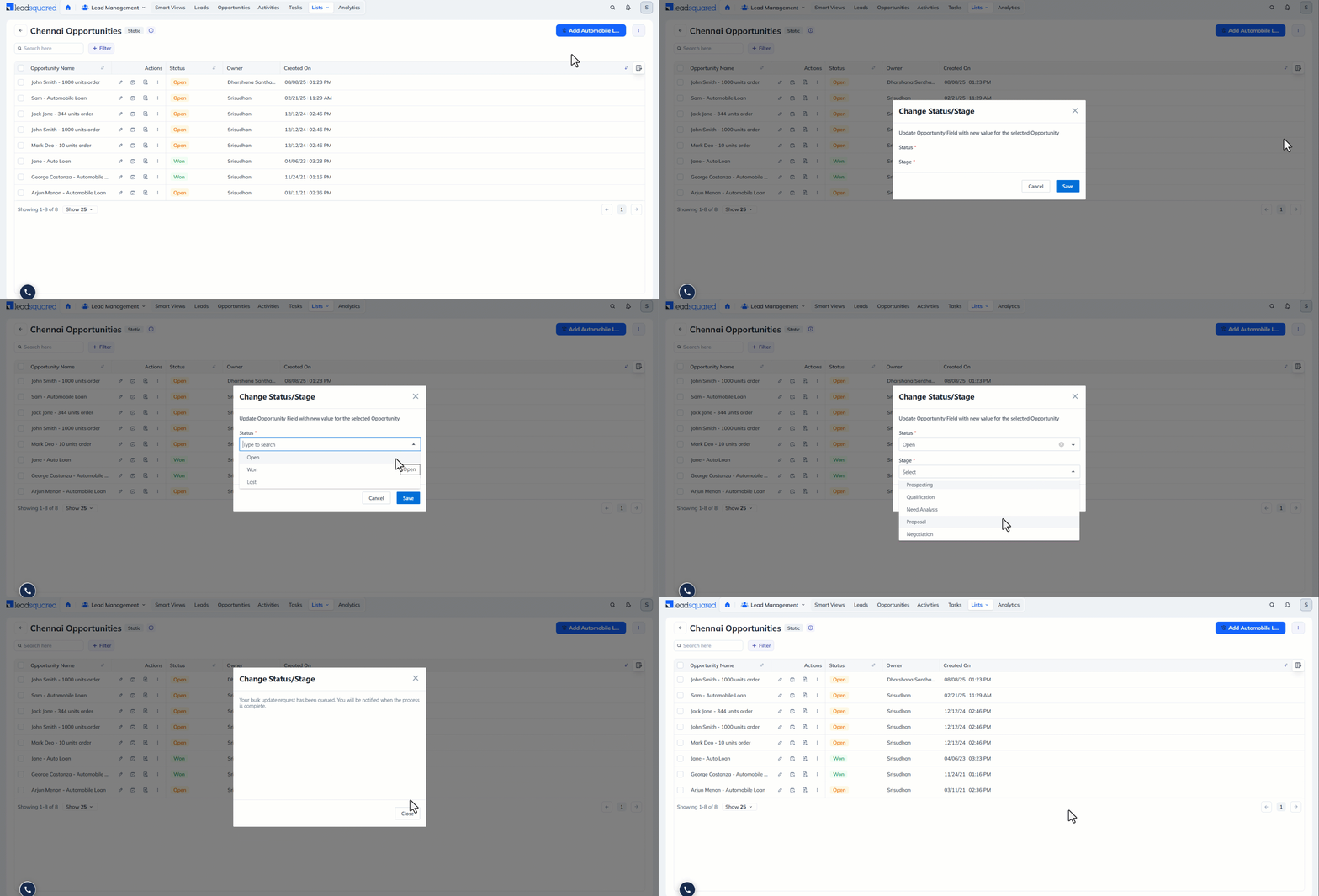
You can bulk update the status and stage of the opportunities within the list. On the Change Status/Stage popup, select the relevant options from the dropdown and save it. All the opportunities will be updated to the newly selected fields.
7.5 Manage Columns
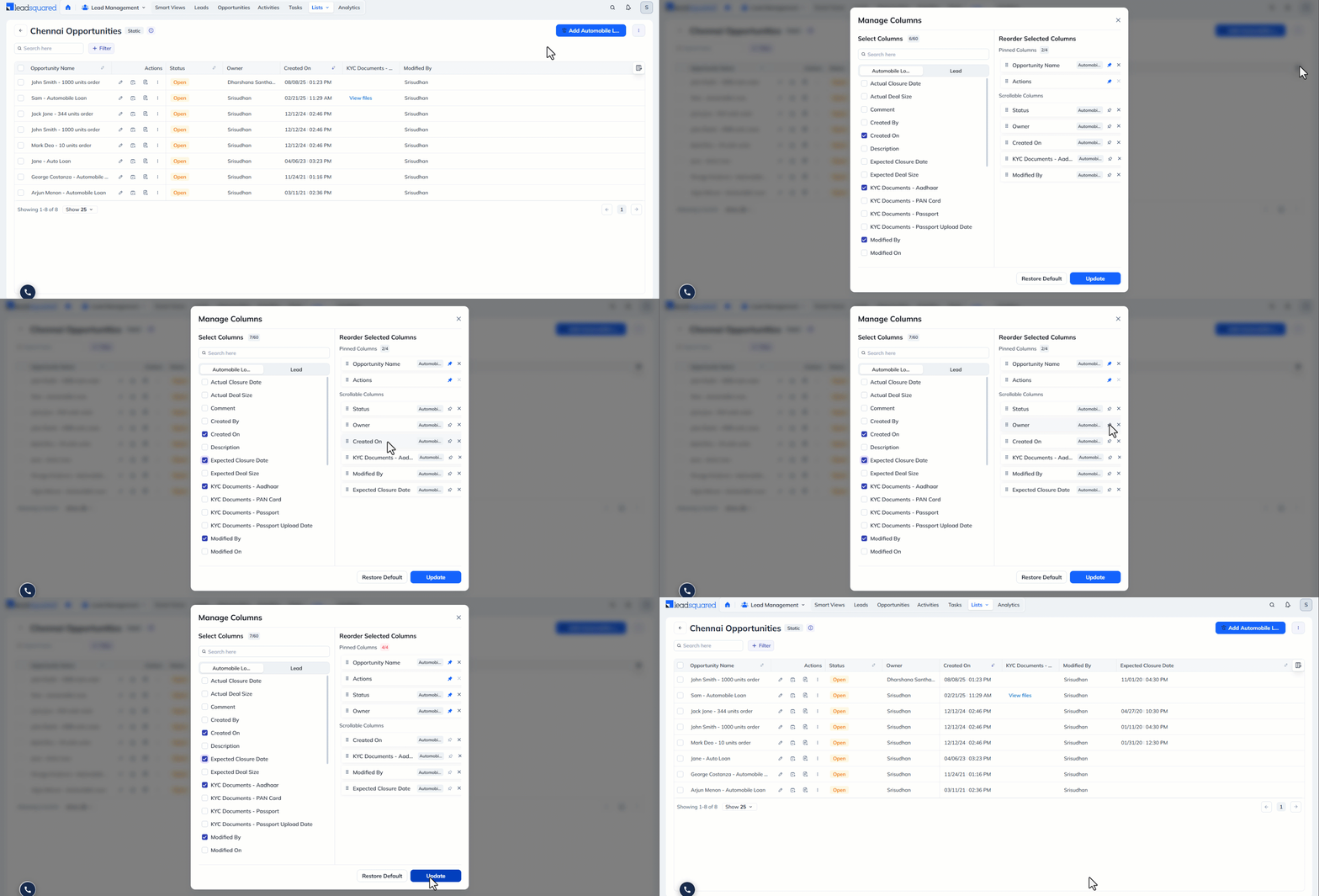
On the List Details page, you can customize the fields displayed in the opportunity grid.
To customize the list view:
- On the right side of the grid, click the Manage Columns icon.
- On the Manage Columns popup, select the relevant fields you want to display.
- Click Update.
You can click Restore Default to reset the columns to the default view. You can also click the Pin icon alongside a selected column to keep it fixed while scrolling through the grid.
Any Questions?
We’d love to answer your questions or hear your own unique use cases. Feel free to share your experiences in the comments section below.