


Get Started

Sales Suite
Field Ops
Marketing
Service CRM
Integrations & Apps
FloStack
Invorto Voice Bot Call History and Logs

1. Feature Overview
The Call History & Logs module on Invorto Voice Bot is the record of every individual call your organization has made or received. Analytics tells you how a campaign performed as a whole. Call History tells you what happened on one specific call.
Use Call History & Logs to:
- Trace a single call from start to finish.
- Work out why a set of calls did not connect.
- Confirm that queued calls are moving through the dial queue.
- Check how inbound callers were handled when no bot was free.
- Find the Call ID to quote when you raise a support ticket.
The page is read-only.
2. Prerequisites
- An active Invorto Voice Bot account.
- At least one call placed or received in the period you select. This includes calls made from a campaign, from Quick Call, and from a test call.
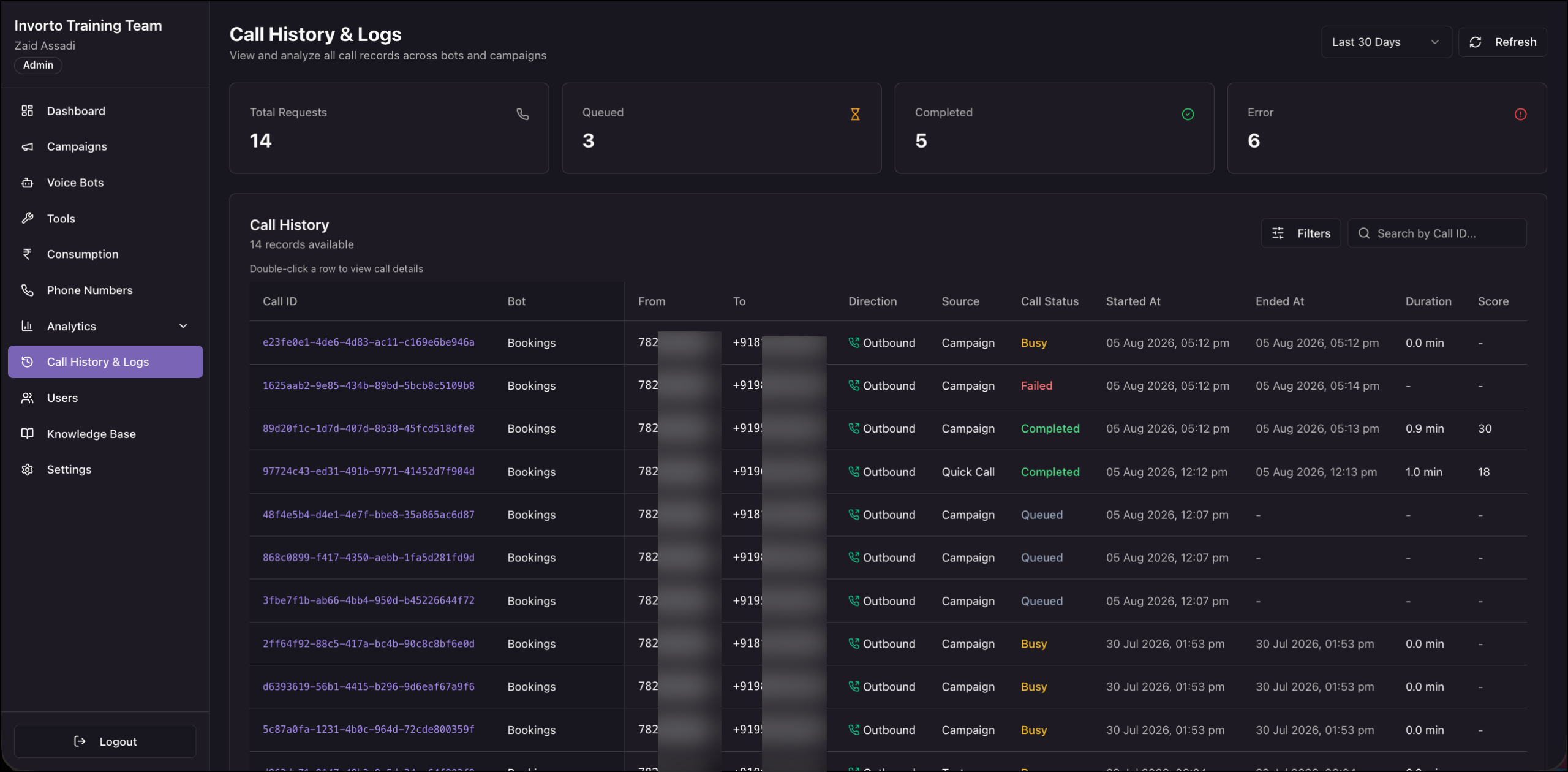
3. Open Call History & Logs
- In the left navigation, click Call History & Logs.
- Click the date range selector in the top right and select the period you want to review.
- Click Refresh in the top right to pull the latest records.
4. Read the Request Tiles
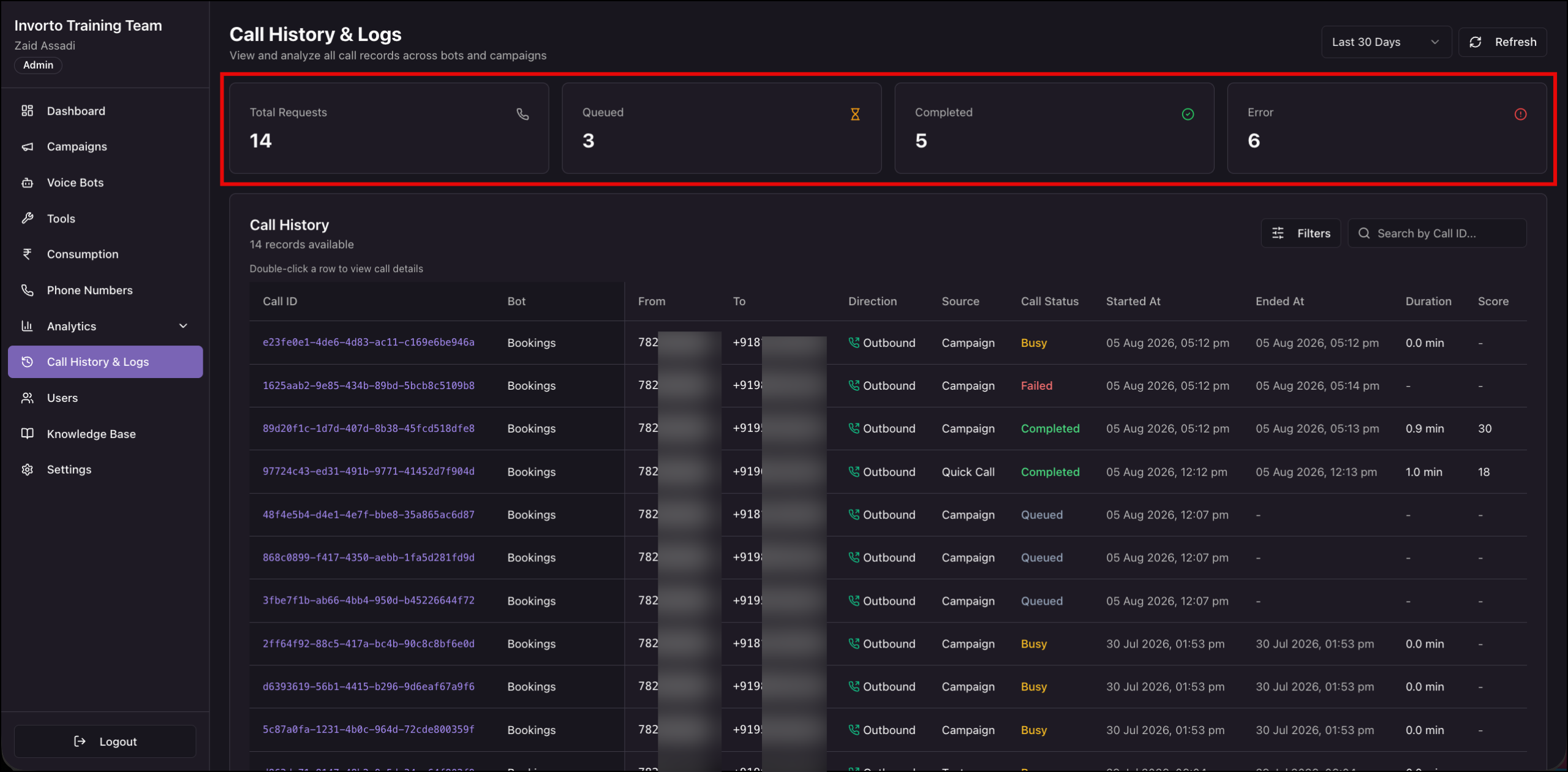
The four tiles across the top summarize the call requests in the selected period.
| Tile | What it shows |
| Total Requests | Every call request Invorto handled in the period. |
| Queued | Requests waiting for a free channel. |
| Completed | Requests that finished successfully. |
| Error | Requests that did not complete. |
5. Read the Call History Table
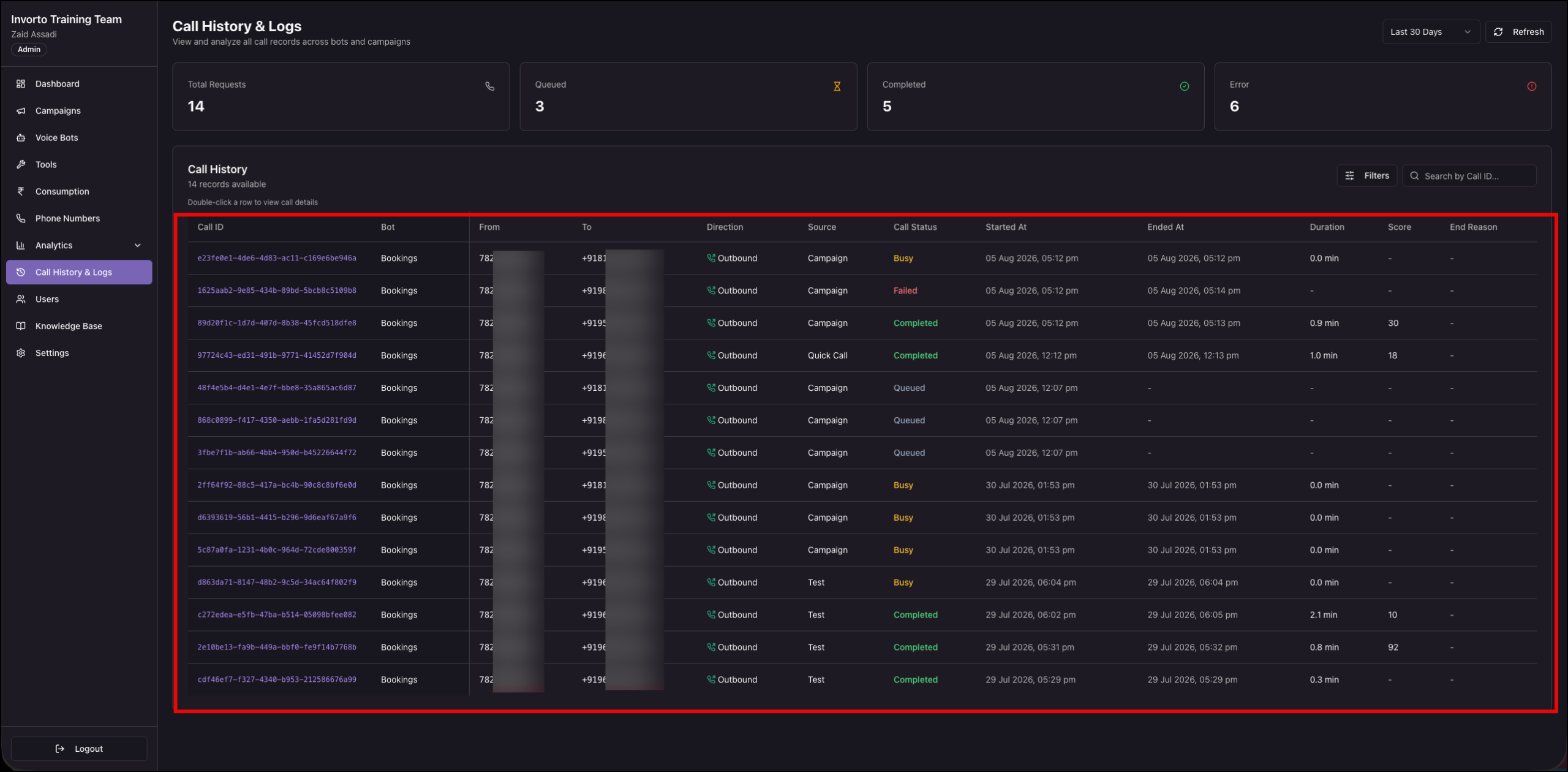
The card header tells you how many records match the current date range and filters.
| Coumn | What it shows |
| Call ID | The unique identifier for the call. |
| Bot | The bot that ran the conversation. |
| From | The number Invorto dialed from, or the number that received the inbound call. |
| To | The number that was dialed. |
| Direction | Whether the call was outbound or inbound. |
| Source | Where the call was initiated. |
| Call Status | What happened on the line. |
| Request Status | Where the request ended up in Invorto. |
| Started At | When the call began. |
| Ended At | When the call ended. |
| Duration | How long the call lasted, in minutes. |
| Score | The call score, out of 100. |
| End Reason | Why the call ended. |
5.1 Source Values
| Source | What it means |
| API | The call was triggered through the Invorto call initiation API. |
| Campaign | The call came from a campaign contact list. |
| Quick Call | The call was placed from the Quick Call option inside a campaign. |
| Test | The call was a test call placed from the bot. |
| Inbound | Someone dialed one of your inbound numbers. |
5.2 Call Status Values
Call Status is what happened on the line. Several values describe a call that is still running, so a record can appear here before it has finished.
| Call Status | What it means |
| Queued | The call is waiting for a free channel and has not been dialed yet. |
| Initiated | Invorto has sent the call to the carrier. |
| Ringing | The line is ringing. |
| In Progress | The call is connected and the conversation is running. |
| Completed | The call connected and ran to the end. |
| Busy | The line was engaged. |
| No Answer | The call rang out without being answered. |
| Failed | The call attempt did not succeed. |
| Cancelled | The call was cancelled before it connected. |
| Holding | An inbound caller is on hold, waiting for a bot to become free. |
| Overflow | An inbound call was handled by the number’s overflow settings because no bot was available. |
| Voicemail | An inbound caller was sent to voicemail. |
| Abandoned | The caller ended the call before it was handled. |
6. Find a Specific Call
6.1 Search by Call ID
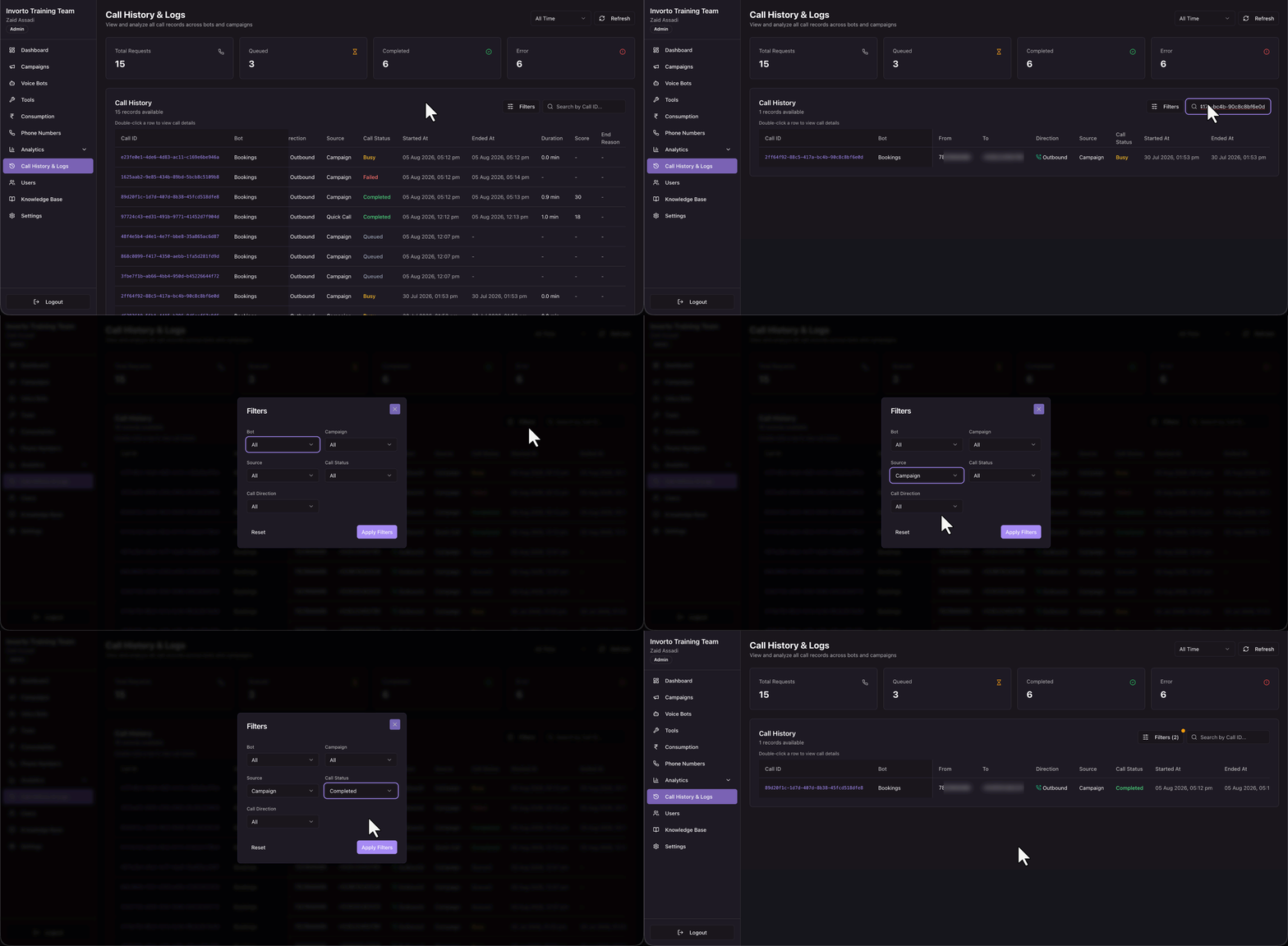
Enter the Call ID in the Search by Call ID box at the top right of the table.
6.2 Filter the Table
- Click Filters at the top right of the table.
- Set the filters you need on the Filters pop-up.
- Click Apply Filters.
- To clear every filter, open the pop-up again and click Reset.
| Filter | What it narrows the table to |
| Bot | Calls run by one bot. |
| Campaign | Calls from one campaign. |
| Source | Calls placed from a campaign, from Quick Call, or as a test. |
| Call Status | Calls with one line outcome. |
| Call Direction | Outbound or inbound calls. |
| Request Status | Calls in one request status. |
Every filter defaults to All. Set a filter to All again to stop narrowing on it.
7. Open a Call’s Details
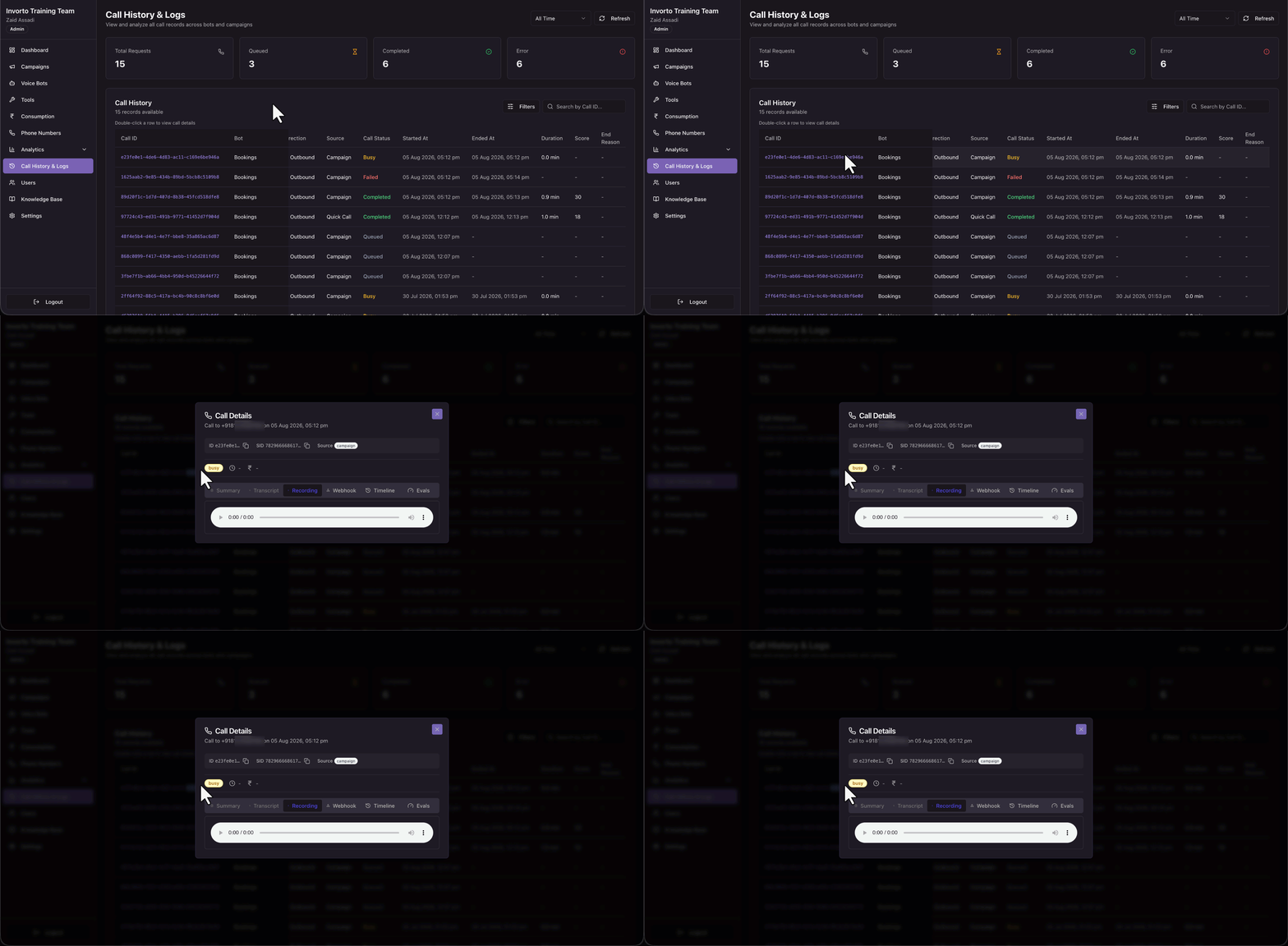
Double-click a row in the Call History table to view the details for that call.
Any Questions?
Did you find this article helpful? Please let us know any feedback you may have in the comments section below. We’d love to hear from you and help you out!