


Get Started

Sales Suite
Field Ops
Marketing
Service CRM
Integrations & Apps
FloStack
Service CRM Ticket Field Enrichment with AI

Updated
02 Jun 2026 | 04:25 PM
1. Feature Overview
Based on a ticket’s properties and the AI prompt you configure, our AI system automatically assigns values to ticket fields. For example, you can add a prompt to the Priority field that directs the system to assign High priority to a ticket when it detects keywords like “immediately” and “unacceptable” in the customer’s communication. This ensures urgent tickets are categorised consistently without requiring manual intervention.
2. Prerequisites
- You must be an admin user to configure ticket fields in your account.
- To enable this feature on your account, contact your account manager, or write to scsupport@leadsquared.com.
3. Configure the AI Prompt
When configuring Ticket Fields, follow the steps listed below –
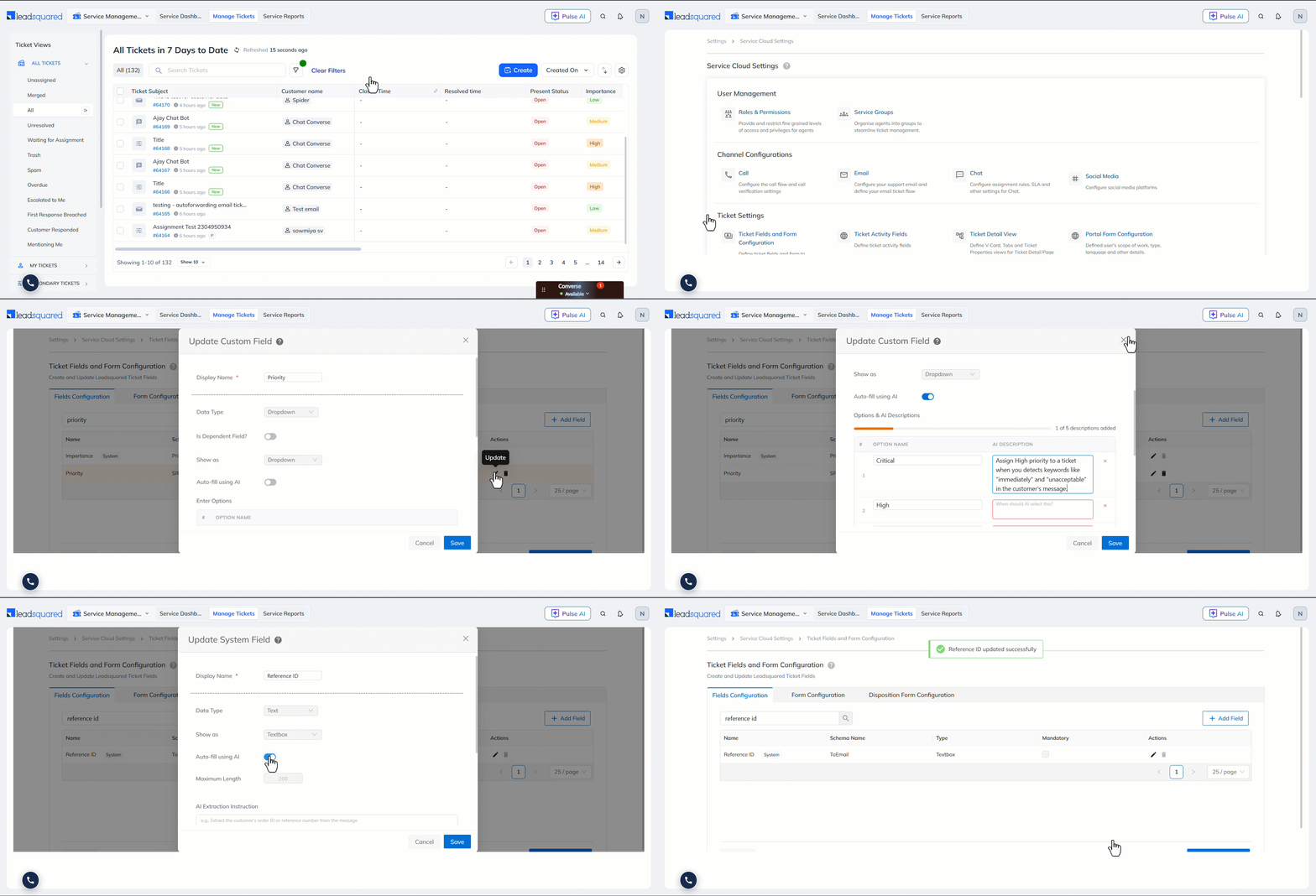
- Navigate to My Profile>Settings>Service Cloud>Service Cloud Settings, and click Ticket Fields and Form Configuration.
- Edit an existing field or click Add Field.
- On the Create/Update Custom Field pop-up, enable the slider alongside Auto-fill using AI.
- For dropdown ticket fields, under AI Description, next to a specific value, enter a prompt that instructs the system when to assign the value. For example, in the Priority ticket field, add a prompt to the “High” option that directs the system to assign High priority to a ticket when it detects keywords like “immediately” and “unacceptable” in the customer’s message.
- For textbox ticket fields, under AI Extraction Instruction, enter a prompt that instructs the system what information to extract from the ticket and populate in the field. For example, in the Reference ID ticket field, add a prompt that directs the system to extract the order reference ID from the customer’s message.
- Once you’re done, click Save. When a new ticket satisfies the configured prompts, the system performs the intended action.
Note:
- You can configure the AI prompts only on custom ticket fields.
- You can configure the AI prompts only on dropdown and textbox type ticket fields.
Any Questions?
Did you find this article helpful? Please let us know any feedback you may have in the comments section below. We’d love to hear from you and help you out!