Tag Archive for: Custom Fields

Mail Merge

1. Feature Overview

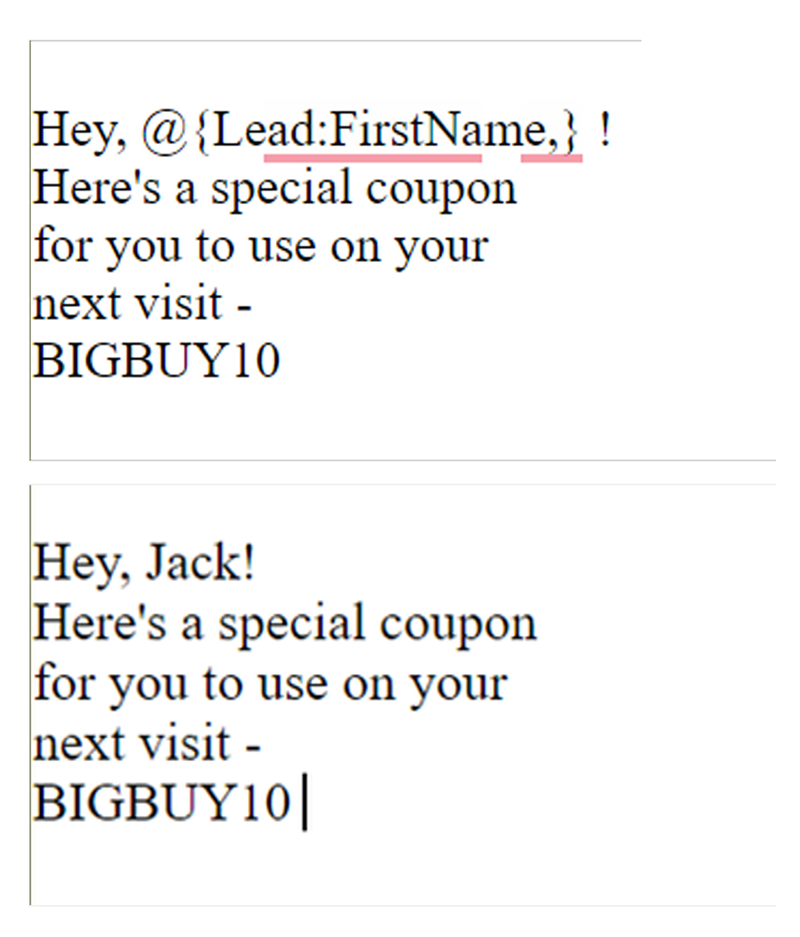
Personalise emails, SMS and WhatsApp communication with lead, account, and sender details using Mail Merge fields. For example, to include the lead’s name in your email’s body (e.g., Hi Richard), add the First Name tag. When the email is sent to a list of leads, it gets personalized based on the name of each lead. Mail merge tags can be added in the body and footer of the email.

In addition to using mail merge for email and message personalization, you can also use mail merge in –

  • Automations
    • To copy the value of one field into another across entities like lead, activity, task, opportunity, etc.
    • To dynamically pick the value contained in a field at run time. For example, assign a lead to a user in the same city by matching the user’s and lead’s City field.
  • Forms and Processes – In form rules, to perform various actions.
  • Connectors and integrations – To push data to external systems.

You can mail merge fields for all LeadSquared entities (lead, opportunity, account, activity, task and user) in relevant features.

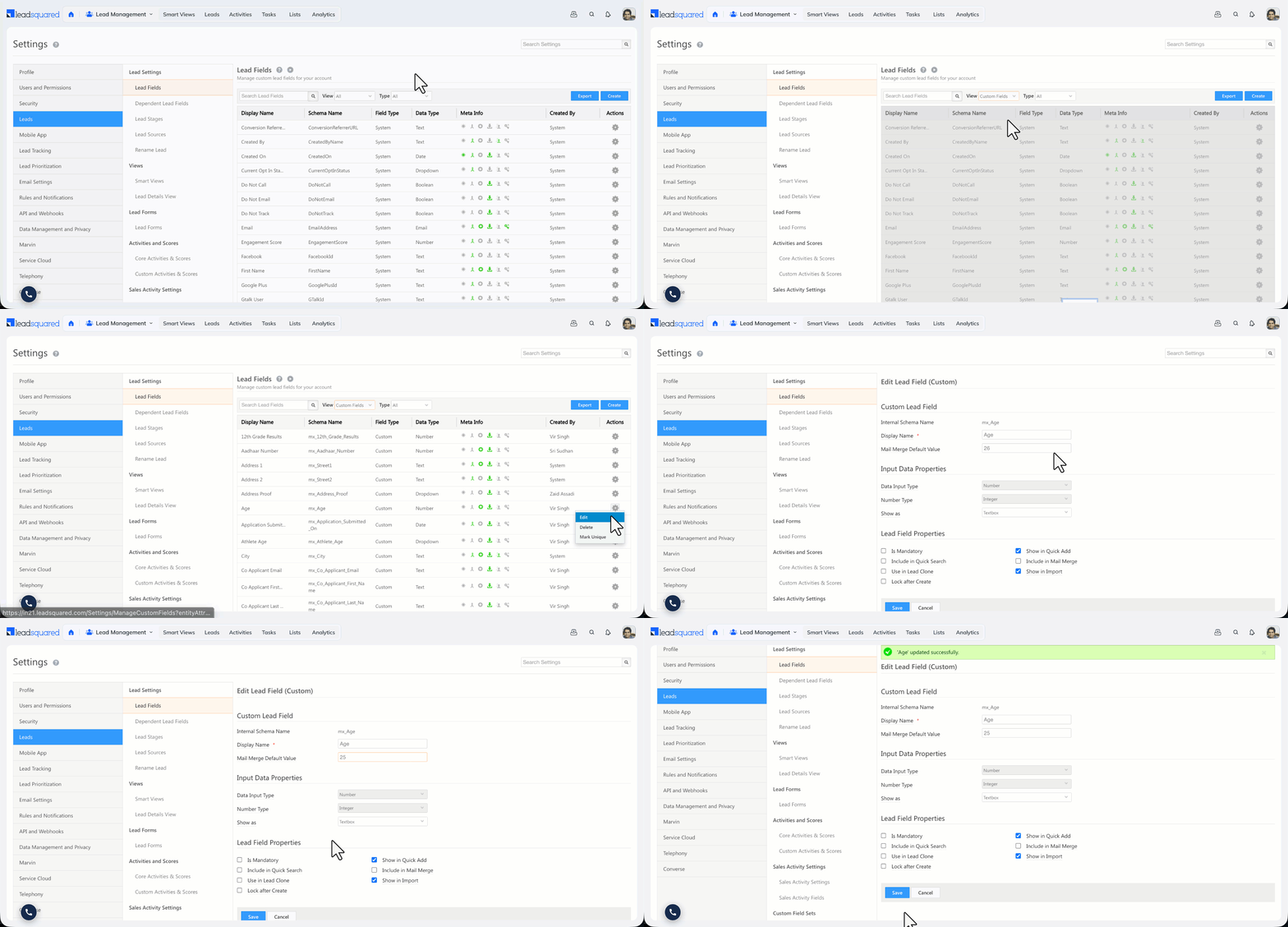
Even custom fields in your account can be used as Mail Merge Tags. If you need a tag that doesn’t exist in your account, create a custom field and include it in Mail Merge. To know more, see How To Create Custom Fields.

Note:

LeadSquared - Mail Merge example


2. Prerequisite

You must be the Administrator or the Marketing User of your account.


3. Use Mail Merge in Emails

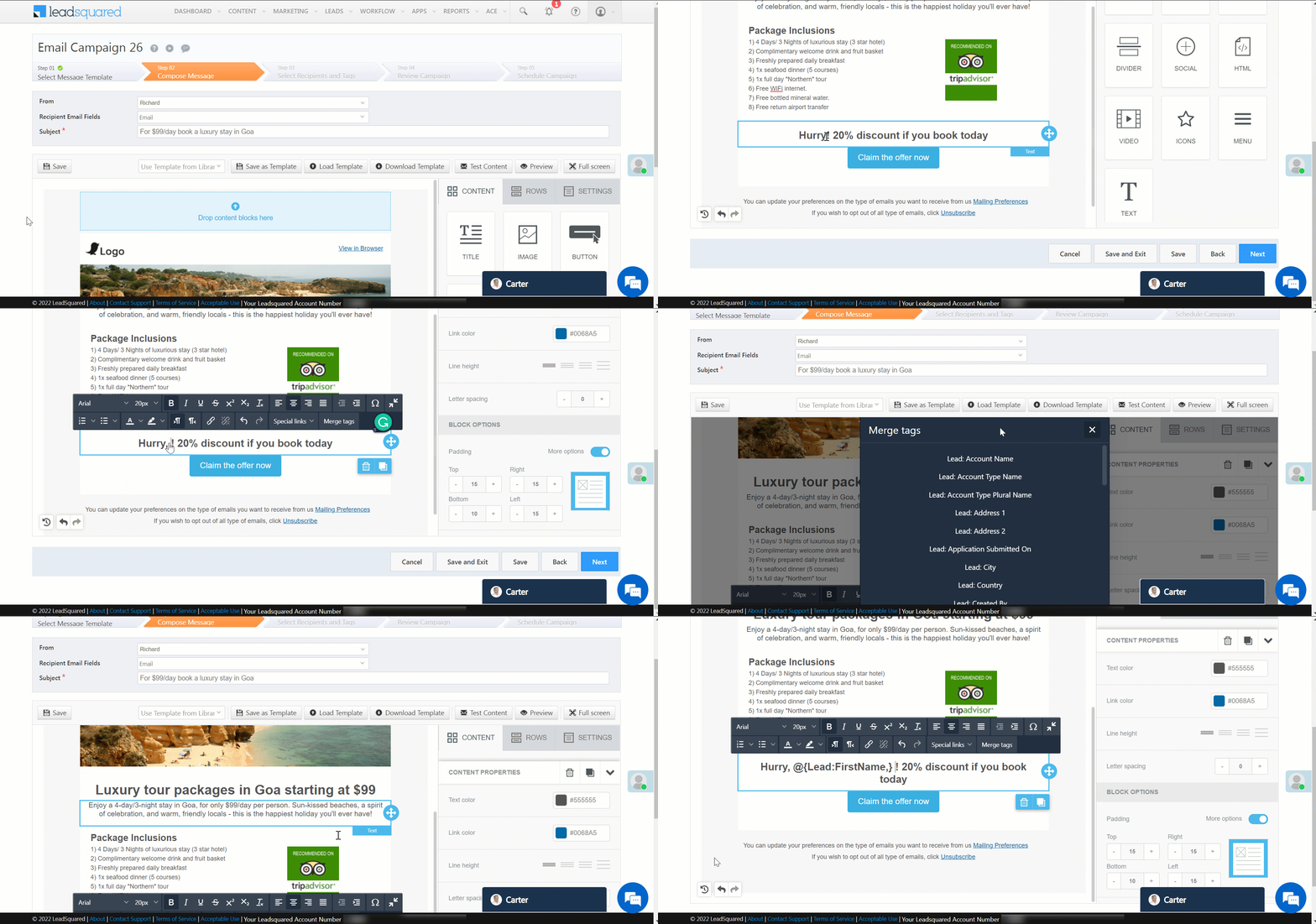
3.1 Insert Mail Merge Tags in Visual Designer

To insert mail merge tags in the body of your email –

  1. Click the text box where you need to insert a mail merge tag. Alternatively, type ‘@’ and select the required tag.
  2. On the toolbox, click Merge tags.
  3. Select the required mail merge tag.
Note: Add mail merge tags in your subject line by copying and pasting the tags from the body.
LeadSquared - Mail Merge Tags in Visual Designer


3.2 Insert Mail Merge Tags in Rich Text, Plain Text, and HTML Editor

To insert mail merge tags in your email’s subject line and body –

  1. Navigate to the right-hand side of your editor.
  2. Under Email Personalization, select the required category of mail merge tags (For example – Lead Fields, Account Fields, etc.).
  3. Place your cursor on the required position (on the subject line or the body of the email) and click the mail merge field.
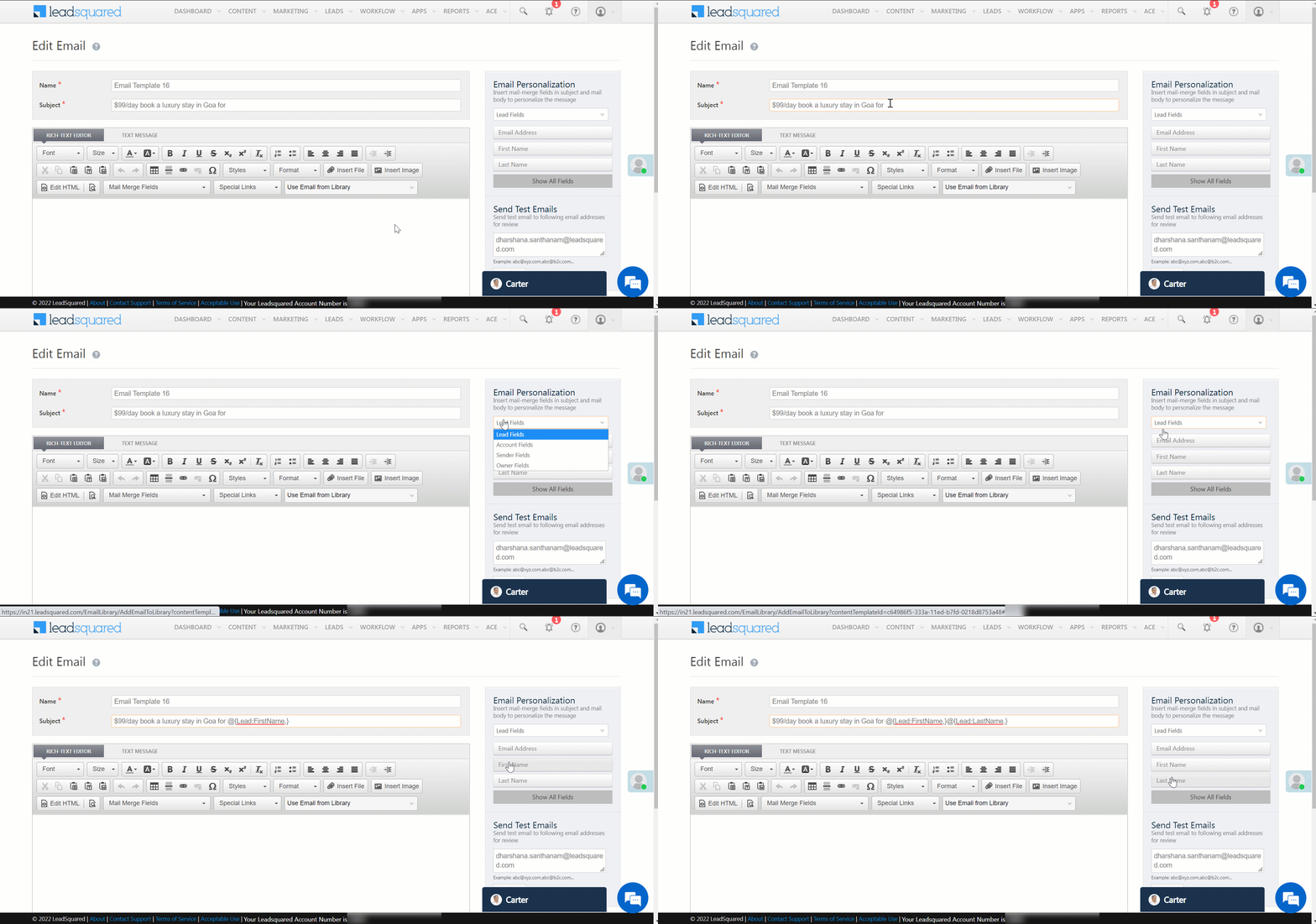
LeadSquared - Mail Merge Tags in Email Editor


4. Use Mail Merge in WhatsApp and SMS

You can use Mail Merge fields when sending WhatsApp and SMS (one-to-one or templatized messages) to personalize communication with leads.
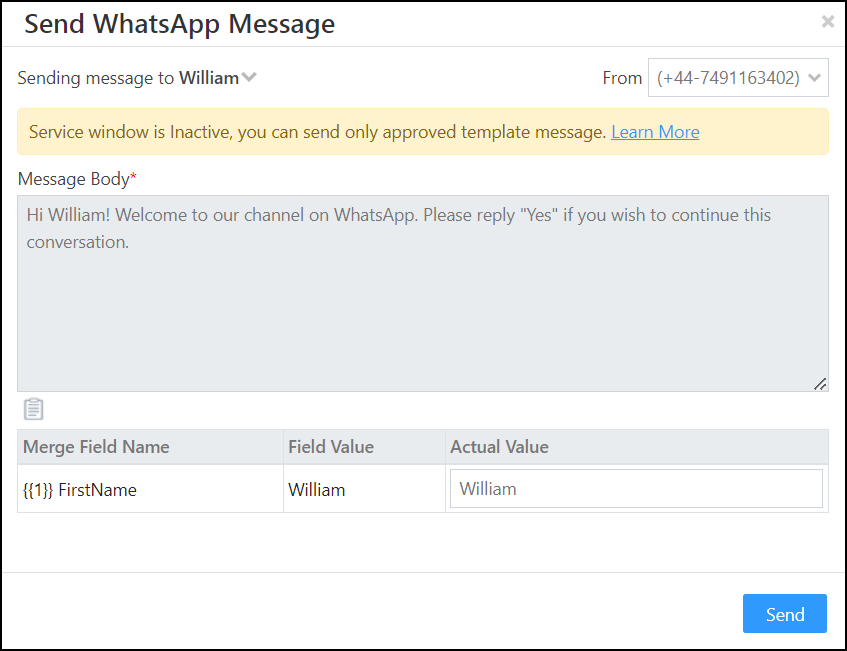
Note: To know more about creating SMS and WhatsApp templates, refer to Creating SMS Templates and WhatsApp Business Messaging Connector.

LeadSquared - Mail Merge in whatsapp


5. Use Mail Merge in Automations

You can use Mail Merge while creating automations to dynamically pick data from your account and perform automated actions. The GIF below is an example of using mail merge to distribute a lead to a user in the same city.
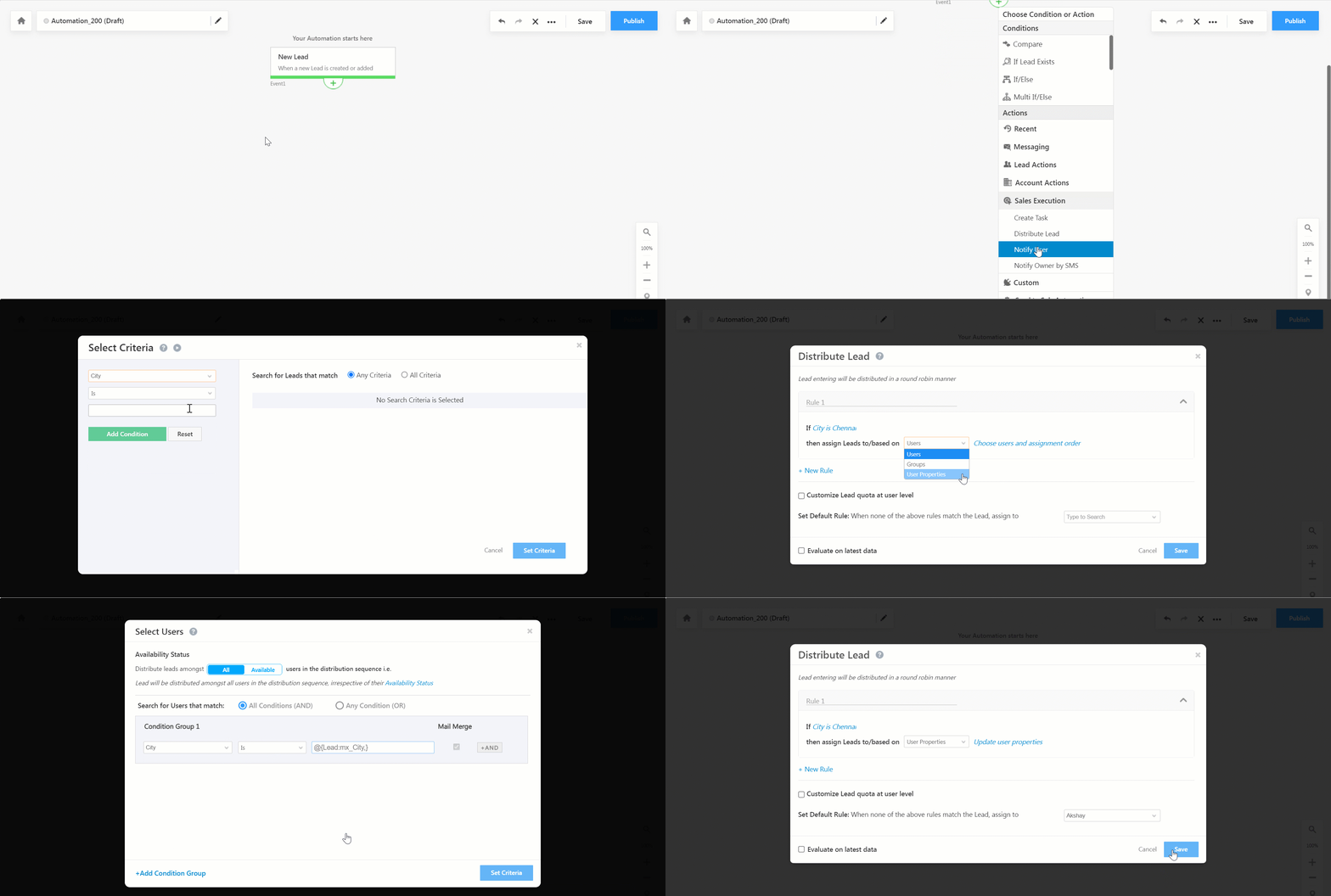
LeadSquared - Mail Merge in Automations


6. Use Mail Merge in Forms

You can use Mail Merge while creating forms to define values of certain fields based on the data stored in your account. For example, populate the value of a field in the form with data from a Mavis Database table. In the example below, we’re populating the centre name and centre ID fields from data stored in Mavis for an education company.
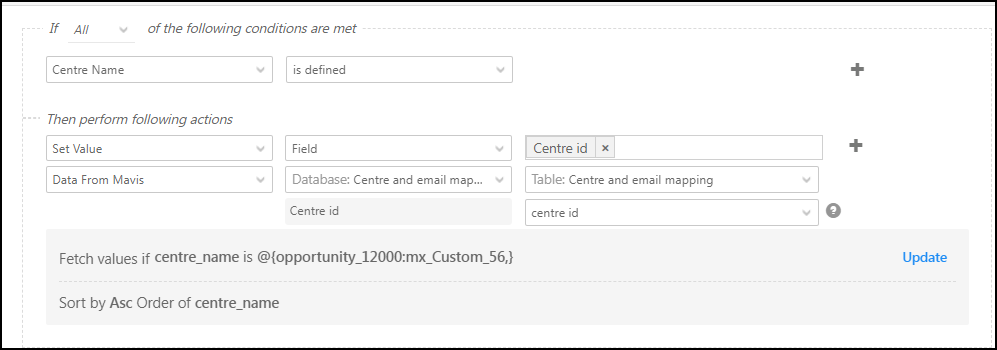
LeadSquared - Mail Merge in forms


7. FAQs

How to Mail Merge Date-Time Values in Automations?

In LeadSquared automations, you can mail merge Date-Time values using the following options depending on your requirements:

  1. Account Time Zone Mail Merge: Use @{DateTime:Account_Current_DateTime,}
    • This provides the Date-Time in the user’s account time zone.
  2. UTC Time Zone Mail Merge: Use @{DateTime:UTC_Current_DateTime,}
    • This provides the Date-Time in UTC format.


Any Questions?

We’d love to answer your questions or hear your unique use cases. Feel free to share your experiences in the comments section below.
How to Create a Dropdown Type Lead Field

1. Feature Overview

For lead fields that require a predefined set of options (such as course, product type, or salary range), LeadSquared lets you create dropdown type lead fields. LeadSquared supports three dropdown variants:

Type Description
Dropdown Displays all available options in a standard list.
Searchable Dropdown Filters options as the user types, useful for large option sets.
Dropdown with Others Includes a built-in “Others” option alongside your defined values.


2. Prerequisites

You must be an administrator of your LeadSquared account.


3. How It Works

Dropdown fields are a type of custom lead field. When you create one, you select the dropdown variant, then define the options users can choose from. The options can be entered manually or imported via CSV for larger sets.

Once saved, the field becomes available to add to your lead forms. The variant you choose determines how options are presented to users and how many options the field supports:

  • Dropdown and Dropdown with Others support up to 1,000 options entered manually.
  • Searchable Dropdown supports up to 1,000 options entered manually, or up to 100,000 options via CSV import.
  • Dependent dropdowns support up to 1,000 parent options and 5,000 child options across all parent fields.


4. Create a Dropdown Field

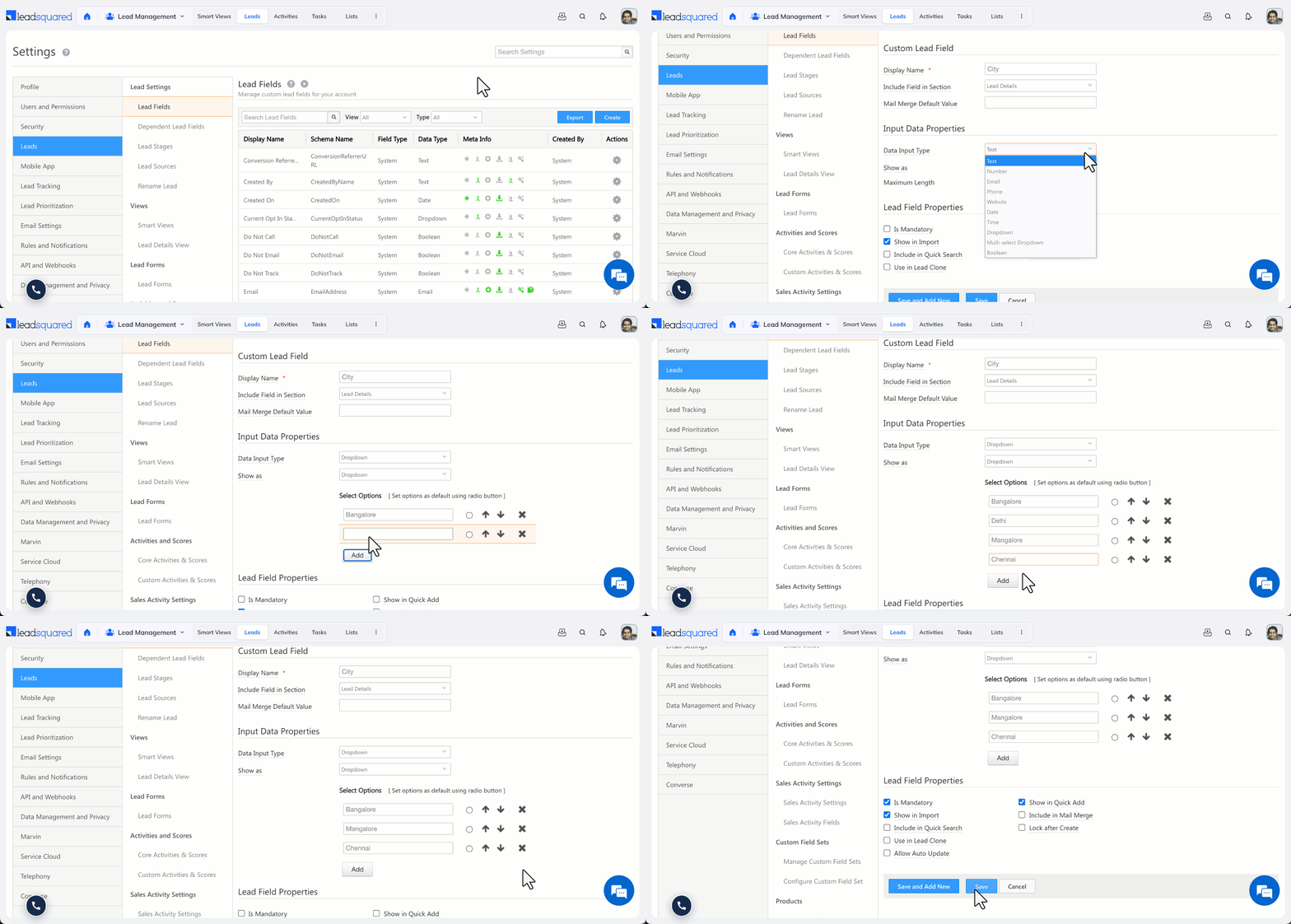
The steps below apply to all three dropdown variants. The only difference is the option you select in the Show As dropdown in step 3.

  1. Go to Settings>Leads>Lead Fields and click Create.
  2. From the Data Input Type dropdown, select Dropdown.
  3. From the Show As dropdown, select the variant you want to create: Dropdown, Searchable Dropdown, or Dropdown with Others.
  4. Enter your options under Select Options.
    • For Searchable Dropdown, enter options in comma-separated format or click Click here to import a CSV file of options.
    • To set a default option, click the default icon alongside it.
    • To reorder options, use the up and down arrows.
    • To remove an option, click the remove icon.
  5. To add more options, click Add.
  6. Click Save.
Note: For Searchable Dropdown fields with more than 100,000 options, see Large Options Set.

create a dropdown type lead field


Related Articles


Any Questions?

Did you find this article helpful? Please let us know any feedback you may have in the comments section below. We’d love to hear from you and help you out!

Create Custom Lead Fields

1. Feature Overview

LeadSquared provides a set of default lead fields out of the box, but every business captures unique information about its leads. Custom lead fields let you extend the standard lead profile with fields specific to your industry or workflow — such as a credit score for financial services, a property budget for real estate, or a patient ID for healthcare.

Note: If an existing unused lead field already has the data input type you need, consider renaming its Display Name instead of creating a new field.

Examples by industry:

Industry Example Custom Fields
Banking & Financial Services Aadhaar Number, Social Security Number, Credit Score
Education & Ed-Tech 12th Grade Results, Course Interest
Real Estate Location Interest, Budget, Property Type
Healthcare Patient ID, Age, Previous Diagnosis
General Spouse’s Name, Permanent Address, Marital Status, Gender


2. Prerequisites

You must have Administrator access to create or modify custom lead fields.


3. How It Works

When you create a custom lead field, you define its properties and the section it belongs to. The section determines where the field appears when adding or viewing a lead record. Properties control the field’s data type — such as text, number, or date — and its behavior, such as whether it is mandatory, searchable, or included in mail merge.

Note: Review the data input type carefully before saving — most field properties cannot be changed after creation.


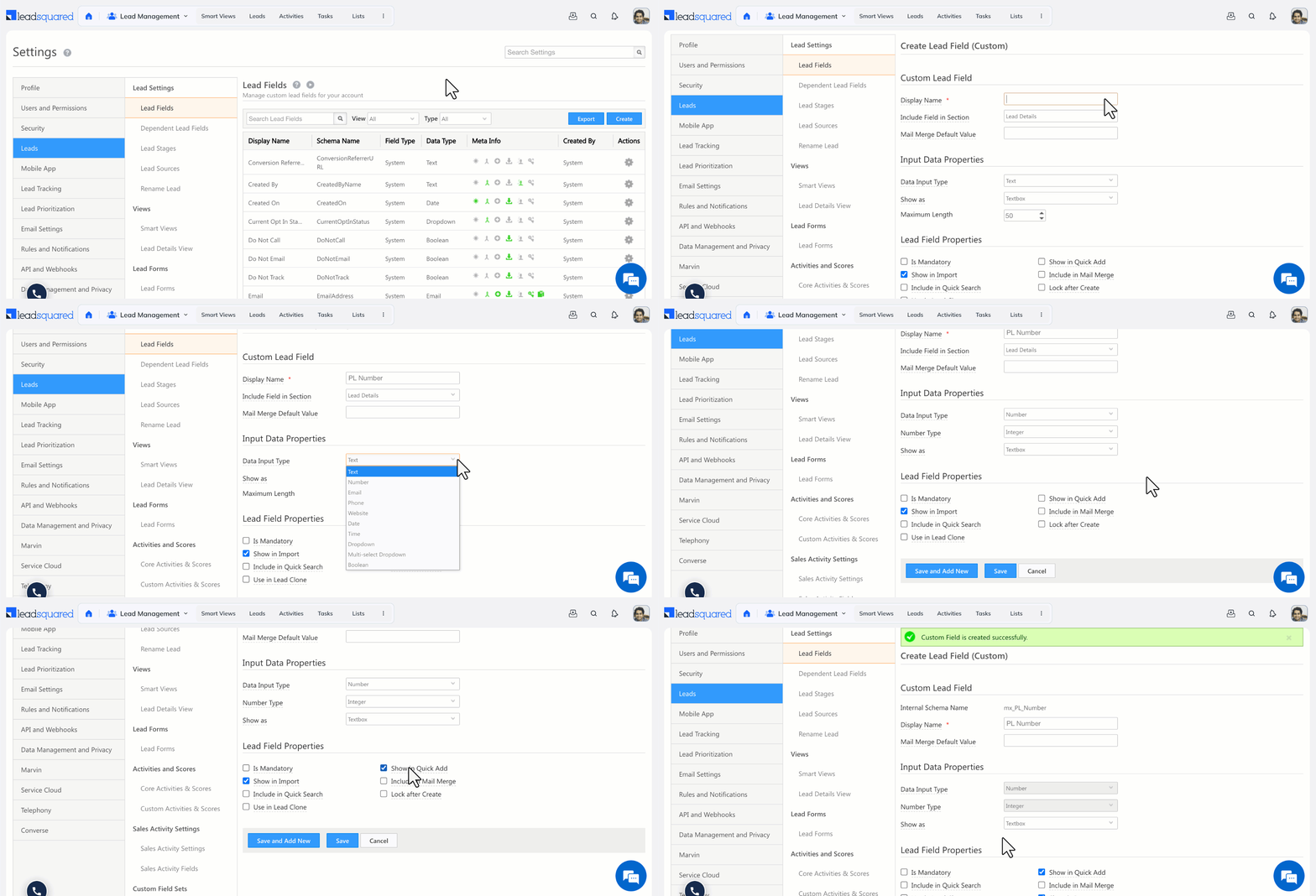
4. Creating a Custom Lead Field

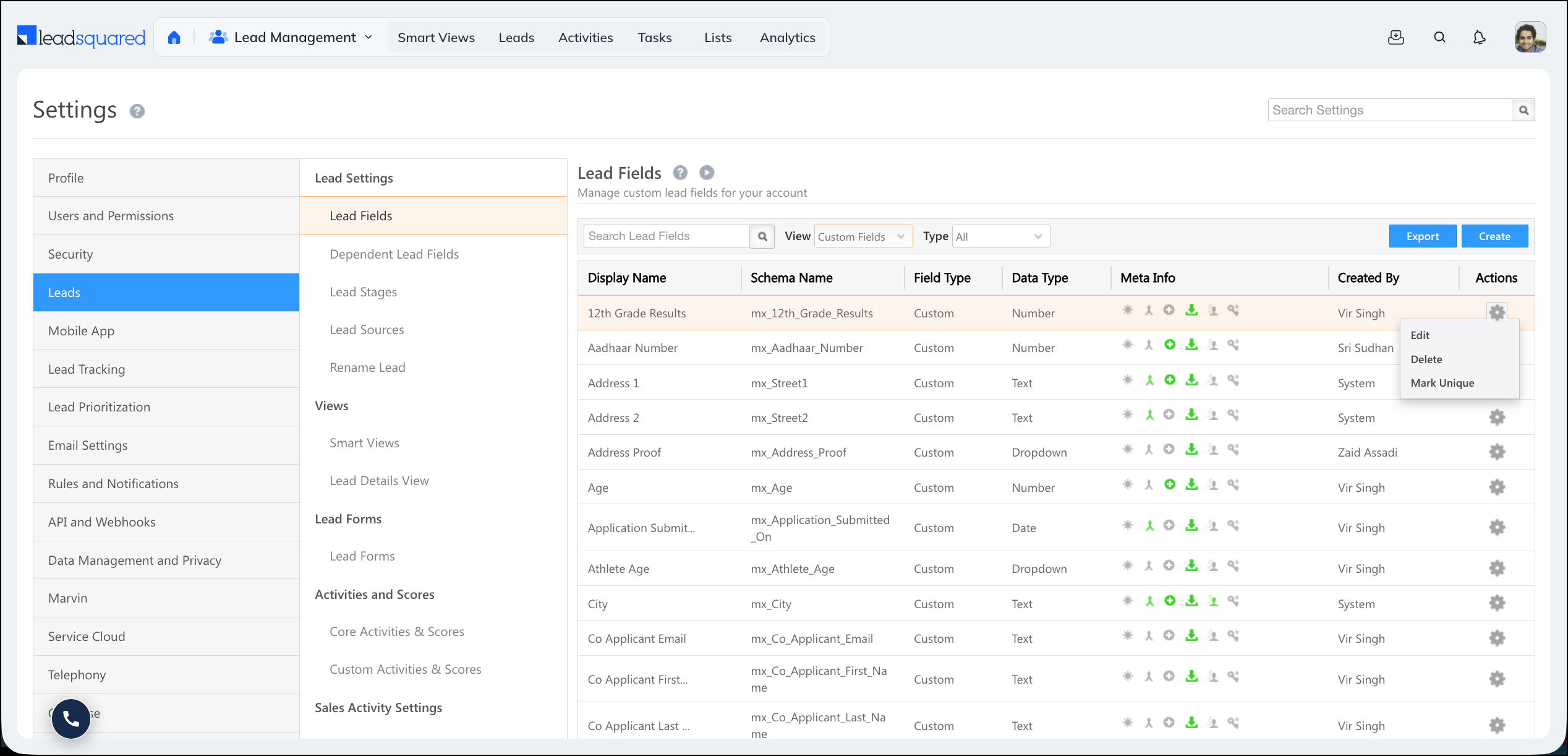
  1. Go to My Profile>Settings>Leads>Lead Fields.
  2. Click the Create icon.
  3. Fill in the field properties (see reference below).
  4. Click Save.

navigate to create custom lead fields


5. Field Properties Reference

5.1 Basic Properties

Property Description
Display Name The label shown to users on the lead form (e.g., Alternate Mobile Number).
Include Field in Section The section of the lead profile where the field appears: Lead Details, Additional Details, or Hidden Fields.
Mail Merge Default Value A fallback value used in mail merge when a lead has no data in this field.
Data Input Type The field’s data type. Determines how the field is rendered and what values are accepted (see table below).

5.2 Data Input Types

Data Type Rendered As Example
Text (String) Text box Designation
Number Text box (select Decimal or Integer) Fax Number
Email Email input Alternate Email Address
Phone Text box or Phone Controller Secondary Phone Number
Website URL input Company Blog
Date Date picker Follow-up Date
Time Time picker Follow-up Time
Boolean Radio button or checkbox Valid Passport
Dropdown Single-select dropdown Country
Multi-Select Dropdown Multi-select dropdown Courses Opted For
Custom Field Set (CFS) Configurable — supports file/image uploads PAN Card
Note: If you need a large number of dropdown options, see Large Options Set for Lead Fields.

5.3 Behavioral Settings

Setting Description
Include in Mail Merge Allows this field’s value to be dynamically merged into email campaigns, automations, and integrations.

Note: File-type CFS fields cannot be included in mail merge.
Is Mandatory Prevents users from saving a lead record without filling in this field.
Include in Quick Search Makes this field searchable from the Quick Search bar on the Manage Leads page.
Show in Quick Add Displays this field when creating a lead through the Quick Add option.
Lock After Create Prevents non-admin users from editing the field value after the lead is created. Does not restrict API-level updates.
Use in Lead Clone Auto-populates this field when cloning an existing lead.
Show in Import Makes this field available for column mapping when importing leads.


6. Editing a Custom Lead Field

Once a field is created, only the following properties can be modified:

  • Mail Merge Default Value
  • Maximum Length
  • Is Mandatory

All other properties, including the data input type, are locked after creation.


7. How to Create a Currency Field

LeadSquared does not have a dedicated currency data type, but you can display a Number field in currency format using Custom Field Sets (CFS). Follow these steps:

Step 1: Set your account’s default currency format.

  1. Go to Settings>Profile>Company Profile.
  2. Click Edit.
  3. Next to Default Currency, click Format, select your preferred comma-separated currency format, and click Save.

Step 2: Create a currency-formatted number field.

  1. Go to Settings>Leads>Manage Custom Field Sets.
  2. Click Create.
  3. Enter a Name and Description, then click Next.
  4. Click Add Field, enter a Display Name, and select Number from the Type dropdown.
  5. Click the actions menu (seria sales user dashboard actions) and select Currency from the Show As dropdown.
Note: Currency formatting is also available for Opportunity, Task, and Activity number fields.

How to Create a Currency Field


Any Questions?

Did you find this article helpful? Please let us know any feedback you may have in the comments section below. We’d love to hear from you and help you out!