


Get Started

Sales Suite
Field Ops
Marketing
Service CRM
Integrations & Apps
FloStack
Control Phone Number Format while Capturing Leads

Updated
07 May 2026 | 04:01 PM
1. Feature Overview
The Phone Control setting in LeadSquared helps standardize how phone numbers are captured across your lead forms and landing pages. When enabled for the Phone/Mobile Number field, it restricts users to enter only numeric values and allows you to define the minimum and maximum number of digits. This ensures that all phone numbers are captured in a consistent and valid format, improving data quality and reducing errors during lead capture.
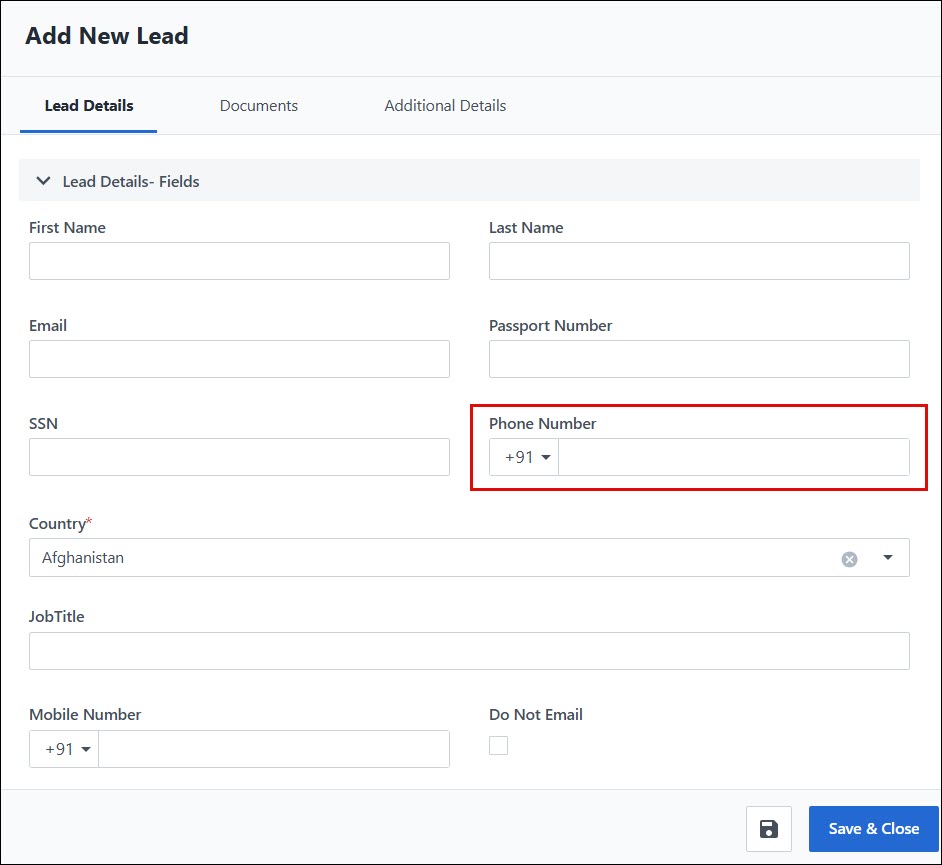
The Phone Control format is applied across:
- Lead creation forms (e.g., Add New Lead)
- Landing pages
2. Prerequisites
You must be an admin of your account to access this setting.
3. Phone Control Settings
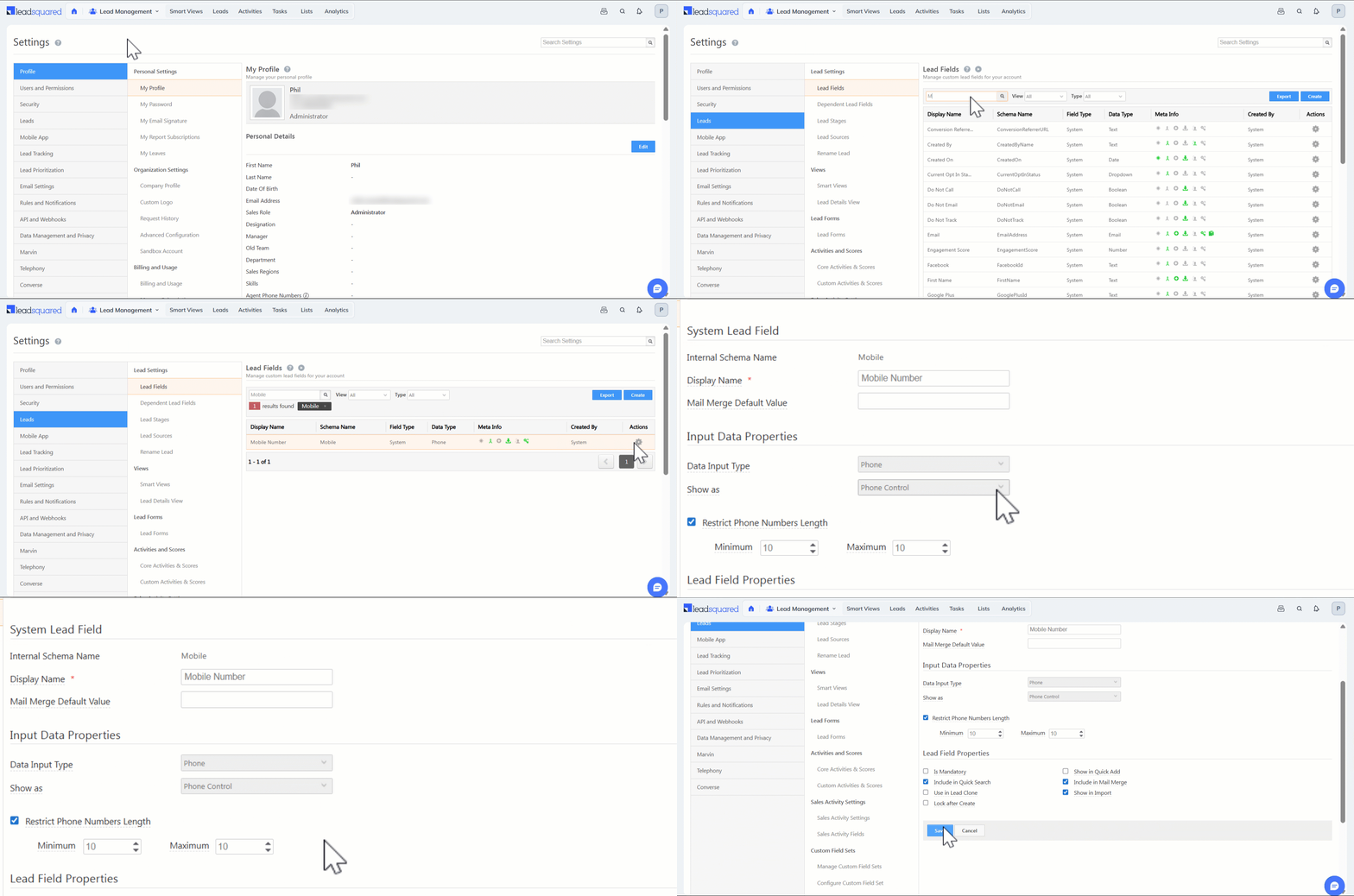
- Navigate to My Account>Settings>Leads>Lead Fields, and search for the ‘Phone/Mobile Number’ field.
- Hover your cursor over the Actions icon alongside the phone/mobile field and click Edit.
- Under the Input Data Properties section, ensure the Show As option is set to Phone Control.
- You can set a restriction on the phone number length and enter the minimum and maximum number of digits.
- Click Save.
Note: You will need to republish existing landing pages in order to get Phone Control reflected on them.
Any Questions?
Did you find this article helpful? Please let us know any feedback you may have in the comments section below. We’d love to hear from you and help you out!
Subscribe
0 Comments
Newest