


Get Started

Sales Suite
Field Ops
Marketing
Service CRM
Integrations & Apps
FloStack
Chat Logs

Updated
09 Jul 2025 | 03:50 PM
1. Feature Overview
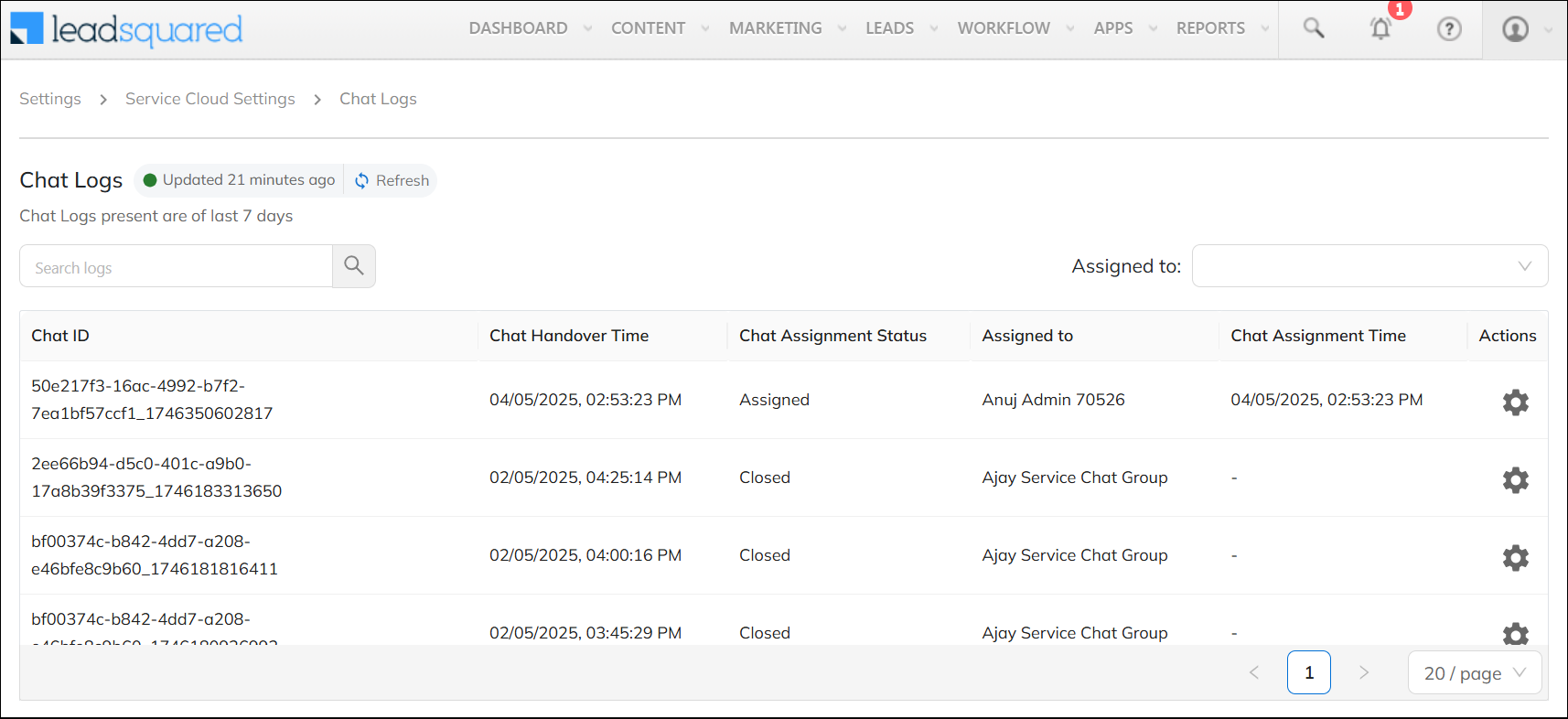
View the assignment logs of all Service CRM chat conversations on your account, including chat handover time, agent details, chat assignment status, and more.
2. Prerequisite
Only Admin users can view and access the Chat Logs screen.
3. Access the Logs
- Navigate to My Profile>Settings>Service Cloud, and under Logs, click Chat Logs.
- The following details are available –
- Chat ID – The internal ID assigned to each customer’s chat conversation.
- Chat Handover Time – The timestamp at which the Handover Node was triggered.
- Chat Assignment Status – The current chat status. This shows whether the chat is assigned to an agent, pending assignment, or closed.
- Assigned To – The agent to whom the chat is assigned.
- Chat Assignment Time – The timestamp at which the chat was transferred to a live agent.
- You can also perform the following actions –
- Search – Use the search bar to find specific conversations by entering the Chat ID.
- Assigned To – Filter the logs by selecting a specific agent to whom the chat was assigned.
- Actions – Click
 , and then click View Detail to see additional information, such as the assigned Service Group, the message content, etc.
Note: Chat logs are retained for the last 7 calendar days.

Any Questions?
Did you find this article helpful? Please let us know your feedback in the comments section below. We’d love to hear from you and help you out!