


Get Started

Sales Suite
Field Ops
Marketing
Service CRM
Integrations & Apps
FloStack
Telephony Troubleshooting

1. Feature Overview
Telephony troubleshooting lets administrators diagnose and resolve common telephony configuration issues from within the LeadSquared Application. It runs real-time checks against a connector instance for a chosen event (such as agent popup or click to call), shows what is blocking the event from working, and either corrects the problem directly or names the exact setting or provider action required.
2. Prerequisites
Only Admin users can fix issues through telephony troubleshooting.
3. How it Works
You run a check for a specific event, user, and connector instance. The system evaluates the configuration touch points tied to that event and reports what it finds in real time, reflecting the current configuration.
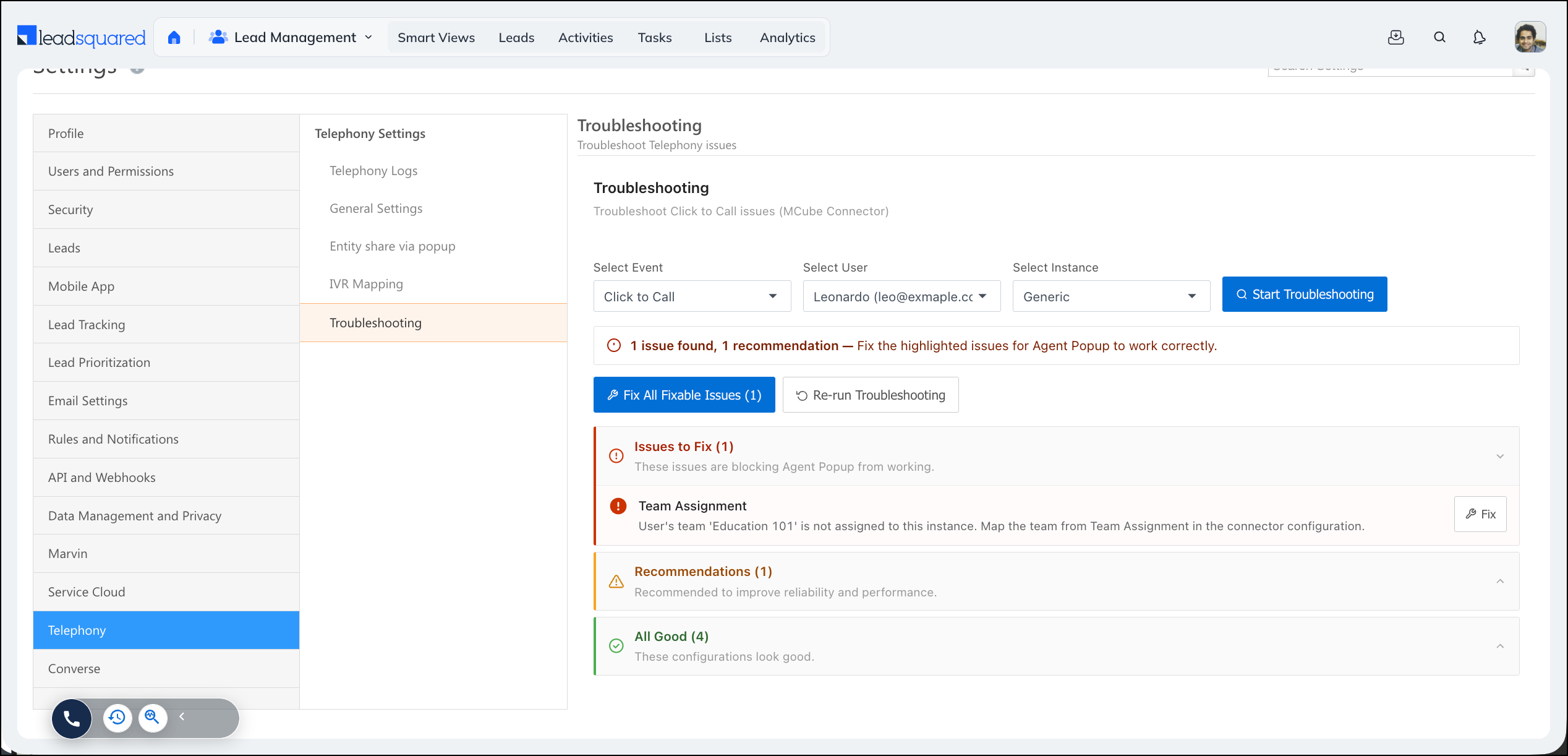
Findings are grouped into three sections:
- Issues to fix Configuration – Problems that block the selected event from working. Address these first.
- Recommendations – Settings that improve reliability and performance but do not block the event.
- All good – Checks that passed and need no action.
A check can appear in any of these sections depending on its current state. For example, Connector instance status shows under All good when the instance is active, but it is flagged as an issue when the instance is inactive. Some recommendations also depend on an issue being fixed first. For example, Show phone call popup and Is softphone enabled can only be checked after agent popup configuration or the agent panel is enabled.
Where a problem can be corrected automatically, you can fix it from the panel. Some problems sit outside LeadSquared, such as a setting on the telephony provider’s side, and in those cases the result names the action to take rather than offering a fix.
4. Navigate to Telephony Troubleshooting
There’s 2 ways to open the Telephony Troubleshooting wizard:
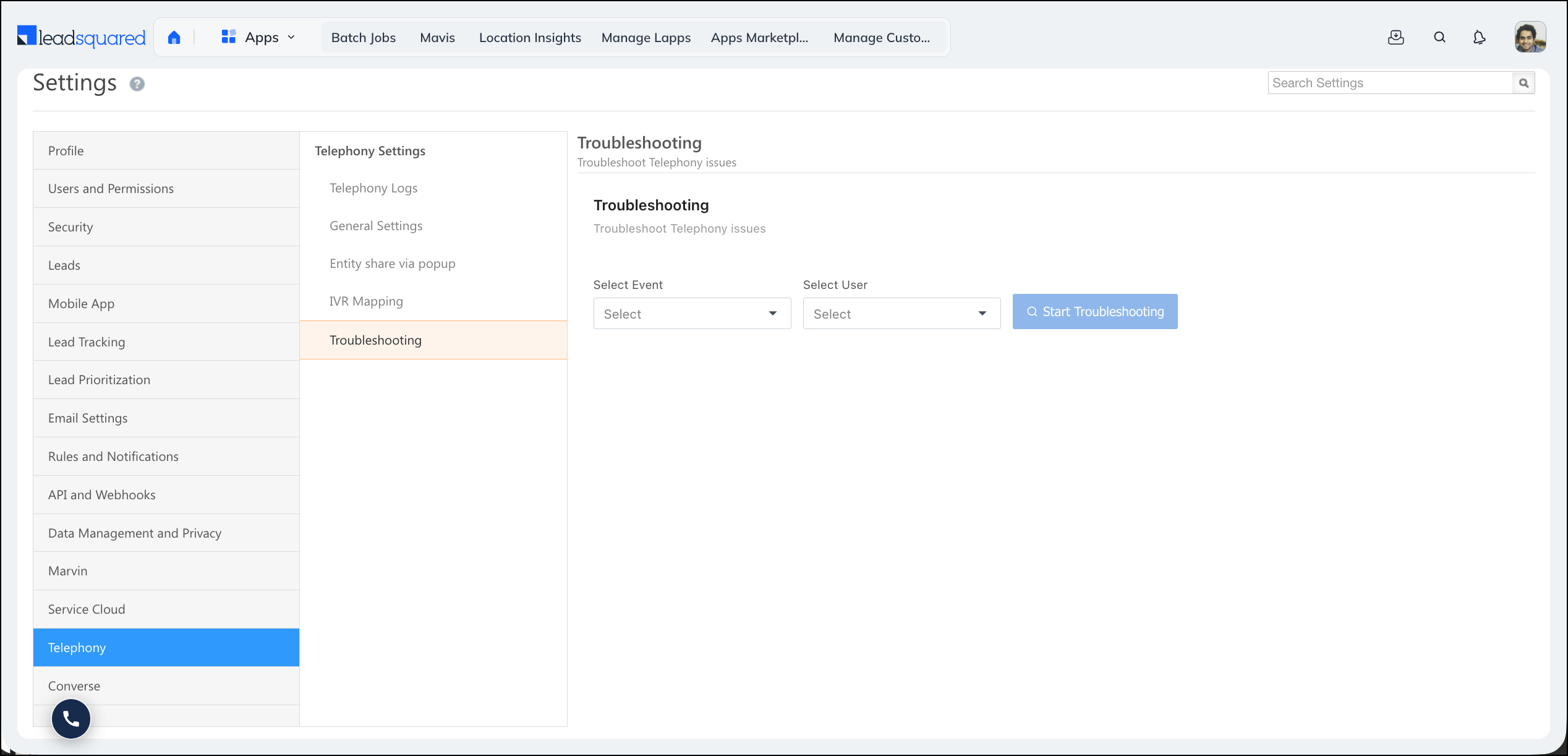
4.1 Through the Settings page
Navigate to Settings>Telephony>Troubleshooting.
If you do not see the Troubleshooting tab, it may not yet be enabled for your account.
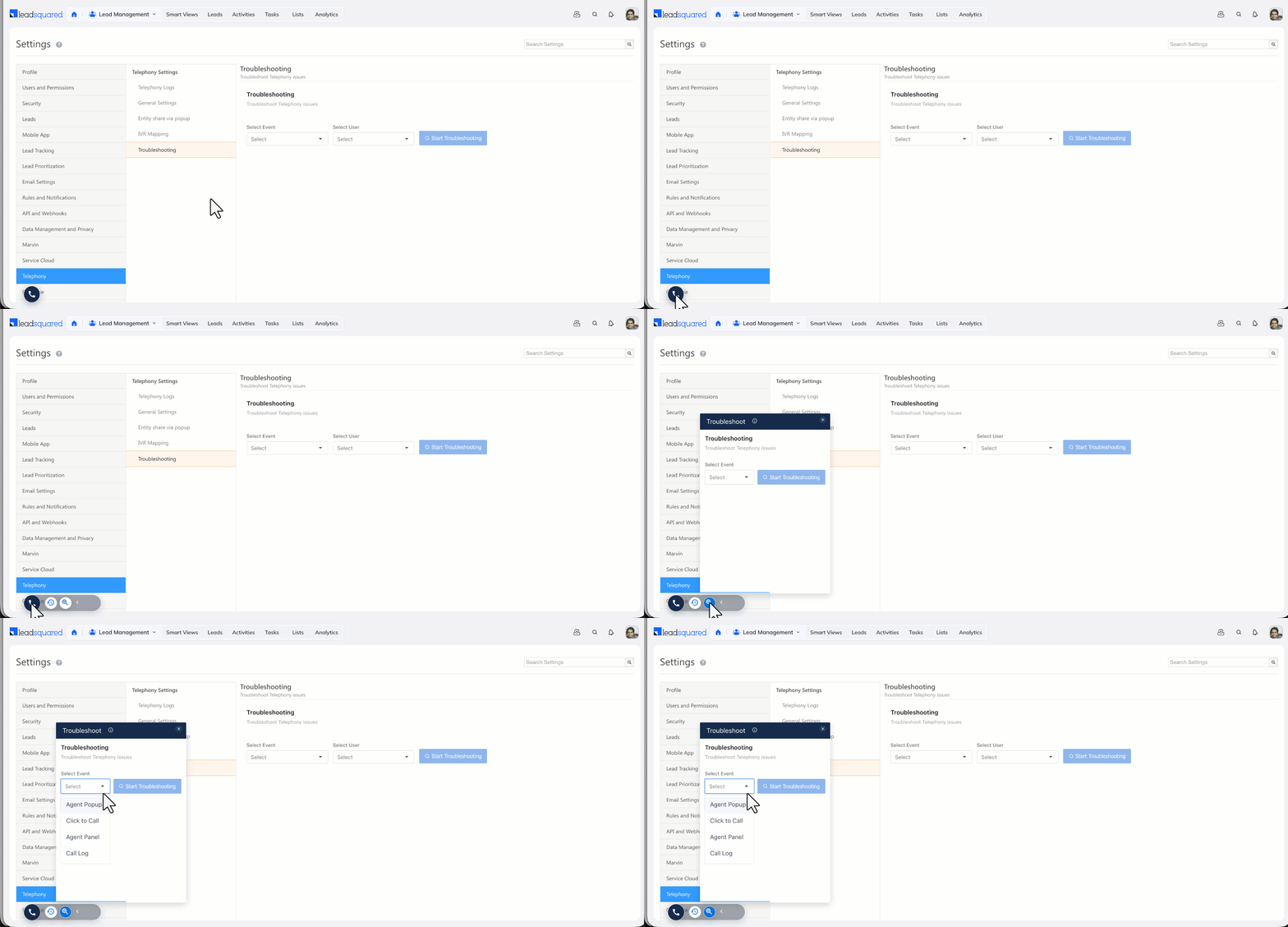
4.2 Through the Telephony Icon
Click the telephony icon ( )at the bottom of your screen and select troubleshooting (
 ).
).
5. Run a troubleshooting check
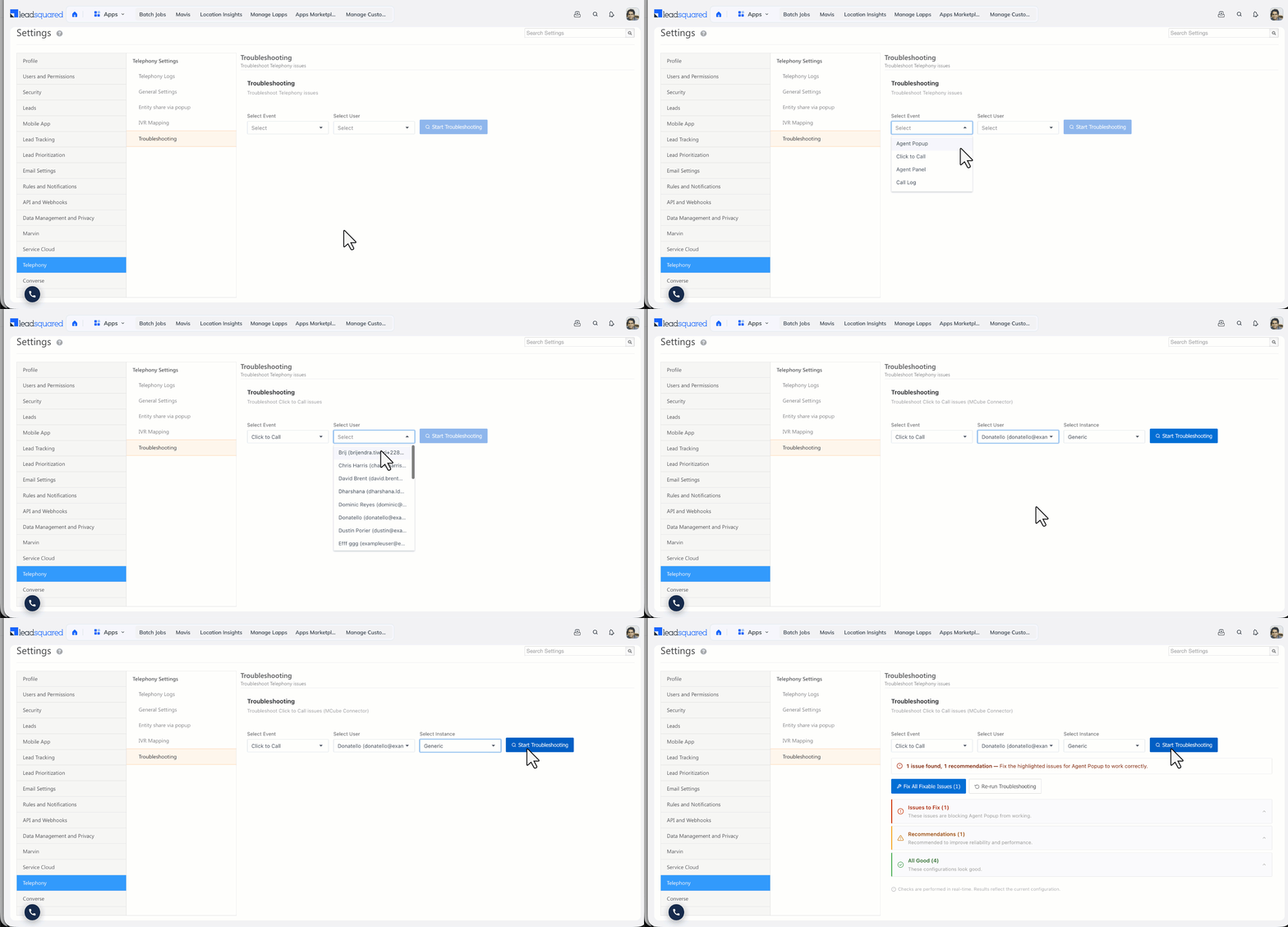
- From the Select Event dropdown, choose the telephony touch point you want to check, such as Agent popup, Click to call, Agent panel, or Call log.
- From the Select User dropdown, choose the user who is facing the issue, for example the admin or a specific agent.
- From the Select Instance dropdown, choose the connector instance to check. An account can have more than one instance, and each instance maps to a connector. In the examples below, the Generic instance maps to the LeadSquared Generic Telephony Connector.
- Select Start Troubleshooting.
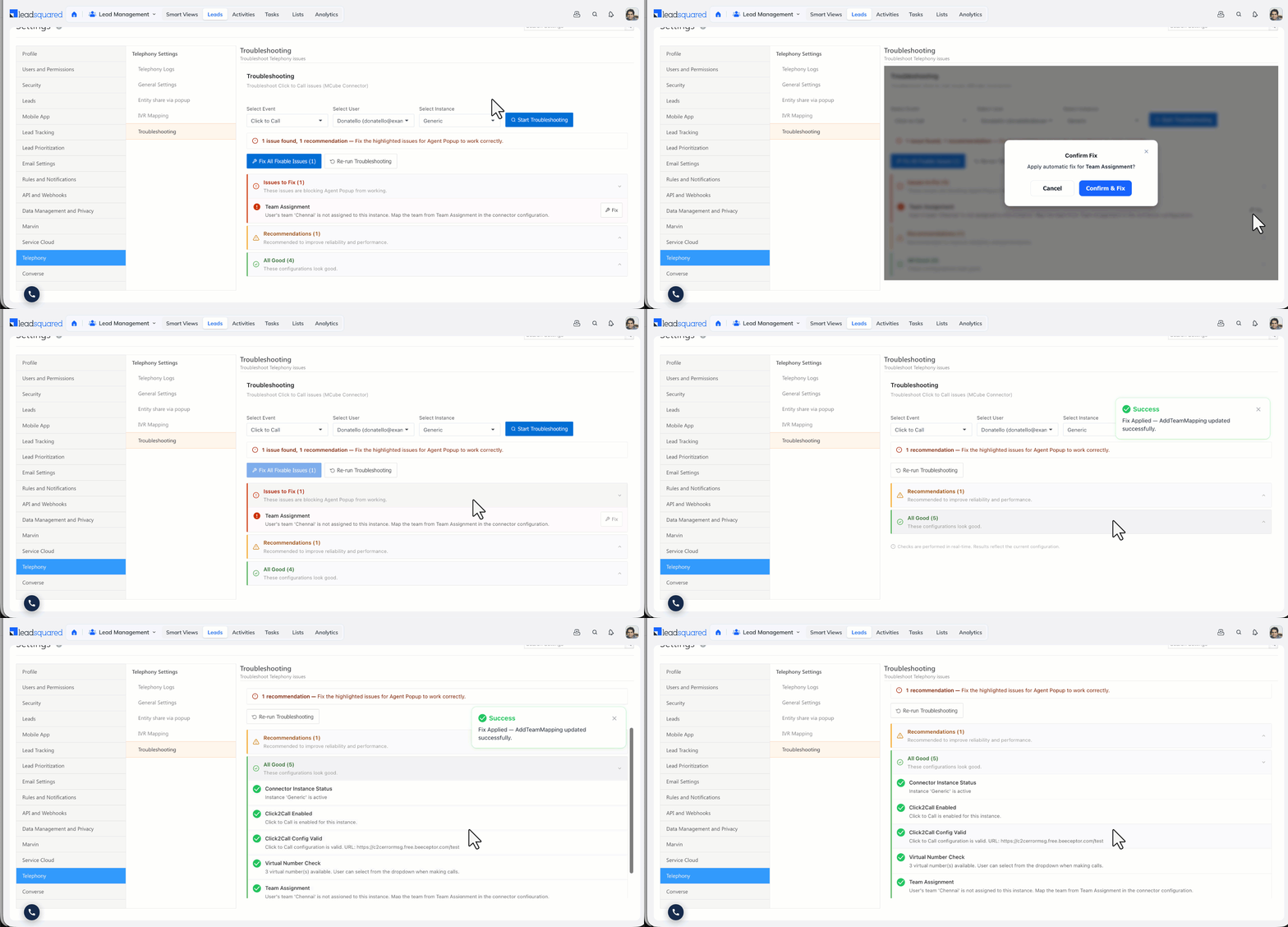
The panel header confirms what is being checked, for example “Troubleshoot click to call issues (MCube Connector)”. A summary line then reports what was found, for example “1 issue found, 3 recommendations”.
6. Fix Issues
- When an issue can be corrected automatically, a Fix button appears next to it. Selecting it updates the setting for you.
- When more than one issue is auto-fixable, select Fix all fixable issues to resolve them together.
- When the message points to a provider-side action, complete that action with your telephony provider, for example allowing panel embedding or sending the recording URL.
- After making a change, select Re-run troubleshooting to confirm the issue is resolved.
Note:
- For checks that rely on recent logs, the default window is the last 15 minutes (agent popup logs) or the last 30 minutes (call logs). To check a different period, enter a date and time in the From field and select Re-check. Logs are evaluated within a 30-minute window from the time you specify. If no logs are found, place a test call or trigger the event, then re-check.
- Click to Call includes an optional test (recommendation): Test Click2Call. The troubleshooter auto-fetches your configuration and pre-fills the required fields (entity ID, phone number with country code, and virtual number). You can then place a test call to confirm the setup works end to end, or skip this step.
- Troubleshooting works the same way across telephony connectors. The events available, and the checks within them, can vary by connector.
Any Questions?
Did you find this article helpful? Please let us know any feedback you may have in the comments section below. We’d love to hear from you and help you out!