


Conditions in Lead Automation

This article explores the conditions you can set in your automations.
When a condition is met, the next step in your automation will trigger. You can follow up a condition with an action (e.g., wait 3 days then send an email) or with more conditions (e.g., wait 3 days then check if the lead stage has changed).
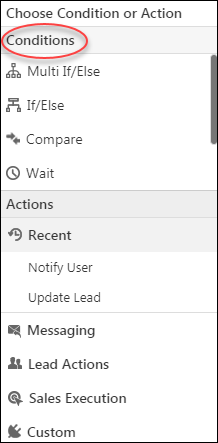
The conditions you can set are ‘Multi If/Else’, ‘If/Else’, ‘Compare’, ‘Wait’, ‘Wait Until Activity’ and ‘Split Test’.
Multi If/Else
Helps you set multiple If/Else conditions at the same level. See the Multi If/Else section of Automation Conditions – If/Else.
If/Else
To learn how to set up the If/Else condition, see Automation Conditions – If/Else.
Compare
To learn how to use the compare condition, see Automation Conditions – Compare.
Wait
To learn how to use the Wait condition, see Automation Conditions – Wait.
Wait Until Activity
To learn how to use this condition, see Automation Conditions – Wait Until Activity.
Split Test
Lets you experiment with different email content to see what your customer engage with best. See Automation Conditions – Split Test.