Tag Archive for: responsive

Add a responsive slider content in Landing pages

You can now add a responsive slider with images or text in LeadSquared responsive landing pages.
Note that you have hosted the images and have the URL of it. Please contact support team if you need any assistance with the image URLs.

Prerequisites:

• You have logged in to LeadSquared.
• You have uploaded the images used for slider and have the URL ready.
• All the images used for slider are in same dimensions.
• You are using Responsive landing page editor to perform this operation.

Procedure:

• Choose Responsive landing page template/blank template.

• Add a HTML block on the top of the landing page where you need the slider.

• Double click the block to open the editor, click on  Source-in-landing-pages 2 to go to the HTML source view of the html block.

• Download below attached code and paste it there.

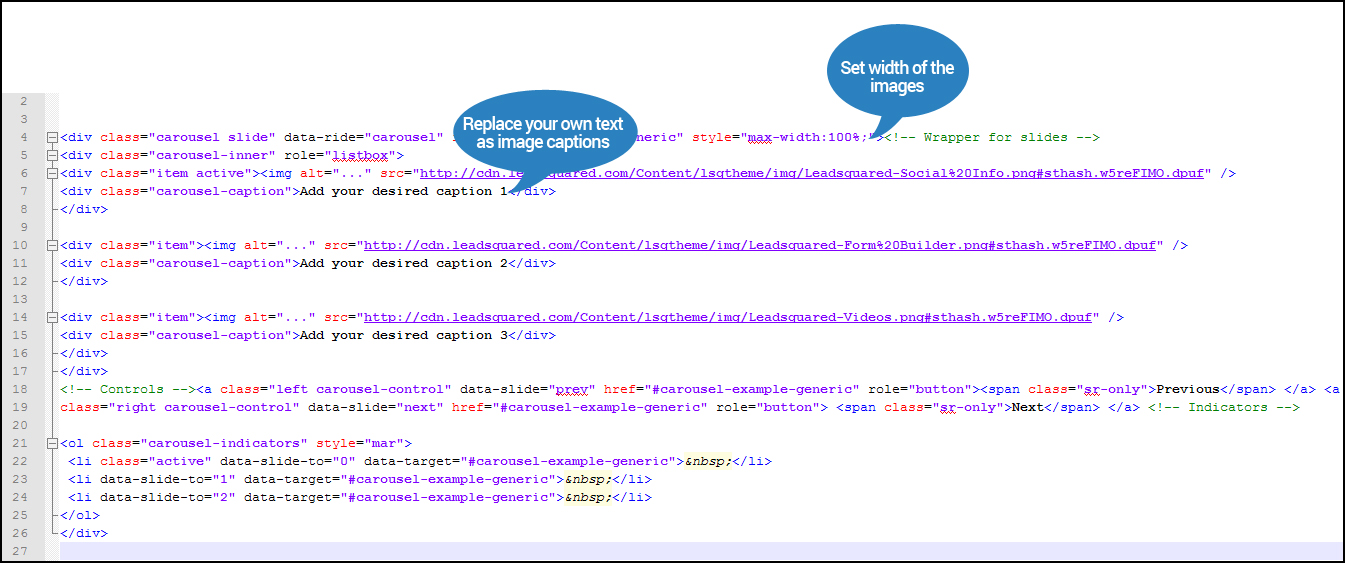
• Customize the code by replacing sample image URLs with your image URLs.

• Add your desired captions at the sample caption text. (You can remove it, if not required)

• Click ‘Save’ after all the changes are done.

Below is the illustration of code:
Responsive slider

Click here to download the code.

The image indicators should be added in landing page Style Editor.
• Click on ‘styleeditorStyle Editor’ and select ‘StyleSheet 2’
• Add these two codes at the bottom of the existing code.

• Use below code to add color codes for indicators:
.carousel-indicators .active { background-color : red;}.carousel-indicators li { background-color : green; } 

• Use below code to add position of indicators:
.carousel { position:relative;}.carousel-indicators { bottom: -40px; }

• Click ‘Save’ and publish the landing page.

Note:
1. First item’s Class tag and List (li) tag should be marked Active
Eg:- ” {class=”item active”} and {li class=”active”} “;
2. The Width of the image is set as 100% in the above code and it can be changed based on your requirement
Eg: max-width:640px
3. You can also add captions to the images by replacing text in ‘Add your desired caption’ in the attached code.
Landing Page Style Editor

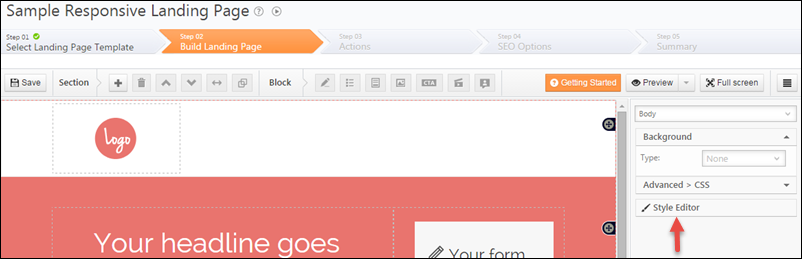
LeadSquared’s responsive landing page designer lets you control the formatting of the page using your custom stylesheet information. You can do it through the Style Editor in landing page designer:

Style Editor Link

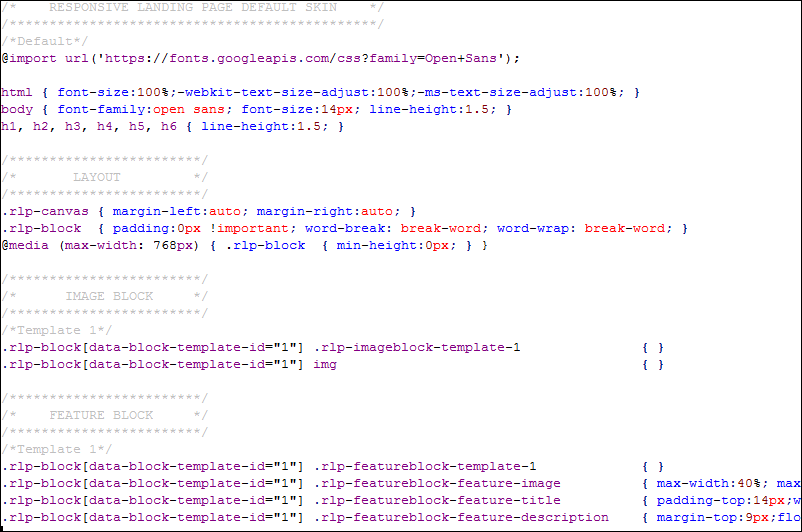
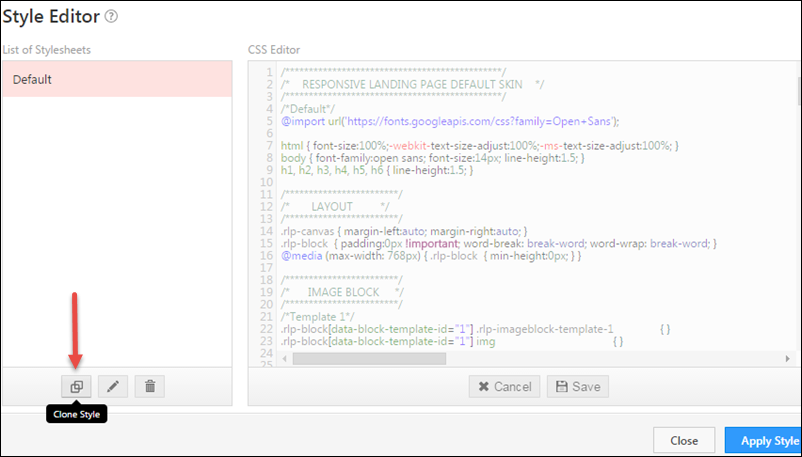
You will see the default style information displayed. That cannot be edited. You can copy the default style using the clone icon.

Clone the default style

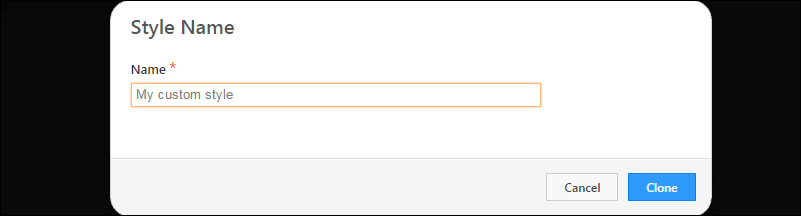
Give your style a name and save:

Style Name

Update the style information:

1) You can control style of each type of block in landing page that have pre-defined styles and templates:  Image Block, Feature block, CTA block, Testimonial Block, Media Block and Form Block.

2) The style templates can be edited and removed. New style templates cannot be created.

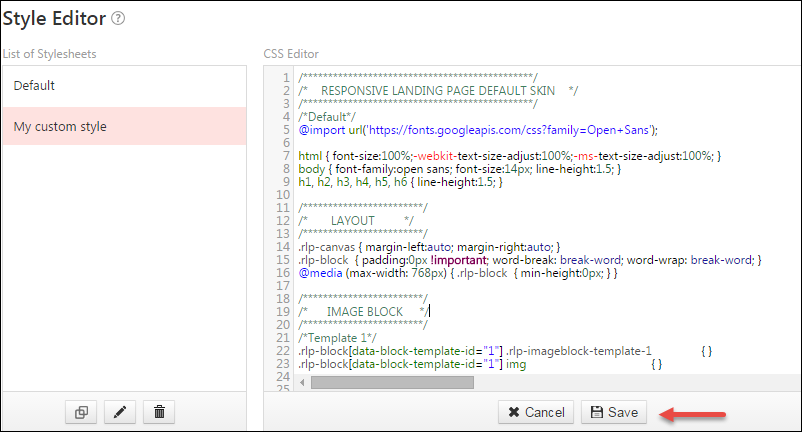
Style Editing

Save the style after editing. Saving does not apply the style immediately.

Save Style

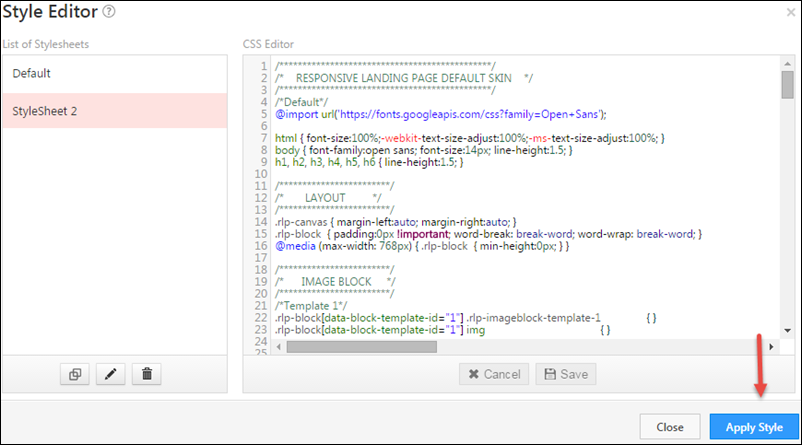
Apply the style to see it in action landing page:

Apply Style

Creating Landing Page from external HTML, CSS, Scripts and Images

The External Landing Page feature allows you to create and host landing pages in LeadSquared if you have your own HTML of the landing page, or have purchased a template from marketplaces such as ThemeForest (www.themeforest.net).

Please note that this feature is targeted at HTML developers. You need to have basic HTML/JavaScript development skills to be able to use this feature.
After you click on “Create Landing Page”, select the third option “Use your own Template/HTML” option and click “Next”.
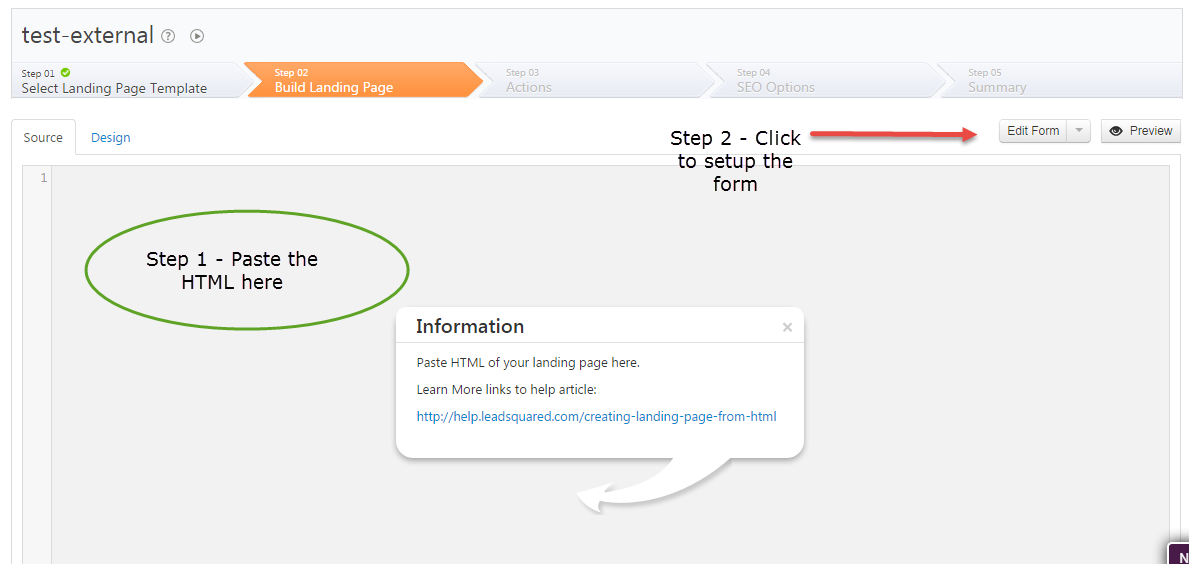
That will take you to Step 2/Build Landing Page. There are two steps to setting up the landing page design/content:

External-Landing-Page-Content

Step 1 – Paste your HTML. Copy the entire HTML of your landing page, which you have built, or purchased from a third party.

The key thing here is to ensure that the path of your images, JavaScript (js) and CSS files is correct. You need to make sure they point to the URL where they are hosted. A good place to host them would be your website. You can also upload and host them in LeadSquared at Content-> Images & Documents.

An illustration of how the URLs of your images/js/css files should be changed:

Suppose your website is http://www.mydomain.com . Assuming that your CSS files are stored in /css location under your website home, JavaScript files are stored in /js location and images are stored in /img location respectively:

If your JavaScript includes look like

<script type=“text/javascript” src=“js/myjsfile.js”></script>

In the HTML you paste in LeadSquared editor, it should change to following if you host it on your website:

<script type=“text/javascript” scr=http://www.mydomain.com/js/myjsfile.js></script>

Or similar to following if you host in LeadSquared Content -> Image & Documents :

<script type=“text/javascript” scr=http://leadsquaredsns.wowpages.co.s3.amazonaws.com/content/documentss/myjsfile.js></script>

Similarly you would have to change the URLs of your CSS (stylesheet) includes and all the images.

Once your HTML is all set, you need to setup the form.

Step 2 – Setup the Form.

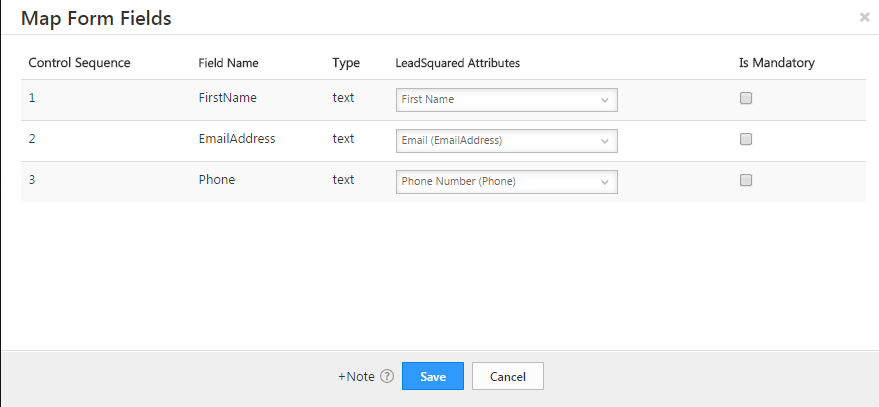
Map-Form-Fields

We have made it easy to modify the form in your landing page to make sure it can capture leads in LeadSquared. If there is a form in your HTML, the form editor will be able to pick all the input elements and try to match them with corresponding fields in LeadSquared. The idea here is that each field in your HTML form should correspond to a lead field in LeadSquared.

You can mark fields as mandatory if needed. Important Note – If your current HTML page has any JavaScript code written on form submission, you must remove it, else form won’t get submitted.

This form mapping makes sure that:

1. The fields are mapped to LeadSquared lead fields, so all data is captured.
2. We add necessary scripts required to make sure this page behaves as a landing page and the leads/visitors are tracked for analytics.

Once you setup the form, you can go to Step 3 and setup your actions.

Tag Archive for: responsive

LeadSquared Product Update # 22

We finished the 22nd production update of LeadSquared on Feb, 8th, 2015. This release was code-named “TITANIUM“.

First of all, clear your browser cache  to access the latest copy of the LeadSquared App. You can do it by using CTRL +  F5 on most windows machines and Cmd + Shift + Delete on most Mac machines.

Here are the release notes capturing the changes:

Full Blown Responsive Landing Page Designer with Templates

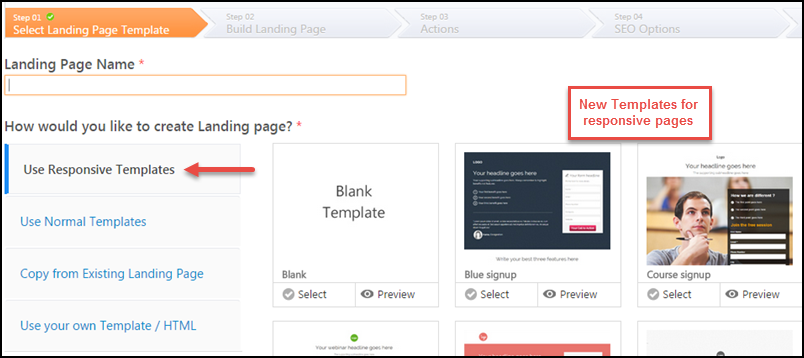
As promised in last product update, we have done lot of work on landing page designer. The designer now has plenty of features to help create beautiful responsive pages.

Select Templates

Check Building Responsive Landing Pages for details.  You should also check our slideshare PPT on responsive designer at  Slideshow on building responsive landing pages.

The old editor has been moved under the tab “Build Normal Pages”.  It is still supported. So no worries for customers who want to use the old editor. But we would encourage all LeadSquared landing page users to try out the new editor.

New: Configure multiple website and landing page domains in LeadSquared

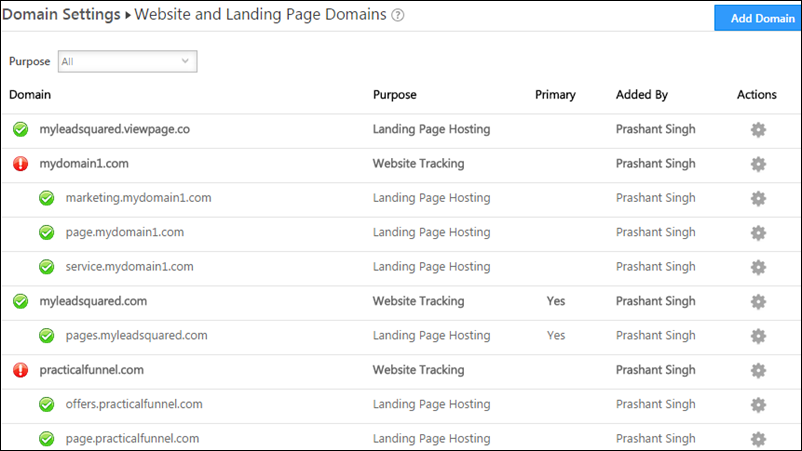
We have introduced multi domain support in TITANIUM release:

  1. you can create landing pages in multiple of sub-domains across multiple domains
  2. you can capture landing page form submissions from multiple website domains without loosing source info
  3. you can track website visit of leads in multiple domains


Multi domain

Check this link to know more: Configuring multiple domains in LeadSquared.

Note: Multi-domain setup is available only for customers in Standard and Enterprise Plans as a paid add-on. Please contact your sales account manager or write to sales@leadsquared.com if you want to use the feature.

New: Manage your Images and Documents in one central library

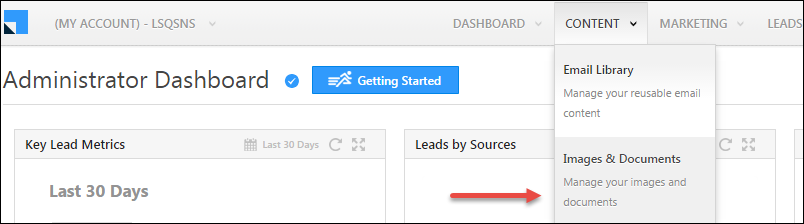
You can now manage all your marketing and sales content (except audio / video  and very large files) in LeadSquared. We have added a new features called “Images & Documents” under Content menu:

Image & Docs Menu

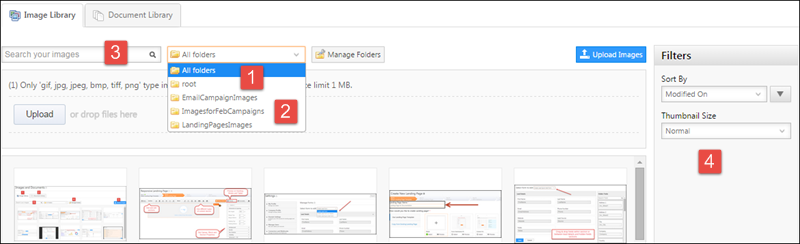
You can manage images and documents in folder structure.

Browsing Images 1

Here is the help article: Image and File Manager

New: LeadSquared app for iPhone

iPhone users can now access LeadSquared on their mobile devices.  Click the image below to download the app:

Apple Store

The android app was already available on Google app store:

Google PlayStore

Check this article to know the features available on mobile: LeadSquared Mobile App

NEW: Send Quick Email to Lists

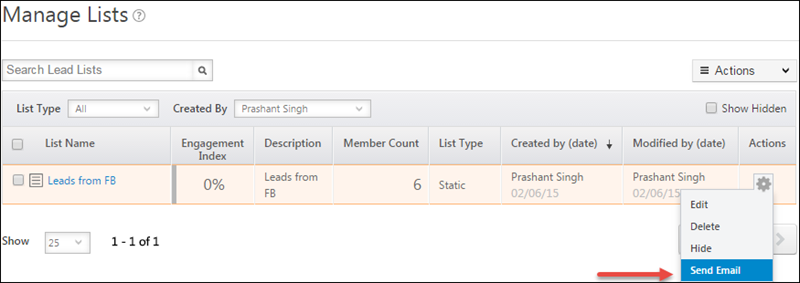
You can now send emails to List of Leads without going through the workflow of email campaigns.:

Click Send Email

Check this help article to know more: Send Quick Email to a List of Leads

New: Plenty of new useful reports

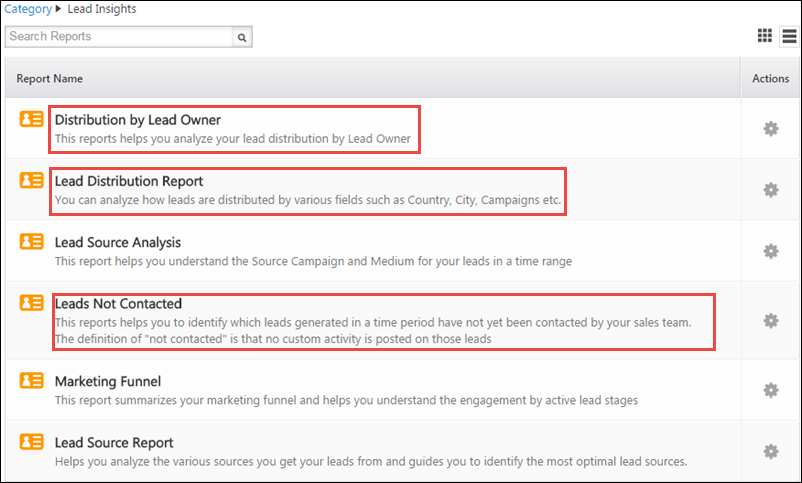
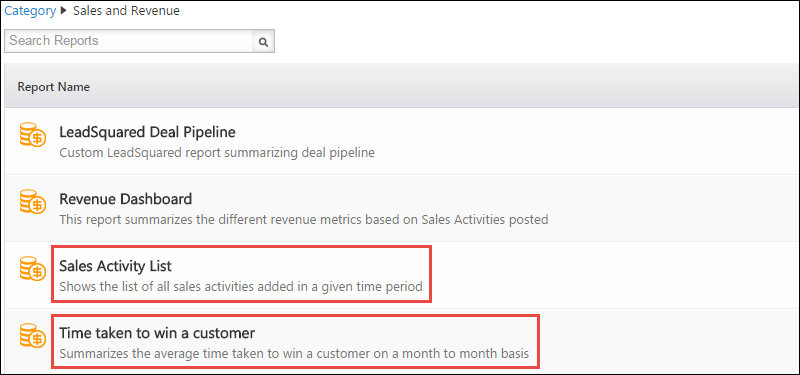
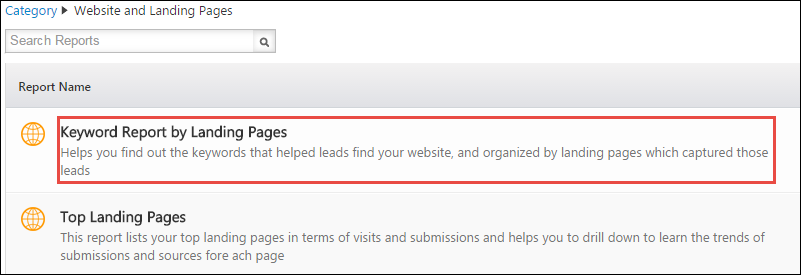
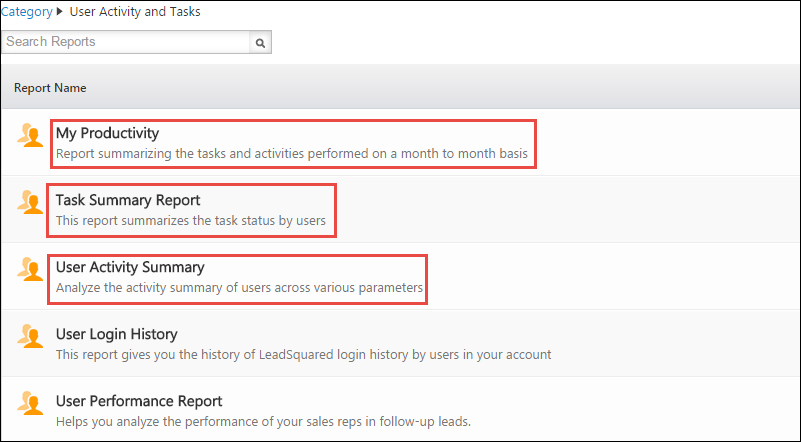
We have added a number of new reports to help you meaningfully understand the performance of your sales and marketing functions. Click the Analytics icon to find them.

Analytics Icon

Lead Insights

Revenue Reports

website and landing page report

User Reports

Other Updates

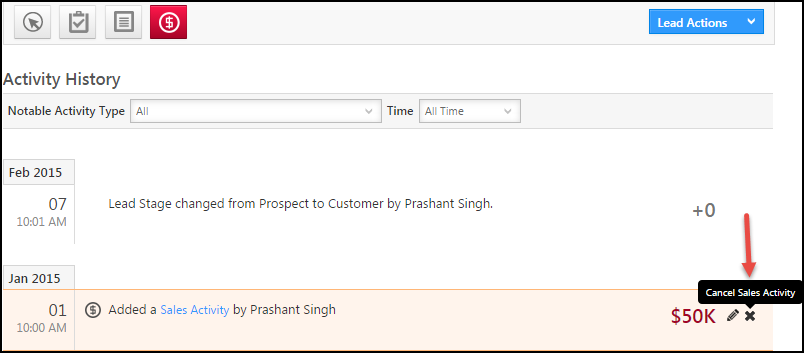
Cancel Revenue Activity

You will be able to cancel a revenue activity now:

Cancel Sales Activity

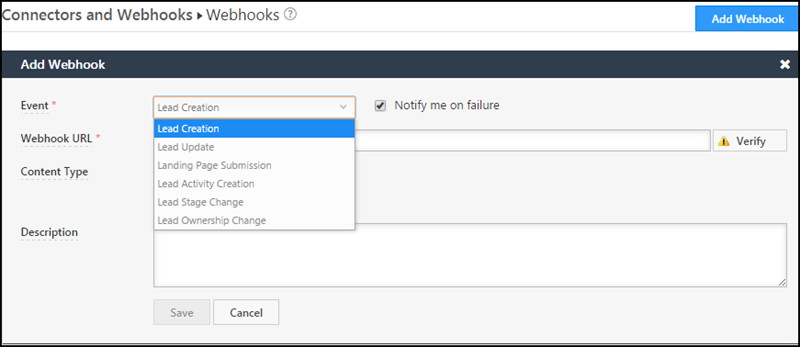
Webhooks can be invoked on Lead Stage Change and Ownership change

You can write your custom app that processes lead data of LeadSquared after lead stage change or ownership change. For example, you may notify the field sales people when Lead Stage changes to opportunity.  This custom app can be configured as webhook in LeadSquared:

Webhook

To know more check, Webhooks in LeadSquared.

Export Lead option available on Lead Grids for Admin users:

Admin users can now:

1) Export Leads from list of lead that unsubscribe in Email Campaign Report

2) Export Leads from grid in Lead source report

LeadSquared Product Update # 21

We finished the 21st production update of LeadSquared on Sunday, Dec 28th, 2014. This release was code-named “SCANDIUM“.  We  code-name our release on periodic table of elements and Scandium happens to be 21st. So starting with HYDROGEN as first release we have come far till SCANDIUM and the next release will be named TITANIUM!

Enough about elements, now lets look at what all changes have been made in this release.  First of all, clear your browser cache  to access the latest copy of the LeadSquared App. You can do it by using CTRL +  F5 on most windows machines and Cmd + Shift + Delete on most Mac machines.

Here are the release notes capturing the changes:

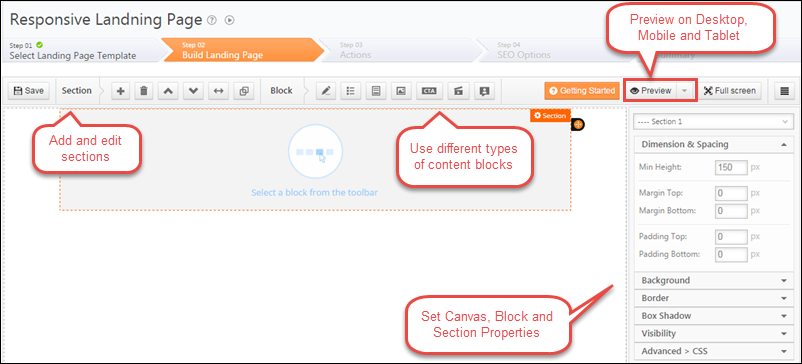
Responsive Landing Page Designer

We have made very significant improvements in our responsive landing page designer that we released in Nov.  You will be able to create beautiful responsive  pages using the revamped designer. We have added  several useful block types and property panels. Check Building Responsive Landing Pages for details.  You should also check our slideshare PPT on responsive designer at  Slideshow on building responsive landing pages.

We haven’t taken the “BETA” tag off the responsive editor since there is some work left to be done (like adding templates) that we plan to finish in TITANIUM.

LP Responsive Editor

Customizable Dashboard

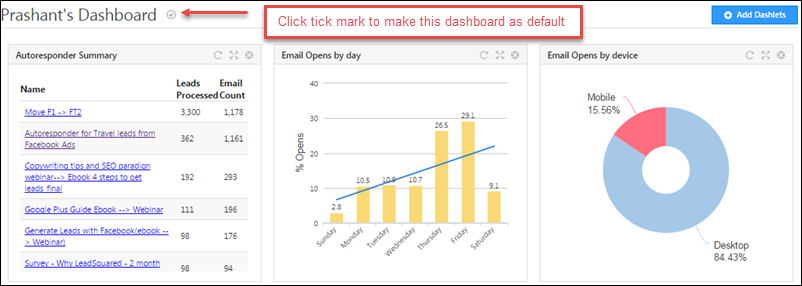
You can create your own dashboard now. The old dashboard has been replaced with a System created role based dashboard and we have given ability to create custom dashboards. Each user can create upto 10 dashboards and make one of them as Default.

Here is the KB article:  Create your custom Dashboard in LeadSquared

Dashboard - Make default

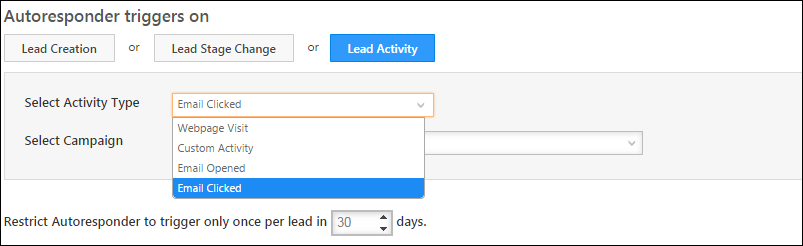
Create autoresponder based on open/click of Email Campaign

You can now trigger autoresponder emails to leads who will open or click your future email campaigns.

AR - select activity

Personalize LeadSquared with your own Logo

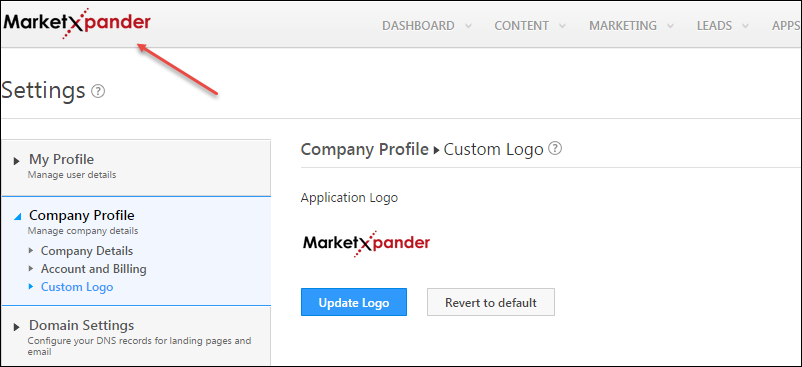
You can now upload your own logo to replace the default LeadSquared logo.  Here is how you can do it: How to upload your own logo in LeadSquared?

Updated Logo

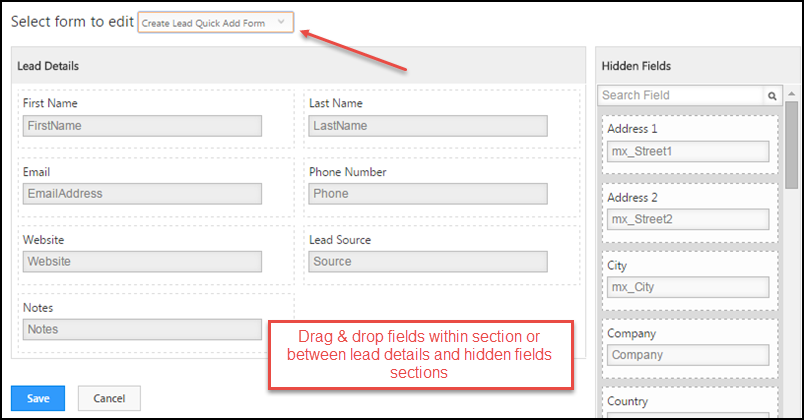
Customizing Quick Add Lead form using Drag/Drop

The Admin users will find customizing Quick Add Lead Form easier with new drag/drop form designer. Check the KB article: Lead Form Customization

Quick Add Lead - Customize

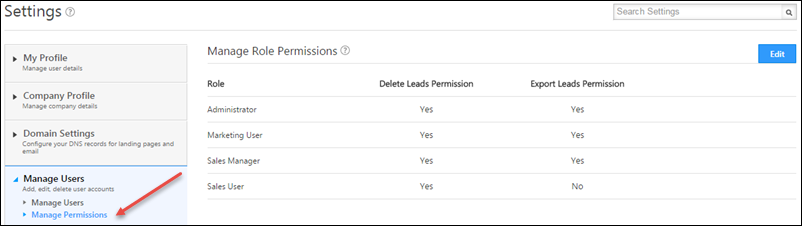
Control Lead Export and Delete permissions

The Admin users can now assign/revoke Lead Export and Lead Delete permissions from User Roles.  Check the KB article: How to control lead export and lead delete permissions for users? 

Role Permissions

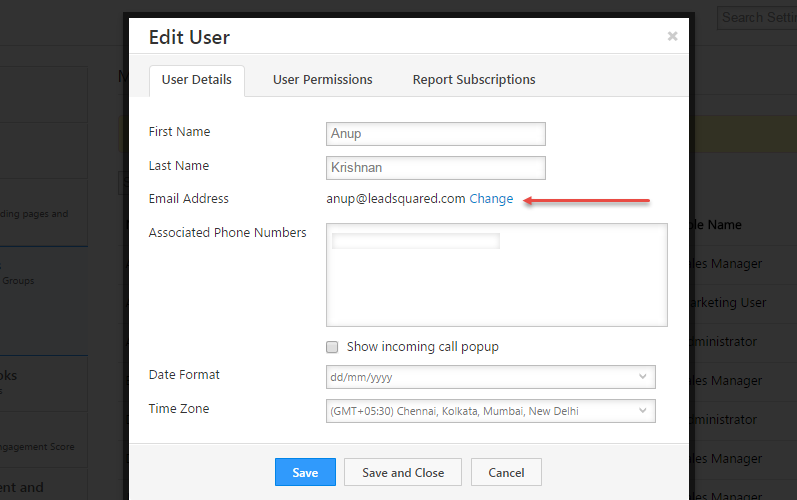
Change User Id of LeadSquared User

Admin users can now update email id (or user id) of an existing user. This will help when you want to replace a leadsquared user with a new one.

CHange User Email Id

There have been several other  minor updates that will help improve your  LeadSquared experience. We look forward to your continued support and feedback.

LeadSquared Product Update # 20

We finished the production update of LeadSquared on Sunday, Nov 16th, 2014. Please clear your browser cache  to access the latest copy of the LeadSquared App. You can do it by using CTRL +  F5 on most windows machines and Cmd + Shift + Delete on most Mac machines.  Here are the release notes capturing significant changes:

NEW: Website Widgets: Topbar

With this release we have started strengthening our repository of widgets to improve website visit to lead conversion. These will complement our landing page & forms to help business generate more lead online.

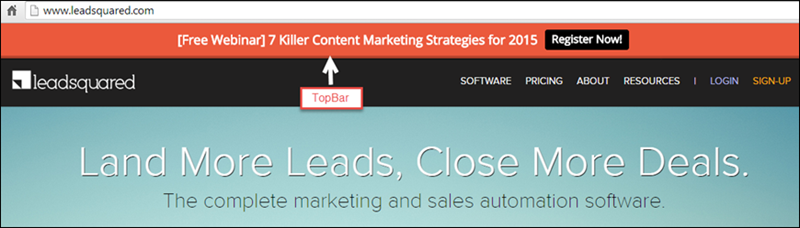
The first such widget is Topbar. A Topbar sits on the top border of your website or landing pages and helps grab attention to the offer or notification you have published.  It has a call to action (CTA) button that can be linked to external pages like lead capture forms.

 An example of Topbar is shown below:

Topbar

You can now easily build topbars in LeadSquared and publish them on your website and landing pages without making any change on the target page.

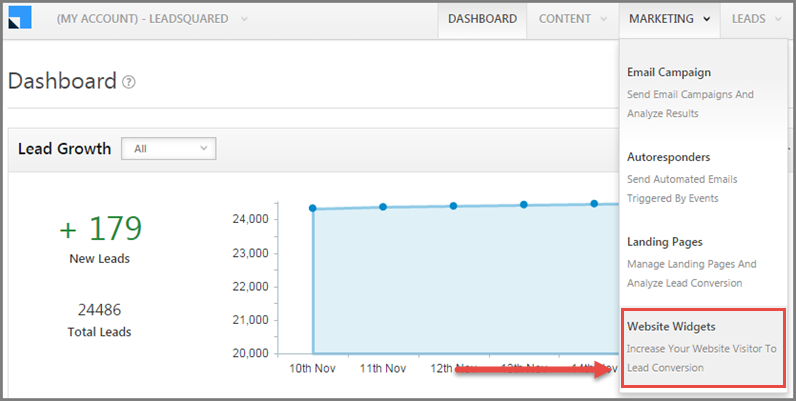
To start working on topbar, click “Website Widgets” under Marketing menu:

Website Widget Menu

Here is the help article link to guide on creating Topbars:    LeadSquared Website Widgets.

NEW: Responsive Landing Page Designer (BETA)

Creating landing pages that render well on web, tablet  and mobile has been one of the most common feature requests of LeadSquared users. We are releasing the first version of responsive landing page designer. It is an early BETA release that supports creation of sections and adding HTML and Form blocks.

Responsive Designer

This designer will be improved upon in next few releases. We would love hear what you would want to see in designer to make it super useful to you.

Here is the help article link to guide on  using responsive landing page designer: Building Responsive Landing Pages

NEW: Track Custom Web Events

With LeadSquared website tracking script you have been able to track the web visits of your leads.  We now allow you to go a step further and track events like button click and video play.  You just need to insert a single line of JavaScript code at appropriate places in your website to achieve it.  See more details at Logging Custom Website Activities.

NEW: CallRail  Telephony Connector (For North America)

We have done integration with CallRail to capture inbound calls as leads in LeadSquared. This will help LeadSquared subscribers in North America to automate call to lead use cases.  Check Configuring LeadSquared CallRail Connector to start using it.

Configuring  your own domain to track email link clicks

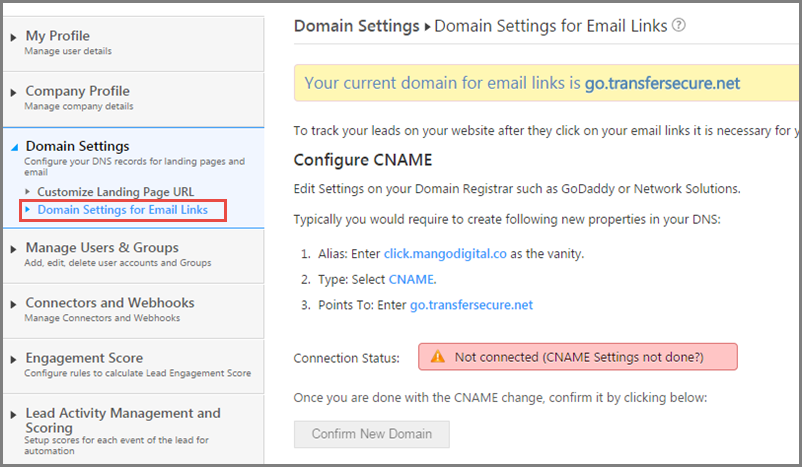
Browsers have done few changes off-late that prevent tracking of website visit of  people who open your email sent using LeadSquared.  The solution is to encode your email tracking links using a URL of your website domain.

You just need to create a cName called “click” in your website domain and point it to go.transfersecure.net and then confirm in My Account -> Settings -> Domain Settings -> Domain Setting for Email Links.

Email Domain Setting

Support for date-time and drop-down in Sales Activity fields

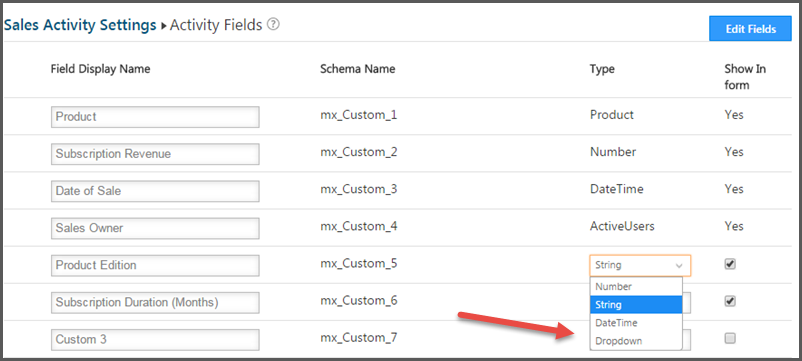
We have added two more data types in custom fields on Sales Activity form: Datetime and Dropdown.

Sales Activity Fields

If you add drop-down type of field, select the icon next to field to add values to dropdown:

Add dropdown values

Customize fields for daily lead report that is delivered to lead owners by email

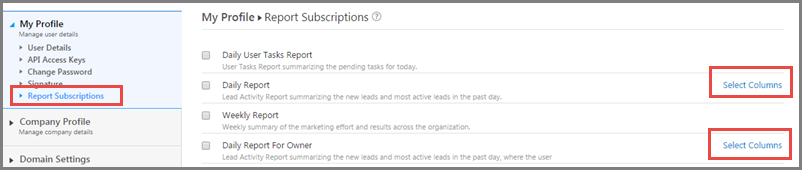
You can select the fields 5 fields of your choise apart from First Name, Last Name, Email and Phone number in the daily lead digest report.  To do the customization Navigate to My Account -> Settings -> My Profile -> Report Subscriptions and click on “Select Columns”.

Select Column for reports


LeadSquared Product Update # 19

We finished the 19th production update of LeadSquared on Sunday, Oct 12th, 2014. Please clear your browser cache  to access the latest copy of the LeadSquared App (Use Control + F5 key on windows and Command + R keys on Mac to clear cache). Here are the release notes capturing significant changes:

NEW: SMS Marketing Connector

We have a fully revamped SMS Marketing Connector in LeadSquared. You can interact leads via SMS as you have been doing using Emails.  It support one-to-one SMS, one-to-many SMS, SMS Campaigns to lead lists and Landing Page Autoresponder SMS. You can configure your own SMS sender name and also create your own templates!

Admin users can find the connector under My Account -> Settings -> Connectors and Webhooks -> Connector -> Add Connector.  You need SMS credits in your account to start using it. Please get in touch with your LeadSquared Account Manager for the same.

To know more about the SMS Marketing Connector, check LeadSquared SMS Marketing Connector.

NEW: Lead Distribution Automation App

Using the new Lead Distribution Automation App, you can automate the distribution of incoming Leads to your LeadSquared users by creating rules on Lead field data. For example, you may want to distribute leads to a group of LeadSquared users in round-robin manner based on its location, interest, budget, education.

With Lead Distribution App, you can build a series of rules and assign leads to one specific user or to a user among group of users in round-robin manner.  You (Admin users) can find the App under My Account -> Settings -> Connectors and Webhooks -> Connector -> Add Connector.

To know more, check Lead Distribution Automation in LeadSquared.

NEW: Zopim Chat Connector

We have added one more connector to our expanding connector library. With chat tools, we already had Olark Chat Connector, we now have integration with Zopim chat as well. So you can start capturing the Zopim chat leads also in LeadSquared.  Read this article to get started: How to get Leads from Zopim Chat in LeadSquared?

NEW: Capture Email Senders and Recipients as Leads

Inbound leads to your sales enquiry email ids and outbound emails to your leads from your email clients like outlook, gmail etc can be captured as Leads in LeadSquared using the new MarkCopy connector. You just need to generate your organization’s unique MarkCopy email id and get the inbound or outbound email “Marked a Copy” to it. Get started with MarkCopy:  Capture Email Sender and Recipients as Leads using Markcopy Connector.

Redesigned Analytics Page

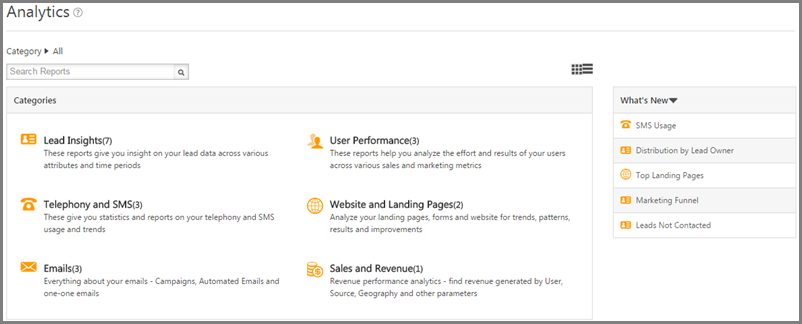
As we update a number of new reports in LeadSquared, we have redesigned he Analytics Page to better organize and search for reports. Check it out:

Analytics

Host your external landing pages in LeadSquared

While we are working on refreshing our current Landing page designer to create Responsive Landing Pages, we have provided an option to host your external Landing pages within LeadSquared.  Here is an  example of such a Landing Page.

here is the help article on the same:  Creating Landing Page from HTML.

 Pause and Update Individual Steps of Email Autoresponder

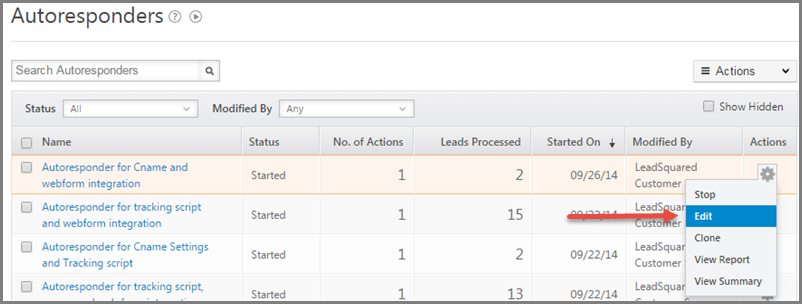
We have added the option of pausing individual step of Email Autorepsonder and Editing it without impacting the other steps. Just Edit the Autoresponder as illustrated below:

AR - Edit

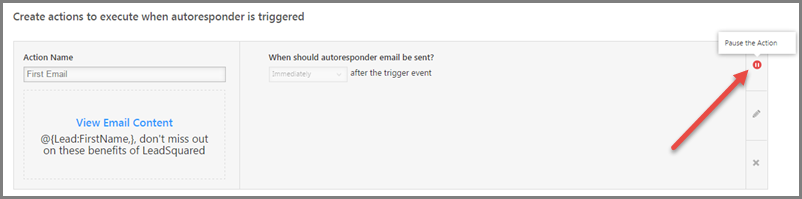
And then pause to make the changes. Start  the actions after you done.

AR - Pause

 Search Based on Sales Activity

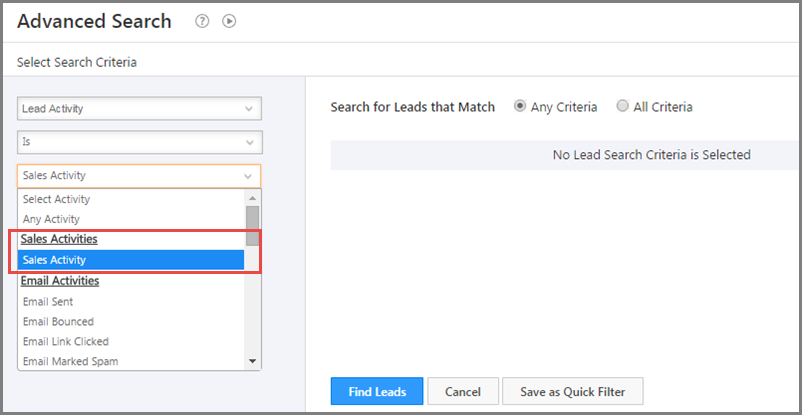
You can now search for leads based on their Sales Activity.

Search For Sales Activity

Tons of new APIs

We have added a number of new APIs with this release. Developers who want to know more can contact us at support@leadsquared.com .