
1. Feature Overview
The Share via Email feature in LeadSquared allows you to quickly send a lead’s details to other users within your account via email. This helps teams collaborate more efficiently by sharing important lead information.
The email includes key lead details along with a direct link to the Lead Details page, making it easy for recipients to view the lead in context and take appropriate action.
This feature is useful for:
- Sharing updates or context before handoffs
- Keeping stakeholders informed without changing lead ownership
2. How It Works
Select a lead, click Share via Email, add recipients and any notes, then send the email. The recipients will receive an email with key lead details and a link to the Lead Details page.
3. Share A Lead Via Email
You can select and share leads via email from different pages on the LeadSquared Web App.
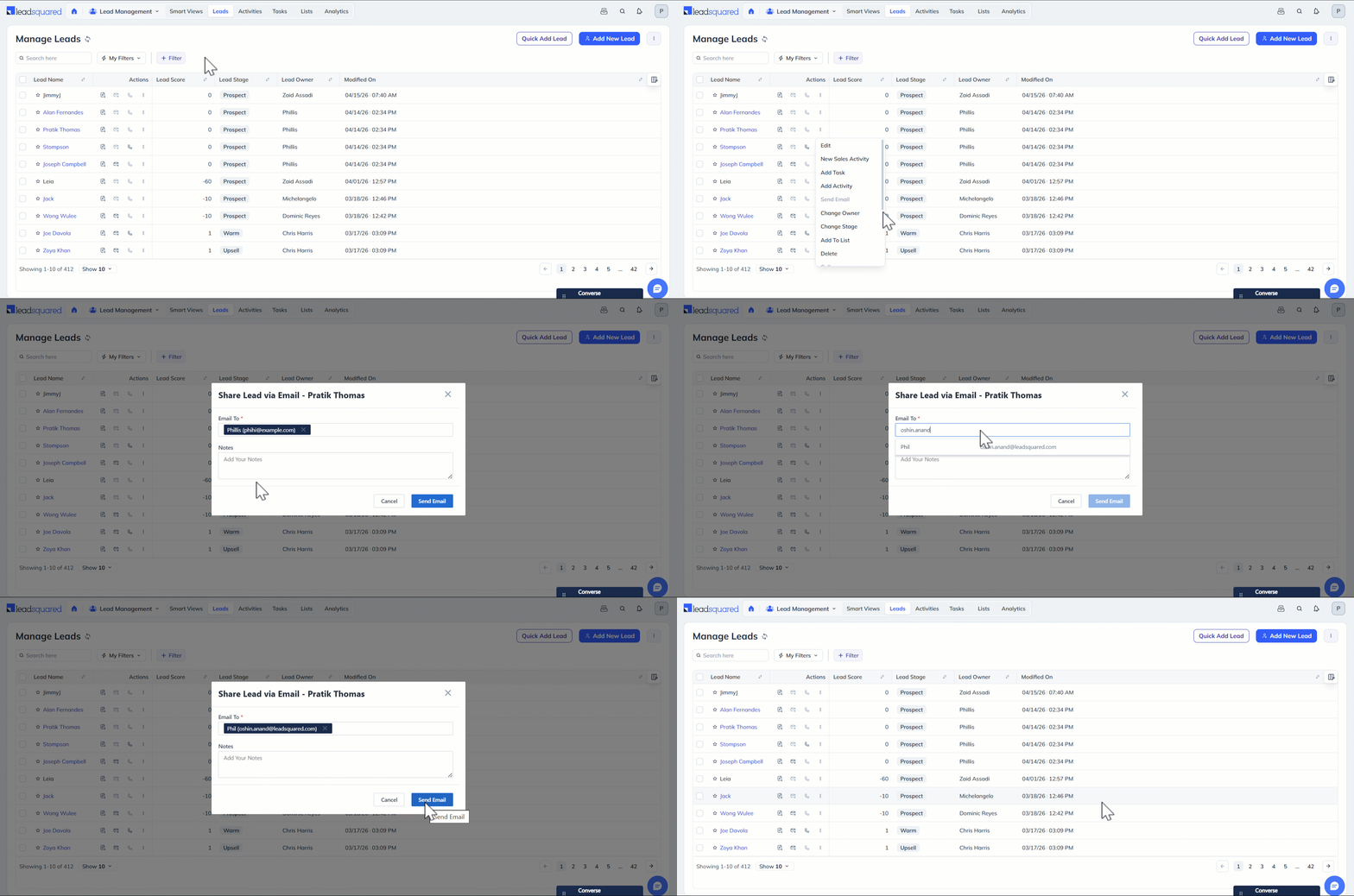
3.1 From Manage Leads Page
- On the main menu, navigate to Lead Management>Leads.
- Hover your cursor over the Actions icon alongside the relevant lead, then click Share Via Email.
- On the Share Lead Info Via Email pop-up,
- Use the Email to field to add more users you want to send the email to.
- Use the Notes field to add relevant information or context to the email.
4. Click the Send Email button when you’re done.
3.2 From Smart Views Page
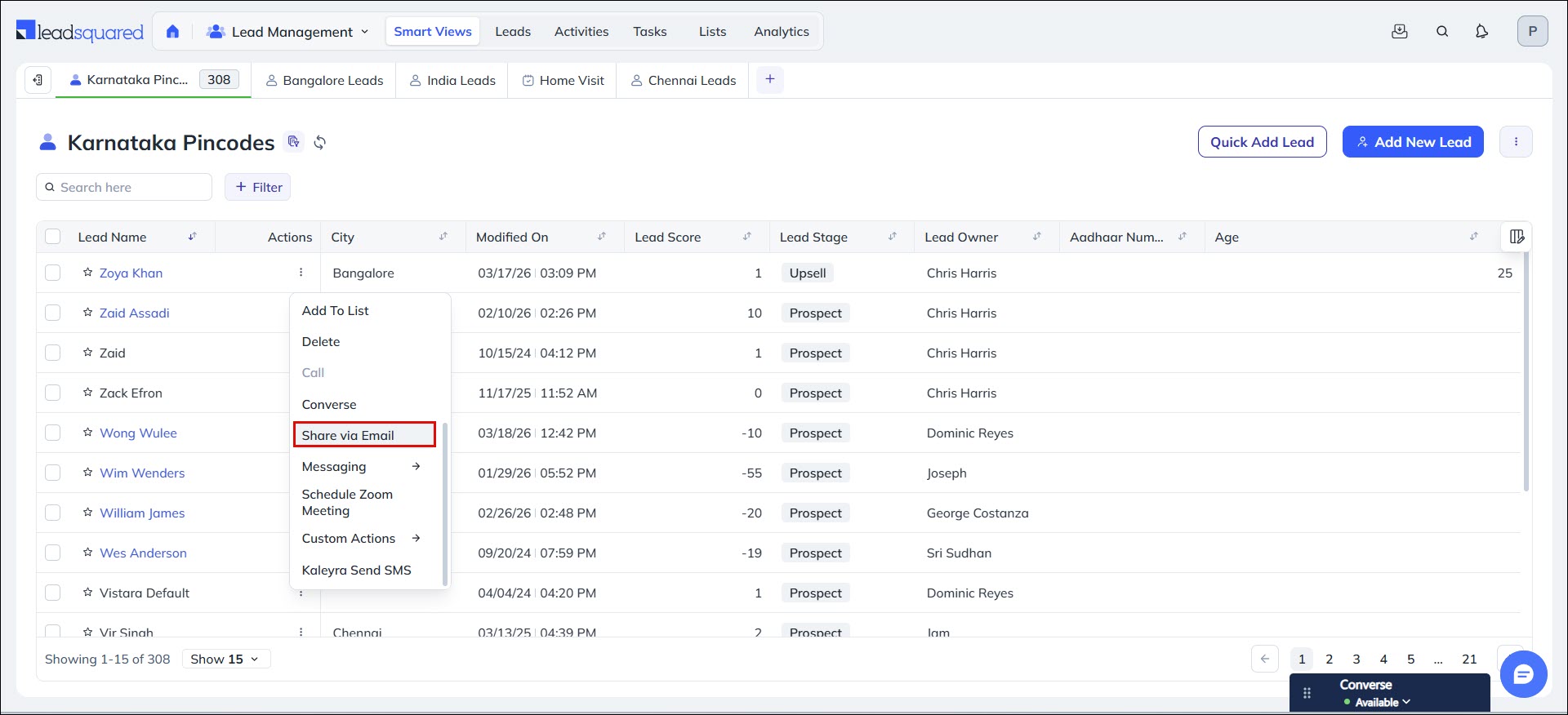
Similarly, you can share leads from a specific smart view from the Smart Views page on the web app.
3.3 From Lists
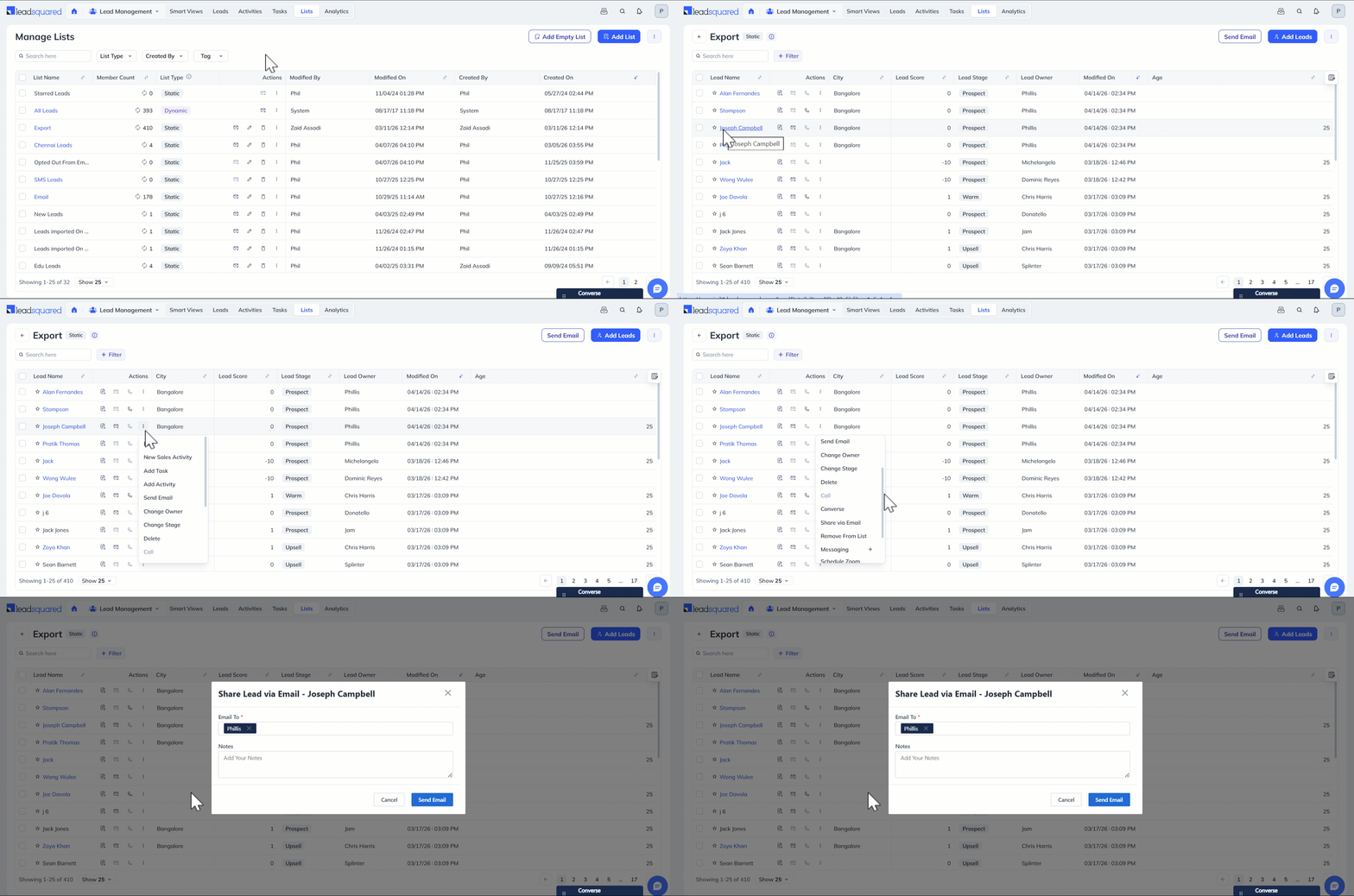
To share a lead from a specific list –
- Navigate to Lead Management>Lists and select the relevant list.
- Click the Actions icon alongside the relevant lead in the list and select Share via Email from the dropdown.
4. Email Notification
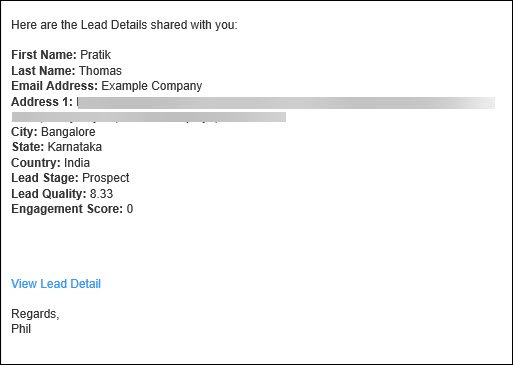
The selected users will now receive an email like the one shown below. They can click the View Lead Detail link to navigate to the Lead Details page in LeadSquared. Note that only users with permission to view the lead will be able to see the lead details page.
- To give users temporary access to a lead, see How to Share a Lead for a Limited Duration
- To set up the view/edit users’ permissions on leads and lead fields, see Permission Templates.
Any Questions?
Did you find this article helpful? Please let us know any feedback you may have in the comments section below. We’d love to hear from you and help you out!





Can we remove the lead share via email option for users, this is causing lead leakage for us?
Hello, Chetan.
Please reach out to support@leadsquared.com detailing the situation. We will get back to you ASAP.