


Get Started

Sales Suite
Field Ops
Marketing
Service CRM
Integrations & Apps
FloStack
Task Management – Feature Guide

1. Feature Overview
Tasks and reminders in LeadSquared are appointments and to-dos that help users convert leads into customers. They make it easy to track deadlines, manage records, and understand user efficiency.
The system includes pre-configured appointments such as meetings and phone calls, and supports creating custom Appointments (for example, doctor consultations or insurance renewal calls) and To-dos (like document verification or fee payment reminders).
- Assign and schedule tasks and reminders for yourself or other users, linked to Leads or Opportunities.
- Track all tasks and reminders directly from the Lead Details and Opportunity Details page.
- Provides managers with visibility into their team’s tasks to ensure timely follow-ups.
- Set up Automations to automate task creation and reminders.
Together with Activities, tasks give a clear view of each lead’s progress, helping teams prioritise work, follow up on time, and drive conversions effectively.
2. Prerequisite
- The Tasks feature is included in your LeadSquared plan.
- Only an Admin user can set up tasks in an account, but any user can post tasks on a lead and opportunity.
3. Difference between Activities and Tasks
In LeadSquared, activities are actions performed by a lead, such as email opens, link clicks, incoming phone calls, website visits, etc. You can also create custom activities, such as loan applications, document submissions, or home visits. Activities capture and track key events in a lead’s journey from prospect to customer.
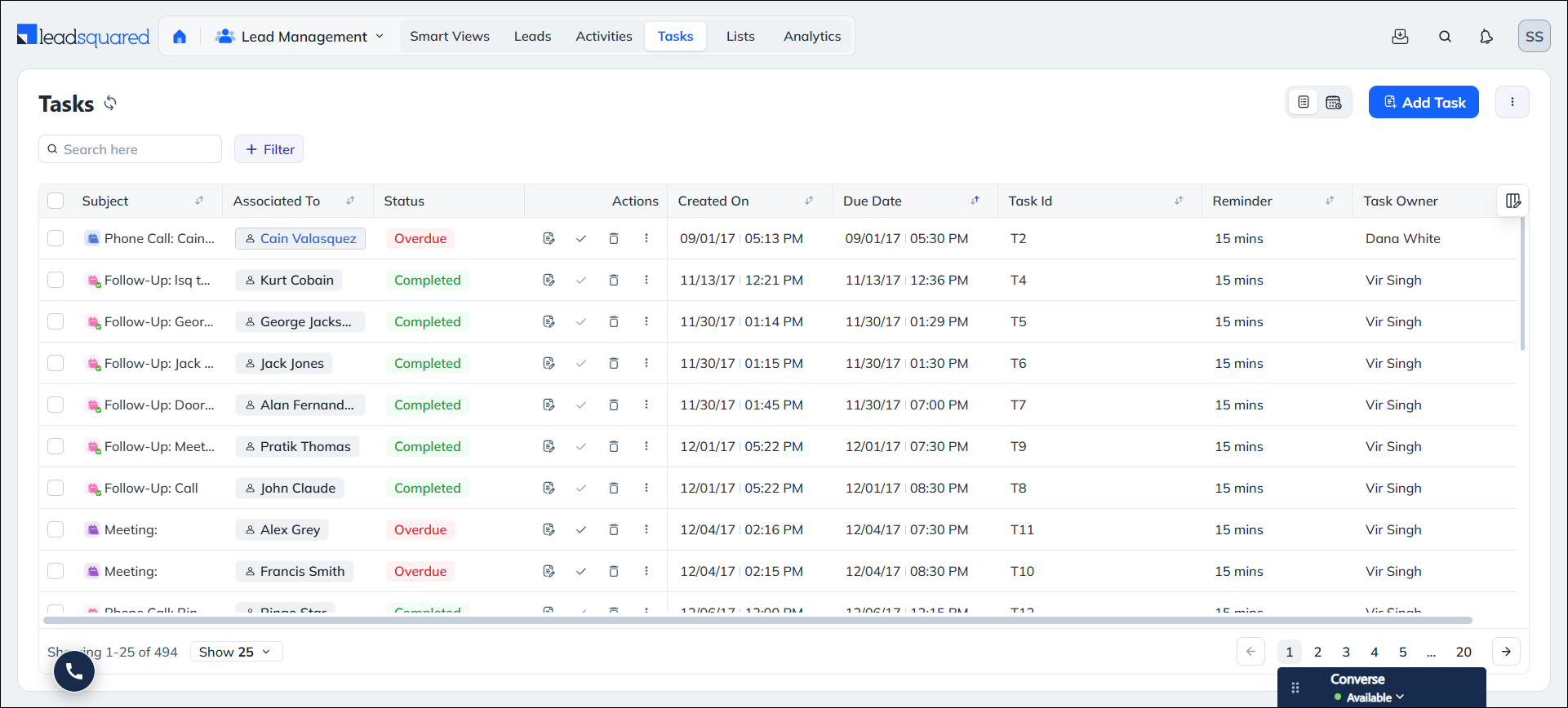
Tasks, including Appointments and To-dos, are actions assigned to LeadSquared users to move a lead toward conversion. Tasks usually have a scheduled date and time, appear on the tasks calendar, and help users plan, track, and complete follow-ups in a timely manner.
Another key difference is that tasks are posted on a lead only by a LeadSquared user, either manually or through automations, while activities are posted based on actions performed by a lead or a LeadSquared user.
4. How it Works
- Tasks are available in your LeadSquared account by default.
- A few Appointment task types are available when your account is activated.
- As an Admin, you configure these Appointments to match your business use cases.
- You can also create new Appointments and To-dos and automate task assignment using LeadSquared Automations.
- After configuration, users add relevant tasks to leads and opportunities from different pages in LeadSquared and use these tasks to drive lead conversion.
- Users view, track, update, and complete tasks from the Tasks page, Smart Views, and the Tasks tab across Lead and Opportunity pages, including using individual and bulk actions.
- Users can also customise the Tasks page to match their preferences and desired look and feel, which helps them focus on priorities and work more efficiently.
5. Create and Manage Task Types
There are two task types in LeadSquared –
- Appointments are scheduled meetings between LeadSquared users and leads, set with a defined start and end time for completion.
- To-dos are tasks assigned to users without fixed start or end times but with an expected completion timeframe. Unlike appointments, to-dos may or may not involve direct lead interaction.
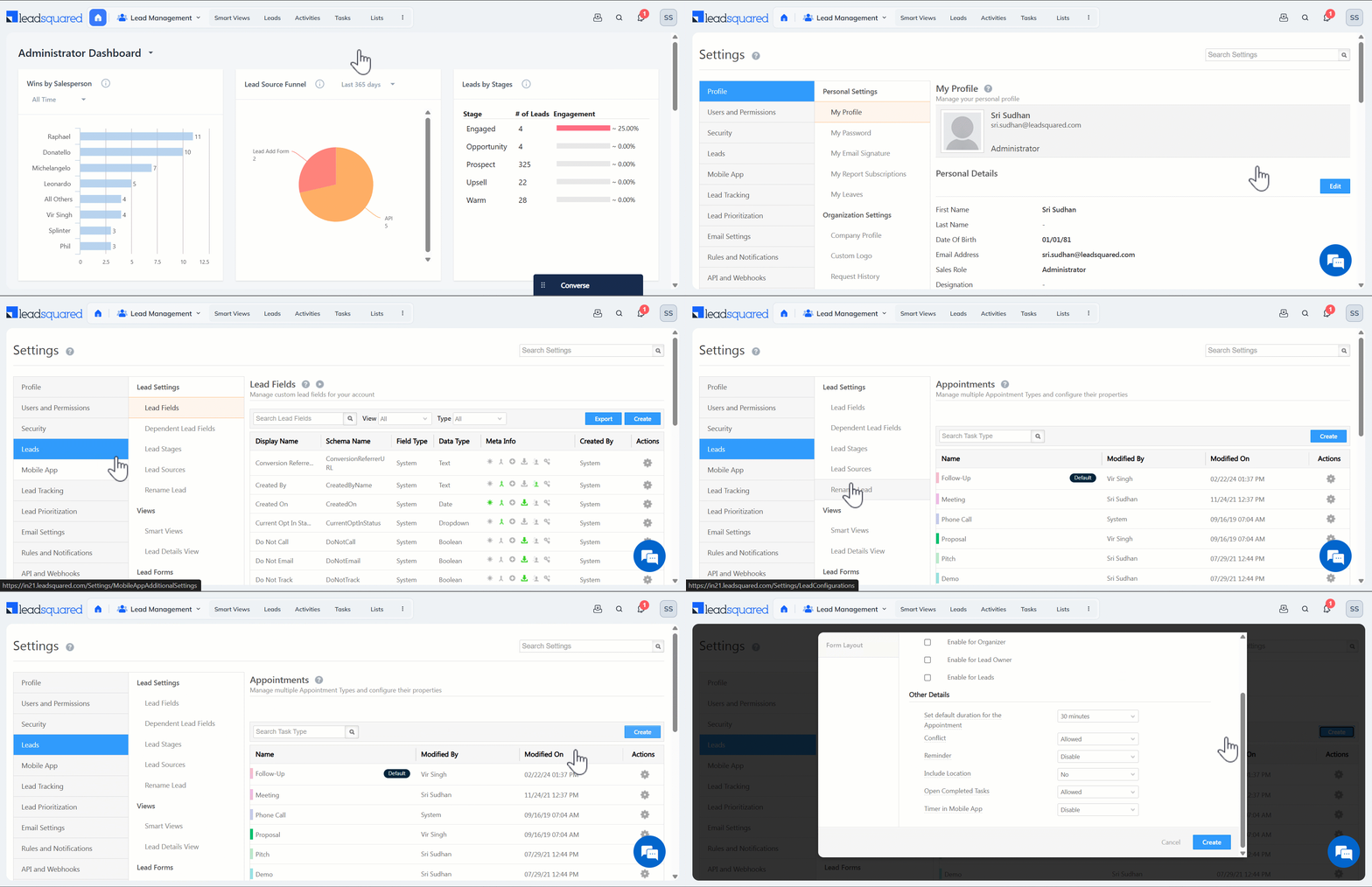
The following appointment task types are available by default on your account –
- Follow-up
- Meeting
- Phone Call
- Proposal
- Pitch
- Demo
In addition to these, you can create your own custom appointments to address specific use cases. To know more, refer to Manage Tasks for Admins.
6. Add Tasks and Schedule Reminders
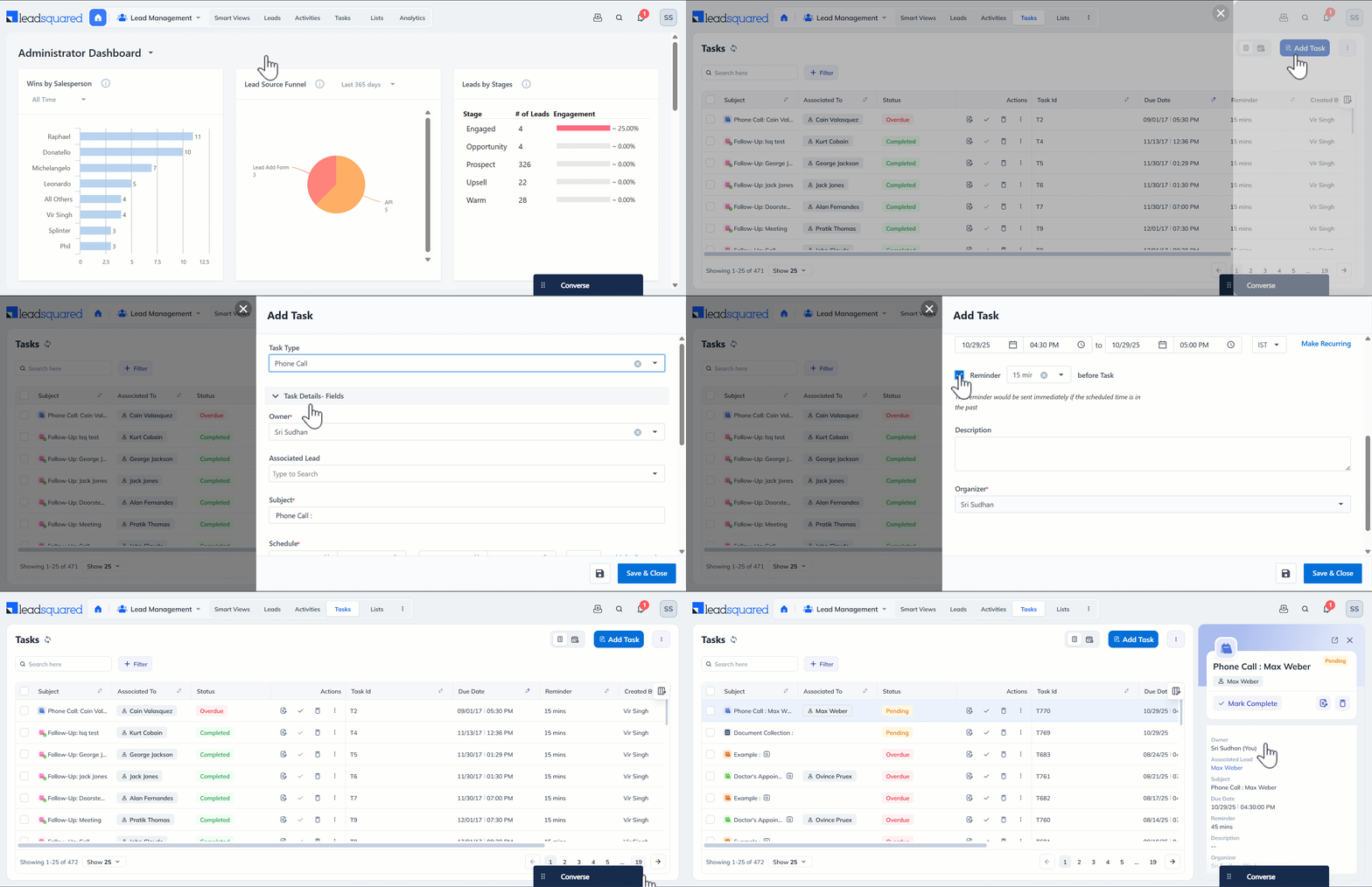
Once task types are created, users can start adding tasks to the account. After a task is assigned, set reminder emails to notify users of their upcoming tasks before they’re due. To know more, refer to Manage Tasks for Users.
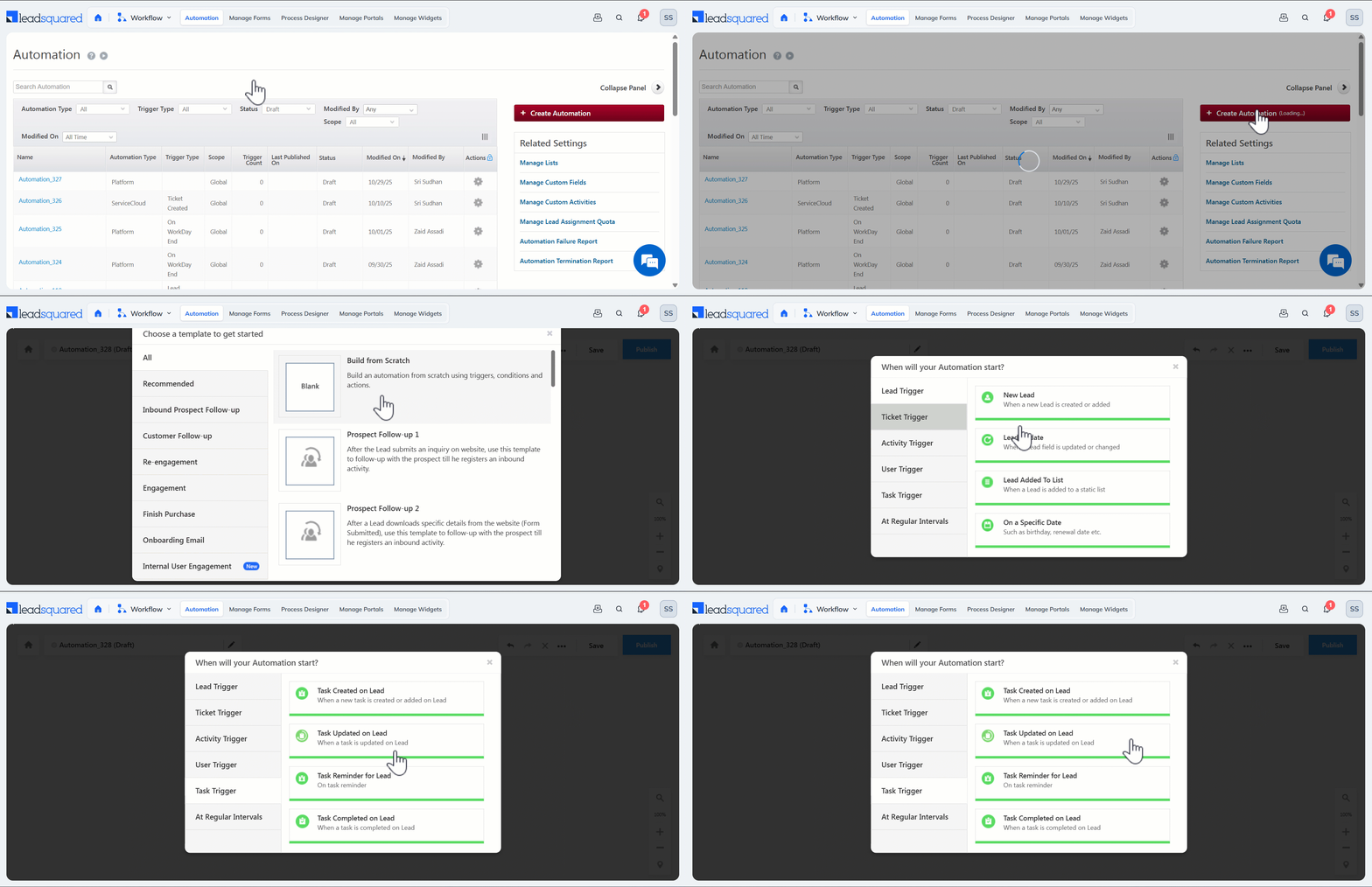
Along with creating tasks manually, you can also automate task creation using the Automations feature.
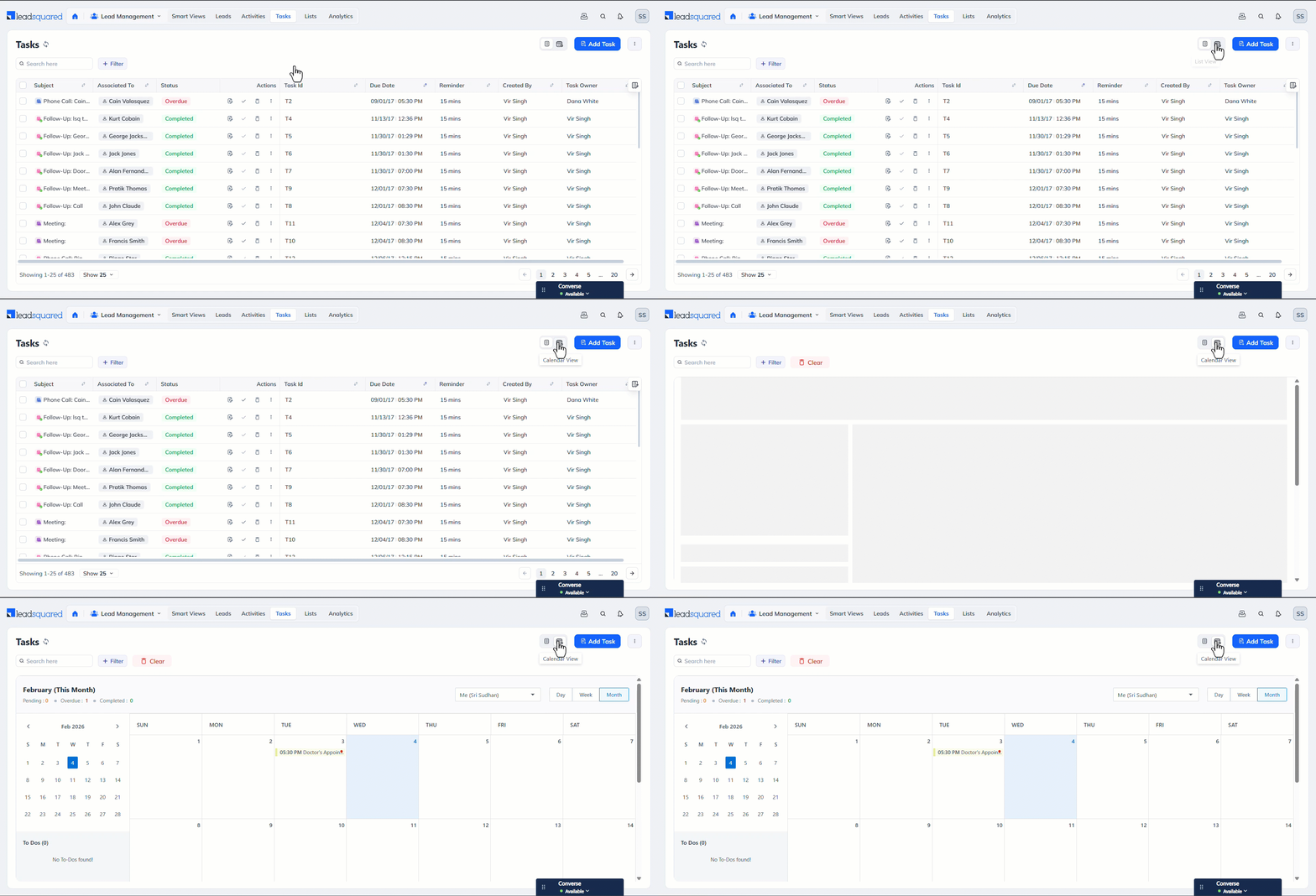
7. Customise the Tasks Page
Users can also customise the Tasks page to match their preferences and desired look and feel. This helps users focus on high-priority tasks, reduce clutter, and work more efficiently. To know more, refer to Customise the Tasks Page.
8. Add Tasks to Forms
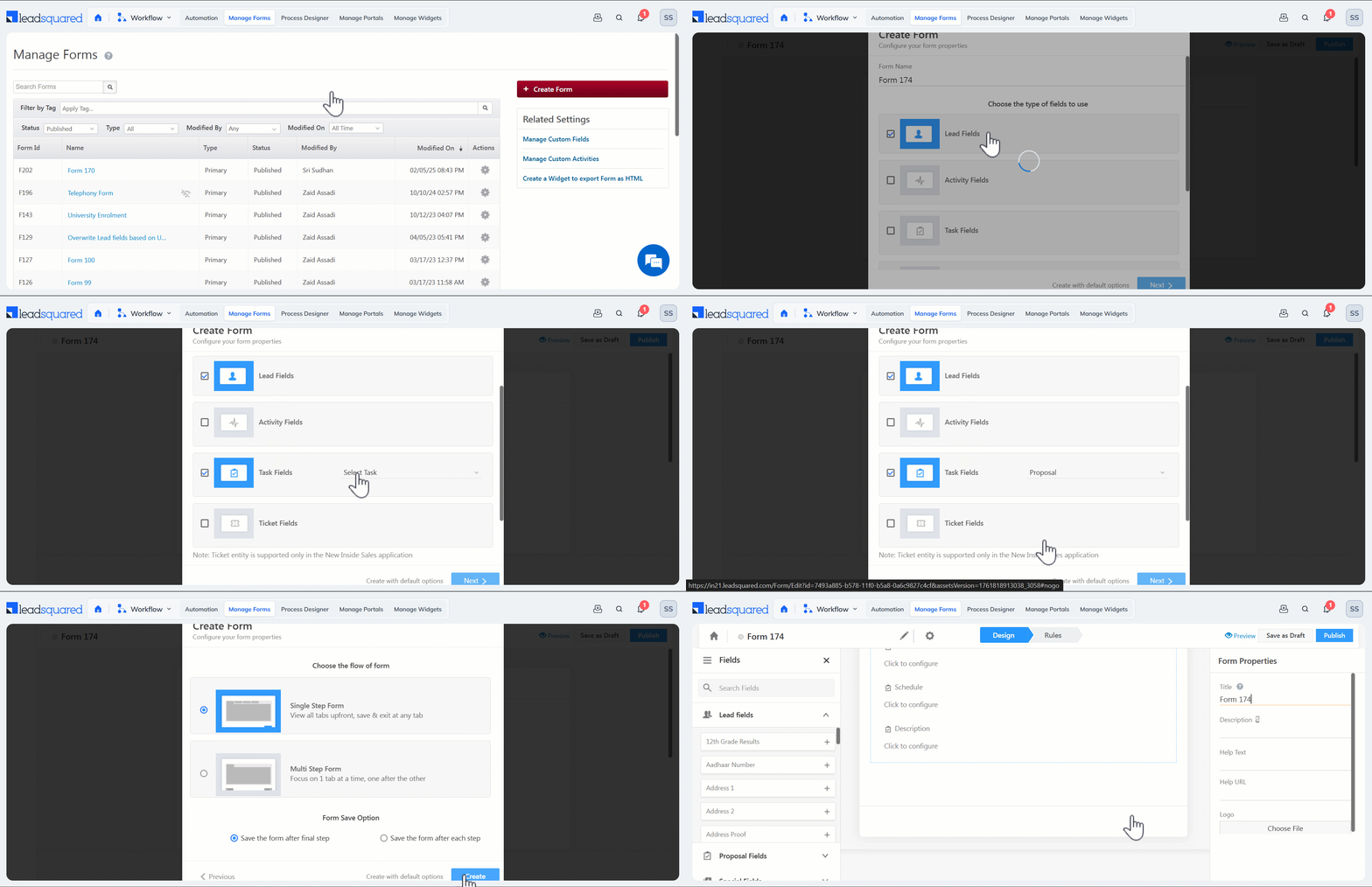
Forms let you capture lead, opportunity, activity, and task data through a single, customizable interface. You can also configure them to automatically create tasks, including appointments and to-dos.
For example, when a lead submits a loan application form, the form can automatically create a follow-up call task for the assigned user to contact the applicant within seven days. To know more, refer to Add Tasks to a Form.
9. Custom Task Actions Connector
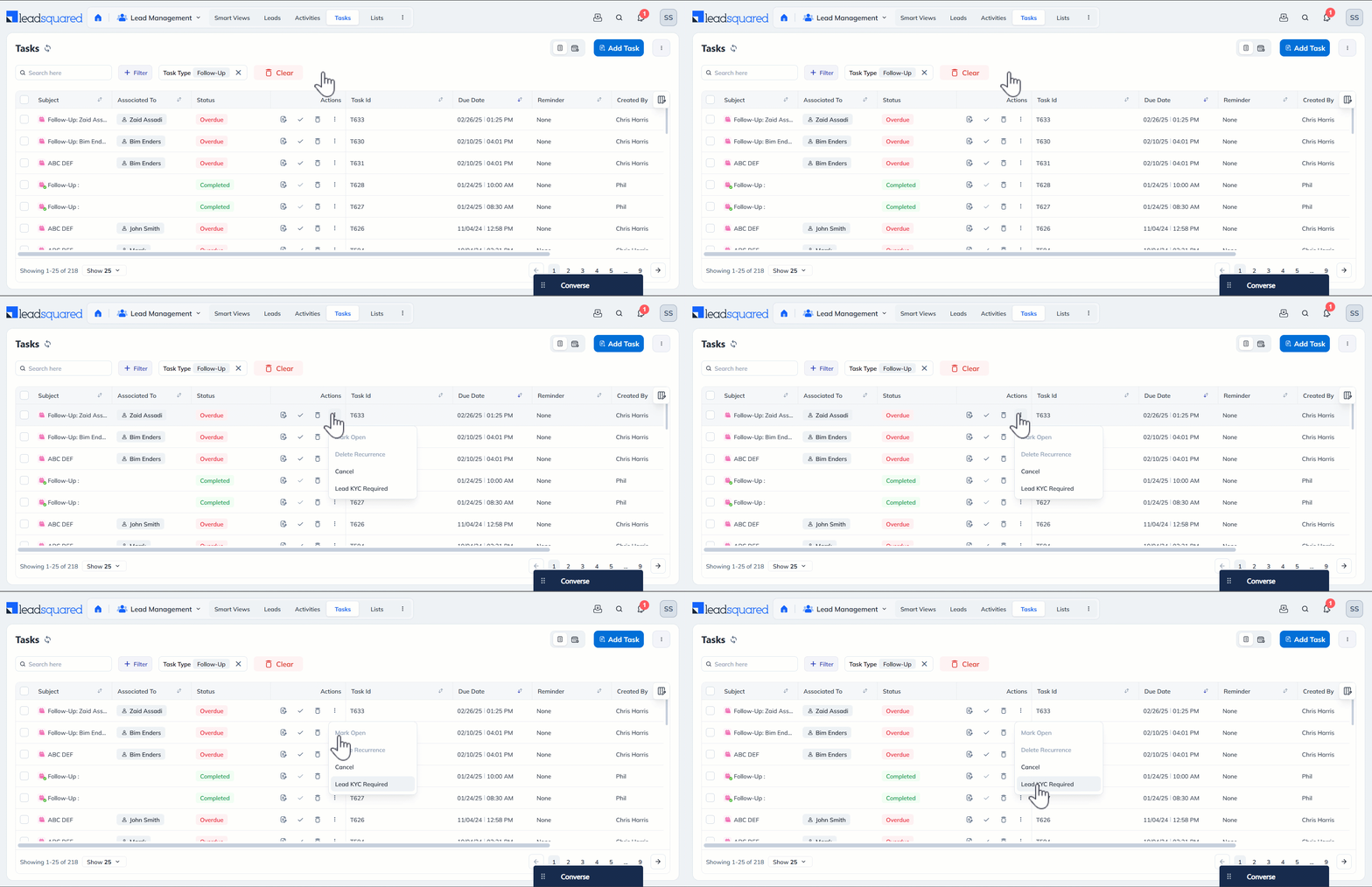
In addition to task types, the Custom Task Actions connector lets you create custom actions linked to existing tasks. You can use it to post task data to other tools, send notifications to task owners, or open lead-related details from external applications. To know more, refer to Custom Task Actions Connector.
10. Export Tasks
Export tasks from LeadSquared directly from the Tasks page in an Excel file. This makes it easy to analyse data, share updates, and track your users’ performance offline. To know more, refer to Export Tasks out of LeadSquared.
Any Questions?
Did you find this article helpful? Please let us know any feedback you may have in the comments section below. We’d love to hear from you and help you out!